

TL;DR:
Is factory reset enough before selling an iPhone? Apple's built-in factory reset is generally sufficient to protect your personal data, but if you want extra protection against data recovery, iReaShare iPhone Data Eraser offers a more thorough wiping option. Here's what you need to know:
- Before Selling: Back up your data, transfer important files, unpair your Apple Watch, sign out of your Apple Account, and disable Find My.
- Factory Reset: Quickly removes personal data, apps, accounts, and settings from your iPhone.
- iReaShare iPhone Data Eraser: Offers three security levels and data overwriting to make erased data extremely difficult to recover.
Use Apple's factory reset for ordinary resale or choose iReaShare for additional data-erasing protection and greater control over the wiping process.
Selling or giving away your old iPhone? Before handing it to someone else, you probably want to make sure your personal information, photos, messages, passwords, and financial data are completely removed. But is factory reset enough before selling an iPhone, or do you need an additional iPhone eraser tool?
In this guide, we'll explain what a factory reset actually does, how to properly wipe an iPhone before selling it, and how to use a data eraser tool for additional protection.
- Part 1. Is Factory Reset Enough Before Selling an iPhone?
- Part 2. What to Do Before Selling an iPhone?
- Part 3. How to Properly Factory Reset an iPhone Before Selling It?
- Part 4. How to Permanently Wipe an iPhone Before Selling [Unrecoverable]
- Part 5. Factory Reset vs. iReaShare iPhone Data Eraser: Which Is Better?
- Part 6. FAQs About Factory Resetting iPhone Before Selling
Part 1. Is Factory Reset Enough Before Selling an iPhone?
Yes. For most users, a factory reset is generally sufficient to protect personal data, provided you use Apple's official Erase All Content and Settings option rather than simply deleting files or resetting individual settings. The built-in Erase All Content and Settings feature removes personal information, settings, and apps from your iPhone, returning it to its initial setup state.
However, if your iPhone contains sensitive information, such as private photos, work documents, personal messages, or account details, you may want to consider additional protection measures.
What Does a Factory Reset Remove from an iPhone?
When you choose Erase All Content and Settings, the following information is removed from the device:
- Personal files: Photos, videos, downloaded documents, and other locally stored files.
- Messages and contacts: Locally stored conversations, contacts, and call history.
- Installed apps: Third-party applications and their locally stored data.
- Accounts: Apple Account information and other accounts configured on the device.
- Passwords and settings: Saved Wi-Fi networks, device preferences, and customized configurations.
- Apple Pay information: Payment cards and related information stored on the device.
The iPhone returns to its initial setup screen, allowing the next owner to configure it with their own Apple Account.
Part 2. What to Do Before Selling an iPhone?
Before performing a factory reset, take a few minutes to prepare your iPhone. This helps prevent data loss, account access problems, and activation issues for the next owner. Here is a checklist of what to do before selling your iPhone.
1. Back Up Your iPhone Data
First, save anything you want to keep. Once you erase your iPhone, you won't be able to access its locally stored data through the device. You can back up your iPhone using:
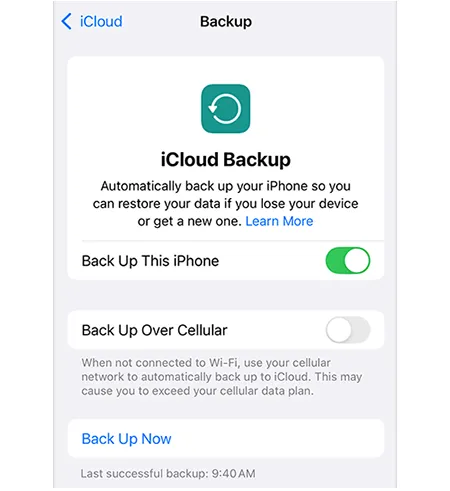
- iCloud: Go to "Settings" > [your name] > "iCloud" > "iCloud Backup" > "Back Up Now".
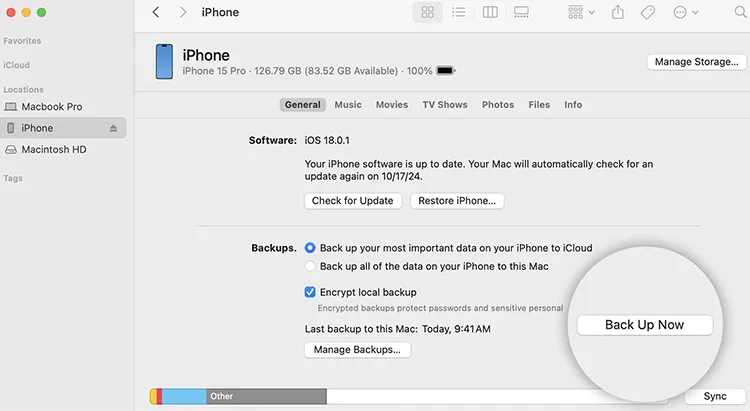
- Mac: Connect your iPhone to your Mac, open Finder, select your device, and click "Back Up Now".
- Windows PC: Connect your iPhone, open the Apple Devices app or iTunes, select your device, and choose "Back Up Now".
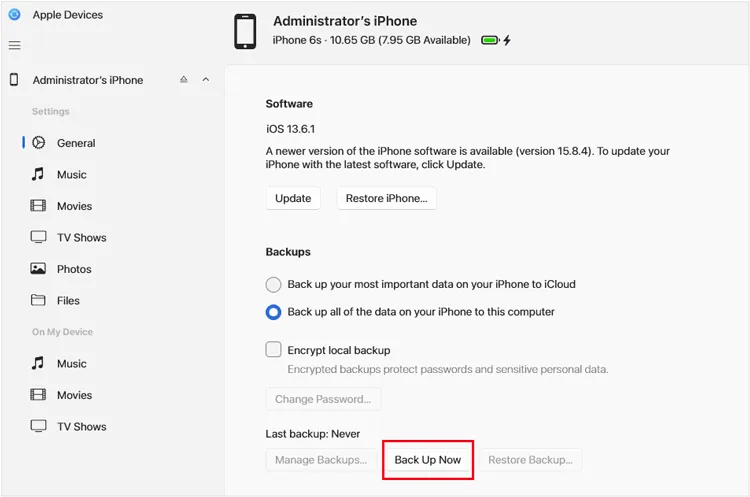
Make sure the backup finishes successfully before proceeding.
2. Transfer Your Data to a New iPhone
If you're upgrading to another iPhone, transfer your important information before wiping the old one. You can use Apple's Quick Start feature:
- Turn on your new iPhone and place it near your old iPhone.
- Make sure Bluetooth is enabled on the old device.
- Follow the on-screen instructions to connect the two devices.
- Choose to transfer your data directly or download it from iCloud.
- Wait until the transfer is complete.
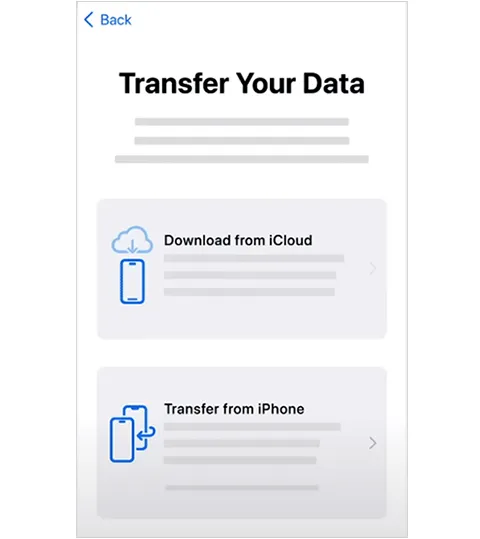
Check your photos, contacts, messages, notes, and other important information on the new device.
3. Unpair Your Apple Watch
If your Apple Watch is paired with the iPhone you're selling, unpair it first.
- Open the Watch app on your iPhone.
- Go to "My Watch" > "All Watches".
- Tap the information button next to your Apple Watch.
- Select "Unpair Apple Watch".
- Follow the instructions to complete the process.
Unpairing your Apple Watch also creates a backup of its data and removes the Activation Lock associated with the watch.
4. Sign Out of Your Apple Account and Disable Find My
Your iPhone should no longer be associated with your personal Apple Account when you hand it over to a new owner. To sign out:
- Open "Settings" on your iPhone.
- Tap your name at the top.
- Scroll down and select "Sign Out".
- Enter your Apple Account password if requested.
- Follow the on-screen instructions.

Signing out also helps remove the association with Find My and Activation Lock when the process is completed properly.
Do not manually delete your photos, contacts, or other iCloud-synced information before signing out. Doing so may also remove those items from iCloud and your other connected Apple devices.
5. Remove Your SIM Card and Check Your eSIM
If your iPhone uses a physical SIM card, remove it before selling the device.
For an eSIM, make sure your cellular plan has been transferred to your new phone or handled by your carrier. When you perform the factory reset, choose the option to erase the eSIM profile if you are transferring the phone to another owner.
Deleting an eSIM profile does not automatically cancel your cellular subscription. Contact your carrier if you need to manage the service.
6. Deregister iMessage if Switching to Android
If you're moving from an iPhone to an Android phone, deregister iMessage to ensure you can receive text messages correctly on your new device. You can turn off iMessage before selling your iPhone:
- Open "Settings".
- Scroll down and tap "Apps" > "Messages" (the menu location may vary by iOS version).
- Turn off "iMessage".
- Also turn off FaceTime if necessary.
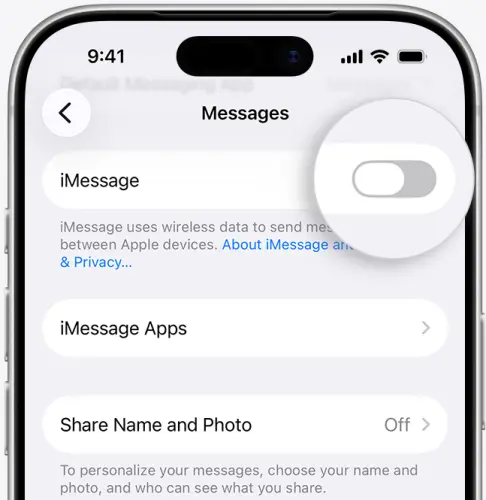
If you no longer have your iPhone, you can use Apple's online iMessage deregistration service.
7. Check Your AppleCare Plan and Trusted Devices
Before completing the sale, review any remaining AppleCare coverage. You may be able to transfer the plan to the new owner or cancel it, depending on the plan's terms.
You should also check your Apple Account's device list and remove the old iPhone if it is still listed after erasing it.
Part 3. How to Properly Factory Reset an iPhone Before Selling It?
After backing up your data and completing the preparation steps, you can factory reset your iPhone using Apple's built-in feature. This is the recommended method for most iPhone owners because it removes personal content and settings without requiring additional software.
Here is a step-by-step guide to factory reset an iPhone:
Step 1. Open the "Settings" app on your iPhone.
Step 2. Go to "General" > "Transfer or Reset iPhone".
Step 3. Tap "Erase All Content and Settings".
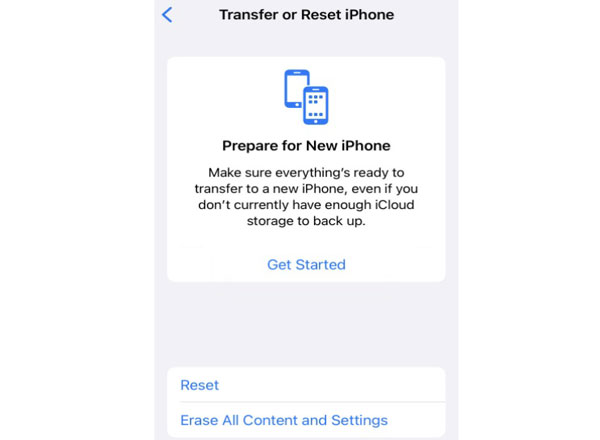
Step 4. Review the information displayed on the screen and tap "Continue".
Step 5. Enter your iPhone passcode and Apple Account password if requested.
Step 6. If your iPhone uses an eSIM, choose whether to erase the eSIM profile. If you're selling the device, select the option to erase it after confirming that your cellular service has been transferred or handled.
Step 7. Confirm the operation and wait for your iPhone to erase its data.
Once the process finishes, your iPhone will restart and display the Hello screen.
How to Confirm That Your iPhone Has Been Successfully Erased
After the reset, check the following:
- The iPhone displays the Hello screen instead of your previous home screen.
- Your personal photos, messages, apps, and other content are no longer accessible.
- Your Apple Account is no longer associated with the device.
- Find My and Activation Lock have been turned off.
- Your SIM card has been removed, and your eSIM profile has been handled appropriately.
Once the Hello screen appears, don't continue setting up the iPhone with your personal Apple Account. Leave it at the initial setup screen so the new owner can configure it.
If the device still asks for your Apple Account during activation, check whether Activation Lock has been removed before completing the sale.
Part 4. How to Permanently Wipe an iPhone Before Selling [Unrecoverable]
If you're selling your iPhone and want to make sure your personal information cannot be recovered, a standard factory reset may not be enough. For additional peace of mind, you can use iReaShare iPhone Data Eraser to permanently erase existing and deleted iOS data through its data-overwriting process.
Unlike simply deleting files or uninstalling apps, iReaShare is designed to overwrite data, making the erased information extremely difficult to recover using conventional data recovery software. It offers three erasing levels, allowing you to choose the level of data erasure according to your security requirements.
Key features of iReaShare iPhone Data Eraser:
- Erase iOS data, including contacts, messages, call history, photos, videos, music, camera roll, and installed apps.
- Overwrite existing and deleted data to make it more difficult to recover.
- Offer three erasing levels—Low, Medium, and High—to meet different security requirements.
- Free up storage space on iPhone and other iOS devices, including iPhone Duo, 18 Pro Max, and 18 Pro.
- Support a wide range of iOS versions, including iOS 27.
Download for Win Download for Mac
How do I completely wipe an iPhone so I can sell it?
-
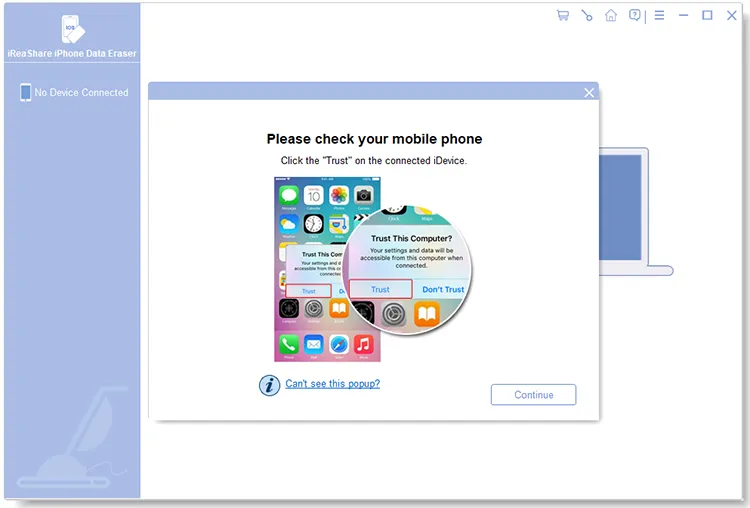
Download and install iReaShare iPhone Data Eraser on your Windows PC or Mac. Launch the program and connect your iPhone using an original Apple USB cable. Unlock your device, tap "Trust" when prompted, and click "Continue" in the software.
-
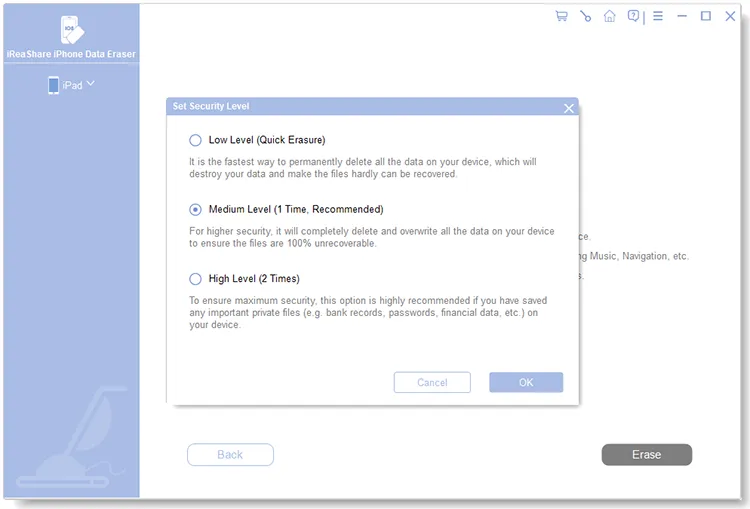
Click "Erase" on the main screen and choose one of three security levels: "Low", "Medium", or "High". Click "OK" to confirm.
-
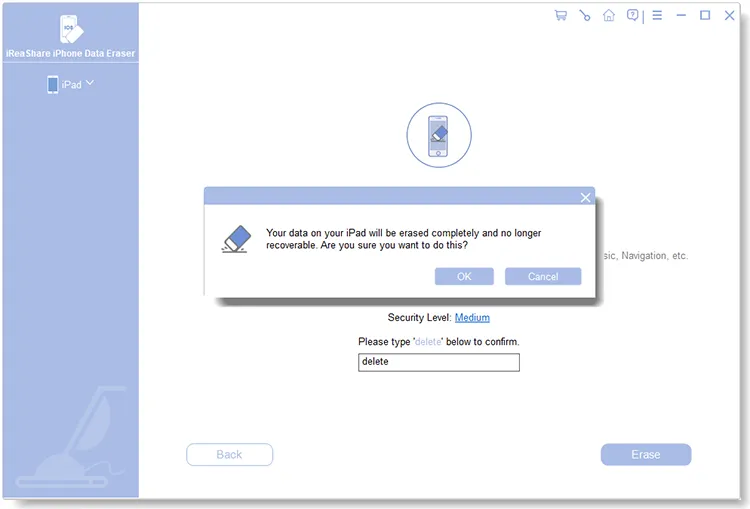
Type "delete" in the confirmation box and click "Erase" to start the process.
-
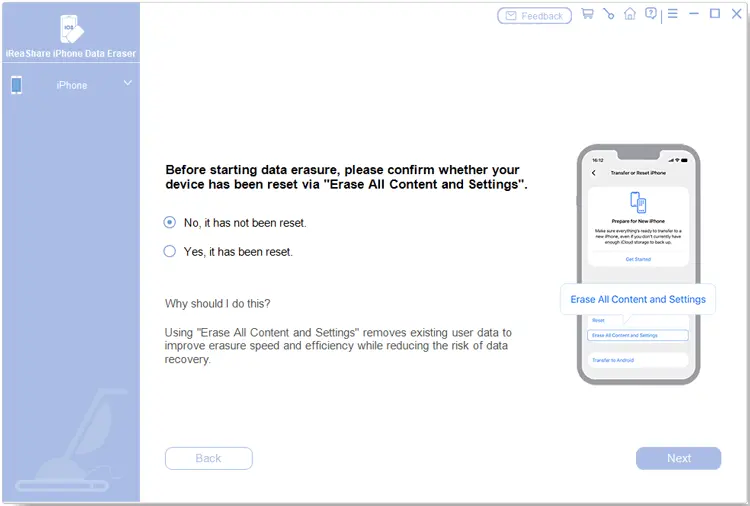
For maximum security, reset your device using Erase All Content and Settings before proceeding. The tool will then overwrite device memory to prevent data recovery.
-
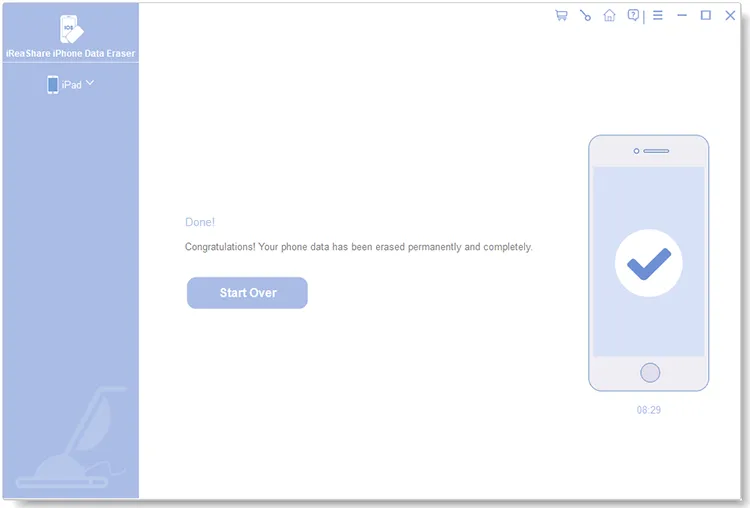
Once complete, all data will be permanently erased. Click "Save Report" to export an erasure log containing device information, security level, overwrite passes, and final status.
Here is a video guide:
Part 5. Factory Reset vs. iReaShare iPhone Data Eraser: Which Is Better?
Both Apple's factory reset and iReaShare iPhone Data Eraser can help remove personal information before selling an iPhone. However, they use different approaches and serve slightly different needs. Here is a quick comparison:
| Comparison | Factory Reset | iReaShare iPhone Data Eraser |
|---|---|---|
| Ease of use | Very easy, built into iPhone settings | Easy to use with a computer |
| Remove personal data | Yes | Yes |
| Erase deleted data | Makes encrypted data inaccessible | Supports overwriting existing and deleted data |
| Requires extra software | No | Yes |
| Erasing control | One built-in erasing process | Offers Low, Medium, and High erasing levels |
| Data recovery protection | Encryption-key destruction | Additional data-overwriting protection |
| Best for | Basic device reset and ordinary resale | Selling, donating, or giving away an iPhone with additional erasing precautions |
| Privacy protection | Strong protection on modern encrypted iPhones | Additional protection through data overwriting |
Which One Should You Choose Before Selling an iPhone?
If you simply want to remove your personal information before selling your iPhone, Apple's built-in factory reset is generally sufficient. It is free, convenient, and makes previously encrypted data inaccessible.
However, if you want additional protection against data recovery, iReaShare iPhone Data Eraser is worth considering. It offers three erasing levels and an additional data-overwriting process designed to make erased information extremely difficult to recover using conventional recovery tools.
For users who prioritize extra data-erasing measures and want greater control over the wiping process, iReaShare iPhone Data Eraser is the recommended option.
Part 6. FAQs About Factory Resetting iPhone Before Selling
Q1. Does factory reset remove everything from iCloud?
No. A factory reset erases data stored locally on your device, but it does not automatically delete photos, contacts, notes, or other synced content saved in iCloud.
Q2. Can I sell my iPhone if I forgot my Apple Account password?
Selling your iPhone without your Apple Account password can be difficult because Activation Lock may keep the device linked to your account.
Before selling it, recover your Apple Account access and remove the device from your account to ensure the new owner can activate it.
Q3. How long does it take to erase an iPhone before selling?
The time required depends on your iPhone model, storage capacity, and erasing method. A standard factory reset usually takes only a few minutes.
A more thorough data-wiping process may take longer because it involves additional data-erasing steps.
Conclusion
So, is factory reset enough before selling an iPhone? Yes, Apple's built-in factory reset is generally sufficient to protect your personal information on modern encrypted iPhones. However, if you want additional protection against data recovery, iReaShare iPhone Data Eraser is worth considering. With three security levels and an additional data-overwriting process, it helps permanently erase existing and deleted iOS data, making it extremely difficult to recover using conventional recovery tools.
If data privacy is your top priority when selling, donating, or giving away your old iPhone, iReaShare provides an extra layer of data-erasing protection and greater control over the wiping process.
Download for Win Download for Mac
Related Articles
Erase iPhone Data for Selling: Remove Your Data Permanently
Does Reset iPhone Delete Everything? Answer It in Detail
What to Do with Old iPhone: Recycle or Repurpose It Securely
How to Delete Everything on iPhone Effectively in 4 Ways (Secure Guide)