


"How do I transfer my contacts to my new phone? Hello, good day to everyone. I will change my cell phone, I will go from an iPhone to an Android phone. Is it possible to transfer my contacts and chat history? And if so... how do I do it? Can someone help me with that please."
- From Reddit
When upgrading to a new phone, one of the most important things you'll want to transfer is your contacts. If you want to know how to transfer contacts to a new phone easily, including Android and iOS devices, read through this guide. We've offered 5 methods with their correct steps.
- Part 1: How to Transfer Contacts to New Phone via iReaShare Phone Transfer
- Part 2: How to Move Contacts to New Phone with Google Account
- Part 3: How to Transfer Phone Numbers to New Phone with iCloud
- Part 4: How to Copy Contacts to New Phone with SIM Card
- Part 5: How to Transfer My Contacts to My New Phone via Quick Share
- Part 6: FAQs About Transferring Contacts to New Phone
Take a quick look at these 5 methods:
| Method | Pros | Cons |
|---|---|---|
| 1. iReaShare Phone Transfer | 1. Ideal for moving contacts between iOS and Android. 2. Transfers more data fields (photos, videos, documents, etc.). 3. Transfers contacts directly without relying on cloud services. 4. Support data bulk transfer. 5. USB and Wi-Fi connections are available. |
1. Requires a computer and software installation. 2. Requires purchasing a license for full features. 3. The Wi-Fi connection only works for Android to Android transfer. |
| 2. Google Account | 1. Works across Android and is easily integrated with iOS. 2. Contacts are automatically synced in the cloud. 3. A built-in, no-cost service. |
1. Requires adding and syncing a Google account on both devices. 2. Contacts are stored on Google's servers. |
| 3. iCloud | 1. Simplest and most comprehensive for iPhone to iPhone transfers. 2. Built directly into the Apple ecosystem. 3. Can restore all device data, not just contacts. |
1. Only works efficiently between Apple devices. 2. Requires sufficient iCloud storage space for backups. |
| 4. SIM Card | 1. Requires no internet or special software. 2. Very straightforward process. 3. Works with virtually any mobile phone. |
1. Can only store a small number of contacts. 2. Usually only transfers name and one primary number. 3. Must be done manually contact by contact on some older phones. |
| 5. Quick Share | 1. Uses local Wi-Fi/Bluetooth for rapid transfer. 2. Purely phone-to-phone transfer. 3. Built-in Android feature. |
1. Both phones must be physically close. 2. Primarily an Android/Samsung feature. 3. Requires manually importing the shared file after transfer. |
Part 1: How to Transfer Contacts to New Phone via iReaShare Phone Transfer
iReaShare Phone Transfer is a powerful tool designed to make transferring data between phones easy. This software allows you to transfer contacts, photos, music, and more from one device to another in just a few steps. Thus, you won't lose your contacts whether you switch from iPhone to iPhone, iPhone to Android, etc.
Main features of iReaShare Phone Transfer:
* Directly copy contacts from an old phone to a new phone without data loss.
* Transfer contacts from iPhone to Android and vice versa.
* Transfer call logs, contacts, text messages, photos, videos, music, and apps from Android to Android.
* Also support data transfer from iOS to iOS, iOS to Android, and vice versa.
* Work for iPhone 17 Pro Max/17 Pro/17/Air, iPhone 16/15/14/13/12/11/X/8/7, OnePlus 15/13/12/11/10/9/8/7, Google Pixel 10/9/8/7/6/5/4, Motorola Edge 70/Edge 60/Edge 50, TCL, Tecno, Vivo, Honor, Infinix, realme, itel, and more.
* Support iOS 5.0 or later, and Android 6.0 or upper.
Download iReaShare Phone Transfer.
Download for Win Download for Mac
Here's how to import contacts from an old phone to a new phone directly:
-
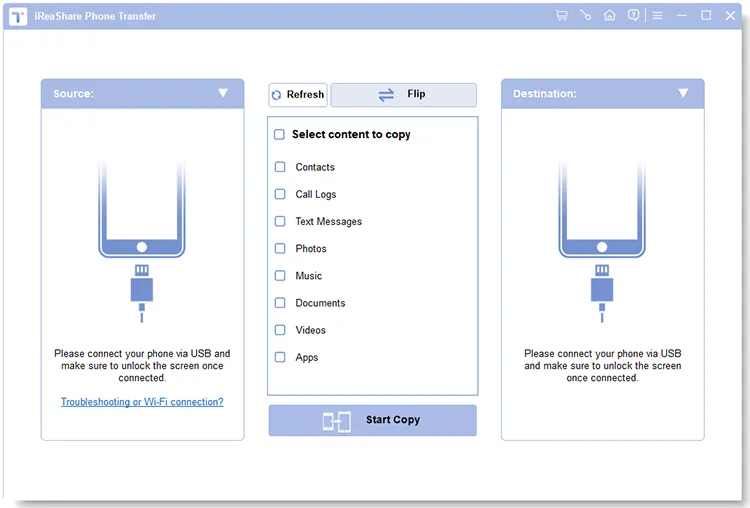
Start by downloading the iReaShare Phone Transfer software on your computer. Then install and launch it.
-
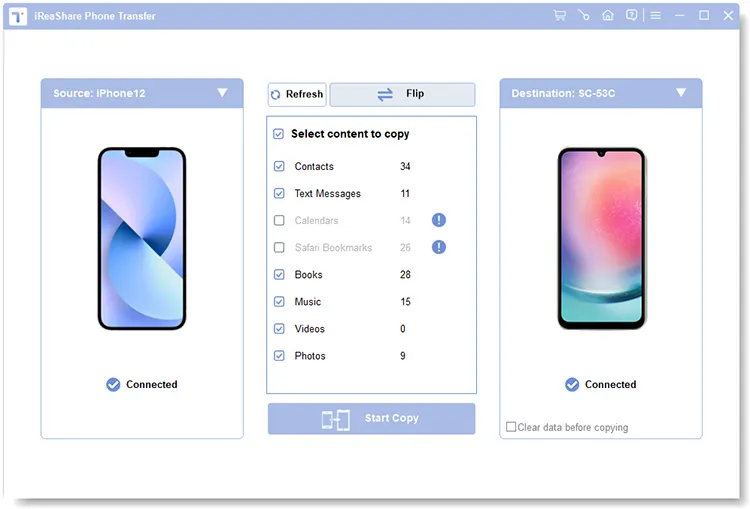
Connect your old phone and new phone to the computer with USB cables. For Android, follow the guide on the screen to enable USB debugging. For iOS, click "Trust" on the device. The connection will be done. Then make sure your new phone is the "Destination" device, or click "Flip".
-
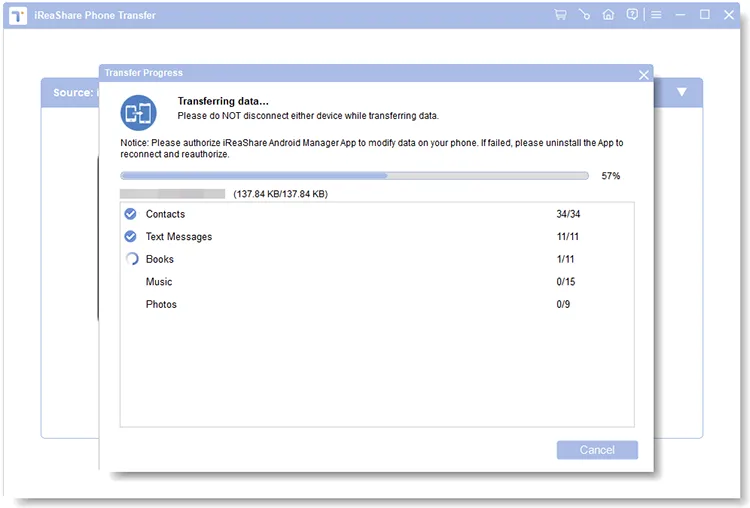
Now, check the "Contacts" option, and click "Start Copy" to start transferring contacts to your new device. Once completed, you can access your contacts on your new phone directly.
Part 2: How to Move Contacts to New Phone with Google Account
Using a Google Account is one of the easiest and most versatile ways to move contacts, particularly for Android devices, but it also works for syncing contacts from an iPhone.
Here's how to sync contacts to a new phone with a Google Account:
-
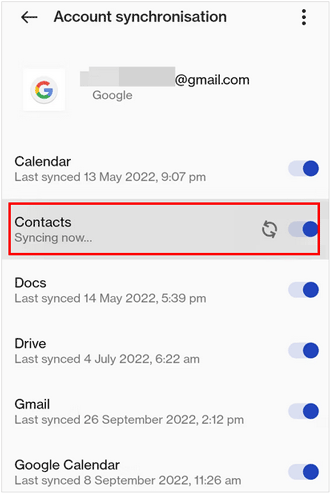
On your old Android phone, go to Settings > "Accounts", and select your Google Account or click "Add account". Ensure "Contacts" synchronization is turned "ON" and tap "Sync now". If the old phone is iPhone, please go to Settings > "Contacts" > "Accounts" > "Add Account" to input the account. Then turn on the "Contacts" option.
-
Once synced, please add the same Google Account to your new phone.
-
Make sure the network is stable. After a while, your contacts will appear on your new phone automatically.
Part 3: How to Transfer Phone Numbers to New Phone with iCloud
If your old device is an iPhone and the new phone is Android, you can use iCloud to export your contacts and save them as a VCF file. Before that, please make sure there is adequate cloud storage space on your iCloud account.
Here's how to move phone numbers to a new phone with iCloud:
-
On your old iPhone, please open the Settings app, and click "[Your Name]" > "iCloud" > "iCloud Backup".
-
Ensure "Contacts" is toggled "ON" under the main iCloud menu. Then tap "Back Up Now" to create the most recent backup.
-
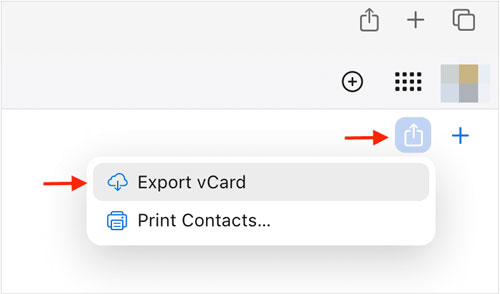
Next, access the iCloud website on your computer, and sign in with your Apple account. Choose "Contacts", then click the arrow icon at the top right, and choose "Export vCard".
-
After that, connect your new Android phone to the computer with a USB cable, and drag and drop the VCF file to the Android device.
-
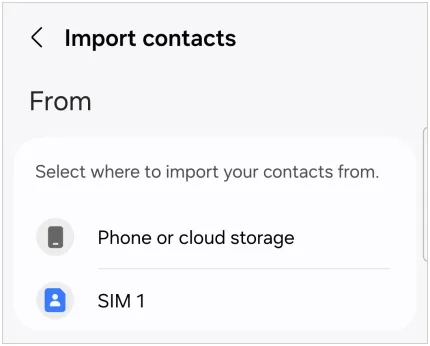
Go to the Contacts app on Android, and choose "Manage contacts" > "Import contacts" > "Phone or cloud storage" > "Internal storage". Navigate to the VCF file, select it. Finally, click "Import". The iPhone contacts will be imported to the new Android phone.
Part 4: How to Copy Contacts to New Phone with SIM Card
The SIM card method is a classic, low-tech way to transfer contacts, though it has limitations on capacity and the amount of data transferred (it usually only stores the name and one number). This method is primarily useful when switching from a very old phone or when cloud services are not an option.
Here are the steps:
-
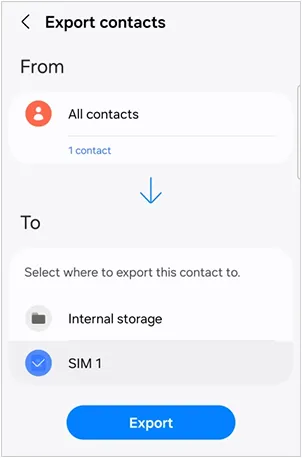
On your old phone, go to the Contacts app settings. Then look for an option like "Import/Export" or "Manage contacts", and select "Export contacts" > "SIM" > "Export".
-
Now, remove the SIM card safely from your old phone with a paperclip or card ejector pin. Then insert the SIM card into your new phone.
-
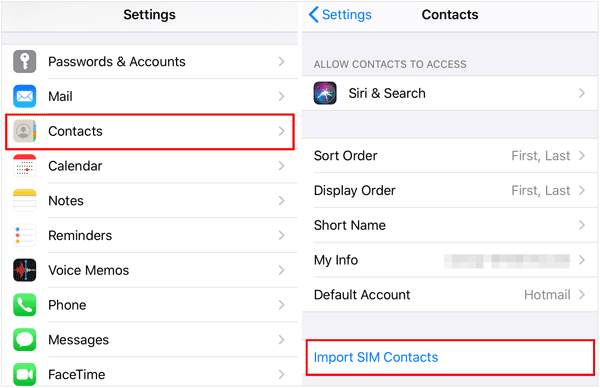
On your new phone, go to the Contacts app settings. Select "Import/Export" or "Import contacts" > "Import from SIM card". The contacts stored on the card will be copied to your new phone's internal memory. If your new device is an iPhone, plese go to Settings > "Contacts" > "Import SIM Contacts".
Part 5: How to Transfer My Contacts to My New Phone via Quick Share
Now Quick Share is also the bridge between iPhone and some Android devices, so you can send your contacts from an iPhone/Android phone to another Android phone with AirDrop and Quick Share.
Here's how to send contacts to a new Android phone with Quick Share:
-
On both phones, please enable the "Quick Share" feature (or "AirDrop" on iPhone) . Then choose "Contacts only" or "Everyone".
-
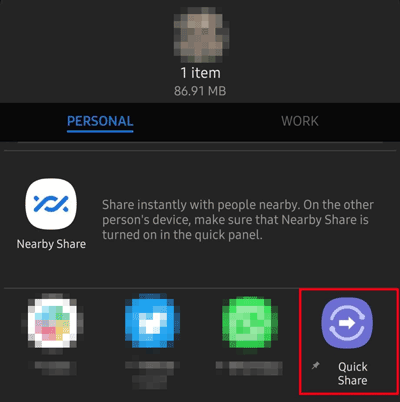
Next, go to the Contacts app, and select the contacts you want to send. Then click the menu icon > "Share" and select "Quick Share" (opt for "AirDrop" on iPhone).
-
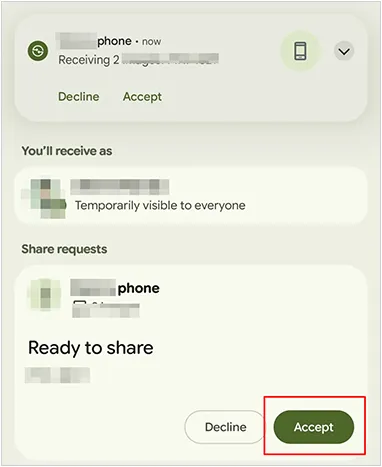
As you see your new phone on the list of detected devices. Click it. A notification will pop up on the new phone asking to accept the incoming contacts. Tap "Accept".
-
The new phone will receive the contacts, typically as a VCF file, and prompt you to import them into your Contacts app. Confirm the import to finalize the transfer.
Part 6: FAQs About Transferring Contacts to New Phone
Q1: Can I transfer contacts from an old iPhone to a new Android phone?
Yes, you can transfer contacts from an iPhone to an Android phone with iReaShare Phone Transfer. This software supports most Android and iOS devices, so you can directly transfer your data. Besides, you can use iCloud, syncing contacts to iCloud, and export contacts from iCloud to your computer, and then import your Android phone. Also, using a SIM card is effective.
Q2: Will I lose some information about my contacts when transferring?
You generally should not lose your essential contact information (names, phone numbers, email addresses, or even groups) when transferring to a new phone, provided you use the proper transfer method. The methods above can transfer contacts with the essential info.
Q3: What do I do if my contacts aren't showing up on the new phone after transfer?
Try the following steps:
- Make sure the contact syncing feature is enabled in the phone's settings.
- Restart your phone to ensure the sync completes.
- If using Google or iCloud, check that you're signed into the correct account.
- For Android phones, check the contacts app's settings to make sure all accounts are set to sync.
Conclusion
It doesn't have to be a complicated task to transfer contacts to a new phone. If you are performing a cross-platform migration (iOS to Android), dedicated tools like iReaShare Phone Transfer can save significant time. This tool works for most Android and iOS devices, and copies data directly and seamlessly.
You can also rely on cloud services like Google Account and iCloud, use your SIM card for a quick transfer, etc. Select the method that best fits your needs and enjoy a smooth transition to your new device, with all your contacts safely in place.
Download for Win Download for Mac
Related Articles
How to Export Outlook Contacts to Excel Without Effort (5 Solutions)
How to Transfer Contacts from iPhone to iPad Seamlessly (4 Ways)
Solved: How to Sync Contacts from iPhone to Mac with Ease
Samsung Contacts Backup: Easily Back Up Samsung Contacts via 5 Methods

