


TL;DR:
The best Android photo transfer app depends entirely on your immediate needs:
- For Speed & Wireless (Local P2P): Tools like LocalSend, Quick Share, and FlyingCarpet use direct Wi-Fi to beam uncompressed photos instantly without using internet data, but devices must be nearby.
- For Bulk Transfer & Backups (Desktop Software): Tools like iReaShare Phone Transfer, iReaShare Android Manager, and PhotoSync offer stable USB/Wi-Fi transfers with visual grid layouts to safely move entire libraries to your PC, though they require a computer setup.
- For Convenience & Remote Access (Cloud/Web): Tools like Google Drive, Dropbox, and PairDrop let you access photos anywhere worldwide and offer auto-backups, but they rely on internet speeds and have limited free storage.
Moving photos seamlessly across devices is a daily necessity. Whether you are switching from an Android device to an iPhone or iPad, sharing memories with a friend's tablet, or backing up high-resolution shots to your personal computer, relying on generic Bluetooth transfers can be frustratingly slow. Fortunately, a dedicated photo transfer app for Android offers a fast and seamless alternative. If you want one, don't miss this guide.
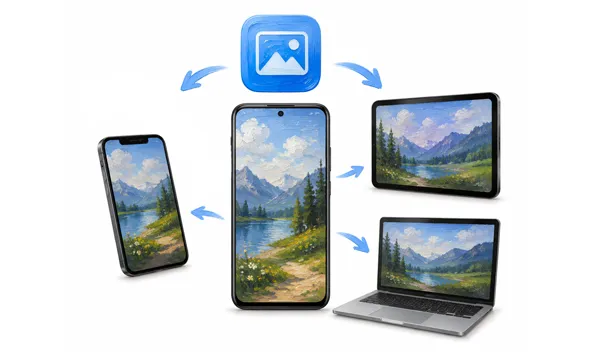
Part 1: 7 Photo Transfer Apps for Android to iPhone, iPad or Android
When you need to transfer photos from Android to iPad, iPhone or Android, these seven apps break down the barrier between Android and iOS/iPadOS with incredible ease.
1.1 Send Anywhere
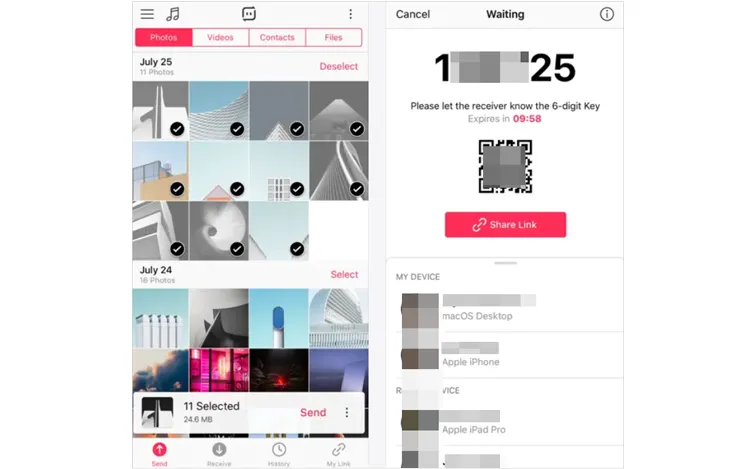
Send Anywhere is a veteran in the cross-platform file-sharing scene. It utilizes a simple 6-digit dynamic key system to establish a direct connection between devices.
Best for: Quick, ad-hoc sharing to anyone, anywhere in the world, without needing to sign up for an account.
- Transfers are not limited by local distance; you can send photos across different cities or countries.
- You can instantly upload and download photos using a temporary 6-digit key or a QR code without registration.
- Fully supports file transfers between Android, iOS, Windows, macOS, and web browsers.
- Easily handles large clusters of high-resolution images or complete albums in a single transfer session.
- Since files are routed through the cloud, your transfer speed is strictly bound to your internet connection.
- The free version contains frequent, intrusive advertisements that can degrade the user experience.
- Shared photo links and 6-digit codes expire after a short period unless you pay for a premium subscription.
How it works: You select your photos, hit "Send", and the app generates a temporary 6-digit code or a QR code. The receiving device simply inputs the code to download the original files.
1.2 Quick Share
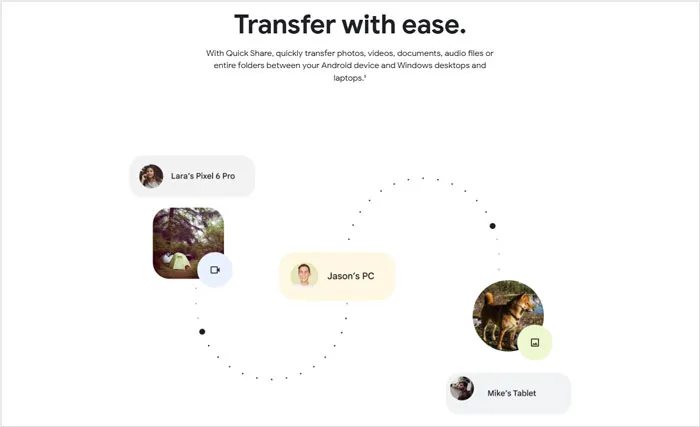
Formerly known as Nearby Share on Android and integrated with Samsung's ecosystem, Quick Share is Google's native wireless transfer protocol. While it is built natively into Android devices for rapid peer-to-peer sharing, Google has actively expanded its ecosystem.
Best for: Blazing-fast Android-to-Android or Android-to-Windows transfers within close physical proximity.
- eeply built into the Android OS, meaning zero third-party installations are required on your phone.
- Utilizes Wi-Fi Direct and Bluetooth peer-to-peer lanes, bypassing the internet for near-instant transfers.
- Can run smoothly in the background while you continue browsing other apps.
- Photos stay entirely localized between the two hardware devices, avoiding external cloud servers.
- Even though it is compatible with AirDrop on new iOS versions, it doesn't work on all iOS devices.
- Devices must remain physically close to each other (usually within a few meters) for the connection to hold.
- Performance and discovery speeds can fluctuate wildly between different Android manufacturers.
How it works: It uses a combination of Bluetooth Low Energy (BLE) and Wi-Fi Direct to automatically discover nearby devices and beam high-res photos instantly.
1.3 iReaShare Phone Transfer
iReaShare Phone Transfer is a robust desktop companion designed specifically for users transitioning to another smartphone or tablet, or performing massive data migrations. You can use it to transfer batches of photos from Android to Android or from iPhone/iPad to Android. It can also transfer videos, music, apps, documents, contacts, etc.
Best for: Bulk transfers during a phone upgrade without the risk of cellular data consumption or unexpected network drops.
- Specifically optimized for moving massive photo libraries all at once between Android devices or from iOS to Android.
- Transfers original, bit-for-bit file structures without compressing the resolution or stripping metadata.
- Supports physical USB connection and wireless Wi-Fi connection between Android devices.
- Can copy other media files like videos, songs, and documents from Android to Android and iOS to Android.
- Transfers information like text messages, contacts, call logs, etc as well.
- Compatible with Android 6.0 or later, and iOS 5.0 or higher.
- Most setups require a computer to act as the intermediary bridge between the two mobile phones.
- The full, unrestricted bulk-transfer capabilities require purchasing a software license.
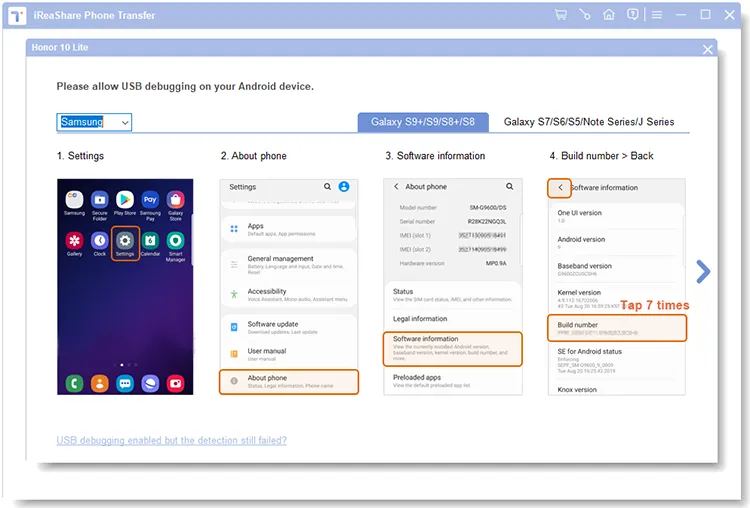
- Requires you to follow the on-screen guide to enable USB debugging on Android devices.
Download iReaShare Phone Transfer.
Download for Win Download for Mac
How it works:
-
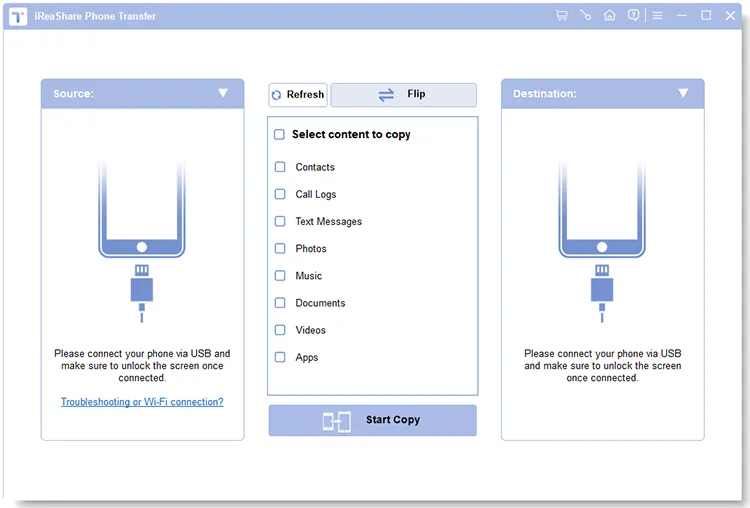
Download and install iReaShare Phone Transfer on your computer. Then launch the software.
-
By connecting both your source Android device and destination device (be it another Android, an iPhone, or an iPad) to a computer via USB. Enable USB debugging on Android, and make your iOS device "Trust" your computer.
-
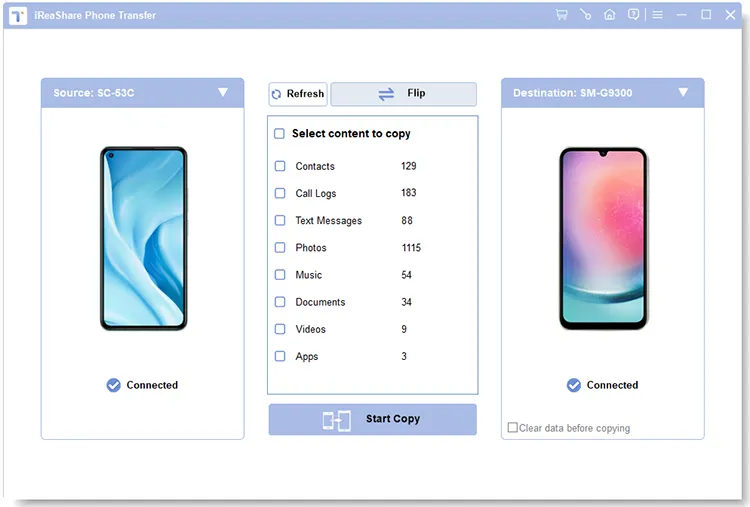
Once connected, check the "Photos" option, and click "Start Transfer". It allows you to copy your entire photo library smoothly at one go.
1.4 FlyingCarpet
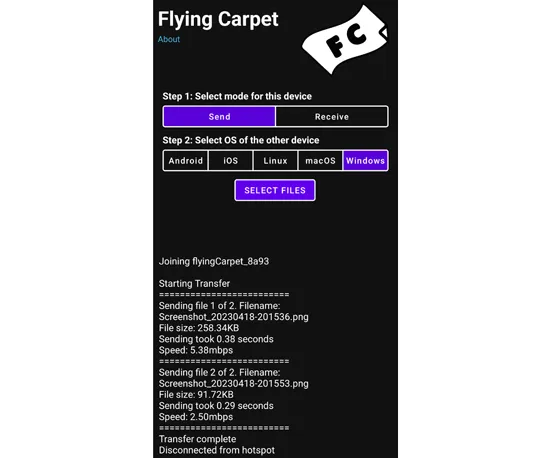
FlyingCarpet is a unique, open-source file transfer tool that shines in situations where you have absolutely no network infrastructure available. You can use it to transfer photos from Android to another phone or a computer.
Best for: Transferring large batches of photos in remote areas, airplanes, or anywhere without a local Wi-Fi network.
- Creates its own ad-hoc wireless connection between chips, requiring zero routers, internet, or cell towers.
- Entirely free of cost, tracking scripts, and advertisements.
- Moves entire photo folders while keeping your custom sorting and sub-directories perfectly intact.
- Total data privacy since your images are beamed directly from one radio chip to another.
- The user interface is utilitarian and requires following ordered pairing steps that might confuse casual users.
- Because it temporarily takes over your Wi-Fi chip to create a direct link, you will lose regular internet connectivity during the transfer.
- Ad-hoc connections can occasionally fail to initialize on strict mobile operating systems.
- The direct peer-to-peer radio connection puts a noticeable strain on your phone's battery during prolonged transfers.
How it works: It establishes a direct ad-hoc Wi-Fi connection between the two devices' wireless chips (and uses Bluetooth for pairing negotiation). It requires no internet, no shared local router, and no cellular data.
1.5 LocalSend
LocalSend has rapidly become a favorite among tech enthusiasts. It is an open-source, entirely free, cross-platform utility that requires zero internet connection.
Best for: Users looking for a private, ad-free, and community-driven alternative to mainstream tools.
- A completely clean, lightweight tool with no hidden monetization or annoying pop-ups.
- Automatically discovers any device running LocalSend on the same local Wi-Fi network.
- Operates entirely over your local area network (LAN), making it free to use regardless of file size.
- Works seamlessly across Android, iOS, Windows, macOS, and Linux.
- Both the sender and the receiver must be connected to the exact same Wi-Fi router.
- Cannot send photos if the receiving device is outside your immediate local network.
- Requires the app to be actively installed on both the sending and receiving devices to work.
- Certain public or corporate Wi-Fi setups with "AP Isolation" enabled will block the devices from seeing each other.
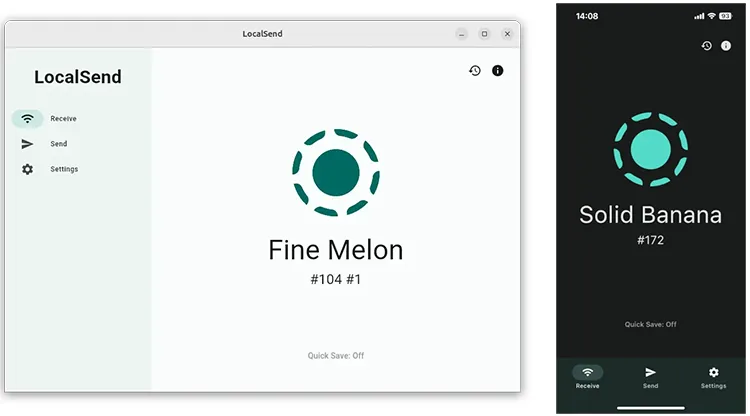
How it works: Operating completely within your local Wi-Fi network, it automatically detects other devices running LocalSend nearby. It assigns fun, fictional names to your devices, making local multi-device broadcasting as seamless as Apple's AirDrop.
1.6 PairDrop
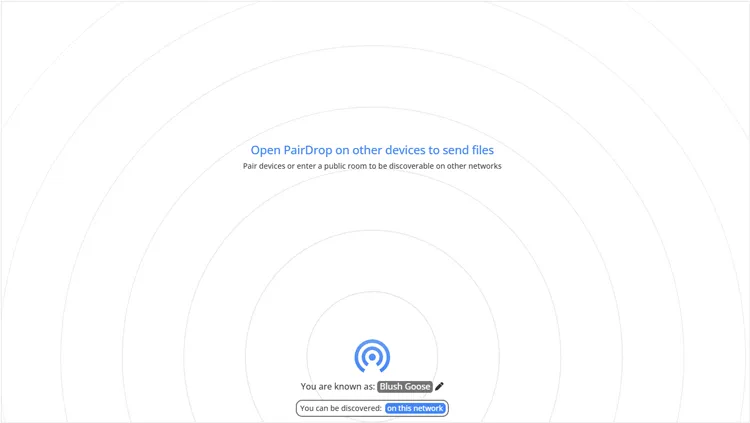
PairDrop is a modern web-based evolutionary step from the classic Snapdrop. What makes PairDrop special is that it does not require you to download an application from the app store.
Best for: One-time casual shares to a friend's iPhone when you don't want to make them install a dedicated app.
- Operates entirely inside modern mobile and desktop web browsers, saving device storage space.
- Excellent for sending photos to a friend's iPhone without forcing them to download a dedicated app.
- Extremely lightweight and fast to launch by simply navigating to a webpage.
- Uses secure web-based pairing codes to ensure you are connecting to the correct person nearby.
- While the file transfer happens locally, you still need an active internet connection to load the webpage initially.
- If your phone screen locks or the mobile browser tab refreshes, the entire file transfer crashes.
- Cannot run effectively in the background; the browser tab must stay open and active.
- Not ideal for moving massive, multi-gigabyte photo albums, as browser cache limits can cause failures.
How it works: Simply open pairdrop.net on both the sending Android phone and the receiving iPhone or iPad. As long as they are on the same Wi-Fi network, they will see each other instantly on the webpage interface.
1.7 Photon
Photon is an open-source, multi-threaded download manager designed to be lightweight, high-speed, and visually modern. It utilizes a powerful backend engine to support a wide range of downloading protocols, including HTTP/HTTPS, Magnet links, BitTorrent, and FTP. Featuring a clean, user-friendly graphical interface, it allows users to easily manage, pause, and speed up their downloads across various platforms.
Best for: Lightweight local sharing with an incredibly polished, straightforward user interface.
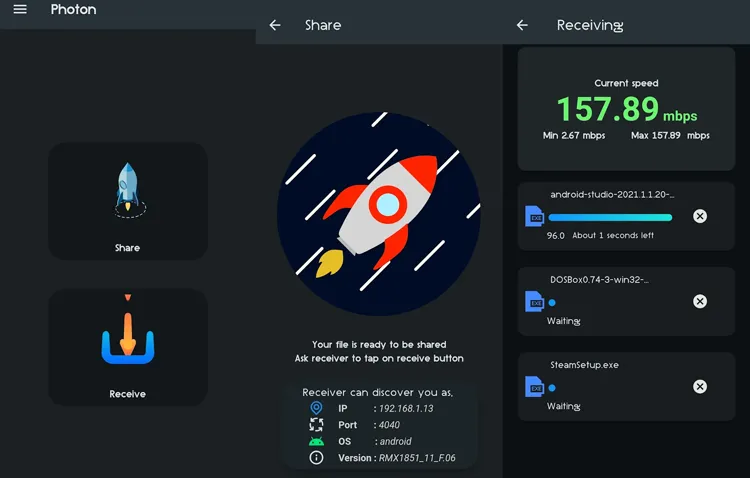
- Features a clean, highly aesthetic UI built on the Flutter framework that blends perfectly with Android.
- One of the few lightweight local tools that preserves entire sub-folder trees on the receiver's end.
- Can run seamlessly by spinning up a mobile hotspot, making router access unnecessary.
- Versions 3.0+ incorporate localized HTTPS and token-based validation to block unauthorized interceptors.
- Unlike similar local server apps, it lacks a seamless, universally accessible web-client interface for quick browser downloading.
- Being a newer open-source project, it lacks the massive community backing and frequent troubleshooting documentation of older apps.
- To move photos to a desktop, you must install the specific desktop client executable.
- Transfer speeds plummet significantly if your device is forced onto a congested 2.4GHz Wi-Fi band instead of 5GHz.
How it works: It generates a localized HTTP server within your local area network (LAN) to facilitate peer-to-peer sharing. The receiver can either use the Photon app or simply navigate to a specific local IP address using their device's standard browser.
Part 2: 5 Picture Sending Apps for Android to PC
Backing up memories to a computer or viewing mobile photography on a larger screen is effortless with these specialized Android photo transfer utilities from Android to PC.
2.1 PhotoSync
PhotoSync is arguably the most powerful automated backup tool specifically engineered for photography enthusiasts. It is a powerful tool for transferring photos from Android to Windows, macOS, NAS, and cloud services, and supports automatic backup and Wi-Fi transfer.
Best for: Set-and-forget automation, keeping your desktop photo folders completely synchronized with your phone's camera roll.
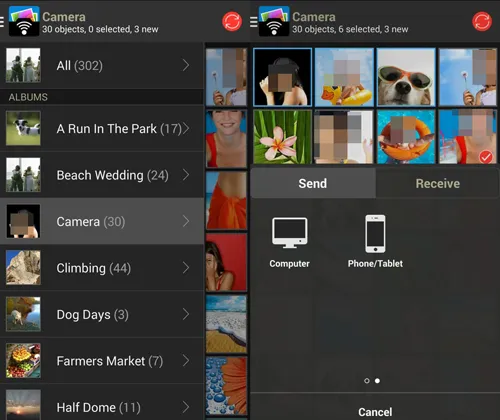
- Can automatically back up new photos to your PC based on triggers like time, location, or connecting to home Wi-Fi.
- Keeps all EXIF data, geo-tags, and raw photo formats completely untouched during desktop transfer.
- Can transfer photos directly to local PC folders, NAS devices, or personal SFTP storage setups.
- Reliably executes photo uploads in the background without requiring the app to be open on your screen.
- Many of the best automation features, raw photo support, and high-speed transfers require a premium upgrade.
- The advanced settings panel can be intimidating and overwhelming for non-technical users.
- Requires downloading a companion app on your computer for local automated syncing to function.
- Continuous location tracking or constant background Wi-Fi scanning for autotransfer can drain battery life.
How it works: It operates over Wi-Fi, cellular, or even via specialized background triggers. You can configure it to automatically upload new photos to your PC or Mac the exact moment you walk through your front door.
2.2 iReaShare Android Manager
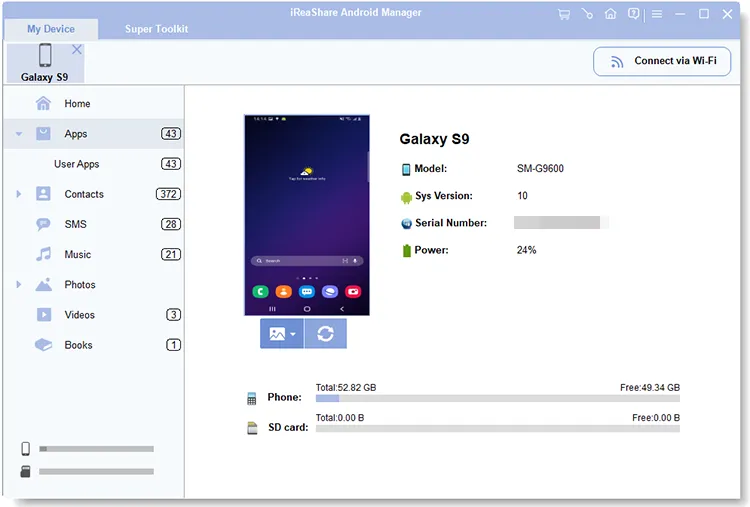
iReaShare Android Manager is a feature-rich desktop-based suite designed for organizing, transferring, and backing up Android data directly onto a computer. You can preview your pictures, videos, music, and more, and edit your contacts, send text messages on the computer, etc.
Best for: Deep media organization, mass data backups, and managing thousands of clustered smartphone pictures at a glance.
Download iReaShare Android Manager.
Download for Win Download for Mac
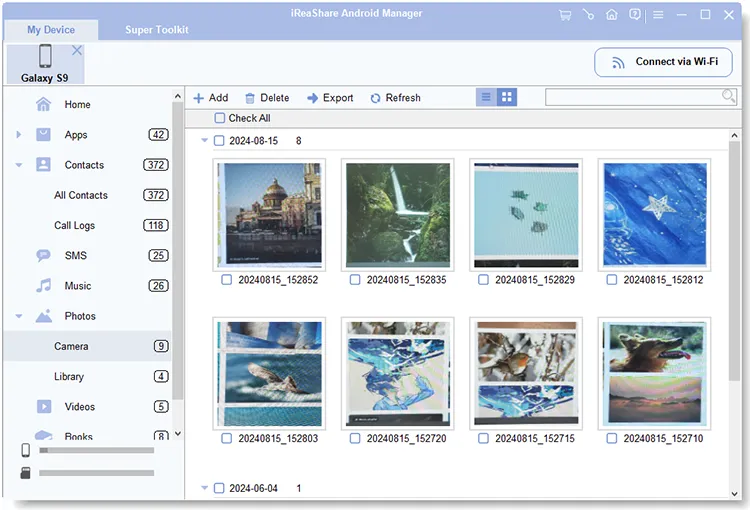
- Displays all mobile photos on a spacious desktop grid with clear thumbnails for effortless selection.
- Allows you to quickly check-box specific pictures, days, or albums to pull onto your PC hard drive.
- High-speed data transfer via USB cable ensures zero wireless dropouts or network lag.
- Wireless file transfer is also supported, as long as both devices use the same network.
- Not only extracts photos to your PC but also lets you delete, rename, or import images back to your Android phone.
- Can help you back up and restore various Android data on a computer.
- The software must be driven and managed entirely from the desktop side.
- The free trial limits the number of files you can move; a paid license is needed for heavy usage.
- Moving files via USB limits your physical mobility while the transfer is active.
How it works: You connect your phone via a stable USB cable or Wi-Fi. The computer interface displays highly scannable grid layouts and crystal-clear thumbnails of your phone's photo albums, allowing you to selectively export images to your PC without compressing resolution.
2.3 Dropbox
Dropbox remains a staple cloud storage giant that effectively bridges the gap between your mobile device and your hard drive on your computer.
Best for: Off-site cloud backup safety alongside instant local accessibility on your computer.

- Automatically uploads pictures to secure cloud servers, acting as a reliable emergency backup.
- The Dropbox desktop app creates a normal folder on your PC where photos appear automatically.
- You can view, download, or share your phone's photos from any computer browser worldwide.
- Keeps past versions or deleted photos available for recovery for a limited time.
- The basic free tier only gives you a very limited 2GB of space, which fills up incredibly fast with photos.
- Uploading massive 4K media blocks your home internet upload bandwidth, causing noticeable network lag.
- Upgrading to a viable storage tier requires an ongoing monthly or annual subscription fee.
- Your personal, private photos are stored on corporate, external servers rather than keeping them local.
How it works: When you turn on its "Camera Uploads" feature, any photo you capture on your Android device is quietly uploaded to your secure cloud locker. The Dropbox desktop client then seamlessly downloads those files directly into a designated sync folder on your PC.
2.4 Google Drive
As the default cloud storage mechanism integrated deeply into the Android ecosystem, Google Drive provides an instantly accessible avenue for transferring images.
Best for: Seamless ecosystem integration, especially if you already actively use Google Workspace apps.
- Built directly into the Android framework, linking effortlessly with your Google Photos and system share menus.
- Provides 15GB of free storage across your account, which is much larger than most competitors.
- AI-driven search allows you to find photos on your PC drive by searching for objects or text inside the image.
- Shared photos can be instantly dropped into Google Docs, Sheets, or emails on your computer.
- The 15GB space is shared across your Gmail, Google Drive, and device backups, running out quicker than expected.
- If you do not use the desktop sync tool, downloading large image batches from the web interface requires dealing with slow ZIP file extractions.
- If configured incorrectly via Google Photos, it may accidentally compress your original image resolutions to save space.
- Moving a photo to a PC sitting right next to you still requires sending it up to the internet and back down.
How it works: You can select a batch of files directly from your Android gallery, hit share, and select Google Drive. From your PC, you can easily log into the Drive web portal or install the Google Drive for Desktop application to sync the images locally.
2.5 KDE Connect
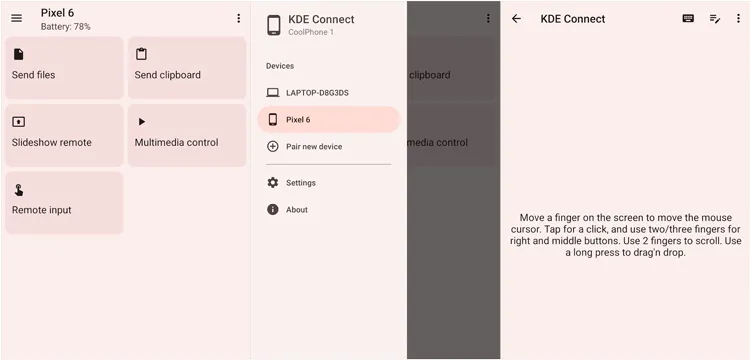
KDE Connect is a remarkable open-source tool built to cleanly integrate your phone and your computer. This app allows seamless integration between Android and Linux/Windows PCs, enabling file transfer, notifications, and clipboard sharing over the same network.
Best for: Users who want tight, ecosystem-wide productivity links alongside standard photo sharing.
- No ads, no premium subscriptions, and no tracking scripts whatsoever.
- Beyond photo sharing, it lets you respond to text messages, control PC media, and share clipboard text.
- Uses your local network to send files fast, without using any external internet bandwidth.
- Allows you to send photos directly from your phone's gallery into your PC's standard file system with two taps.
- Devices can sometimes lose track of one another on complex or dual-band (2.4GHz/5GHz) home routers.
- Functions strictly when both your Android phone and PC are running on the same local network footprint.
- While it works perfectly on Linux, the Windows version can occasionally suffer from installation bugs or firewall blocking issues.
- Missing a dedicated, heavy-duty photo album interface; designed more for moving a few files at a time rather than a whole library.
How it works: It links your Android device to your Linux or Windows PC over your local network. Beyond just sending individual photos with a single tap, it offers shared clipboards, media controls, and notification mirroring.
Part 3: Q&A About Android Photo Transfer Apps
Q1: Which Android photo transfer app is the fastest?
For local, wireless transfers, LocalSend and Photon are generally the fastest because they use your local Wi-Fi router's maximum bandwidth without passing data through the internet. If you are transferring thousands of high-resolution photos or large videos, bypassing wireless entirely and using a physical USB cable with a tool like iReaShare Android Manager will always beat wireless speeds.
Q2: Are those wireless photo transfer apps safe to use?
Yes, provided you choose the right ones. Open-source apps like LocalSend, PairDrop, and KDE Connect are incredibly safe because they keep your data strictly within your local home network—nothing is uploaded to a third-party server. Apps like Send Anywhere use encryption protocols to protect your files while they route over the internet, but local-only apps are naturally more private.
Q3: Will photo quality be reduced during transfer?
None of the dedicated local transfer apps listed above (like LocalSend, FlyingCarpet, or PhotoSync) compress your images; they transfer the exact, byte-for-byte original file. However, if you use cloud services like Google Drive or Dropbox, make sure your app settings are set to upload "Original Quality" rather than "Storage Saver" or "Optimized" versions, which will compress your photos.
Conclusion
Choosing the right Android photo transfer app depends on your needs. For quick local sharing, tools like Quick Share, LocalSend, or Send Anywhere are excellent. For full device migration, iReaShare Phone Transfer is more suitable. For deep desktop archiving, robust tools like iReaShare Android Manager or PhotoSync offer the exact management and safety parameters you need.
Meanwhile, cloud services like Google Drive and Dropbox offer convenient automatic backups across devices.
Choose the tool that best fits your daily life and workflow, and enjoy crystal-clear, uncompressed memories on every single screen you own.
Related Articles
How to Transfer Photos from Android to Mac Wirelessly (Hassle-Free)
How to Move Photos to SD Card on Android Device (Solved)
Full Guide: How to Transfer Photos from iPhone to Laptop in 9 Ways
How to Transfer Files from PC to Tablet Quickly (Ultimate Guide)

