


File transfer has evolved far beyond the days of hunting for a USB cable. With modern wireless protocols, you can transfer files from a phone to a PC wirelessly, ranging from documents, photos, videos, to contacts, messages, etc. If you want a relaxing wireless file transfer from Android to PC, don't miss the following 5 methods.
- Part 1: Transfer Files from Phone to PC Wirelessly via Quick Share
- Part 2: Transfer Files from Android to PC Wirelessly via iReaShare Android Manager
- Part 3: Share Files from Mobile to PC Wirelessly with Phone Link
- Part 4: Transfer Data from Android to Laptop Wirelessly via Google Drive
- Part 5: Send Files over Wi-Fi from Android to PC via LocalSend
- Part 6: Q&A About Wireless File Transfer from Android to PC
Compare these 5 methods in advance:
| Method | Pros (Advantages) | Cons (Disadvantages) |
|---|---|---|
| Quick Share | 1. Extremely fast speeds, 2. Reliable Google tool. 3. Works like AirDrop for Windows. |
1. Requires a separate Windows app. 2. Needs both Bluetooth and Wi-Fi to be turned on. |
| iReaShare | 1. Best for managing thousands of files; 2. Very easy to use. 3. Supports Windows and Mac computers. 4. Multiple features for file management. |
1. Requires installing software on both the computer and the phone. 2. A license is needed if you want to use all features. |
| Phone Link | 1. Seamless integration. 2. Photos and texts appear on PC automatically without "sending". |
1. Technical setup process. 2. Slow and inefficient for very large video files. |
| Google Drive | 1. Files are backed up. 2. Access from any device anywhere. 3. Works even if devices are far apart. |
1. Limited by your internet upload speed. 2. Uses up your Google account storage space. |
| LocalSend | 1. No accounts or internet needed. 2. Highly private. 3. Works on Mac, Linux, and Windows. |
1. Both devices must be on the same Wi-Fi. 2. Both apps must be open to see each other. |
Part 1: Transfer Files from Phone to PC Wirelessly via Quick Share
Formerly known as Nearby Share, Quick Share is the result of a collaboration between Google and Samsung. It is now the "AirDrop" of the Android and Windows ecosystem. Furthermore, most Android devices have pre-installed this feature. Thus, most Android users can send their files wirelessly to their PCs with Quick Share.
Here's the guide:
-
Install the Quick Share app on your Windows PC and ensure both Bluetooth and Wi-Fi are enabled.
-
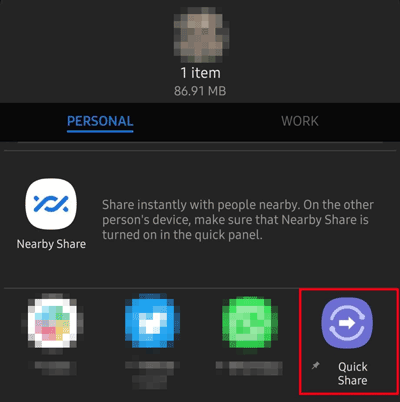
Right-click a file or more on your phone, select "Quick Share", and pick your PC from the list.
-
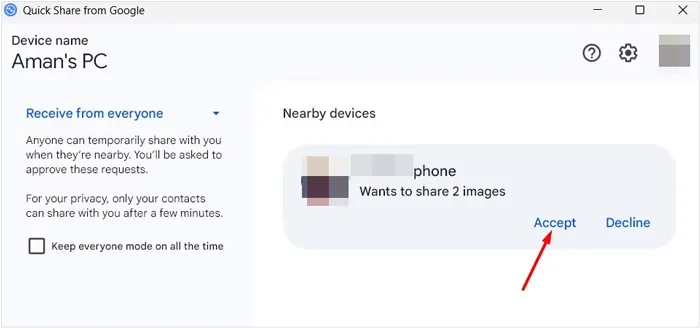
It uses a combination of Wi-Fi Direct and Bluetooth for high-speed transfers. Please click "Accept" on your PC.
Part 2: Transfer Files from Android to PC Wirelessly via iReaShare Android Manager
For users who need a more organized approach, iReaShare Android Manager offers a comprehensive desktop interface to manage mobile data. This tool supports Wi-Fi and USB transfer methods. Whether you want a wireless file transfer or a stable USB transfer, it can meet your needs.
Main features of iReaShare Android Manager:
* Seamlessly transfer files from Android to a PC via USB or Wi-Fi.
* Support the transfer of contacts, text messages, photos, videos, music, documents, etc.
* The USB transfer allows you to move your files offline.
* Enable you to manage your Android data on your computer, such as sending messages, installing apps from PC/Mac to Android, etc.
* Back up and restore Android on PC at once.
* Compatible with Android 6.0 or later, including Android 16.
Download iReaShare Android Manager.
Download for Win Download for Mac
Android Wi-Fi file transfer to PC with this software:
-
Ensure your Android phone and PC are connected to the same Wi-Fi network. If no home Wi-Fi network, you can use your phone's hotspot feature.
-
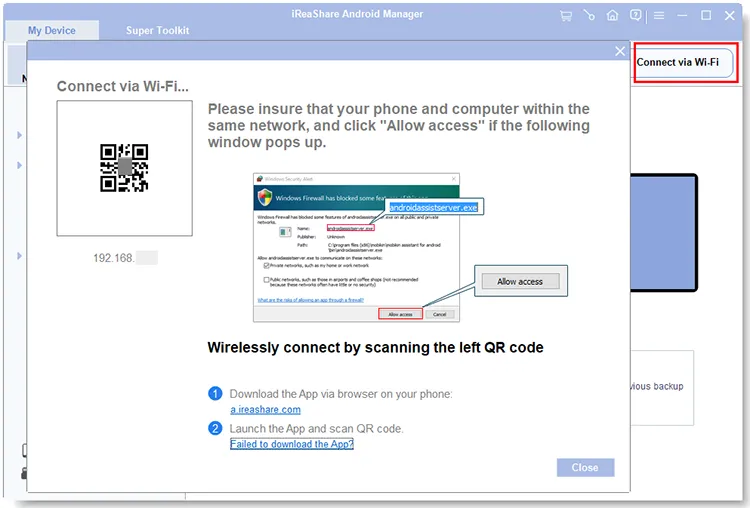
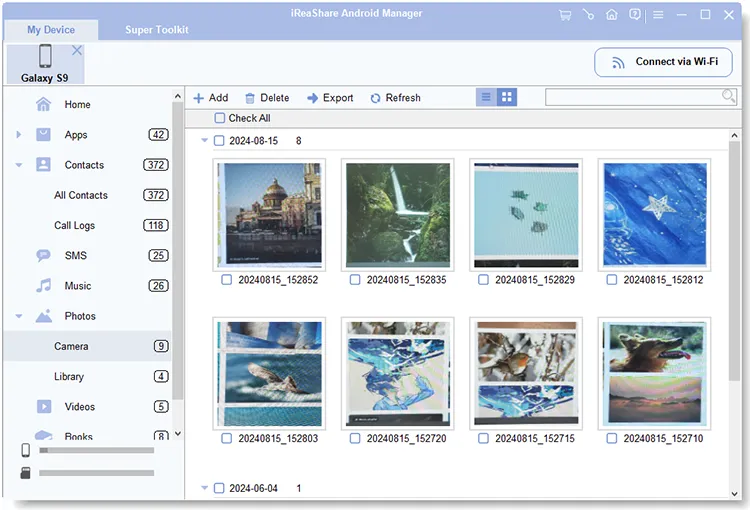
Install and launch the iReaShare Android Manager, click "Connect via Wi-Fi" to get a QR code. Then download the Android version of this app on your smartphone, and open the app to scan the QR code for the connection.
-
Once connected, you can select a file type, and check the detailed files you want to transfer. Click "Export" to transfer the files from your phone to your PC over Wi-Fi.
Part 3: Share Files from Mobile to PC Wirelessly with Phone Link
Microsoft's native Phone Link (and the companion "Link to Windows" app) is designed for seamless integration. It allows you to pair your Android phone with your Windows PC with Wi-Fi. While excellent for photos and recent screenshots, it is less efficient for deep-system file browsing compared to dedicated file managers.
To share files from Android mobile to a PC wirelessly via Phone Link:
-
On your PC, search for Phone Link in the Start menu. On your Android, download Link to Windows from the Play Store.
-
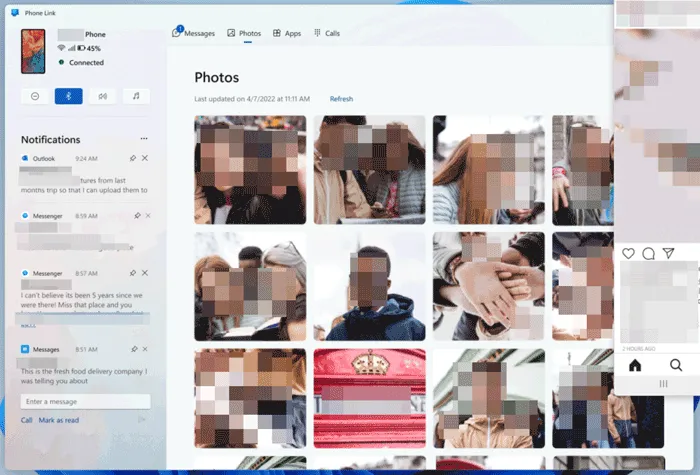
Follow the on-screen instructions to pair via a QR code. Click the "Photos" tab in the PC app to see your recent camera roll. Simply drag a photo from the app window onto your PC desktop or right-click and select "Save As".
-
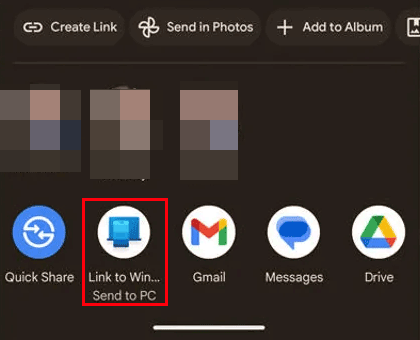
You can also locate your Android files and share them via "Link to Windows". Then you will get the files on your PC.
Part 4: Transfer Data from Android to Laptop Wirelessly via Google Drive
Using Google Drive is the best method if the PC and phone aren't in the same room or turned on at the same time. You can access your uploaded files on different devices after logging in to the same account.
Start the wireless file transfer with Google Drive:
-
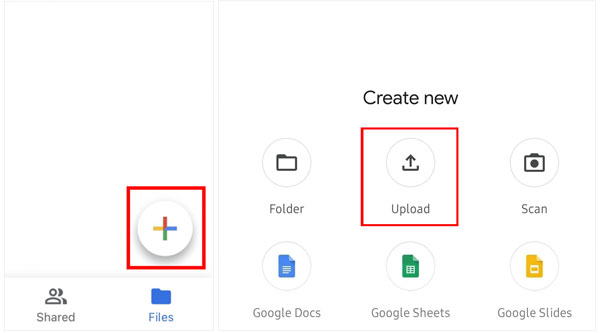
On your Android, open Google Drive, sign in with your Google Account, tap the "+" (Plus) button, and select "Upload".
-
Pick the files you want to transfer. Wait for the "Upload complete" notification.
-
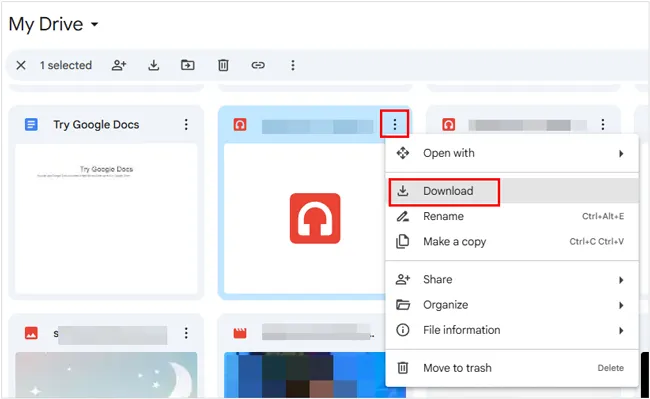
Open a web browser on your PC, go to drive.google.com, and log in. Right-click the uploaded file and select "Download" to save the file to a local folder on your PC.
Part 5: Send Files over Wi-Fi from Android to PC via LocalSend
If you value privacy and open-source software, LocalSend is a top-tier choice. It does not require an internet connection, only a local Wi-Fi network. It is cross-platform (Android, Windows, macOS, Linux). It doesn't use the cloud, meaning your files never leave your home network, making it incredibly fast and secure.
To send files from Android to a PC over Wi-Fi using LocalSend:
-
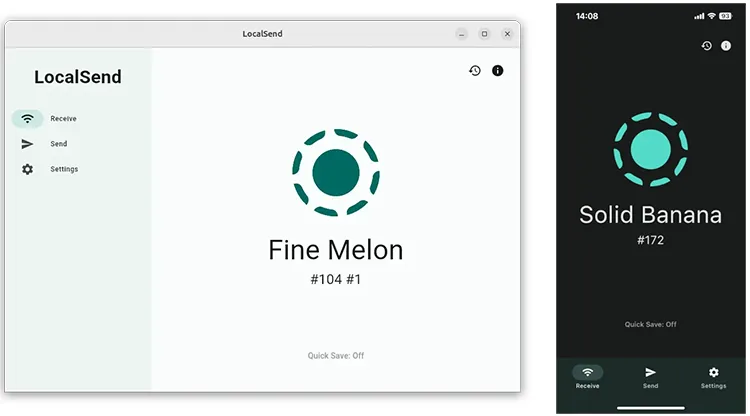
Download LocalSend on both your Android phone and Windows PC. Open the app on both devices simultaneously. They will be assigned funny names (e.g., "Quiet Orange" or "Fast Apple").
-
On the phone, tap "Send", select your files, and then tap the name of your PC in the list.
-
Click "Accept" on the PC. The file will be saved in your Downloads folder instantly.
Part 6: Q&A About Wireless File Transfer from Android to PC
Q1: How many times faster is Quick Share for transferring files compared to Bluetooth?
While Bluetooth 5.0 maxes out at about 2 Mbps, Quick Share utilizes Wi-Fi Direct, which can reach speeds up to 300–600 Mbps. In practical terms, Quick Share is often 50 to 100 times faster than a standard Bluetooth transfer.
Q2: Why is my wireless transfer slow?
There are several reasons why your wireless file transfer might be slow:
- Weak Wi-Fi Signal: If your Wi-Fi signal is weak, the transfer speed will suffer.
- Frequency Interference: 2.4 GHz Wi-Fi is slower and prone to interference from microwaves or Bluetooth. Switching to 5 GHz usually fixes this.
- Distance: The further you are from the router or the PC, the more the signal degrades.
- Background Tasks: High CPU usage or other downloads on the PC can throttle transfer speeds.
- Outdated Software: Ensure that both your phone and PC are using the latest software updates to avoid compatibility issues.
Q3: Can I transfer files from my Android phone to a PC with a social app?
Yes. Apps like WhatsApp (Web/Desktop) or Telegram are popular for this. Telegram, in particular, allows for files up to 2GB in its "Saved Messages" chat. However, keep in mind that some social apps may compress images, reducing their original quality.
Conclusion
Wireless file transfers between your Android phone and PC have never been easier. Whether you prefer the native integration of Quick Share, the organizational power of iReaShare Android Manager, or the privacy of LocalSend, the days of being tethered to a cable are over.
If you want a tool that can provide different transfer methods, iReaShare Android Manager will be your option. It supports not only Wi-Fi but also USB transfer. By selecting the appropriate solution for your needs, you can ensure fast and secure wireless file transfers.
Download for Win Download for Mac
Related Articles
How to Transfer Files from Android to Mac: 5 Proven Solutions
10 Reliable Android File Transfer Apps: Transfer Files Easily
How to Access iPhone Files on PC Without iTunes: 7 Alternatives
Guide: Cast Android to Windows 10 PC (Contain USB and Wi-Fi Connections)

