


"I recently bought a Mac, and now I'm trying to transfer all important files, and photos from my Android. How can I transfer my Android files to my Mac safely and easily?"
- From Reddit
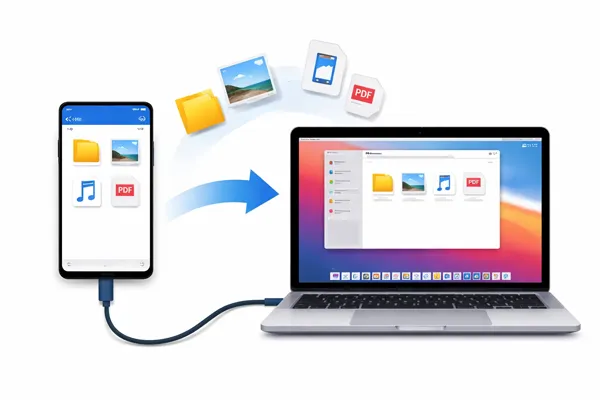
If you feel less seamless as you transfer files from Android to Mac than within the same ecosystem, there are 5 reliable methods available in this article. Whether you prefer wired connections or wireless solutions, this guide can help you move your files from Android to Mac with ease.
- Part 1: Transfer Files from Android to Mac via iReaShare Android Manager
- Part 2: Transfer Files between Android and Mac with LocalSend
- Part 3: Send Files to Mac from Android via Snapdrop
- Part 4: Share Files from Android to Mac with OpenMTP
- Part 5: Transfer Files from Android to Mac via NearDrop
- Part 6: Q&A About Android to Mac File Transfer
Compare these 5 methods in advance:
| Method | Pros | Cons |
|---|---|---|
| iReaShare Android Manager | 1. High-speed, stable USB data transfer. 2. Supports full backups. 3. Real-time file preview and management. 4. Wi-Fi transfer is also supported. |
1. Full feature set requires a paid license. 2. Software installation required on Mac. |
| LocalSend | 1. 100% free and open-source. 2. No file size limits or cloud account required. 3. High-speed transfers over local Wi-Fi. |
1. App must be installed on both devices. 2. Both devices must stay on the same network. 3. No advanced device management features. |
| Snapdrop | 1. Zero installation (works in any browser). 2. Instant "AirDrop" feel for one-off files. 3. Compatible with almost any OS. |
1. Can be slow or unstable for large video files. 2. Requires both devices to stay on the same URL. 3. Relies heavily on browser cache and signal. |
| OpenMTP | 1. Completely free and open-source. 2. Dual-pane view for easy drag-and-drop. 3. Much more reliable than official Google tools. |
1. USB connection only (no wireless). 2. Interface is utilitarian and less "polished". 3. Requires manual USB Debugging setup. |
| NearDrop | 1. Uses Android's built-in Quick Share (no phone app). 2. Extremely fast for small media files. 3. Low background resource usage on Mac. |
1. One-way only (Android to Mac). 2. Can be finicky with certain firewall settings. 3. No progress bar for very large transfers. |
Part 1: Transfer Files from Android to Mac via iReaShare Android Manager
For users who handle large volumes of data or want a full-device backup, iReaShare Android Manager is a robust desktop-based solution. It provides a structured interface that allows you to access your Android data on your Mac. Furthermore, the file transfer will keep the file quality original.
Main features of iReaShare Android Manager:
* Allow you to preview your Android data on Mac before transferring it.
* Export Android data to Mac and import files from Mac to Android.
* Support the transfer of photos, contacts, SMS, videos, music, documents, apps, etc.
* Back up and restore Android data on Mac at one go.
* Enable you to manage your Android contacts, receive and send messages, and sort out media files on Mac.
* USB and Wi-Fi connections are available.
* Support Android 6.0 or later.
Download iReaShare Android Manager.
Download for Mac Download for Win
Here's how to transfer files from Android to Mac with Android Manager:
-
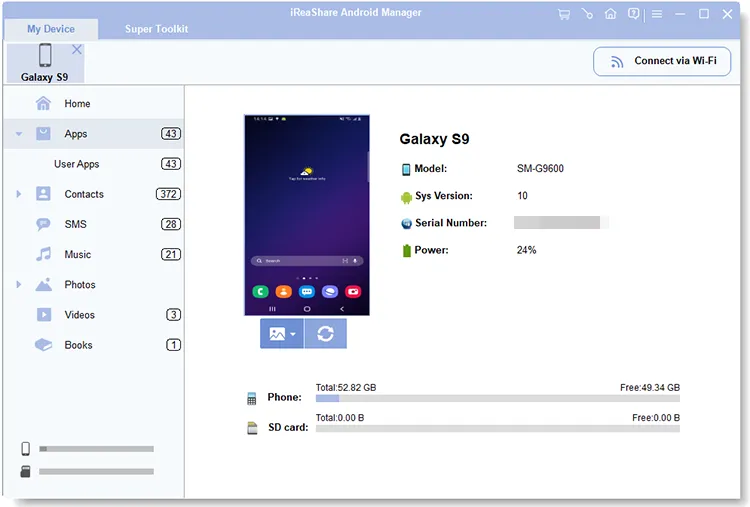
Install and launch the Android Manager software on your Mac. Then connect your Android device to the Mac computer via USB, and enable USB debugging.
-
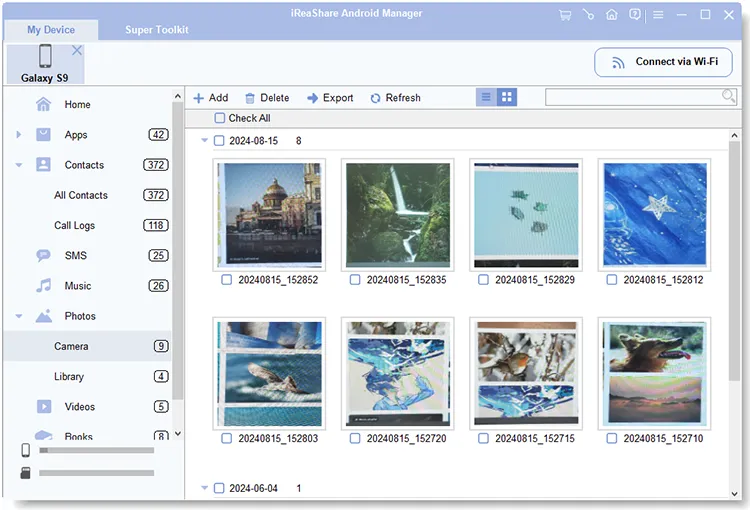
Once connected, select a file type on the left panel. Then select the specific files you want.
-
Click "Export" to save the Android files to your Mac.
Part 2: Transfer Files between Android and Mac with LocalSend
If you are looking for an open-source, cross-platform solution that works over your local Wi-Fi network, LocalSend is a top-tier choice. It does not require a cloud account or an internet connection - just a shared Wi-Fi network.
To send files to Mac from Android via LocalSend:
-
Install LocalSend on both your Android device and Mac. Ensure both devices are connected to the same Wi-Fi network.
-
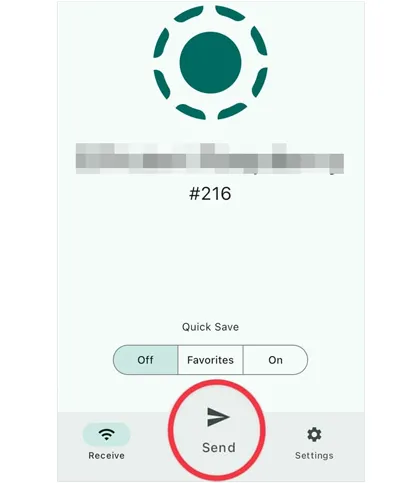
Open the app on your Android phone. Next, click "Send" to choose the files you want to send on your Android device.
-
Finally, select your Mac computer under the "Nearby Devices" section, and click "Accept" on your Mac. Then the files will be sent to your Mac.

Part 3: Send Files to Mac from Android via Snapdrop
Snapdrop is often described as the "Web-based AirDrop". It is the most convenient option for "one-off" transfers because it requires no installation. What's more, it supports sending files from Android to Mac and vice versa.
To send files from Android to Mac with Snapdrop:
-
Open snapdrop.net in the browser on both your Android phone and your Mac. Ensure both devices are using the same Wi-Fi network.
-
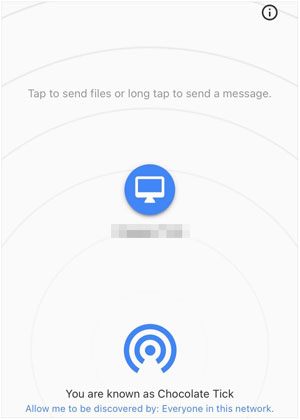
Once both pages are open, you will see an icon representing the other device on your screen. On your Android phone: Tap the icon representing your Mac.
-
Your phone's file explorer will open. Select the files like videos, photos, and more you want to send.
Once selected, the transfer will begin instantly. -
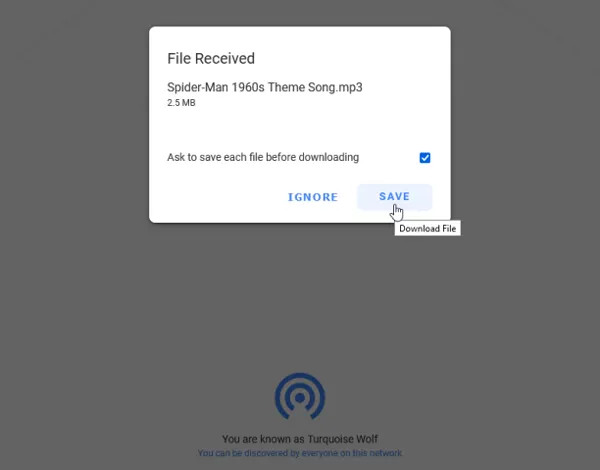
A pop-up will appear on your Mac's browser saying "File Received". Then click "SAVE". The file will be saved to your Mac's Downloads folder.
Part 4: Share Files from Android to Mac with OpenMTP
For power users who prefer the reliability of a cable but hate Android File Transfer, OpenMTP is a sophisticated, open-source alternative.
To share files from Android to Mac with OpenMTP:
-
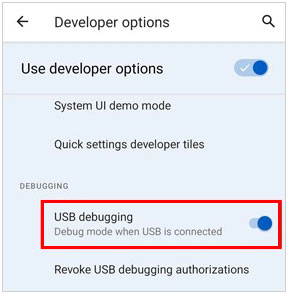
Get the latest version from the official OpenMTP website or GitHub. Then activate the USB debugging feature in your Android's "Developer options" to make the connection more stable.
-
Plug your Android device into your Mac. On your Android phone, swipe down the notification shade, tap "Charging this device via USB", and change it to "File transfer" or "MTP".
-
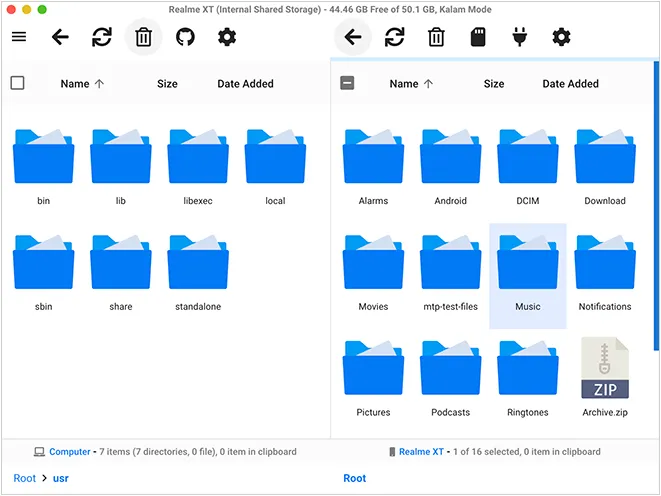
OpenMTP uses a dual-pane window. The left side usually shows your Mac's storage, and the right side shows your Android's storage. You can simply drag files from the right pane (Android) to the left pane (Mac) to copy them. Then the files will be copied to your Mac computer.
Part 5: Transfer Files from Android to Mac via NearDrop
Using NearDrop is the closest experience you can get to using AirDrop between an Android phone and a Mac. Since you are using a newer device like the S26/S25 or Pixel 10, the process is very straightforward because the "Quick Share" feature is already built into your phone.
To complete Android file transfer to Mac via NearDrop:
-
Get the NearDrop.app.zip from the GitHub Releases page, unzip it, and move the NearDrop icon to your Applications folder. Right-click the app and select Open (don't just double-click, or macOS may block it).
-
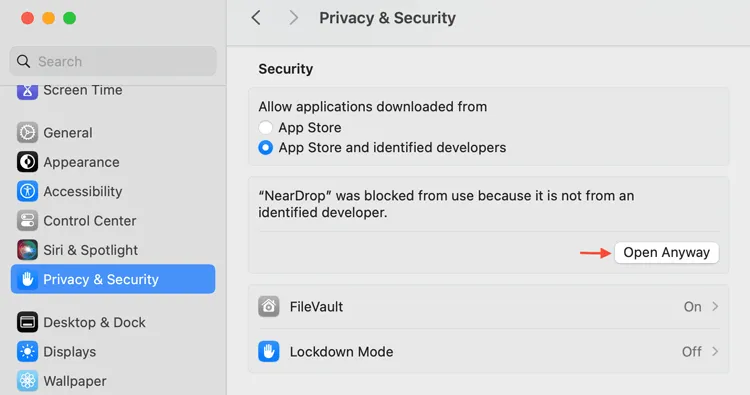
If blocked, go to "System Settings" > "Privacy & Security" and click "Open Anyway" at the bottom. If prompted, allow it to "accept incoming network connections".
-
You will see a small monochrome icon in your Mac's menu bar (top right). If it says "Visible to everyone", you are ready. Besides, ensure your phone and Mac are on the same Wi-Fi network.
-
Open your Gallery or File Manager and select the items you want to send from your Android device. Then tap the "Share" button and select "Quick Share".
-
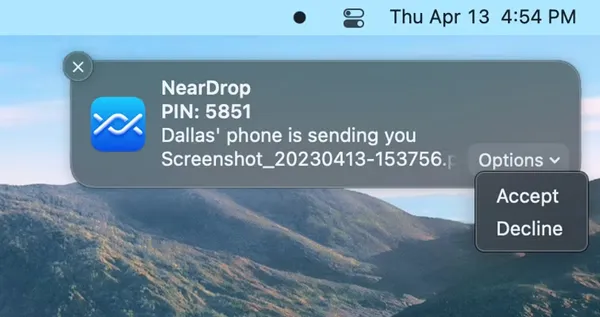
Your Mac should appear in the list of nearby devices with its computer name. Tap it. A notification will pop up in the top-right corner of your Mac. Then click "Options" and select "Accept". The files will be saved to the "Downloads" folder on Mac.
Part 6: Q&A About Android to Mac File Transfer
Q1: Is Android File Transfer still available to download?
Yes, Google's official Android File Transfer tool is still available. However, it has not seen a significant update in years. While it works for basic tasks, many users on newer versions of macOS (like Sequoia or Sonoma) report frequent "Could not connect to device" errors, leading them to use the alternatives listed above.
Q2: Why is my Mac not recognizing my Android phone via USB?
There are several possible reasons:
- USB debugging is not enabled.
- The phone is not set to "File Transfer" mode.
- Faulty USB cable or port.
- Missing or incompatible drivers/software.
Switching cables, ports, or using updated tools like iReaShare Android Manager or OpenMTP often resolves the issue.
Q3: Can I AirDrop from Android to Mac?
No. AirDrop is a proprietary protocol exclusive to Apple hardware. To achieve an AirDrop-like experience, you should use Snapdrop or LocalSend, as they mimic the "find and click" simplicity of AirDrop across different operating systems.
Conclusion
While Apple and Google don't always play well together, the tools available today make the Android-to-Mac workflow smoother than ever. For heavy-duty management and flexible transfer, iReaShare Android Manager or OpenMTP via USB are your best bets. For quick, wireless sharing, LocalSend or Snapdrop will save you the hassle of hunting for a cable. Hope you can get the right tool to transfer your files from Android to Mac.
Download for Mac Download for Win
Related Articles
How to Screen Record on Mac Step by Step | Advanced Guide
How to Sync Android with Mac in 5 Effective Ways (Latest)
How to Transfer Videos from Android to Mac Seamlessly (5 Ways)
Review: 10 Android Backup Software and Apps (Latest Info)

