


"Can I connect my Android phone to my Mac? Stuck with a problem here and could use some help. Trying to connect my Android to my Mac for file transfers, but nothing works. Keeps saying it can't connect to the phone."
- From Reddit
Can you connect Android to Mac as seamlessly as it is with iPhones? You can now have a try by yourself. There are 5 effective methods in this guide, so you can follow the steps to establish a connection between your Android and Mac. Then you can easily transfer files or even mirror your Android screen without a hurdle.
- Part 1: How to Connect Android to Mac via iReaShare Android Manager
- Part 2: How to Connect Android Phone to Mac via AirDroid
- Part 3: How to Connect Android to MacBook via OpenMTP
- Part 4: How to Connect Android with MacBook via LocalSend
- Part 5: How to Connect Android Phone to MacBook via Quick Share
- Part 6: Q&A About Connecting Android to Mac
Take a quick look at the 5 connection methods:
| Method | Pros (The Good) | Cons (The Bad) |
|---|---|---|
| iReaShare Android Manager | 1. Support deep management. 2. Handles SMS, contacts, and apps, not just files. 3. Very stable via USB. 4. Wi-Fi connection is avaliable. |
1. Requires software installation on Mac. 2. Transferring files is not free. |
| AirDroid | 1. Provide the wireless convenience. 2. Works through a web browser. 3. Allow Android data access on Mac. |
1. Free version has data transfer caps. 2. It is slower for large files. |
| OpenMTP | 1. Best for large file transfers. 2. Much more stable than Google's official tool. |
1. Requires a USB-C cable. 2. Lacks a wireless transfer option. |
| LocalSend | 1. Privacy first. 2. Open-source, no accounts needed. 3. Works over local Wi-Fi. |
1. Both devices must stay on the same Wi-Fi network to connect. 2. Cannot access Android contacts, messages, and call logs on Mac directly. |
| Quick Share (& NearDrop) | 1. Uses the native Android "Share" menu like AirDrop does. 2.The connection can be established by local network. |
1. Requires the "NearDrop" app running on your Mac to function. 2. No management feature. |
Part 1: How to Connect Android to Mac via iReaShare Android Manager
iReaShare Android Manager simplifies the process of connecting your Android phone to your Mac. It allows for easy file transfer, backup, and even managing Android data and apps directly from your Mac. Furthermore, it supports USB and Wi-Fi connection approaches.
Main features of iReaShare Android Manager:
* Connect Android to Mac with USB or Wi-Fi with simple clicks.
* Allow you to access your Android data on your computer.
* Transfer data from Android to Mac and vice versa.
* Support multiple data types, like contacts, SMS, call logs, apps, videos, photos, music, etc.
* Back up and restore Android data on your Mac computer without cloud storage.
* Compatible with Android 6.0 or later.
Download iReaShare Android Manager.
Download for Mac Download for Win
Here's how to connect an Android phone with MacBook via this software:
-
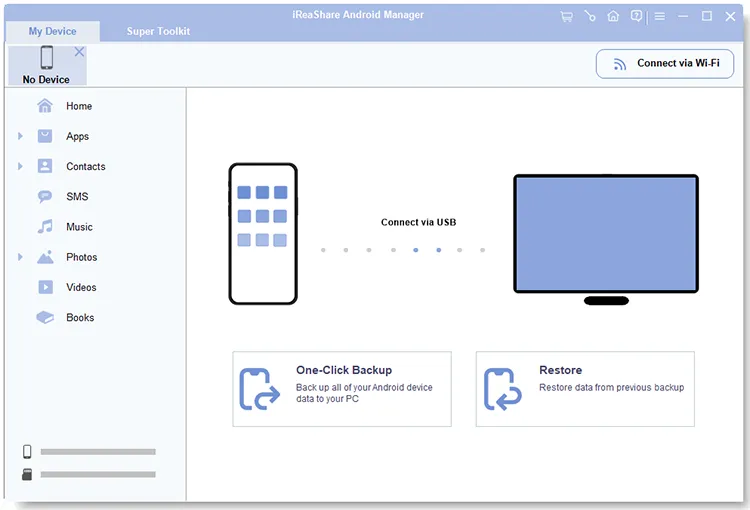
Install iReaShare Android Manager on your Mac. Then open it on the desktop and connect your Android device to the Mac with a USB cable. If you want a Wi-Fi connection, please click "Connect via Wi-Fi" in the upper right corner.
-
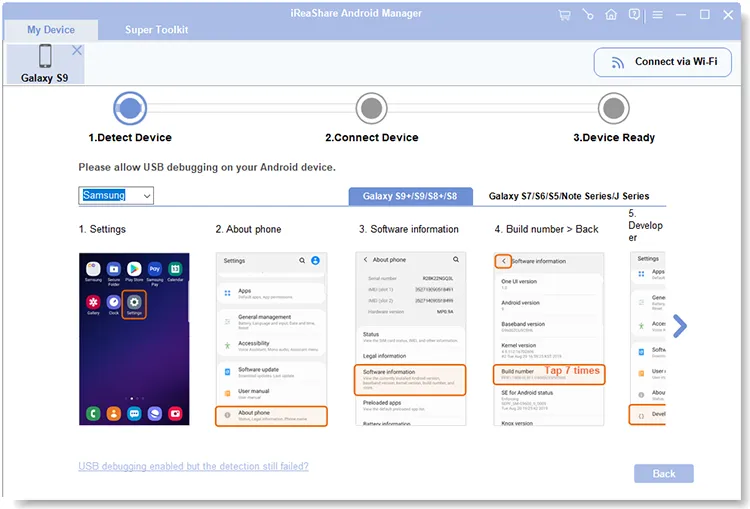
On your Android phone, go to Settings > "About phone" and tap "Build number" seven times. Then, enable "USB debugging" in "Developer options". Then the program will quickly recognize your mobile device.
-
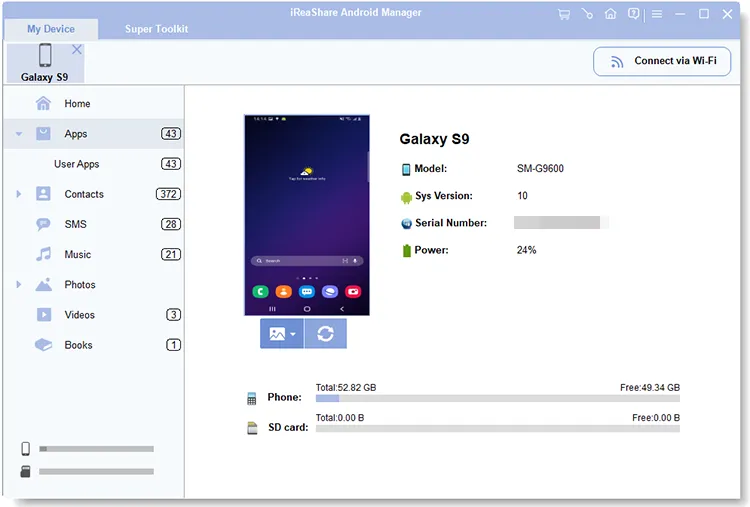
Once connected, you can now see your device info on the interface, and manage and transfer your Android data on your Mac computer.
Part 2: How to Connect Android Phone to Mac via AirDroid
If you prefer a wireless connection experience without hunting for cables, AirDroid is a classic choice that works through your web browser or a desktop client.
To connect an Android to Mac via AirDroid:
-
Download AirDroid on your Android device from the Play Store. On your Mac, go to the AirDroid website and log in to your account or create a new one.

-
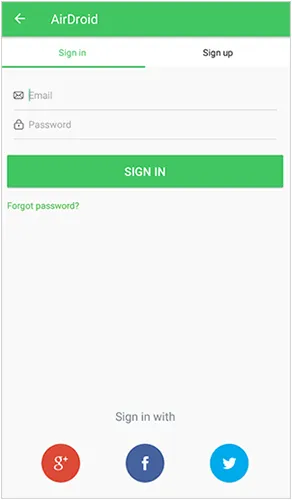
Open the AirDroid app on your Android phone and sign in. Once logged in, your Android device will appear on your Mac, allowing you to transfer files wirelessly, mirror your phone screen, and manage notifications.
-
You can now drag and drop files between windows or even manage notifications wirelessly.
Part 3: How to Connect Android to MacBook via OpenMTP
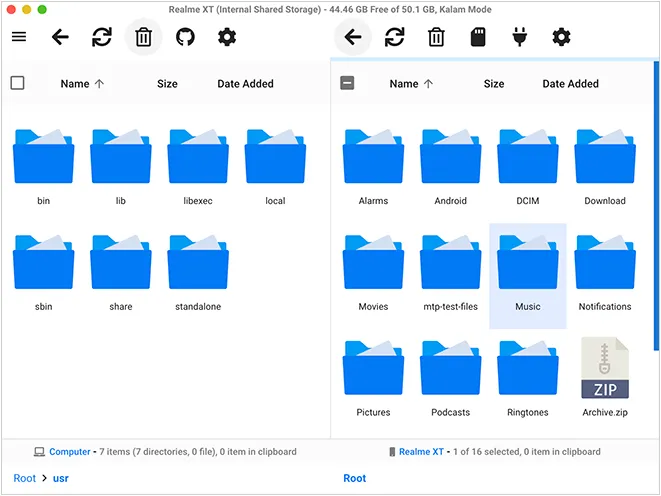
For those who find the Android File Transfer app buggy, OpenMTP is a superior, open-source alternative that offers a dual-pane interface (similar to Finder). With it, you can easily access your Android media files on your MacBook.
To connect Android to MacBook with OpenMTP:
-
Get the latest version from the official website or GitHub. Then connect your Android to your Mac via USB. Ensure the phone is in "File transfer (MTP)" mode.
-
Open the app. You will see your Mac files on the left and Android files on the right.
-
Simply drag files from one side to the other if needed. It is significantly faster and more stable than Android File Transfer.
Part 4: How to Connect Android with MacBook via LocalSend
LocalSend is another useful wireless file transfer tool for Android and Mac. This tool doesn't require an internet connection or cloud services to transfer files, making it a faster and more private option.
To connect Android and Mac via LocalSend:
-
Install LocalSend on both your Android phone and your Mac. Ensure both devices are connected to the same Wi-Fi. It can be a local Wi-Fi network, without needing to have internet access capabilities.
-
If you want to send files, select a file on your Android device, and choose "LocalSend" to share. Pick your MacBook from the list of nearby devices.
-
Click "Accept" on your Mac to receive the file instantly.

Part 5: How to Connect Android Phone to MacBook via Quick Share
Google rebranded Nearby Share to Quick Share. While it is native to Android and Windows, you can use it on Mac through third-party implementations like NearDrop.
To connect an Android device to Mac with Quick Share:
-
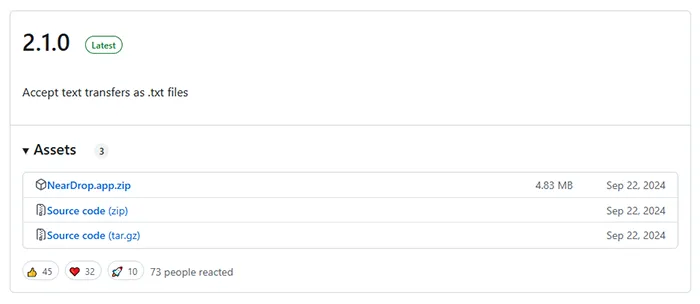
Download the NearDrop app on your Mac (available on GitHub). Ensure your Mac's Wi-Fi is on. Open NearDrop; it lives in your "Menu Bar".
-
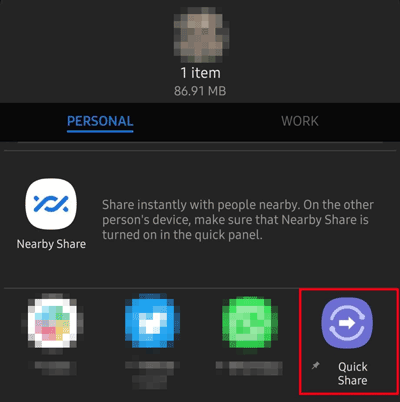
Open a photo or file on your phone, tap "Share", and select "Quick Share".
-
Your MacBook should appear as a nearby device. Tap it to send. Then you will get the file on your Mac.
Part 6: Q&A About Connecting Android to Mac
Q1: Can I connect my Android phone to my Mac with Android File Transfer?
Yes, you can use Android File Transfer. It is a tool from Google. However, it hasn't been updated significantly in years and often suffers from connection errors or "Could not connect to device" messages on newer versions of macOS.
Q2: Why is my Mac not detecting my phone?
This is usually caused by one of three things:
- The Cable: Some cables are for charging only and do not transfer data. Try a different USB-C cable.
- USB Mode: When plugged in, you must swipe down on your phone's notification shade and change the USB setting from "Charging" to "File Transfer" or "MTP".
- Conflicting Software: If you have multiple managers (like iReaShare and Android File Transfer) open at once, they may fight for the connection. Close all but one.
Q3: Can I mirror my Android phone to my MacBook?
Yes. While not built-in, you can use apps like Scrcpy (free and high-performance) or Vysor to view and control your Android screen directly from your MacBook via USB or Wi-Fi. By the way, here are useful mirroring apps for Android and PC. Open it if needed.
Conclusion
It won't be a headache when you connect Android to Mac. There are 5 effective methods above. If you want deep management, iReaShare Android Manager is excellent. This tool provides two connections, and supports transferring and managing various file types. For quick wireless bursts, LocalSend is a lifesaver; and for a professional file explorer experience, OpenMTP is the way to go.
Download for Mac Download for Win
Related Articles
How to Connect iPhone to PC with 6 Trustworthy Tools (Latest)
Guide: Cast Android to Windows 10/11 PC (Contain USB and Wi-Fi Connections)
How to Transfer Videos from Android to Mac Seamlessly (5 Ways)
How to Transfer Photos from Mac to Android: Full Guide with 6 Solutions

