


When you want to transfer some files from your Android phone or tablet to your Windows PC, you can get and utilize the 8 option of Android file transfer for Windows. Then you won't lose your data and experience a seamless file transmission. Let's start to check the transfer tools.
Part 1: 8 Practical Android File Transfer for Windows PC
Moving files between your Android device and a Windows PC doesn't have to be a headache. Learn about 8 Android to PC transfer options.
1.1 iReaShare Android Manager
For users who want a "command center" for their phone, iReaShare Android Manager is a top-tier choice. It allows you to preview, export, and import contacts, messages, and media files with a few clicks. Its "One-Click Backup" feature is particularly useful for those switching to a new device or securing their data.
Main features of iReaShare Android Manager:
* Transfers various files from Android to a computer and vice versa.
* Supports USB and Wi-Fi connections.
* Exports text messages, contacts, call logs, photos, videos, music, apps, and more.
* Backs up Android data to a PC at once.
* Restores the backup data to Android devices without overwriting data.
* Compatible with Android 6.0 and later.
Pros:
+ Beyond simple file transfer, it handles diverse Android data like receiving and sending messages on PC, editing contacts, etc.
+ Lets you view content before exporting.
+ Enables you to choose specific items rather than transferring entire folders.
+ Allows you to import contacts from Outlook.
+ The structured interface is beneficial for easy navigation and categorization of content.
+ Windows OS and macOS are supported.
Cons:
- Not portable — you must install the software on Windows.
- While it has a trial, the full feature set requires a license.
Download this Android transfer program for Windows or Mac.
Download for Win Download for Mac
Here's how to use this Android transfer software for PC:
-
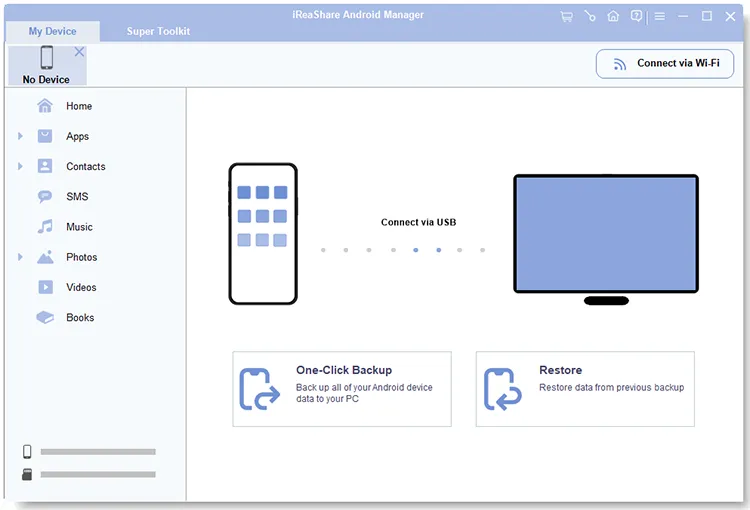
Download and install iReaShare Android Manager on your Windows PC, and then connect your mobile device to the PC with USB. If you want a wireless file transfer, launch the software and click "Connect via Wi-Fi".
-
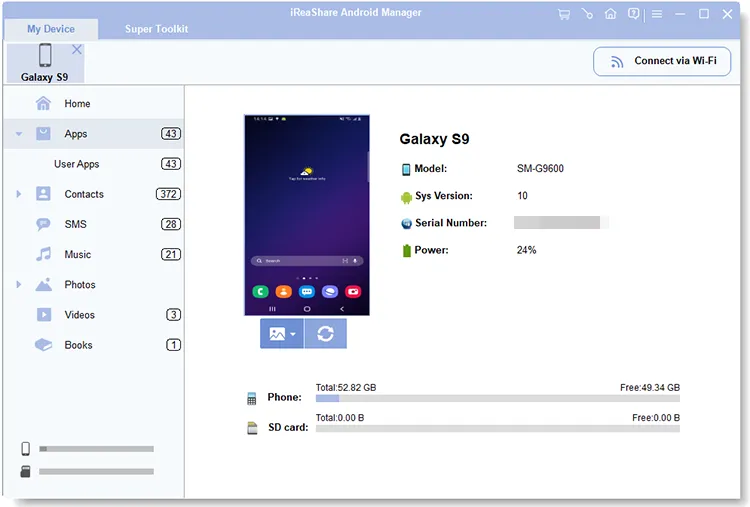
For USB connection, you can follow the on-screen instructions to enable the USB debugging mode on Android. Then the software will recognize your device.
-
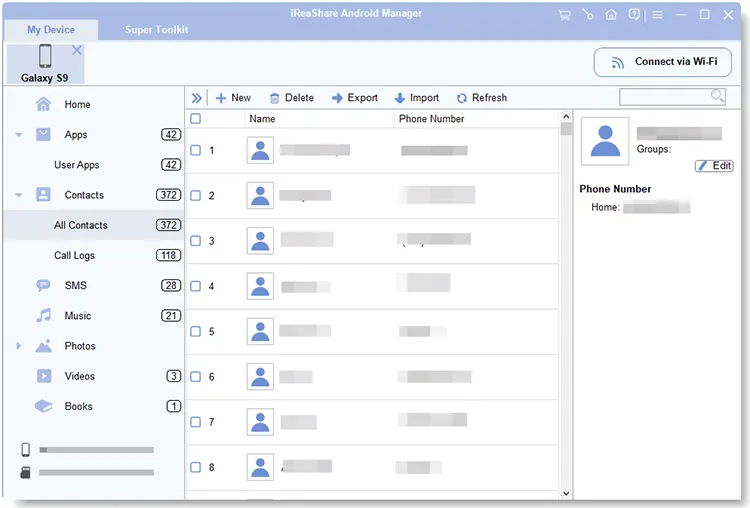
Choose a file type to preview and select files on the interface. Then click "Export" to transfer them to your Windows PC.
1.2 LocalSend
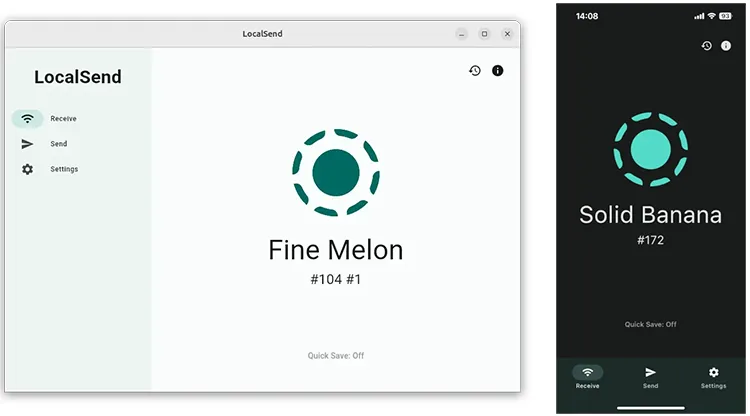
LocalSend has become a fan favorite for Android file transfer on Windows 11/10 because it is open-source and cross-platform. It works over your local Wi-Fi network, meaning you don't need to upload files to a cloud server first. It's fast, private, and doesn't require a complicated setup - just open the app on both devices and send.
Pros:
+ File transfer occurs over the same Wi-Fi network, no internet upload/download required.
+ Works on Android, Windows, macOS, Linux.
+ No file size limit on local LAN: Practical for large media files.
+ End-to-end encryption on transfers enhances privacy.
+ Transparent codebase, community trust.
Cons:
- Both devices must be on the same Wi-Fi - doesn't work over mobile hotspot without proper configuration.
- Requires installation on both devices.
- Strictly peer-to-peer local transfers.
1.3 Quick Share
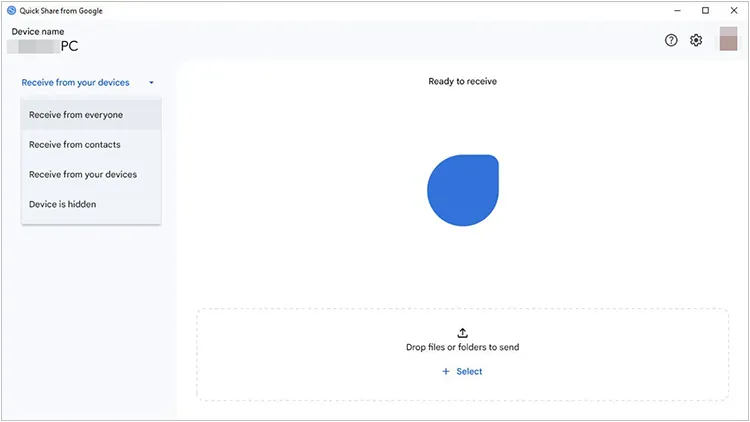
Formerly known as Nearby Share, Quick Share is Google's official answer to AirDrop for Windows. Once you install the app on your PC, you can beam files wirelessly between your phone and computer with incredible speed. It is built directly into the Android "Share" menu, making it one of the most seamless options available.
Pros:
+ Built into the Android system menu.
+ Uses a combination of Bluetooth (for discovery) and Wi-Fi Direct (for transfer), making it very fast.
+ Detects nearby compatible devices automatically.
Cons:
- Not all Android devices implement Quick Share.
- Network or Bluetooth may still be needed for discovery.
- Not as mature as some alternatives: Features and stability may vary.
1.4 Microsoft Phone Link
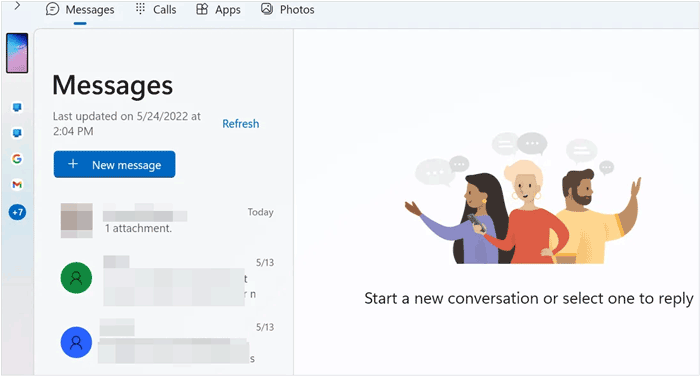
If you want your phone and PC to feel like a single unit, Phone Link is the way to go. Beyond just transferring photos, it allows you to see your notifications, reply to texts, and even run mobile apps on your Windows desktop. It’s pre-installed on most Windows 10 and 11 PCs.
Pros:
+ Native Microsoft app with deep OS integration.
+ Beyond file transfer — supports messages, calls, notifications within Windows.
+ Works over local network after initial pairing.
Cons:
- Not a full file manager; mainly photos and recent files.
- No direct USB version of Phone Link file transfer (other than limited photo access).
- Not ideal for moving large folders or system files.
1.5 Droid Transfer
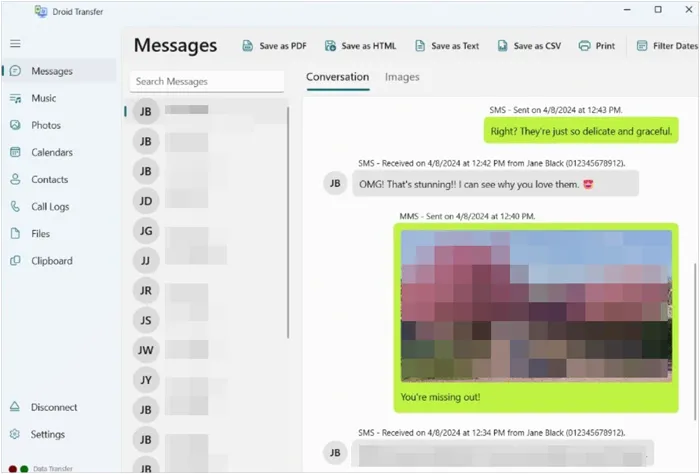
Droid Transfer is a dedicated Windows application that works alongside a "Transfer Companion" app on Android. It excels at saving SMS and MMS as PDF or text files, which is a niche feature many other transfer tools lack.
Pros:
+ Excellent for photos, videos, music, messages, and call log export.
+ Can store SMS and call logs on PC in readable formats (PDF/HTML/text).
+ Allows flexibility in connection method: USB and Wi-Fi.
Cons:
- Some features require a paid license.
- No macOS or Linux support.
- The interface feels a bit dated.
1.6 Bluetooth
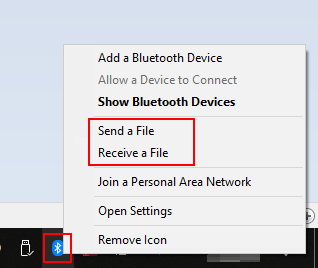
While it's the "old school" method, Bluetooth remains a reliable fallback. It doesn't require cables or a Wi-Fi network. However, because transfer speeds are quite slow, it is best reserved for small files like a single contact card or a small document.
Pros:
+ Every modern phone and laptop has it and no Wi-Fi or cables needed.
+ Native to almost all operating systems without installation.
+ Typically minimal battery drain for small tasks.
Cons:
- Significantly slower than Wi-Fi or USB.
- Typical Bluetooth range is about 10 meters.
- Not suitable for large files (Tedious for anything over ~10–20 MB).
1.7 Wormhole File Transfer
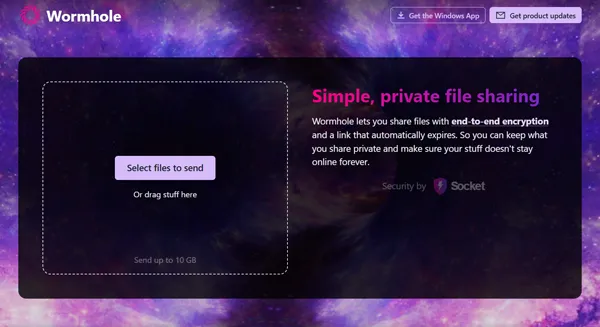
Wormhole offers a unique bridge experience. It allows you to share files via a simple link with end-to-end encryption. What makes it practical is that the recipient doesn't necessarily need an account to download the file, making it great for quick, secure sharing with others.
Pros:
+ Web version works in a browser.
+ Supports up to 10GB transfers.
+ Supports end-to-end encryption, so the service provider cannot read your files.
Cons:
- Unlike LocalSend, this requires an active internet connection to upload/download.
- Links usually expire after 24 hours.
1.8 Drag and Drop
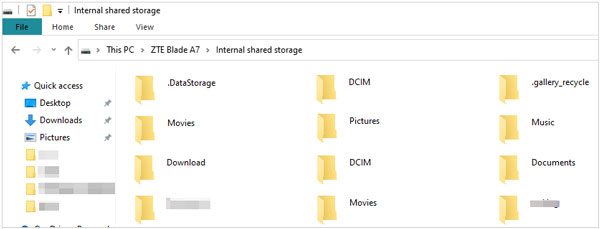
Sometimes, the simplest way is the best way. By connecting your Android phone to your PC via a USB-C cable, you can set the USB mode to "File Transfer" and use Windows File Explorer. You can then drag and drop files as if your phone were a standard USB flash drive.
Pros:
+ No software bugs or network interference to worry about.
+ Wired USB usually outperforms wireless methods.
+ Browse all accessible folders without any app.
+ Least dependent on network quality.
Cons:
- Less convenient than wireless.
- You cannot access your contacts, messages, installed apps, or call logs on your Windows PC.
- Occasional recognition problems.
Part 2: Q&A About Android File Transfer for Windows
Q1: Can OpenMTP work on a Windows PC?
Strictly speaking, OpenMTP was designed as an advanced Android file transfer solution for macOS (to replace the often-glitchy official Android File Transfer app). While Windows users usually rely on the native File Explorer, those looking for an OpenMTP-like experience on Windows often turn to tools like ADB (Android Debug Bridge) or specialized file managers like Commander One.
Q2: How can I transfer files from Android to PC wirelessly?
There are several ways to go wireless:
- Quick Share: Best for speed and ease of use.
- iReaShare Android Manager: Enable you to transfer files from Android to a Windows PC via Wi-Fi.
- Cloud Storage: Upload to Google Drive or OneDrive and download on your PC.
- LocalSend: Best for privacy and local network speeds.
- Phone Link: Best for frequent, small transfers like recent photos.
Q3: Is there Xender for PC?
Yes, there is an Xender Web version. You don't need to install a heavy application on your Windows PC; you simply scan a QR code on the Xender website using your phone, and you can manage your files through your web browser.
Conclusion
There is no single “best” Android file transfer method for Windows PC. The optimal solution depends on your use case:
- For structured management and backup - iReaShare Android Manager or Droid Transfer.
- For fast wireless LAN transfer - LocalSend or Quick Share.
- For Windows integration - Microsoft Phone Link.
- For small ad hoc files - Bluetooth.
- For large direct transfer - USB drag-and-drop.
Understanding the strengths and limitations of each method allows you to select the most efficient workflow for your needs. By combining wired and wireless options appropriately, you can build a flexible and reliable Android-to-PC file transfer strategy.
Download for Win Download for Mac
Related Articles
Fix Android File Transfer Not Working with Practical Solutions
Transfer Files from iPad to Android with 6 Effective Methods (New)
Review: 10 Android Backup Software and Apps (Latest Info)
How to Move Photos to SD Card on Android Device (Solved)

