


TL;DR:
Choosing the best way to transfer files from your PC to an Android tablet depends on your specific needs, but the available methods generally fall into three distinct categories:
- Best for Speed and Automation (Native Eco-tools): Tools like Quick Share and Phone Link offer the fastest, most integrated wireless experiences without third-party installations, though they require updated system drivers or specific hardware brands.
- Best for Deep Management and Stability (Dedicated Apps): Software like iReaShare Android Manager is ideal if you need an organized desktop dashboard, high-speed wired USB backups, and total control over your tablet's file directories.
- Best for Flexibility and Security (Cloud & Local Open-Source): Google Drive provides effortless cloud access from anywhere but relies on internet speeds, while open-source local network tools like LocalSend and LANdrop offer completely free, secure, and private device-to-device transfers over Wi-Fi.
If you want to know how to transfer files from PC to tablet, you are in the right place. Moving high-resolution movies, a massive playlist of songs, or essential work documents no longer means digging around for a USB cable.
Today, wireless technology offers a multitude of seamless ways to bridge the gap between Windows and Android. From native built-in features to powerful third-party apps and cloud solutions, this comprehensive guide will walk you through the best methods to get it done quickly and easily.
- Part 1: How to Transfer Files from PC to Android Tablet via Quick Share
- Part 2: How to Transfer Files from PC to Tablet via iReaShare Android Manager
- Part 3: How to Upload Files to Android Tablet from PC via Phone Link
- Part 4: How to Download Files from Computer to Tablet via Google Drive
- Part 5: How to Send Files from PC to Android Tablet via LocalSend
- Part 6: How to Transfer Files from PC to Tablet via LANdrop
- Part 7: Q&A About Transferring Files from PC to Tablet
Compare the 6 methods' advantages and disadvantages:
| Method | Pros | Cons |
|---|---|---|
| Quick Share | 1. Built natively into Android for zero-setup receiving. 2. Extremely fast wireless transfer speeds. 3. Works completely offline. |
1. Requires downloading a separate app on Windows PC. 2. Relies heavily on up-to-date Bluetooth and Wi-Fi drivers. |
| iReaShare Android Manager | 1. Offers a full desktop dashboard to organize and edit files. 2. Supports ultra-stable, high-speed wired USB transfers and wireless Wi-Fi transfers. 3. One-click full system backup and restore capability. 4. Supports most Android data types. |
1. Requires software installation on both the PC and tablet. 2. Advanced desktop features require a paid license. |
| Phone Link | 1. Pre-installed natively on modern Windows PCs. 2. Syncs notifications, clipboard, and text messages in real-time. |
1. Seamless drag-and-drop file transfer is limited to specific brands. 2. Can be clumsy to configure during initial setup. |
| Google Drive | 1. Zero software installation needed on the tablet. 2. Files are backed up securely in the cloud for universal access. 3. Excellent for small documents and remote sharing. |
1. Tied directly to your internet upload and download speeds. 2. Restricted by a 15GB data limit on free Google accounts. |
| LocalSend | 1. 100% free, open-source, and entirely ad-free. 2. Works across all major platforms without creating an account. 3. High-speed local transfers that do not compress media files. |
1. Aggressive device power-saving settings can drop connections. 2. Can fail to discover devices on crowded mesh networks or public Wi-Fi. |
| LANdrop | 1. Lightweight, open-source, ultra-minimalist interface. 2. Can transfer files over a local mobile hotspot without cellular data. |
1. Occasionally experiences device discovery bugs on Windows. 2. The project's source code is updated less frequently than competitors. |
Part 1: How to Transfer Files from PC to Android Tablet via Quick Share
Formerly known as Nearby Share, Quick Share is Google and Samsung's unified native wireless transfer tool. This method is incredibly fast and comes pre-installed on most modern Android devices. It is ideal for fast, local transfers without cables.
To transfer files from a PC to a tablet via Quick Share:
-
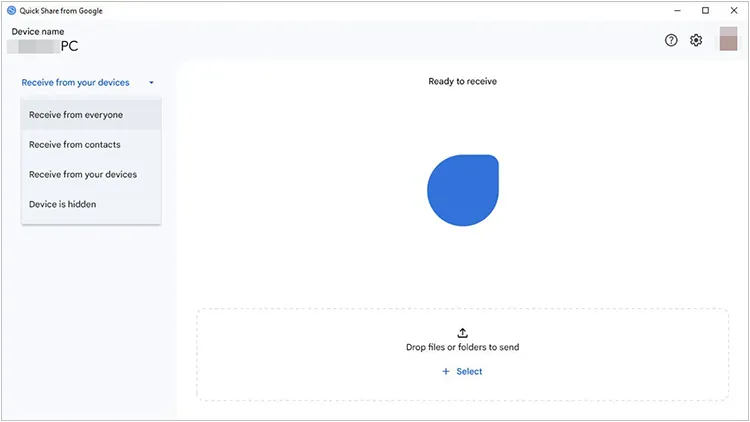
Download and install the Quick Share for Windows app from the official Android website. Then open the app on your PC and log into your Google Account. Set your visibility to "Everyone" or "My Devices".
-
Swipe down to open the Quick Settings panel on your Android tablet and turn on Quick Share.
-
On your PC, drag and drop the files you want to transfer into the Quick Share window, or right-click a file and select to send with Quick Share.
-
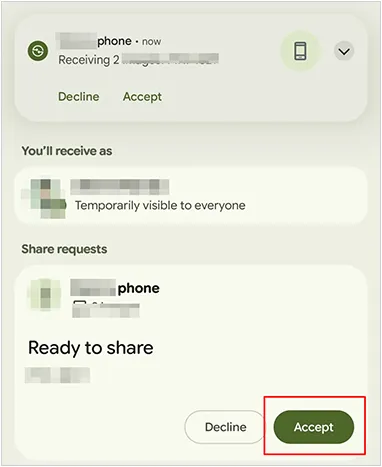
Choose your tablet from the list of available devices. Tap "Accept" on your tablet to complete the process.
Part 2: How to Transfer Files from PC to Tablet via iReaShare Android Manager
When looking for a reliable, comprehensive desktop solution to transfer files from a PC to an Android tablet, iReaShare Android Manager stands out as an exceptional choice. Unlike basic wireless tools, this software provides a dedicated, structured desktop environment that gives you full mastery over your tablet's data, allowing for seamless data migration, organization, and backup management.
Main features of iReaShare Android Manager:
* Allow you to connect your tablet to your PC using either a high-speed USB cable or a wireless Wi-Fi transfer.
* Enables seamless file sharing both from your PC to your Android tablet and vice versa, making data migration completely effortless.
* Help you preview, add, delete, and organize large batches of photos, videos, music, and documents directly from your computer's large screen.
* Can transfer contacts, text messages, call logs, and installed apps that many tools cannot send directly.
* Provide a swift mechanism to back up your tablet's entire data system to your PC and restore it completely with just a single click.
* Allow you to send messages, edit contacts, uninstall/install apps for your Android tablet on your computer.
* Fully support almost all Android tablet brands and models, including Samsung, Motorola, Vivo, OPPO, Honor, Google, TECNO, Infinix, TCL, Xiaomi, and more, running on various OS versions.
Download iReaShare Android Manager.
Download for Win Download for Mac
Here's how to transfer files from a PC to a tablet with this program:
-
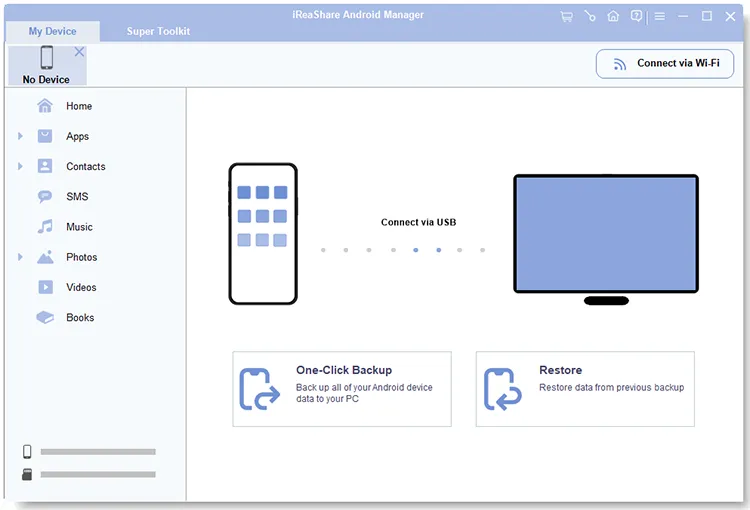
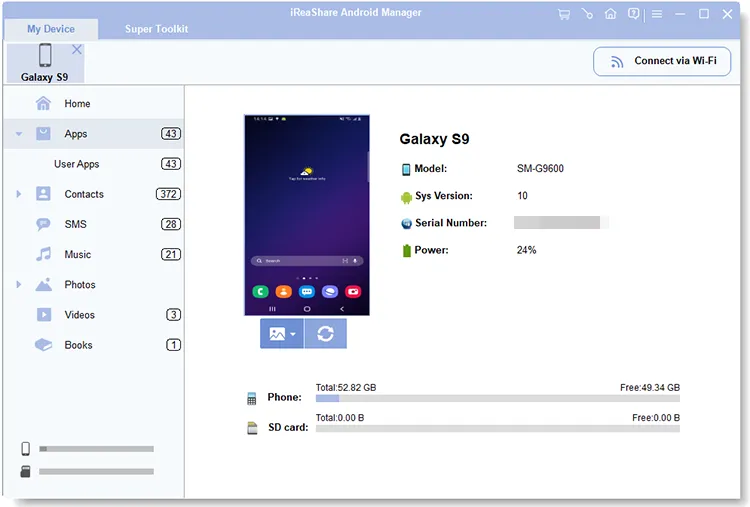
Install iReaShare Android Manager on your PC after downloading it, and then connect your Android tablet to the PC with a USB cable.
-
Enable USB debugging on the tablet. The program will directly recognize your mobile device. Then the connection will be established.
-
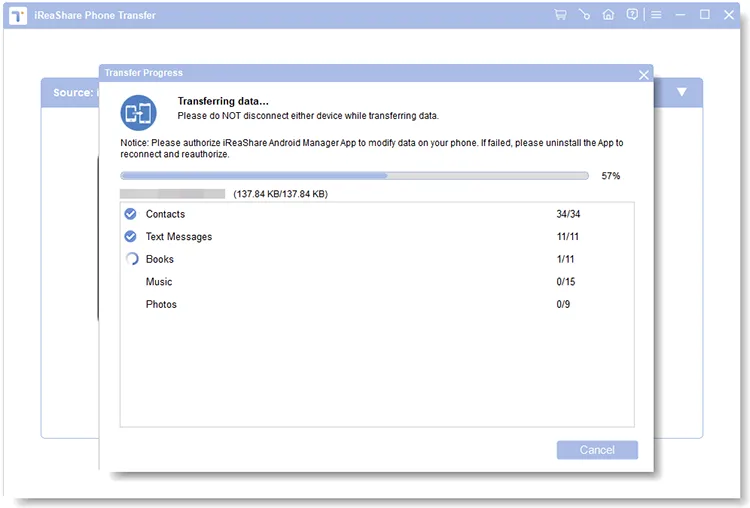
Select the file type you want, and click "Add" or "Import". Then opt for the desired items from your computer, and transfer them to your tablet.
Part 3: How to Upload Files to Android Tablet from PC via Phone Link
Microsoft's native Phone Link (formerly Your Phone) app bridges Windows and Android perfectly. While it is traditionally optimized for smartphones, it works seamlessly with Android tablets to sync notifications, photos, and files.
Here's how:
-
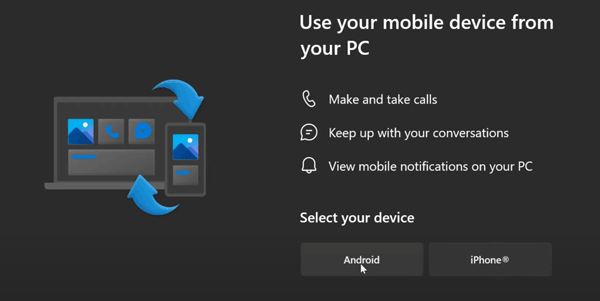
Open the Phone Link app on your Windows PC and the Link to Windows app on your Android tablet. Follow the on-screen prompts to pair them via a QR code. Note that advanced drag-and-drop file transfer via Phone Link is primarily supported on select Samsung, OPPO, Honor, and Xiaomi devices.
-
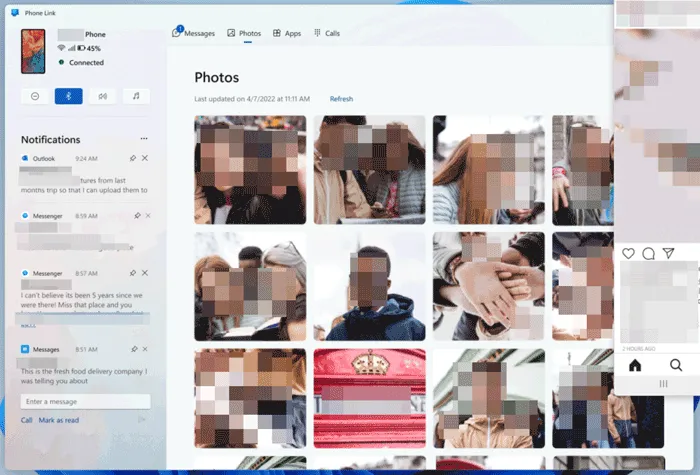
If you cannot directly drag and drop files to your tablet, please turn on the screen mirroring feature. Look at the left-hand sidebar where your device's information is displayed. Click on your "Phone/Tablet screen" icon or click on the device's screen preview directly above the menu. Alternatively, click on the "Apps" tab at the top of the window, and select "Open phone screen".
-
Provide permission on your tablet/phone if a pop-up asks to allow casting. Now, you can drag and drop the files from your PC to your Android tablet.
Part 4: How to Download Files from Computer to Tablet via Google Drive
If you don't mind uploading files to the cloud first, Google Drive is a flawless cross-platform solution. As long as you install Google Drive on your tablet, and make it tethered to your Google Account, you can get your uploaded files from your PC on your Android device.
To download files from a computer to a tablet with Google Drive:
-
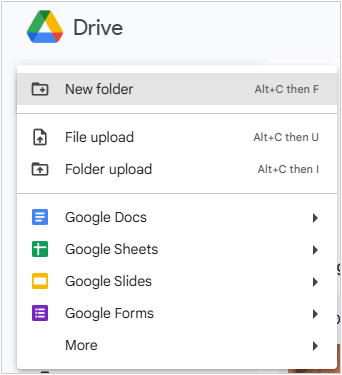
Open your browser on your PC, go to drive.google.com, and log into your Google Account. Click "New" > "File upload" or "Folder upload" and select your files.
-
Wait for the upload to finish. The upload speed depends entirely on your internet connection.
-
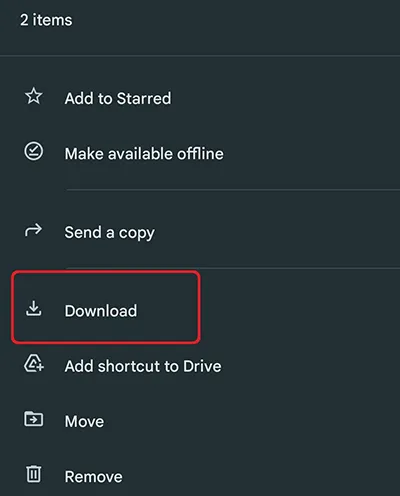
Open the Google Drive app on your Android tablet. Locate the uploaded files, tap the three dots (menu icon) next to the file, and select "Download" to save it locally to your device.
Part 5: How to Send Files from PC to Android Tablet via LocalSend
LocalSend is a massive favorite in the open-source community. It is a completely free, ad-free, cross-platform tool that allows devices to share files securely over a local Wi-Fi network without using external cloud servers.
Use LocalSend to send files from a PC to an Android tablet:
-
Download LocalSend on both your Windows PC and your Android tablet. Ensure both devices are connected to the exact same Wi-Fi router.
-
Open the app on your PC, click the "Send" tab, and click "File" or "Folder" to select what you want to transfer.
-
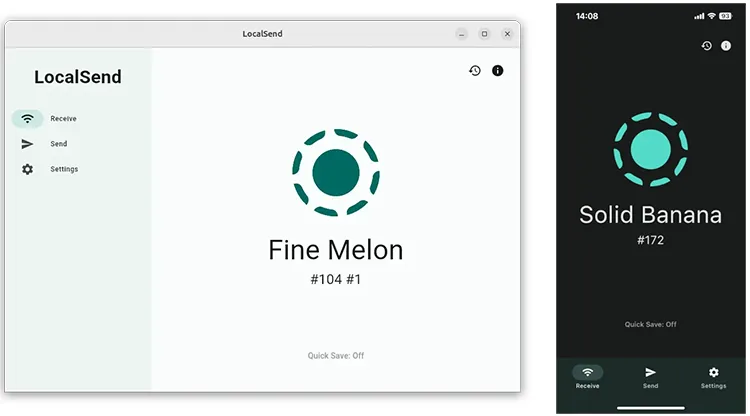
LocalSend assigns funny, randomized nicknames to devices (e.g., Cool Orange). Look for your tablet's nickname under the available devices list on your PC and click it.
-
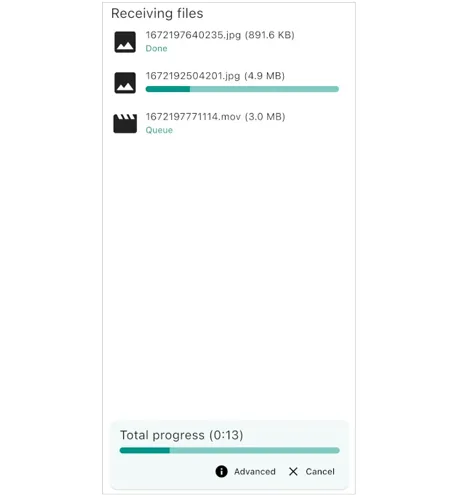
A prompt will pop up on your tablet. Tap "Accept" to receive the files at blazing-fast local network speeds.
Part 6: How to Transfer Files from PC to Tablet via LANdrop
Similar to LocalSend, LANdrop is another minimalist, open-source file transfer tool. It uses your local area network (LAN) to drop files instantly from one device to another without compressing your media files.
Here's the guide:
-
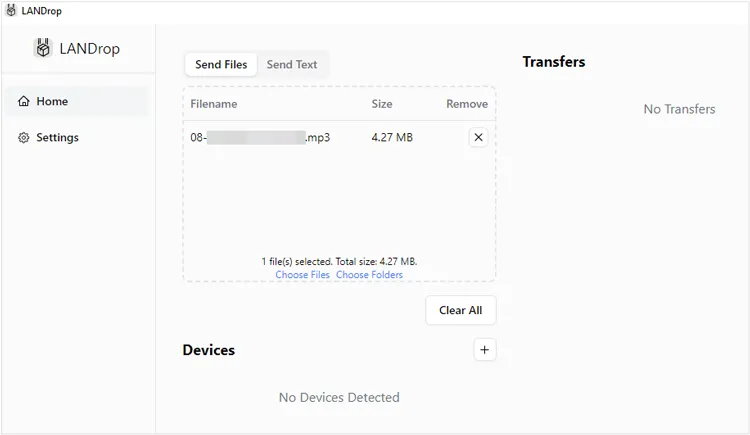
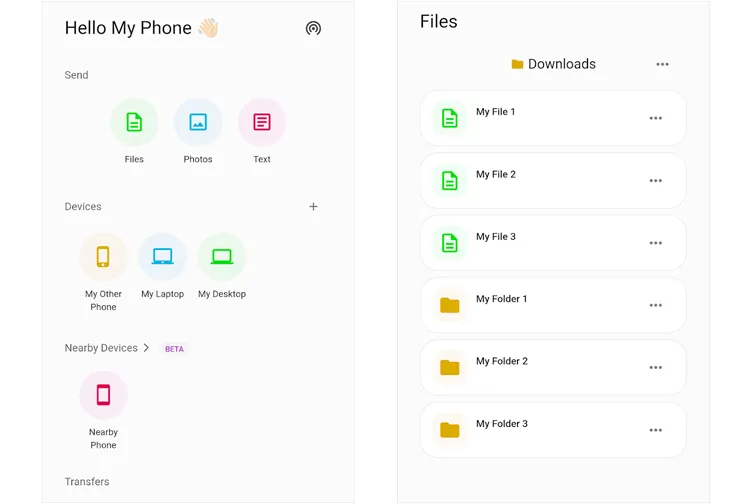
Install the LANdrop client on your Windows PC and the Android app on your tablet. Make sure both devices are sharing the same local network.
-
Open the LANdrop window on your PC. Drag your files directly into the app window, or click the "Add" button. Next, under the "Devices" section, your Android tablet should automatically appear. Select it.
-
Unlock your tablet, look out for the incoming file notification from LANdrop, and tap "Accept".
Part 7: Q&A About Transferring Files from PC to Tablet
Q1: Is there a file size limit when I transfer files from a PC to an Android tablet?
It depends entirely on the method you choose. Local network tools like iReaShare Android Manager, Quick Share, LocalSend, and LANdrop have no file size limits, meaning you can transfer 50GB video files smoothly as long as your Wi-Fi is stable. Cloud tools like Google Drive, however, are limited by your remaining cloud storage capacity (free accounts get 15GB).
Q2: Is Bluetooth a good option for transferring files?
Generally, no. While Bluetooth is universally available and fine for tiny files like a single contact card or a small text note, its transfer speed is incredibly slow (usually maxing out around 2 Mbps). Trying to transfer a modern photo album or video via Bluetooth will take ages. Stick to Wi-Fi-based methods like Quick Share or LocalSend instead.
Q3: How much storage space do I need on my tablet for file transfer?
You need slightly more free space on your tablet than the total size of the files you are transferring. For example, if you are sending a 5GB movie, your tablet must have at least 5GB of available local storage. It is always a good practice to keep an extra 1-2 GB of buffer space free to ensure the system can index the new files without crashing.
Conclusion
You can find the right transfer method according to your requirements. If you want a quick, native experience without clutter, Quick Share is arguably the best tool for the job. If you regularly handle massive bulks of data or backups, a desktop suite like iReaShare Android Manager is incredibly handy. Furthermore, this tool supports most data types and two connection methods.
Anyway, understanding the pros and cons of each method ensures smooth, efficient file management across your devices.
Download for Win Download for Mac
Related Articles
How to Download Apps on Android Phone and Tablet: 6 Solutions
How to Easily Transfer Data from Old Tablet to New Tablet (Solved)
How to Transfer Files from PC to iPad Efficiently: 6 Easy Methods
How to Transfer Video from Android to PC Without Effort? 8 Solutions

