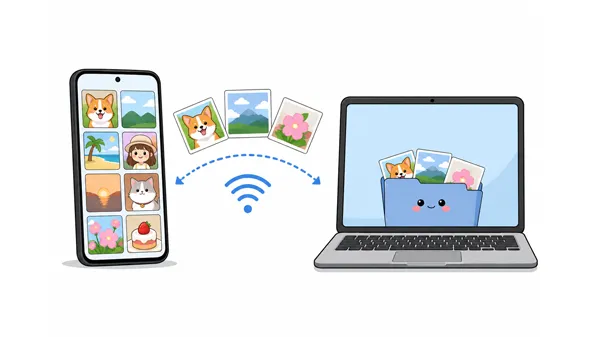
Sometimes, it can feel like trying to get two people who speak different languages to converse when you want to transfer photos from Android to Mac wirelessly. Because they belong to entirely different ecosystems, you can't just rely on native, one-click solutions like AirDrop.
Fortunately, you don't need to hunt for a USB cable every time you want to back up your memories. There are 5 reliable ways to bridge the gap between Android and macOS, so you can easily transfer photos wirelessly between both devices.
- Part 1: Transfer Photos from Android to Mac Wirelessly via iReaShare Android Manager
- Part 2: Transfer Pictures from Android to Mac Wirelessly via LocalSend
- Part 3: Transfer Photos from Android to Mac Wirelessly via Bluetooth
- Part 4: Send Photos from Android to Mac Wirelessly via Snapdrop
- Part 5: Sync Photos from Android to Mac Wirelessly via Google Photos
- Part 6: Q&A About Wireless Photo Transfer from Android to Mac
Take a quick look at the pros and cons of the 5 methods:
| Method | Pros | Cons |
|---|---|---|
| iReaShare Android Manager | 1. Offers a structured desktop interface for bulk management, visual previews, and organized folder browsing. 2. Supports multiple data types. 3. Transfer files with lossless quality. 4. Wired transfer is also supported. |
1. Requires installing software on the Mac and an APK application on the Android device. 2. A license is needed for full features. |
| LocalSend | 1. Open-source, completely ad-free, and ensures maximum privacy by keeping data off external servers. 2. Utilizes local Wi-Fi protocol to deliver incredibly fast transfer speeds without consuming internet data. |
1. Requires both devices to have the application downloaded, opened, and actively running simultaneously. 2. Both devices must be strictly connected to the exact same local network or personal hotspot. |
| Bluetooth | 1. Comes completely built-in on both Android and macOS systems, requiring zero third-party downloads. 2. Operates entirely offline and device-to-device, making it independent of any Wi-Fi routers or internet. |
1. Suffering from extremely slow data transmission rates, making it highly impractical for large batches. 2. Requires a manual, multi-step device pairing process and manual file acceptance for each session. |
| Snapdrop | 1. Requires absolutely zero installation, software setup, or account registration to begin transferring. 2. Works instantly across platforms through any standard web browser by mimicking the AirDrop experience. |
1. Heavily reliant on web-browser stability, which can cause connection drops during heavy transfers. 2. Does not support advanced folder structures or bulk management options found in desktop apps. |
| Google Photos | 1. Operates seamlessly with fully automatic background backups that require no manual file pushing. 2. Allows you to access, view, and download your synced photos from any web-connected device, anywhere. |
1. Consumes your limited cloud storage capacity, eventually requiring a paid subscription for more space. 2. Dependent on a continuous, stable internet connection to successfully upload high-resolution media. |
Part 1: Transfer Photos from Android to Mac Wirelessly via iReaShare Android Manager
One of the easiest and most comprehensive solutions is using iReaShare Android Manager. This tool allows you to manage Android data on a Mac, including photos, videos, contacts, messages, and more. It supports wireless and USB connections, making photo transfers fast and convenient.
Main features of iReaShare Android Manager:
* Transfer photos between Android and Mac wirelessly.
* Establish a fast and secure connection between your Android device and Mac simply by scanning an on-screen QR code over Wi-Fi.
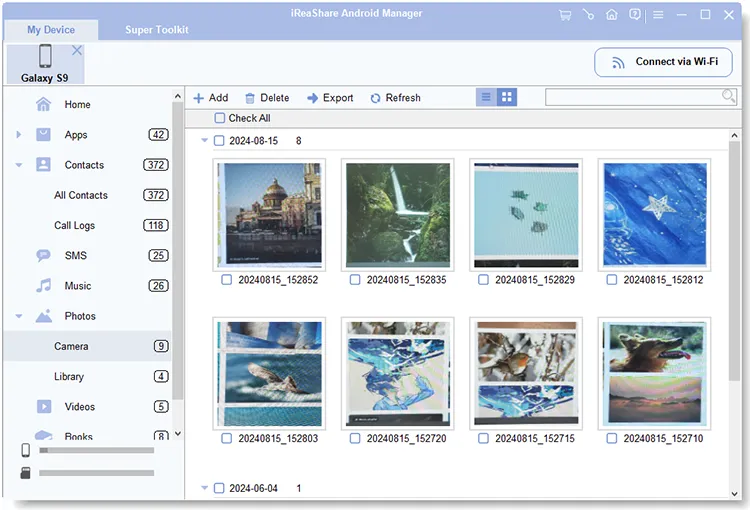
* Display your entire Android photo gallery on your Mac screen, allowing you to browse and select images comfortably before transferring them.
* Back up your entire photo library at once or selectively export specific albums and individual pictures.
* Guarantee that all transferred photos maintain their original resolution, metadata, and quality without any compression.
* Also support the transfer of videos, music, contacts, text messages, apps, etc.
Download iReaShare Android Manager below.
Download for Mac Download for Win
Here's how to export photos from Android to Mac wirelessly via this software:
-
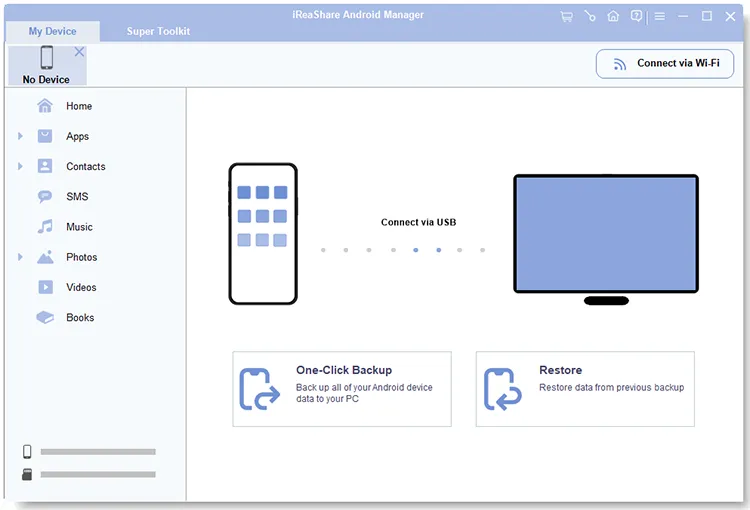
Download and install iReaShare Android Manager on your Mac. Then launch it, and click "Connect via Wi-Fi".
-
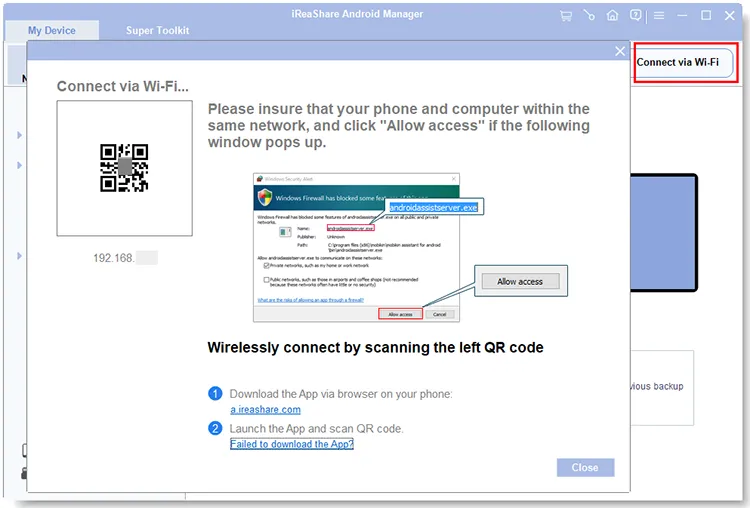
Ensure both your Mac and Android device are connected to the same Wi-Fi network. Follow the on-screen guide to install the mobile version on your Android device. Then open the app, and scan the QR code on the Mac.
-
After connecting, click on the "Photos" tab on the Mac interface. Browse through your albums, check the photos you want to move, and click the "Export" button to save them to your Mac.
Part 2: Transfer Pictures from Android to Mac Wirelessly via LocalSend
If you are looking for an open-source, privacy-focused, and cross-platform solution, LocalSend is an incredible tool. It requires no internet connection - only a local network (Wi-Fi) - and it does not upload your files to any external cloud servers.
Here's how to upload photos from Android to Mac via LocalSend:
-
Install the LocalSend app on both your Android device (via Google Play Store) and your Mac (via the Mac App Store or their official website).
-
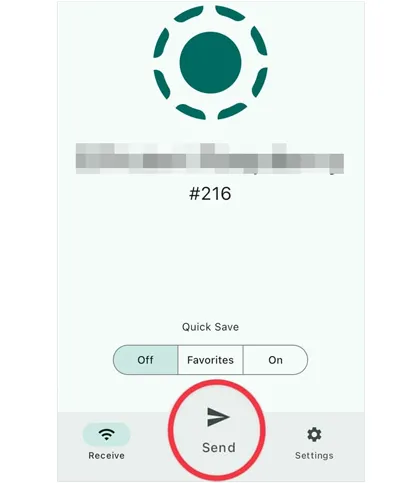
Make sure both devices are on the same Wi-Fi network or mobile hotspot. Then open LocalSend on your Android phone, go to the "Send" tab, tap "Files" or "Media", and select the photos you want to transfer.
-
Your Mac will appear in the list of nearby devices under a placeholder code name. Tap on your Mac's name. A prompt will pop up on your Mac. Click "Accept", and your photos will instantly transfer to your designated downloads folder.

Part 3: Transfer Photos from Android to Mac Wirelessly via Bluetooth
If you don't have access to a Wi-Fi network and only need to send one or two photos, Bluetooth is a built-in, no-install alternative. However, be warned: Bluetooth transfer speeds are quite slow, so it is not recommended for large batches or high-resolution videos.
Here's the Bluetooth file transfer from Android to Mac:
-
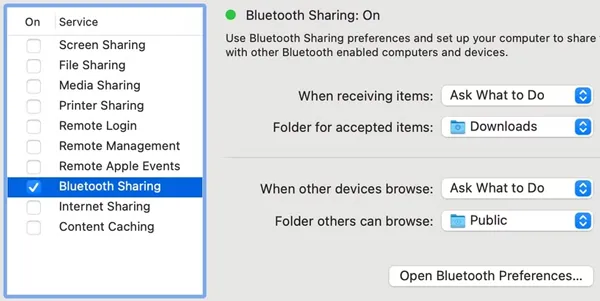
Enable Bluetooth on both your Android phone and your Mac. On your Mac, go to "System Settings" > "General" > "Sharing" and turn on "Bluetooth Sharing".
-
Pair your Android phone with your Mac through the Bluetooth settings menu on either device.
-
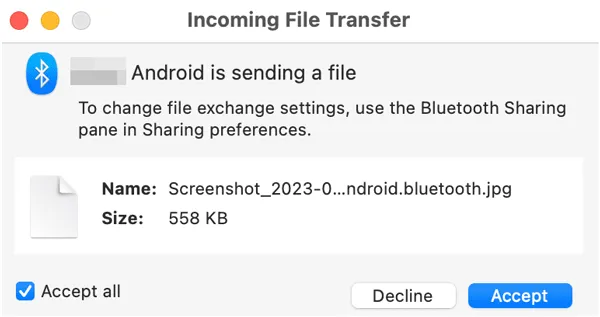
Open your Android gallery, select the photo you want to send, tap the "Share" icon, and choose "Bluetooth". Select your Mac from the list. Finally, click "Accept" on the incoming file prompt on your Mac to save the image.
Part 4: Send Photos from Android to Mac Wirelessly via Snapdrop
Snapdrop is a web-based cloning of Apple's AirDrop. It doesn't require you to download any apps or create accounts. It runs entirely inside your web browser, making it incredibly convenient for quick, occasional transfers.
To upload photos from Android to Mac:
-
Connect both devices to the same Wi-Fi network. Open a browser (like Chrome or Safari) on both your Android phone and your Mac, and navigate to snapdrop.net.
-
You will see a clean interface showing nicknames for your devices. On your Android phone, you should see your Mac's browser listed.
-
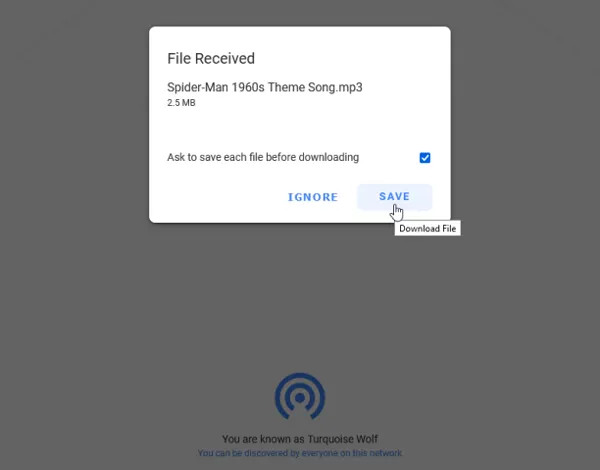
Tap the "Mac" icon on your Android screen. This will open your phone's file manager. Select the photos you wish to send. A pop-up will appear on your Mac asking if you want to save the file. Click "SAVE" to download the photos.
Part 5: Sync Photos from Android to Mac Wirelessly via Google Photos
For a completely hands-off experience, cloud synchronization via Google Photos is the most seamless method. Instead of manually pushing files from device to device, your photos automatically back up to the cloud and can be accessed on your Mac instantly.
To sync pictures from Android to Mac wirelessly via Google Photos:
-
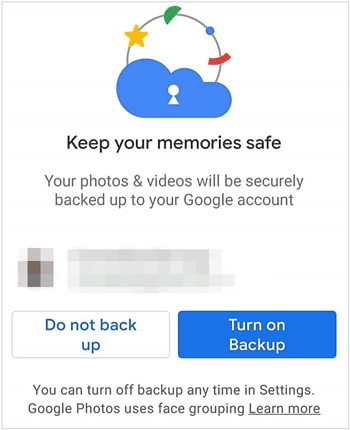
Install Google Photos on your Android phone, and sign in with your Google Account. Then open the app on your Android phone, tap your profile picture, click "Turn on backup", and choose it again on the pop-up.
-
Your phone will automatically upload new photos to your Google cloud storage whenever you are on Wi-Fi. Next, open any web browser on your Mac and go to photos.google.com. Sign in with the same Google Account.
-
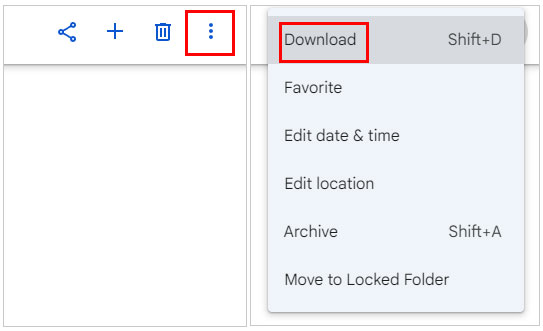
Browse your gallery, select the images you need locally on your Mac, click the three-dot menu icon in the top right, and select "Download", or press "Shift + D".
Tips: If the Google Photos app is stuck during the backup, you can fix it quickly.
Part 6: Q&A About Wireless Photo Transfer from Android to Mac
Q1: Can AirDrop from Android to Mac?
No. AirDrop is a proprietary wireless transfer protocol built exclusively by Apple for Apple devices (iPhone, iPad, Mac). Android devices lack the hardware-software ecosystem integration required to use AirDrop. However, tools like Snapdrop and LocalSend mimic the AirDrop experience perfectly across platforms.
Q2: Do both devices need to be on the same Wi-Fi network?
It depends on the method. For local transfer tools like LocalSend, iReaShare, and Snapdrop, both devices must share the same Wi-Fi network to detect each other. For Google Photos (Cloud), your phone just needs internet access to upload, and your Mac can access them from anywhere in the world. Bluetooth also does not require Wi-Fi, as it creates a direct device-to-device radio connection.
Q3: Are wireless transfers secure?
Generally, yes, but it varies by method. Local network transfers (like LocalSend) are highly secure because the data stays within your local router and never travels over the public internet. Cloud transfers (like Google Photos) encrypt your data during transit and storage, though they rely on third-party servers.
Public web tools like Snapdrop are safe for general use, but for highly sensitive or confidential images, local encryption tools or direct offline methods (like Bluetooth or local networks) are always safer.
Conclusion
Transferring photos from Android to Mac doesn't have to be a headache. If you want a structured desktop interface for bulk management without ads, iReaShare Android Manager will be an excellent choice. It also helps with the transfer of videos, music, documents, and other data.
Besides, LocalSend and Snapdrop offer that native "AirDrop feel". Meanwhile, if you prefer everything to happen automatically in the background, Google Photos remains the gold standard for cloud syncing. Pick the method that best fits your workflow, and enjoy a cable-free experience!
Download for Mac Download for Win
Related Articles
How to Back Up iPhone to Mac Without Data Loss (Proven)
How to Sync Android with Mac in 5 Effective Ways (Latest)
How to Transfer Photos from Android to Flash Drive Swiftly with Quality
Copy Photos from Mac to Android: Full Guide with 6 Solutions