


While iOS is known for its closed ecosystem, iPhone users still need to transfer and manage their files on their devices. If you want to access and manage your iPhone files easily, an iPhone file explorer is indispensable. So, which file viewer is suitable for you? You can take a look at this review, covering 9 options.

Part 1: iPhone File Explorer - 9 Options
To find your best iPhone explorer, you can check these 9 tools below, including their advantages and disadvantages.
Take a quick look at these 9 iPhone explorer apps:
| User Needs | Recommended Tool | Main Benefit |
|---|---|---|
| Everyday users looking for basic organization and iCloud management. | Apple Files App | Seamless, no-cost integration with the iOS ecosystem and external USB-C drives. |
| PC users who want to manage iPhone contacts, SMS, photos, videos, etc., from a desktop. | iReaShare iPhone Manager | A clear "God-view" of phone data on Windows or Mac for easy batch transfers and backups. |
| Media enthusiasts needing to play unique file formats or zip/unzip documents. | ES File Explorer | Powerful built-in media players and file compression tools in a familiar interface. |
| Archivists needing to export old text messages, voicemails, or app-specific data. | iExplorer | Ability to "mount" your iPhone as a disk drive to browse hidden application folders. |
| Minimalists looking for a free, simple way to delete or move files via a computer. | Macgo iPhone Explorer | Lightweight and focused purely on simple file transfers without the bloat of iTunes. |
| Storage cleaners who need to find out what is taking up space on their iPhone. | CX File Explorer & Manager | Advanced storage analysis that visually identifies large files and system "junk." |
| Power users & IT Pros connecting to office servers, NAS, or home Linux rigs. | FE File Explorer Pro | "Edit-in-place" capability and professional support for SMB, SFTP, and WebDAV. |
| Ultimate Device Management for secure, selective backups and full phone control. | iMazing | Comprehensive management suite that allows selective data restoration and app cloning. |
| Cross-platform sharers moving files between iPhone, Android, and Windows. | LocalSend | Open-source, secure "AirDrop alternative" that works across all operating systems via Wi-Fi. |
1.1 Apple Files App (Pre-installed)
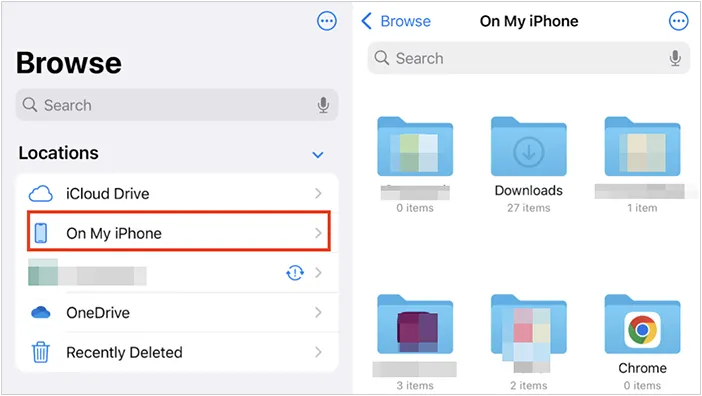
The default Files app is the most integrated solution. In 2025, Apple revamped it with a macOS-style "List View" featuring resizable columns and collapsible folders. It serves as a central hub for iCloud Drive, local storage ("On My iPhone"), and third-party cloud services like Dropbox.
Pros:
+ Seamlessly integrated with iOS, iCloud, and system-level features.
+ Maintained directly by Apple with consistent updates.
+ Supports iCloud Drive and third-party cloud services like Google Drive, OneDrive, and Dropbox.
+ Pre-installed on all modern iPhones.
Con:
- Cannot access app data or system directories.
- Lacks advanced file management features such as batch operations or detailed metadata views.
- Handling large media libraries can be cumbersome.
1.2 iReaShare iPhone Manager
iReaShare iPhone Manager is a desktop-based professional manager. Unlike mobile apps, it provides a "God-view" of your iPhone's internal database. It is particularly strong at managing multimedia (photos/videos) and system-level files that are often hidden by the standard iOS sandbox. For instance, you can view all your bookmarks, books, videos, and more on your Windows or Mac computer.
Main features of this iPhone file manager:
* Allow you to view various iOS files on your computer.
* Transfer your iPhone data to your computer, including contacts, photos, videos, messages, documents, notes, etc.
* Support connecting iPhone to a computer with USB.
* Enable you to organize your iPhone data on your computer, such as removing files, editing contacts, and more.
* Back up most iPhone data to a computer, and restore the backup data to an iOS device without data loss.
* Compatible with iOS 5.0 or later, including iOS 26.
* Can run on Windows 11/10/8/7 and Mac OS X 10.10 or later.
Download iReaShare iPhone Manager.
Download for Win Download for Mac
Pros:
+ Supports photos, videos, music, contacts, messages, and more.
+ Offers better visibility and control through a desktop interface.
+ Efficient for bulk file transfers.
+ Enables selective data transmission between iOS devices and computers.
+ No ads on the interface.
Con:
- Cannot be used independently on the iPhone.
- Full functionality requires a license.
- The update of the Windows version is more frequent than the Mac version.
Here's how to use this iPhone file manager on a Windows 11/10 PC:
-
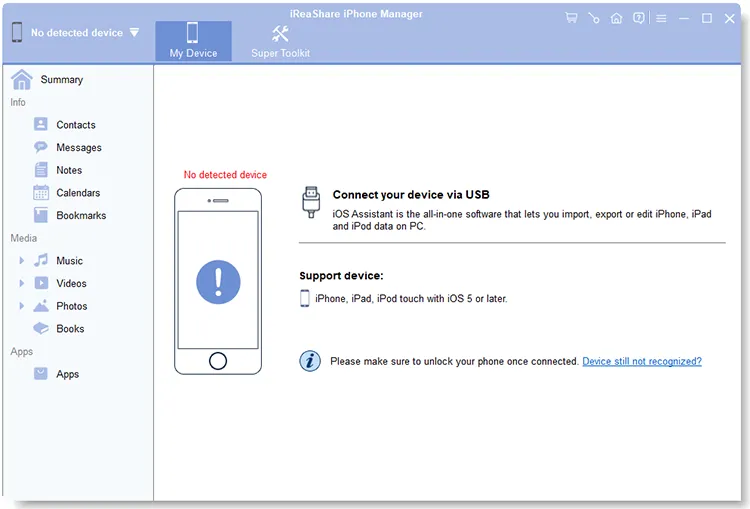
Please download the iPhone Manager software on your PC, and double-click the file to install it on the computer. Once done, launch it, and connect your iPhone to the PC via a USB cable.
-
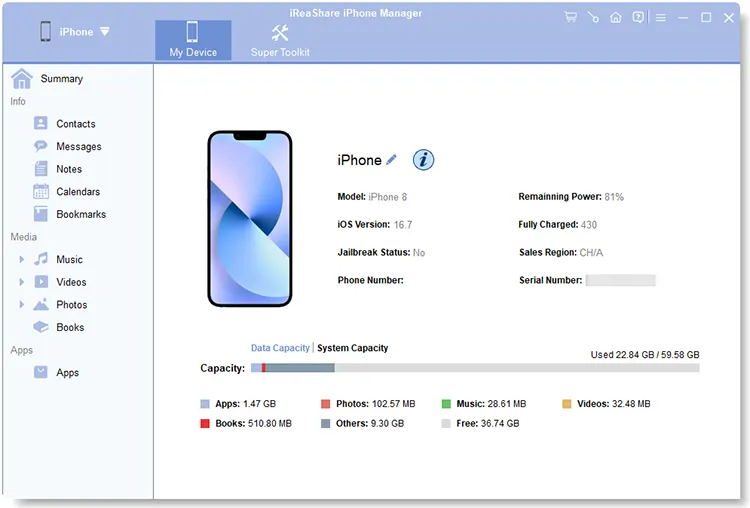
Tap the "Trust" option on your iPhone to make it trust your PC. Once done, you will see the connected interface.
-
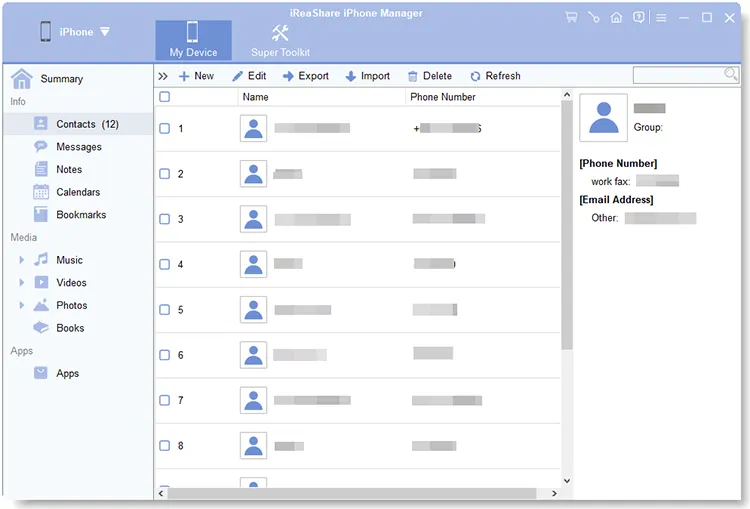
Choose a file type from the left panel. Then you will see the detailed iPhone data on the interface. Now, you can view, manage, and transfer them with the features on the menu.
Watch the video guide to transfer iPhone data to a computer:
1.3 ES File Explorer
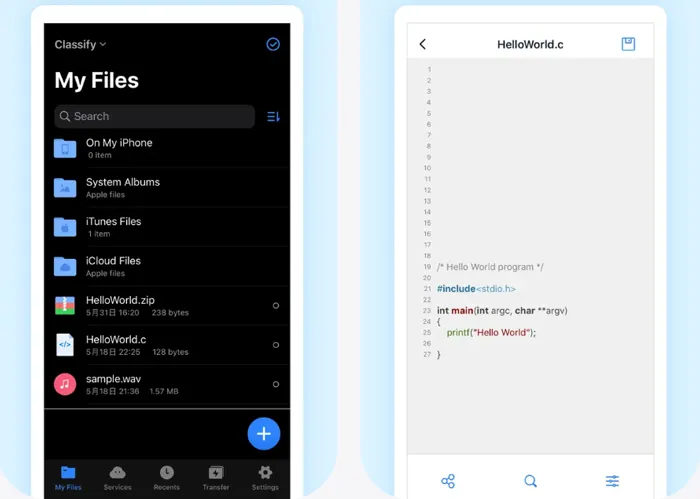
ES File Explorer is a well-known file management application that supports local file browsing, cloud storage integration, and network file transfers. On iOS, its functionality is more limited compared to Android, but it still offers value for users who need to manage documents, media files, and cloud-based content in one interface.
Pros:
+ Built-in player supports many video and audio formats that iOS doesn't natively play.
+ Supports FTP, SMB, and multiple cloud services (Google Drive, Dropbox) in one UI.
+ The simple UI is easy to use for basic document and media management.
Con:
- The free version is often cluttered with advertisements.
- Some users find the permission requests to be overly broad.
1.4 iExplorer
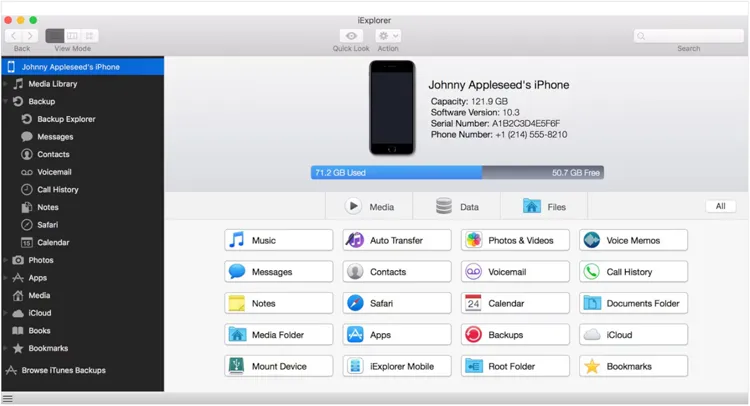
iExplorer (by Macroplant) is a classic desktop-to-iPhone bridge. While it hasn't seen frequent UI overhauls lately, it remains a reliable way to "mount" your iPhone as a disk drive on your PC. It allows you to browse through your text messages, voicemails, and even your App's data directories.
Pros:
+ Allows you to mount your iPhone as a literal USB drive in Windows Explorer or Mac Finder.
+ Very reliable for exporting old text messages and voicemails for legal or personal archives.
Con:
- Updates have slowed down in recent years; compatibility with the newest iOS 26 features may be limited.
- Usually requires iTunes to be installed on the PC to handle the driver connection.
1.5 Macgo iPhone Explorer
Macgo iPhone Explorer focuses on providing a simple and intuitive interface for browsing iPhone files on a computer. It supports file transfers, media management, and backup-related tasks. This option is well-suited for users who want a lightweight alternative to more complex iPhone management tools.

Pros:
+ A very small program that doesn't bloat your computer.
+ Great for "cleaning" files off a device that iTunes refuses to delete.
+ Supports photos, videos, and music transfers.
Con:
- The interface feels dated compared to the modern apps.
- Lacks advanced tools like backup management or message exporting.
1.6 CX File Explorer & Manager
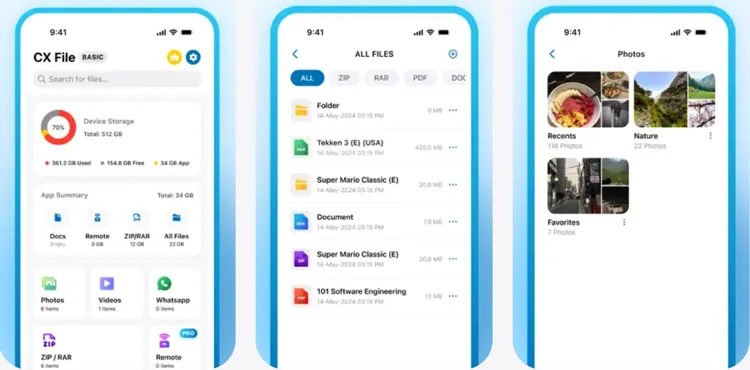
CX File Explorer is highly regarded for its "Storage Analysis" tool. It provides a visual breakdown of what is taking up space on your iPhone - categorizing files into Large Files, New Files, and Cache.
Pros:
+ Provides clear charts showing exactly what is eating up your iPhone storage.
+ Ad-free experience with a very intuitive "Windows-like" folder structure.
+ Many features are available without payment.
Con:
- It doesn't have a desktop companion app for direct PC-to-iPhone browsing.
- Less optimized for managing photos and videos.
1.7 FE File Explorer Pro
For "Power Users," FE File Explorer is the gold standard for connectivity. It can connect to almost anything: Windows shares (SMB), SFTP, WebDAV, and even NAS devices (Synology/QNAP). It makes your iPhone feel like a real workstation.

Pros:
+ A practical tool for connecting to NAS (Network Attached Storage) and Linux servers.
+ Efficient with large files and remote servers.
+ Ideal for professionals working across devices.
Con:
- Pro version is required for full feature access.
- Advanced features may be unnecessary for casual users.
- Still restricted by iOS security policies.
1.8 iMazing
Now in its 3.0 version, iMazing is widely considered the best overall iPhone manager. It goes beyond file browsing, offering unique features like "Quick Transfer" and the ability to export iMessage conversations as PDFs. It provides a safer, more transparent way to handle backups than iCloud.

Pros:
+ Covers backups, file transfers, app management, and device monitoring.
+ Regular updates and strong customer support.
+ Suitable for personal and enterprise use.
Con:
- More expensive than many alternatives.
- The desktop app can be slow to load when first indexing a large device.
1.9 LocalSend
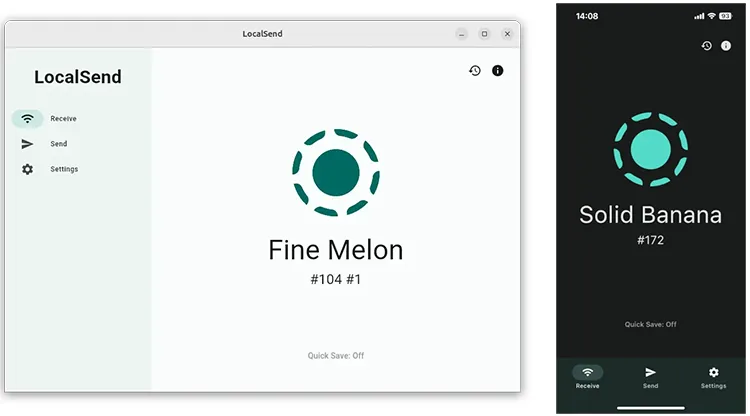
LocalSend is an open-source, cross-platform file sharing tool. While it isn't a "file explorer" in the traditional sense, it acts as the bridge for moving files between iPhone, Android, and Windows over a local Wi-Fi network. It is the best AirDrop alternative for mixed-OS households.
Pros:
+ Completely free, no ads, and no tracking.
+ No cables, accounts, or cloud storage required.
+ Works across iOS, Android, Windows, macOS, and Linux.
Con:
- Focuses only on file transfer.
- Devices must be on the same local network.
- Does not help manage or structure files on the device.
Part 2: Q&A About iPhone File Explorer
Q1: Do all iPhones have a Files app?
No, some very old iPhones don't have the Files app. The Files app was introduced in iOS 11. Any modern iPhone, including the latest iPhone 17, comes with it pre-installed. If your device is running an older version of iOS (below 11), you will not have this specific app.
Q2: Why can't I see the Files app on my iPhone?
If you cannot find the app, it is usually due to one of two reasons:
- It was deleted: Unlike some system apps, the Files app can be uninstalled. You can re-download it for free from the App Store.
- It's hidden in a folder: Use the Spotlight Search (swipe down on the home screen) and type "Files" to locate it.
Q3: How do I find hidden apps and files on my iPhone?
- Hidden Apps: Check the App Library (the last page of your home screen). You can also check under Settings > "Screen Time" > "Content & Privacy Restrictions" to see if any apps are restricted.
- Hidden Files: iOS does not have "hidden folders" in the traditional Windows/macOS sense. However, within the Photos app, there is a "Hidden" album. For system files, you generally need a third-party explorer like iReaShare iPhone Manager or iExplorer to see directories that Apple usually keeps out of sight.
Conclusion
Although iOS imposes certain limitations on file access, users still have a wide range of effective file explorers for managing iPhone files. From the built-in Apple Files app to advanced desktop solutions like iReaShare iPhone Manager, iMazing, LocalSend, etc., each option serves different needs and use cases. Hope you can improve your iPhone file management experience.
Download for Win Download for Mac
Related Articles
Which is the Best App to Transfer Data from Android to iPhone? Listed
Solve Notes Not Syncing Between iPhone and Mac in 9 Ways
How to Save Text Messages on iPhone [5 Effective Methods and FAQs]
How to Transfer Contacts from iPhone to iPad Seamlessly (4 Ways)

