


TL;DR:
Want to back up your iPhone without Wi-Fi? Here are 4 easy methods to protect your data, even without an internet connection:
- iCloud: Use cellular data to back up your iPhone wirelessly (if supported).
- Finder: Create a free, full local backup on your Mac without Wi-Fi.
- iTunes / Apple Devices: Back up your iPhone directly to a Windows PC via USB.
- iReaShare iPhone Manager: Preview, select, and back up supported iPhone data without Wi-Fi or iTunes.
Need to back up your iPhone but don't have access to Wi-Fi? Whether you're traveling, dealing with an unstable wireless connection, or simply prefer using a computer, you don't necessarily need Wi-Fi to protect your iPhone data.
The good news is that there are several ways to back up an iPhone without Wi-Fi. In this guide, we'll explain how to back up iPhone without Wi-Fi using four practical methods. We'll also cover their advantages, limitations, and which option makes the most sense for different backup needs.
Part 1. How to Back Up iPhone to iCloud Without Wi-Fi
If you want to back up your iPhone to iCloud without connecting to Wi-Fi, using cellular data is the most convenient option. However, this feature is not available on every iPhone or supported by every carrier.
Apple notes that some 5G-compatible iPhone models may offer the option to back up using a cellular network, depending on carrier support. Therefore, if you cannot find the relevant setting, your device, iOS version, or carrier may not support it.
How to back up iPhone without Wi-Fi but with cellular:
Step 1. Open "Settings" on your iPhone.
Step 2. Tap your Apple Account name at the top.
Step 3. Go to "iCloud".
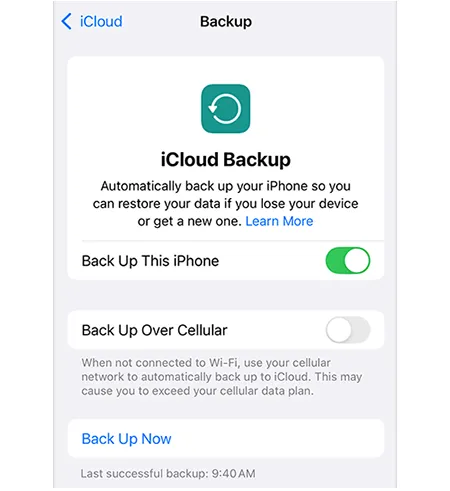
Step 4. Select "iCloud Backup".
Step 5. Find the "Back Up Over Cellular" option and turn it on (if supported by your device).
Step 6. Return to the iCloud Backup page and tap "Back Up Now".
Step 7. Wait for the backup to finish, then check the date and time of the most recent successful backup.
- No Wi-Fi connection is required.
- No Mac or Windows computer is needed.
- You can store your device backup in iCloud.
- Ideal for traveling or situations where wireless internet is temporarily unavailable.
- Require an iPhone and a carrier that supports this feature.
- Large backups may consume a significant amount of mobile data.
- Insufficient iCloud storage may prevent the backup from completing.
- An unstable cellular connection may interrupt the backup or make the process take longer.
Part 2. How to Back Up iPhone Without Wi-Fi or Cellular Data
What if you don't have Wi-Fi or cellular data at all? Can you still back up your iPhone?
Absolutely. You can connect your iPhone to a Mac or Windows computer using a USB cable and create a local backup. This process transfers your data directly to your computer, so you don't need an internet connection during the backup. There are three practical ways to do this.
2.1 Back Up iPhone Without Internet on Mac with Finder
If you own a Mac, Finder provides a free and straightforward way to back up an iPhone without internet. You don't need Wi-Fi, cellular data, or an Apple subscription. Just connect your iPhone to your Mac with a USB cable.
Finder supports iPhone backups on macOS Catalina 10.15 and later. If you're using macOS Mojave or an earlier version, you'll need iTunes instead.
Steps to back up your iPhone to your Mac using Finder:
Step 1. Connect your iPhone to your Mac using a compatible USB cable.
Step 2. Unlock your iPhone. If prompted, tap "Trust This Computer" and enter your passcode.
Step 3. Open Finder on your Mac.
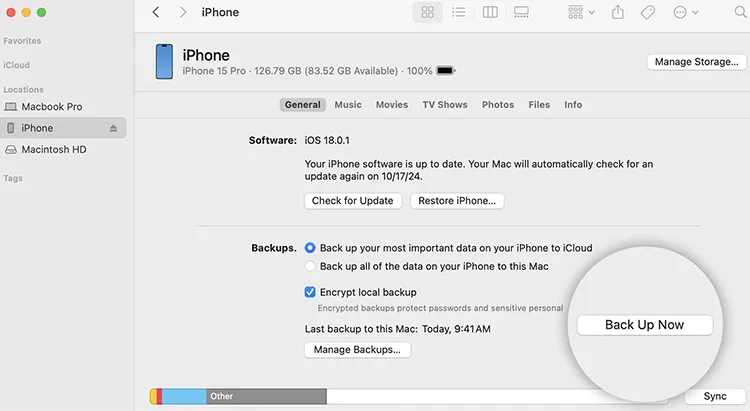
Step 4. Find your iPhone under "Locations" in the Finder sidebar and select it.
Step 5. Click the "General" tab.
Step 6. Under "Backups", select "Back up all of the data on your iPhone to this Mac".
Step 7. If you want to protect sensitive information, check "Encrypt local backup" and create a password.
Step 8. Click "Back Up Now" and wait until Finder completes the process.
- Free and works without an internet connection.
- Back up most iPhone data and settings.
- Encrypted backups include Health, Activity, and Keychain data.
- Store backup files locally on your Mac.
- Only available on Mac, not Windows.
- Limited options for browsing and exporting individual files.
- Require sufficient storage space on your Mac.
- Forgotten encryption passwords can prevent backup restoration.
- Exclude iCloud-synced data, Apple Pay information, Face ID settings, and some other data.
2.2 Back Up iPhone Without Wi-Fi on Windows Using iTunes/Apple Devices
If you're using a Windows PC, you can also back up your iPhone without Wi-Fi or cellular data. You can use the Apple Devices app or iTunes on older supported Windows setups.
Similar to local backups on a Mac, this method connects your iPhone to the computer via a USB cable and saves the backup files directly to your PC.
Option A. Back Up iPhone with Apple Devices
Step 1. Download and install Apple Devices on your Windows PC if you haven't already.
Step 2. Connect your iPhone to the computer using a USB cable.
Step 3. Unlock your iPhone and tap "Trust" if prompted.
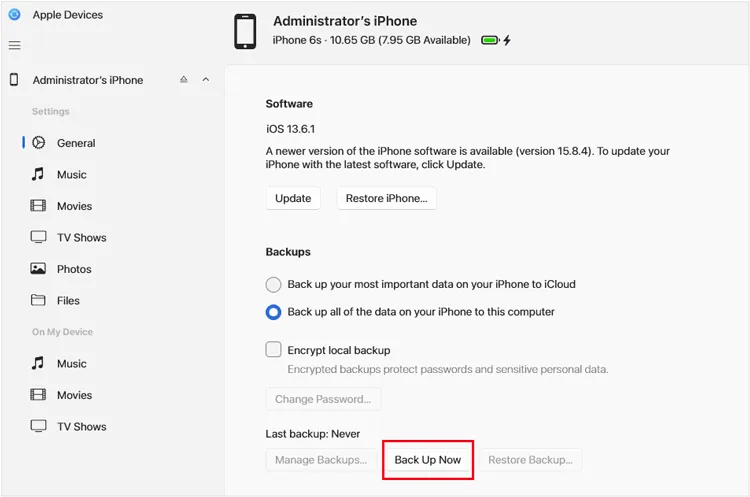
Step 4. Open Apple Devices and select your iPhone.
Step 5. Click "General".
Step 6. Choose the option to "Back up all the data on your iPhone to this computer".
Step 7. Enable "Encrypt local backup" if you need to protect sensitive data, and set a password.
Step 8. Click "Back Up Now" to start the process.
Option B. Back Up iPhone with iTunes
If you prefer iTunes or your Windows PC doesn't have Apple Devices, follow these steps:
Step 1. Install or open iTunes on your Windows PC.
Step 2. Connect your iPhone to the computer with a USB cable.
Step 3. Unlock your iPhone and tap "Trust This Computer" if prompted.
Step 4. Click the small iPhone icon near the upper-left corner of iTunes.
Step 5. Select "Summary" from the left sidebar.
Step 6. Under "Backups", choose "This Computer".
Step 7. Select "Encrypt local backup" if you want to include sensitive information such as Health and Activity data.
Step 8. Click "Back Up Now" and wait for the process to finish.
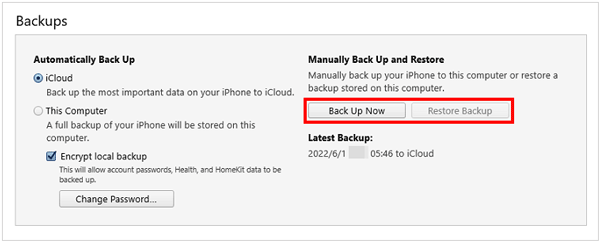
When the backup is complete, check the latest backup date and time in the software.
- No Wi-Fi or mobile data required.
- Save iPhone backups directly to your Windows PC.
- Support encrypted local backups.
- Ideal for users who regularly back up large amounts of iPhone data.
- Require compatible software installation.
- Need sufficient disk space on your PC.
- Driver, USB cable, or device recognition issues may occur.
- Backup files cannot be browsed directly like regular photos and require compatible software for restoration.
2.3 Back Up iPhone Without Wi-Fi via iReaShare iPhone Manager
If you find Finder or iTunes too restrictive, especially when you only want to back up certain types of data, iReaShare iPhone Manager is another option worth considering. Unlike iCloud, this desktop program connects your iPhone to your computer through a USB cable. You can transfer data directly between the two devices without using Wi-Fi or cellular data.
It supports common iOS data categories, including contacts, text messages, photos, videos, music, notes, and documents. You can also preview and select data before transferring it, making it more flexible for users who don't want to manage everything through a complete device backup.
Key features of iReaShare iPhone Manager:
- Transfer data from iPhone, iPad, and iPod touch to a computer.
- Import files from a computer to an iOS device.
- Back up iPhone data to a computer without iTunes.
- Restore backups to iOS devices.
- Preview, browse, and selectively manage iOS data.
- Support multiple iOS versions, including iOS 27.
- Compatible with a wide range of devices, including iPhone Duo, iPhone 18 Pro Max, and iPhone 18 Pro.
- Support Windows 11/10/8/7 and Mac OS X 10.9 or later.
Download for Win Download for Mac
How to Back Up iPhone Without Wi-Fi Using iReaShare iPhone Manager:
-
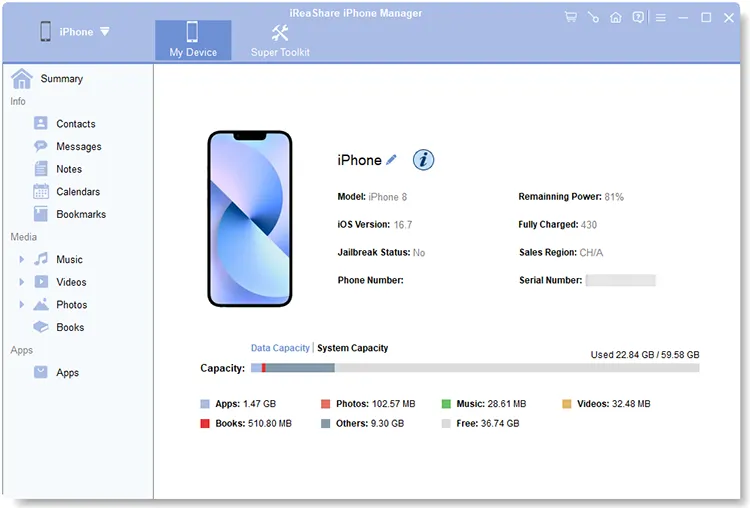
Install and launch iReaShare iPhone Manager on your computer. Connect your iPhone to the PC using a USB cable. Once the software recognizes your device, its main interface will appear.
-
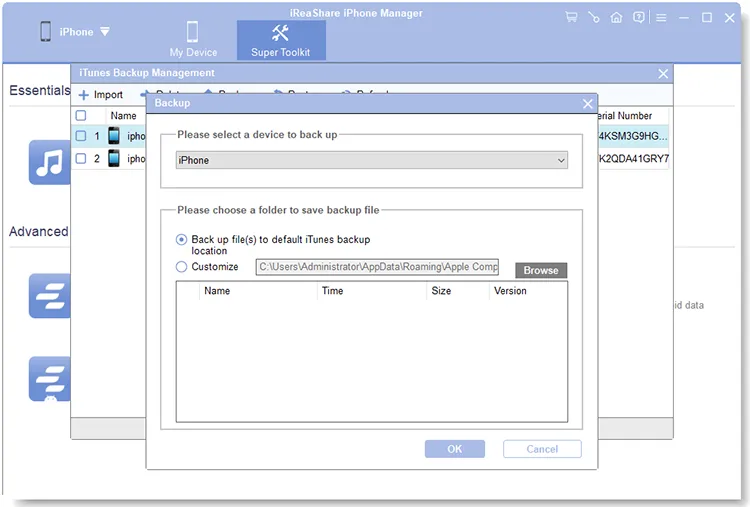
Click "Super Toolkit" at the top, select "iTunes Backup & Restore", and click "Backup". Choose your iPhone from the drop-down list, select a destination folder on your PC, and click "OK" to start backing up.

If you only want to save specific data, such as photos, go to the "Photos" section instead. Preview and select the items you need, click "Export", and follow the on-screen instructions to complete the process.
Here's the video guide:
- Transfer data via USB without an internet connection.
- Support data preview and selective export.
- Make managing individual files easier than full-device backups.
- Support backup and transfer tasks without iTunes.
- Compatible with both Windows and Mac.
- Cannot fully replace iCloud or Finder for complete backups.
- Some features may require a paid license.
- Require a compatible USB cable and device trust authorization.
- Cannot access or export all app data or protected content.
- Require installing third-party software on your computer.
Part 3. Frequently Asked Questions About Backing Up iPhone Without Wi-Fi
Q1. Can I back up my iPhone without Wi-Fi?
Yes. You can use cellular data for iCloud backups if your iPhone and carrier support this feature. Alternatively, connect your iPhone to a Mac or Windows computer using a USB cable and create a local backup without Wi-Fi or internet access.
Q2. What is the fastest way to back up an iPhone without Wi-Fi?
Connecting your iPhone to a computer via USB is usually the fastest option. The speed depends on the data size, USB connection, cable quality, and computer storage speed. For large backups, a local backup is generally better than uploading over mobile data.
Q3. Can I back up my iPhone to an external hard drive without Wi-Fi?
Yes. You can use the iPhone Files app to copy photos, videos, and documents to a compatible external drive, but this isn't a full device backup.
To create a full local backup, first back up your iPhone to a computer using Finder or a Windows tool, then transfer the backup files to an external hard drive for storage.
Sum Up
Choosing the right way to back up your iPhone without Wi-Fi depends on your needs and available resources. iCloud with cellular data is convenient for wireless backups, while Finder and iTunes offer free, reliable offline backup options. If you want more flexibility to preview, select, and transfer specific iPhone data to your computer, iReaShare iPhone Manager is worth trying. It provides a convenient way to manage and back up supported files without Wi-Fi or iTunes, making it a practical choice for users who want greater control over their iPhone data.
Download for Win Download for Mac
Related Articles
How to Update iPhone Without Wi-Fi Using Mobile Data or Computer
How to Back Up iPhone Before Upgrade Without Effort (4 Ways)
Best iPhone Transfer Software in 2026: Top 5 iTunes Alternatives Compared