


TL;DR:
Can you back up an iPhone to Google Drive instead of iCloud? Yes. While iOS limits native cloud backups to iCloud, you can fully back up your iPhone using 4 flexible methods:
- Method 1 (Google Drive App): Auto-syncs Photos, Contacts, and Calendar events over Wi-Fi.
- Method 2 (iReaShare iPhone Manager - Recommended): USB-exports Messages, Call Logs, Photos, and Media to PC/Mac, then uploads to Drive with no cloud limits.
- Method 3 (iOS Files App): Manually saves local Documents, PDFs, and Downloads directly to Drive.
- Method 4 (WhatsApp Export): Directly exports WhatsApp chat histories and media attachments to Drive.
Tired of relentless "iCloud Storage Is Full" alerts and mandatory subscription fees? Switching your iPhone backup strategy to Google Drive gives you 15 GB of free cloud storage and seamless cross-platform file access.
Below is a step-by-step guide on how to back up your iPhone to Google Drive instead of iCloud, covering both direct mobile syncs and complete desktop data exports.
- Why Back Up iPhone to Google Drive Instead of iCloud?
- iCloud vs. Google Drive vs. iReaShare iPhone Manager
- Method 1: Back Up Photos, Contacts, & Calendar via Google Drive App
- Method 2: Full iPhone Backup to Google Drive via iReaShare iPhone Manager (Best Solution)
- Method 3: Back Up Documents & Files via iOS Files App
- Method 4: Back Up WhatsApp Data from iPhone to Google Drive
- Troubleshooting Common Google Drive iPhone Backup Errors
- Frequently Asked Questions (FAQs)
Why Back Up iPhone to Google Drive Instead of iCloud?
While Apple's native iCloud service provides seamless background syncing, its 5 GB free storage tier fills up almost immediately with high-resolution photos, 4K videos, and system data. Once full, iOS continuously prompts users with "iCloud Storage Is Full" alerts and stops syncing essential files.
Switching your primary storage strategy to Google Drive offers compelling advantages:
- 15 GB Free Storage: Google provides triple the free tier storage compared to Apple's 5 GB limit.
- Cross-Platform Accessibility: Access your backed-up photos, documents, and contacts seamlessly across Windows PCs, Android devices, Chromebooks, and web browsers.
- Cost-Effective Upgrades: Google One storage plans offer competitive multi-tier pricing that can be shared across family accounts easily.
- Data Centralization: Keep your personal files, Google Docs, and iPhone media consolidated under a single cloud ecosystem.
Comparison: iCloud vs. Google Drive App vs. iReaShare iPhone Manager
Before selecting a method, review how native solutions compare with professional desktop iOS transfer utilities:
| Feature / Capability | iCloud Backup | Google Drive iOS App | iReaShare iPhone Manager + Drive |
|---|---|---|---|
| Free Storage | 5 GB | 15 GB | Unlimited (Depends on PC & Google Drive storage) |
| Supported Data Types | Full System, Apps, Settings, Photos, SMS | Photos, Videos, Contacts, Calendar | Photos, Videos, Contacts, Messages, Music, Call Logs, Books, Apps |
| Selective Backup & Preview | No (All-or-nothing system image) | Limited | Yes (Preview and choose individual items) |
| Transfer Speed | Wi-Fi dependent (Slower) | Wi-Fi dependent (Slower) | Ultra-fast USB Cable Connection |
| Data Privacy & Local Control | Cloud-only | Cloud-only | Local PC/Mac Copy + Cloud Backup |
Method 1: Back Up Photos, Contacts, & Calendar via Google Drive App
If you only need to protect your essential personal information (contacts, meetings, and media files), Google provides an automated backup feature built directly into the iOS Google Drive app.
Steps to Back Up Using the Google Drive App:
- Download and install the Google Drive app from the Apple App Store.
- Open Google Drive and sign in with your primary Google Account.
- Tap the Menu (three horizontal lines) in the top-left corner and select Settings.
- Tap Backup.
- Customize your backup options:
- Contacts: Turn on Back up to Google Contacts.
- Calendar Events: Turn on Back up to Google Calendar.
- Photos & Videos: Select Back up to Google Photos (Original quality or Storage saver).
- Tap START BACKUP. Ensure your device remains connected to Wi-Fi and power until the process finishes.
Note on Technical Limitations: The official Google Drive iOS app cannot back up SMS text messages, iMessages, call history, app data, browser bookmarks, or custom ringtones due to iOS sandboxing restrictions. Additionally, photo backups may pause if the app is closed or sent to the background.
Method 2: Full iPhone Backup to Google Drive via iReaShare iPhone Manager (Recommended)
Because Google Drive's mobile app cannot access text messages, call logs, or system media, relying solely on mobile apps leaves critical data unprotected. To achieve a complete, custom backup of your iPhone to Google Drive, the most reliable method is using iReaShare iPhone Manager.
iReaShare provides advanced mobile utility solutions designed to bridge the gap between iOS devices and desktop environments. Using iReaShare iPhone Manager, you can export all your iPhone data to a PC or Mac first via high-speed USB, and then upload those structured files directly to Google Drive Web or Google Drive for Desktop.
Why Choose iReaShare iPhone Manager for Google Drive Backups?
- Comprehensive File Support: Back up text messages (SMS), iMessages, contacts, photos, videos, music, notes, bookmarks, calendars, apps, and documents.
- Selective Preview & Export: Preview specific photos, messages, or files on your computer and export only what you need.
- Flexible Output Formats: Export contacts as CSV/VCF/XML, text messages as readable HTML/TXT, and media in original quality.
- Bypass Cloud Limits: Transfer multi-gigabyte video libraries over high-speed USB cables without network dropouts or Wi-Fi bandwidth throttling.
- No Data Overwriting: Unlike Google sync which overwrites existing contact lists, local exports create organized, historical backup folders.
Step-by-Step Guide: Export iPhone Data and Upload to Google Drive
Phase 1: Export iPhone Data to Computer via iReaShare iPhone Manager
Step 1. Download, install, and launch iReaShare iPhone Manager on your Windows PC or Mac.
Download for Win Download for Mac
Step 2. Connect your iPhone to your computer using a USB-Lightning or USB-C cable. Tap Trust This Computer on your iPhone screen if prompted.
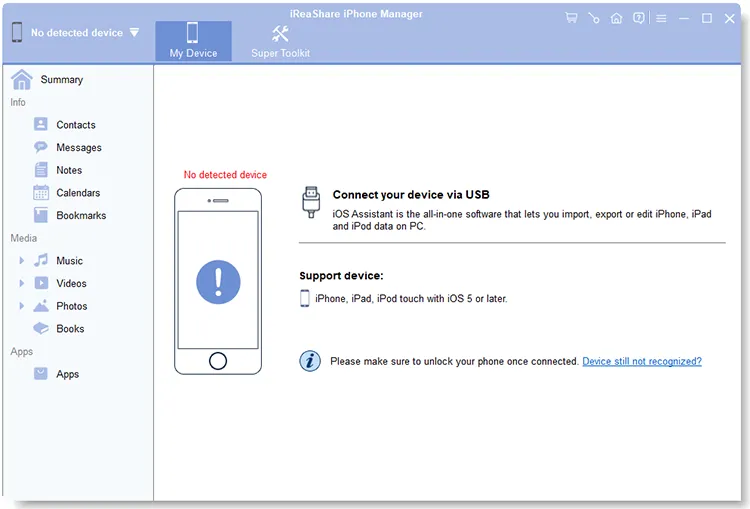
Step 3. Select the data categories you wish to back up from the left navigation panel (e.g., Photos, Music, Videos, Contacts, Messages).
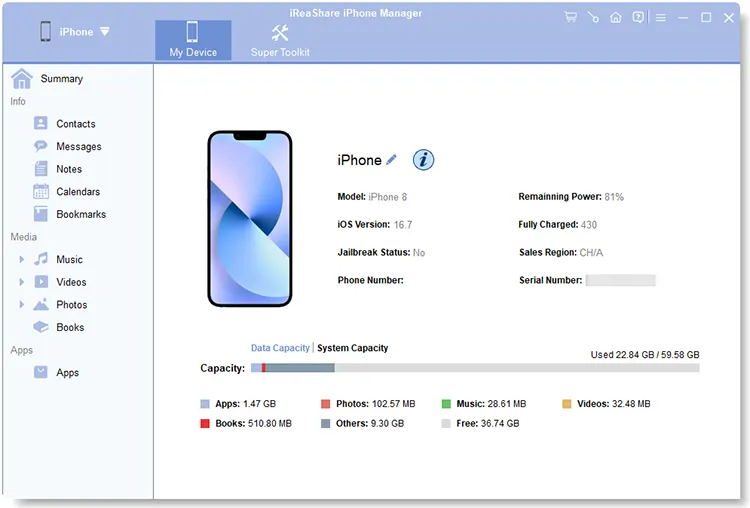
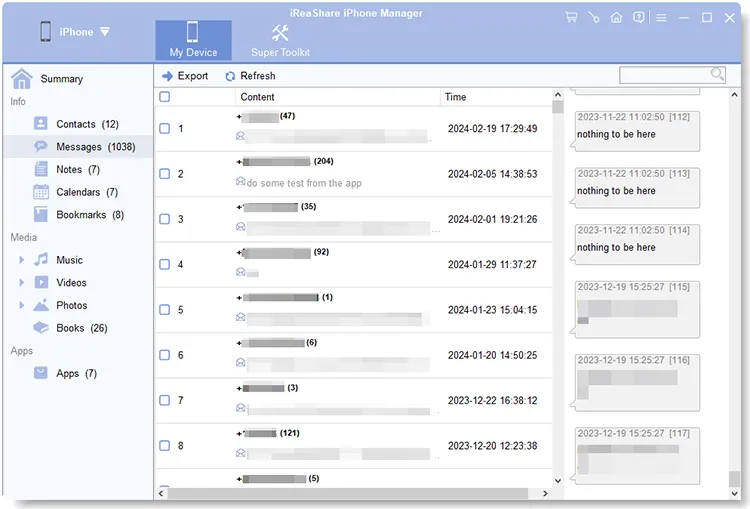
Step 5. Preview items, check the boxes next to the desired files, and click the Export button on the top menu bar.
Step 6. Choose a dedicated folder on your computer (e.g., Desktop/iPhone_Google_Drive_Backup) as the destination.
Video Guide:
Watch the video tutorial to Transfer files from iPhone to computer via iReaShare iPhone Manager below.
Phase 2: Upload Exported iPhone Data to Google Drive
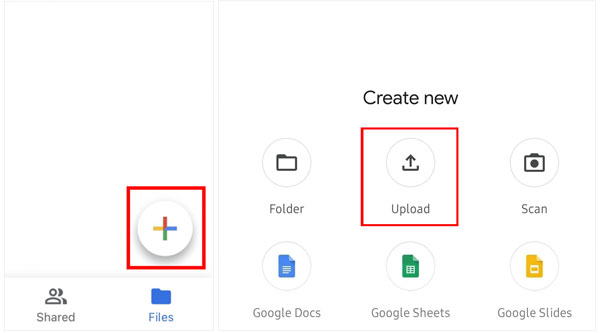
- Open your web browser and navigate to Google Drive (or launch the Google Drive for Desktop app).
- Click the + New button in the top-left corner and choose Folder upload.
- Select the folder generated by iReaShare iPhone Manager containing your exported iOS files.
- Click Upload to store your full iPhone backup securely in your Google Drive cloud storage.
Method 3: Back Up Documents & Files via iOS Files App
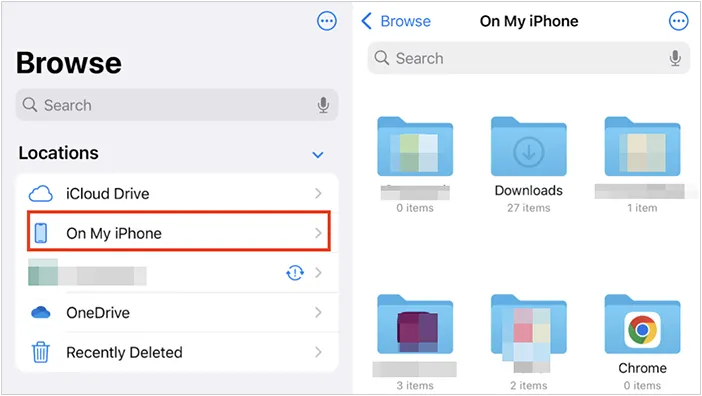
If you frequently save PDFs, downloaded files, or app documents directly to your iPhone's local storage ("On My iPhone"), you can transfer them manually to Google Drive using Apple's built-in Files app.
Steps to Back Up Files to Google Drive:
- Ensure the Google Drive app is installed and logged in on your iPhone.
- Open the native iOS Files app and tap the Browse tab.
- Tap the More (...) button in the top-right corner, select Edit, and toggle Google Drive to ON. Tap Done.
- Navigate to On My iPhone or your desired file folder.
- Select the files or folders you wish to back up, tap the Share/Options button, and choose Copy or Move.
- Select Google Drive as the destination folder and tap Save.
Method 4: Back Up WhatsApp Data from iPhone to Google Drive
By default, WhatsApp on iOS only backs up chat histories directly to iCloud. However, if you are migrating away from iCloud or preparing to switch to Android, you can back up your media and export chat history manually:
Open any WhatsApp chat > tap the contact name > scroll down and tap Export Chat > select Attach Media or Without Media > save the ZIP file to Google Drive.
Troubleshooting Common Google Drive iPhone Backup Errors
If your iPhone backup to Google Drive hangs, fails, or encounters issues, apply these proven fixes:
1. "Backup Paused / App Closed" Error
Cause: iOS background app refresh limits prevent Google Drive from uploading large media folders when the screen turns off or when you switch apps.
Fix: Keep your iPhone connected to power, turn off Auto-Lock (Settings > Display & Brightness > Auto-Lock > Never), and leave the Google Drive or Google Photos app open while backing up. Alternatively, use iReaShare iPhone Manager over USB to bypass iOS background limitations completely.
2. Contacts or Calendar Not Syncing
Cause: Missing privacy permissions in iOS Settings.
Fix: Go to Settings > Google Drive > Allow Google Drive to Access and toggle Contacts and Calendars to Enabled.
3. Photos Saved as HEIC Format Unreadable on PC/Google Drive
Cause: High Efficiency Image Format (HEIC) used by modern iOS devices may not render automatically in standard desktop software.
Fix: When exporting photos using iReaShare iPhone Manager, you can convert or export photos in universally compatible formats (JPG/PNG) before uploading them to Google Drive.
4. Insufficient Storage Error (Error Code 403 / Quota Exceeded)
Cause: Your total upload batch size exceeds the remaining free space in your 15 GB Google Account quota.
Fix: Check your quota in the Google One app or visit one.google.com. Clean up old Google Drive files or use iReaShare iPhone Manager to select only critical folders for export.
Frequently Asked Questions (FAQs)
1. Does Google Drive back up entire iPhone system settings like iCloud?
No. Google Drive on iOS only backs up media (photos/videos), contacts, calendar events, and files manually uploaded through the Files app. To back up iPhone data without iCloud, use a desktop iOS management software like iReaShare iPhone Manager.
2. Will backing up to Google Drive delete my existing photos on iCloud?
No. Backing up files to Google Drive is a separate copy process. It will not delete or alter files stored on your iPhone local storage or iCloud server.
3. Can I restore an iPhone from a Google Drive backup after a factory reset?
You cannot perform a full native iOS system restore directly from Google Drive during the initial Apple setup screen. However, once your phone is activated, installing Google apps (Google Contacts, Google Photos, Google Drive) will re-sync your saved contacts, calendars, and media files automatically.
4. Is iReaShare iPhone Manager safe to use?
Yes. iReaShare software runs entirely locally on your computer. It processes file transfers directly between your iOS device and local storage using secure SSL/TLS protocols without storing your personal data on external servers.
Conclusion
Backing up your iPhone to Google Drive instead of iCloud is an intelligent way to maximize storage capacity, avoid monthly Apple storage fees, and maintain cross-platform accessibility across all your devices.
While the official Google Drive iOS app works well for basic syncing of contacts and photos, it falls short when you need a complete backup containing text messages, call history, voice memos, and media libraries. For complete data safety and total export flexibility, combine desktop performance with cloud storage by using iReaShare iPhone Manager to export your complete iPhone contents and upload them directly to Google Drive.
Download for Win Download for Mac
Related Articles
Easily Back Up iPhone to External Hard Drive (4 Ways)
iTunes Could Not Back Up iPhone Because an Error Occurred: Fix It in 10 Ways
How to Transfer Data from iPhone to Android: 5 Powerful Solutions
How to Get Photos off iPhone: 5 Effective Solutions

