

TL;DR:
If your iPhone says "iMessage needs to be enabled to send this message", first turn on iMessage and check Apple's server status, your internet connection, and Send & Receive settings. If the error persists, restart your iPhone, update iOS, or reset network settings. For persistent iOS-related problems, Fixppo offers Standard and Advanced repair modes to help resolve various system issues.
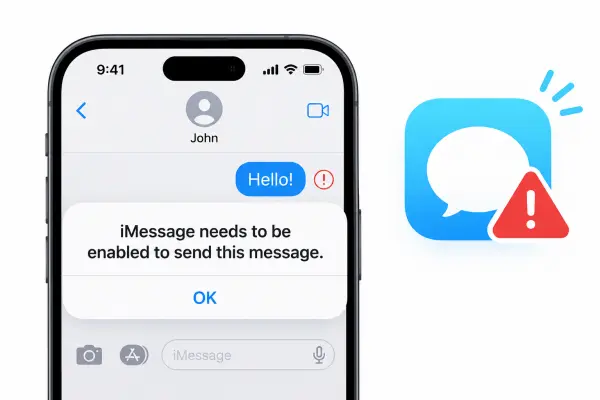
Have you ever tried to send a message from your iPhone only to receive the error "iMessage needs to be enabled to send this message"? This issue can be frustrating, especially when you need to contact someone urgently. It may occur even when you believe iMessage is already enabled, leaving you unsure where the problem comes from.
In most cases, the error is related to iMessage settings, network connectivity, Apple service availability, or activation issues. Fortunately, you can try several built-in troubleshooting methods before considering more advanced solutions. Below, we'll explain the possible causes and show you how to get iMessage working again.
- Part 1. Why Does My iPhone Say iMessage Needs to Be Enabled to Send This Message?
- Part 2. How to Fix iMessage Needs to Be Enabled to Send This Message
- Fix 1. Enable iMessage on iPhone
- Fix 2. Verify iMessage Server Status
- Fix 3. Check Internet Connection
- Fix 4. Review iMessage Send & Receive Settings
- Fix 5. Restart iPhone
- Fix 6. Update iOS to the Latest Version
- Fix 7. Reset Network Settings
- Fix 8. Use an iOS System Repair Tool
- Fix 9. Contact Apple Support
- FAQs of iMessage Needs to Be Enabled to Send This Message
Part 1. Why Does My iPhone Say iMessage Needs to Be Enabled to Send This Message?
The "iMessage needs to be enabled to send this message" error appears when your iPhone cannot send a message through Apple's messaging service as expected. Although the notification suggests that iMessage is disabled, the underlying cause is not always that simple.
Several factors may contribute to this problem:
iMessage activation failure:
Your phone number or Apple account may not have been successfully registered with Apple's iMessage service, preventing your device from sending messages through the expected channel.
Messaging service interruptions:
Temporary problems with Apple's servers may affect iMessage availability and prevent messages from being delivered.
Device or software compatibility issues:
Certain iOS bugs, incomplete software updates, or temporary system malfunctions may interfere with the Messages app and its communication functions.
Messaging configuration conflicts:
Changes to your SIM card, phone number, Apple Account, or messaging preferences may cause inconsistencies in how your iPhone handles conversations.
Communication restrictions:
Carrier-related limitations, network disruptions, or account-related restrictions may prevent your iPhone from connecting to or activating iMessage properly.
Identifying the likely cause can help you choose the right solution instead of repeatedly changing settings without knowing what is wrong.
Part 2. How to Fix iMessage Needs to Be Enabled to Send This Message
If you encounter this error, start with the following solutions. They begin with simple settings checks and move on to more advanced troubleshooting options.
Fix 1. Enable iMessage on iPhone
The first thing to do is make sure iMessage is enabled on your iPhone. If the feature is turned off, your device cannot send messages through Apple's iMessage service.
Step 1. Open the "Settings" app on your iPhone.
Step 2. Scroll down and tap "Apps" > "Messages". On some older iOS versions, you can find Messages directly in Settings.
Step 3. Locate the iMessage switch and turn it on.
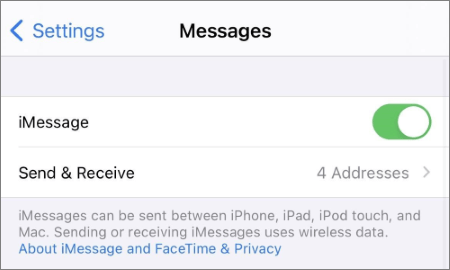
Step 4. Wait for iMessage to activate, then open the Messages app and try sending your message again.
If iMessage is already enabled, turn it off, wait a few seconds, and turn it back on. However, if your phone number is showing "Waiting for Activation", avoid repeatedly toggling the switch. Allow some time for the activation process to complete.
Fix 2. Verify iMessage Server Status
Sometimes, the problem is not with your iPhone but with Apple's servers. If the iMessage service is temporarily unavailable, your device may fail to send messages even when all settings are correct.
To check whether Apple's iMessage server is working:
Step 1. Open a browser and visit the Apple System Status page.
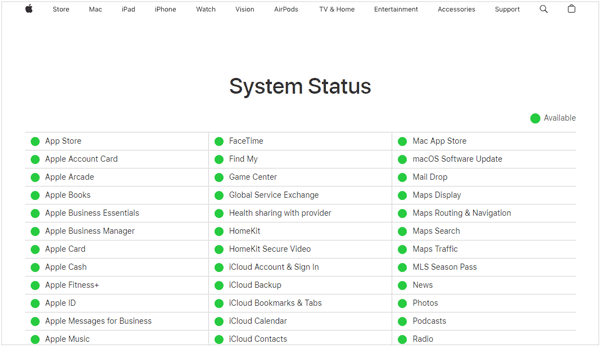
Step 2. Find iMessage in the list of Apple services.
Step 3. Check the status indicator next to iMessage. If it shows an outage or service disruption, wait until Apple resolves the issue.
Step 4. Once the service is available again, reopen Messages and try sending your message.
If iMessage is marked as available, continue with the next solution to check your network connection.
Fix 3. Check Internet Connection
iMessage relies on Wi-Fi or cellular data to exchange messages. If your internet connection is weak, unstable, or unavailable, your iPhone may fail to connect to Apple's messaging service.
You can troubleshoot your connection as follows:
Step 1. Open "Settings" > "Wi-Fi" and make sure your iPhone is connected to a working Wi-Fi network.
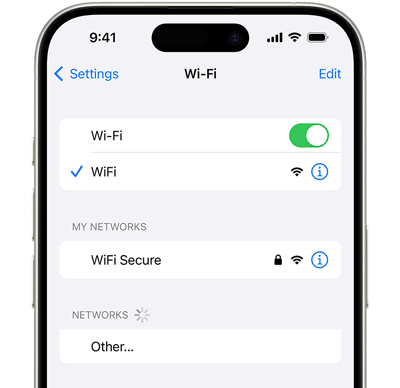
Alternatively, go to "Settings" > "Cellular" and make sure cellular data is enabled.
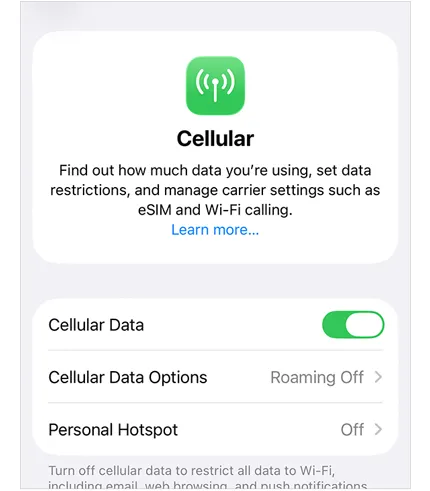
Step 2. Open Safari and visit a website to confirm that your internet connection works. If the connection is unstable, switch between Wi-Fi and cellular data.
Step 3. Return to Messages and try sending the message again.
If you use multiple SIM cards or eSIMs, also make sure the phone line you want to use is turned on under Cellular settings.
Fix 4. Review iMessage Send & Receive Settings
Incorrect Send & Receive settings may prevent your iPhone from using the intended phone number or Apple Account email address for iMessage. This can happen after changing SIM cards, switching devices, or setting up a new iPhone.
Follow these steps to review the settings:
Step 1. Open "Settings" > "Apps" > "Messages".
Step 2. Tap "Send & Receive".
Step 3. Check whether your phone number and Apple account email address are listed and selected.
Step 4. Under "Start New Conversations From", select the phone number or email address you want to use.
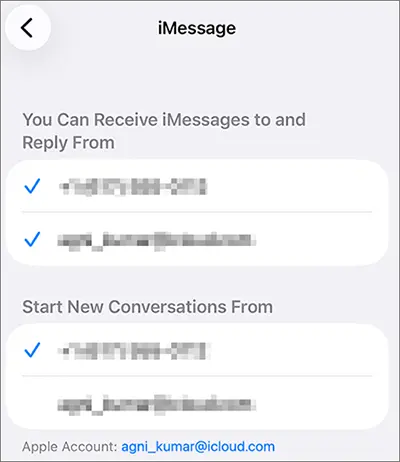
Step 5. Return to Messages and send a new message to see whether the error disappears.
If your phone number is missing or shows "Waiting for Activation", your carrier may need to verify it. Make sure your SIM or eSIM is active and that your carrier supports the SMS messages required for iMessage activation.
Fix 5. Restart iPhone
Temporary software glitches may interfere with iMessage and other system services. Restarting your iPhone can refresh these services and resolve minor problems without affecting your personal data.
To restart your iPhone:
Step 1. Press and hold the "Side" button and either "Volume" button until the power-off slider appears.
Step 2. Drag the slider to turn off your iPhone.
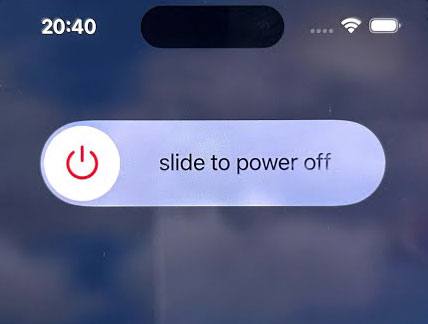
Step 3. Wait approximately 30 seconds.
Step 4. Press and hold the "Side" button until the Apple logo appears.
Step 5. After your iPhone restarts, open Messages and try again.
If you use an iPhone model with a Home button, press and hold the "Side" or "Top" button to access the power-off slider.
Fix 6. Update iOS to the Latest Version
An outdated iOS version may contain software bugs that affect Messages or iMessage activation. Updating your iPhone can help resolve known system issues and improve compatibility with Apple's services.
Here's how:
Step 1. Open "Settings" > "General" > "Software Update".
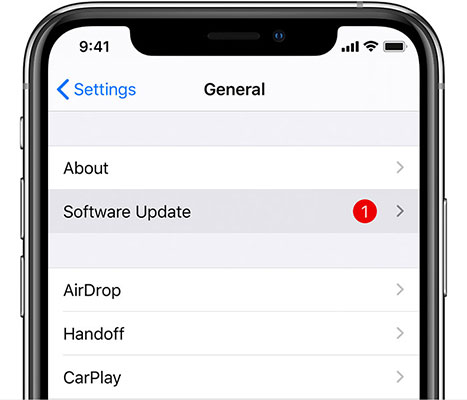
Step 2. Wait for your iPhone to check for available updates.
Step 3. If an update is available, tap "Update Now" or "Download and Install".
Step 4. Enter your passcode if prompted and follow the on-screen instructions.
Step 5. Once the update is complete, open Messages and check whether the issue has been resolved.
Before updating, connect your iPhone to Wi-Fi, ensure it has sufficient battery power, and back up your important iPhone data to a computer or cloud services.
Fix 7. Reset Network Settings
If your Wi-Fi or cellular connection appears normal but iMessage still cannot connect, incorrect network configurations may be responsible. In this case, resetting network settings can help remove problematic configurations and establish a fresh connection.
Follow these steps:
Step 1. Open "Settings" > "General" > "Transfer or Reset iPhone".
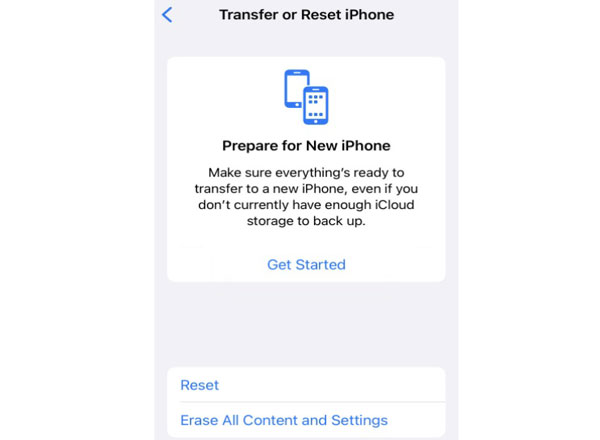
Step 2. Tap "Reset" > "Reset Network Settings".
Step 3. Enter your iPhone passcode to confirm the operation.
Step 4. Wait for your iPhone to restart.
Step 5. Reconnect to Wi-Fi or enable cellular data, then check iMessage again.
Resetting network settings will not delete your photos, messages, contacts, or apps. However, it will remove saved Wi-Fi networks and passwords and reset certain network configurations.
Fix 8. Use an iOS System Repair Tool
If you've checked your iMessage settings, internet connection, and Apple's service status but still cannot send messages, the problem may lie deeper within your iPhone's operating system. Certain system glitches can interfere with built-in apps and prevent them from working as expected. In this case, using a dedicated iOS repair tool may help address the underlying software problem. Fixppo is one option worth considering if you want to troubleshoot potential iOS system issues without immediately resorting to a factory reset.
Key features of Fixppo:
- Fixes over 150 iOS, iPadOS, and tvOS issues that may affect normal device operation, like iPhone won't turn on or iPhone frozen during an update.
- Repairs common iOS system problems in Standard Mode without erasing existing data.
- Supports iOS upgrades and downgrades without jailbreaking your device.
- Allows you to enter or exit Recovery Mode on an iPhone or iPad with one click for free.
- Supports a wide range of Apple devices and iOS versions, including iOS 27/26 and iPhone 17.
If you suspect an iOS system glitch is interfering with iMessage, follow these steps to try repairing your iPhone:
-
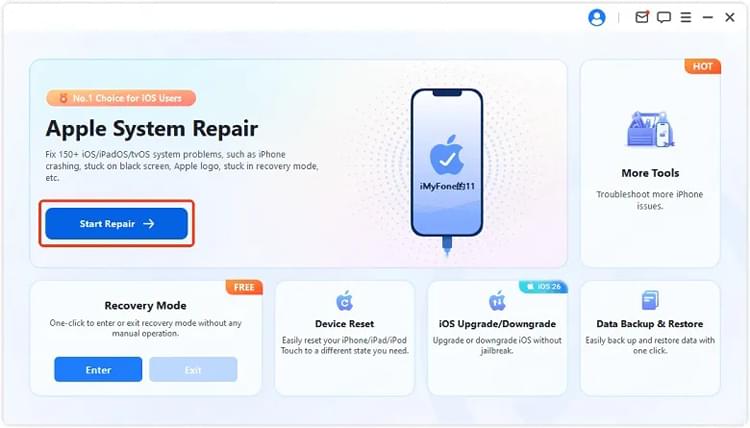
Install and open Fixppo on your Windows PC or Mac, then connect your iPhone using a USB cable. Once the software recognizes your device, select Apple System Repair from the main interface.
-
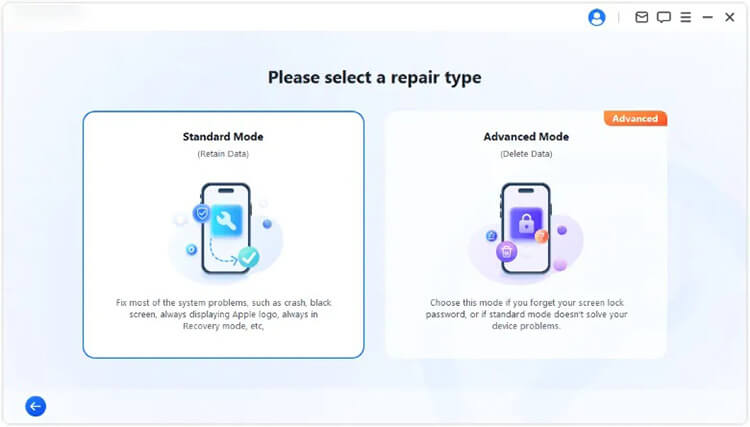
Select "Standard Mode" to start the repair process. This mode is designed to fix common iOS system issues while preserving your existing data.
-
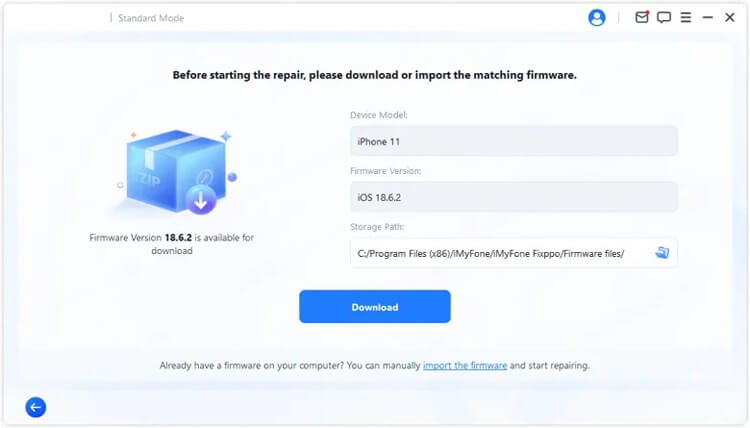
Check the device information displayed by the program and make sure it is correct. Fixppo will then download and verify the firmware required for your iPhone.
-
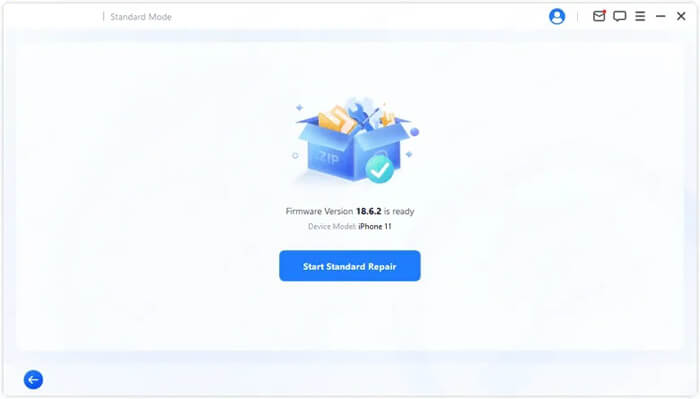
Once the firmware preparation is complete, click "Start Standard Repair" to begin the repair. Keep your iPhone connected to the computer until the process finishes.
Fix 9. Contact Apple Support
If the error persists after trying all the solutions above, the issue may involve your Apple Account, phone number activation, carrier service, or an underlying problem that requires professional assistance.
You can contact Apple Support for further help:
Step 1. Visit the Apple Support website.
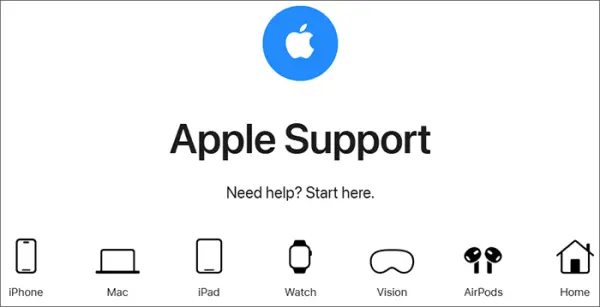
Step 2. Select "iPhone" and find the relevant Messages or iMessage support topic.
Step 3. Choose an available contact option, such as chat or phone support.
Step 4. Explain when the error occurs and describe the troubleshooting methods you have already tried.
Step 5. Follow the support team's instructions to investigate the issue.
If your phone number remains stuck on "Waiting for Activation" for more than 24 hours, contact your mobile carrier as well. Ask whether your line can send and receive international SMS messages, as this may be required to activate iMessage.
FAQs of iMessage Needs to Be Enabled to Send This Message
1. Why does my iPhone say iMessage needs to be enabled when it is already on?
This error may occur if iMessage has not been activated successfully, your phone number is not properly registered, or temporary iOS glitches affect the Messages app. Check your Send & Receive settings, restart your iPhone, and try turning iMessage off and on again.
2. Can I send a message without enabling iMessage?
Yes. You can send regular SMS or MMS messages without enabling iMessage, provided your carrier supports them. Go to "Settings" > "Apps" > "Messages" and turn on Send as Text Message if available. You can also select this option for a failed iMessage when prompted. Note that standard messaging may incur carrier charges.
3. How long does iMessage activation take?
iMessage activation usually takes a few minutes, but it may take up to 24 hours. Your iPhone needs an internet connection, and your carrier may need to send an SMS to verify your phone number. If activation still fails after 24 hours, contact your carrier or Apple Support for help.
Conclusion
Now you have a better understanding of why your iPhone displays the error "iMessage needs to be enabled to send this message" and how to deal with it. With the troubleshooting methods discussed above, you can identify potential issues affecting iMessage and restore normal messaging whenever possible. If the problem is related to an iOS system glitch, you can also give Fixppo a try to repair your device without immediately resorting to a factory reset. Hopefully, you can get iMessage working again and enjoy a smoother messaging experience on your iPhone.
Related Articles
iMessage Not Working on iPhone? 11 Ways to Solve It
How to Fix iPhone Not Receiving Texts in 11 Quick Ways
Text Messages Disappeared from iPhone? Cause and Solutions
How to Sync Messages from iPhone to Mac (Full Steps and Schematics)