TL;DR:
Quick summary on resetting a Motorola phone in any cases:
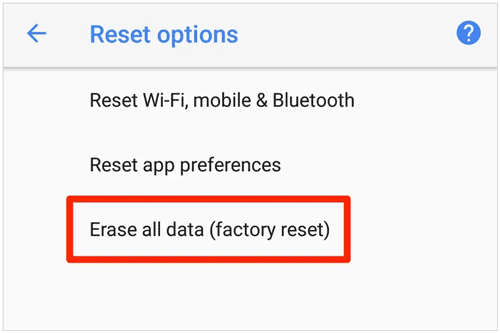
- If your phone is unlocked: Go to Settings > System > Reset options > Erase all data (factory reset).
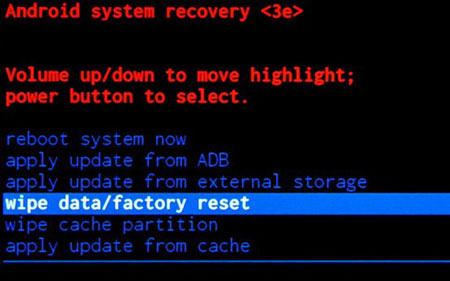
- If you are locked out or phone won't boot: Turn off the phone. Press and hold Volume Down + Power until the Fastboot menu appears. Select Recovery Mode, clear the "No command" screen, choose Wipe data/factory reset, and confirm.
- Before selling or trading in: A standard factory reset leaves data fragments recoverable by forensic tools. Use iReaShare Android Data Eraser to permanently overwrite and wipe 100% of your personal data beyond recovery.
Factory resetting a Motorola phone restores the device to its original factory state, whether it's a Moto G series, Moto Edge, Moto Z, or foldable Moto Razr. This process resolves system crashes, fixes boot loops, cleans up storage, and prepares the phone for a new owner.
Depending on whether your device is responsive or locked behind a forgotten PIN/pattern, you can choose between a standard software reset, a hardware button hard reset, or a remote wipe. This guide covers every method step-by-step, alongside essential pre-reset security steps to prevent device lockout.
- Essential Pre-Reset Checklist (Avoid FRP Lock)
- Method 1: Factory Reset Motorola Phone via Settings (Unlocked)
- Method 2: Hard Reset Motorola Phone via Recovery Mode (Locked/Unresponsive)
- Method 3: Remotely Reset Motorola Phone via Google Find My Device (Lost/Locked)
- Method 4: Permanently Wipe Data on Motorola Phone Before Selling (iReaShare Android Data Eraser)
- Troubleshooting Common Motorola Reset Issues
- Frequently Asked Questions (FAQs)
Essential Pre-Reset Checklist (Avoid FRP Lock)
Before initiating a factory reset on your Motorola device running Android 10 through Android 17+, complete these crucial prep steps:
- Back Up Important Files: A factory reset permanently removes photos, contacts, call logs, messages, and app data from internal storage. Back up files to Google Drive or an external storage drive.
- Remove Your Google Account (Disable FRP): Android's Factory Reset Protection (FRP) requires you to enter the synced Google account credentials after a reset. If you plan to sell or trade in your phone, go to Settings > Passwords & accounts, tap your Google Account, and select Remove Account.
- Charge Your Battery: Ensure your phone has at least 30% to 50% battery life (or leave it plugged into a charger) to prevent shutdown during the flash memory formatting process.
Method 1: Factory Reset Motorola Phone via Settings (Unlocked)
If your touch screen works and you know your lock screen passcode, resetting through the system settings menu is the fastest method.
Steps to Factory Reset Motorola Phones Running Android 10 to Android 17+:
- Open the Settings app on your Motorola phone.
- Scroll down and tap System.
- Tap Reset options.
- Select Erase all data (factory reset).
- Review the list of accounts and data that will be removed, then tap Erase all data at the bottom right.
- Enter your current PIN, pattern, or password to confirm authorization.
- Tap Erase all data again. The phone will restart and show the Motorola logo with a progress indicator.
Method 2: Hard Reset Motorola Phone via Recovery Mode (Locked/Unresponsive)
If you forgot your PIN/pattern, the screen is frozen, or the phone is stuck in a boot loop, use the hardware key combination to perform a hard reset via Android Recovery Mode.
Step-by-Step Hardware Reset Instructions:
- Turn off your Motorola phone: Press and hold the Power button (or Power + Volume Up on newer models) and tap Power Off.
- Enter Fastboot Mode: Press and hold the Volume Down button and Power button simultaneously for 3–5 seconds until the Android bootloader screen (Fastboot menu) appears.
- Navigate to Recovery Mode: Use the Volume Down button to highlight Recovery Mode, then press the Power button to select it.
- Bypass the "No Command" Screen:
- When you see a dead Android robot with the message "No command", press and hold the Power button.
- While holding Power, tap the Volume Up button once, then release both buttons immediately. The Android Recovery menu will open.
- Execute Factory Reset:
- Use Volume buttons to scroll down to Wipe data/factory reset and press the Power button.
- Scroll down to select Factory data reset (or Yes) and press Power to confirm.
- Reboot System: Once the formatting process completes ("Data wipe complete"), select Reboot system now using the Power button.
Method 3: Remotely Reset Motorola Phone via Google Find My Device (Lost/Locked)
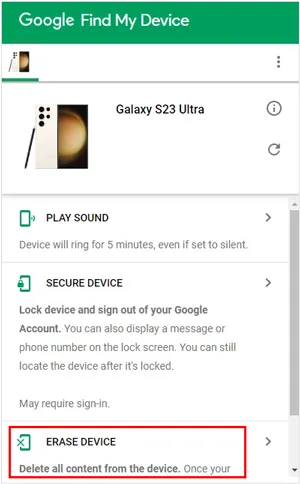
If your Motorola phone is lost or stolen, or if the physical buttons are broken, you can execute a factory wipe remotely via Google Find My Device.
Requirements:
- The phone must be powered on and connected to Wi-Fi or cellular data.
- The phone must have a active Google Account logged in with Find My Device enabled.
Remote Wipe Steps:
- Visit google.com/android/find on a computer or browser.
- Log in with the Google Account linked to your Motorola phone.
- Select your Motorola device from the left sidebar.
- Click Erase Device. Read the prompt and confirm by clicking Erase Device again.
- Once the phone connects to the internet, it will automatically initiate a remote factory reset.
Method 4: Permanently Wipe Data on Motorola Phone Before Selling (iReaShare Android Data Eraser)
While a standard factory reset removes index pointers to your files, the actual data-including photos, passwords, chat histories, and banking app traces-remains intact in the flash memory storage blocks until overwritten. Modern Android data recovery tools can easily restore files after a standard factory reset.
If you plan to sell, trade in, or donate your Motorola phone, rely on iReaShare Android Data Eraser for permanent, unrecoverable data destruction.
Why Choose iReaShare Android Data Eraser over Factory Reset?
- 100% Unrecoverable Data Erasure: Uses advanced multi-pass overwriting technology to permanently erase photos, contacts, SMS, WhatsApp messages, accounts, and system logs with 0% recovery rate.
- Wipes Deleted & Existing Files: Clears both visible personal data and hidden deleted data remnants residing in flash memory sectors.
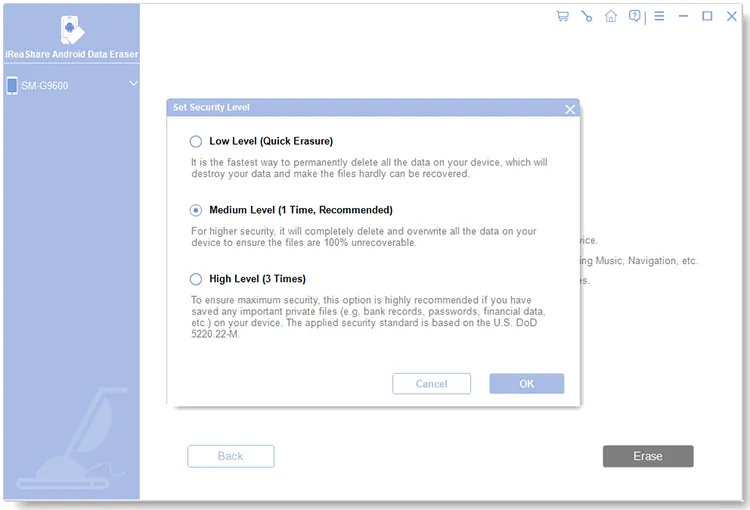
- Military-Grade Security Standards: Supports low, medium, and high-level security wiping protocols (including DoD 5220.22-M zero-fill standards).
- Wide Motorola Compatibility:Fully compatible with all Motorola smartphones (Moto G Power/Stylus/Play, Moto Edge series, Moto Razr, Moto Z) across Android 5.0 up to Android 17+.
How to Permanently Wipe Your Motorola Phone using iReaShare:
Step 1. Download and install iReaShare Android Data Eraser on your Windows PC.
Download for Win Download for Mac
Step 2. Launch the program. Connect your Motorola phone to the PC using a USB cable and enable USB Debugging in developer options. Once your phone is recognized, click the Continue button.
Step 3. Select your preferred security level (Low, Medium, or High) and confirm by typing "delete" into the text box.
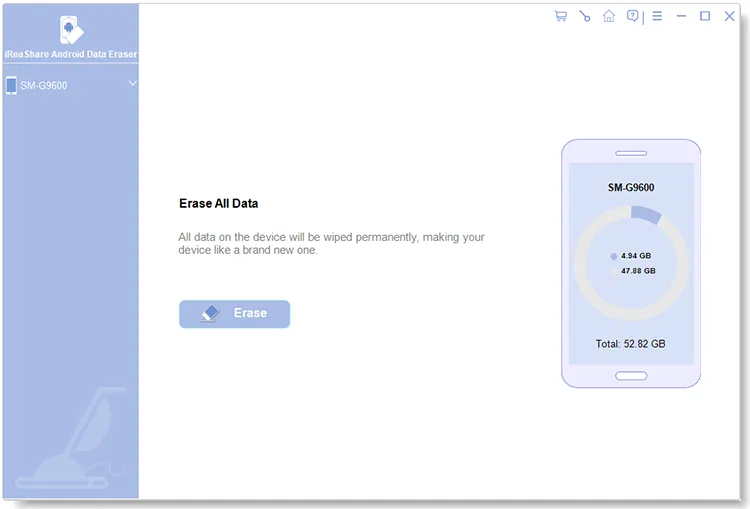
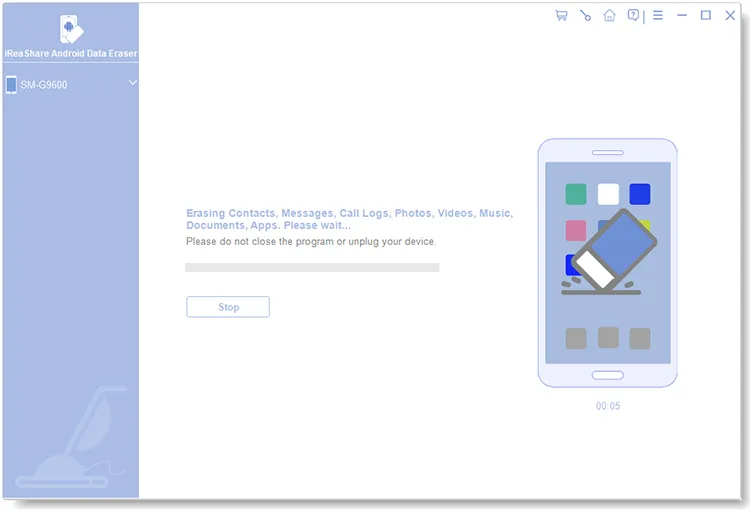
Step 4. Click Erase to start deep-overwriting all internal flash memory. After wiping, perform a final factory reset via phone settings as prompted by the software to clear system settings completely.
Video Guide:
How to permanently wipe your Motorola phone using iReaShare Android Data Eraser step by step:
Troubleshooting Common Motorola Reset Issues
Issue 1: Stuck on the Android "No Command" Screen
Fix: When the dead robot icon appears, hold the Power button, press Volume Up once, and immediately release both buttons to reveal the Recovery menu.
Issue 2: Google Account Lock (FRP Lock) After Reset
Fix: If you hard reset a phone without removing the Google Account, Android FRP locks the phone. You must log in with the exact Google email and password previously synced on the device. If you bought a used phone, contact the original owner to sign out remotely via Google Account settings.
Issue 3: Motorola Phone Stuck in Boot Loop After Reset
Fix: Boot back into Fastboot Mode (Volume Down + Power), select Recovery Mode, choose Wipe cache partition (if available) or re-run Wipe data/factory reset. If the issue persists, flash official firmware using Motorola's official Software Fix tool.
Frequently Asked Questions (FAQs)
Does a factory reset delete everything on a Motorola phone?
Yes. A factory reset erases all user data from internal storage, including downloaded apps, accounts, settings, contacts, photos, and messages. However, data stored on an inserted micro SD card is usually preserved unless you choose to format the SD card during the reset process.
How long does a Motorola factory reset take?
A standard factory reset via Settings takes about 3 to 10 minutes. A hard reset via Recovery Mode takes roughly the same time. The first reboot after a reset may take up to 5–15 minutes as Android rebuilds system cache files.
Can I recover photos and files after a standard factory reset?
Yes, standard factory resets do not immediately overwrite underlying flash storage sectors. Professional Android data recovery tools can often scan and retrieve deleted files. To make data 100% unrecoverable, use a dedicated wipe tool like iReaShare Android Data Eraser before disposing of your phone.
Will a factory reset unlock a black or frozen screen Motorola phone?
If the issue is caused by software glitches, corrupted system files, or rogue third-party apps, a hardware button reset via Recovery Mode will fix the issue. If the screen remains black due to physical hardware damage, the screen hardware must be repaired.
Conclusion
Resetting a Motorola phone is a straightforward process whether done through system settings or Recovery Mode hardware keys. Remember to back up critical files and log out of your Google Account beforehand to avoid Factory Reset Protection locks.
For users preparing to trade in, sell, or donate their Motorola devices, rely on iReaShare Android Data Eraser to permanently overwrite flash memory and protect your private data from post-reset recovery tools.
Download for Win Download for Mac
Related Articles:
How to Fix Google Photos Not Backing Up: 8 Tested Solutions & Best Alternative
How to Delete Everything on Your Phone Samsung (5 Solutions)
Easily Back Up Android Phone to PC Without Data Loss [Tested]
Android Backup and Restore Without Effort | 4 Proven Solutions