TL;DR:
If Google Photos is not backing up your media files, the most common culprits are full cloud storage (15GB quota limit), battery saver restrictions, disabled background data permissions, or corrupted cache data.
Quick Fixes: Check your Google storage quota, disable Low Power / Battery Saver mode, clear the Google Photos app cache, enable background data usage, or force a metadata resync by clearing your Trash folder. If cloud sync remains unresponsive, use a reliable desktop tool like iReaShare Android Manager to instantly back up your entire photo library offline to a computer without cloud storage caps or sync errors.

- Part 1: Understanding Google Photos Backup Status Messages
- Part 2: 8 Official & Free Solutions for Google Photos Not Backing Up
- Part 3: Bypass Cloud Glitches: Back Up Photos to PC with iReaShare Android Manager
- Part 4: Comparison: Google Photos vs. iReaShare Android Manager
- Part 5: Frequently Asked Questions (FAQs)
Part 1: Understanding Google Photos Backup Status Messages
When Google Photos stops syncing, the app usually displays a specific status message under your account profile icon. Use this diagnostic table to identify the root cause immediately:
| Status Message | Probable Cause | Recommended Action |
|---|---|---|
| Getting ready to back up / Setting up photo library | Database index lock or corrupt cache. | Clear app cache, restart phone, or empty Trash to force re-indexing. |
| Waiting for Wi-Fi / Waiting for connection | Cellular data backup is turned off or network is unstable. | Enable mobile data backup in settings or connect to a stable Wi-Fi network. |
| Backing up 1 of [X] (Stuck) | Large, corrupted, or unsupported video/photo format blocking the queue. | Locate and skip the oversized/corrupt file or manually upload it. |
| Account storage full | Exceeded the free 15 GB Google Account limit shared across Drive, Gmail, and Photos. | Clean up cloud storage, upgrade to Google One, or switch to offline PC backup. |
| Backup is off | Auto-sync was accidentally toggled off. | Open Photos Settings and toggle Backup back ON. |
Part 2: 8 Official & Free Solutions for Google Photos Not Backing Up
1. Check Google Account Storage Limits
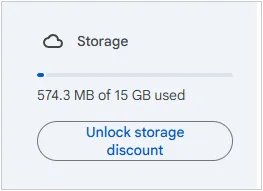
Google offers 15 GB of free storage across Google Drive, Gmail, and Google Photos. If your account reaches 100% capacity, Google Photos will suspend all background uploads until space is freed or more storage is purchased. (See how to back up iPhone to Google Drive instead of iCloud if needed.)
- Open the Google Photos app and tap your profile avatar in the upper-right corner.
- Review your current account storage bar.
- If full, tap Manage storage to clean up large files, blurs, or screenshot clutter.
2. Enable Cellular Data Uploads & Check Network Rules
By default, Google Photos delays backup operations when connected to mobile data to avoid extra bandwidth charges. If you are away from Wi-Fi, you must explicitly allow cellular backups.
- Go to Photos Settings > Backup.
- Tap Cellular data usage.
- Set daily backup limits to Unlimited or enable Back up photos over data.
3. Disable Battery Saver & Turn Off Power Restrictions
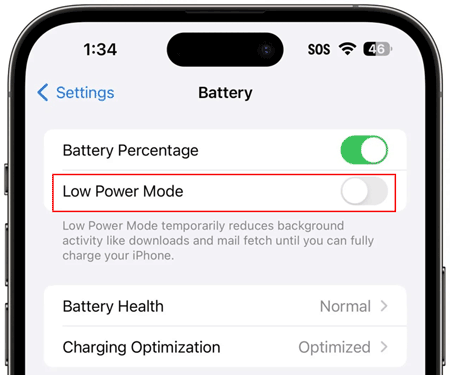
Aggressive system power management routines in Android (DOZE mode) and iOS (Low Power Mode) suspend background activity when your phone enters power-saving mode.
- Android: Go to Settings > Apps > Google Photos > App Battery Usage and select Unrestricted.
- iOS (iPhone): Go to Settings > Battery and toggle off Low Power Mode. Additionally, ensure Background App Refresh is enabled under Settings > Google Photos.
4. Clear Google Photos App Cache and Data (Android)
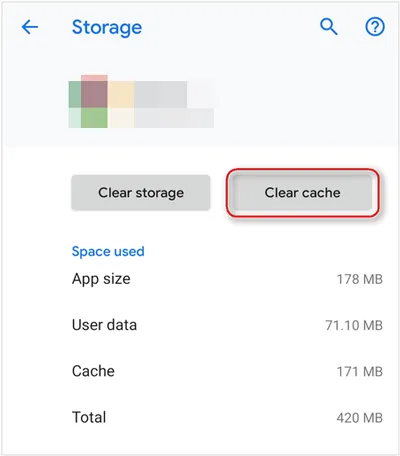
Accumulated temporary system files can corrupt the internal local database, causing the app to freeze on "Getting ready to back up". Clearing the cache removes temporary files without deleting your personal photos.
- Open device Settings > Apps > Google Photos.
- Tap Storage & Cache.
- Tap Clear Cache. Restart the app and check backup status.
- If the issue persists, tap Clear Storage / Clear Data (This resets app preferences without deleting camera photos).
5. Re-index Google Photos Metadata (The Reddit Force-Sync Trick)
If Google Photos is perpetually stuck indexing your photo library, forced server-side manifest rebuilding usually resolves sync freezes immediately.
- Open photos.google.com on a computer browser.
- Open any photo album, click the three-dot menu, and change the Album Cover photo.
- Navigate to the left sidebar, click Trash, and tap Empty trash.
- Re-open the Google Photos app on your mobile device. This sequence forces Google servers to rebuild your library manifest and push a fresh sync state.
6. Remove Corrupted, Unsupported, or Oversized Media
Google Photos may stall entirely if a corrupted video file or an unsupported format (e.g., RAW images over 200MB, partial downloads) enters the upload queue.
- Check your local gallery for recent screen recordings, raw camera captures, or large 4K/8K video recordings.
- Move these files outside your camera folder (DCIM) or upload them manually through photos.google.com.
7. Grant Full SD Card & Storage Access Permissions
If your device utilizes a MicroSD card or runs on Android 13/14/15, restricted storage permissions can prevent Google Photos from reading local files.
- Go to Settings > Apps > Google Photos > Permissions.
- Select Photos and videos and set permission to Always allow all.
8. Reset Account Synchronization
Authentication handshakes between your Google Account and your mobile operating system can occasionally desynchronize.
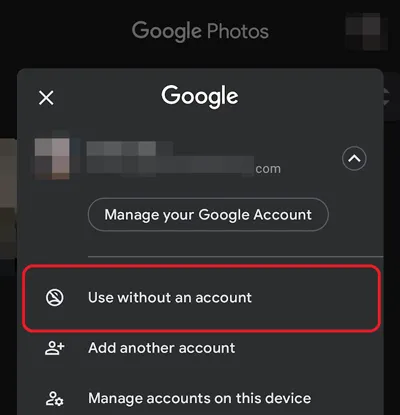
- Open Google Photos, tap your profile avatar, and tap the drop-down arrow next to your email.
- Tap Use without an account or sign out completely.
- Restart your device, log back into your Google Account, and re-enable auto-backup.
Part 3: Bypass Cloud Glitches: Back Up Photos to PC with iReaShare Android Manager
While cloud syncing offers cross-device accessibility, relying solely on cloud backup exposes users to unexpected sync freezes, recurring monthly Google One subscription fees, privacy risks, and storage limits. When Google Photos fails, a local, offline desktop tool offers the most reliable backup pipeline.
For a seamless backup experience, iReaShare Android Manager stands out as the ideal alternative to Google Photos. Developed by iReaShare, this software allows Android users to transfer, manage, back up and restore Android files directly to a PC or Mac without relying on an internet connection or cloud servers.
Key Advantages of iReaShare Android Manager:
- No Cloud Storage Limits: Back up thousands of high-resolution photos and 4K videos directly to your PC's internal or external hard drive without storage caps.
- Original Resolution Preserved: Avoid image compression artifacts; all photos (JPEG, PNG, HEIC, RAW) retain 100% original quality.
- 1-Click Backup & Selective Transfer: Back up your entire media library in 1 click or preview and selectively transfer specific albums.
- 100% Offline Data Security: Physical USB and encrypted local Wi-Fi transfers prevent cloud data breaches, tracking, or unauthorized access.
- Comprehensive Data Management: Beyond photos, easily manage and transfer contacts, text messages, call logs, music, videos, eBooks, and apps between your phone and computer.
- High Compatibility: Fully compatible with major Android brands, including Samsung Galaxy, Google Pixel, Motorola, Xiaomi, OnePlus, Vivo, OPPO, running Android 6.0 up to Android 17/16.
Download for Win Download for Mac
How to Back Up Android Photos to Computer in 3 Simple Steps
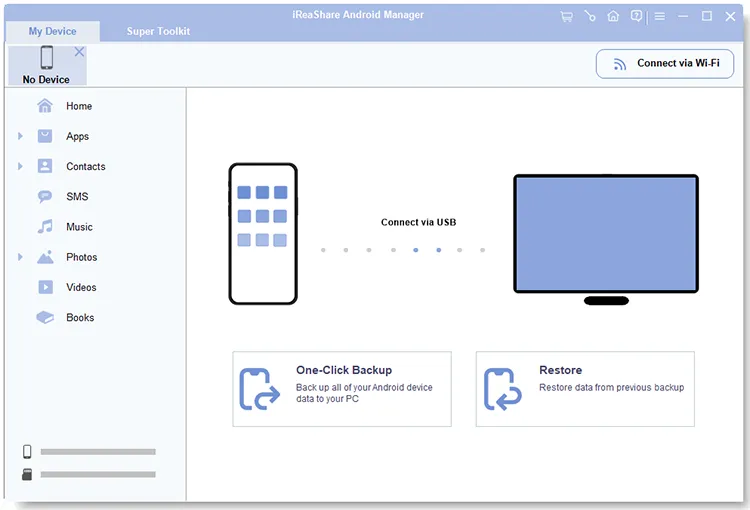
Step 1: Connect Your Android Phone to PC
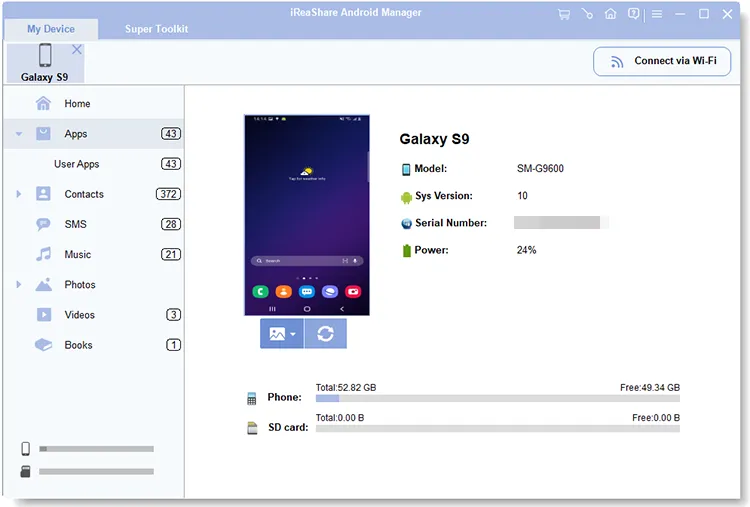
Download and install iReaShare Android Manager on your PC/Mac. Launch the software and connect your Android device via USB cable or Wi-Fi network.
Step 2: Preview & Select Photos
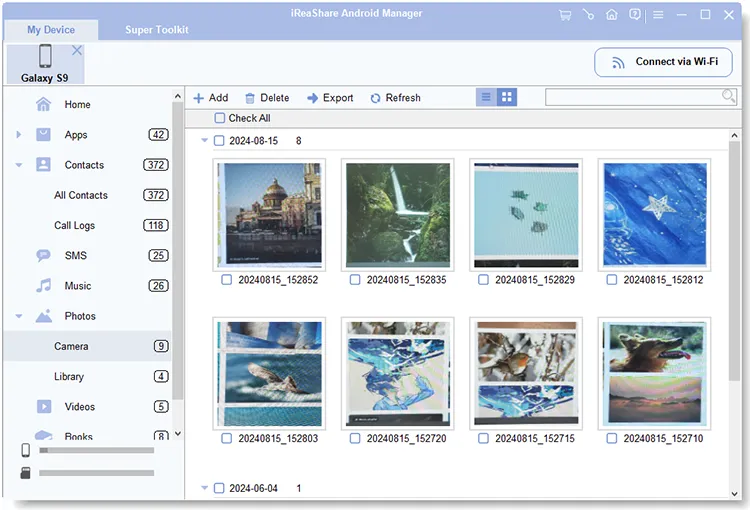
Click on the Photos icon on the left menu bar. The software will display all local camera photos, screenshots, and custom albums stored on your device.
Step 3: Export Photos to PC with 1 Click
Select the photos or folders you want to save, then click the Export button at the top menu to instantly back them up to your designated computer folder.
Video Guide:
Watch the video to see how to back up Android photos to computer with iReaShare Android Manager.
Part 4: Comparison: Google Photos vs. iReaShare Android Manager
| Feature | Google Photos | iReaShare Android Manager |
|---|---|---|
| Backup Location | Google Cloud Servers | Local Computer / External Hard Drive |
| Storage Quota | 15 GB Free (Shared) | Unlimited (Depends on Computer Disk Size) |
| Internet Requirement | Required (High Data Usage) | 100% Offline (No Internet Needed) |
| Data Privacy | Subject to cloud scanning & policies | Private local storage (Zero risk of cloud leaks) |
| Transfer Speed | Throttled by network speed | Ultra-fast local USB transmission speed |
| Multi-Data Support | Photos & Videos only | Photos, Videos, SMS, Contacts, Call Logs, Music, Apps |
Part 5: Frequently Asked Questions (FAQs)
Q1: Why is Google Photos stuck on "Getting ready to back up"?
This status of Google Photos backup stuck usually indicates an indexed lock on the app's internal cache or metadata database, often caused by a corrupt media file, low system memory, or background execution limits enforced by the OS. Clearing the app cache or emptying the Google Photos trash usually forces a resync.
Q2: Will clearing the Google Photos app cache delete my local photos?
No. Clearing app cache only removes temporary software operating files. Your original photos and videos stored in your phone's internal storage or MicroSD card remain completely untouched.
Q3: What is the fastest way to back up Android photos without Wi-Fi?
The fastest way is using a specialized USB desktop manager like iReaShare Android Manager. It bypasses network bottlenecks and transfers gigabytes of original-resolution photos directly to your computer in seconds.
Q4: Why does Google Photos stop backing up when my screen turns off?
Operating systems like Android and iOS put apps into sleep mode when the screen turns off to conserve battery life. To prevent this, disable Battery Saver/Low Power Mode, set Google Photos battery permission to "Unrestricted", and leave the app open on screen while completing large initial uploads.
Conclusion
Dealing with Google Photos not backing up can be frustrating, especially when automatic cloud sync stalls without a clear error message. By verifying your Google storage quota, adjusting background battery permissions, clearing app cache, or executing a metadata force-sync, you can resolve most cloud synchronization issues.
However, if you want total control over your photo collection without cloud subscription costs or network bottlenecks, switching to an offline desktop tool like iReaShare Android Manager provides an fast, secure, and unlimited backup solution for all your valuable mobile data.
Related Articles:
How to Back Up Android Phone Before Factory Reset (No Data Loss)
How to Transfer Photos from Phone to Laptop in 9 Ways (Android and iPhone)
Recover Deleted Photos on Android With or Without Backup (5 Ways)
Photo Transfer App for Android: Share Photos to Devices Easily