TL;DR:
Clownfish Voice Changer not working? Fix common issues with 5 proven solutions for Windows 11, Discord, microphone errors, voice effects, and crashes. If troubleshooting does not work, try TopMediai Online Voice Changer for a simple AI-powered voice-changing experience without complicated setup.
"Clownfish not changing voice. I can hear myself, and everything else is working; it's just not changing my voice. Please help!"
- from Reddit
Clownfish Voice Changer is a real-time voice-changing tool commonly used with applications such as Discord, Skype, and Steam. However, users may sometimes encounter the Clownfish Voice Changer not working issue, such as voice effects not being applied, the microphone not being detected, no sound in the app, or the original voice still being used even after installing Clownfish.
Why is my Clownfish Voice Changer not working? This guide explains the common causes and provides practical solutions to help you fix Clownfish Voice Changer not working on Windows 11, Discord, and other platforms. If Clownfish still fails after troubleshooting, we also provide an alternative solution when the problem cannot be fixed.
Part 1. Why Is Clownfish Voice Changer Not Working?
There are several reasons why you may experience Clownfish Voice Changer not working issues. Understanding the cause can help you choose the right fix.
1. Outdated Clownfish Version
An outdated version of Clownfish may not work correctly with newer operating systems, especially when Clownfish Voice Changer is not working on Windows 11. Compatibility problems can prevent voice effects, microphone access, or audio processing from functioning properly.
2. Incorrect Microphone Settings
Clownfish works by modifying the input audio from your microphone. If the wrong microphone is selected or Clownfish does not have access to your microphone, the voice effects may not work.
This can also cause problems like Clownfish Voice Changer effects not working or the voice output remaining unchanged.
3. Discord or Platform Compatibility Problems
Many users search for Clownfish Voice Changer not working on Discord because Discord frequently updates its audio system. Incorrect input device settings or Discord's noise suppression features may prevent Clownfish from applying voice effects.
4. Improper Installation Location
Installing Clownfish in a custom folder instead of its default installation directory may cause missing files or permission problems. This can lead to features not loading correctly.
5. Conflicts with Other Audio Software
Other voice changers, virtual microphones, recording tools, or audio drivers may interfere with Clownfish. These conflicts can result in crashes, no sound output, or microphone detection failures.
Part 2. How to Fix Clownfish Voice Changer Not Working?
Try the following solutions to troubleshoot and fix Clownfish Voice Changer not working issues.
Fix 1. Restart Clownfish and Your Computer
Sometimes, Clownfish Voice Changer may stop working properly due to temporary software glitches, conflicts with other applications, or incorrect audio device loading. Restarting Clownfish and your computer can refresh the voice changer process, reload microphone drivers, and help Windows recognize Clownfish’s audio settings correctly. This is one of the simplest troubleshooting methods to try before making advanced changes.
Steps to restart Clownfish Voice Changer and your computer:
Step 1. Right-click the "Clownfish Voice Changer" icon in the Windows system tray. Select "Quit" or "Exit" to completely close Clownfish.
Step 2. Open Task Manager by pressing "Ctrl" + "Shift" + "Esc". Find any Clownfish-related processes, such as Clownfish Voice Changer, and click "End task" if they are still running.
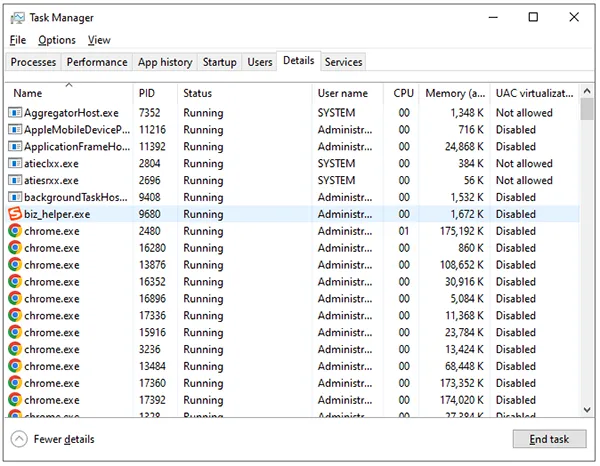
Step 3. Restart your computer to refresh Windows audio services and connected devices.
Step 4. After your computer starts again, launch Clownfish Voice Changer. Right-click the Clownfish icon and choose "Set Voice Changer" to enable your desired voice effect.
Step 5. Open Discord, Skype, Steam, or another supported app and test whether the microphone and voice effects work properly.
Fix 2. Update Clownfish to the Latest Version
An outdated version of Clownfish Voice Changer may also cause the Clownfish Voice Changer effects not working issue. Updating to the latest version can help fix bugs and improve overall stability. Before installing the newest version, it is recommended to remove the old version completely and then reinstall the updated application.
Steps to update Clownfish Voice Changer:
Step 1. Type "Control Panel" in the Windows search bar and press "Enter" to open it.
Step 2. Go to "Programs" > "Programs and Features" to view the installed applications.
Step 3. Find "Clownfish Voice Changer" in the program list, right-click it, and select "Uninstall".
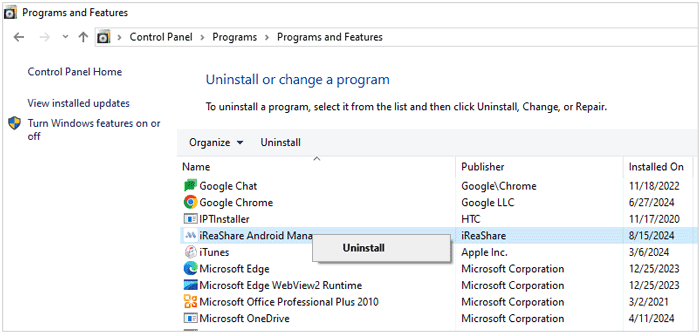
Step 4. After removing the old version, visit the official Clownfish Voice Changer website and download the latest version of the application.
Step 5. Install the newest version by following the on-screen instructions.
Step 6. Restart your computer after installation, then launch Clownfish Voice Changer and check whether the voice effects work properly.
Fix 3. Check the Version of the Platform
Clownfish Voice Changer works with platforms like Skype, Discord, and other communication apps. If you have updated Clownfish to the latest version but the voice changer still does not work, the issue may be caused by an outdated version of the platform app.
Check whether the app you use with Clownfish is updated to the latest version. After updating, restart the platform application and test Clownfish Voice Changer again to see if the problem is resolved.
Fix 4. Check the Microphone Settings in Clownfish
A microphone issue is one of the common reasons why Clownfish Voice Changer may not work properly. Since Clownfish needs to access your microphone to capture your voice and apply voice effects, an incorrectly configured microphone, improperly installed audio device, or outdated microphone driver can prevent the voice changer from functioning correctly.
Follow the steps below to check and reinstall your microphone settings in Clownfish:
Step 1. Launch Clownfish Voice Changer on your computer.
Step 2. Right-click the Clownfish icon in the Windows taskbar. (Note: If the Clownfish icon is hidden, click the ^ arrow to show hidden icons.)
Step 3. Select "Setup" > "System Integration" from the menu.
Step 4. Find your working microphone in the device list, select it, and click "Install" to reinstall the microphone integration.
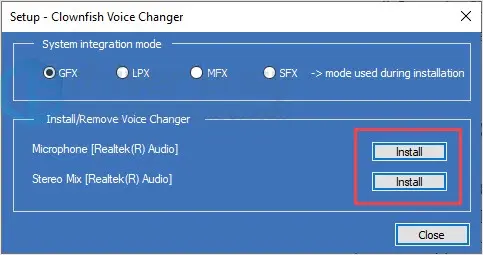
Step 5. Restart your computer and open Clownfish again. Then test the microphone in Discord, Skype, Steam, or another supported app to check whether the voice changer is working properly.
This can help fix Clownfish Voice Changer sound player not working and voice effect issues.
Fix 5. Install Clownfish in the Default Folder
Installing Clownfish Voice Changer in a custom folder instead of the default Program Files directory may cause permission issues. Since Clownfish requires administrator access to interact with your computer's audio devices and hardware components, an incorrect installation location may prevent the app from working properly.
To fix this issue, remove the current Clownfish installation and reinstall it in the default installation directory. This allows Clownfish to obtain the necessary permissions and properly access your microphone and audio settings.
Steps to reinstall Clownfish in the default folder:
Step 1. Open Control Panel and go to "Programs" > "Programs and Features".
Step 2. Find Clownfish Voice Changer, right-click it, and select "Uninstall".
Step 3. Restart your computer after the uninstallation is complete.
Step 4. Download the latest version of Clownfish Voice Changer from the official website.
Step 5. During installation, keep the default installation path instead of selecting a custom folder.
Step 6. Launch Clownfish and check whether the voice changer works correctly.
Part 3. Clownfish Voice Changer Alternative - TopMediai Online Voice Changer
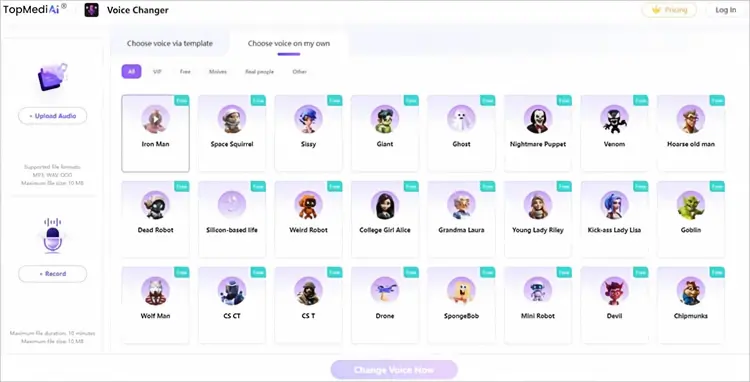
If you have tried all the troubleshooting methods above but Clownfish Voice Changer is still not working, switching to an alternative voice changer can be a practical solution. TopMediai Online Voice Changer is a browser-based alternative that allows you to change your voice without installing complicated desktop software. It works directly online and provides various AI voice effects for creating funny voice clips, gaming conversations, videos, and social media content.
Compared with traditional voice changers that require system integration, TopMediai reduces setup issues and is easier for beginners to use. You can upload an audio file or record your voice directly, then apply different voice effects with just a few clicks.
Key Features of TopMediai Online Voice Changer:
- Transform your voice into different characters, genders, and styles with AI-powered voice effects.
- Offer a wide range of realistic voice filters for gaming, videos, social media, and entertainment content.
- Upload audio files or record your voice directly online without installing software.
- Support common audio formats including MP3, WAV, and OGG for flexible voice conversion.
- Allow users to quickly change voices in just a few steps with an easy-to-use interface.
- Use AI algorithms to maintain natural-sounding voice quality after applying voice effects.
- Support multiple devices and browsers, including Windows, Mac, Android, and iPhone.
- Provide high-quality audio output while preserving voice clarity and details.
- Let users create voice clips for gaming, content creation, dubbing, and fun voice experiments.
- Support voice changing through browser-based tools without requiring complex setup or technical skills.
How to Use TopMediai Online Voice Changer:
-
Open TopMediai Online Voice Changer and upload your audio file or record your voice directly in the browser. It supports popular audio formats, including MP3, WAV, and OGG.
-
Choose an AI voice filter or voice effect you like, then click "Change Voice Now" to start converting your audio with AI technology.
-
Preview the generated voice, adjust the effect if needed, and download the converted audio file for videos, gaming, podcasts, social media, or other creative projects.
Part 4. FAQs on Clownfish Voice Changer
Q1. Is Clownfish Voice Changer a virus?
No. The official Clownfish Voice Changer application is not considered a virus. However, users should always download software from the official website or trusted sources to avoid modified versions that may contain unwanted programs.
Q2. Is Clownfish Voice Changer safe?
Yes, Clownfish Voice Changer is generally safe when downloaded from the official source. Like other voice-changing applications, it requires microphone access because it needs to process your voice input.
Users should review installation options carefully and avoid installing additional bundled software.
Q3. Why is my Clownfish Voice Changer music player not working?
The music player may stop working because of incorrect audio settings, outdated software, or missing permissions.
Restart Clownfish, check your playback device, and reinstall the application if necessary.
Q4. How do I fix Clownfish Voice Changer crashing?
To fix Clownfish Voice Changer crashing, try updating the software, running it as administrator, reinstalling audio drivers, disabling conflicting programs, or reinstalling Clownfish completely.
Conclusion
When you encounter Clownfish Voice Changer not working, following the fixes above can help restore Clownfish voice effects and improve performance. However, if Clownfish continues to crash or fails to work properly, trying an online AI voice changer like TopMediai can save time with a simpler setup and more flexible voice effects.
Related Articles
VoiceChanger.io Review: Features, Pros, Cons & Best Alternative
6 Best Autotune Voice Changer Tools for Desktop, Online & Mobile
Scary Voice Changer: 8 Best Tools to Create Creepy AI Voices in 2026
Best Robot Voice Changer: 9 AI Tools to Create Robot Voices