


TL;DR:
You cannot transfer files from iPhone to Android via Bluetooth directly, but several alternatives can help you move your data quickly and easily.
- For bulk data transfer: Use iReaShare Phone Transfer to migrate multiple data types, including contacts, messages, photos, videos, and music, through a computer.
- For wireless file sharing: Upload files to Google Drive or use SHAREit to transfer photos, videos, and documents between the two devices.
- For switching to a new Android phone: Use Google's Switch to Android app to migrate supported data wirelessly.
- For sharing a few files: Send photos and documents through email without installing an additional file transfer tool.
Bluetooth is a widely used wireless technology that allows nearby devices to connect and exchange data without cables. It makes sharing files between compatible devices convenient, especially when you want to send photos, videos, or documents quickly. However, when it comes to transferring files between different mobile operating systems, things may not be so simple. Can you transfer files from iPhone to Android via Bluetooth just as easily as you do between two Android phones? If you are wondering about this, keep reading to find out what you need to know and explore some practical ways to share files between the two devices.
- Part 1. Can I Bluetooth Files from iPhone to Android?
- Part 2. How to Transfer Files from iPhone to Android via Bluetooth Alternatives
- 2.1 Transfer Files from iPhone to Android by iReaShare Phone Transfer
- 2.2 Sync Files from iPhone to Android Wirelessly via Cloud Service
- 2.3 Transfer Files from iPhone to Android Using Switch to Android
- 2.4 Send Files from iPhone to Android Through Email
- 2.5 Transfer Data from iPhone to Android Wirelessly via SHAREit
Part 1. Can I Bluetooth Files from iPhone to Android?
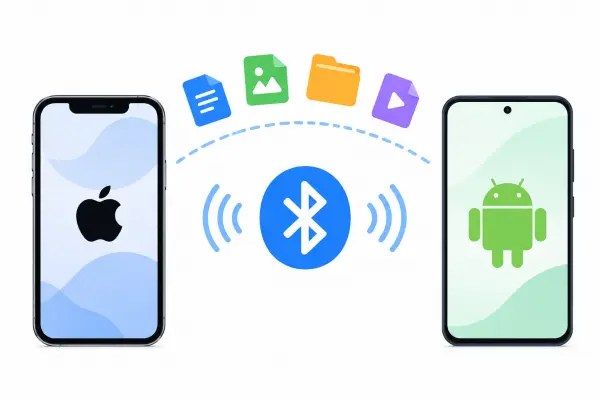
No. You cannot directly transfer files from an iPhone to an Android phone using traditional Bluetooth file sharing. Although you can turn on Bluetooth on both devices and pair them in certain situations, iOS does not support the standard Bluetooth file transfer protocol used by Android phones to exchange files.
Apple provides AirDrop for wireless file sharing, but this feature is designed for Apple devices and does not natively support Android phones. Therefore, pairing your iPhone and Android phone through Bluetooth will not give you an option to send photos, videos, or documents between them.
Part 2. How to Transfer Files from iPhone to Android via Bluetooth Alternatives
Since direct Bluetooth file transfer is unavailable, the following five alternatives can help you move files between your iPhone and Android device. Each method has different requirements and is suitable for different transfer needs.
2.1 Transfer Files from iPhone to Android by iReaShare Phone Transfer
If you want to transfer multiple types of data from an iPhone to an Android phone at once, iReaShare Phone Transfer is a convenient solution. This desktop program helps you migrate your data between iOS and Android devices through a computer. It allows you to select the data you want to move, making the transfer process more flexible and efficient, especially when switching to a new Android phone.
Key Features of iReaShare Phone Transfer:
- Supports four transfer directions: iOS to Android, Android to iOS, iOS to iOS, and Android to Android.
- Supports transferring contacts, text messages, call history, photos, videos, music, apps, documents, calendars, books, and more.
- Lets you choose specific data categories before starting the transfer.
- Supports most Android and iOS devices, including Android 6.0 or later and iOS 5.0 or higher.
- Uses read-only mode to protect your original data during the transfer process.
How to transfer files from iPhone to Android using iReaShare Phone Transfer?
-
Download and install iReaShare Phone Transfer on your Windows PC or Mac.
-
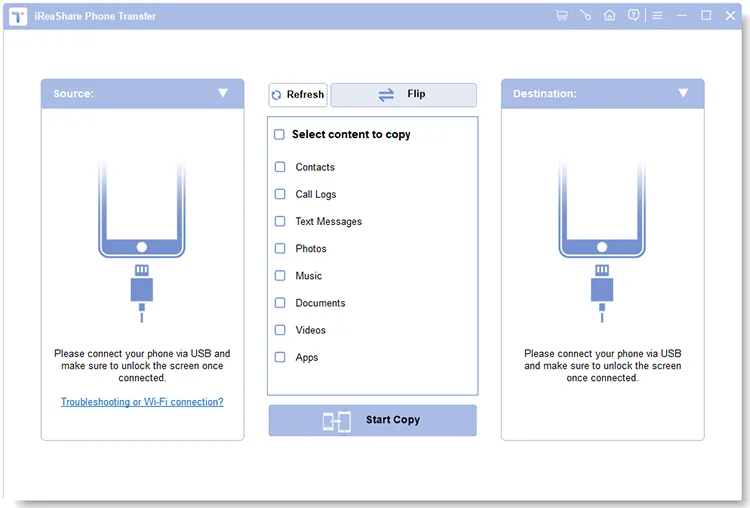
Connect your iPhone and Android phone to the computer using USB cables. Unlock both devices and tap "Trust" on your iPhone when prompted. Follow the instructions to enable USB debugging on your Android phone.
-
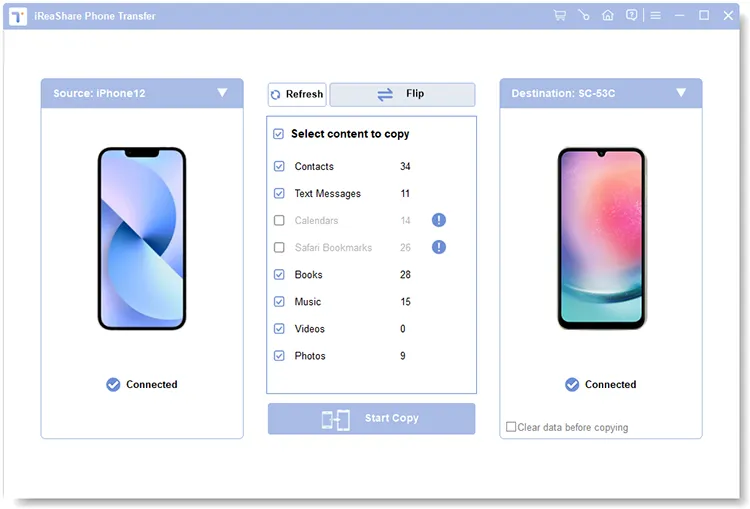
Once both devices are detected, make sure your iPhone is set as the Source device, and your Android phone is set as the Destination device. If they are in the wrong positions, click "Flip".
-
Select the data types you want to transfer, such as contacts, text messages, photos, music, and videos. Then, click "Start Copy" to begin transferring the selected data to your Android phone. Keep both devices connected until the process finishes.
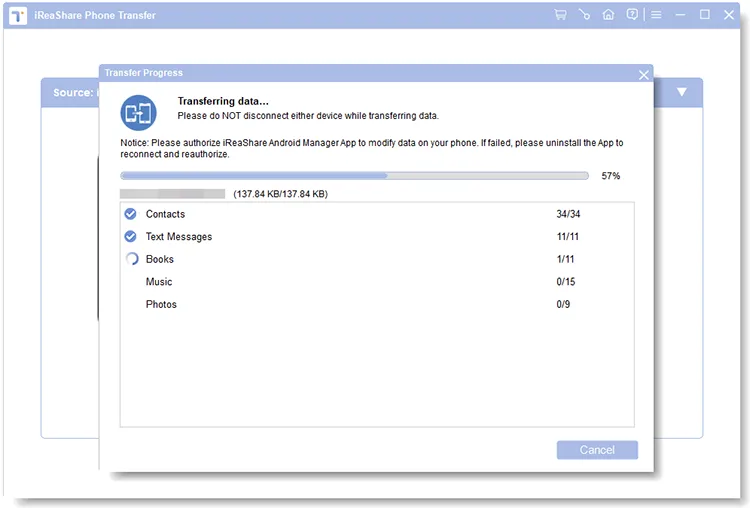
Want to see how the transfer works in practice? Watch the following video tutorial for a visual walkthrough of using iReaShare Phone Transfer.
- Supports transferring multiple types of data between iOS and Android.
- Allows you to select specific data categories before copying.
- Suitable for transferring large amounts of data in one process.
- Compatible with Windows and Mac computers.
- Requires a computer and USB cables to connect both phones.
- The full version requires a paid license.
2.2 Sync Files from iPhone to Android Wirelessly via Cloud Service
A cloud storage service is another convenient alternative if you want to transfer files from an iPhone to an Android phone without connecting them physically. Services such as Google Drive allow you to upload files from your iPhone and access them on your Android device using the same Google account.
This method works well for photos, videos, documents, and other supported files. You can also keep files stored in the cloud and access them from multiple devices whenever you need them.
How to transfer files from iPhone to Android using Google Drive:
Step 1. Install Google Drive from the App Store on your iPhone and sign in with your Google account.
Step 2. Open Google Drive and tap the "+" button.
Step 3. Select "Upload" and choose the photos, videos, or documents you want to transfer.
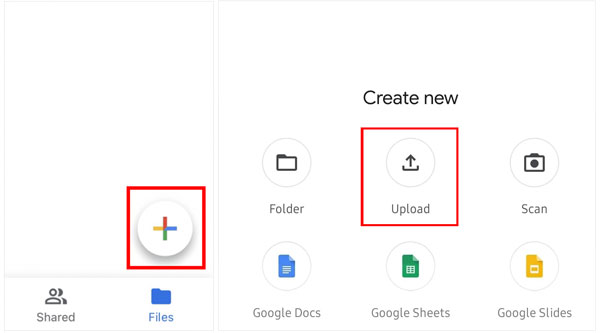
Step 4. Wait for the selected files to finish uploading.
Step 5. Install Google Drive from Google Play on your Android phone and sign in using the same Google account.
Step 6. Find the uploaded files in your Drive and download them to your Android device if you want to store local copies.
- No computer or USB cable required.
- Supports different file types, including photos, videos, and documents.
- Allows you to access uploaded files from multiple devices.
- Convenient for transferring selected files over the internet.
- Requires a stable internet connection.
- Uploading and downloading large files can take time.
- Free storage is limited, and additional space may require a subscription.
- Files need to be uploaded and downloaded separately.
2.3 Transfer Files from iPhone to Android Using Switch to Android
If you are switching from an iPhone to a new Android phone, Google's Switch to Android process is worth considering. It is designed to help you migrate supported data from your old iPhone to your new Android device during the initial setup.
Depending on your Android device and transfer method, you can move contacts, calendar events, photos, and videos. Some devices and newer transfer experiences support additional data types. The available options vary by phone model and Android version.
How to transfer files from iPhone to Android using Switch to Android:
Step 1. On your iPhone, download and install Switch to Android from the App Store. Open the app, agree to the terms and conditions, and tap "Start" to continue.
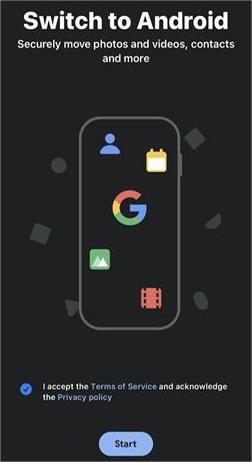
Step 2. Allow the app to access your iPhone's camera so you can scan the QR code displayed on your Android phone. If you cannot scan the code, tap "Can't Scan the QR code" and follow the instructions to enable the Wi-Fi hotspot on your Android phone and connect your iPhone to it.
Step 3. Once the two devices are connected, select the files and data you want to transfer to your new Android phone.
Step 4. Follow the on-screen instructions to turn off iMessage on your iPhone. This helps ensure that you can receive text messages on your new Android device.
Step 5. Tap "Start" or the corresponding confirmation option to begin the transfer, then wait for the process to finish. Keep both devices connected and follow any remaining instructions displayed in the app.
- Free to use without purchasing third-party transfer software.
- Supports wireless data migration from iPhone to Android.
- Can transfer supported data, including contacts, photos, and videos.
- Does not require a computer or USB cable for the app-based process.
- Requires a stable Wi-Fi connection.
- Both devices need to stay nearby during the transfer.
- Primarily designed for setting up a new Android phone.
- Not all iPhone data and app information can be transferred.
2.4 Send Files from iPhone to Android Through Email
Email is one of the simplest ways to share a small number of files between an iPhone and an Android phone. You can attach photos, documents, and other supported files to an email on your iPhone, send the message to yourself or the recipient, and then download the attachments on your Android device.
This method is particularly useful when you only need to share a few files and don't want to install additional transfer applications.
How to send files from iPhone to Android through email:
Step 1. Open the Mail app or another email application on your iPhone.
Step 2. Create a new email and enter your own email address or the recipient's address.
Step 3. Tap the attachment option and select the files you want to send.
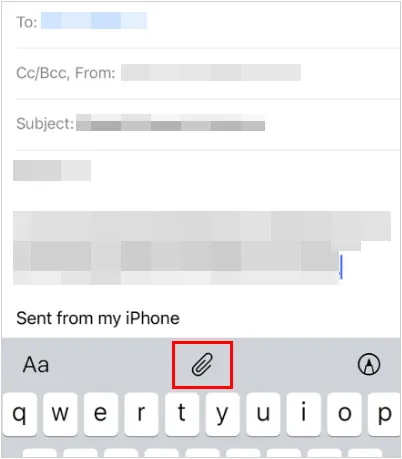
Step 4. Wait for the attachments to finish loading, then tap "Send".
Step 5. Open the same email account on your Android phone.
Step 6. Find the message and download the attached files to your device.
- Does not require a dedicated file transfer application.
- Easy to use for sharing individual documents and photos.
- Works across iOS and Android devices.
- No direct connection between the two phones is necessary.
- Email services impose attachment size limits, typically around 20 - 25 MB per email.
- Not suitable for transferring large amounts of data.
- Sending many files individually can be time-consuming.
- Requires an internet connection.
2.5 Transfer Data from iPhone to Android Wirelessly via SHAREit
SHAREit is a file-sharing application that supports transfers between different mobile platforms. It provides another option if you want to send photos, videos, music, and documents from an iPhone to an Android phone without using a computer.
Unlike traditional Bluetooth file sharing, SHAREit uses a wireless connection between devices to exchange files. Both phones need to have the application installed and follow the connection instructions provided by the app.
How to transfer files from iPhone to Android using SHAREit:
Step 1. Download and install SHAREit from the App Store on your iPhone and Google Play on your Android phone.
Step 2. Open SHAREit on both devices and grant the necessary permissions.
Step 3. On your iPhone, hit the "Send" icon and choose the files you want to send, such as photos, videos, or documents.
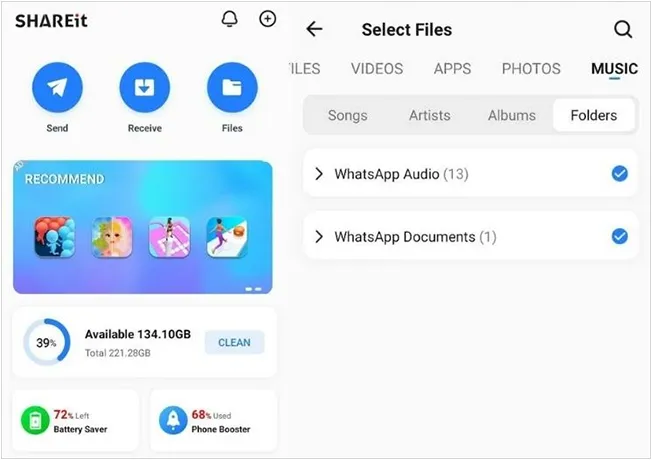
Step 4. On your Android phone, select the "Receive" option to make it ready to receive files.
Step 5. Follow the app's instructions to connect the two devices. Depending on the connection mode, you may need to scan a QR code or connect to a temporary Wi-Fi network.
Step 6. Once the devices are connected, start the transfer and wait for it to finish.
- Supports wireless file sharing between iOS and Android.
- Does not require a computer or USB cable.
- Can transfer photos, videos, music, and documents.
- Useful for sharing multiple files without uploading them to cloud storage.
- Both devices need to install SHAREit.
- Requires Wi-Fi or a supported local wireless connection.
- Connection and transfer performance may vary depending on the devices and network environment.
- App availability and features may vary by region and version.
Conclusion
Although you cannot transfer files from an iPhone to an Android phone directly via traditional Bluetooth, there are several alternative ways to share your data. You can use cloud services like Google Drive or email to send individual files, Switch to Android to migrate supported data to a new phone, or SHAREit for wireless file sharing.
If you need to transfer multiple types of data at once, iReaShare Phone Transfer is also worth considering. It lets you select the data you want to copy and transfer it between iOS and Android devices through a computer. Choose the method that best fits your transfer needs, and you can move your important files without relying on Bluetooth.
Download for Win Download for Mac
Related Articles
How to Bluetooth Photos from iPhone to Android (Latest Guide)
How to Transfer Contacts from iPhone to Android via Bluetooth (Answered)
How to AirDrop iPhone to Android Easily and 4 Alternatives
How to Transfer Music from iPhone to Android [Detailed Guide]