


TL;DR:
Need to erase an iPhone with a broken screen before selling, trading in, or recycling it? These 3 methods can help you remove personal data without using the touchscreen:
- iCloud: Remotely erase your iPhone without a USB connection, provided Find My is enabled and the device can connect to the internet.
- Recovery Mode: Restore your iPhone using a computer and physical buttons, even if you cannot enter your passcode. However, you may need an internet connection to download iOS.
- iReaShare iPhone Data Eraser: Erase existing and deleted data with three security levels (Low, Medium, and High). It supports offline erasure but requires your iPhone to be recognized and authorized by the computer.
A broken iPhone screen can make it difficult to access your device, enter its passcode, or navigate to the Settings app. However, if you plan to sell, trade in, donate, or recycle your old iPhone, leaving your personal information on it is not a good idea. You may wonder: How do I erase an iPhone with a broken screen if I cannot tap anything?
Fortunately, you have several options. In this guide, we will explain how to erase iPhone with broken screen in four practical approaches, including when each one works and what to do if your iPhone has a completely unresponsive display.
Part 1. Can You Factory Reset iPhone with Broken Screen?
Yes, you can factory reset an iPhone with a broken screen without using its touchscreen. However, the best method depends on how badly the screen is damaged, whether the iPhone is still powered on, and whether you can access your Apple Account.
Here is a quick comparison of the available methods:
| Method | Requirements | Internet Required? | Best For |
|---|---|---|---|
| iCloud Find Devices | Find My enabled, Apple Account access | Yes, for remote erasure | Remotely wiping a broken iPhone |
| Recovery Mode | USB cable, computer, working physical buttons | Internet for firmware download | Restoring an iPhone without its passcode |
| iReaShare iPhone Data Eraser | Computer recognition, USB connection, device authorization | No | Overwriting existing and deleted data |
Part 2. How to Factory Reset iPhone with Broken Screen with iCloud
If your iPhone has a broken display and you cannot operate it, iCloud is one of the easiest ways to erase it remotely. You do not need to touch the iPhone or connect it to a computer. This method is particularly useful when you want to erase an old iPhone with a broken screen before trading it in or giving it away.
However, there are two important requirements:
- Find My iPhone must have been enabled before the screen became unusable.
- You need access to the Apple Account associated with the iPhone.
- The iPhone must connect to Wi-Fi or cellular data to receive and complete the remote erase command.
Here is how to erase broken iPhone without iTunes:
Step 1. Open iCloud.com/find in a browser and sign in with the Apple Account linked to your broken iPhone.
Step 2. Open "All Devices" and choose the iPhone with the broken screen from the device list.
Step 3. Click "Erase This Device" and follow the on-screen instructions to confirm the remote erase request.
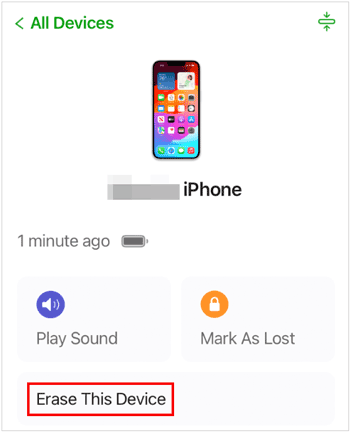
Step 4. If your iPhone is online, the erase process will begin shortly. If it is offline, the command will remain pending until the device connects to the internet.
Once the process finishes, your iPhone's personal data and settings will be erased.
Limitations of the iCloud Method
Although iCloud is convenient, it does not work in every situation:
- Find My was not enabled: You cannot remotely erase the iPhone through iCloud Find Devices.
- No internet connection: The erase request cannot be completed until the iPhone goes online. This is important if you want to erase an iPhone with a broken screen and no internet.
- Apple Account access is unavailable: You may not be able to sign in and authorize the remote erase.
- Activation Lock remains enabled: Remote erasure does not automatically remove Activation Lock. The Apple Account and password may still be required to reactivate the device.
Therefore, iCloud is a good free option if you previously enabled Find My and still have access to your Apple Account. If these requirements are not met, consider using Recovery Mode instead.
Part 3. How to Erase iPhone with Broken Screen Using Recovery Mode
What if you cannot access iCloud, have forgotten your iPhone passcode, or never enabled Find My? In that case, Recovery Mode is another option.
Recovery Mode allows you to restore an iPhone using a computer without navigating its touchscreen. You can use the physical buttons to enter Recovery Mode and then restore the device through Finder or the Apple Devices app.
This method is useful when you want to factory reset an iPhone with buttons, especially if the screen is broken or the device is disabled.
What You Need:
- A Windows PC or Mac.
- A compatible USB cable.
- The latest Apple Devices app on Windows or an updated Finder on Mac.
- Working physical buttons on your iPhone.
Here is how to erase iPhone with broken screen and passcode using Recovery Mode:
Step 1. Connect your iPhone to your Windows PC or Mac using a compatible USB cable. Open the Apple Devices app on Windows or Finder on Mac.
Step 2. Put your iPhone into Recovery Mode. The button combination depends on your iPhone model:
- iPhone 8 or later, including iPhone SE (2nd generation and later): Quickly press and release "Volume Up", quickly press and release "Volume Down", then press and hold the "Side" button until the Recovery Mode screen appears.
- iPhone 7 and iPhone 7 Plus: Press and hold the "Volume Down" and "Side" (or Top) buttons simultaneously until the Recovery Mode screen appears.
- iPhone 6s or earlier, including iPhone SE (1st generation): Press and hold the "Home" and "Side" (or Top) buttons together until the Recovery Mode screen appears.
Step 3. Once your iPhone enters Recovery Mode, your computer should detect it and display a prompt offering "Update" or "Restore".
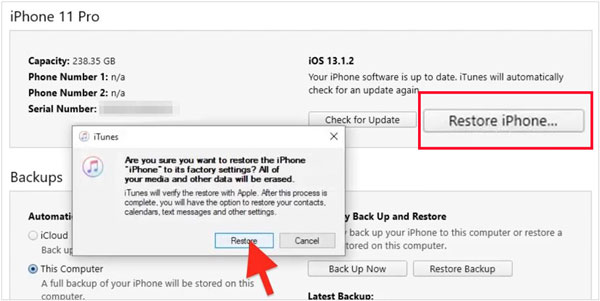
Step 4. Select "Restore" to reinstall iOS and erase the existing data and settings on your iPhone. Wait for the computer to download the necessary firmware and complete the restoration.
If the download takes more than 15 minutes and your iPhone exits Recovery Mode, allow the download to finish and then repeat the steps to enter Recovery Mode.
Step 5. When the process finishes, your iPhone will restart and display the Hello screen. You can then disconnect it from the computer. Your iPhone has now been restored to factory settings.
Limitations of Recovery Mode
Recovery Mode is a free solution, but it has some drawbacks that you should understand before proceeding:
- It erases all existing data: You cannot selectively preserve photos, messages, or other files during a full restore.
- It may require an internet connection: Your computer generally needs internet access to download the iOS firmware. Therefore, this is not always a suitable solution if both your iPhone and computer are offline.
- Physical buttons must work: If the Side, Volume, or Home button required for your model is damaged, you may not be able to enter Recovery Mode.
- A broken display makes the process harder to verify: You may not be able to see whether the iPhone has entered Recovery Mode or completed the restoration.
- Activation Lock is not removed: After restoring, you may still need the original Apple Account credentials to activate the iPhone.
Part 4. How to Erase iPhone with Broken Screen via iReaShare iPhone Data Eraser
If you want to erase an iPhone with a broken screen before selling, trading in, or disposing of it, you may also consider a dedicated iPhone data-erasing tool.
iReaShare iPhone Data Eraser is designed to erase existing and deleted data from iPhones, iPads, and iPod touch devices. Unlike a standard factory reset, it provides three erasing levels (Low, Medium, and High) and uses data overwriting to make previously stored information harder to recover.
Key features of iReaShare iPhone Data Eraser:
* Erase existing iPhone data, including contacts, messages, photos, videos, and other personal information.
* Provide three data-erasing levels for different security requirements.
* Offer data overwriting to target existing and deleted files.
* Support USB connections and can erase an iPhone without an internet connection.
* Provide Windows and Mac versions.
Download for Win Download for Mac
This method is only suitable when your iPhone can still be recognized and authorized by the computer. If the screen is completely unresponsive and the software requires you to tap "Trust" or enter your passcode, you cannot simply bypass those requirements with this tool.
How to Erase iPhone with Broken Screen via iReaShare iPhone Data Eraser When the Device Is Recognized
If you have previously trusted the computer and the software can recognize your iPhone, you may be able to proceed without using the touchscreen again. Here is how:
-
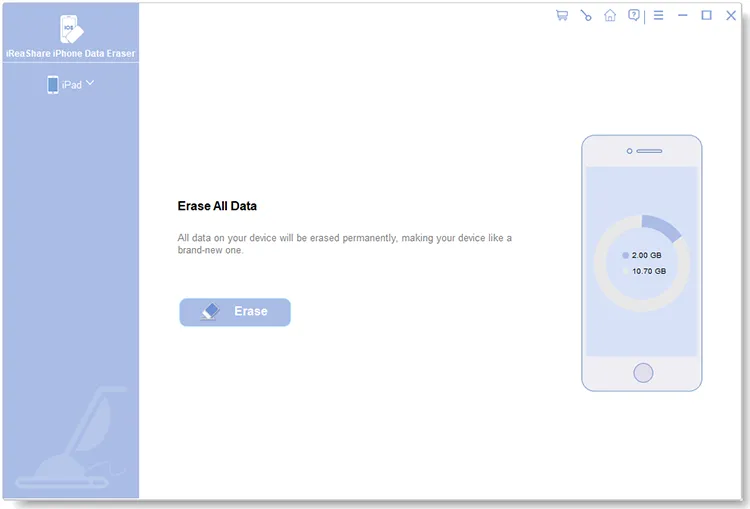
Download and install iReaShare iPhone Data Eraser on your computer. Connect your iPhone using a USB cable. If the computer has previously trusted your device, the software should detect it automatically and display its information. Once connected, click "Erase" to continue.
-
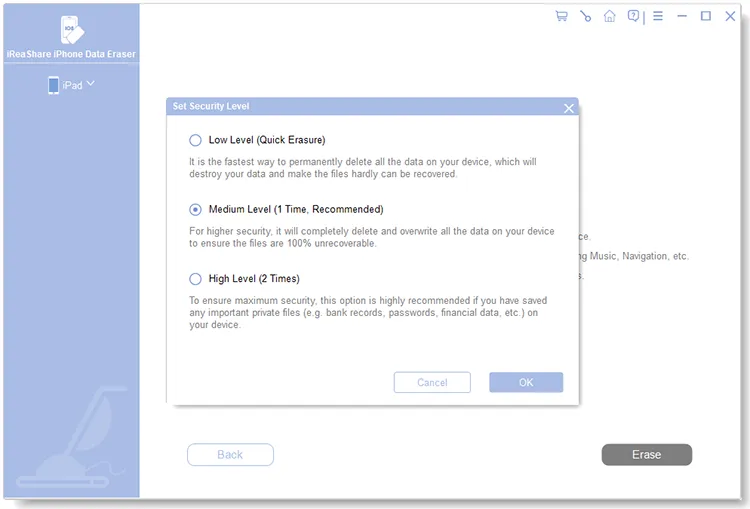
Select your preferred erasure level: Low, Medium, or High. Choose the level that meets your security needs, then click "OK" to confirm.
-
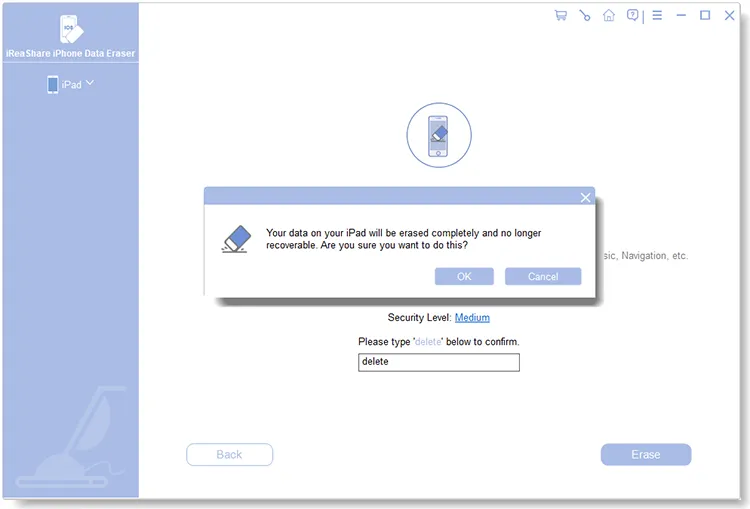
Enter the keyword "delete" in the confirmation box, then click "Erase" to proceed. For optimal erasure results, reset your iPhone using "Erase All Content and Settings" before continuing, if possible.
-
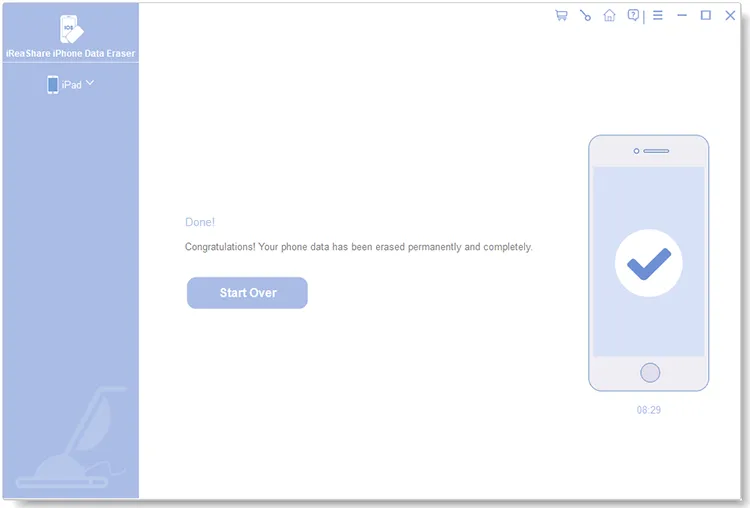
Keep your iPhone connected to the computer throughout the process. The software will erase and overwrite the selected data. Do not disconnect your device until the operation is complete. Once the process finishes, the software will display the erasure results.
-
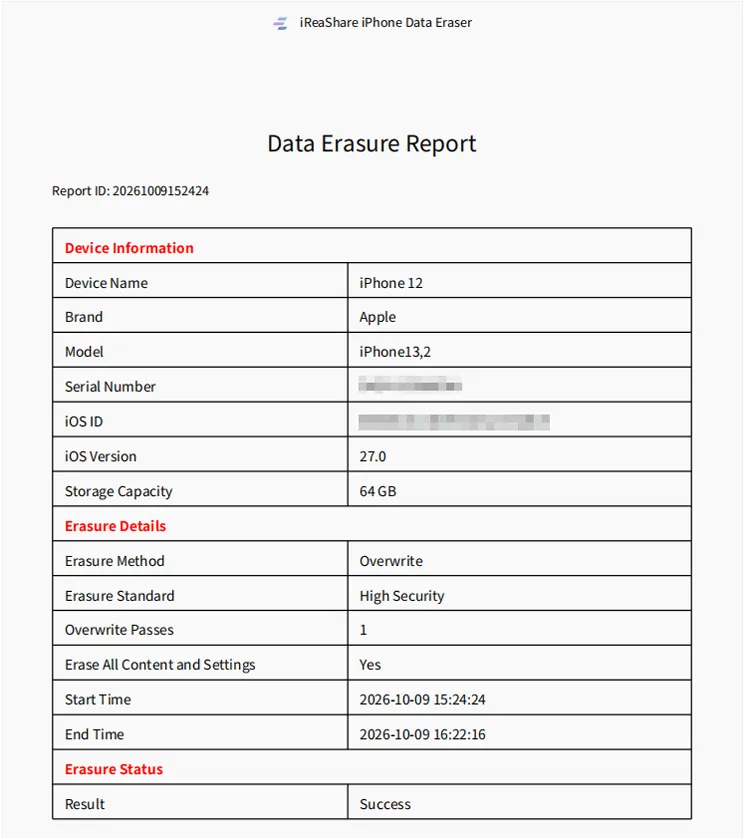
You can also click "Save Report" to export an erasure log to your PC, including device information, the selected security level, overwrite passes, and the final erasure status.
Here is a video guide:
Limitations of iReaShare iPhone Data Eraser
Although iReaShare offers additional data-erasing options, it is important to understand its limitations before choosing it:
- Device recognition is essential: If your computer cannot recognize your iPhone, the software cannot proceed with the erasure.
- Trust authorization may be required: If the iPhone displays a "Trust This Computer" prompt, you must authorize the connection on the device. A completely unresponsive screen can prevent this.
- The iPhone may need to be unlocked: Some erasing operations require the device to be unlocked. Simply connecting a locked iPhone to a computer does not guarantee that the software can access it.
- It cannot repair physical damage: The software cannot fix a broken display, damaged USB port, or defective internal components.
- It is not a free full-featured solution: You can try the software before purchasing, but access to its full erasing capabilities may require a license.
Final Words
A broken iPhone screen does not necessarily prevent you from erasing your personal information. iCloud is a convenient free option for remotely wiping your device, while Recovery Mode is useful when you cannot access the screen or remember the passcode. If you need additional data-overwriting options and your iPhone is still recognized by a computer, iReaShare iPhone Data Eraser is another solution worth considering.
Choose the method that matches your device's condition and make sure your personal information is properly protected before selling, trading in, or disposing of your old iPhone.
Download for Win Download for Mac
Related Articles
How to Sell Your Broken iPhone Safely and Easily (Latest Guide)
What to Do with Old iPhone: Recycle or Repurpose It Securely