TL;DR:
To speed up a slow Android phone immediately, reboot your device, free up at least 15% of your internal storage, reduce Animation Scales to 0.5x in Developer Options, and clear cached data from heavy apps like Chrome or social media.
For a permanent speed boost, perform a deep wipe of unallocated free space and hidden junk fragments using iReaShare Android Data Eraser to eliminate background I/O bottlenecks and restore original responsiveness.
Over time, even high-end Android devices begin to feel sluggish. Apps take longer to load, home screen animations stutter, and simple tasks like opening the camera or switching tabs cause frustrating delays. This degradation is rarely caused by aging hardware alone; rather, it is usually the result of digital clutter, background process bloat, fragmented system caches, and low available storage space.
Whether you are running Android 12, 13, 14, 15, 16 or 17, this comprehensive guide explores the most effective, up-to-date methods to restore your device's original speed, improve RAM efficiency, and optimize system storage.
- Part 1: Why Is My Android Phone Running So Slow?
- Part 2: Official Free Methods to Speed Up Your Android Phone
- Part 3: Advanced Solution: Deep Clean Android Phone via iReaShare Android Data Eraser
- Part 4: Comparison: Manual Cleanup vs. Deep Software Optimization
- Part 5: Troubleshooting & Frequently Asked Questions (FAQs)
Part 1: Why Is My Android Phone Running So Slow?
When an Android phone slows down, system resources like CPU cores, random-access memory (RAM), and flash storage flash read/write operations (I/O) are being overtaxed. Understanding the primary technical causes helps you apply the correct fixes:
- Low Storage Thresholds: Flash memory (UFS or eMMC) requires free space to manage wear leveling and swap file caching. When internal storage drops below 10%–15% free capacity, write speeds plummet significantly.
- Excessive Background Processes: Unused apps running background services consume RAM and CPU cycles, forcing active apps to wait for memory reallocation.
- Corrupted App Cache and Residual Junk: Accumulated temporary files, crash reports, and thumbnail databases create storage fragmentation and slow down system indexing.
- Heavy UI Animations: Default system window and transition scales strain older or budget Graphical Processing Units (GPUs).
- Thermal Throttling: Rogue background tasks keep the CPU active, generating heat that causes the processor to automatically downclock its speed.
Part 2: Official Free Methods to Speed Up Your Android Phone
Before using specialized cleanup software, start with these essential built-in Android optimization techniques to resolve system lag.
Method 1: Perform a Regular System Reboot
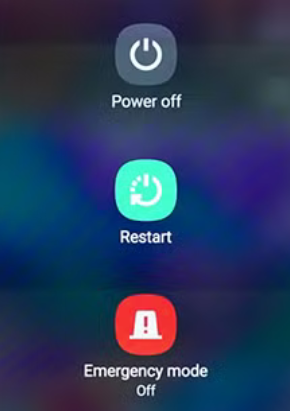
Restarting your device is the simplest way to flush temporary RAM, terminate stuck background tasks, and refresh the Android operating system. A soft reboot clears memory leaks caused by poorly optimized third-party applications.
- Press and hold the Power button (or Power + Volume Down).
- Tap Restart and allow the system to reboot completely.
Method 2: Maintain at Least 15% Free Internal Storage
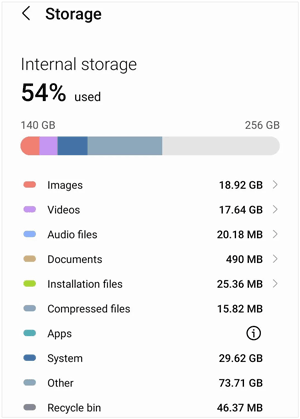
Android requires adequate breathing room to operate smoothly. Check your storage usage under Settings > Storage. If your storage is nearly full, delete large video files, old downloads, and duplicate photos. Aim to keep at least 15% of your storage capacity free.
Method 3: Clear App Cache for High-Resource Applications
App caches help applications load faster initially, but outdated or bloated cache files can cause app crashes and system slowdowns. Browsers, streaming apps, and social platforms accumulate gigabytes of cached data.
- Open Settings > Apps (or App Management).
- Select a high-usage application (e.g., Chrome, TikTok, Instagram).
- Tap Storage & Cache.
- Tap Clear Cache.
Method 4: Uninstall or Disable Bloatware and Unused Apps
Pre-installed carrier software (bloatware) and long-forgotten games consume storage and run hidden background services. Uninstalling unwanted apps prevents them from auto-starting and draining system resources.
- Long-press the icon of any app you no longer need and tap Uninstall.
- For non-removable system apps, go to Settings > Apps, select the app, and tap Disable.
Method 5: Adjust Animation Scale Settings in Developer Options
One of the most popular power-user tricks to make Android feel twice as fast is reducing system animation duration. This setting speeds up window transitions and app launches instantly.
- Go to Settings > About Phone.
- Locate Build Number and tap it 7 times until you see "You are now a developer!".
- Return to Settings > System > Developer Options.
- Scroll down to find Window animation scale, Transition animation scale, and Animator duration scale.
- Change each value from 1x to 0.5x (or turn them off entirely).
Method 6: Limit Background Processes and Clean Up Home Screen
Live wallpapers, heavy desktop widgets (like multi-page news or weather feeds), and excessive home screen pages demand constant GPU and RAM rendering.
- Switch to a static dark wallpaper (especially effective for AMOLED displays).
- Remove unnecessary widgets by long-pressing and selecting Remove.
- In Developer Options, locate Background process limit and set it to Standard limit or At most 2-3 processes if your phone has 3GB/4GB RAM.
Method 7: Keep Android OS and System Apps Updated
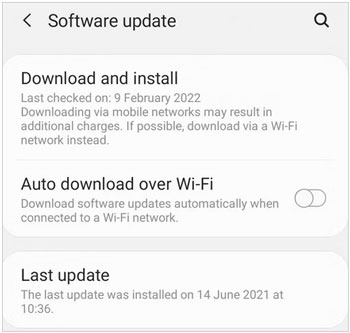
Software updates often include critical performance optimizations, kernel improvements, and security patches that resolve known system slowdown bugs. Check for updates under Settings > System > Software Update.
Part 3: Advanced Solution: Deep Clean Android Phone via iReaShare Android Data Eraser
While manual cleanup deletes superficial files, residual system fragments and deleted file remnants remain hidden in unallocated storage sectors. This uncleaned data continues to cause flash memory fragmentation, leading to persistent I/O lag over time.
For a thorough and permanent speed boost, professional desktop software like iReaShare Android Data Eraser provides deep-level system cleaning and secure space optimization.
Key Performance Benefits of iReaShare Android Data Eraser
- Deep Unallocated Space Wiping: Overwrites and wipes Android residual fragments in deleted storage sectors, eliminating background storage indexing bottlenecks.
- Permanent Privacy & Junk Clearance: Completely erases Android app caches, temp files, crash logs, browsing history, and privacy traces with zero chance of recovery.
- Comprehensive Hardware Support: Fully compatible with major Android brands, including Samsung, Google Pixel, Xiaomi, OnePlus, Motorola, OPPO, and Vivo, across all modern OS versions.
- Restores Factory-Level Speed Securely: Cleans up system clutter thoroughly without damaging OS system files or bricking your phone.
Created by iReaShare, a trusted provider of mobile utility and data management solutions, this utility ensures your device runs at optimal performance while safeguarding your personal data.
Download for Win Download for Mac
How to Speed Up Android Phone Using iReaShare Android Data Eraser
Note: This will erase all data on your Android phone, please back up your Android data before proceed if needed.
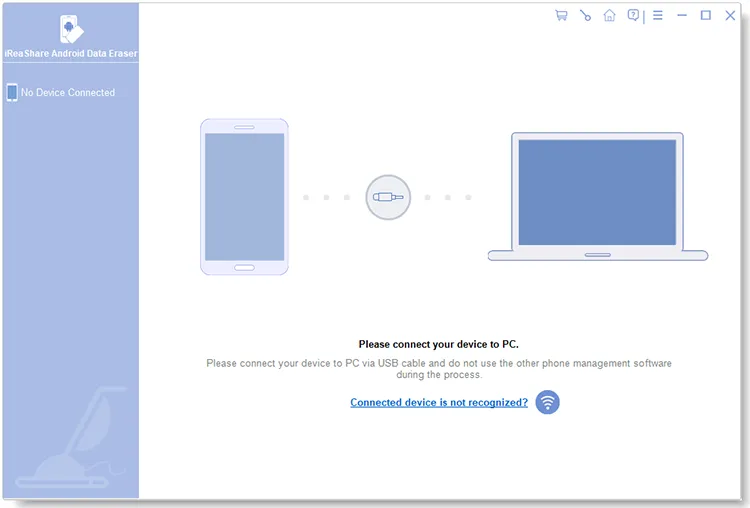
Step 1. Connect Your Phone
Download and install iReaShare Android Data Eraser on your PC. Connect your slow Android phone via a USB cable and enable USB Debugging.
Step 2. Select Security Level
Launch the program and choose your preferred erasure security level (Low, Medium, or High).
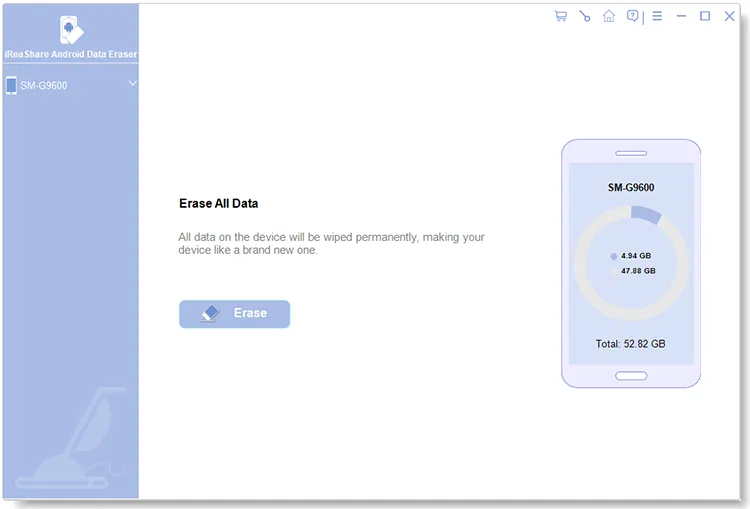
Step 3. Initiate Deep Clean
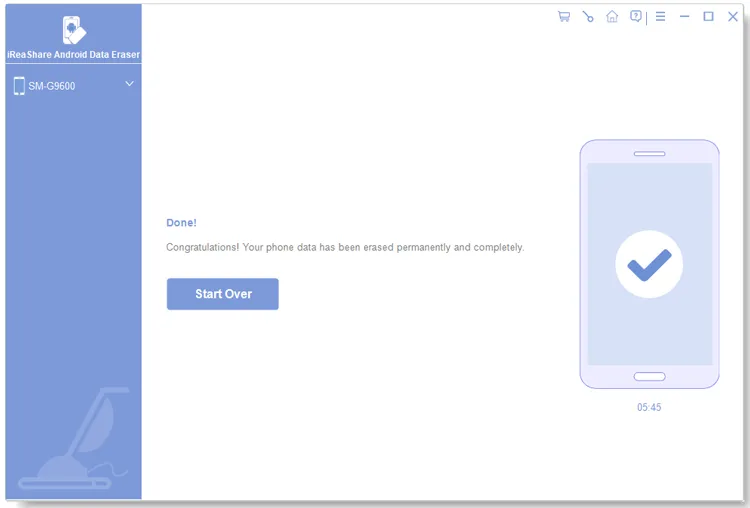
Click the Erase button. The software will perform a deep scan, wipe hidden cached clutter, residual files, and unallocated storage fragments permanently, restoring your phone's original speed and responsiveness.
Video Guide:
Part 4: Comparison: Manual Cleanup vs. Deep Software Optimization
Comparing different optimization approaches helps determine the best strategy for your device's speed requirements:
| Feature | Manual Settings Cleanup | Standard Cleaner Apps | iReaShare Android Data Eraser |
|---|---|---|---|
| Surface Cache Removal | Yes (Manual per app) | Yes (Automated) | Yes (Deep scanning) |
| Unallocated Free Space Wiping | No | No | Yes (Permanent overwrite) |
| Storage De-fragmentation Boost | Minimal | Low | Maximum (Eliminates I/O lag) |
| Privacy & Data Security | Recoverable | Recoverable | 100% Unrecoverable |
| Background Ad/Resource Overhead | None | High (Adds background ads) | Zero (Clean desktop tool) |
Part 5: Troubleshooting & Frequently Asked Questions (FAQs)
1. Why is my Android phone lagging even with plenty of free storage?
Storage space is only one factor. If your storage is empty but your phone remains slow, the lag is likely caused by background processes hogging RAM, heavy CPU throttling due to battery overheating, or corrupted system cache files that require a deep wipe.
2. Does clearing app cache delete my personal photos, messages, or login accounts?
No. Clearing cache only removes temporary operational files used to speed up initial loading. It does not delete your personal media, documents, or saved account logins. (Note: Tapping "Clear Data" or "Clear Storage" will reset app logins and settings, so only use "Clear Cache").
3. Are third-party Android "RAM Booster" apps effective?
Most Android app store "RAM Cleaners" or "Speed Boosters" are ineffective and counterproductive. They constantly force-close background apps, which Android immediately reloads in the background. This cycle drains battery power and causes additional lag. Desktop-based deep erasers or native system controls are far more reliable.
4. Will changing Animation Scales damage my phone?
Not at all. Reducing Animation Scales in Developer Options simply instructs the Android system UI to render transition effects faster or skip them entirely. It is 100% safe and can be reverted at any time.
5. How often should I perform a deep cleanup on my Android phone?
Performing a basic reboot once a week, clearing browser caches monthly, and running a deep wipe using iReaShare Android Data Eraser every 3 to 6 months will keep your device running smoothly for years.
Final Thoughts: Restoring Your Android's Original Speed
Speeding up a slow Android phone does not require buying a new flagship device or performing drastic factory resets every few months. By adjusting built-in performance settings like Animation Scales, removing unused apps, and conducting deep storage optimizations with iReaShare Android Data Eraser, you can eliminate system lag and enjoy a smooth, responsive smartphone experience once again.
Download for Win Download for Mac
Related Articles:
Best File Manager for Android: 9 New Options Better Than Built-In
How to Permanently Delete Text Messages on Android [Cannot Be Recovered]
8 Android Data Eraser Software and Apps Comparison in 2026
How to Wipe Phone for Trade-in Easily and Safely (Full Guide)