


TL;DR:
Puran File Recovery is a free Windows data recovery tool that can retrieve deleted files and recover data from formatted or RAW drives. It offers multiple scanning modes, file previews, and support for various storage devices, making it a practical option for basic data recovery. However, its Windows-only compatibility and relatively limited recovery features may not meet everyone's needs. If you need a more comprehensive solution, Data Recovery is another option worth considering.
Accidentally deleting important files, formatting a storage device, or losing data due to a partition issue can happen unexpectedly. When this occurs, choosing a reliable data recovery program becomes essential. Puran File Recovery is one of the free tools available for Windows users, offering several scanning options to locate and restore lost files.
But is Puran File Recovery effective enough to handle different data loss situations? Is it safe, and does its free version provide everything you need? In this Puran File Recovery review, we'll examine its features, advantages, disadvantages, pricing, and recovery process. We'll also introduce an alternative to help you make an informed decision.
- Part 1. What Is Puran File Recovery?
- Part 2. Puran File Recovery Review: Features, Pros, and Cons
- Part 3. Is Puran File Recovery Safe and Free to Use?
- Part 4. How to Use Puran File Recovery to Recover Deleted Files?
- Part 5. Best Puran File Recovery Alternative: Data Recovery
- Part 6. Puran File Recovery vs. Data Recovery
Part 1. What Is Puran File Recovery?
Puran File Recovery is a free data recovery tool developed by Puran Software for Windows users. It helps retrieve deleted or lost files from various storage devices, including hard drives, USB drives, and memory cards.
The software has an interesting update history. Its earlier version 1.2 remained largely unchanged for years before the major 2.0 release on November 6, 2025. Version 2.0.1 followed on January 21, 2026, bringing further minor improvements and fixes. This marked a significant return for the previously long-neglected tool.
Overall, Puran File Recovery is worth another look in 2026, especially for users interested in a free recovery utility.

Part 2. Puran File Recovery Review: Features, Pros, and Cons
Puran File Recovery offers several useful recovery features despite being a free utility. However, its simplicity also comes with certain limitations. Let's examine what it can do and where it may fall short.
2.1 Key Features of Puran File Recovery
Here are the main features worth knowing before using Puran File Recovery.
1. Multiple Scanning Modes
Puran File Recovery provides different scanning options to handle various data loss situations:
- Deep Scan: Examines the storage device more thoroughly, using byte-by-byte scanning and file signatures to locate data.
- Full Scan: Performs a more comprehensive search to identify lost or deleted partitions and recover files from formatted or RAW drives.
These scanning options allow you to choose an appropriate method depending on how the data was lost.
2. Support for Various Storage Devices
The program can scan different storage media that Windows recognizes, including internal and external hard drives, USB flash drives, SD and memory cards, CDs and DVDs, and other connected storage devices. This makes it useful for recovering files from more than just a computer's internal disk.
3. Support for Multiple File Formats
Puran File Recovery can identify more than 50 common file formats through its built-in file signatures. These include common image, video, audio, and document formats. You can also expand the supported file types by adding file signatures where supported.
4. File Preview Before Recovery
The software provides a preview feature for supported file formats. Before restoring a file, you can check its contents to determine whether it is the item you want. This helps reduce unnecessary recovery attempts, especially when the scan returns numerous files with similar names.
5. File Search and Original Path Preservation
Puran File Recovery provides search and filtering options to help you locate specific files in the scan results. When the original directory information is available, it can also preserve the original folder structure during recovery. This makes it easier to organize recovered files instead of manually sorting everything afterward.
2.2 Pros and Cons of Puran File Recovery
After reviewing its main features, here is a quick summary of Puran File Recovery's advantages and disadvantages.
- Free to use without requiring a paid recovery subscription.
- Offers Deep Scan and Full Scan for different recovery situations.
- Supports hard drives, USB drives, memory cards, and other Windows-recognized storage devices.
- Can recover files from formatted and RAW drives.
- Supports more than 50 file signatures and allows additional signatures.
- Provides file previews and search options before recovery.
- Only supports Windows, so Mac users cannot run it natively.
- Its interface looks relatively outdated compared with newer recovery applications.
- Deep and Full scans may take considerable time, depending on the drive's capacity and condition.
- Some recovered files may be incomplete, corrupted, or impossible to open.
- Its feature set is mainly focused on file and partition recovery, with fewer additional tools than some commercial alternatives.
- It cannot recover data from a drive that Windows cannot detect or access.
Part 3. Is Puran File Recovery Safe and Free to Use?
Before downloading a data recovery program, it is important to understand whether it is safe to install and whether you can use its recovery features without paying. Here is what you should know about Puran File Recovery.
3.1 Is Puran File Recovery Safe?
Puran File Recovery is developed by Puran Software, a software developer that offers various Windows utilities. The program is distributed as a desktop application rather than an online recovery service.
To reduce potential security risks when using it, follow these precautions:
- Download the installer from the official Puran Software website rather than unfamiliar third-party download sites.
- Check the downloaded installer with Windows Security or another trusted antivirus program before running it.
- Review the installation options carefully and avoid installing anything you do not recognize.
- Recover files to a different drive instead of the original location to avoid overwriting other recoverable data.
There is no need to assume that the software is unsafe simply because its interface looks dated. However, downloading it from a trusted source and checking the installer are still important precautions.
3.2 Is Puran File Recovery Completely Free?
Yes. Puran File Recovery is distributed as freeware, and its core scanning and file recovery features are available without purchasing a subscription or license. Unlike many commercial data recovery tools, it does not advertise a separate paid edition with additional recovery capacity. This makes it appealing if you want to recover deleted files without spending money.
However, free software does not necessarily mean unlimited suitability for every situation. You should still check the current license terms if you intend to use it commercially. Also, its recovery capabilities depend on whether the lost data remains intact and has not been overwritten.
In short, Puran File Recovery is a worthwhile free option for personal file recovery, but it may not provide all the capabilities you need for more complicated data loss situations.
Part 4. How to Use Puran File Recovery to Recover Deleted Files?
Puran File Recovery provides a simple process for locating and restoring deleted files. To evaluate its actual performance, we tested the program with several types of deleted data, including photos, documents, videos, and audio files. The following steps explain how to use the software and highlight our observations during the test.
Step 1. Download and Install Puran File Recovery
Visit the official Puran Software website and download Puran File Recovery. Install and launch the program on your Windows computer.
If you have lost files from a particular drive, avoid installing the recovery program on that same drive. The installation process may write new data to the storage device and potentially overwrite the files you want to recover.
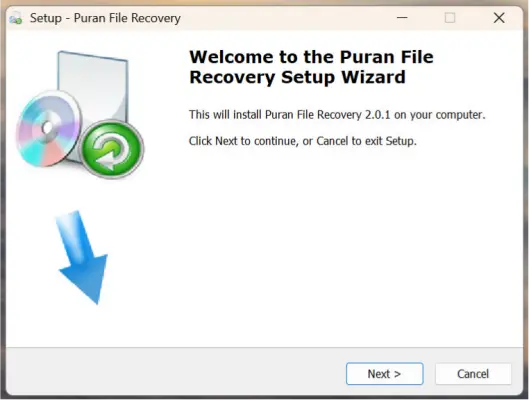
Step 2. Choose a Scan Mode and Start Scanning
Select the drive containing your deleted files and choose a suitable scan mode.
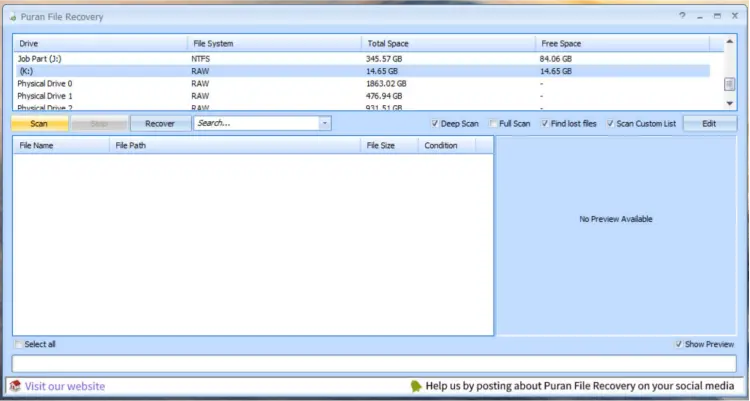
While preparing this review, we tested Puran File Recovery on a USB flash drive using Deep Scan. The scan took approximately 15-20 minutes to complete. During our test, the software located files that had been deleted or lost before the scan, although the original folder structure was not fully preserved. (How to recover deleted files from USB flash drive without hassle?)
Step 3. Preview and Select the Files
Once the scan is complete, browse the results by file type or folder path. Select the files you want to recover and preview them when possible.
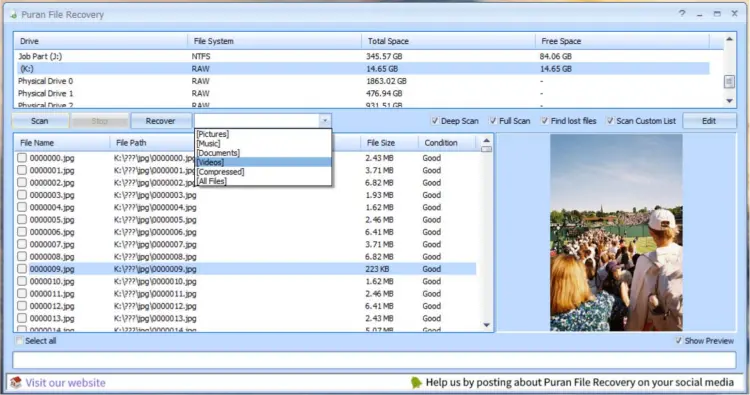
In our test, Puran File Recovery identified 16 out of 18 deleted files. However, finding a file did not necessarily mean that its contents were intact. We found that some recovered files could not be fully verified, so checking their actual contents before relying on them is important.
Step 4. Recover the Selected Files
Click the "Recover" button and choose another drive or folder to save the recovered files. Avoid using the original storage location to prevent overwriting other lost data.
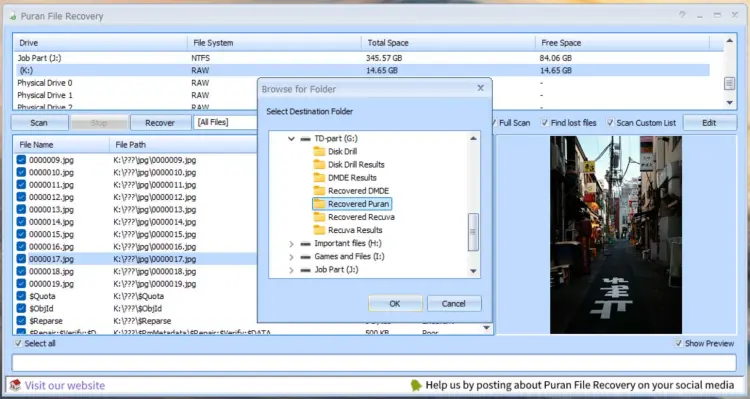
We then recovered the selected files and checked whether they could be opened normally. Although Puran File Recovery restored most of the files it identified, not all of them retained their original integrity.
Part 5. Best Puran File Recovery Alternative: Data Recovery
Although Puran File Recovery is a free option for recovering deleted files on Windows, its recovery capabilities are relatively limited compared with more comprehensive data recovery solutions. If you need to retrieve different types of data from multiple devices, Data Recovery is a more versatile alternative worth considering.
Key Features of Data Recovery
- Wide Device Compatibility: Supports data recovery from iPhone, iPad, SD cards, hard drives, Windows PCs, and Mac computers.
- 1,000+ Data Types: Recovers various types of lost data, including photos, videos, messages, contacts, and documents.
- Recovery Without Backup: Helps retrieve deleted or lost data directly from supported devices without requiring a previous backup.
- Third-Party App Recovery: Scans and recovers messages and archives from WhatsApp, LINE, TikTok, WeChat, and Skype with one click.
- Selective Data Recovery: Allows you to preview and select the data you want to recover instead of restoring everything.
- Multiple Recovery Scenarios: Helps retrieve data lost through accidental deletion and other common data loss situations.
How to Recover Deleted Files with Data Recovery
If Puran File Recovery cannot retrieve your missing files, you can try Data Recovery instead. For PC and hard drive recovery, follow these steps:
-
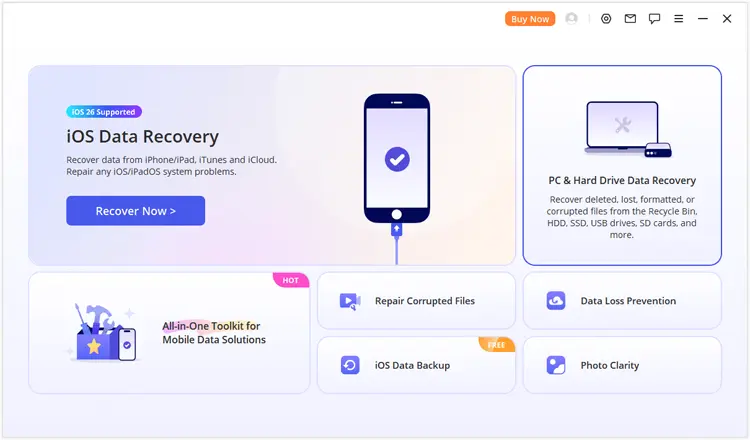
Download and launch Data Recovery on your computer. From the main screen, find and select "PC & Hard Drive Data Recovery" to access the computer file recovery feature.
-
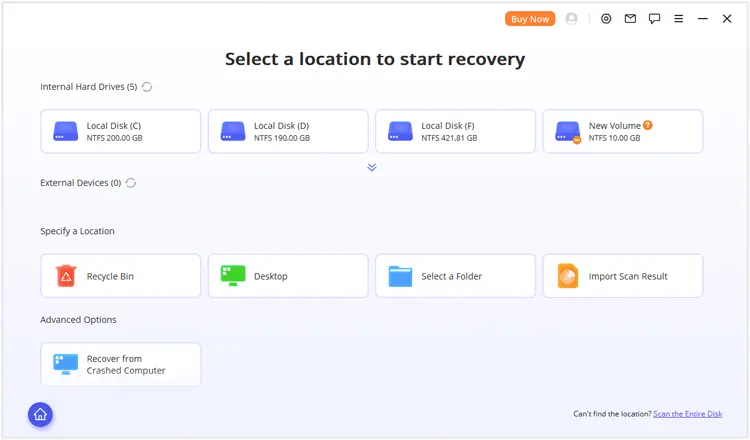
The software will show the available drives and storage locations. Identify the hard drive, partition, or Desktop where your deleted or missing files were previously saved, and select it. If you cannot find the target location in the list, click "Scan the Entire Disk" to search across the computer's storage.
-
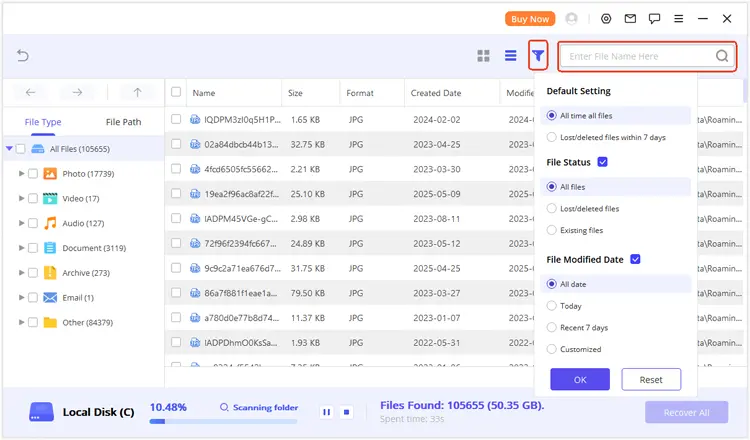
Allow Data Recovery to examine the selected location for recoverable data. When files appear, browse them under File Type or File Path to find the items you need. You can also apply the built-in search and filter options to narrow down the results. To check whether a file is intact, double-click it to preview its contents before proceeding.
-
Once you have identified the correct files, tick their checkboxes and click "Recover". Choose a destination folder to store the restored data. For better recovery safety, save the files to another drive instead of the original scanning location, reducing the risk of overwriting other recoverable content.
Part 6. Puran File Recovery vs. Data Recovery
Puran File Recovery and Data Recovery both help retrieve lost data, but they target different recovery needs. Puran is primarily a free Windows file recovery utility, while Data Recovery provides broader device compatibility and supports more types of data recovery.
| Comparison | Puran File Recovery | Data Recovery |
|---|---|---|
| Price | Free | Free trial and paid plans |
| Supported Platforms | Windows | Windows and Mac |
| Supported Devices | Hard drives, USB drives, memory cards, and more | iPhone, iPad, SD cards, hard drives, PC, and Mac |
| Supported Data Types | 50+ file signatures | 1,000+ data types |
| Recovery Without Backup | Yes, for supported storage scenarios | Yes |
| Social App Recovery | Not a primary feature | WhatsApp, LINE, TikTok, WeChat, and Skype |
| Scanning Modes | Deep Scan and Full Scan | Varies by recovery module |
| File Preview | Yes | Yes |
| Selective Recovery | Yes | Yes |
| Best For | Basic Windows file recovery | Multi-device and multi-type data recovery |
Conclusion
Puran File Recovery is a free and straightforward Windows utility for retrieving deleted files and recovering data from formatted or RAW drives. Its multiple scanning modes, storage-device support, and file preview feature make it useful for basic data loss situations. However, its outdated interface and limited recovery features may not satisfy users with more complex needs.
If Puran File Recovery cannot find your missing files or you want a more comprehensive recovery tool, consider trying Data Recovery. It offers deep scanning, file preview, selective recovery, and support for multiple storage devices, making it another option for recovering lost data from your computer.
Related Articles
Best Hard Drive Recovery Software to Recover Lost Data in 2026
How to Perform SSD Data Recovery with/without Backup