TL;DR:
SSD data recovery methods depend on whether you have a backup. If you do, try restoring files through Windows File History or OneDrive. If not, check the Recycle Bin, use Windows File Recovery, or try iReaShare PC Data Recovery to retrieve lost files.

Data Recovery Recover lost data


Solid-state drives (SSDs) are widely used to store important documents, photos, videos, and other personal or work-related files. However, data loss can happen unexpectedly due to accidental deletion, formatting, partition errors, or drive failure. When files disappear from an SSD, knowing how to recover them can help you avoid losing valuable data permanently.
Fortunately, several SSD data recovery methods are available for different situations. Whether you have accidentally deleted a file or can no longer access an entire drive, choosing the right approach can make the recovery process easier.

- Part 1. Can Data on an SSD Be Recovered?
- Part 2. How to Perform SSD Data Recovery Through Recycle Bin
- Part 3. How to Conduct SSD Data Recovery with Windows File Recovery
- Part 4. How to Restore Lost SSD Data from a Backup
- Part 5. How to Recover Data from SSD Using SSD Data Recovery Software
- FAQs About SSD Data Recovery
Part 1. Can Data on an SSD Be Recovered?
Yes, data on an SSD can sometimes be recovered, but success depends on how the files were lost, the condition of the drive, and whether the original data is still accessible. For example, accidentally deleted files may be recoverable using a recovery tool, while files included in an existing backup can often be restored without scanning the SSD.
Before choosing a method, identify your data loss situation and compare the available options below.
| Method | Best For | Key Requirement |
|---|---|---|
| Recycle Bin | Recently deleted files | Files must still be in the Recycle Bin |
| Windows File Recovery | Permanently deleted files | Recoverable data must remain accessible; command-line operation is required |
| Backup Restoration | Deleted, lost, or overwritten files | A suitable backup or previous version must exist |
| SSD Data Recovery Software | Deleted, formatted, or lost files | The SSD must be accessible to the software, and the data must remain recoverable |
Part 2. How to Perform SSD Data Recovery Through Recycle Bin
If you accidentally delete files from an SSD on a Windows computer, check the Recycle Bin first. This method is free and straightforward, so you do not need to install additional software. It works as long as the deleted files are still in the Recycle Bin.
Steps to Recover SSD Files from the Recycle Bin
Step 1. Double-click the Recycle Bin icon on your Windows desktop.

Step 2. Browse the deleted items or use the search box to locate the files you want to recover.
Step 3. Right-click the desired file or folder and select "Restore".
Step 4. Open the original folder to check whether the files have been restored successfully.
Windows will return the selected items to their original locations. You can then open them to confirm that the recovered files are intact.
Limitations:
This method only works if the deleted files are still in the Recycle Bin. It cannot restore files that have been permanently deleted, removed by formatting, or deleted from a drive without using the Recycle Bin. If you cannot find your files here, try Windows File Recovery or another suitable method.
Part 3. How to Conduct SSD Data Recovery with Windows File Recovery
Windows File Recovery is a free command-line utility developed by Microsoft for recovering deleted files from supported local storage devices, including SSDs. It provides several recovery modes for different file systems and data loss scenarios, making it a useful built-in option for Windows users who need to retrieve missing files from a solid-state drive.
Steps to Recover SSD Data with Windows File Recovery
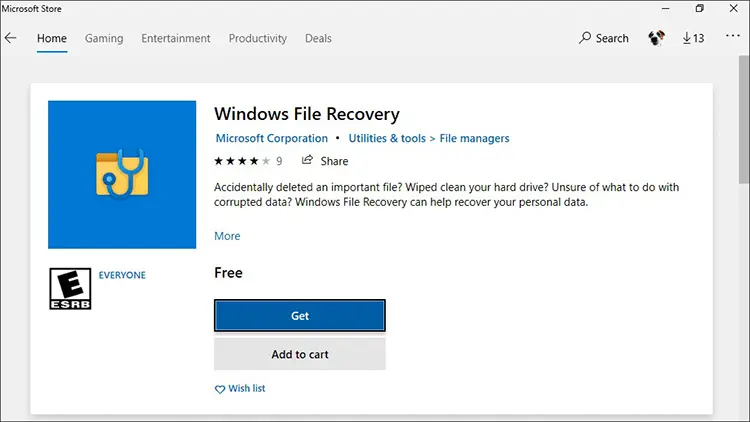
Step 1. Install Windows File Recovery.
Open the Microsoft Store, search for Windows File Recovery, and install the utility if it is available for your Windows system.
Step 2. Identify the source and destination drives.
Open File Explorer to find the drive letter of the SSD containing the lost files. Prepare another drive with sufficient free space to store the recovered data. The destination must be different from the source drive.
Step 3. Launch Windows File Recovery.
Search for Windows File Recovery in the Start menu and open it. Approve the permission prompt if Windows asks you to allow the application to make changes.
Step 4. Enter a recovery command.
The general command format is:
winfr source-drive: destination-drive: /mode /n file-filter
For example, to search for PDF files on the C: drive and save the recovered files to the E: drive, enter:
winfr C: E: /regular /n *.pdf
Replace the drive letters and file filter with the values that match your situation. The /regular mode is intended for suitable NTFS drives, while /extensive can be used for more thorough recovery attempts and supports additional file system scenarios.
Step 5. Start the scan and review the recovered files.
Follow the command-line prompts to continue. If the utility finds recoverable files, it saves them to a recovery folder on the destination drive. Open that folder and check whether the files you need are present and accessible.
Limitations:
Windows File Recovery requires command-line input, which may be challenging for beginners. It cannot guarantee successful recovery, especially when TRIM has made the deleted data inaccessible. The source and destination must also be different drives. If the SSD has hardware or firmware problems, repeated scanning may not help and could complicate recovery efforts.
Part 4. How to Restore Lost SSD Data from a Backup
If you previously backed up your files, restoring a backup may be easier than scanning the SSD for deleted data. Depending on your settings, Windows File History, OneDrive, or another backup service may contain copies of missing files or earlier versions that you can restore.
4.1 Restore Files with Windows File History
Windows File History can restore earlier versions of files and folders that were included in a previously configured backup.
Step 1. Connect the external drive used for File History backups, or make sure the relevant network location is accessible.
Step 2. Open File Explorer and navigate to the folder that previously contained the missing files.
Step 3. Right-click the folder and select "Previous Versions". If available, choose a version created before the data loss occurred.
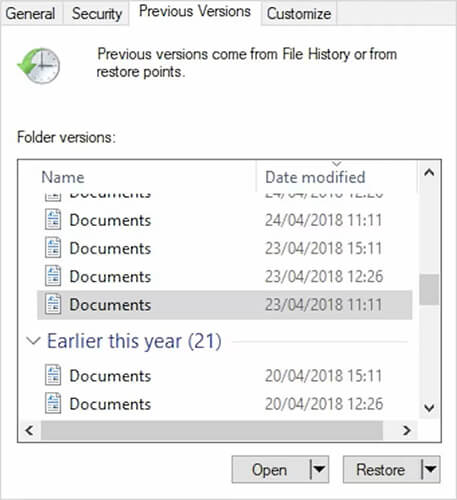
Step 4. Browse the available versions to locate the files you need.
Step 5. Select "Restore" to return the files to their original location. If you want to avoid overwriting existing files, use an available restore option to save them to another location.
4.2 Restore Files from OneDrive
If your files were synced with OneDrive, check the cloud storage for the missing items before attempting more complicated recovery methods.
Step 1. Open the OneDrive website and sign in to the Microsoft account used for syncing.
Step 2. Browse your files and folders to see whether the missing items are still available.
Step 3. If the files are missing, open the OneDrive Recycle Bin and look for deleted items.
Step 4. Select the files you need and choose "Restore" if they are available.
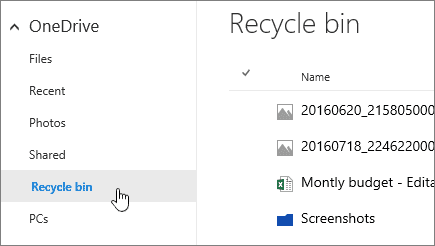
After restoration, check the relevant folder on your computer to confirm that the files have synced successfully.
Limitations:
Backup restoration only works if a suitable backup or previous version exists. Files created or modified after the last backup may be missing, and cloud synchronization does not always provide an independent backup. If the required files are unavailable in your backups, try another recovery method.
Part 5. How to Recover Data from SSD Using SSD Data Recovery Software
If the Recycle Bin does not contain your files and you do not have a suitable backup, dedicated SSD data recovery software is another option. Such tools can scan supported storage devices for lost files and may offer a more accessible interface than command-line utilities.
One option to consider is Data Recovery, which lets you scan your SSD for deleted, lost, or formatted files, preview recoverable items, and select specific files to restore.
Key Features of Data Recovery
- Retrieve deleted or missing files from SD cards, hard drives, computers, and other supported storage devices.
- Recover over 1,000 file formats, including photos, videos, documents, and archive files.
- Restore files lost due to deletion, formatting, or storage device inaccessibility.
- Scan storage media and preview detected files before recovery.
- Choose specific files to recover without restoring every scanned item.
Steps to Recover Data from an SSD with Data Recovery
-
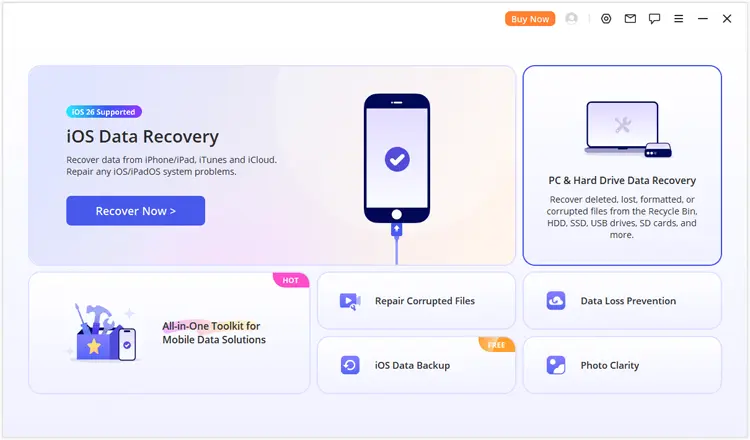
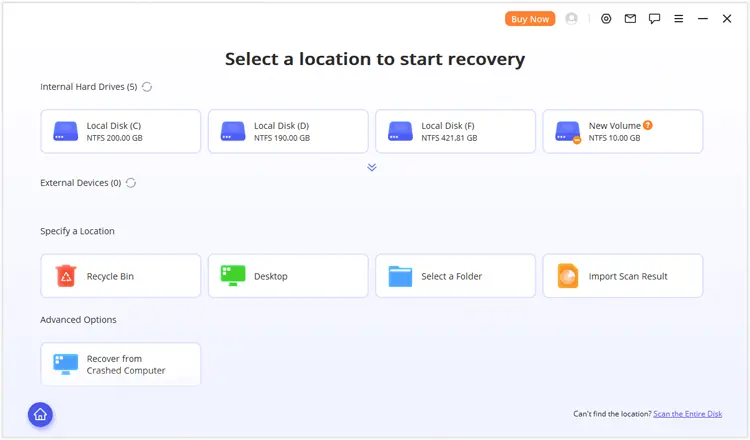
Download and install Data Recovery on your computer. Open the program and choose "PC & Hard Drive Data Recovery" to access the storage recovery interface.
-
Find your SSD in the list of available storage devices and select the drive or partition where the files were lost. If you cannot find the target partition, choose "Scan the Entire Disk" to scan the storage media for recoverable files.
-
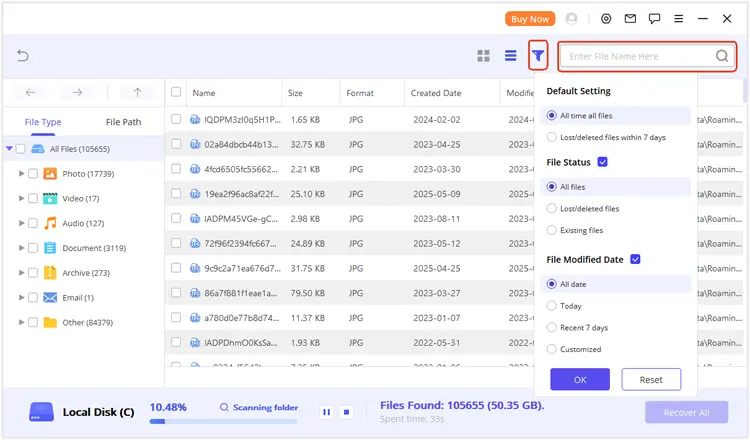
Start the scan and wait for the software to analyze the selected storage location. Once the scan finishes, browse the results by file type or file path. You can also use the available search and filter options to locate specific files.
-
Preview supported files to check whether they are the ones you need. Select the files you want to restore, click "Recover", and choose a different drive or storage location as the destination. After recovery, open the files to verify that they are accessible.
Limitations:
Access to the full set of recovery features may require a paid license. Review the available plans and pricing before purchasing to ensure the software meets your recovery needs.
FAQs About SSD Data Recovery
1. Does TRIM make SSD data recovery impossible?
Not in every case, but TRIM can make recovery much more difficult. When an operating system sends TRIM information to a compatible SSD, the drive can mark the relevant data blocks as no longer needed. After the SSD processes those blocks, conventional recovery tools may no longer be able to retrieve the original data.
If you have just deleted files, stop using the SSD and check the Recycle Bin and backups first. If the data is irreplaceable, consider professional advice before attempting recovery software.
2. Can you recover data from an SSD after formatting?
Sometimes. The chances depend on the type of formatting, the file system, whether new data has been written, and whether TRIM has made the original data inaccessible. You can check existing backups first and then try a suitable recovery tool if the SSD is functioning normally.
Avoid formatting the drive again or saving new files to it. If the data is critical, consider creating a disk image or consulting a professional before further attempts.
3. Can data be recovered from a dead or unrecognized SSD?
Possibly, but the answer depends on the underlying fault. A loose cable, faulty USB enclosure, or connection issue may be easier to resolve than a failed controller, damaged NAND flash, or serious firmware problem.
If the SSD is not recognized, check the cable, port, and enclosure only if doing so is safe. Do not initialize or format the drive when Windows prompts you to do so. For valuable data or suspected hardware failure, stop troubleshooting and contact a professional SSD recovery service.
Conclusion
SSD data recovery depends on the cause of data loss and whether the missing files are still recoverable. Check the Recycle Bin and available backups first, then try Windows File Recovery or Data Recovery if needed. To improve your chances, avoid writing new data to the affected SSD and save recovered files to a different drive.
Related Articles
How to Make SSD Data Unrecoverable | Ensure Data Irretrievability
Best SSD Wipe Software: 10 Options to Help You Wipe SSD with Ease
How to Erase SSD Disk Securely: 4 Effective Solutions in 2026