


TL;DR:
If you need to recover an unsaved Word document, start with Microsoft Word's Recover Unsaved Documents option or the Document Recovery pane. You can also check AutoRecover files, search temporary folders, retrieve documents from OneDrive, restore earlier versions, or use Windows File History and Mac Time Machine. If a Word file was previously saved to your computer but later disappeared, Data Recovery can help scan your storage device and recover available document files.
Losing a Word document before saving it can be frustrating, especially when you have spent considerable time writing or editing its contents. This can happen when Word crashes, your computer shuts down unexpectedly, or you accidentally close a document without saving your latest changes.
Fortunately, an unsaved Word document may still be recoverable if Word has created an AutoRecover file or your computer has retained a temporary copy. In this article, we will explain how to recover unsaved Word document on Windows and Mac using built-in Word features, local and cloud backups, and a professional data recovery tool.

Part 1. How to Recover Unsaved Word Document with Built-in Word Features
Microsoft Word includes several recovery features that can help you retrieve documents after an unexpected shutdown or accidental closure. Try these options first before looking for files manually.
1.1 Recover Unsaved Documents from Within Word
Microsoft Word provides a built-in option for locating documents that were closed before being saved. If Word created a recovery copy, you may be able to find it through the program's document management settings.
Step 1. Open Microsoft Word and create a blank document.
Step 2. Click "File" > "Info".
Step 3. Select "Manage Document" and click "Recover Unsaved Documents".
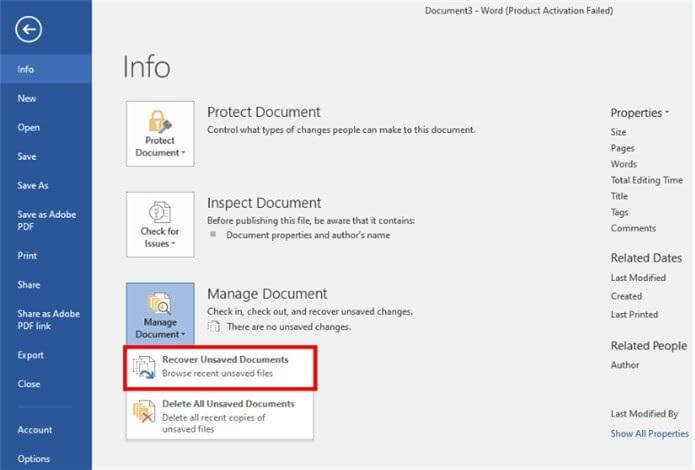
Step 4. Browse the available files in the pop-up folder. Look for the document you want to recover by checking its filename or modification date. Unsaved recovery files may have an .asd extension.
Step 5. Select the file and click "Open". Once the document appears, click "Save As" to save a permanent copy.
Alternatively, you can open "File" > "Open" and look for the Recover Unsaved Documents option near the bottom of the recent files list.
These menu paths mainly apply to the Windows desktop version of Word. The available recovery options may differ depending on your Word version and platform.
1.2 Retrieve Files from the Document Recovery Pane
When Word closes unexpectedly because of a crash, power failure, or system problem, it may display a Document Recovery pane the next time you launch the application. This pane lists available recovered versions of documents.
Step 1. Reopen Microsoft Word after the unexpected closure.
Step 2. Check the left side of the window for the "Document Recovery" pane.
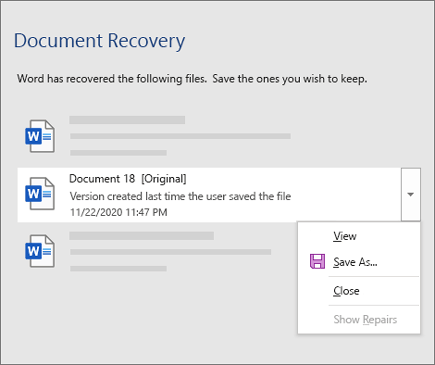
Step 3. Review the recovered document versions and select the most recent one.
Step 4. Open the selected version and check whether it contains the latest changes.
Step 5. Click "Save As" to store the recovered document in a safe location.
If the Document Recovery pane does not appear, Word may not have retained a recoverable version. You can continue with the AutoRecover method below.
1.3 Restore Word Documents from AutoRecover
AutoRecover periodically saves recovery information while you work on a Word document. If the application closes unexpectedly, these files may help you retrieve unsaved changes.
On Windows:
Step 1. Open Word and go to "File" > "Options" > "Save".
Step 2. Find the AutoRecover file location field.
Step 3. Copy the displayed folder path.
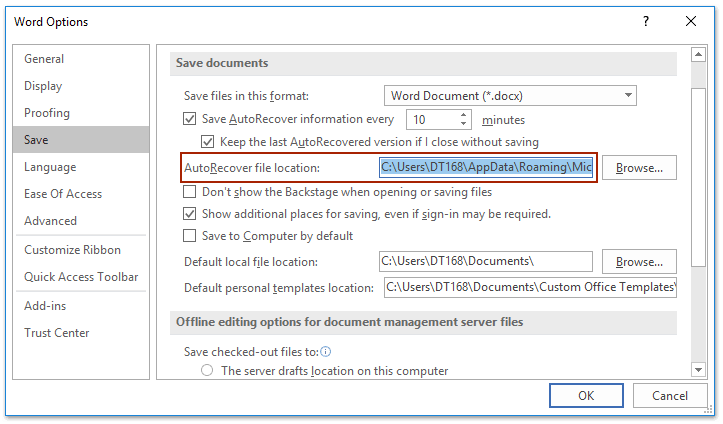
Step 4. Open File Explorer, paste the path into the address bar, and press "Enter".
Step 5. Look for recently modified .asd files that may contain your missing document.
Step 6. Open a suitable file in Word and save it using "Save As".
On Mac:
Step 1. Open Finder and select "Go" > "Go to Folder".
Step 2. Check the AutoRecovery folder used by your Word installation. A commonly used location is:
~/Library/Containers/com.microsoft.Word/Data/Library/Preferences/AutoRecovery/
Step 3. Look for files with names such as "AutoRecovery save of...".
Step 4. Open a potentially relevant file with Microsoft Word.
Step 5. If the document contains your missing content, save it to another location.

The AutoRecover folder location can vary with the Word version and installation. Also, AutoRecover is not the same as a regular backup: it may not contain every change made since the last save.
Part 2. How to Recover Unsaved Word Documents with Computer and Cloud Backups
If Word's built-in recovery options do not work, check your computer's temporary storage and available backups. These methods are especially useful when a document was previously saved, synchronized, or included in a backup.
2.1 Find Unsaved Word Documents in Temporary Files
Word and your computer may create temporary files while you edit documents. Although these files are not guaranteed to contain a complete copy of your unsaved work, searching the temporary folders is worth trying.
Step 1. Press "Windows" + "R" to open the Run dialog.
Step 2. Type %temp% and press "Enter".
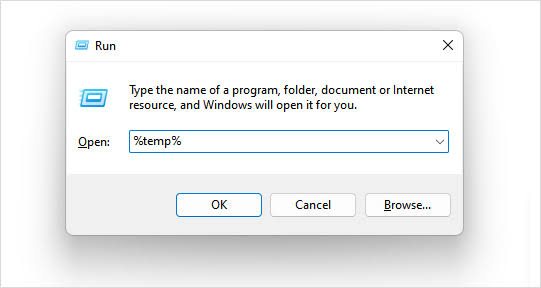
Step 3. Browse the temporary files and look for recently modified files created around the time you lost your document.
Step 4. You can also check %appdata%\Microsoft\Word for relevant Word recovery files.
Step 5. If you find a potentially useful file, make a copy before trying to open it. If necessary, change a copy's extension to .docx only when you have a reason to believe it contains a Word document.
Temporary files may be deleted automatically, overwritten, or stored in formats that Word cannot open directly, so finding a .tmp file does not guarantee that it contains your missing document. Since temporary file recovery methods vary between Windows and macOS, Mac users can check the AutoRecovery folder described in Method 1.3 instead.
2.2 Recover Word Files from OneDrive
If you saved your Word document to OneDrive or enabled AutoSave for a cloud-stored document, you may be able to retrieve its latest available copy from your account.
Step 1. Open a browser and visit the OneDrive website.
Step 2. Sign in with the Microsoft account associated with your Word documents.
Step 3. Open "My files" and browse the folders where you usually store Word documents.

Step 4. Search for the missing document by its name or check recently modified files.
Step 5. If you find it, select the document and download it or open it in Word.
If the document was saved previously but its latest edits are missing, you can also check its version history to see whether an earlier or more recent version is available. Keep in mind that OneDrive cannot restore a document that was never saved or uploaded to your account.
2.3 Restore Earlier Versions of Word Documents
If you accidentally overwrite a Word document or remove some important content, Windows may let you restore an earlier copy through the Previous Versions feature. This option works when File History or another compatible backup source has stored an older version of the file or folder.
Step 1. Open File Explorer and navigate to the folder where your Word document was saved.
Step 2. Right-click the file or its parent folder and select "Properties".
Step 3. Open the "Previous Versions" tab.
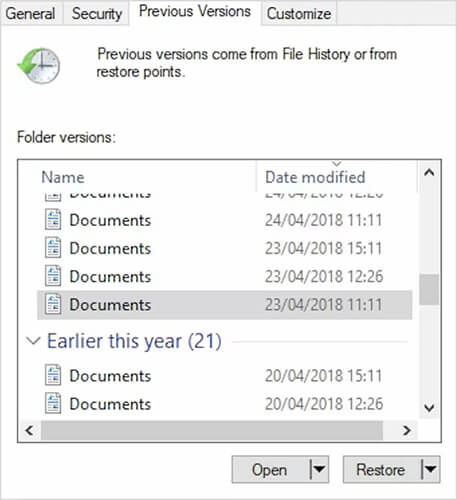
Step 4. Select an available version created before you lost the content.
Step 5. Click "Open" to check the version or Restore to replace the current file. You can also choose Copy to save the earlier version separately.
2.4 Retrieve Word Documents Using Windows File History or Mac Time Machine
Windows File History and Mac Time Machine can help restore Word documents from backups created before the files were lost or changed. These features are useful if you previously enabled them and included the relevant folders in your backup settings.
On Windows:
Step 1. Connect the external drive used for File History backups, if applicable.
Step 2. Open the "Start" menu and search for "Restore your files with File History".
Step 3. Browse the available backed-up folders and dates.
Step 4. Locate the missing Word document or its containing folder.
Step 5. Select the file and click the "Restore" button.
On Mac:
Step 1. Connect your Time Machine backup drive, if you use an external one.
Step 2. Open the folder where the Word document was originally stored.
Step 3. Click the "Time Machine" icon in the menu bar and select "Browse Time Machine Backups".
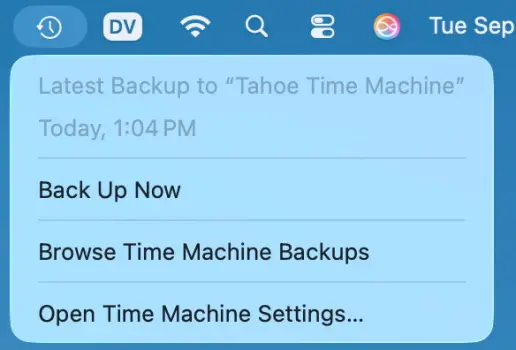
Step 4. Move through the available backup dates.
Step 5. Find the Word document or an earlier version and click Restore.
If you did not enable File History or Time Machine before losing the document, these methods may not provide a usable backup.
Part 3. How to Recover Unsaved Word Documents with a Professional Tool
If your Word document was previously saved to a computer, hard drive, SSD, USB flash drive, or SD card but later disappeared, a data recovery program may help scan the storage device for recoverable files. One option is Data Recovery.
Data Recovery is designed to scan computer storage and locate lost files, including Word documents. Its preview feature lets you inspect detected files before recovery, helping you identify the Word documents you actually need.
Key Features:
- Recover lost Word documents and other file types, including DOC and DOCX files, from supported storage devices.
- Support more than 1,000 file types, covering documents, archives, videos, photos, and other media.
- Scan internal and external hard drives, SSDs, USB flash drives, and SD cards for recoverable data.
- Support recovery from different Windows partitions, including raw, formatted, and corrupted partitions.
- Preview detected files before recovery so you can select the documents you want to restore.
Steps to recover Word documents with Data Recovery:
-
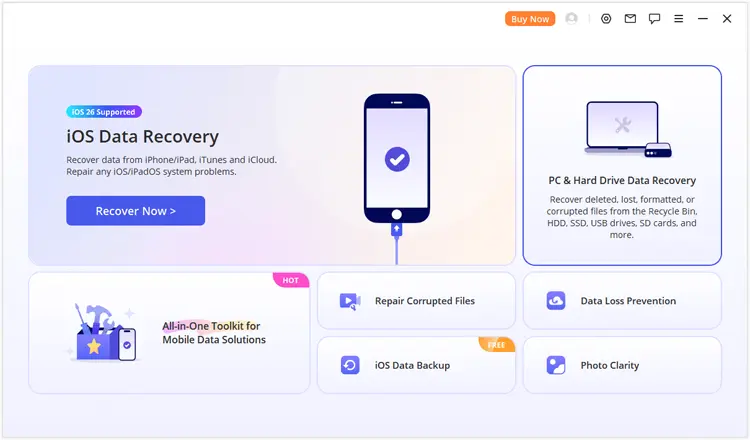
Start Data Recovery for Windows on your computer. On the main interface, select "PC & Hard Drive Data Recovery" to enter the computer data recovery mode.
-
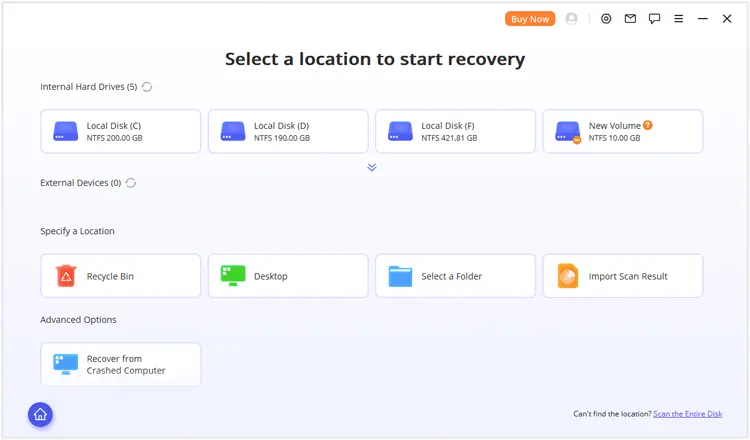
The program displays the available storage locations on your computer. Select the hard drive, partition, or Desktop where your missing Word documents were originally stored, then click it to continue. If the target location is not listed, choose "Scan the Entire Disk" to perform a broader scan.
-
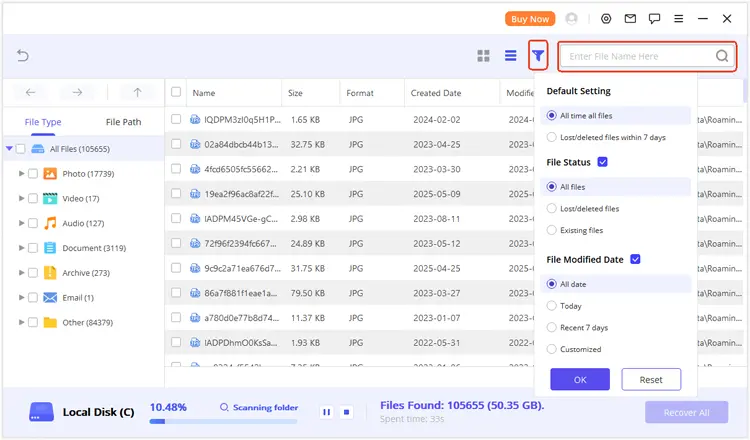
Wait for the scanning process to finish. Data Recovery organizes detected files by File Type and File Path, so you can browse the results according to their categories or original locations. You can also use the search and filter functions to locate specific Word documents more quickly. Double-click a detected file to preview its contents before recovery.
-
After confirming that the previewed documents contain the content you need, select the files and click "Recover". Choose a safe destination to save them. It is better to use a different drive or location from the one being scanned to avoid overwriting other recoverable data.
FAQs About Recovering Unsaved Word Documents
1. Where are unsaved Word documents stored?
Unsaved Word documents may be stored in Word's AutoRecover folder or other temporary locations, depending on your operating system and Word settings. On Windows, you can check the AutoRecover file location under "File" > "Options" > "Save". On Mac, check the Word AutoRecovery folder in your user Library. However, Word does not necessarily save a recoverable copy of every unsaved document.
2. Can I recover a Word document that I closed without saving?
Possibly. Open Word and select "File" > "Info" > "Manage Document" > "Recover Unsaved Documents" to check for available recovery files. You can also inspect the Document Recovery pane or AutoRecover folder. Recovery depends on whether Word created a copy before you closed the document.
3. Does recovering an unsaved Word document overwrite my current file?
Not necessarily. When Word finds a recoverable document, you can use Save As to save it under a new name or in a different folder. This helps preserve your existing document while keeping the recovered version separate.
Conclusion
That's everything you need to know about how to recover unsaved Word document on Windows and Mac. While Word's built-in recovery features and backup options are worth checking first, Data Recovery can also help when a previously saved Word document is lost or deleted from your computer or storage device. To reduce the risk of losing important work again, remember to save your documents regularly and keep AutoRecover or AutoSave enabled.
Related Articles
How Do I Permanently Delete a Word Document on Windows, Mac, & Mobile?
How to Recover Deleted Files from USB Flash Drive Without Hassle