TL;DR:
Disk Drill is a popular data recovery software that helps recover deleted and lost files from computers, external drives, memory cards, and other storage devices.
- It provides multiple scan methods, file preview, disk backup, and additional data protection tools.
- Its free version is mainly designed for scanning and previewing, while full recovery requires a paid plan.
- D-Back is an alternative worth considering if you need a simple recovery workflow for different data loss situations.
Losing important files due to accidental deletion, formatting, system errors, or storage device issues can be stressful. Data recovery software provides a convenient way to search for missing files, and Disk Drill is one of the well-known tools available for Windows and macOS. It supports various storage devices and offers several recovery features designed for different data loss scenarios.
However, a data recovery tool should be evaluated based on more than its feature list. Recovery limitations, pricing, ease of use, and supported situations are also important factors to consider. In this Disk Drill review, we will explore its highlights, weaknesses, pricing, and usage process, and introduce an alternative solution for comparison.
Part 1. Disk Drill Review
Disk Drill is a data recovery program developed by CleverFiles. It is designed to recover deleted or lost files from HDDs, SSDs, USB drives, SD cards, and other storage devices. Besides file recovery, it also includes additional tools such as byte-to-byte backup and S.M.A.R.T. monitoring, making it more than a basic file recovery application.

1.1 Key Features of Disk Drill
* Recover Various File Types
Disk Drill can recover different types of deleted or lost files, including photos, videos, audio files, documents, and other commonly used formats. Its scanning algorithms can identify hundreds of file types from various storage devices.
* Support Multiple Storage Devices
Disk Drill works with different storage media, including HDDs, SSDs, USB drives, SD cards, and external storage devices, making it suitable for various data loss situations.
* Multiple Scan Methods
Disk Drill provides Quick Scan and Deep Scan options to search for lost files. Quick Scan is suitable for recently deleted files, while Deep Scan helps find data from formatted or damaged file systems.
* Preview Files Before Recovery
Disk Drill allows you to preview detected files before recovery, helping you confirm whether the required data can be found before restoring it.
* Byte-to-Byte Backup
The byte-to-byte backup feature allows you to create a disk image of a storage device before recovery, which can be helpful when working with unstable drives.
* Additional Data Protection Tools
Besides file recovery, Disk Drill includes extra features such as S.M.A.R.T. monitoring and data protection tools to help manage drive health and reduce the risk of future data loss.
1.2 Price of Disk Drill
Disk Drill offers a free version and paid plans with expanded recovery capabilities. The free version allows you to scan and preview recoverable files, but recovery functions are limited depending on the platform.
| Plan | Price | Main Features |
|---|---|---|
| Basic | Free | Scan and preview recoverable files |
| Pro Annual | $89/year | Full recovery features and unlimited recovery |
| Pro Lifetime | $149 | One-time purchase with lifetime license |
| Enterprise | Custom pricing | Business and professional use |
1.3 Pros and Cons of Disk Drill
After exploring its features and pricing, it is also important to look at Disk Drill's strengths and limitations. The following pros and cons can help you better understand whether it is the right data recovery solution for your needs.
Pros
+ Easy-to-use interface for beginners.
+ Supports various file types and storage devices.
+ Allows previewing files before recovery.
+ Provides multiple scan methods for different data loss situations.
+ Includes additional tools such as byte-to-byte backup and S.M.A.R.T. monitoring.
Cons
- The free version has limited recovery capabilities.
- The full version may be expensive for occasional users.
- Deep scans can take a long time on large storage devices.
- Cannot recover data from physically damaged drives.
- Successful file detection does not always mean complete recovery.
Part 2. How to Use Disk Drill
Disk Drill provides a straightforward recovery process. You can follow the steps below to scan your storage device, preview recoverable files, and restore lost data.
Step 1. Download and Install Disk Drill
Download and install Disk Drill on your computer. To avoid overwriting lost data, it is recommended to install the software on a different drive from the one containing the missing files.
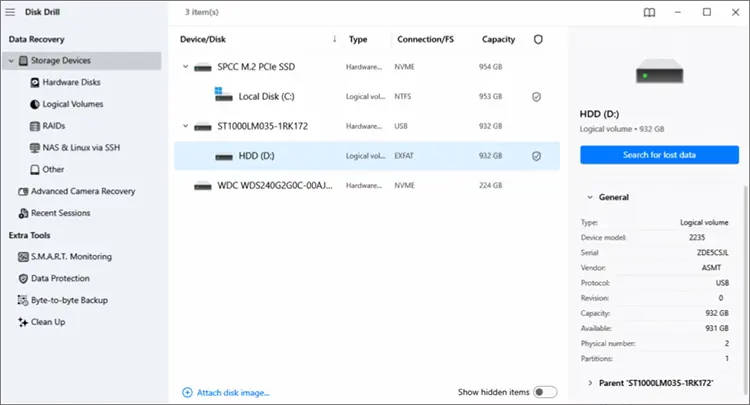
Step 2. Select the Data Source
Launch Disk Drill and select the drive or storage device where your files were lost.
You can choose an internal drive, external hard drive, USB flash drive, SD card, or other connected storage devices. If the device is unstable or corrupted, creating a byte-to-byte backup before recovery can be a safer option.
Step 3. Start Scanning for Lost Data
Click "Search for lost data" to begin scanning.
Disk Drill provides different scan options depending on the device and recovery situation. For general file recovery, Universal Scan can search for various file types, while Advanced Photo Recovery is designed for recovering photos from cameras and similar devices. The scanning time depends on the storage size and condition of the device.
Step 4. Preview and Select Recoverable Files
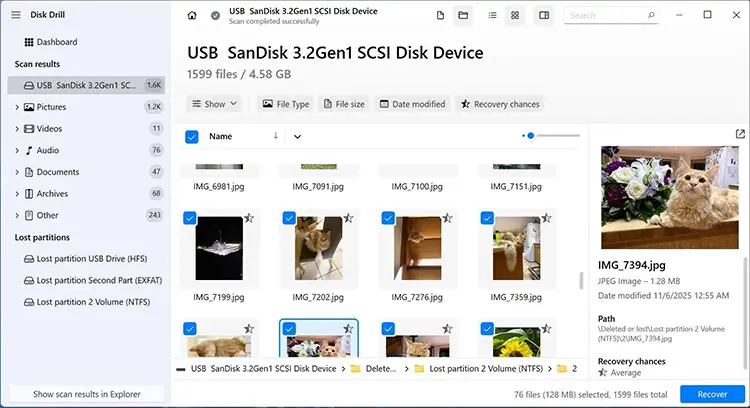
After scanning, Disk Drill will display the found files. You can filter results by file type, such as pictures, videos, audio, documents, and archives.
Preview the available files and select the items you want to recover.
Step 5. Recover Lost Files
Click "Recover" and choose a destination folder to save the recovered files.
It is recommended to save recovered data to another storage device instead of the original location to prevent overwriting other recoverable files.
Part 3. Best Alternative to Disk Drill - D-Back
Although Disk Drill offers many useful recovery features, it may not meet every user's needs. For those looking for a straightforward recovery workflow and flexible recovery options, D-Back can also be considered as an alternative.
D-Back is a data recovery tool designed to help recover deleted or lost files from computers and storage devices. It focuses on simplifying the recovery process, allowing you to scan, preview, and recover files through a few simple steps.
Key features of D-Back
- Recover deleted or lost photos, videos, documents, and other files from computers and storage devices, even without a backup.
- Support recovery from various devices, including iPhone, iPad, PCs, Macs, hard drives, SSDs, USB drives, SD cards, and other storage media.
- Recover different types of data, including photos, videos, audio files, documents, and other commonly used file formats.
- Preview detected files before recovery and select only the items you need to restore.
- Recover files lost due to accidental deletion, formatting, system issues, and other common data loss situations.
D-Back provides a simple recovery process that allows you to scan a drive, preview found files, and restore the needed data in a few steps.
-
Select a Recovery Mode
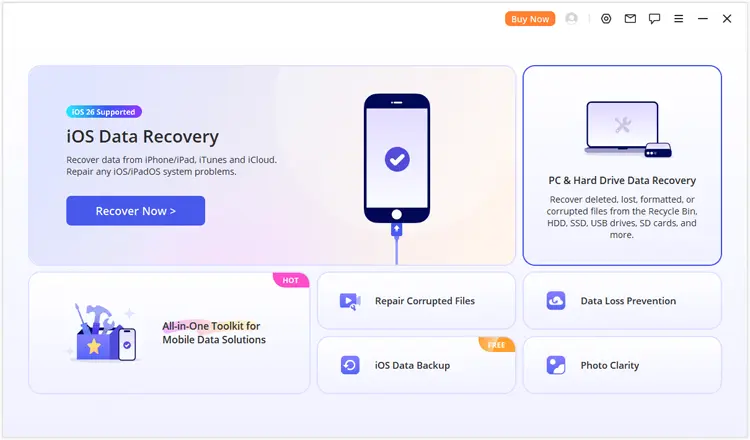
Connect the hard drive or storage device to your computer and launch D-Back.
Choose "PC & Hard Drive Data Recovery" to enter the hard drive recovery mode.
-
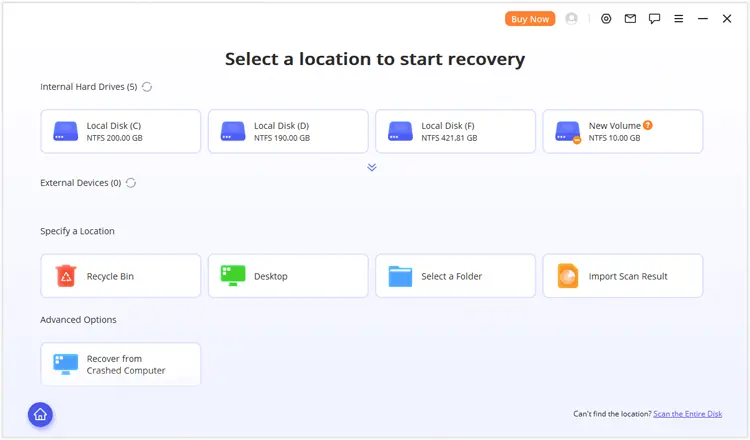
Choose a Hard Drive or Partition
Select the drive or partition where your lost files were stored.
If the target location is not displayed, you can choose "Scan the Entire Disk" to perform a complete scan of the connected drive.
-
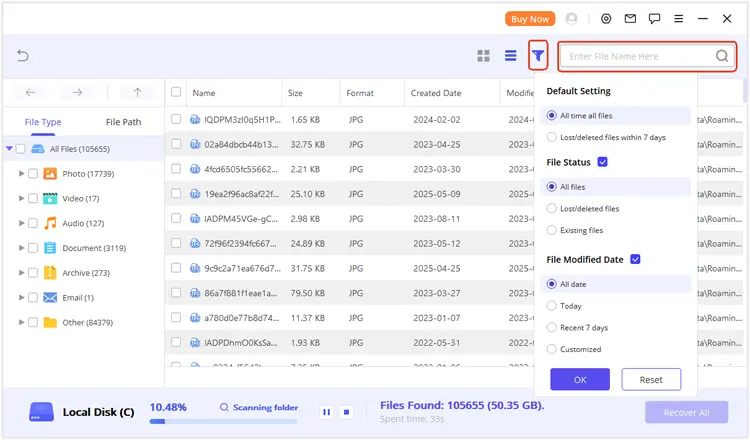
Scan and Preview Recoverable Files
Wait for the scanning process to complete, then browse the detected files by file type or file path.
You can use the search and filter options to quickly find specific files and preview them before recovery.
-
Recover Selected Files
Select the files you want to restore and click "Recover" to save them to a safe location.
It is recommended to save recovered files to another drive to avoid overwriting existing data.
Disk Drill vs D-Back: Quick Comparison
| Feature | Disk Drill | D-Back |
|---|---|---|
| Pricing | Free version available; Pro version starts at $89 | Free version available; Pro version starts at $49.99 |
| Supported Platforms | Windows and macOS | Windows and macOS |
| Supported Devices | HDDs, SSDs, USB drives, SD cards, and other storage devices | iPhone, iPad, PCs, Macs, HDDs, SSDs, USB drives, SD cards, and other storage devices |
| Scan & Recovery Features | Quick Scan, Deep Scan, and various file recovery options | Multiple recovery modes for different data loss situations |
| Preview Before Recovery | Yes | Yes |
Conclusion
Disk Drill is a capable data recovery tool with useful features such as multiple scan methods, file preview, and byte-to-byte backup. It can be a practical choice for recovering deleted or lost files from various storage devices, especially when the drive is still accessible.
However, its free version has limitations, and some users may prefer a more flexible recovery solution for different devices and data loss situations. If you are looking for an alternative, D-Back provides another option with a simple recovery process and support for a wider range of devices.
Related Articles
Best Hard Drive Recovery Software to Recover Lost Data in 2026
Aiseesoft Data Recovery Review: Comprehensive Evaluation Report
Wondershare Recoverit Review: Highlights, Weaknesses and Details [Latest]
How to Wipe a PC Completely in 2026 (4 Effective Methods)