TL;DR:
To recover deleted files from a USB flash drive, first check whether the files are hidden, then look for copies in File History or cloud backups. If no backup is available, Windows File Recovery or third-party recovery software may help retrieve the missing data.

Data Recovery Recover lost data


Accidentally deleting files from a USB flash drive can be frustrating, especially when it contains important documents, photos, videos, or work files. Unlike files deleted from a computer's internal drive, files deleted directly from a USB flash drive usually bypass the Windows Recycle Bin. However, you may still be able to recover them if their data has not been overwritten.
To recover deleted files from a USB flash drive, start by checking whether the files are hidden or available in an existing backup. If these options do not work, you can use Windows File Recovery or dedicated data recovery software to scan the USB drive for recoverable files.
- Part 1. Restore Deleted Files from USB Flash Drive by Checking Hidden Files
- Part 2. Recover Deleted Files from USB Flash Drive from a Backup
- Part 3. Recover Files from USB Flash Drive Using Windows File Recovery
- Part 4. Retrieve Deleted Files from USB Flash Drive with Data Recovery Software
- FAQs of Recovering Deleted Files from USB Flash Drive
The best way to recover deleted files from a USB flash drive depends on whether the files are hidden, backed up, or permanently deleted. Compare the four methods below to choose the most suitable option based on your situation, requirements, and technical experience.
| Method | Best For | Requirements | Difficulty |
|---|---|---|---|
| Check Hidden Files | Files that are hidden rather than deleted | A Windows computer | Easy |
| Restore from a Backup | Files saved in File History or cloud storage | An available backup | Easy |
| Windows File Recovery | Deleted files without an available backup | Windows File Recovery and a separate destination drive | Moderate |
| Data Recovery Software | Files lost through deletion or formatting | Compatible recovery software | Easy to Moderate |
Part 1. Restore Deleted Files from USB Flash Drive by Checking Hidden Files
Before attempting data recovery, check whether your files are actually deleted. Sometimes, files disappear from a USB flash drive because they have been hidden by incorrect file attributes, file system issues, or malware. If the files are still stored on the drive, you may be able to make them visible without using recovery software.
Method 1. Show Hidden Files in File Explorer
Windows File Explorer allows you to display hidden files and folders. Follow these steps to check your USB flash drive:
Step 1. Connect your USB flash drive to your computer and open File Explorer.
Step 2. Navigate to the USB drive and select "View" from the toolbar.
Step 3. Select "Show" > "Hidden items" in Windows 11. In Windows 10, open the "View" tab and check "Hidden items".
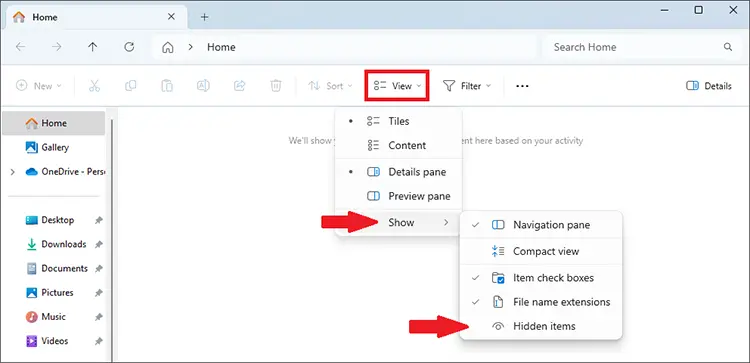
Step 4. Check whether your missing files or folders appear. If they do, open them and copy any important data to another storage device.
Method 2. Remove Hidden Attributes Using CMD
If your files remain invisible after enabling Hidden items, you can use Command Prompt to remove hidden, read-only, and system attributes from files on the USB drive.
Step 1. Connect your USB flash drive and note its drive letter in File Explorer.
Step 2. Type cmd in the Windows search box, right-click "Command Prompt", and select "Run as administrator".
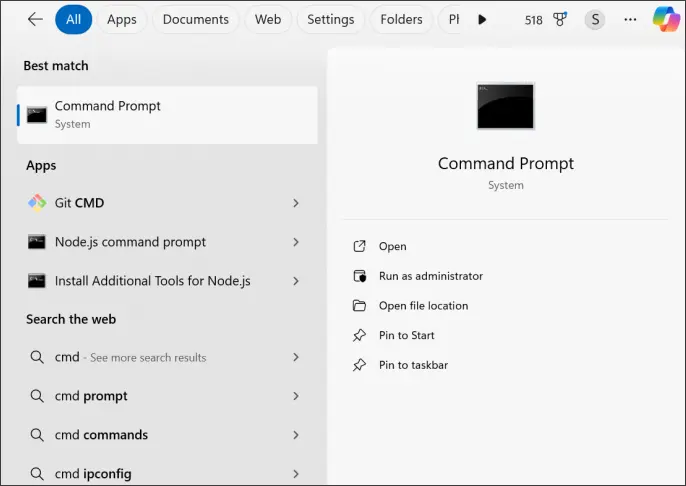
Step 3. Enter the following command, replacing X: with your USB drive's actual letter:
attrib -h -r -s /s /d X:\*.*
Step 4. Press "Enter" and wait for the command to finish. Open the USB drive again to check whether the missing files are visible.
Limitations: These steps only help if the files still exist but are hidden or have certain attributes. They cannot restore files that have been permanently deleted or overwritten. If your files remain missing, continue to the next method.
Part 2. Recover Deleted Files from USB Flash Drive from a Backup
If you previously backed up your USB flash drive files to your computer or a cloud storage service, you may be able to restore them without scanning the USB drive. Windows File History can help retrieve earlier versions of files included in a backup, while cloud storage services let you download copies that you uploaded before the deletion.
Method 1. Restore Files from File History
How can I recover my deleted files from USB without software? If your files were included in a Windows File History backup, you can try restoring an earlier version. This method is useful if you previously copied the USB files to your computer and included them in a File History backup.
Step 1. Open the folder on your computer where the backed-up files were originally stored.
Step 2. Right-click the folder and select "Restore Versions", if available.
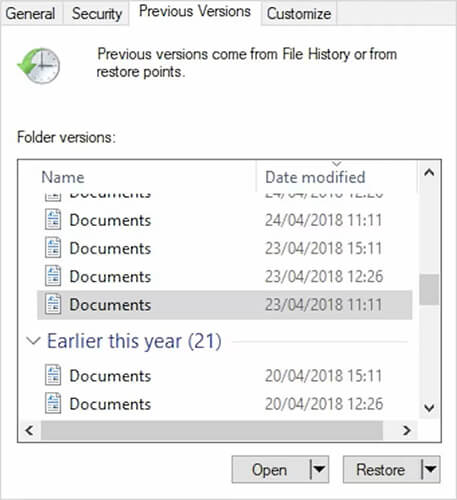
Step 3. Review the available versions and select one created before the files were deleted.
Step 4. Click "Restore" to return the files to their original location, or use Restore to if you want to choose another destination.
Method 2. Restore Files from a Cloud Backup
If you uploaded your USB files to a cloud storage service before deleting them, you can download the backed-up copies.
Step 1. Open the cloud storage service you used, such as OneDrive or Google Drive, and sign in to your account.
Step 2. Browse your stored files or use the search function to locate the missing documents, photos, or other data.
Step 3. Select the files you want to retrieve and choose the download option.
Step 4. Save the downloaded files to your computer or another storage device, then check that they open correctly.
Limitations: These methods only work if the missing files were included in an existing backup or uploaded to cloud storage before deletion. File History does not automatically back up every file on a USB flash drive. If you cannot find a usable copy, continue to Windows File Recovery or dedicated data recovery software to scan the USB drive for recoverable files.
Part 3. Recover Files from USB Flash Drive Using Windows File Recovery
Windows File Recovery is a free command-line utility from Microsoft that can attempt to recover deleted files from local drives, external drives, and USB storage devices. It is useful when your files are no longer visible and you do not have a backup.
The tool requires you to specify the source drive, destination drive, recovery mode, and optional file filters. For USB flash drives formatted with FAT or exFAT, Microsoft recommends using Extensive mode. NTFS drives may support Regular mode for recently deleted files. Microsoft's official instructions provide more information about supported modes and command syntax.
Steps to recover deleted USB files with Windows File Recovery:
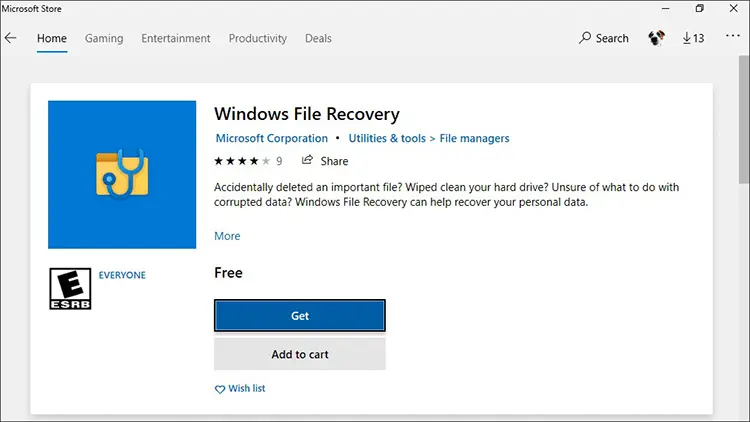
Step 1. Install Windows File Recovery.
Open the Microsoft Store, search for Windows File Recovery, and install the application. Connect your USB flash drive and identify its drive letter.
Step 2. Open the recovery tool.
Search for Windows File Recovery in the Start menu and launch it. Approve the administrator permission request if prompted.
Step 3. Enter the appropriate recovery command.
The general command format is:
winfr source-drive: destination-drive: /mode /n filter
Replace source-drive: with the letter assigned to your USB flash drive, and replace destination-drive: with a different drive where you want to save the recovered files.
For example, if your USB drive is E: and your computer's recovery destination is C:, you can try the following command to search for JPEG photos:
winfr E: C: /extensive /n *.jpg
To search for PDF documents instead, use:
winfr E: C: /extensive /n *.pdf
You can change the file extension to match the type of data you want to recover. Make sure the destination is on a different physical drive from the source USB device.
Step 4. Confirm the recovery operation.
Follow the prompts in the command window and enter Y when asked to continue. Wait for the scan to finish. Windows File Recovery will create a recovery folder on the destination drive.
Step 5. Check the recovered files.
Open the recovery folder and inspect the results. If the tool does not find your files, check the source drive letter and file filters, then consider trying another supported recovery mode.
Limitations: Windows File Recovery requires command-line input, which can be challenging if you are unfamiliar with Windows commands. Recovery is not guaranteed, particularly if the deleted data has been overwritten or the USB drive has serious file system problems.
Part 4. Retrieve Deleted Files from USB Flash Drive with Data Recovery Software
If you cannot find your missing files in a backup and Windows File Recovery does not produce the desired results, you can try dedicated data recovery software. Data Recovery is one option to consider for scanning supported storage devices and retrieving lost data. It can help recover files lost through accidental deletion, formatting, or other data loss scenarios, depending on the condition of the drive.
Key Features of Data Recovery
- Recover deleted or missing files from USB flash drives, hard drives, memory cards, and other supported storage devices.
- Support various file types, including photos, videos, documents, and archive files.
- Scan for files lost due to accidental deletion, formatting, or storage access problems.
- Preview detected files before recovery to help identify the items you need.
- Select specific files to recover instead of restoring every item found during the scan.
How do you recover deleted files from a USB flash drive?
-
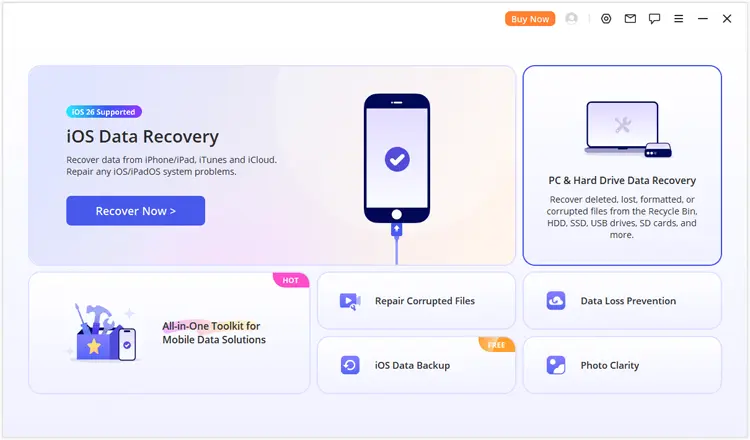
Download and install Data Recovery on your computer. Launch the program and select "PC & Hard Drive Data Recovery" to open the storage recovery interface.
-
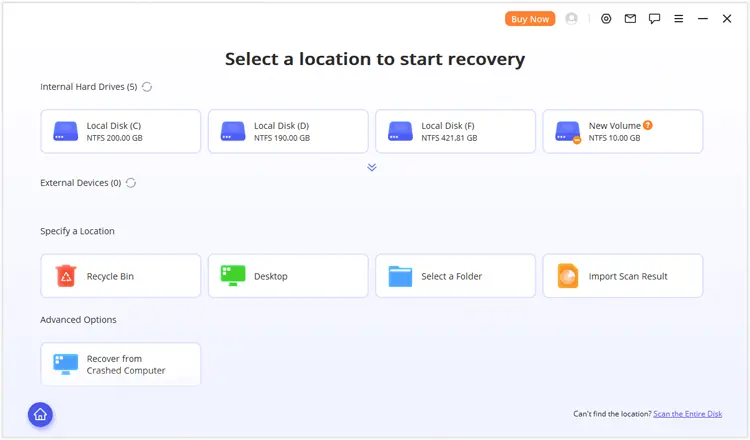
Connect your USB flash drive to the computer and locate it in the list of available storage devices. Select the USB drive or the relevant partition to scan for deleted files. If the target partition is not listed, choose "Scan the Entire Disk", if available, to search the storage device for recoverable data.
-
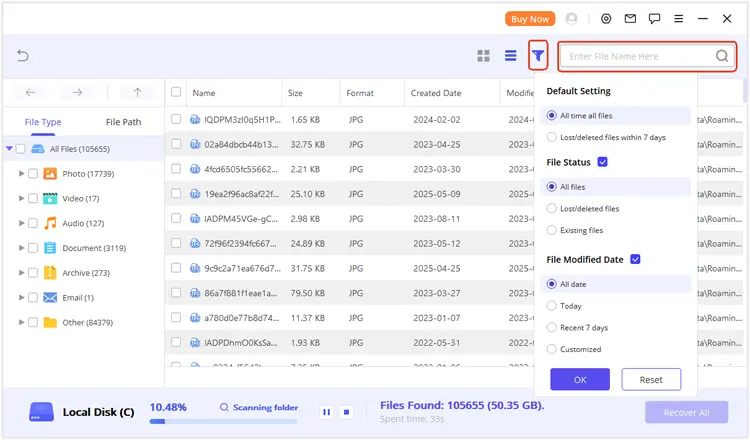
Start the scan and wait for the software to analyze the selected USB drive. When the scan finishes, browse the results by file type or file path. You can also use the search and filter options, if available, to find specific files.
-
Preview supported files to check whether they are the ones you need. Select the files you want to restore, click "Recover", and choose a location on your computer or another storage device as the destination. After recovery, open the files to verify that they are accessible.
Limitations: Third-party data recovery software may require a paid license to recover files beyond its free allowance. Scan results depend on the condition of the USB flash drive, its file system, and whether the deleted data has been overwritten. If the USB drive is physically damaged or repeatedly disconnects, stop using it and consider professional data recovery assistance.
FAQs of Recovering Deleted Files from USB Flash Drive
1. How long do deleted files stay on a USB flash drive?
Deleted files may remain on a USB flash drive until their data is overwritten or becomes unrecoverable for other reasons. To improve your recovery chances, stop writing new data to the drive and attempt recovery as soon as possible.
2. What happens to a file when you delete it off a flash drive?
Deleting a file usually removes its file system reference, making its storage space available for new data. The underlying data may remain until overwritten. Unlike files deleted from a computer's internal drive, files deleted directly from a USB flash drive usually bypass the Windows Recycle Bin.
3. How can I recover deleted files from a USB flash drive for free?
Check for hidden files and existing backups first. If these options fail, try Windows File Recovery, a free Microsoft utility, or a third-party tool with a free recovery option. Save recovered files to a different storage device to avoid overwriting other recoverable data.
Conclusion
To recover deleted files from a USB flash drive, first check whether the files are hidden, then look for an existing backup. If neither method works, try Windows File Recovery or the dedicated data recovery tool - Data Recovery. The best approach depends on how the files disappeared and the condition of your USB drive.
Most importantly, stop writing new data to the USB flash drive as soon as you notice the loss, and save recovered files to a different storage device. Taking these precautions can help preserve any data that may still be recoverable.
Related Articles
Best Hard Drive Recovery Software to Recover Lost Data in 2026
Best SD Card Recovery Software to Recover Lost Files [2026]
How to Transfer Photos from iPad to Flash Drive (4 Solutions)
Swiftly Transfer Files from Android to USB Flash Drive Without Losing Data