


Whether you are a photographer moving high-resolution images from a phone or a camera, a mobile user clearing out phone storage, or just backing up important documents, it is essential to transfer data from an SD card to a computer, a routine in our daily lives.
While the process is generally straightforward, the exact steps depend on the tools and ports you have available. This guide covers four reliable methods to transfer your files seamlessly, followed by solutions to the most common troubleshooting questions.
- Part 1: How to Transfer SD Card to Computer via Built-in SD Card Slot
- Part 2: How to Get Files Off a Micro SD Card to Computer via Card Reader
- Part 3: How to Transfer an Android SD Card to Computer via iReaShare Android Manager
- Part 4: How to Download SD Card to Computer via Camera
- Part 5: Q&A About Transferring SD Card to Computer
Compare the 4 methods:
| Method | Pros | Cons |
|---|---|---|
| Built-in SD Card Slot | 1. No extra accessories or cables needed. 2. Fast, direct read and write speeds. 3. Saves battery life of other devices. |
1. Only available on computers with a built-in slot. |
| USB Card Reader | 1. Highly portable and works on almost any computer with USB. 2. Usually supports both standard and Micro SD formats. 3. Inexpensive and easy to replace. |
1. Requires carrying an extra accessory. 2. Occupies a USB port on the computer. |
| iReaShare Android Manager | 1. No need to remove the card from the phone. 2. Allows direct previewing and selective file export. 3. Prevents the risk of losing small Micro SD cards. 4. Supports more data types. |
1. Requires downloading software onto the computer and a license. 2. Depends on a stable cable and enabling USB debugging. |
| Direct Camera Connection | 1. Great fallback when no reader or adapter is on hand. 2. Access your photos directly without removing the card. |
1. Drains the camera's battery during the transfer. |
Part 1: How to Transfer SD Card to Computer via Built-in SD Card Slot
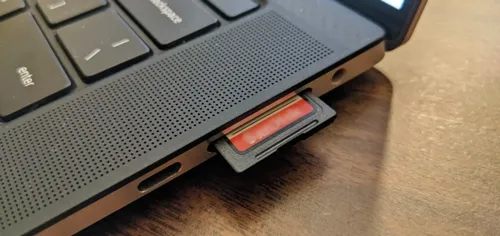
If your desktop or laptop features a built-in SD card slot, you don't need any extra hardware. This is the fastest and most direct way to access and move your files.
To copy data from an SD memory card to a computer directly:
-
Find the SD card slot on your computer. On laptops, it is typically on the side; on desktops, it is often on the front panel of the tower.
-
Gently slide the SD card into the slot with the metal contacts facing down (or as indicated by your device). It should click or slide in smoothly.
-
Press "Win + E" to open File Explorer and click on This PC. Then click on the drive corresponding to your SD card, and navigate to the folder containing your files.
-
Select the files you want, copy them (Ctrl + C or Cmd + C), and paste them (Ctrl + V or Cmd + V) into your desired local computer folder.
Part 2: How to Get Files Off a Micro SD Card to Computer via Card Reader
Many modern laptops omit built-in slots, and smaller devices like smartphones or action cameras use Micro SD cards. In these cases, a USB card reader is the perfect intermediary. You can use an SD card reader to connect your card and your computer.
Here's how to transfer data from an SD card to a PC via a card reader:
-
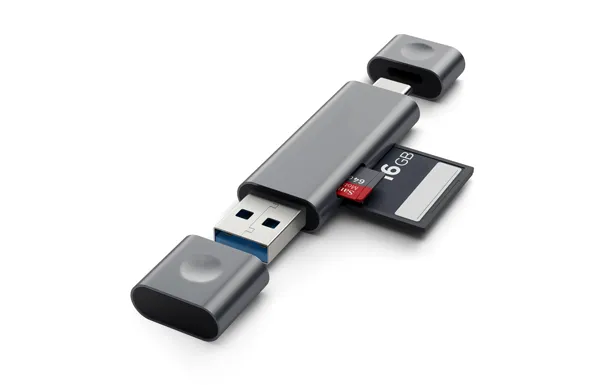
Place your Micro SD card into the dedicated slot on the card reader. Alternatively, slide the Micro SD card into a standard SD card adapter first, then insert that into the reader.
-
Connect the USB card reader to an available USB-A or USB-C port on your computer. Your operating system will recognize the card reader as a removable drive. Open File Explorer (Windows) or Finder (Mac) to view it.
-
Drag and drop the files from the Micro SD card window to a local directory on your hard drive, such as your desktop or "Pictures" folder.
-
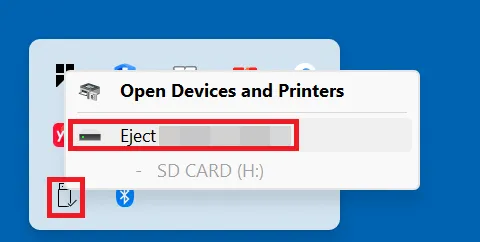
Always right-click the drive and choose "Eject" to prevent file corruption before unplugging the card reader.
Part 3: How to Transfer an Android SD Card to Computer via iReaShare Android Manager
If your SD card is inside an Android device and you prefer not to remove it, you can use dedicated management software like iReaShare Android Manager. This method allows you to preview and selectively export files directly over a USB cable or Wi-Fi. Furthermore, you can manage the data of your Android device and memory card on your computer.
Main features of iReaShare Android Manager:
* View and export your data from an SD card to your computer and vice versa.
* USB transfer and wireless file transfer are supported.
* Export your files from your SD card with original quality and file formats.
* Transfer your Android data to a computer without effort.
* Support more file types, such as contacts, SMS, call logs, photos, videos, music, etc.
* Back up and restore your Android data in 1 click.
* Work for Android 6.0 or later, including the latest.
Download iReaShare Android Manager:
Download for Win Download for Mac
To transfer data from an Android SD card to a computer with this software:
-
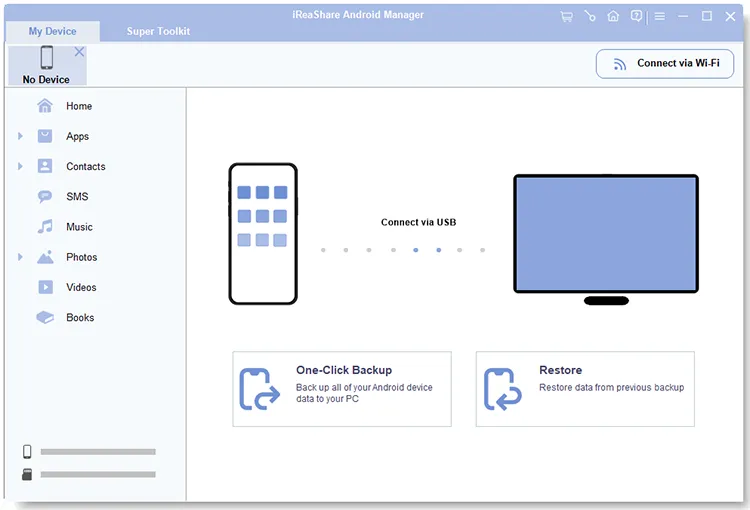
Download and open iReaShare Android Manager on your computer. Then use a reliable USB cable to connect your Android phone to the computer. Ensure your SD card is installed on your phone. If you want use Wi-Fi, click "Connect via Wi-Fi".
-
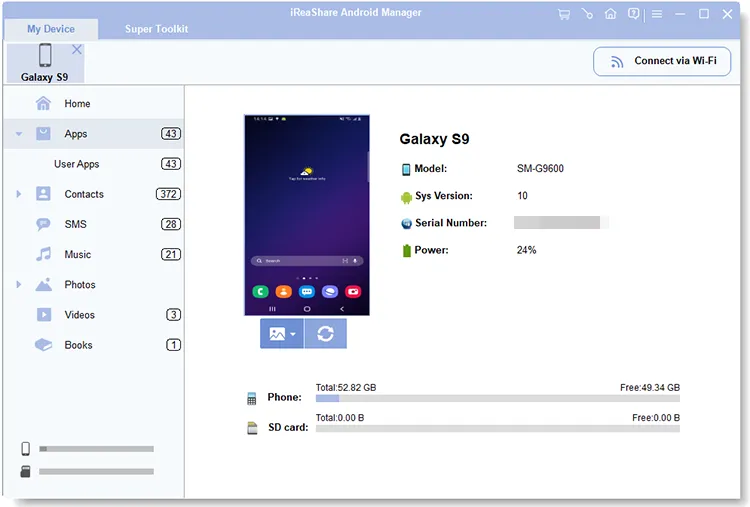
Follow the on-screen instructions to enable USB Debugging in your Android settings to allow the software to detect your device. Once connected, the interface will display your phone's storage categories.
-
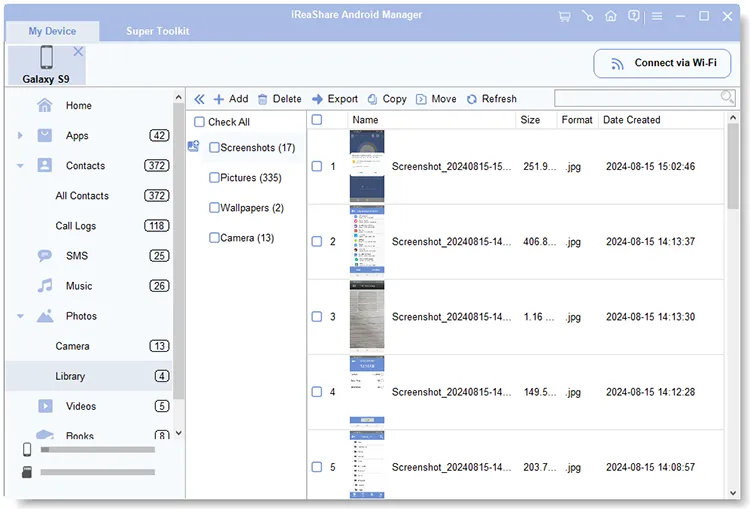
Navigate to the file manager or the specific file types. Check the boxes next to the files or folders you want to move, click the "Export" button at the top menu, and choose a destination folder on your computer. Then your SD card files will be saved to your PC or Mac.
Part 4: How to Download SD Card to Computer via Camera
When you don't have a card reader handy, and your Android device doesn't support an external storage card, your camera itself can act as one. Then you can move your files to your computer seamlessly.
Here's how:
-
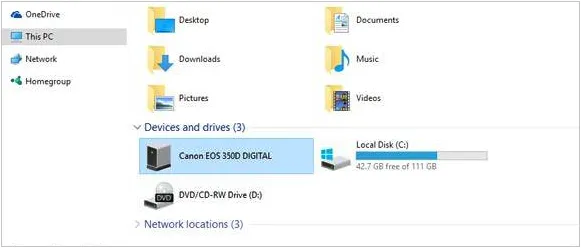
Insert the SD card into the camera, and make sure the camera is on. Plug the camera's original data cable (usually USB-C or Micro-USB) into the camera's output port and connect the other end to your computer.
-
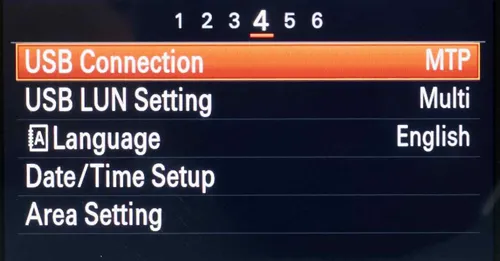
Switch your camera to its playback or "USB Connection" mode in the Settings. Many modern cameras automatically prompt a connection menu on their LCD screen.
-
Your computer will detect the camera as a media device or an external storage drive. Next, open the camera storage via your computer's file explorer, navigate to the "DCIM" folder, and transfer the desired photos or videos to your local storage.
Part 5: Q&A About Transferring SD Card to Computer
Q1: Will my photos lose quality when I move them to my computer?
No. Transferring photos from an SD card to a computer is a direct file-copying process. As long as you are copying the original files (and not exporting downsized previews via certain software), the image quality, resolution, and metadata remain exactly the same.
Q2: Why isn't my SD card showing up on my computer?
There are a few common reasons for this issue:
- Connection issues: The card reader or cable might be faulty. Try switching to a different port or cable.
- Dirty contacts: The metal strips on the SD card may be dirty. Gently wipe them with a soft, dry microfiber cloth.
- Locked card: Check the small physical switch on the side of the SD card. If it is switched down to the "Lock" position, the card is read-only, which can sometimes prevent the computer from mounting it properly.
- Driver or file system issues: Your computer may need updated drivers, or the SD card's file format (like exFAT or FAT32) might not be fully supported by your OS without specific software.
Q3: What if files are corrupted or won't open after transferring from an SD card to a computer?
If files fail to open after the transfer:
- Check the source: Try opening the files on the original device (like your camera or phone) to see if they were already corrupted before the transfer.
- Re-transfer the files: Delete the corrupted copies on your computer and try copying them again. Make sure you don't remove the card until the transfer is completely finished.
- Use data recovery software: If the card was pulled out prematurely or has a corrupted file system, professional data recovery tools can often scan the card and repair or retrieve the original files.
Conclusion
So, it is straightforward to transfer files from an SD card to a computer once you choose the method that fits your setup. Whether you use a built-in slot, card reader, iReaShare Android Manager, or a camera connection, the key is to handle your SD card carefully and follow proper steps to avoid data loss. By understanding common issues and their solutions, you can ensure a smooth and secure transfer process every time.
Download for Win Download for Mac
Related Articles
How to Erase SD Card Completely (Comprehensive Guide in 2026)
How to Transfer Music from iPad to Computer Without Hassle
How to Transfer Photos from Computer to Android with Ease (Latest)
View, Send, and Receive Android Text from Computer Without Effort

