


TL;DR:
WhatsApp does not offer a built-in call recording feature, but you can still record conversations using different methods. Android and iPhone users can try their built-in screen recorders, while Windows users can use Xbox Game Bar and Mac users can rely on the native Screenshot toolbar or QuickTime Player. If you want to record WhatsApp calls remotely and monitor your child's WhatsApp activity, WhatsApp Tracker is another option worth considering.
WhatsApp calls make it easy to stay in touch with family, friends, and colleagues, but sometimes you may want to save an important conversation for later reference. Whether you want to record a voice call or capture a video call, knowing how to record a WhatsApp call can help you keep a copy of the conversation.
However, WhatsApp does not provide a native recording option, and the available methods vary depending on your device. In this article, we will show you how to record WhatsApp calls on Android, iPhone, Windows PC, and Mac using built-in features. We will also introduce a dedicated WhatsApp monitoring tool that can automatically record calls remotely.
- Part 1. Can You Record a WhatsApp Phone Call?
- Part 2. How to Record a WhatsApp Call on Android?
- Part 3. How to Record a WhatsApp Call on iPhone?
- Part 4. How to Record a WhatsApp Call on PC?
- Part 5. How to Record a WhatsApp Call on Mac?
- Part 6. How to Record WhatsApp Calls Across Devices? [Recommended]
- FAQs About WhatsApp Call Recording
Part 1. Can You Record a WhatsApp Phone Call?
Yes. You can record a WhatsApp phone call, but WhatsApp does not have a built-in feature for recording voice or video calls. Unlike regular cellular calls on some smartphones, WhatsApp calls use an internet connection, and their audio may be restricted by the operating system.
Fortunately, you can use a built-in screen recorder on Android or iPhone, a Windows recording feature, or a Mac screen recording tool to capture a call. However, these methods do not always record both sides of the conversation. If you need a more convenient way to record WhatsApp calls remotely, a dedicated monitoring tool may be a better option.
Part 2. How to Record a WhatsApp Call on Android?
Most Android phones come with a built-in Screen Recorder, so you do not need to download an additional app to try recording a WhatsApp call. Depending on your phone model and Android version, you may be able to capture the screen and audio simultaneously.
Here is how to use it:
Step 1. Open WhatsApp on your Android phone and start or answer the voice or video call you want to record.
Step 2. Swipe down from the top of your screen to open the Quick Settings panel. Find and tap the "Screen Recorder" option. If you cannot find it, swipe through the available shortcuts or edit the Quick Settings panel to add it.
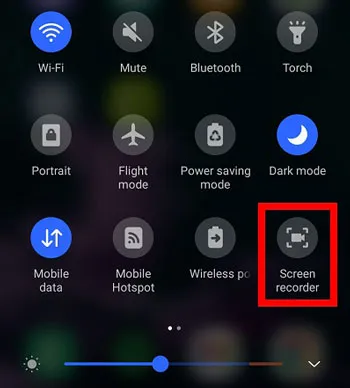
Step 3. Select your preferred audio recording option, if available. Depending on your device, you may see options such as "Device audio", "Microphone", or "Device audio and microphone".
Step 4. Tap "Start recording" and continue your WhatsApp conversation. When the call ends, tap the "Stop" button to finish recording.
The available recording options vary between Android manufacturers and models. Some phones may prevent the screen recorder from capturing WhatsApp call audio, especially the other person's voice. If you want to record both sides, you can try enabling the speakerphone during the call, but this is not guaranteed to work.
Part 3. How to Record a WhatsApp Call on iPhone?
iPhone also has a built-in Screen Recording feature that lets you capture screen activity without installing another app. You can try it to record a WhatsApp voice or video call, although iOS may restrict access to call audio.
Follow these steps:
Step 1. Open the Settings app on your iPhone, go to "Control Center", and add "Screen Recording" if it is not already available.
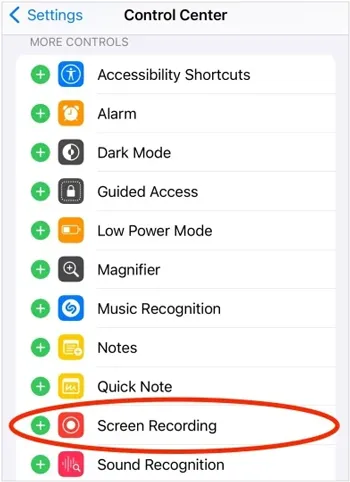
Step 2. Open WhatsApp and start or answer the call you want to record.
Step 3. Swipe down from the upper-right corner of your screen to open Control Center. Touch and hold the Screen Recording button.
Step 4. Tap the "Microphone" button to turn it on, then select "Start Recording". Wait for the countdown to finish.
Step 5. Return to WhatsApp and continue your conversation. When the call is over, tap the red recording indicator or open Control Center and tap the "Stop" button.
Enabling the microphone does not guarantee that your iPhone will capture the other person's voice. iOS may restrict audio capture during WhatsApp calls, so the recording may contain only your voice, the screen activity, or no call audio at all. Test the feature before relying on it to save an important conversation.
Part 4. How to Record a WhatsApp Call on PC?
If you use WhatsApp Desktop on a Windows 10 or Windows 11 computer, you can try Xbox Game Bar to record your WhatsApp call. This built-in Windows feature can capture an app window along with its audio, so you do not need to install a separate screen recorder.
Here is how to record a WhatsApp call with Xbox Game Bar:
Step 1. Open WhatsApp Desktop on your Windows PC and sign in to your account. Start or answer the voice or video call you want to record.
Step 2. Press "Windows + G" on your keyboard to open Xbox Game Bar.
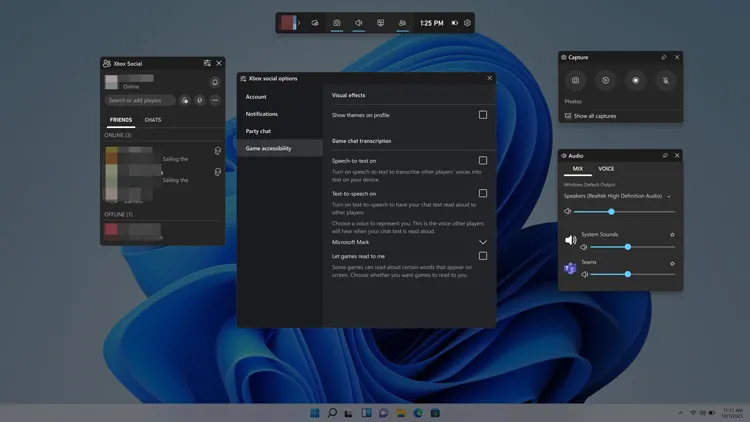
Step 3. In the Capture widget, click the "Settings" icon and check the audio recording options. Select "All" under the audio capture settings if you want to include available system sounds. Make sure the microphone is enabled if you also want to record your voice.
Step 4. Press "Windows + Alt + R" to start recording. Continue your WhatsApp call while Xbox Game Bar captures the app activity.
Step 5. When the call ends, press "Windows" + "Alt" + "R" again to stop recording.
Step 6. Open the Videos folder on your computer and go to "Captures" to find the recorded MP4 file.
Part 5. How to Record a WhatsApp Call on Mac?
Mac users can use the built-in macOS screen recording tools to capture WhatsApp calls without downloading additional software. The Native macOS Screenshot Toolbar and QuickTime Player are two available options. Both let you record the entire screen or a selected area, although their audio recording capabilities depend on the macOS version and settings. (How to screen record on Mac?)
Option A. Use the Native macOS Screenshot Toolbar
The macOS Screenshot Toolbar provides a quick way to record your screen. You can also choose a microphone to capture your voice during the recording.
Follow these steps:
Step 1. Open WhatsApp Desktop on your Mac and prepare for the voice or video call.
Step 2. Press "Command" + "Shift" + "5" on your keyboard to open the Screenshot Toolbar.
Step 3. Select "Record Entire Screen" or "Record Selected Portion" based on the area you want to capture.
Step 4. Click "Options" and choose a microphone if you want to include your voice. On macOS versions that provide the "Include System Audio" option, you can also enable it to capture sounds played by your Mac.
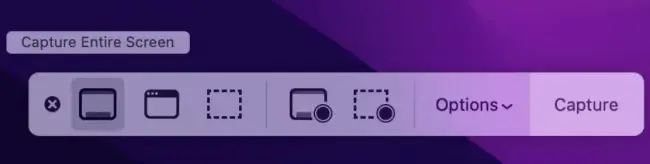
Step 5. Click "Record" to start capturing your screen, then return to WhatsApp and continue your call.
Step 6. When the conversation ends, click the "Stop" button in the menu bar. Your recording will be saved to the location selected under "Options".
Option B. Use QuickTime Player
QuickTime Player is another built-in Mac application that can record screen activity. It is useful if you prefer starting a recording directly from the media player.
Here is how:
Step 1. Open QuickTime Player from the Applications folder on your Mac.
Step 2. Click "File" in the menu bar and select "New Screen Recording".
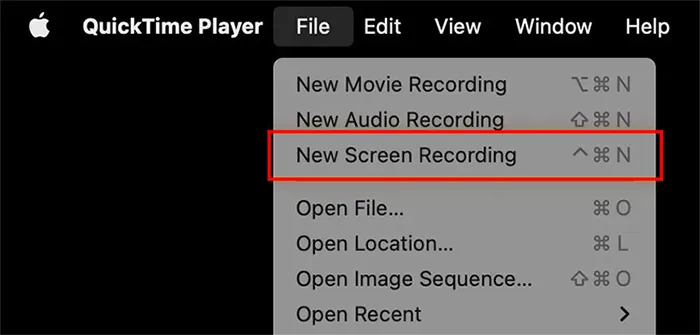
Step 3. When the recording controls appear, choose "Record Entire Screen" or "Record Selected Portion".
Step 4. Open "Options" and select an available microphone if you want to record your voice. Adjust the recording settings as needed.
Step 5. Click "Record" and switch to WhatsApp Desktop to start or continue your call.
Step 6. After the call, click the "Stop" button in the menu bar to finish recording.
Step 7. Review the recording and choose "File" > "Save" if you need to save it manually.

On recent macOS versions, choosing "New Screen Recording" in QuickTime Player may open the same Screenshot Toolbar described in Option A. The older QuickTime recording window generally offers microphone recording rather than direct system audio capture. As a result, neither option guarantees that the other participant's WhatsApp audio will be recorded.
Part 6. How to Record WhatsApp Calls Across Devices? [Recommended]
If you want to record WhatsApp voice and video calls without relying on your phone's built-in screen recorder or another recording device, WhatsApp Tracker is another solution to consider. It is a WhatsApp monitoring and parental control tool that can automatically record WhatsApp calls on a monitored Android or iPhone and sync the recordings to an online dashboard.
Unlike ordinary screen recording tools, WhatsApp Tracker lets parents remotely access recorded WhatsApp calls from a computer. It also provides other monitoring features, including call history, messages, shared media, status updates, and WhatsApp activities. The service supports accessing monitored data through Windows and Mac computers, so you can review the collected information from a larger screen.
Key Features of WhatsApp Tracker:
- Record WhatsApp Calls: Automatically records WhatsApp voice calls so you can review and listen to saved conversations.
- Record WhatsApp Video Calls: Captures WhatsApp video call sessions for later review.
- Real-Time Voice Monitoring: Lets you listen to ongoing WhatsApp calls remotely.
- Call History Tracking: Displays WhatsApp call details, including call types, dates, times, and durations.
- Comprehensive WhatsApp Monitoring: Tracks WhatsApp messages, shared photos, videos, voice messages, documents, status updates, and other app activities.
- Activity Alerts: Sends alerts when certain suspicious WhatsApp activities are detected.
How to Record a WhatsApp Video Call Remotely via WhatsApp Tracker?
-
Visit the official WhatsApp Tracker website and register for an account. Choose a suitable tracking plan to access the call recording feature.
-
Log in to your Member Center. Under "My Products", locate WhatsApp Tracker and click the "Start Monitoring" tab.

-
Install and configure the app on the Android or iPhone you are authorized to monitor. Follow the on-screen instructions to log in with your registered email address and password, then tap "Verify Setup" to bind the WhatsApp account.

-
Once the setup is complete, WhatsApp Tracker will automatically record supported WhatsApp calls and sync the recordings to your dashboard when the monitored device has an internet connection.

-
Open the "Dashboard" tab on your computer and select "Call Recording". You can browse the call history and access available recordings to listen to or review them.
FAQs About WhatsApp Call Recording
1. Does WhatsApp notify you when someone records a call?
No. WhatsApp does not currently notify participants when someone records a voice or video call using an external recording tool. However, the other person may notice if you use speakerphone or another device to capture the conversation.
2. Where are WhatsApp call recordings saved?
The save location depends on your device and recording method. On Android, recordings are usually stored in the Gallery or Photos app. On iPhone, you can find them in the Photos app. Windows users can check the "Videos > Captures" folder, while Mac recordings are saved to the location selected in the recording settings.
3. Why is my WhatsApp call recording silent?
Your WhatsApp call recording may have no sound because the screen recorder cannot access call audio, microphone permissions are disabled, or the wrong audio source is selected. Some devices also restrict VoIP audio recording. To fix this, check your microphone permissions and audio settings, enable speakerphone if necessary, and make a short test recording before an important call.
Conclusion
Recording a WhatsApp call is possible, but the best method depends on your device and whether you need to capture the screen, your own voice, or both sides of the conversation. Android and iPhone users can try their built-in screen recorders, while Windows and Mac users can use Xbox Game Bar or native screen recording tools. Keep in mind that system restrictions may prevent these methods from capturing the other participant's voice.
If you need a more convenient way to record WhatsApp calls remotely and review your child's WhatsApp activities, WhatsApp Tracker is worth considering. It automatically records supported voice and video calls and syncs the recordings to an online dashboard, allowing you to access them from a computer.
Related Articles
What Does Last Seen on WhatsApp Mean? Everything You Should Know
How to Send Fake Location on WhatsApp [Informative Guide]
How to Record Live TV on Different Devices with Reliable Methods
How to Screen Record on a Lenovo Laptop with Sound in 4 Easy Ways