TL;DR:
To send a fake location on WhatsApp, you can select a different place through WhatsApp's built-in location search or use a GPS location changer such as Location Changer to simulate another location on your phone. The built-in method is free and doesn't require extra software, but it only lets you share a selected place rather than changing your device's GPS coordinates. If you want location-based apps to recognize a different location, a GPS changer may be a more suitable option.

Location Changer Change virtual location


WhatsApp makes it easy to share your location with friends, family, or other contacts. However, you may not always want to reveal where you actually are. Perhaps you want to share a different meeting point, protect your privacy, or make your location appear somewhere else while using WhatsApp.
The good news is that there are ways of how to send fake location on WhatsApp, depending on what you want to achieve. You can select a place directly in WhatsApp without installing another app, or use a location changer to modify your phone's GPS location. This article explains both options for iPhone and Android, so you can choose the method that best suits your needs.
Part 1. Can You Send a Fake Location on WhatsApp?
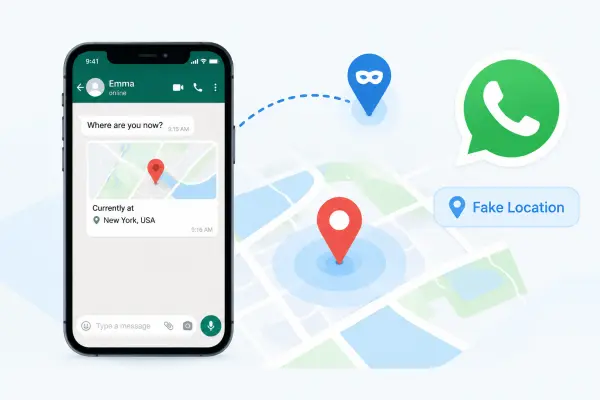
Yes, it is possible to send a location on WhatsApp that differs from where you actually are, but the result depends on how location sharing works on your device. WhatsApp supports both static location sharing and live location sharing. A static location shows a specific place on the map, while a live location allows recipients to follow location updates for a limited period. These features work differently, so sending a different place doesn't necessarily mean your phone's GPS location has changed. Understanding this distinction can help you determine the right approach for your needs.
Part 2. How to Send a Fake Location on WhatsApp with Built-In Settings
If you don't want to install extra software, WhatsApp's built-in location search is the easiest option. The steps are similar on iPhone and Android, although the attachment button and menu layout may differ slightly.
2.1 For iPhone
On an iPhone, you can select a different place from WhatsApp's location menu and send it directly to a contact.
Steps to send a different location on WhatsApp on iPhone:
Step 1. Open WhatsApp on your iPhone and enter the individual or group chat where you want to share the location.
Step 2. Tap the "+" icon next to the message field.
Step 3. Select "Location" from the menu.
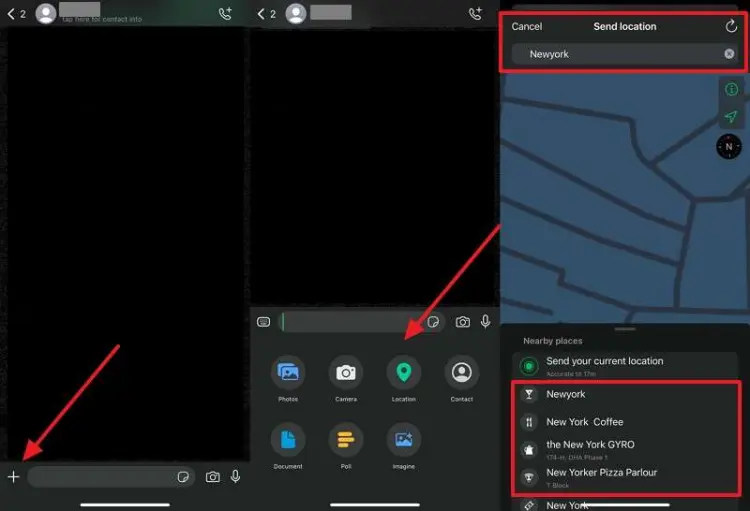
Step 4. Browse the available nearby places or use the map and search options to find your desired destination.
Step 5. Tap the place you want to share and send it to the chat.
The recipient will receive the selected place on the map. This is useful when you want to share an alternative meeting point or avoid sending your precise current location.
Limitations: This method sends a selected place rather than spoofing your iPhone's GPS. The available search results and location-selection options may vary by WhatsApp version and region. It also doesn't make your live location appear to move from one place to another.
2.2 For Android
Android users can also choose a place through WhatsApp's built-in location-sharing menu without installing a GPS changer.
Steps to send a different location on WhatsApp on Android:
Step 1. Open WhatsApp on your Android phone and select the conversation with the person or group you want to message.
Step 2. Tap the paperclip icon beside the message field.
Step 3. Choose "Location" from the attachment options.
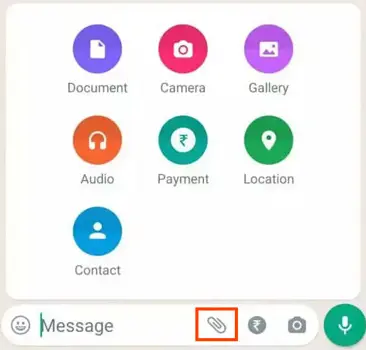
Step 4. Browse the nearby places or search for a destination using the available map interface.
Step 5. Select the desired place and tap the "Send" button.
The selected location will appear in the conversation, allowing the recipient to view the place you shared.
Limitations: Like the iPhone method, this only shares a selected place. It doesn't change the GPS data reported by your Android phone, and it won't automatically make your WhatsApp live location appear at that destination. If you need to simulate a different device location, consider the next method.
Part 3. How to Send a Fake Location on WhatsApp Using a Location Changer
If WhatsApp's built-in location search doesn't meet your needs, a GPS location changer is another option to consider. Location Changer is designed to modify GPS locations on compatible iOS and Android devices. It also offers movement simulation, allowing you to set routes between multiple locations.
Unlike WhatsApp's built-in location search, a GPS location changer aims to change the location reported by your device. This can be useful when you want compatible location-based apps, including social apps, to use a simulated location.
Key Features of Location Changer
- Change GPS location: Set a virtual GPS position on iPhone and Android devices without physically traveling to the selected place.
- Support location-based apps: Work with various compatible apps, including social platforms, navigation services, and GPS-based games.
- Customize your location: Choose a specific destination on the map instead of using your current GPS coordinates.
- Simulate location movement: Create routes between locations and adjust the simulated movement speed.
- Control movement with a joystick: Adjust your simulated location more flexibly with joystick controls.
- Broad OS compatibility: Works with devices running iOS 27 and Android 17.
How can I send a different location on WhatsApp?
-
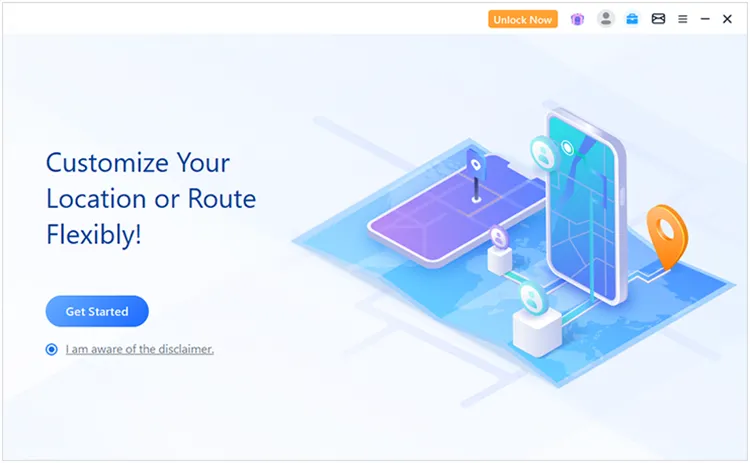
Download and open Location Changer on your Windows PC or Mac. Click "Get Started" to enter the location-changing interface.
-
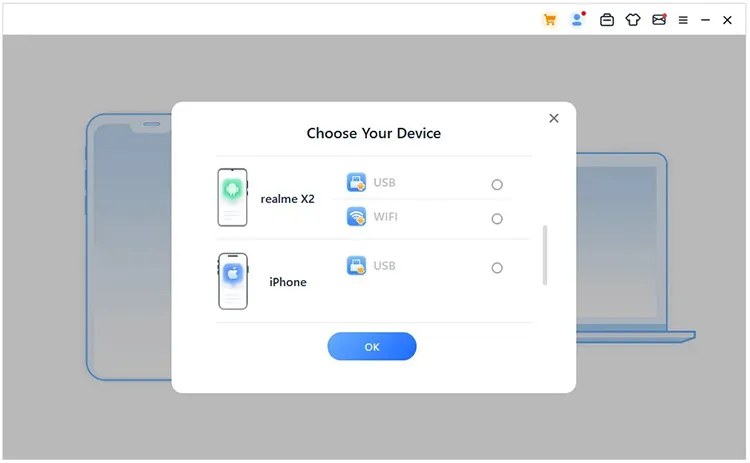
Connect your phone to the computer and follow the on-screen instructions to complete the setup. Wait until Location Changer recognizes your device before proceeding.
-
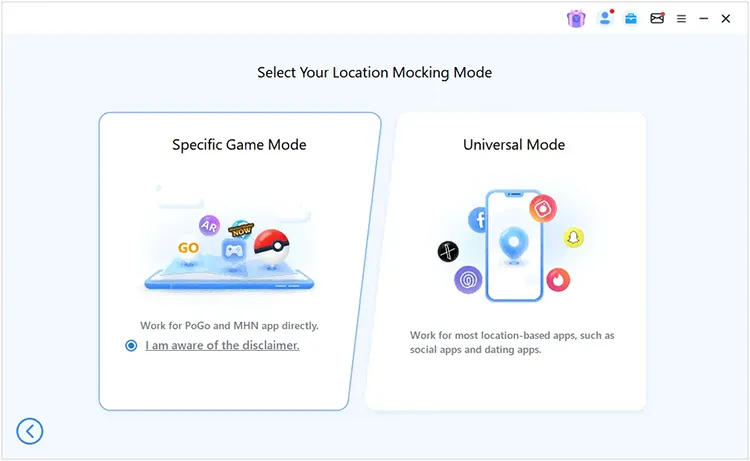
Once your device is connected, select "Universal Mode" to change your GPS location for WhatsApp.
-
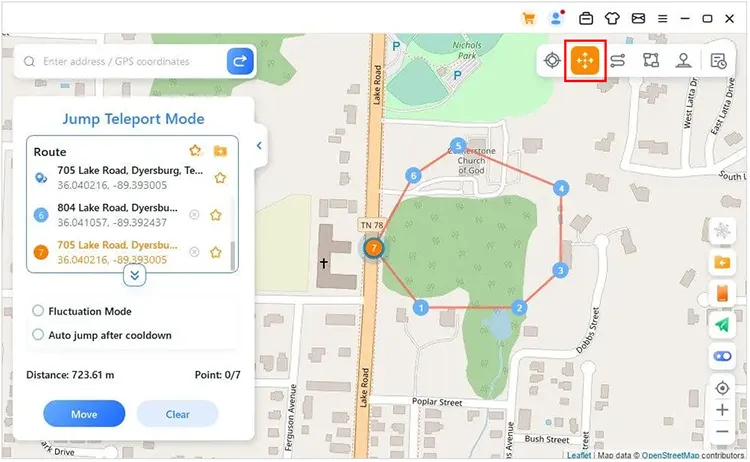
After the map loads, select a suitable location-changing mode and search for your desired destination. Choose the location on the map and apply the change to simulate your phone's GPS position.
Limitations: Location Changer may require installation, device permissions, or additional configuration. Some features are limited in the trial version, and full use may require a paid plan. Check the official compatibility information for your device and operating system before purchasing.
FAQs About Fake Location on WhatsApp
1. Why Would Someone Need to Share a Fake Location?
People may want to share a different location to protect their privacy, avoid revealing their exact whereabouts, send an alternative meeting point, or test location-based app features. Choose a method that fits your purpose and avoid using a false location to mislead others in situations where accurate location information is important.
2. Can WhatsApp Detect a Fake GPS Location?
WhatsApp may receive location information from your device, and a simulated GPS location may not behave exactly like a real one. Whether a spoofed location is detected or displayed as expected depends on the device, operating system, app version, and location-changing method. No third-party tool can guarantee that a fake location will remain undetected.
3. Does Sending a Fake Location on WhatsApp Change My Actual Location?
No. Selecting a different place in WhatsApp only sends that place to the recipient; it doesn't physically move you or change your real-world location. A GPS location changer can simulate different coordinates on a compatible device, but you remain physically where you are. Your actual location may still be revealed through other signals or apps.
Conclusion
You can send a different location on WhatsApp in two main ways. The built-in location search is the simplest choice if you only need to share another place without installing extra software. If you want to simulate a different GPS location on your phone, Location Changer offers another approach for compatible devices and apps.
Choose the method based on whether you need to share a static place or modify your device's reported location. Before relying on a simulated location, check that it works as expected on your phone and WhatsApp version.
Related Articles
How to Pause Snapchat Location? 4 Methods You Need
How to Fake GPS on Android Without Mock Location (Proven Guide)
How to Fake Location on Find My iPhone/Friends Without Hassle