TL;DR:
Want to hide your location on iPhone? You can turn off Location Services, manage app location permissions, stop sharing your location, use Airplane Mode or a VPN, or change your GPS location with Location Changer.
"I have someone who has my location but sometimes I wish they didn't have it, but at the same time I can't turn it off or it'll raise an issue. How do I go about hiding my location from them temporarily?"
- From Reddit
Location sharing makes it easier to navigate, connect with others, and use location-based services on iPhone. However, there are also situations where you may want to keep your whereabouts private or prevent others from seeing your real-time location.
Whether you want to improve privacy, reduce location tracking, or hide your actual GPS position while using location-based apps, iPhone offers different options to meet your needs. In this guide, you will learn how to hide location on iPhone and choose a suitable approach based on your situation.
- Part 1. How to Hide Location on iPhone by Turning Off Location Services
- Part 2. How to Hide iPhone Location from Apps by Adjusting Location Permissions
- Part 3. How to Stop Sharing Location on iPhone with Find My
- Part 4. How to Temporarily Hide Location on iPhone with Airplane Mode
- Part 5. How to Hide IP Location on iPhone with a VPN
- Part 6. How to Hide Location on iPhone Without Them Knowing by Location Changer
- FAQs on How to Hide Location on iPhone
Before exploring the detailed steps, check the table below for a quick comparison of the 6 methods introduced in this article to hide your location on iPhone.
| Method | Hide Real GPS Location | Keep Location-Based Apps Working | Requirements |
|---|---|---|---|
| Turn Off Location Services | No | No | Access to iPhone Settings |
| Adjust App Location Permissions | No | Yes | Access to iPhone Settings |
| Stop Sharing Location in Find My | No | Yes | Find My enabled and active location sharing |
| Use Airplane Mode | No | No | Access to Control Center |
| Use a VPN | No (Only hides IP location) | Yes | VPN app and internet connection |
| Location Changer | Yes | Yes | Computer and iPhone connection |
Part 1. How to Hide Location on iPhone by Turning Off Location Services
The easiest way to hide your location on iPhone is to turn off Location Services completely. Once disabled, apps and system services will no longer be able to access your GPS location.
However, this method also affects location-based features, including Maps, weather apps, ride-sharing services, and Find My.
Steps to turn off Location Services on iPhone:
Step 1. Open the Settings app on your iPhone.
Step 2. Tap "Privacy & Security".
Step 3. Select "Location Services".
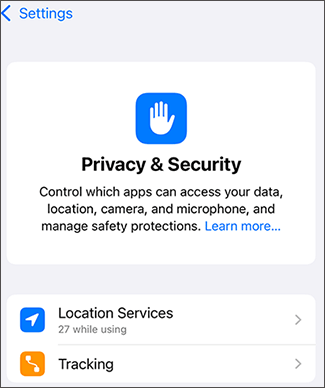
Step 4. Turn off "Location Services".
Part 2. How to Hide iPhone Location from Apps by Adjusting Location Permissions
Instead of turning off all location services, you can choose which apps are allowed to access your location. This allows you to hide your location from specific apps while keeping useful features available.
You can also disable Precise Location to prevent apps from accessing your exact GPS position.
Steps to change app location permissions:
Step 1. Go to Settings on your iPhone.
Step 2. Tap "Privacy & Security" > "Location Services".
Step 3. Select an app.
Step 4. Choose one of the available options:
- Never
- Ask Next Time Or When I Share
- While Using the App
- Always
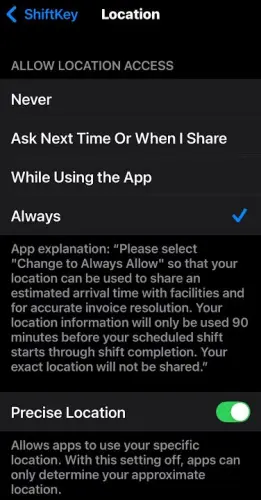
Step 5. Turn off "Precise Location" if needed.
Part 3. How to Stop Sharing Location on iPhone with Find My
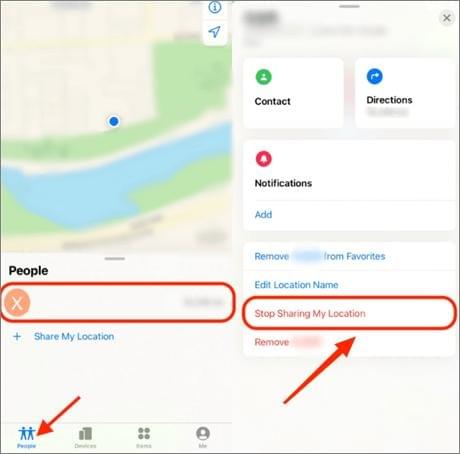
If you share your location with friends, family members, or contacts through Find My, you can stop location sharing at any time. This is useful when you no longer want someone to view your current location.
Steps to stop sharing location in Find My:
Step 1. Open the Find My app.
Step 2. Tap the "People" tab.
Step 3. Select the person you are sharing your location with.
Step 4. Tap "Stop Sharing My Location".
You can also manage location sharing through "Settings" > [Your Name] > "Find My" > "Share My Location".
Part 4. How to Temporarily Hide Location on iPhone with Airplane Mode
Airplane Mode is another common way to temporarily reduce location sharing by disconnecting your iPhone from cellular networks. It can be useful when you want a quick privacy adjustment.
However, Airplane Mode does not actually change your GPS location. Depending on your settings, Wi-Fi and Bluetooth can still be enabled, and some location-related features may continue to work.
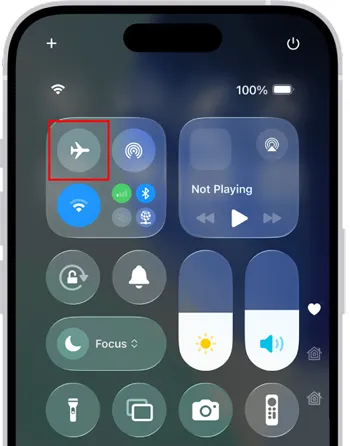
Steps to enable Airplane Mode:
Step 1. Swipe down from the top-right corner of your iPhone screen.
Step 2. Tap the "Airplane Mode" icon.
For stronger privacy control, you may also need to disable Wi-Fi and Bluetooth separately.
Part 5. How to Hide IP Location on iPhone with a VPN
A VPN can help hide your IP-based location by routing your internet connection through another server. This can protect your online privacy and make websites see a different approximate location.
However, a VPN does not change your iPhone GPS location. Apps that rely on GPS data, such as location-based games or navigation apps, may still detect your actual device location.
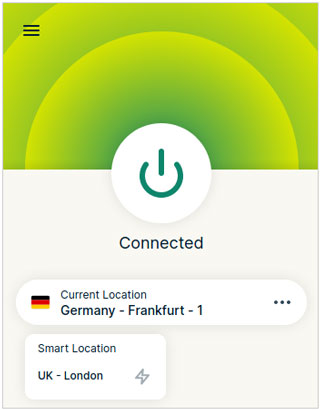
Steps to use a VPN on iPhone:
Step 1. Install a trusted VPN app on your iPhone.
Step 2. Open the VPN app.
Step 3. Choose a server location.
Step 4. Connect to the VPN.
Part 6. How to Hide Location on iPhone Without Them Knowing by Location Changer
If you want to hide your real location on iPhone without turning off GPS, Location Changer offers a more flexible solution. Instead of disabling location services, it allows you to change your GPS location to another place.
This is useful for location-based apps, social platforms, and games where you want to display a different location while keeping location features available.
Key features of Location Changer:
- Change your iPhone GPS location without physically moving.
- Support location-based apps, games, and social platforms.
- Allow joystick control for more flexible movement simulation.
- Create routes and simulate different travel speeds.
- Work with Windows, Mac, Android, and iOS devices.
Tips: For mobile users, please register an account first, then download or purchase from your member center to enjoy exclusive discounts.
How do I hide my location on my iPhone without them knowing?
-
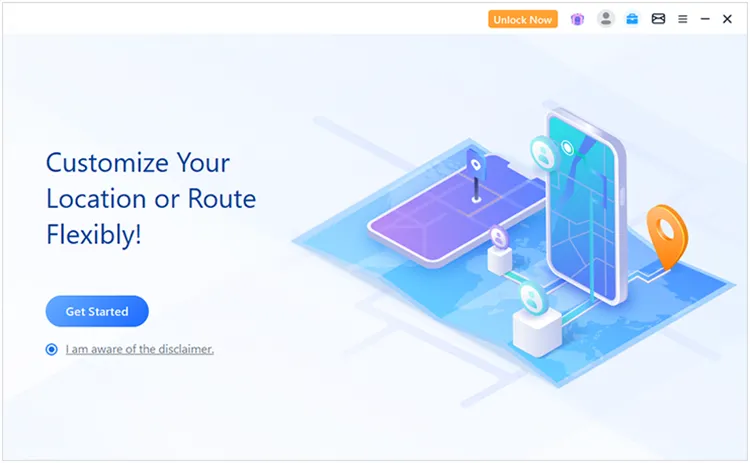
Open Location Changer on your Windows or Mac computer, then click "Get Started" to begin.
-
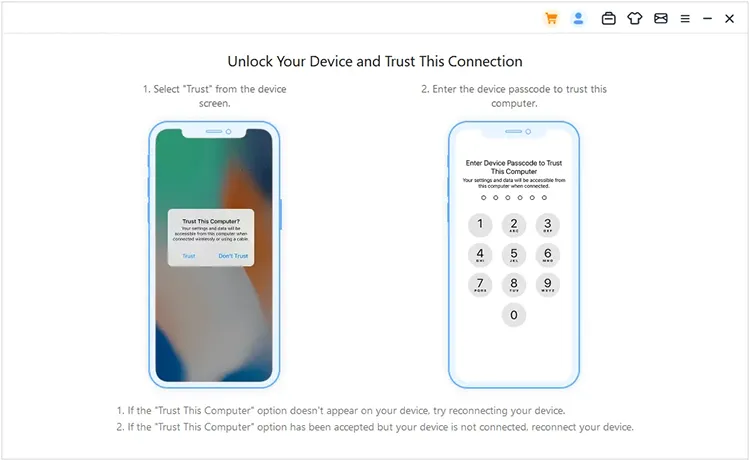
Connect your iPhone to the computer by following the instructions displayed in the program. Make sure your device is detected successfully before continuing.
-
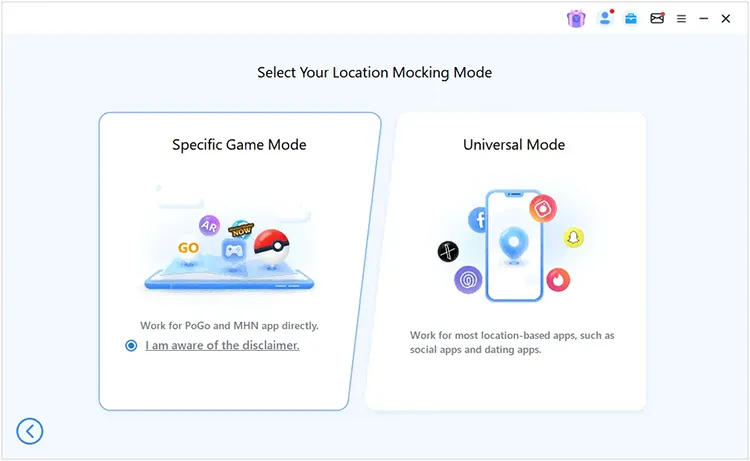
After the connection is completed, choose a suitable mode from the available options, including "Specific Game Mode" and "Universal Mode". For general location privacy protection and everyday location changes, select "Universal Mode".
-
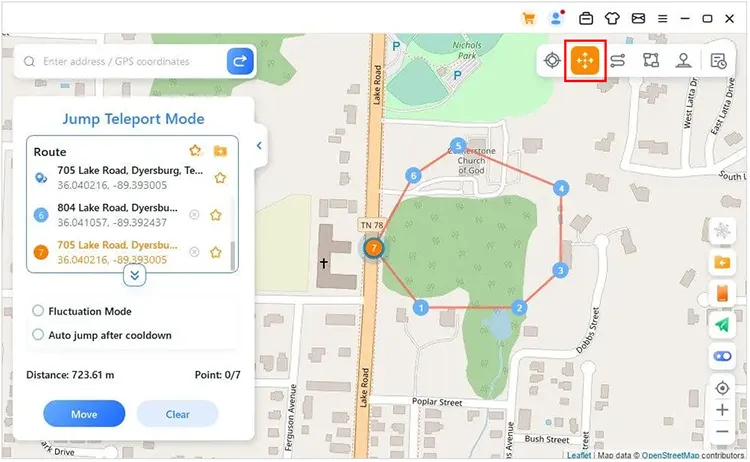
When the map appears, search for or select the location you want your iPhone to display. Apply the new virtual location, and your device will show the selected position instead of your actual GPS location.
FAQs on How to Hide Location on iPhone
1. If I hide my iPhone location, will I still be tracked?
It depends on the method you use. Turning off Location Services prevents apps from accessing your GPS location, while stopping location sharing only prevents specific people from viewing your location. Some online services may still detect information such as your IP address.
2. Can someone see my location if I turn off Location Services on iPhone?
Turning off Location Services prevents apps from accessing your iPhone's GPS location. However, some services may still estimate your location through other information, such as your IP address or network connection.
3. How do I hide my location from one person on iPhone?
To hide your location from a specific person, you can stop sharing your location with them through the Find My app. Open Find My, go to the "People" tab, select the contact, and choose "Stop Sharing My Location".
You can also review who has access to your location through your iPhone's location-sharing settings. If you want to keep location-based apps working while displaying a different position, you can use a location changer like Location Changer to change your GPS location instead of disabling location services.
Conclusion
There are several ways to hide location on iPhone, depending on your needs. You can disable Location Services, adjust app permissions, stop sharing your location in Find My, or use Airplane Mode and a VPN for specific privacy purposes.
If you want to hide your real GPS location while continuing to use location-based apps, Location Changer provides a convenient way to change your iPhone location without physically moving.
Related Articles
How to Fake Location on Find My iPhone/Friends Without Hassle
iTunes Backup Location: How to Find, Change, and Manage Backup File
How to Fake GPS on Android Without Mock Location (Proven Guide)
How to Change Location in Pokémon GO on iPhone and Android