TL;DR:
Want to explore Pokémon GO locations without traveling? You can change your virtual location with a GPS location changer, Android mock location settings, an iPhone virtual location tool, or a VPN with limited capabilities.
Pokémon GO is a location-based game that uses your phone's GPS information to determine your real-world position. Your location affects the Pokémon you encounter, available PokéStops, Gyms, and location-based events. However, traveling to different places is not always convenient when you want to explore new areas or access location-specific content.
Changing your location in Pokémon GO allows you to simulate a different GPS position without physically moving. Whether you are using an iPhone or Android device, there are several ways to modify your virtual location, including GPS location changers, mock location settings, and other location-based tools. This article will show you how to change location in Pokémon GO and explain the differences between available methods.
Part 1. Why Change Location in Pokémon GO?
Since Pokémon GO depends on GPS information, your real-world position affects your gameplay experience. Changing your virtual location can help you access areas that may be difficult to reach in person.
Some common reasons to change location in Pokémon GO include:
- Explore Pokémon available in different regions.
- Visit more PokéStops and Gyms.
- Participate in location-based events.
- Find Pokémon in new areas without traveling.
- Test different locations for gameplay purposes.
Part 2. How to Change Location in Pokémon GO
There are several ways to change your Pokémon GO location depending on your device and requirements. Some methods provide advanced features such as teleportation and route simulation, while others only offer basic location changes.
2.1 Change Pokémon GO Location with Location Changer
A GPS location changer is a practical option for players who want to explore different Pokémon GO areas without physically traveling. Compared with basic mock location settings, a dedicated location tool usually provides more control over your virtual position, such as teleporting to a specific place, simulating movement, and creating customized routes.
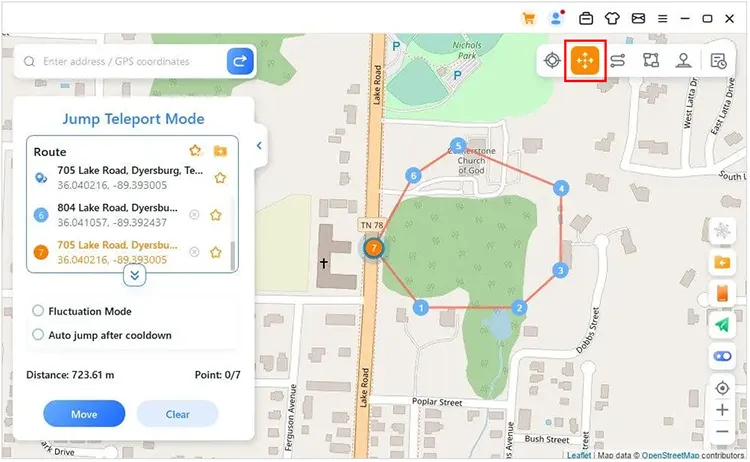
Location Changer is designed to change GPS locations on both iPhone and Android devices. It supports location-based apps like Pokémon GO and allows you to adjust your virtual position with features such as game mode, joystick control, and route simulation.
Key features of Location Changer:
- Change GPS location for Pokémon GO and other GPS-based apps.
- Support iOS and Android devices, with desktop versions available for Windows and Mac.
- Teleport to any location by selecting a destination on the map.
- Simulate movement with joystick control.
- Create customized routes with adjustable movement settings.
- Change location without jailbreak or root access.
Tips: For mobile users, please register an account first, then download or purchase from your member center to enjoy exclusive discounts.
Steps to change Pokémon GO location with Location Changer:
-
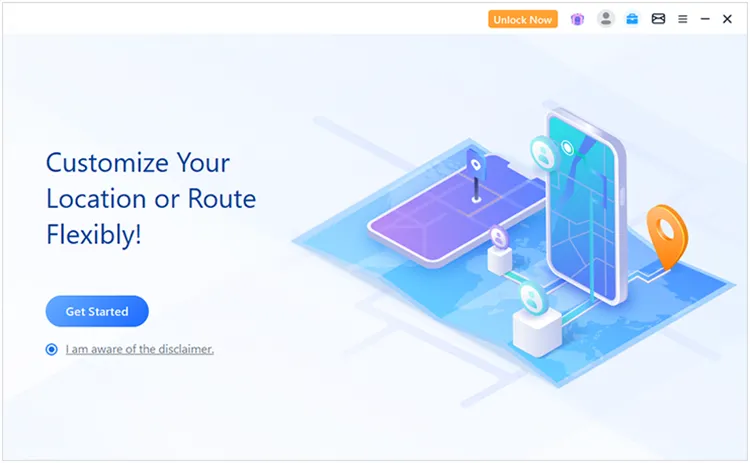
Launch Location Changer on your Windows or Mac computer and click "Get Started".
-
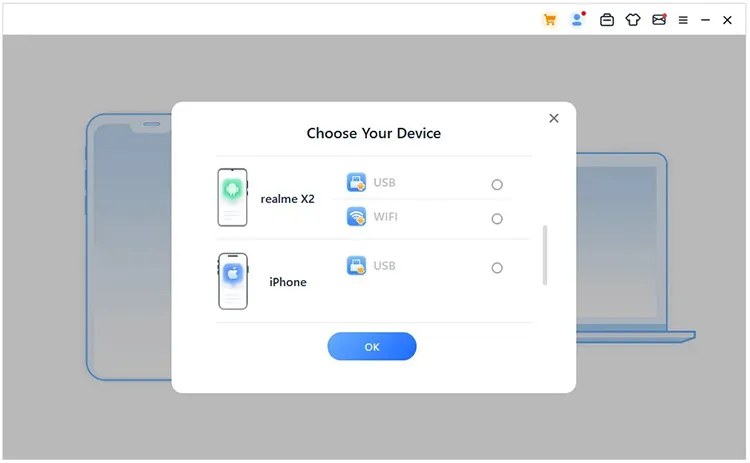
Follow the on-screen instructions in the program to connect your iPhone or Android device to the computer.
-
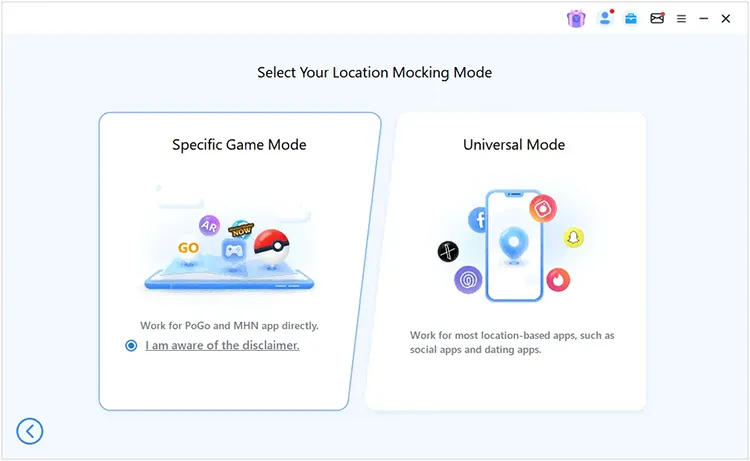
After the connection is completed, enter the mode selection interface and choose "Specific Game Mode" for Pokémon GO-related location features.
-
Once you enter the map interface, select the location you want to explore in Pokémon GO. You can apply the new virtual location or create a route to simulate movement in the selected area.
2.2 Change Pokémon GO Location on Android with Mock Location
Android devices support a built-in mock location feature through Developer Options. This allows you to select a mock location app and simulate a different GPS position. This method does not require a computer, but the available features may vary depending on the Android device and the mock location app you use.
How to change your location on Pokémon GO?
Step 1. Enable Developer Options
Open "Settings" on your Android phone.
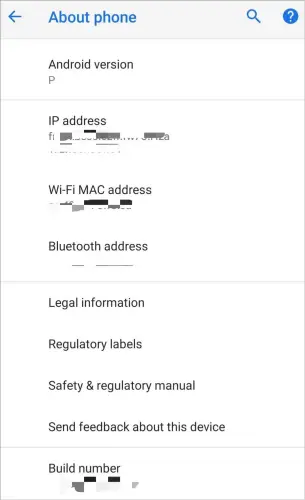
Go to "About Phone".
Tap "Build Number" several times until Developer Options are enabled.
Step 2. Select a Mock Location App
Open "Developer Options".
Find Select mock location app.
Choose a compatible GPS spoofing app.
Step 3. Change Your Pokémon GO Location
Open the mock location app.
Select a location on the map.
Apply the virtual location.
Launch Pokémon GO.
2.3 Change Pokémon GO Location on iPhone with a Virtual Location Tool
Unlike Android, iPhone does not provide a built-in mock location option. To change GPS location in Pokémon GO, iPhone users usually need a virtual location tool.
Follow these steps to change location for Pokémon GO:
Step 1. Install a GPS location changer on your computer.
Step 2. Connect your iPhone using a USB cable or supported connection method.
Step 3. Select a destination location on the map.
Step 4. Apply the virtual location.
Step 5. Open Pokémon GO to check the updated position.
2.4 Change Location for Pokémon GO with VPN (Limited)
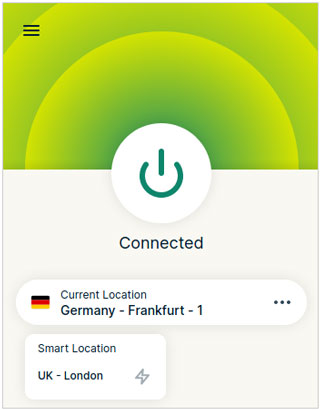
A VPN is often mentioned as a way to change location, but it works differently from a GPS location changer. A VPN changes your IP address by connecting to a server in another region, but it does not directly modify your phone's GPS coordinates.
If you want to try a VPN:
Step 1. Install a VPN App
Download and install a VPN application on your phone.
Step 2. Connect to a Different Server
Choose a server location in another region and connect to it.
Step 3. Open Pokémon GO
Launch Pokémon GO and check whether the location-related content changes.
Part 3. Compare Different Ways to Change Location in Pokémon GO
Different methods provide different levels of control and compatibility. The table below shows the main differences:
| Method | Supported Devices | Change GPS Location | Need Computer | Route Simulation | Difficulty |
|---|---|---|---|---|---|
| Location Changer | Windows, Mac, iPhone, Android | Yes | Yes | Yes | Easy |
| Android Mock Location | Android | Yes | No | No | Medium |
| iPhone Virtual Location Tool | iPhone | Yes | Usually Yes | Depends on Tool | Medium |
| VPN | iPhone, Android | No | No | No | Easy |
FAQS of Changing Location for Pokémon GO
1. Can you get banned for using location changers in Pokémon GO?
Using location-changing tools may carry risks because Pokémon GO uses location data to verify gameplay activity. Frequent unrealistic movements or sudden location changes may cause account-related issues. Before using any location-changing method, make sure you understand Pokémon GO's rules and use these tools responsibly.
2. Why does Pokémon GO still show my old location after changing GPS?
This can happen if the game has not refreshed your location data yet. Try restarting Pokémon GO, checking your device location settings, or reconnecting the location-changing tool.
3. How far can I change my location in Pokémon GO?
Most GPS location changers allow you to select locations anywhere on the map. However, moving between distant locations too quickly may create unusual GPS patterns, so it is recommended to simulate movement naturally.
Conclusion
Changing location in Pokémon GO can make it easier to explore different areas, discover new gameplay opportunities, and access location-based features without physically traveling. Depending on your device, you can choose different approaches, including Location Changer, Android mock location settings, iPhone virtual location tools, or VPN services.
Among these options, Location Changer provides more flexible controls because it can modify GPS coordinates and support features like teleportation, joystick movement, and route simulation. Before using any location-changing method, make sure you understand how it works and use it carefully to maintain a smooth Pokémon GO experience.
Related Articles
How to Fake GPS on Android Without Mock Location (Proven Guide)
How to Fake Location on Find My iPhone/Friends Without Hassle
iTunes Backup Location: How to Find, Change, and Manage Backup File
Shiny Eevee Evolutions: All Forms, Evolution Methods & Tips