TL;DR:
Want to stop Snapchat from updating your location? You can pause your Snapchat location by enabling Ghost Mode, hiding your location from specific friends, disabling Snapchat location access in your phone settings, turning on Airplane Mode, or using Location Changer to freeze your virtual location.
Snapchat's Snap Map allows you to share your location with friends, but there may be times when you want more privacy or simply don't want your location to keep updating. Whether you want to temporarily hide your whereabouts, stop certain friends from seeing your location, or prevent your Snapchat location from changing, you may need to adjust how location sharing works.
To pause your Snapchat location, you can manage location sharing through Snapchat's privacy options, device settings, temporary solutions, or a GPS location changer. This guide will show you how to pause or freeze your Snapchat location with practical methods.
- Part 1. Can You Pause Your Location on Snapchat?
- Part 2. How to Pause Snapchat Location Through Ghost Mode?
- Part 3. How to Pause Snapchat Location in Settings?
- Part 4. How to Freeze Location on Snapchat by Turning on Airplane Mode?
- Part 5. How to Pause Snapchat Location Without Them Knowing with Location Changer?
- Part 6. Which Method Is Suitable to Pause Snapchat Location?
Part 1. Can You Pause Your Location on Snapchat?
Yes. You can pause your location on Snapchat, but there is no built-in button called "Pause Location". Instead, Snapchat provides location privacy controls that allow you to stop sharing your location or limit location visibility. The exact result depends on whether you want to hide your location completely, prevent certain people from seeing it, or temporarily stop location updates.
Part 2. How to Pause Snapchat Location Through Ghost Mode?
Ghost Mode is one of the easiest ways to pause Snapchat location sharing. When enabled, your location will no longer be visible to other people on Snap Map, while you can still use Snapchat normally.
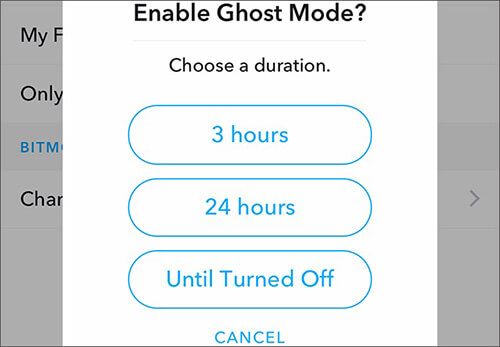
You can also choose how long Ghost Mode remains active, including a few hours, 24 hours, or until you turn it off manually. This makes it suitable when you only want to hide your location temporarily.
How to pause Snapchat location without turning it off?
Step 1. Open Snapchat on your phone.
Step 2. Tap your profile icon in the top-left corner.
Step 3. Tap the "Snap Map" section.
Step 4. Tap the "Settings" icon.
Step 5. Turn on "Ghost Mode" and select a duration.
Tips: How Do You Pause Your Snapchat Location for Specific Friends?
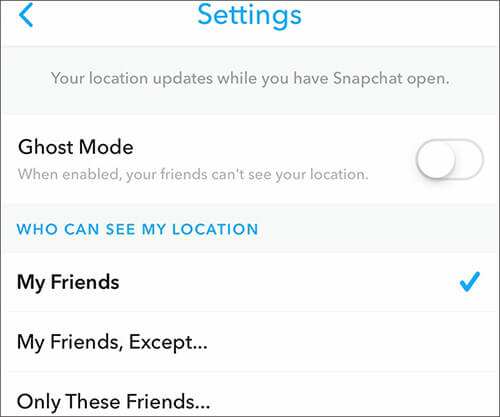
If you only want to hide your location from certain people, you don't need to enable Ghost Mode for everyone. Instead, you can use Snapchat's location visibility settings to exclude specific friends.
Open "Snap Map", tap the "Settings" icon, choose "My Friends, Except...", and select the friends you want to hide your location from. This allows you to keep sharing your location with other friends while limiting location visibility for selected people.
Part 3. How to Pause Snapchat Location in Settings?
Another way to pause Snapchat location is to disable its access to your phone's location services. After removing Snapchat's location permission, the app cannot obtain your real-time GPS information. This method completely blocks Snapchat from accessing your location. However, some location-based features, such as location filters, may stop working.
On iPhone:
Step 1. Open "Settings".
Step 2. Tap "Privacy & Security".
Step 3. Select "Location Services".
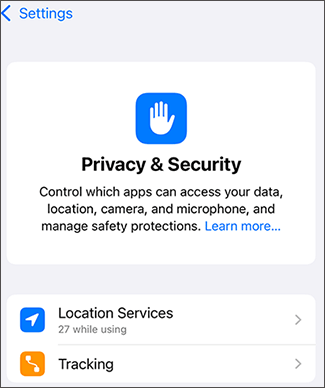
Step 4. Find and tap "Snapchat".
Step 5. Choose "Never".
On Android:
Step 1. Open "Settings".
Step 2. Go to "Apps".
Step 3. Select "Snapchat".
Step 4. Tap "Permissions".
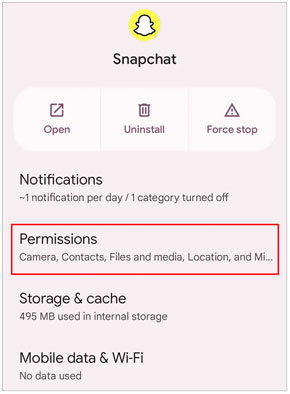
Step 5. Choose "Location".
Step 6. Select "Don't allow".
Part 4. How to Freeze Location on Snapchat by Turning on Airplane Mode?
Turning on Airplane Mode is another temporary way to freeze Snapchat location updates. Since your phone disconnects from mobile networks and Wi-Fi, Snapchat cannot immediately send new location information. However, this is only a temporary solution. Once your internet connection is restored and Snapchat is opened again, your location may update normally.
How to pause Snapchat location temporarily?
Step 1. Swipe down to open "Quick Settings" or "Control Center".
Step 2. Tap "Airplane Mode".
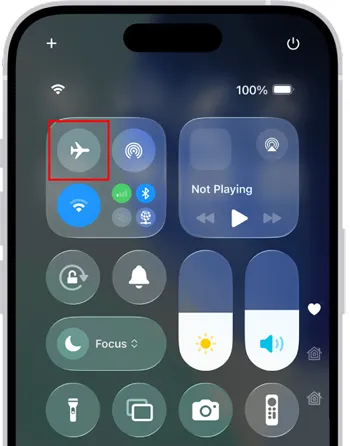
Step 3. Keep Airplane Mode enabled while you want to stop location updates.
Part 5. How to Pause Snapchat Location Without Them Knowing with Location Changer?
If you want to pause Snapchat location without turning off location access or disappearing from Snap Map, a GPS location changer can provide another option. Rather than stopping location sharing, this method changes the GPS information from your device so that Snapchat shows the location you choose.
Location Changer allows you to set a virtual location on the map and simulate being there without physical movement. With it, you can keep your Snapchat location at a selected place, change it to another destination, or control how your location appears on location-based apps.
Key Features:
- Change GPS location on iPhone and Android devices.
- Support various location-based apps, including Snapchat, social platforms, navigation services, and GPS-based games.
- Set a customized location instead of your real position.
- Create routes and simulate movement with different speeds.
- Provide joystick control for more flexible location changes.
Tips: For mobile users, please register an account first, then download or purchase from your member center to enjoy exclusive discounts.
How to pause Snapchat location without them knowing?
-
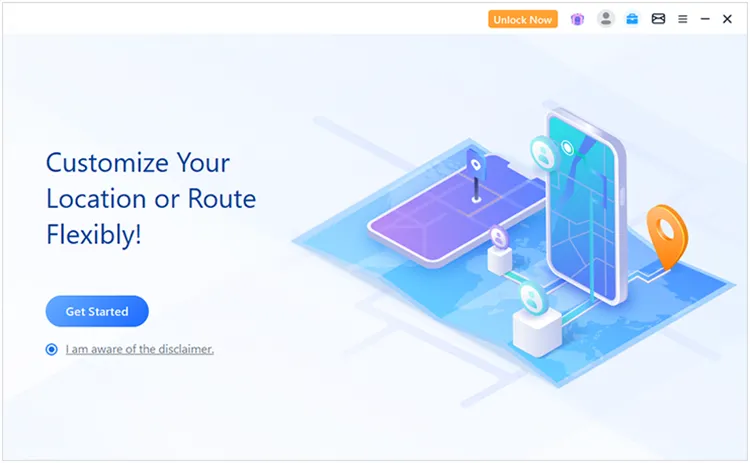
Launch Location Changer on your Windows or Mac computer and click "Get Started" to access the location-changing feature.
-
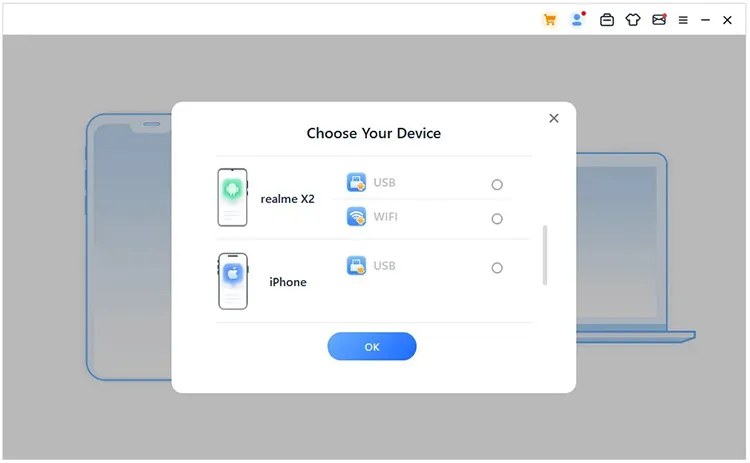
Connect your Android device or iPhone to the computer according to the on-screen instructions. Wait until the software detects your device successfully before moving forward.
-
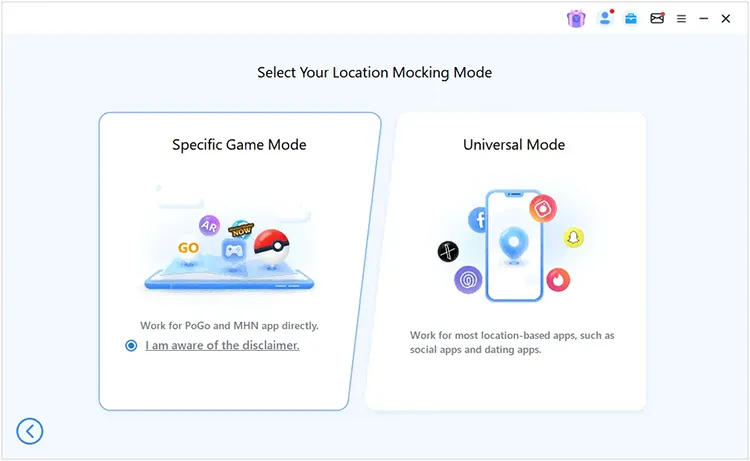
After the connection is completed, select "Universal Mode" to change your device's GPS location for Snapchat and other location-based apps.
-
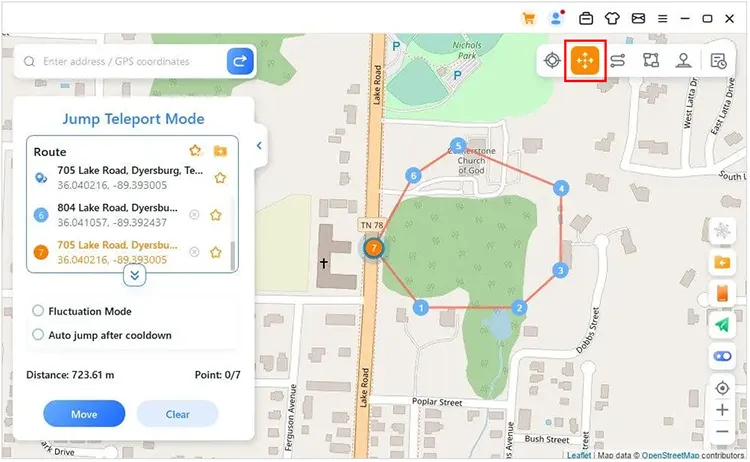
After the map loads, choose a preferred mode from the available options and select a destination on the map. Apply the virtual location to update the GPS position shown on Snapchat.
Part 6. Which Method Is Suitable to Pause Snapchat Location?
Different methods pause Snapchat location in different ways. Some hide your location from others, while others stop Snapchat from accessing your GPS or change the location shown on Snap Map. The table below compares their differences to help you choose the right option.
| Method | Pause Location For | Visibility to Others | Best For |
|---|---|---|---|
| Ghost Mode | Everyone or selected friends | Yes. Your Bitmoji will disappear from the Snap Map for people who cannot view your location. | Hiding your Snapchat location |
| Disable Location Services | Everyone | Yes. Snapchat cannot access your GPS location or update it. | Completely stopping Snapchat from accessing location data |
| Airplane Mode | Everyone temporarily | Usually no. Your last location may remain visible on Snap Map. | Temporarily stopping location updates |
| Location Changer | Everyone | No. Your location remains visible, but others will see the virtual location you set. | Freezing or changing your displayed Snapchat location |
Conclusion
Pausing your Snapchat location can help you better control who can see your whereabouts and how your location appears on Snap Map. Whether you want to hide your location, stop Snapchat from accessing your GPS, temporarily freeze updates, or change your displayed location, the methods above provide different options for different needs.
Choose the method that works best for your situation and manage your Snapchat location sharing with greater flexibility.
Related Articles
How to Hide Location on iPhone with 6 Effective Ways
How to Fake Location on Find My iPhone/Friends Without Hassle
How to Fake GPS on Android Without Mock Location (Proven Guide)
How to Screen Record on Snapchat on iPhone/Android/Computer?