


TL;DR:
There are several ways to transfer contacts from Samsung to Samsung, depending on whether you prefer wireless syncing, manual sharing, or direct phone-to-phone migration. You can use Samsung Smart Switch to move contacts and other data, sync them through a Google or Samsung account, or transfer them using a SIM card, Bluetooth, or a VCF file. If you want a more direct solution with selective data transfer, iReaShare Phone Transfer is another option that lets you copy contacts between two Samsung phones using a computer.
When switching to a new Samsung phone, transferring your contacts is one of the first things you may want to do. However, copying contacts from one Samsung device to another is not always straightforward, especially when your contacts are stored in different locations, such as your phone's internal storage, SIM card, or cloud account.
Fortunately, there are several ways to transfer contacts from Samsung to Samsung without entering each contact manually. Whether you want to use Samsung's built-in tools, share contacts wirelessly, or migrate them with a computer, you can find a suitable method below.
- Part 1. How to Transfer Contacts from Samsung to Samsung via Samsung Smart Switch
- Part 2. How to Sync Contacts from Samsung to Samsung with Samsung or Google Account
- Part 3. How to Transfer Contacts from Samsung to Samsung Through SIM Card
- Part 4. How to Move Contacts from a Samsung to Another Samsung Using Bluetooth
- Part 5. How to Share Contacts from Samsung to Samsung with VCF File Manually
- Part 6. How to Transfer Contacts Between Samsung Phones by iReaShare Phone Transfer
Comparison of 6 Methods to Transfer Contacts from Samsung to Samsung
Before choosing a method, take a look at the following comparison to see which one best suits your needs.
| Method | Computer Required | Internet Required | Selective Transfer | Other Data Supported |
|---|---|---|---|---|
| Samsung Smart Switch | No | No (wireless direct connection or USB) | Yes | Yes |
| Samsung/Google Account | No | Yes | Depends on sync settings | Yes |
| SIM Card | No | No | Yes | No |
| Bluetooth | No | No | Yes | Limited |
| VCF File Manually | No | Not necessarily | Yes | No |
| iReaShare Phone Transfer | Yes | No (USB); same Wi-Fi network for wireless Android connection | Yes | Yes |
Part 1. How to Transfer Contacts from Samsung to Samsung via Samsung Smart Switch
Samsung Smart Switch is an official data migration tool developed by Samsung. It allows you to transfer contacts, photos, videos, messages, and other data from an old phone to a new Galaxy device. You can connect your two Samsung phones wirelessly or with a USB cable, depending on your preference. If you are switching to a new Samsung phone and want to move more than just contacts, Smart Switch is a convenient option.
Steps to transfer contacts using Smart Switch:
Step 1. Install or open the Smart Switch app on both Samsung phones. If it is not available, download it from the Google Play Store or Galaxy Store.
Step 2. Place the two phones close to each other. Open Smart Switch on both devices.
Step 3. On your old Samsung phone, tap "Send from this phone" and select "Wireless". On your new phone, tap "Receive on this phone" > "Galaxy/Android" > "Wireless".
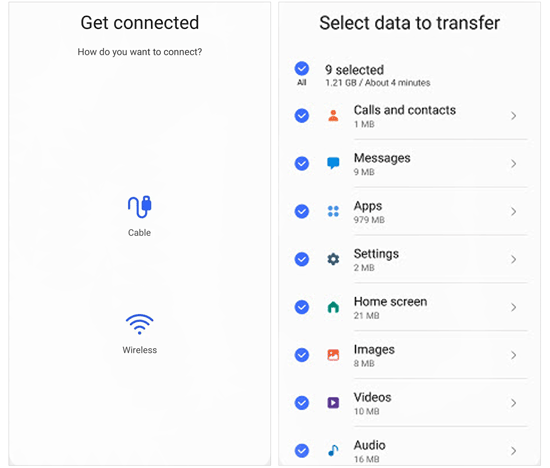
Step 4. Follow the prompts to establish a connection between the two phones.
Step 5. Once the old phone has been scanned, select "Contacts" or choose other data types you want to transfer.
Step 6. Tap "Transfer" and wait for the process to finish. When completed, open the Contacts app on your new Samsung phone to check the transferred contacts.
You can also choose a wired connection if you prefer using a USB cable. In that case, select the cable connection option on both phones and connect them using a compatible cable or adapter.
Limitations:
- Smart Switch is primarily designed for transferring data to a new Galaxy device.
- Both phones need to be available during the transfer.
- The transfer may take longer when you select multiple data types or a large amount of content.
Part 2. How to Sync Contacts from Samsung to Samsung with Samsung or Google Account
If you have already synced your contacts to a Samsung or Google account, you don't need to transfer them manually. Simply sign in to the same account on your new Samsung phone and enable contact synchronization. Your saved contacts will then appear on the new device. There are two common ways to do this.
Method 1. Sync Contacts with a Samsung Account
Samsung Cloud can sync supported data, including contacts, across Samsung devices signed in to the same Samsung account. If you have enabled contact synchronization on your old phone, you can retrieve those contacts on your new device.
Here's how:
Step 1. On your old Samsung phone, open "Settings" and tap your Samsung account.
Step 2. Select "Samsung Cloud" and check whether contact synchronization is enabled.
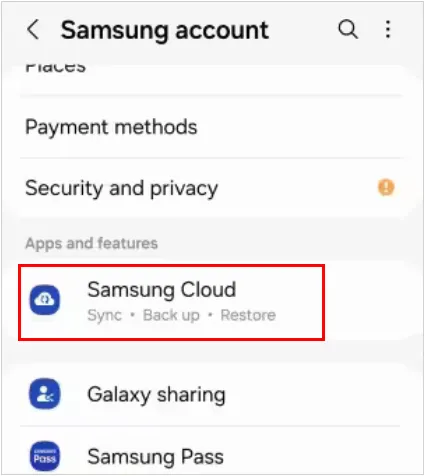
Step 3. Make sure the Contacts option is turned on and allow the phone to complete synchronization.
Step 4. On your new Samsung phone, sign in with the same Samsung account.
Step 5. Open "Settings" > "Samsung account" > "Samsung Cloud" and enable Contacts synchronization.
Step 6. Wait for the contacts to sync, then open the Contacts app to check whether they are available.
Method 2. Sync Contacts with a Google Account
Google Contacts is another convenient way to synchronize contacts between Samsung phones. If your contacts are saved to your Google account, you can access them on another device by signing in to the same account.
Follow these steps:
Step 1. On your old Samsung phone, open "Settings" and go to "Accounts and backup" > "Manage accounts".
Step 2. Select your Google account and tap "Sync account".
Step 3. Make sure the Contacts option is enabled. If available, tap "Sync now" to start synchronization manually.
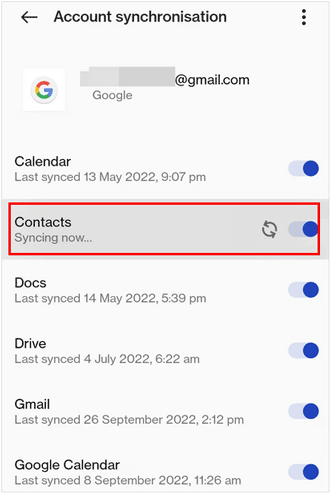
Step 4. On your new Samsung phone, open "Settings" > "Accounts and backup" > "Manage accounts".
Step 5. Tap "Add account" and select "Google". Sign in with the same Google account used on your old phone.
Step 6. Open the account's synchronization settings and enable Contacts.
Step 7. Wait for the synchronization to complete. Your Google contacts should now appear in the Contacts app.
Limitations:
- You must use the same account on both Samsung phones.
- Only contacts associated with the selected account will be synchronized. Contacts stored locally or on another account may not appear automatically.
- An internet connection is required to sync contacts through cloud services.
- If synchronization is disabled on the old phone, you may need to enable it and sync your contacts before switching devices.
Part 3. How to Transfer Contacts from Samsung to Samsung Through SIM Card
If you don't want to use an internet connection or install additional applications, transferring contacts through a SIM card is another option. You can export contacts from your old Samsung phone to the SIM card, insert it into your new Samsung phone, and import the saved contacts.
How to move contacts from a Samsung to another Samsung?
Step 1. Open the Contacts app on your old Samsung phone.
Step 2. Tap the menu icon or "Manage contacts", then select "Import or export contacts".
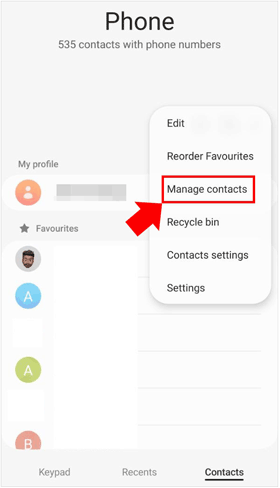
Step 3. Choose "Export" and select your SIM card as the destination, if this option is available.
Step 4. Select the contacts you want to transfer and confirm the export.
Step 5. Once the export is complete, turn off your old phone and remove the SIM card.
Step 6. Insert the SIM card into your new Samsung phone.
Step 7. Open the Contacts app and go to "Manage contacts" > "Import or export contacts".
Step 8. Select "Import", choose the SIM card as the source, and select the contacts you want to import.
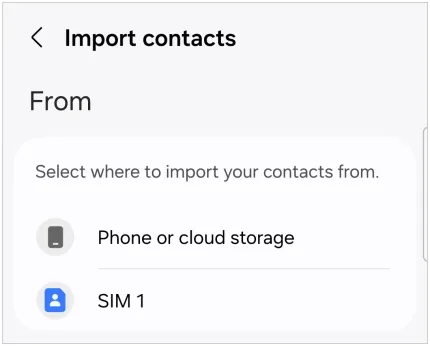
Step 9. Choose where to save the imported contacts, such as your phone or Google account, and confirm.
After the import is complete, open Contacts to check whether the phone numbers have been transferred successfully.
Limitations:
- SIM cards can only store a limited number of contacts.
- Some SIM cards support only basic contact information, such as names and phone numbers.
- Additional details, including email addresses, profile photos, and multiple phone numbers, may not be transferred.
- The export-to-SIM option may not be available on every Samsung model or SIM card.
Part 4. How to Move Contacts from a Samsung to Another Samsung Using Bluetooth
Bluetooth is a wireless way to share contacts between two Samsung phones without using a computer or internet connection. Unlike account synchronization, it lets you select specific contacts and send them directly to another nearby device. This method is suitable if you only need to share a few contacts rather than migrate your entire contact list.
Follow these steps to move contacts between Samsung phones via Bluetooth:
Step 1. Enable Bluetooth on both Samsung phones. You can do this from the Quick Settings panel or by going to "Settings" > "Connections" > "Bluetooth".
Step 2. Pair the two phones by selecting the receiving Samsung device from the available devices list and confirming the pairing request.
Step 3. On your old Samsung phone, open the Contacts app.
Step 4. Select the contact you want to transfer. If you need to send multiple contacts, select them using the multi-select option if available.
Step 5. Tap "Share" and choose "Share as file" if prompted. Then select "Bluetooth" from the available sharing options.
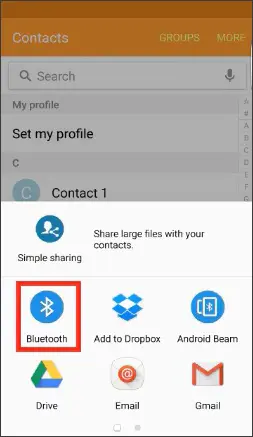
Step 6. Choose your new Samsung phone as the receiving device.
Step 7. On the new phone, accept the incoming file and open the received contact file to import the contact into your Contacts app.
Limitations:
- Both Samsung phones must be close to each other during the transfer.
- Bluetooth may be slower than other wireless sharing methods, especially when transferring multiple files.
- Some Samsung models or software versions may not offer Bluetooth as a contact-sharing option.
- Depending on the device, contacts may be shared as vCard files that require manual importing.
Part 5. How to Share Contacts from Samsung to Samsung with VCF File Manually
A VCF file, also known as a vCard file, is a standard format for storing contact information. Samsung phones allow you to export contacts into a VCF file and import that file on another device. Unlike Bluetooth, which is a wireless sharing method, VCF is a file-based transfer method. You can send the exported file through Quick Share, email, a messaging application, or a USB connection. This method is especially useful if you want to transfer multiple contacts at once or keep a separate copy of your contact list.
Steps to transfer contacts using a VCF file:
Step 1. Export Contacts as a VCF File
1. Open the Contacts app on your old Samsung phone.
2. Tap the "menu" icon and select "Manage contacts".
3. Choose "Import or export contacts" > "Export to .vcf file".
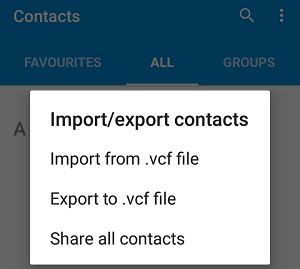
4. Select your phone's internal storage as the export destination.
5. Confirm the operation and wait for the VCF file to be created.
Step 2. Send the VCF File to Your New Samsung Phone
1. Open the file manager on your old Samsung phone.
2. Find the exported VCF file, usually stored in the internal storage.
3. Select the file and tap "Share".
4. Choose a transfer method, such as Quick Share, email, or another available sharing option.
5. If you use Quick Share, select your new Samsung phone and accept the incoming file on that device.
Step 3. Import the VCF File on Your New Samsung Phone
1. Open the received VCF file on your new Samsung phone.
2. When prompted, choose to import the contacts.
3. Select where you want to save the contacts, such as your phone or Google account.
4. Wait for the import process to finish.
5. Open the Contacts app to verify that the contacts have been added.
Limitations:
- You need to export and import the VCF file manually.
- The file must be transferred to the new phone before you can import the contacts.
- If you have many contacts, the exported file may be relatively large.
- You may need to check for duplicate contacts after importing.
Part 6. How to Transfer Contacts Between Samsung Phones by iReaShare Phone Transfer
If you want a more direct way to move contacts between two Samsung phones, you can try iReaShare Phone Transfer. It is a desktop-based phone migration tool that supports data transfer between mobile phones, including Android and iOS devices. With this tool, you can directly copy contacts from one Samsung phone to another without exporting and importing a VCF file manually. It also supports transferring other data types.
Main Features of iReaShare Phone Transfer:
- Transfer contacts directly between two Samsung phones.
- Support data migration between Android and Android, Android to iOS, iOS to Android, and iOS to iOS.
- Allow you to select specific data types before transferring.
- Support USB connections and Wi-Fi connections for Android-to-Android transfers.
- Transfer other data, including contacts, text messages, call logs, photos, videos, music, and apps.
- Work with Android 6.0 or later and iOS 5.0 or higher.
Steps to transfer contacts from Samsung to Samsung with iReaShare Phone Transfer:
-
Download and install iReaShare Phone Transfer on your Windows PC or Mac. Launch the program after installation.
-
Connect your old and new Samsung phones to the computer using USB cables. Follow the on-screen instructions to enable USB debugging on both devices and grant the necessary connection permissions.
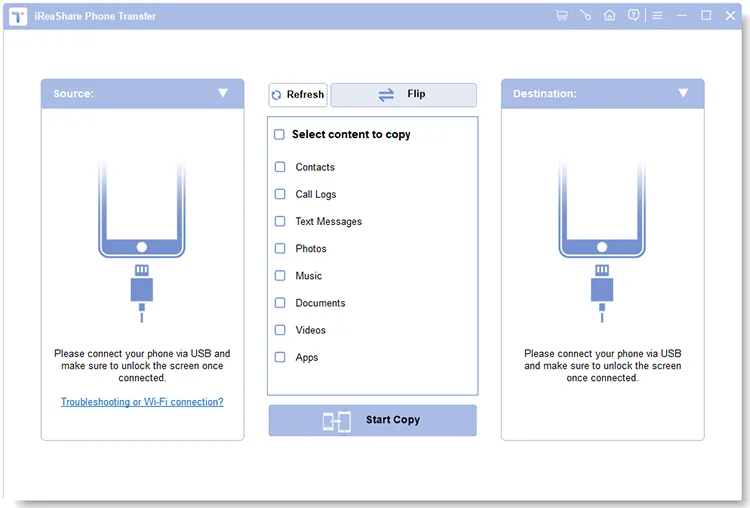
If you prefer wireless connectivity, you can use the Wi-Fi connection option for Android-to-Android transfer. Make sure both phones and your computer are connected to the same network, then follow the program's instructions to connect the devices.
-
Once both devices are connected, check whether your old Samsung phone is displayed as the Source device and your new Samsung phone is displayed as the Destination device. If their positions are incorrect, click "Flip" to switch them.
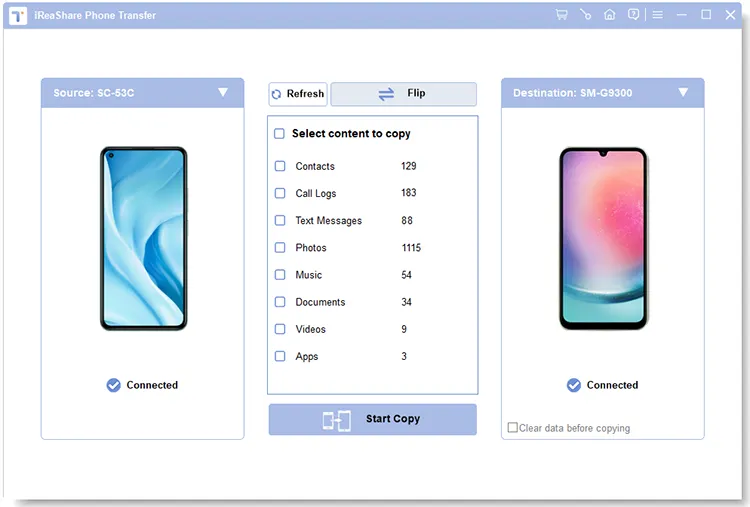
-
Check the "Contacts" option from the available data categories. You can also select other supported data types if you want to transfer more content. Then click "Start Copy" to begin the transfer.
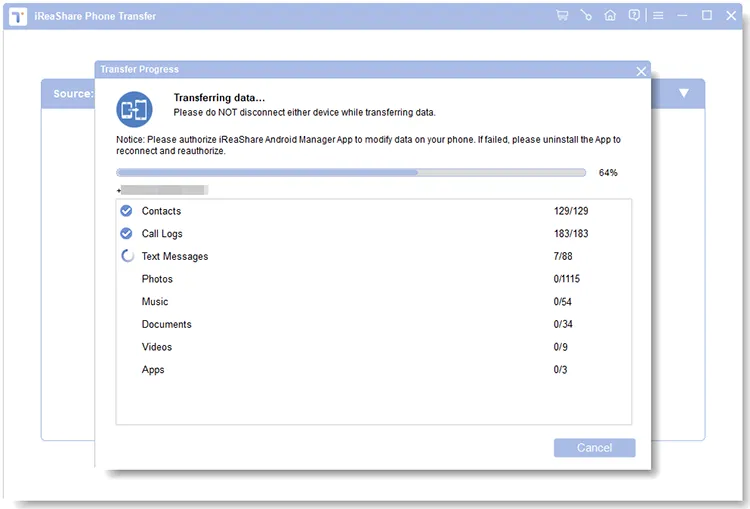
You can also watch the following video tutorial to learn how to transfer contacts and other data between Samsung phones using iReaShare Phone Transfer.
Limitations:
- You need a Windows PC or Mac to run the desktop software.
- Both Samsung phones must be connected and recognized by the software before transferring.
- The full functionality may require purchasing a license.
- USB transfer requires compatible cables and enabling the necessary connection permissions.
Conclusion
Moving your contacts to a new Samsung phone doesn't have to be a complicated task. By choosing the right transfer method and following the steps carefully, you can keep your important names and phone numbers accessible without adding them one by one. Before finishing, remember to check the contact list on your new device to make sure everything has been transferred correctly.
If you still have trouble moving your contacts or want a simpler way to migrate other phone data at the same time, give iReaShare Phone Transfer a try. It offers a convenient way to transfer selected data between Samsung phones, helping you complete the switch with less manual work.
Related Articles
How to Transfer Files from Old Samsung to New Samsung
Samsung Contacts Backup: Easily Back Up Samsung Contacts via 5 Methods
How to Transfer Contacts to New Phone Without A Hitch (5 Ways)
How to Transfer Contacts from Android to Android: 6 Practical Solutions