TL;DR:
The easiest way to transfer data from Samsung to Samsung is using Samsung Smart Switch wirelessly or via a USB cable. If Smart Switch gets stuck at 99%, runs too slow, or fails over Wi-Fi, using iReaShare Phone Transfer on a computer gives you a faster, more stable USB transfer without losing data.
Got a new Samsung Galaxy phone and want to move your photos, contacts, messages, apps and more from your old device? Transferring files between Samsung phones is quick and simple. Here are 5 tested methods to transfer data from Samsung to Samsung without losing any files.
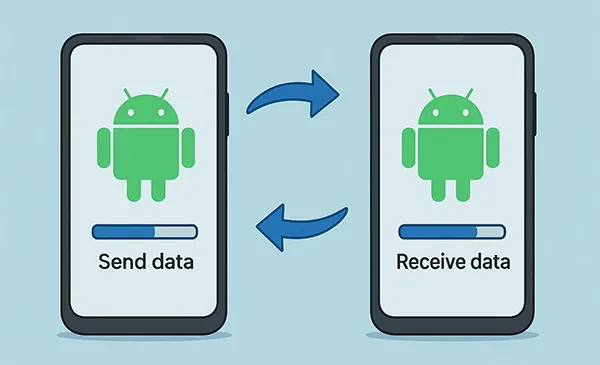
- Method 1: Transfer Data from Samsung to Samsung via iReaShare Phone Transfer (USB Cable)
- Method 2: Move Data from Samsung to Samsung with Samsung Smart Switch
- Method 3: Transfer Files from Samsung to Samsung Using Samsung Cloud
- Method 4: Share Files Between Samsung Phones via Quick Share
- Method 5: Backup and Restore Samsung Data Using a Computer
- Troubleshooting Common Samsung Data Transfer Errors
- Frequently Asked Questions (FAQs)
What is the Best Way to Transfer Data from Samsung to Samsung?
| Transfer Method | Speed | Connection | Works After Setup? | Best Used For |
|---|---|---|---|---|
| iReaShare Phone Transfer | Very Fast | Wi-Fi / USB Cable | Yes (Zero Overwriting) | Large file transfers, avoid Smart Switch stuck errors, complete data copy |
| Samsung Smart Switch App | Fast | Wi-Fi / USB Cable | Yes | Full phone-to-phone data migration |
| Samsung Cloud / Google Drive | Slow | Wi-Fi / Mobile Data | Yes | Backing up contacts, call logs, and basic settings |
| Quick Share | Very Fast | Wi-Fi / Bluetooth | Yes | Sending specific photos, videos, or documents |
| Smart Switch for PC | Fast | USB Cable | Yes | Backing up old Samsung data to a computer first |
Method 1: Transfer Data from Samsung to Samsung via iReaShare Phone Transfer (USB Cable)
When you transfer large photo galleries or long videos over Wi-Fi, the connection can drop or freeze. If Smart Switch runs slowly or stops working, a simple desktop tool like iReaShare Phone Transfer offers a smooth USB transfer solution.
It links both Samsung phones directly to your PC or Mac using cables, avoiding network drops and copying all your files safely. It scans, reads, and transfers your files directly between devices without relying on internet bandwidth or cloud servers.
Why Use iReaShare Phone Transfer?
- Stable Cable Transfer: Connects via USB cables, so the transfer won't stop midway due to weak Wi-Fi.
- Supports Most File Types: Moves contacts, photos, text messages, videos, call history, music, apps, and documents from Android to Android.
- No Data Loss: Safely copies files to your target phone without overwriting your current settings or local files.
- Four Transferring Modes: Android to Android, Android to iOS, iOS to Android, and iOS to iOS.
- Easy to Use: Clear 1-click interface that requires no technical skill.
- Full iOS & Android Compatibility: Works smoothly across all Samsung Galaxy series (Galaxy S26/S25/S24/S23, Z Fold/Flip series, A series, Note series, and Galaxy Tabs) running Android 6.0 to the latest Android 17/16 and One UI versions, .
Steps to Transfer Data from Samsung to Samsung:
Step 1. Open the Tool
Download and install iReaShare Phone Transfer on your PC or Mac.
Download for Win Download for Mac
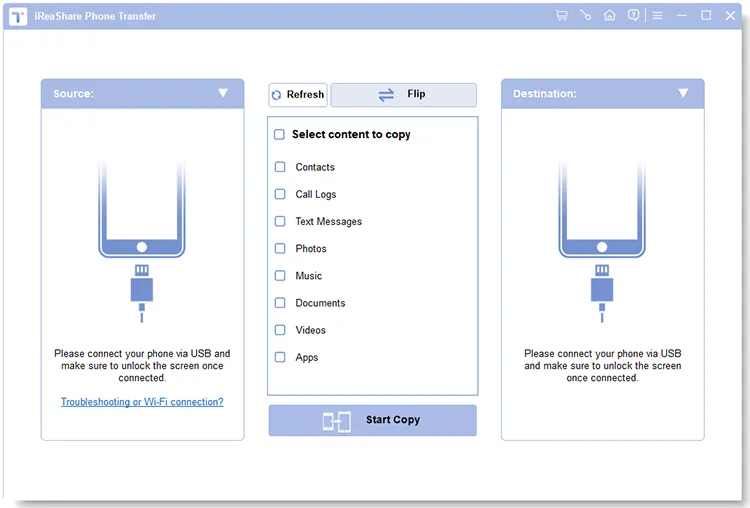
Step 2. Connect Both Samsung Phones
Plug both Samsung devices into your computer using USB cables. Turn on USB Debugging on both phones when prompted. Make sure your old phone is on the left (Source) and the new phone is on the right (Target).
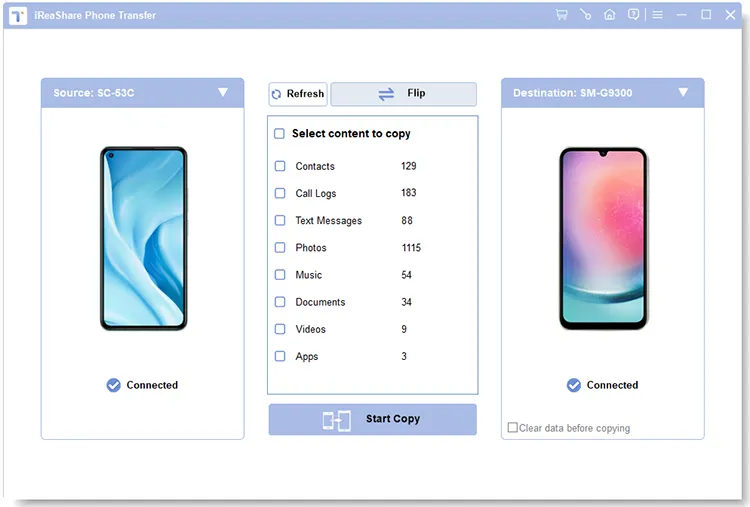
Step 3. Copy Your Data
Check the file boxes you want to transfer (Photos, Messages, Contacts, etc.) and click "Start Copy". Wait a few minutes until the process finishes. Learn more >>
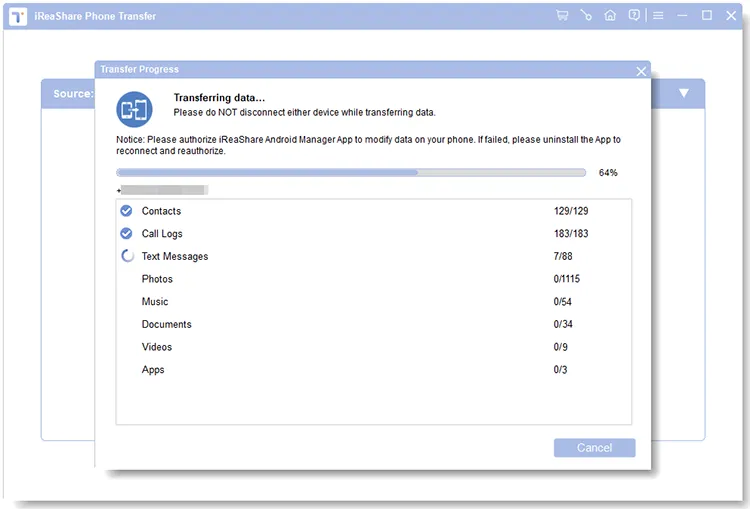
Here's the video guide:
Method 2: Move Data from Samsung to Samsung with Samsung Smart Switch
Samsung Smart Switch is the official free tool pre-installed on most Galaxy devices running One UI. You can copy files wirelessly over Wi-Fi Direct or directly with a USB Type-C cable.
Steps to Smart Switch Data from Samsung to Samsung Wirelessly:
- Place both Samsung phones close to each other (within 4 inches).
- Open Settings > Accounts and backup > Smart Switch on both phones.
- Tap Send data on the old phone and Receive data on the new phone.
- Select Wireless as the connection method.
- Tap Allow on the old phone to connect. Select what you want to copy (Everything, Just accounts/calls/contacts/messages, or Custom) and tap Transfer.
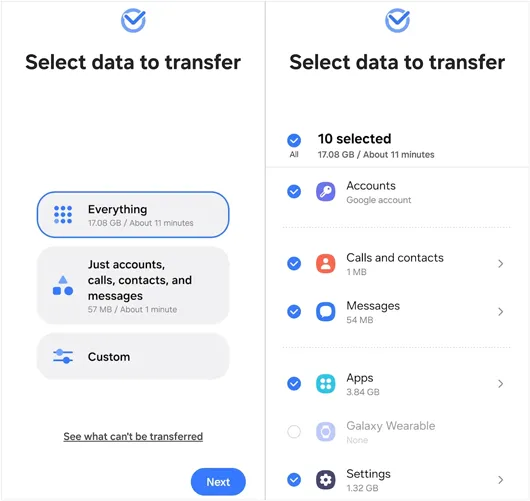
Steps to Smart Switch Data from Samsung to Samsung with a USB Cable:
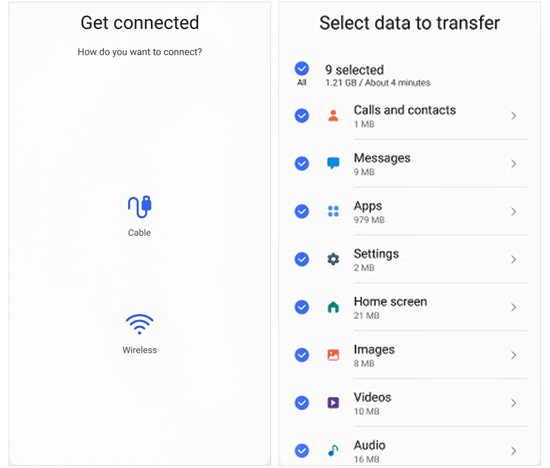
- Connect both Samsung phones using a USB Type-C to Type-C cable.
- Open Smart Switch on both devices and choose the Cable option.
- Confirm the connection prompt on your old phone, choose your data categories, and tap Transfer.
Method 3: Transfer Files from Samsung to Samsung Using Samsung Cloud
If you don't have both phones with you at the same time, you can back up your old Samsung device to Samsung Cloud and restore the data to your new Galaxy phone later.
Here's how:
- On your old Samsung phone, open Settings > Accounts and backup.
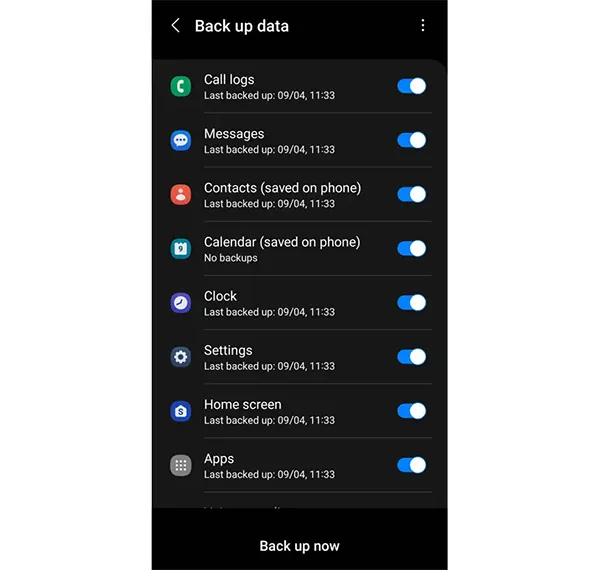
- Under Samsung Cloud, tap Back up data. Select items like contacts, call logs, messages, and settings, then tap Back up now.
- On your new Samsung phone, log in to the same Samsung Account.
- Go to Settings > Accounts and backup > Restore data, select your backup, and tap Restore.
Method 4: Share Files Between Samsung Phones via Quick Share
When you only need to transfer specific photos, a few video clips, or work documents to another Samsung phone, Samsung's native Quick Share feature offers rapid local file sending.
Here's how:
- Swipe down from the top of the screen on both Samsung phones and turn on Quick Share. Set visibility to "Anyone nearby" or "Contacts only".
- Open the Gallery or My Files app on your old Samsung phone and select the files you wish to transfer.
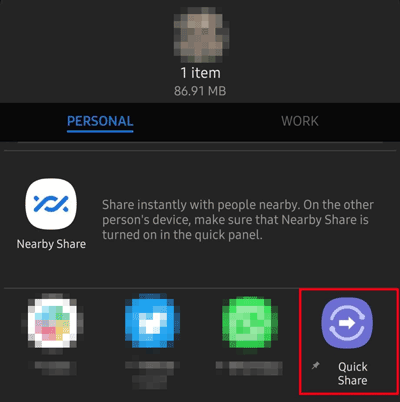
- Tap Share > Quick Share, then select your new Samsung phone from the scanned device list.
- Tap Accept on your new phone to download the incoming files immediately.
Method 5: Backup and Restore Samsung Data Using a Computer
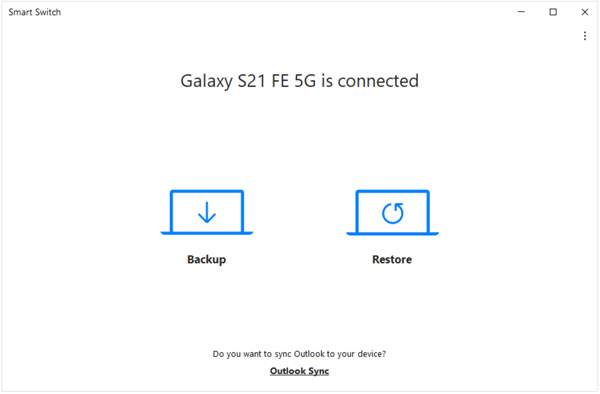
If you want to save a complete backup copy of your old Samsung phone to your desktop computer before setting up your new device, you can use the desktop client of Smart Switch.
Here's how:
- Download and install Smart Switch for PC or Mac on your computer.
- Connect your old Samsung phone to the computer using a USB cable and click Backup on the screen.
- Once the backup is finished, unplug the old phone and plug in your new Samsung phone.
- Click Restore > Select your backup data, then click Restore now to copy the files to your new device.
Troubleshooting Common Samsung Data Transfer Errors
How to Fix Smart Switch Stuck at 99%
If Smart Switch stops working or gets stuck at 99%, try these simple fixes:
- Clear App Cache: Go to Settings > Apps > Smart Switch > Storage, then tap Clear Cache on both phones.
- Turn Off Wi-Fi Power Saving: Turn off Battery Saver mode on both devices during the transfer.
- Use USB Transfer Instead: If Wi-Fi fails, plug both devices into a computer and use iReaShare Phone Transfer to move files over USB.
How to Transfer Data from a Broken Screen Samsung Phone
If the touch screen on your old Samsung phone does not work, plug a USB mouse into the phone using an OTG adapter to unlock it. Then connect it to a PC and use transfer software to extract your data.
How to Move WhatsApp Data to a New Samsung Phone
Open WhatsApp on your old Samsung phone, go to Settings > Chats > Transfer chats, scan the QR code with your new Samsung phone, and follow the steps to move your chat history.
Frequently Asked Questions (FAQs)
Can I transfer data from Samsung to Samsung after setup?
Yes. You can run Samsung Smart Switch or iReaShare Phone Transfer anytime after setting up your phone. You do not need to reset your new Galaxy device to transfer files.
How long does it take to transfer data between Samsung phones?
Transfer time depends on how much data you have. For 64 GB of files, Wi-Fi transfers usually take about 30 minutes. A USB transfer with a computer takes around 10 to 15 minutes.
Does transferring data delete files from my old Samsung phone?
No. The transfer process copies your files to the new device. Everything stays safe on your old phone until you erase it yourself.
Summary
Switching to a new Samsung Galaxy phone is easy. For wireless convenience, Samsung Smart Switch and Quick Share are great native tools. If you run into Wi-Fi drops, slow speeds, or Smart Switch freeze errors, using a simple USB cable solution like iReaShare Phone Transfer makes transferring your data fast, safe, and stress-free.
Download for Win Download for Mac
Related Articles:
Easily Back Up Android Phone to PC Without Data Loss [Tested]
Android Backup and Restore Without Effort | 4 Proven Solutions
Recover Deleted Photos on Android With or Without Backup (5 Ways)
Samsung Contacts Backup: Easily Back Up Samsung Contacts via 5 Methods