TL;DR:
Can you directly transfer contacts from Android to iPhone using native Bluetooth pairing? No. While you can pair an Android and an iPhone via Bluetooth for certain tethering functions, Apple's iOS ecosystem intentionally blocks incoming file transfers via the Bluetooth Object Exchange (OBEX) / Object Push Profile (OPP) protocol from non-Apple OS platforms.
What is the best alternative to bypass Bluetooth restrictions? To move contacts smoothly without network dropouts, data corruption, or mandatory factory resets, you can use these proven alternatives:
- Best Overall (1-Click USB Migration): Use iReaShare Phone Transfer to copy all contact records (including photos, emails, job titles, and custom fields) directly between devices without erasing existing data.
- Wireless VCF Export: Export Android contacts as a
.vcf(vCard) file and transfer it via Email, Google Drive, or messaging apps. - Cloud Syncing: Sync contacts across systems using a unified Google Account (CardDAV protocol).
- Setup Migration: Use Apple's "Move to iOS" utility over peer-to-peer Wi-Fi (requires a new or factory-reset iPhone).
- Why Back Up iPhone to Google Drive Instead of iCloud?
- Alternative 1: Safely Transfer Contacts from Android to iPhone without Overwriting via iReaShare (Recommended)
- Alternative 2: Export Android Contacts to iPhone as a VCF File via Email or Cloud
- Alternative 3: Sync Contacts from Android to iPhone Wirelessly via Google Account
- Alternative 4: Move Contacts from Android to iPhone via Move to iOS App During Initial Setup
- Alternative 5: Export SIM Contacts from Android to iPhone Physical Storage
- Detailed Comparison of Contact Transfer Alternatives
- Advanced Troubleshooting for Contact Transfer Failures
- Frequently Asked Questions (FAQs)
Why Direct Bluetooth File Transfer Fails Between Android and iOS
Many users switching from Android to iOS naturally try to select contacts, tap Share > Bluetooth, and send them to a paired iPhone. However, the connection consistently drops, resulting in errors like "Device Not Supported" or "Connection Rejected." To understand why, we must look at the underlying Bluetooth profiles used by each operating system.
1. OBEX / OPP Protocol Blockade on iOS
Android utilizes the open Bluetooth Object Exchange (OBEX) framework and the Object Push Profile (OPP) to send virtual business cards (vCards) wirelessly. Apple intentionally disables incoming OPP/OBEX file listeners on iOS to protect the sandbox environment against untrusted script executions and unauthorized file write requests.
2. PBAP vs. OPP: Why Car Kits Work, But iPhone-to-Android Fails
Users often ask why an iPhone can share contacts with a car's infotainment system over Bluetooth, but not with an Android phone. This is due to profile differences:
- PBAP (Phonebook Access Profile): A read-only profile that allows external audio/car systems to read contact lists for hands-free calling. iOS supports PBAP.
- OPP (Object Push Profile): A read/write profile used to transmit local files between active storage drives. iOS restricts incoming OPP pushes from non-Apple operating systems.
3. Ecosystem Isolation (AirDrop vs. Standard Bluetooth)
Apple replaces standard OBEX Bluetooth file sharing with AirDrop, which combines Bluetooth Low Energy (BLE) for device discovery with high-speed peer-to-peer Wi-Fi Direct for data transmission. Because AirDrop is proprietary to Apple, non-Apple Android devices cannot handshake with it.
Alternative 1: Safely Transfer Contacts from Android to iPhone without Overwriting via iReaShare (Recommended)
When native Bluetooth fails, reliance on slow cloud uploads or complex setup wizards can be frustrating. Using dedicated professional phone data transfer software provides a reliable physical bridge between Android and iOS systems.
iReaShare Phone Transfer is a specialized cross-platform data migration tool engineered to transfer contacts, SMS, call logs, photos, videos, audio, and documents directly between Android and iOS devices without technical barriers.
Key Advantages of iReaShare Phone Transfer:
- Comprehensive Entity & Field Mapping: Unlike basic SIM exports that strip contact details, iReaShare maps and transfers full contact profiles-including first/last names, multiple phone numbers, personal/work email addresses, company names, job titles, home addresses, profile avatars, and custom notes.
- Non-Destructive Data Merging: Safely imports new contact records into your iPhone's database without overwriting or wiping your existing contacts, calendar events, or media files.
- Zero-Cloud Privacy & Local Processing: All data transfers are processed offline through secure local USB pathways on your PC or Mac. Your personal address book is never uploaded to external cloud servers, preventing data leaks.
- High-Speed Endpoint Pipeline: Transmits over 1,000 contact records in under 25 seconds by bypassing wireless network throttles and Bluetooth bandwidth limits.
- Broad OS & Hardware Compatibility: Supports all major Android brands (Samsung Galaxy, Google Pixel, Xiaomi, OnePlus, Motorola, Vivo, OPPO and more running Android 6.0 up to Android 17) and all iOS versions (including iOS 27 on iPhone 17/16/15/14 series).
Steps to Transfer Contacts from Android to iPhone via iReaShare Phone Transfer (Video Guide Included):
Step 1: Install and Launch the Software
Download iReaShare Phone Transfer on your Windows PC or Mac. Open the application.
Download for Win Download for Mac
Step 2: Connect Both Smartphones: Connect your Android device and iPhone to the computer using standard USB cables.
- On Android: Enable USB Debugging via Developer Options when prompted.
- On iPhone: Tap Trust This Computer on the screen and enter your passcode.
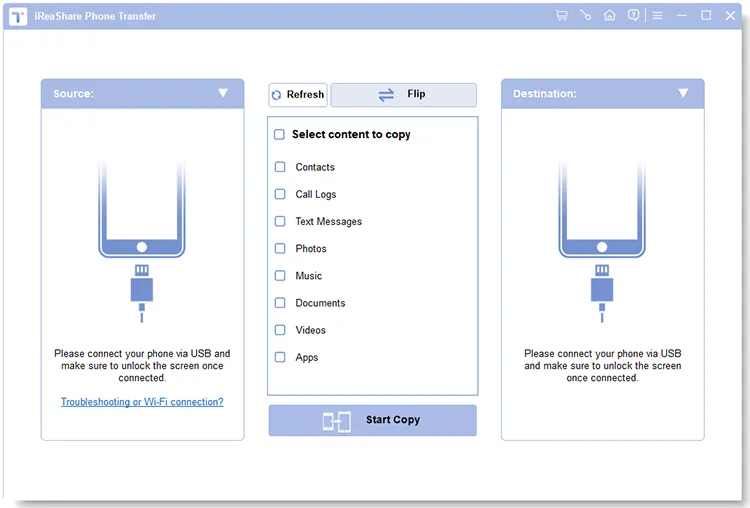
Step 3: Confirm Source and Destination
Verify that your Android phone is detected as the Source Device and your iPhone as the Destination Device. If they are reversed, click the Flip button in the top menu.
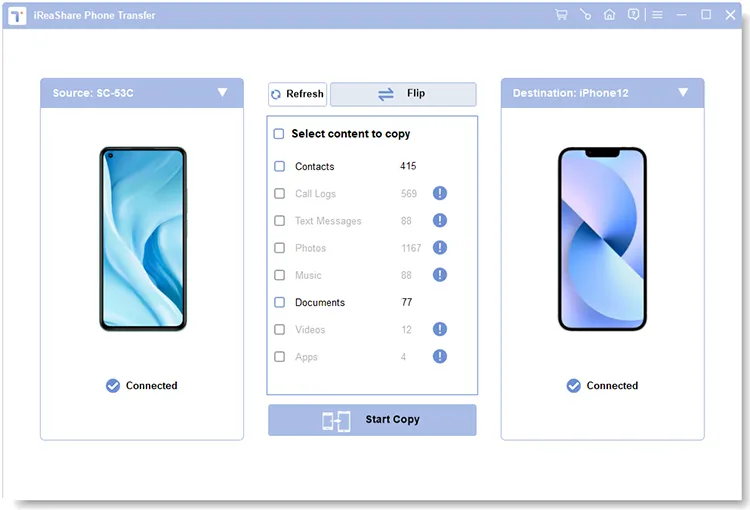
Step 4: Execute 1-Click Contact Transfer
Select Contacts from the central file checklist and click Start Copy. The software will map the database schemas and transfer your complete address book seamlessly.
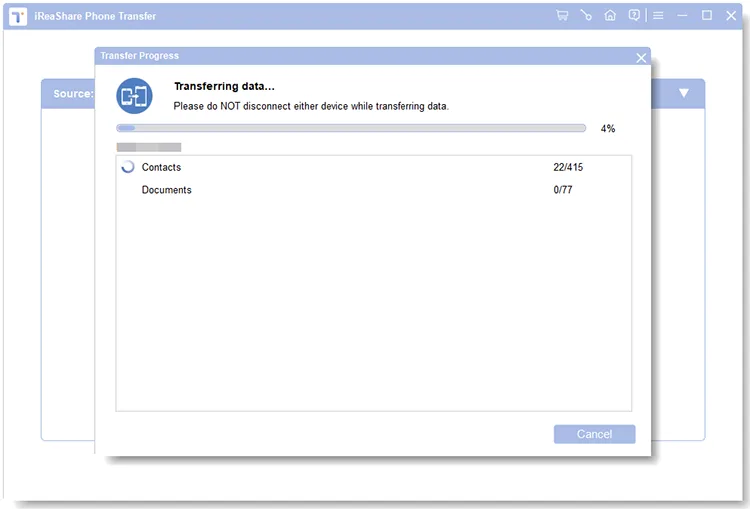
Video Guide:
Alternative 2: Export Android Contacts to iPhone as a VCF File via Email or Cloud
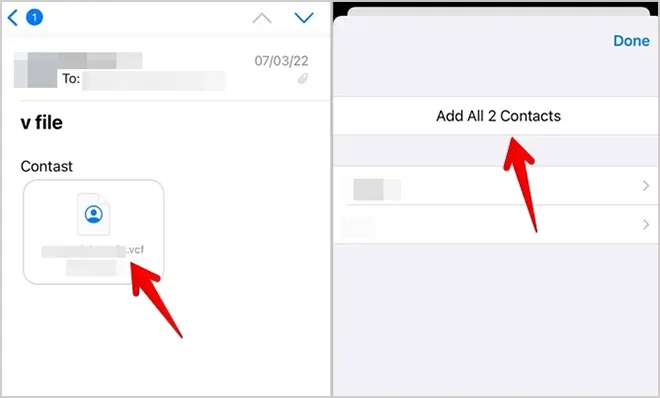
If you prefer a manual, wireless approach without direct device-to-device Bluetooth connectivity, exporting your Android address book to a standardized .vcf (vCard) file is a flexible option.
Steps to Export and Import vCard (.vcf) Files:
- Open the native Contacts app on your Android device.
- Tap Fix & Manage or Settings > Import/Export > Export to file.
- Save the contact list as a
.vcffile to your internal storage. - Attach this
.vcffile to an email sent to yourself, or upload it to a cloud drive (e.g., Google Drive, OneDrive). - Open the Email app or Cloud drive on your iPhone, tap the
.vcffile, and tap Add All Contacts to import them into your iOS address book.
Alternative 3: Sync Contacts from Android to iPhone Wirelessly via Google Account
For users who maintain their address book in the cloud, syncing via a Google Account leverages the CardDAV protocol to update contact lists across devices without manual file exports.
Steps to Configure Google Contact Sync on iOS:
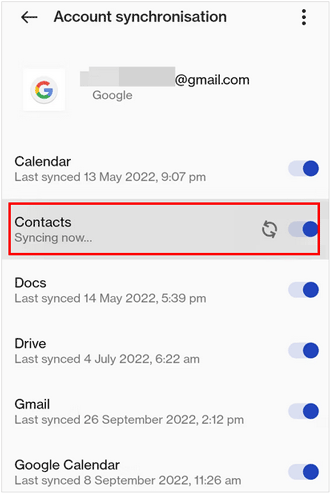
- On Android: Go to Settings > Accounts / Google > Select your primary Gmail account > Ensure Contacts Sync is enabled.
- On iPhone: Navigate to Settings > Mail / Contacts > Accounts > Add Account.
- Choose Google and log in with your Gmail credentials.
- Toggle the Contacts slider to ON. iOS will link to Google's CardDAV server and automatically pull down your contact records.
Alternative 4: Move Contacts from Android to iPhone via Move to iOS App During Initial Setup
If you are setting up a brand-new or freshly formatted iPhone, Apple provides a migration tool called Move to iOS that transfers contacts, photos, and message histories over a private Wi-Fi Direct connection.
Prerequisites & Limitations:
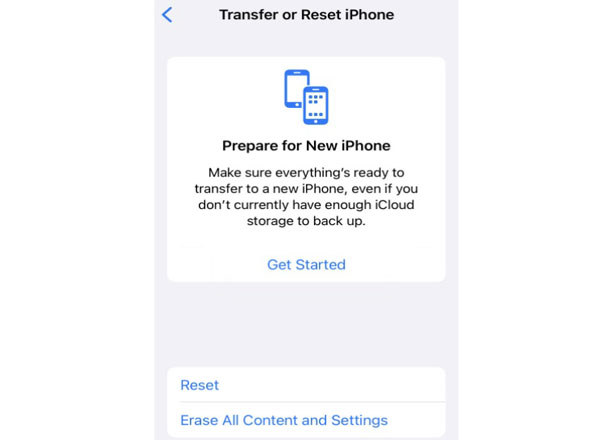
- Factory Reset Constraint: Works only on an iPhone that is on the initial "Hello" setup screen. If your iPhone is already set up, you must erase it via Settings > General > Transfer or Reset iPhone > Erase All Content and Settings, or use iReaShare Phone Transfer to avoid data loss.
- Wi-Fi Network Instability: Both phones must remain connected to a local P2P Wi-Fi network; incoming calls or cellular data switches can interrupt the process.
Steps to Use Move to iOS:
- Install Move to iOS from the Google Play Store on your Android device.
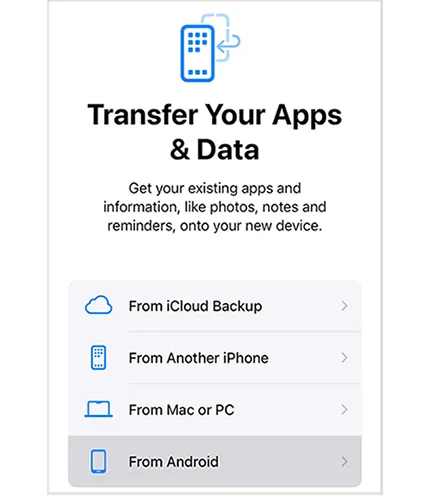
- Power on your iPhone and proceed through initial setup until you reach the Apps & Data (or Transfer Your Data) screen.
- Select From Android and wait for a 6-digit or 10-digit security code to appear.
- Enter the code on your Android device, select Contacts from the data list, and keep both phones side by side until the transfer bar finishes.
Alternative 5: Export SIM Contacts from Android to iPhone Physical Storage
If your contacts are stored directly on a physical Nano-SIM card, you can move the physical SIM into the iPhone to import saved numbers.
Steps for SIM Card Import:
- On Android: Open Contacts > Settings > Export > Select SIM Card to copy phone contacts onto the SIM storage.
- Eject the SIM card from the Android phone and insert it into your iPhone's SIM tray.
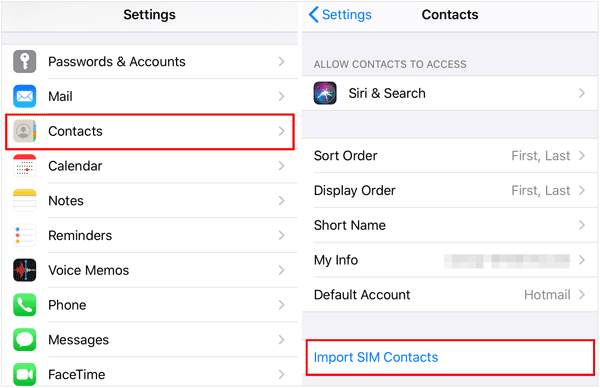
- On iPhone: Go to Settings > Contacts > Tap Import SIM Contacts.
Note: SIM cards typically hold a maximum of 250 contacts and only store basic names and single phone numbers, dropping emails, addresses, and photos. See more: Transfer Contacts from Android to iPhone Without SIM Step by Step
Detailed Comparison of Contact Transfer Alternatives
The following table compares each transfer option across critical parameters including technical protocol, field retention, speed, and privacy:
| Transfer Solution | Preserves Full Contact Fields? | Offline / Private? | Overwrites Target Data? | Speed (1,000 Contacts) | Success Rate |
|---|---|---|---|---|---|
| Direct Bluetooth Pairing | No (Blocked) | Yes | No | N/A (Fails) | 0% (Unsupported) |
| iReaShare Phone Transfer | Yes (100% Fields + Photos) | Yes (Offline USB) | No | < 25 Seconds | 99.9% |
| VCF File Sharing | Yes (Standard Fields) | Partial (Email/Cloud dependent) | No | 1 - 3 Minutes | 90% |
| Google Account Sync | Yes (Cloud synced fields) | No (Requires Internet) | No | 2 - 5 Minutes | 92% |
| Move to iOS App | Yes | Yes (Local Wi-Fi) | Yes (Requires iPhone Wipe) | 10 - 30 Minutes | 80% |
| SIM Card Swap | No (Names & 1 Number Only) | Yes | No | Instant | 85% |
Advanced Troubleshooting for Contact Transfer Failures
1. Fix: "Bluetooth Connection Rejected" or Pairing Loop
Do not attempt to pair the devices under Settings > Bluetooth on your iPhone. iOS actively rejects incoming OBEX profiles from Android. Instead, use a direct USB software bridge like iReaShare Phone Transfer or export Android contacts as a .vcf file.
2. Fix: Garbled Characters or Broken Names in Imported Contacts
If imported contact names show special symbols (e.g., é instead of é), the VCF file was generated using ISO-8859-1 encoding instead of UTF-8. Re-export the VCF file using standard UTF-8 text formatting, or transfer them directly using iReaShare's cross-platform data management tools to maintain full Unicode compliance.
3. Fix: "Move to iOS" App Freezes at "Preparing..." or Drops Connection
If Apple's Move to iOS app is not working during transfer, try these fixes:
- Turn off Smart Network Switch or Auto-Connect to Wi-Fi on Android settings.
- Enable Airplane Mode on your Android phone, then switch ON Wi-Fi manually to block incoming calls or mobile data interruptions.
- Disable battery saver / optimization modes for the Move to iOS app on Android.
4. Fix: Google Contacts Not Syncing to iPhone
If your Gmail account is added to your iPhone but contacts are missing, check the following:
- Navigate to Settings > Contacts > Accounts > Fetch New Data and ensure push/fetch is set to Active.
- Open
contacts.google.comin a web browser to confirm that your Android contacts are indeed saved to Google Cloud storage and not trapped exclusively on internal phone memory.
Frequently Asked Questions (FAQs)
Q1: Can I use AirDrop to send contacts from Android to an iPhone?
No. AirDrop is an Apple-proprietary feature that uses custom BLE discovery protocols and Wi-Fi Direct framework available only on iOS, iPadOS, and macOS. Android devices cannot discover or broadcast AirDrop endpoints.
Q2: Will transferring contacts using iReaShare delete my existing iPhone contacts?
No. iReaShare Phone Transfer uses a non-destructive database insertion method. It merges newly transferred contact records into your iPhone's address book without wiping existing numbers or media files.
Q3: What should I do if my contacts are stored on the SIM card?
First, open your Android Contacts app, go to Settings > Import/Export, and choose to copy SIM contacts to internal device memory or your Google Account. Once stored locally, you can export them via .vcf or migrate them in bulk using iReaShare Phone Transfer.
Q4: Why are contact photos or custom ringtones missing after cloud sync?
Basic cloud accounts and SIM card storage often discard secondary metadata like custom ringtones, group tags, and high-resolution contact photos due to sync payload compression. USB desktop transfer tools preserve local database structures to maintain these extra fields.
Final Verdict
Although system-level restrictions prevent transferring contacts directly from Android to iPhone via Bluetooth, relying on unsupported pairing attempts is unnecessary. For users setting up a brand-new device, Move to iOS offers a wireless path during initial setup.
However, for a fast, reliable, 1-click solution that preserves data fields and works without wiping existing iPhone files, iReaShare Phone Transfer remains the most efficient choice for cross-platform contact migration.
Download for Win Download for Mac
Related Articles:
How to Easily Back Up Contacts on Android Device (5 Viable Ways)
How to Sync Contacts from iPhone to Mac with Ease
How to Transfer Contacts from Android to iPhone in 5 Ways (Proven)
How to Transfer Contacts from iPhone to Android via Bluetooth (Answered)