


TL;DR:
Wondering how to retrieve deleted videos from iPhone? You can first check the Recently Deleted album or iCloud Photos to restore videos without a computer. If you have an older iCloud or iTunes/Finder backup, you can also retrieve missing videos from it. Alternatively, Data Recovery provides another option to scan your iPhone or existing backups, preview recoverable videos, and selectively export them to a computer.
Videos on an iPhone often capture important memories, special occasions, and valuable moments. However, accidental deletion, mistaken cleanup, or unexpected device issues can cause these recordings to disappear. Losing these videos can be frustrating, especially when you don't have another copy.
If you're wondering how to retrieve deleted videos from iPhone, the good news is that recovery may still be possible. Depending on how the videos were deleted and whether you have an available backup, you can try several methods to get them back. Read on to find the most suitable solution.
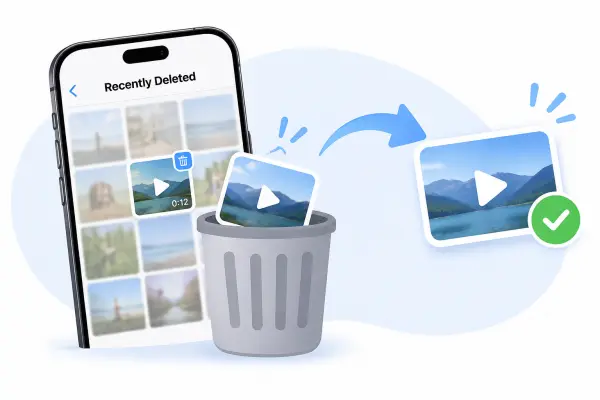
Part 1. How to Retrieve Deleted Videos from iPhone Without a Computer
If you don't have access to a computer, you can try Apple's built-in recovery options first. The Recently Deleted album is usually the easiest place to start, while iCloud provides another way to check for available copies or backups.
1.1 Recover iPhone Videos from the Recently Deleted Album
When you delete a video from the Photos app, it is normally moved to the Recently Deleted album rather than removed immediately. Apple keeps deleted photos and videos there for up to 30 days, giving you time to restore them. This is the simplest way to retrieve deleted videos from an iPhone without using additional software.
Here are the steps:
Step 1. Open the Photos app on your iPhone.
Step 2. Tap "Collections" and scroll down to the Recently Deleted album under Utilities. Depending on your iOS version, you may find it under Albums.
Step 3. Tap "View Album" and unlock it using Face ID, Touch ID, or your passcode.
Step 4. Browse the deleted items and select the video you want to restore.
Step 5. Tap the "More" button and choose "Recover". Confirm your selection to restore the video to your photo library.
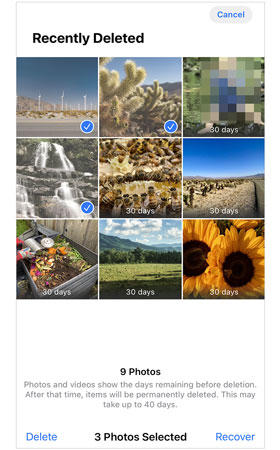
This method only works if the video is still in Recently Deleted. Items are generally removed automatically after 30 days. If you manually delete a video from this album, it cannot be restored through this feature.
1.2 Recover Deleted Videos from iPhone with iCloud Photos
If you use iCloud Photos, your videos can sync across your iPhone and other Apple devices signed in with the same Apple account. You can also check iCloud.com to see whether the deleted video is still available in Recently Deleted.
Follow these steps:
Step 1. Open a browser on your iPhone and visit iCloud.com.
Step 2. Sign in using the Apple account associated with your iPhone.
Step 3. Select "Photos" to access your iCloud photo library.
Step 4. Open "Recently Deleted" from the sidebar or available collections.
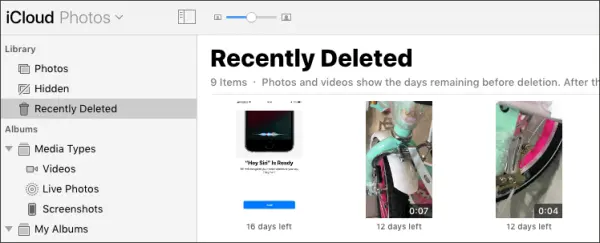
Step 5. Find and select the deleted video you want to retrieve.
Step 6. Tap "Recover" to restore it to your iCloud Photos library. Once recovered, the video should sync back to your iPhone if iCloud Photos is enabled.
iCloud Photos is a synchronization service, not an independent backup archive. When you delete a video from one device, the deletion usually syncs to your other devices using the same Apple Account. Therefore, checking iCloud.com is most useful when the video is still in Recently Deleted or has not yet been deleted from the synced library.
1.3 Restore iPhone Deleted Videos from an iCloud Backup
If you enabled iCloud Backup before deleting your videos, you may be able to retrieve them by restoring an earlier backup. This option is particularly useful when the videos are no longer available in Recently Deleted.
However, there is one important condition: iCloud Backup generally includes photos and videos stored in your iPhone's photo library only when iCloud Photos is turned off. If iCloud Photos was enabled, those items are synced separately and aren't included in the device backup.
If your backup contains the missing videos, follow these steps:
Step 1. Open "Settings" on your iPhone and tap "General".
Step 2. Select "Transfer or Reset iPhone" > "Erase All Content and Settings".
Step 3. Follow the setup instructions after your iPhone restarts.
Step 4. When the Transfer Your Apps & Data screen appears, select "From iCloud Backup" or the equivalent restore option.
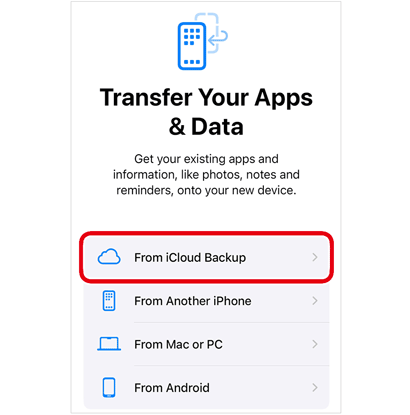
Step 5. Sign in with your Apple account.
Step 6. Choose an iCloud backup created before the videos were deleted. Wait for the restoration process to finish, keeping your iPhone connected to Wi-Fi and power.
Restoring an iCloud backup requires erasing your current iPhone first. Any data created after the selected backup may be lost unless it has been backed up or synced separately. Before proceeding, make a current backup and verify that the older backup actually contains the videos you need.
Part 2. How to Retrieve Deleted Videos from iPhone with a Computer
If you can't find your missing videos in Recently Deleted or iCloud Photos, using a computer may give you more recovery options. You can restore an existing iTunes/Finder backup or use a dedicated recovery tool to scan your iPhone and available backups.
2.1 Get Missing Videos Back on iPhone from an iTunes/Finder Backup
If you previously backed up your iPhone to a computer, you can try restoring the backup to retrieve your deleted videos. Unlike iCloud Backup, a computer backup may contain your Photos library if iCloud Photos wasn't enabled when the backup was created. Before starting, make sure you have a backup created before the videos disappeared. Then follow the appropriate steps for your computer.
On a Windows PC or an older Mac:
Step 1. Connect your iPhone to the computer and launch iTunes.
Step 2. Click the iPhone icon when your device appears.
Step 3. Open the "Summary" section.
Step 4. Click "Restore Backup".
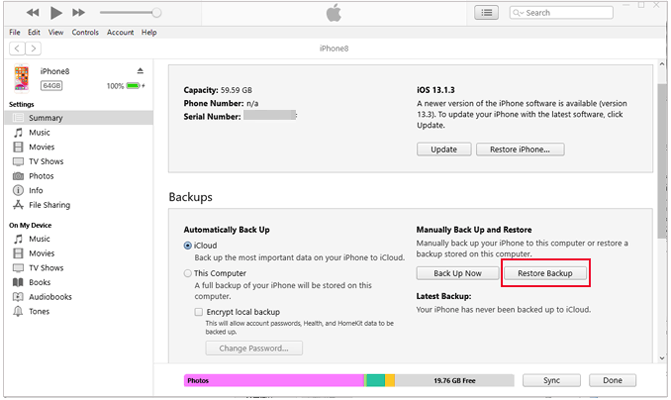
Step 5. Select the appropriate backup from the available list.
Step 6. Enter the backup password if necessary and click "Restore". Keep your iPhone connected until the restoration is complete.
On a Mac:
Step 1. Connect your iPhone to your Mac using a USB cable.
Step 2. Open Finder and select your iPhone under Locations.
Step 3. Click the "General" tab.
Step 4. Select "Restore Backup".
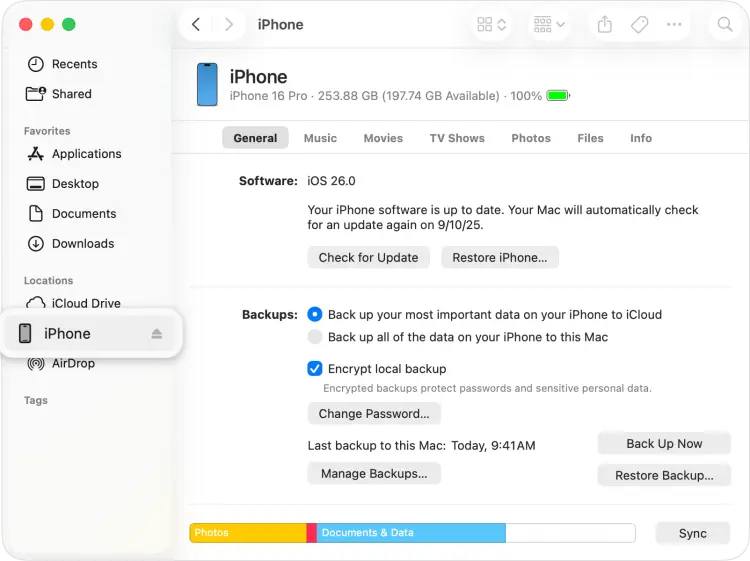
Step 5. Choose a backup created before you deleted the videos.
Step 6. If prompted, enter the backup password if it is encrypted.
Step 7. Click "Restore" and wait for the process to finish.
Restoring an iTunes/Finder backup replaces the current data on your iPhone with the data from that backup. Any files created after the backup may be overwritten. Also, computer backups don't include content already synced to iCloud, such as iCloud Photos. Therefore, check your backup settings and create a separate copy of your current data before restoring.
2.2 Retrieve Deleted Videos from iPhone Using Data Recovery
If you cannot find your deleted videos in Recently Deleted and don't have a suitable backup to restore, you can try a professional iPhone data recovery tool. Data Recovery offers three recovery options: scanning an iPhone directly, extracting data from an iTunes backup, and recovering from iCloud. With these options, you can look for missing videos from different data sources, preview available results, and selectively export the files you need without necessarily restoring an entire backup to your iPhone.
Key Features of Data Recovery:
- Supports recovering various types of iOS data, including photos, videos, messages, and other files.
- Provides three recovery options for checking an iOS device, iTunes backups, and accessible iCloud data.
- Allows you to preview available recovery results before selecting files.
- Supports selective recovery and exporting files to a computer.
- Compatible with Windows and macOS, and supports the latest iPhone 17 series and iOS 27.
Option 1. Recover Deleted Videos from iPhone Directly
If you don't have a backup containing your missing videos, you can first scan your iPhone directly. This option checks the device for available recoverable video data, allowing you to preview the scan results before exporting selected files.
Follow these steps:
-
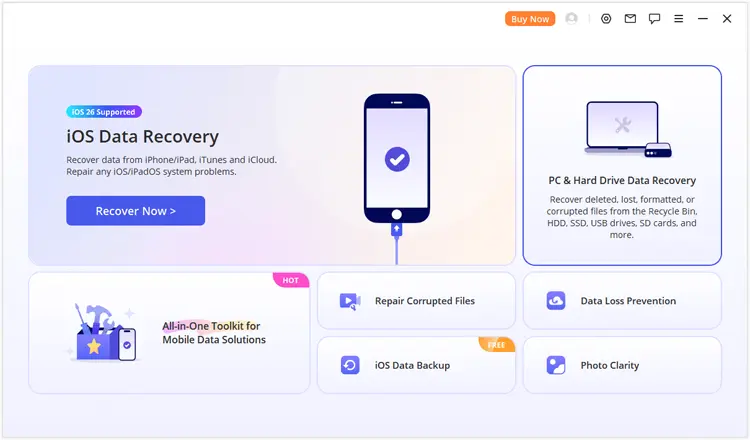
Download and install Data Recovery on your computer. Launch the program and select "iOS Data Recovery" from the main interface.
-
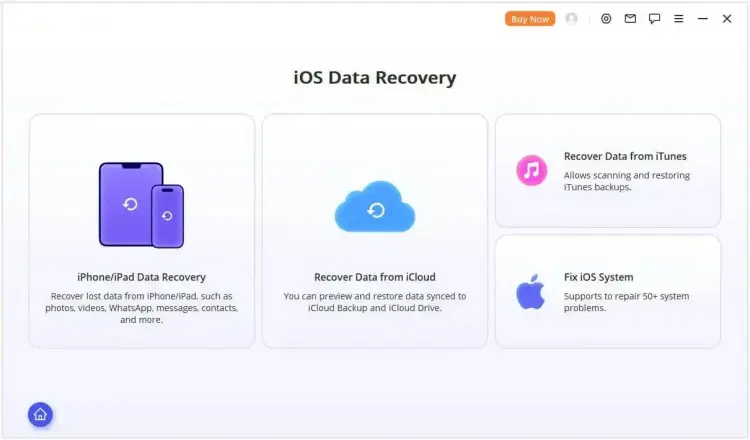
Choose the device recovery option to enter the "iPhone/iPad Data Recovery" module.
-
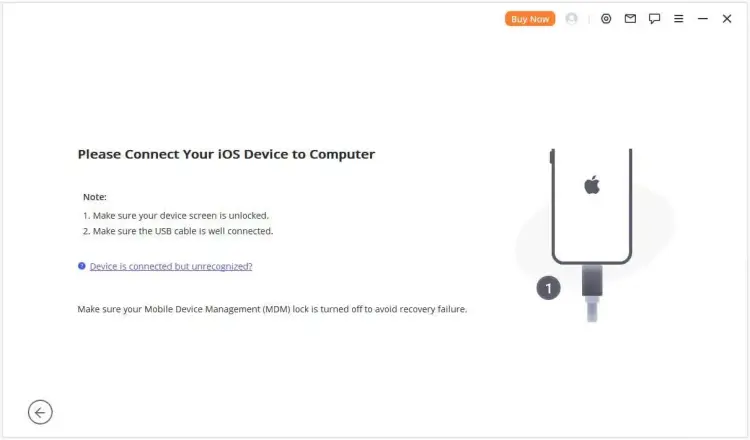
Connect your iPhone to the computer using a USB cable. Once Data Recovery detects your device, click "Next" to continue.
-
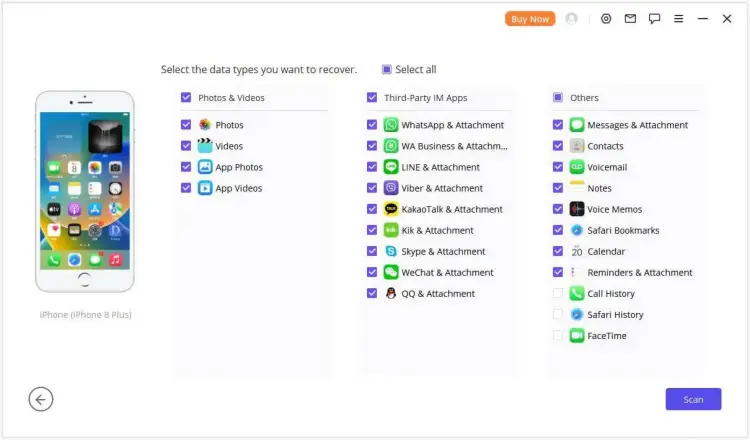
Select "Videos" from the available data categories and click "Scan" to search your iPhone for recoverable videos.
-
After the scan finishes, browse and preview the available video results. Select the videos you want to retrieve, then click "Recover to Computer" or "Recover to Device" to save them.

Option 2. Retrieve Deleted Videos from an iTunes Backup
If you created an iTunes backup before deleting your videos, you can use Data Recovery to examine the backup and extract available video files. Unlike Apple's built-in restoration process, this option lets you preview and selectively export supported data without restoring the entire backup to your iPhone.
Here's how:
-
Launch Data Recovery on your computer and select "Recover Data from iTunes" from the available recovery options.
-
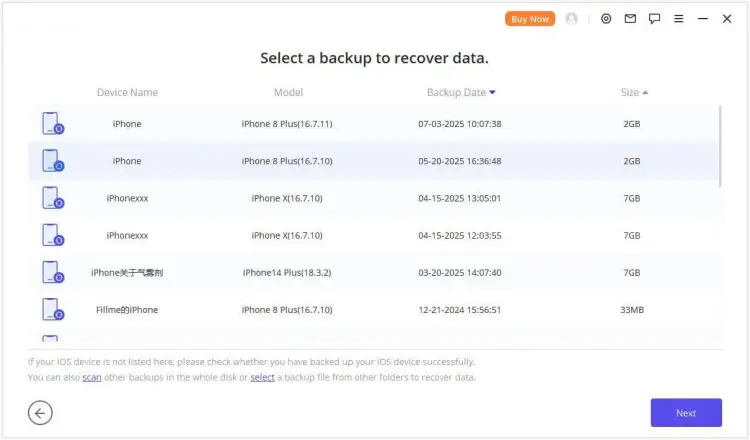
Choose the iTunes backup that may contain your deleted videos and click "Next" to proceed.
-
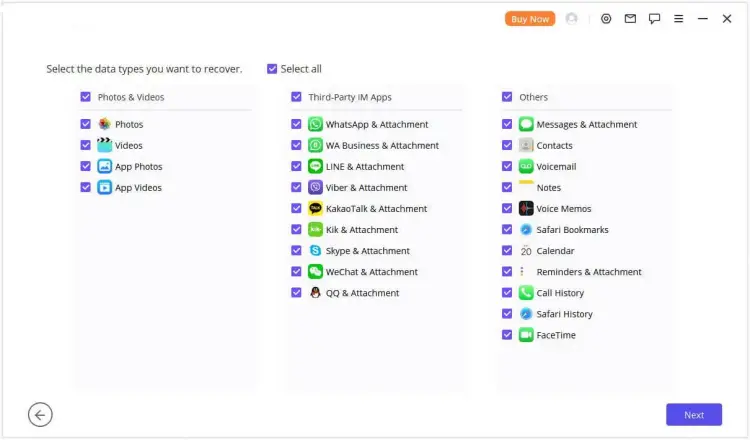
Select "Videos" as the data category you want to retrieve, then click "Scan" to examine the selected backup.
-
Once the scan is complete, preview the available video results to identify the recordings you need. Select the desired files and click "Recover to Computer" or "Recover to Device" to export them.
Option 3. Recover Deleted Videos from an iCloud Account
If your videos were synced with iCloud, you can also try checking your iCloud account through Data Recovery. This option allows you to scan accessible iCloud data and retrieve supported video files without erasing your iPhone or restoring an entire iCloud backup.
Follow these steps:
-
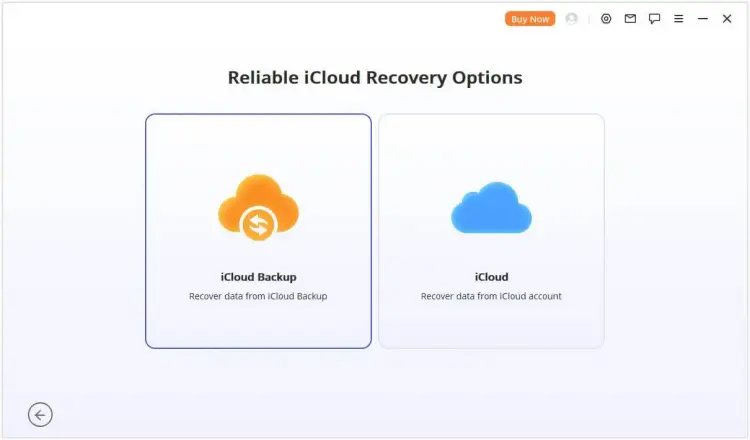
Open Data Recovery on your computer. Select "Recover Data from iCloud", choose the "iCloud" option, and enter your Apple Account credentials as prompted.
-
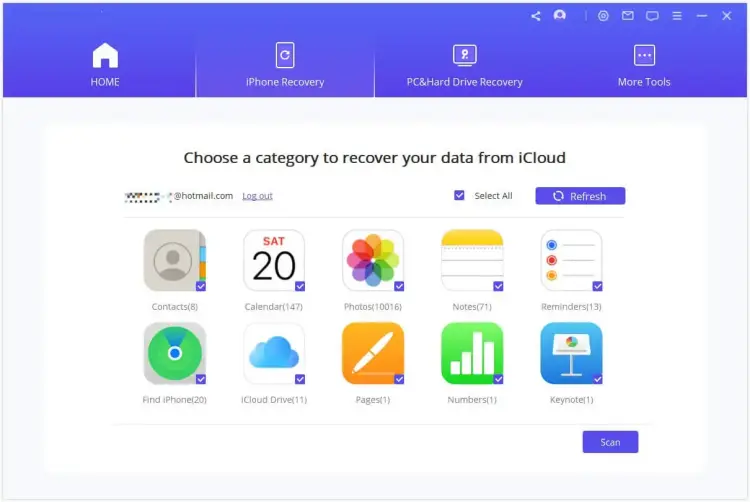
After signing in, select "Photos" from the available data categories (The video is categorized under "Photos"). Click "Scan" in the lower-right corner to check the accessible iCloud data.
-
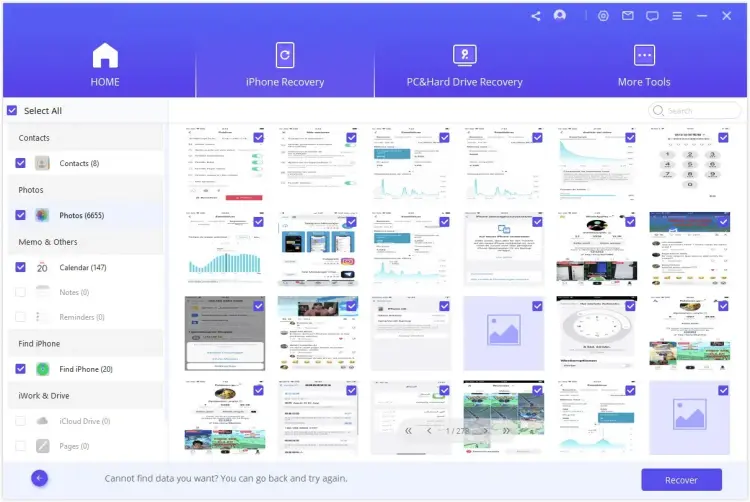
When the scan is complete, browse and preview the available videos. Select the files you want to retrieve, click "Recover", and choose a destination folder on your computer. Once the export finishes, open the folder to check your recovered videos.
FAQs About iPhone Videos Recovery
1. When you delete a video on iPhone, is it gone forever?
No. Deleted videos are usually moved to the Recently Deleted album instead of being removed immediately. They remain there for up to 30 days, during which you can restore them to your Photos library. After that, they are automatically deleted from the album.
2. Why can't I find a deleted video in my Recently Deleted album?
Besides permanent deletion or expiration of the retention period, the video may be missing due to iCloud synchronization issues, a different Apple account, or changes in your photo library. Check whether you're signed in with the correct Apple account and whether iCloud Photos is enabled.
3. How to prevent video loss on an iPhone in the future?
To avoid losing important videos, enable iCloud Photos or regularly back up your iPhone to iCloud or a computer. You can also transfer valuable recordings to an external hard drive or cloud storage service. Additionally, review videos carefully before deleting them and avoid emptying the Recently Deleted album unless you're sure you no longer need those files.
Conclusion
In conclusion, losing videos from your iPhone doesn't necessarily mean those precious memories are gone forever. With the right recovery approach, you may still have a chance to get them back. Whether you use Apple's built-in features or Data Recovery to explore additional recovery options, choose the method that best suits your situation. More importantly, make regular backups of your important videos to protect them from unexpected loss in the future.
Related Articles
How to Recover Deleted Photos on iPhone with/without Backup
How to Restore iPhone from Backup? iCloud & iTunes Methods
How to Recover Deleted Notes on iPhone (With or Without Backup)
How to Restore iPhone from iCloud Backup in Different Situations?