


TL;DR:
To recover deleted photos on iPhone, first check the Recently Deleted album in the Photos app or on iCloud.com, where deleted items remain for up to 30 days. If the photos are no longer available there, you can try Data Recovery to scan your iPhone directly or extract photos from an existing backup. Alternatively, restore an iCloud, iTunes, or Finder backup created before the photos were deleted.
Accidentally deleting important photos from your iPhone can be frustrating, especially when they contain precious memories or important information. Fortunately, deleted pictures are not always gone permanently, and several recovery options may help you get them back.
Whether you have a backup or not, there are different ways of how to recover deleted photos on iPhone. In this article, we'll walk you through seven practical methods, from using built-in iOS features to restoring backups and trying a professional recovery tool.
Part 1. How to Recover Deleted Photos on iPhone Without Backup
If you haven't backed up your iPhone before deleting your photos, don't worry. You can first check the Recently Deleted album or iCloud Photos. If neither contains the pictures you need, a third-party recovery tool may offer another option. (Photos disappeared from iPhone?)
1.1 How to Get Recently Deleted Photos Back on iPhone via Photos App
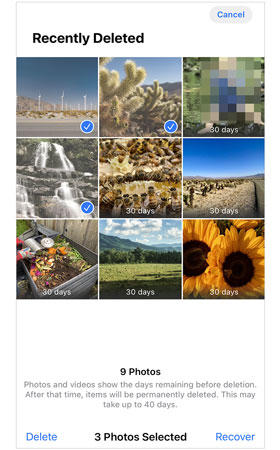
When you delete a photo or video on your iPhone, it is moved to the Recently Deleted album instead of being removed immediately. Apple keeps these items for up to 30 days, giving you time to restore anything you deleted accidentally. After that, they are permanently deleted from this album.
Here's how to get your photos back:
Step 1. Open the Photos app on your iPhone.
Step 2. Tap "Collections" at the bottom and scroll down to the "Recently Deleted" album under Utilities.
Step 3. Tap "View Album" and unlock it with Face ID, Touch ID, or your passcode.
Step 4. Tap "Select" and choose the photos you want to restore.
Step 5. Tap the "More" button and select "Recover". Confirm your choice, and the selected pictures will return to your photo library.
1.2 How to Recover Deleted Pictures from iPhone via iCloud.com
If you use iCloud Photos, your pictures are synced across your Apple devices and iCloud.com. Therefore, you can also check the Recently Deleted album on the iCloud website to recover missing pictures without restoring an entire iPhone backup.
Follow these steps:
Step 1. Open a browser on your computer and visit iCloud.com.
Step 2. Sign in with the same Apple account associated with your iPhone.
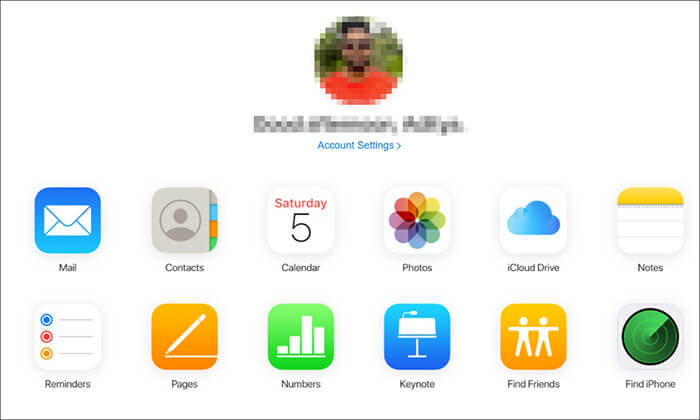
Step 3. Select "Photos" to open your iCloud photo library.
Step 4. Click "Recently Deleted" in the sidebar.
Step 5. Select the pictures you want to restore and click "Recover".
The recovered photos will return to your iCloud Photos library and sync with your other devices that use the same Apple account.
iCloud Photos is a synchronization service, not a separate backup. When you delete a photo from one device with iCloud Photos enabled, the deletion is synced to your other connected devices. You can recover the item through Recently Deleted within 30 days, but permanently deleted photos cannot be restored through this method.
1.3 How to Retrieve Permanently Deleted Photos from iPhone via Data Recovery
If your photos are no longer in the Recently Deleted album and you don't have an available backup, you can try a third-party iPhone data recovery tool. Data Recovery provides multiple recovery options, allowing you to scan your iPhone directly or retrieve photos from supported iCloud and iTunes backup sources.
Key Features of Data Recovery:
- Recovers over 1,000 types of data, including photos, videos, messages, contacts, and files, directly from iPhone without a backup.
- Supports data recovery from iCloud and iTunes backup sources.
- Allows you to preview recoverable data and selectively retrieve the files you need.
- Compatible with the latest iPhone 17 series and iOS 27.
To recover deleted photos from your iPhone using Data Recovery, follow these steps:
-
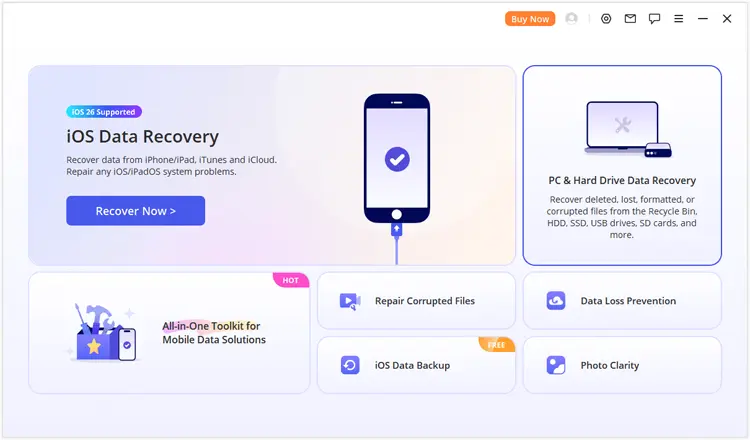
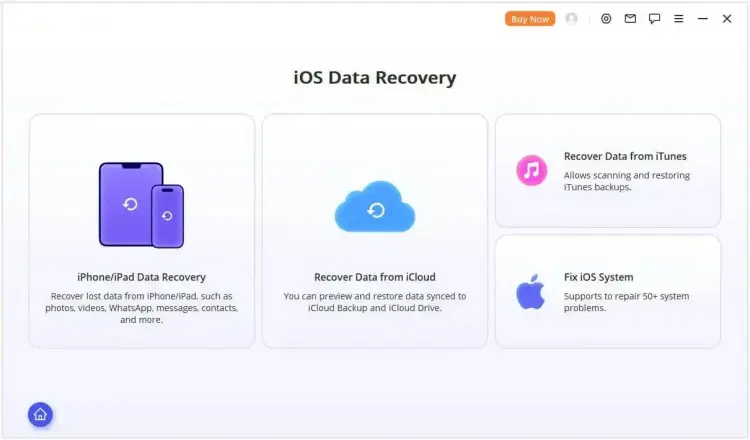
Install and open Data Recovery on your computer. From its main interface, select "iOS Data Recovery" to access the iPhone recovery features.
-
Enter the "iPhone/iPad Data Recovery" section to prepare for scanning your iPhone for deleted pictures.
-
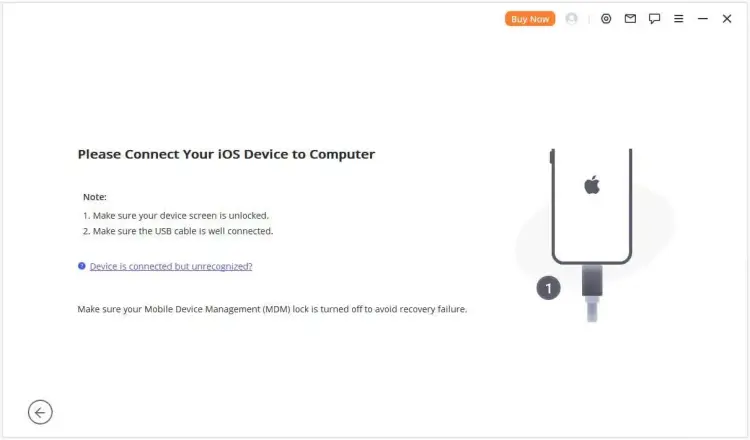
Connect your iPhone to the computer with a USB cable. Keep the device unlocked and authorize the connection by tapping Trust if a prompt appears. Once Data Recovery detects your iPhone, proceed by clicking "Next".
-
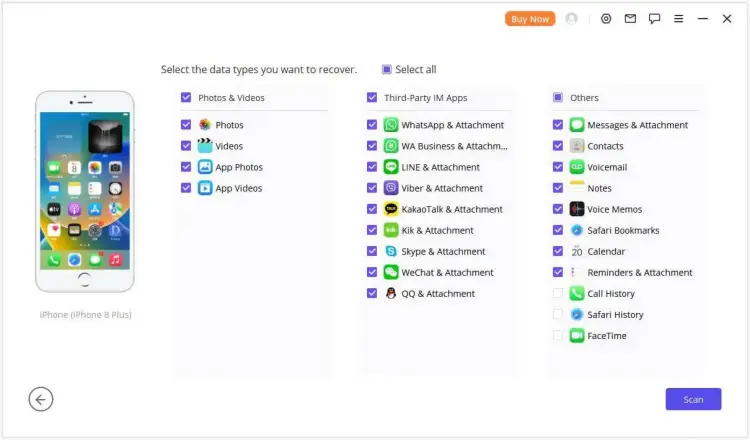
On the data type selection screen, check "Photos" to focus the scan on your missing pictures. You can select additional supported data types if you also need to recover other files. Then click "Scan" to begin searching your iPhone.
-
Browse the scan results and preview the photos that Data Recovery finds. Select the pictures you want to retrieve, then click "Recover to Computer" or "Recover to Device" to save them to your preferred destination.

Part 2. How to Recover Deleted Photos from iPhone with Backup
If you created an iCloud or computer backup before deleting your photos, you may be able to retrieve them from that backup. You can restore the entire iPhone using Apple's built-in options or use a recovery tool to extract selected pictures from supported backup sources.
Before proceeding, check the backup date and make sure it was created when the missing photos were still available.
2.1 How to Restore Deleted Photos on iPhone from iCloud Backup
If you regularly back up your iPhone to iCloud, you can try restoring a backup that contains the deleted photos. This method is useful when you don't have access to a computer.
However, restoring an iCloud backup requires setting up your iPhone again. If your device is already configured, you must erase its current content before restoring the backup. Therefore, save your current important data first.
Follow these steps:
Step 1. Open "Settings" on your iPhone and tap your name.
Step 2. Go to "iCloud" > "iCloud Backup" and check the available backup information.
Step 3. Make sure the backup was created before you deleted the photos.
Step 4. Back up your current iPhone data to avoid losing recent files.
Step 5. Go to "Settings" > "General" > "Transfer or Reset iPhone" > "Erase All Content and Settings".
Step 6. Follow the setup instructions until you reach the Transfer Your Apps & Data screen.
Step 7. Select "From iCloud Backup" and sign in with your Apple account.
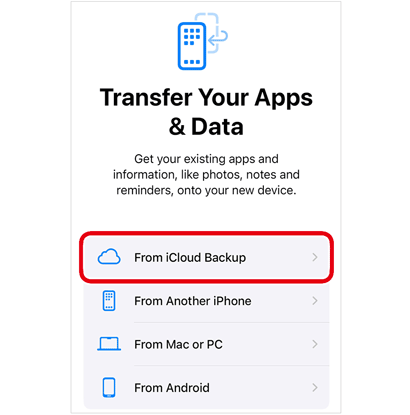
Step 8. Choose the appropriate backup and wait for the restoration process to finish.
After your iPhone restarts and completes the setup, check the Photos app to see whether the missing pictures have returned.
2.2 How to Retrieve Lost Pictures from iPhone via iTunes Backup
If you previously backed up your iPhone using iTunes on a Windows PC or an older Mac, you can restore that backup to retrieve deleted pictures.
Unlike checking iCloud, this method requires the computer that contains your iPhone backup. Also, restoring an iTunes backup replaces the current data on your iPhone with the backed-up data.
Here's how:
Step 1. Connect your iPhone to the computer where you created the backup.
Step 2. Open iTunes and click the iPhone icon when your device appears.
Step 3. Select "Summary" from the left panel.
Step 4. Under Backups, click "Restore Backup".
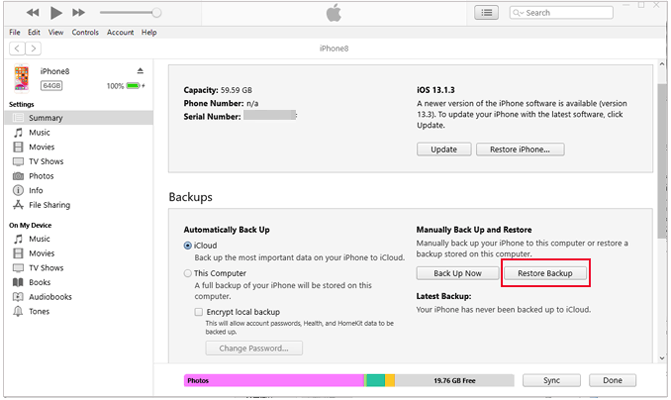
Step 5. Review the available backups and choose one created before the photos were deleted. If prompted, enter the password for your encrypted backup.
Step 6. Click "Restore" and keep your iPhone connected until the process is complete.
Once your iPhone restarts, open the Photos app and check whether the deleted pictures are available.
If you use a newer Windows setup with the Apple Devices app instead of iTunes, you can also select your iPhone and use its Restore Backup option.
2.3 How to Recover Photos from iPhone Backup Using Finder
For Mac users running macOS Catalina or later, Finder replaces iTunes for managing and backing up iPhones. If you previously created a local backup through Finder, you can restore it to retrieve photos that were saved at that time. Keep in mind that restoring a Finder backup replaces the current data on your iPhone.
Follow these steps:
Step 1. Connect your iPhone to your Mac using a USB cable.
Step 2. Open Finder and select your iPhone under Locations in the sidebar.
Step 3. If prompted, unlock your iPhone and click "Trust" to establish the connection.
Step 4. Under the "General" tab, click "Restore Backup".
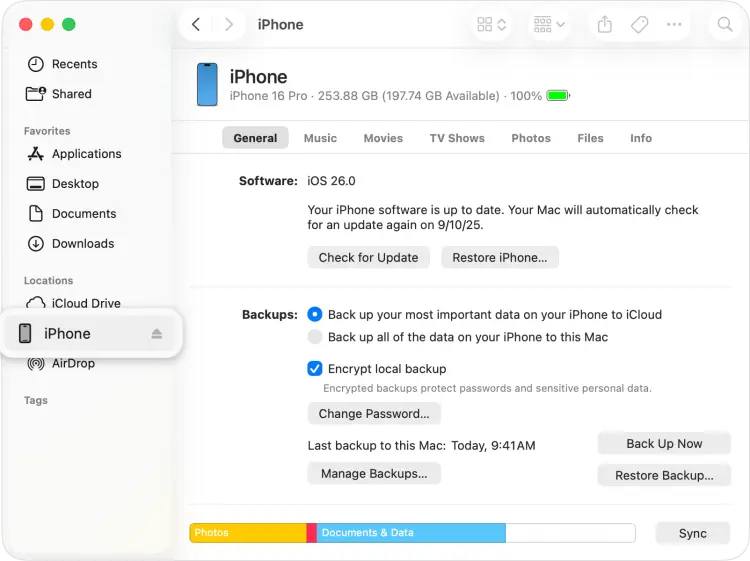
Step 5. Select a backup created before the photos were deleted.
Step 6. Enter your backup password if the backup is encrypted.
Step 7. Click "Restore" and wait for Finder to complete the process.
2.4 How to Extract Deleted iPhone Photos from iCloud or iTunes Backup via Data Recovery
As mentioned in Section 1.3, Data Recovery not only supports recovering deleted photos directly from an iPhone but also allows you to retrieve pictures from iTunes and iCloud data. If you have an existing backup or your missing photos may still be available in your iCloud account, you can use Data Recovery to scan the available data, preview the found pictures, and selectively export the ones you need without restoring the entire backup to your iPhone.
Option 1. Recover Deleted Photos from an iTunes Backup
If you previously backed up your iPhone using iTunes, Data Recovery can scan the available backup files to help you find deleted pictures.
-
Launch Data Recovery on your computer and select "iOS Data Recovery". Then choose "Recover Data from iTunes".
-
Wait for the program to detect available iTunes backups. Select the backup that may contain your missing photos and click "Next" to proceed.
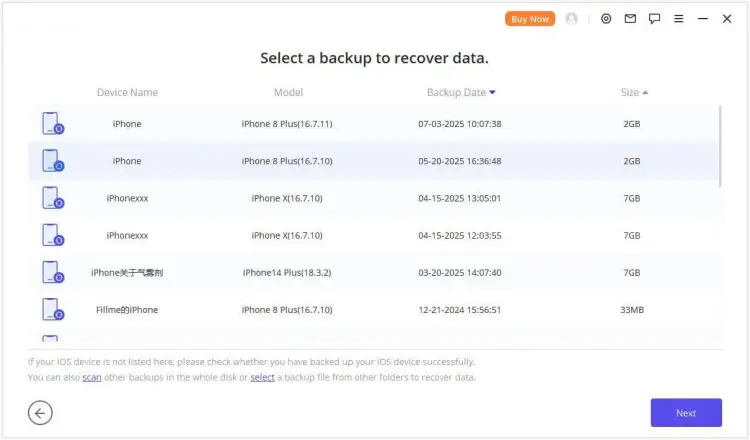
-
Select "Photos" from the available data categories and click "Scan" to search the selected backup for pictures.

-
Once the scan is complete, browse and preview the found pictures. Select the photos you want to retrieve, then click "Recover to Computer" or "Recover to Device" to save them.
Option 2. Recover Deleted Photos from an iCloud Account
If your missing pictures may still be available in your iCloud data, you can also use Data Recovery to check your account without first restoring your entire iPhone.
-
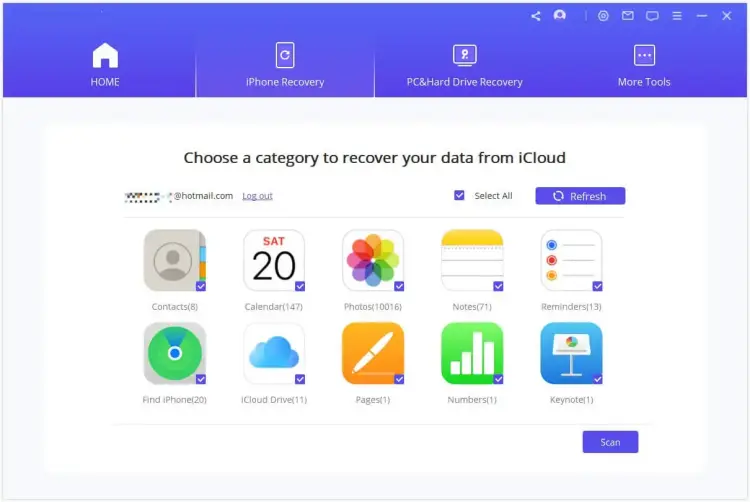
Open Data Recovery and select "iOS Data Recovery". Choose iCloud under the "Recover Data from iCloud" module, then enter your Apple account credentials as prompted.
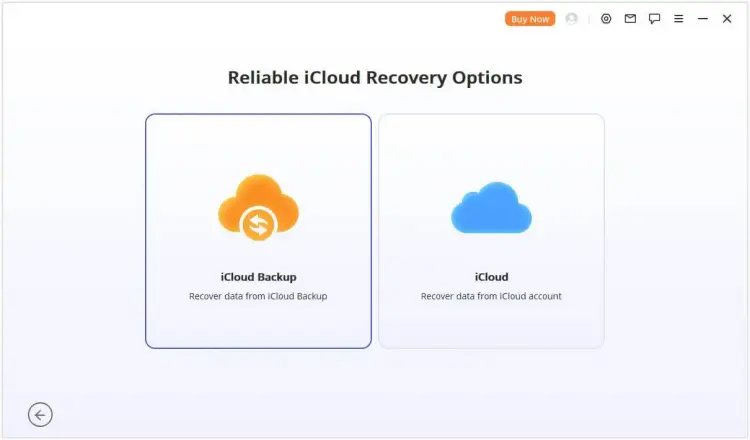
-
After signing in, select "Photos" from the supported data categories and click "Scan" to search for available pictures.
-
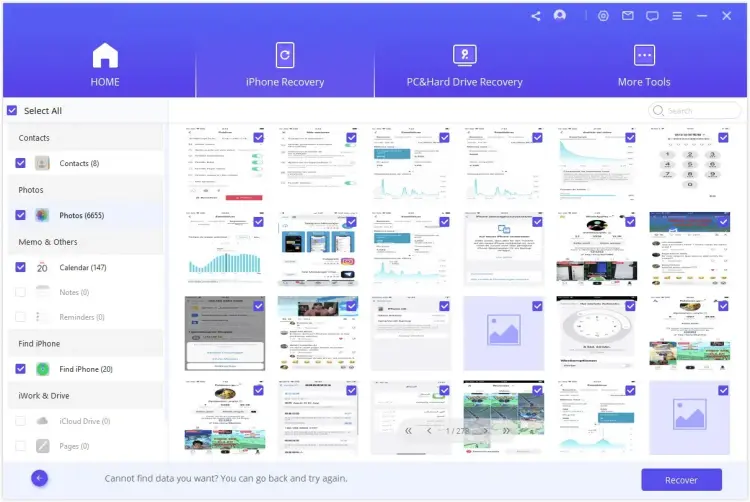
When the scan finishes, preview the available pictures and select the ones you want to recover. Click "Recover" and choose a destination folder on your computer. Once the export is complete, open the folder to check the recovered photos.
Conclusion
In summary, the best way to recover deleted photos on iPhone depends on how long ago they were deleted and whether you have a backup. Start with the Recently Deleted album or iCloud.com for a quick recovery. If those options don't work, check your existing iCloud, iTunes, or Finder backups.
When you need to recover photos without a backup or extract selected pictures from an existing backup, Data Recovery provides additional recovery options. Although no method guarantees the recovery of every permanently deleted photo, checking these options can help you find the most suitable way to get your pictures back.
Related Articles
How to Restore iPhone from Backup? iCloud & iTunes Methods
How to Recover Deleted Photos from iPad with/without Backup
How to Restore iPhone from iCloud Backup in Different Situations?
How to Permanently Delete Photos from iPhone via Hassle-free Methods