TL;DR:
To recover deleted photos from iPad, check the Recently Deleted album first, then try iCloud.com, an iCloud or iTunes backup, or Data Recovery to scan your iPad and retrieve available photos.
- Recently Deleted and iCloud.com: Restore photos that are still available within the 30-day recovery period without erasing your iPad.
- iCloud and iTunes backups: Recover photos saved in a backup created before deletion, but restoring the entire backup may replace newer data on your iPad.
- Data Recovery: Scan your iPad without a backup or check accessible iCloud account data and compatible iTunes backups to preview and selectively recover available photos.

Data Recovery Recover lost data


"How can I recover permanently deleted photos on my iPad? I pernamently deleted a lot of photos that I wish I didn't and I can't find a way to recover them. Is there a way to do it without backup?"
- From the Apple Community
Accidentally deleting photos from an iPad can be frustrating, especially when the pictures contain important memories, school projects, or work-related information. Fortunately, deleted photos may still be recoverable if they remain in the Recently Deleted album, are available through iCloud, or were included in a backup created before deletion.
If you are wondering how to recover deleted photos from iPad, the right approach depends on when the photos were deleted, whether iCloud Photos was enabled, and whether you have a suitable backup. The following methods explain how to check these options, restore photos step by step, and explore a recovery tool when Apple's built-in options are insufficient.

- Part 1. How to Recover iPad Deleted Photos from the Recently Deleted Album (Within 30 Days)
- Part 2. How to Recover Deleted Photos from iPad Through iCloud.com
- Part 3. How to Restore iPad Deleted Pictures from iCloud Backup
- Part 4. How to Retrieve Deleted Photos on iPad from iTunes Backup
- Part 5. How to Get iPad Deleted Photos Back by Data Recovery Tool
- FAQs About Recovering Deleted Photos from iPad
The following table compares the five iPad photo recovery methods in terms of success rate, photo preview options, supported recovery sources, and potential drawbacks to help you choose the most suitable approach.
| Method | Success Rate | Preview Photos Before Recovery | Supports Recovery From | Drawbacks |
|---|---|---|---|---|
| Recently Deleted | High if photos are still available | Yes | Photos deleted within 30 days | Cannot recover photos permanently removed from the album |
| iCloud.com | High if photos remain in Recently Deleted | Yes | iCloud Photos library | Requires access to the correct Apple Account; permanently deleted photos may be unavailable |
| iCloud Backup | Depends on backup availability and contents | Limited; standard restore does not offer selective photo preview | An existing iCloud device backup | Requires erasing the iPad before restoring and may replace newer data |
| iTunes Backup | Depends on backup availability and contents | Limited; standard restore does not offer selective photo preview | An existing iTunes or compatible computer backup | Requires a suitable backup; full restoration may overwrite current data |
| Data Recovery | High | Yes, for supported and detected files | iPad, accessible iCloud account data, and compatible iTunes backups | Requires a computer; recovery is not guaranteed and some features may require payment |
Part 1. How to Recover iPad Deleted Photos from the Recently Deleted Album (Within 30 Days)
The Recently Deleted album is the first place to check when photos disappear from your iPad. Photos and videos deleted through the Photos app generally remain there for 30 days before being permanently deleted. If you find the missing pictures, you can restore them without using a computer or backup.
Steps to recover deleted photos from the Recently Deleted album:
Step 1. Open the Photos app on your iPad and go to "Collections". Scroll down to the "Utilities" section and tap "Recently Deleted".
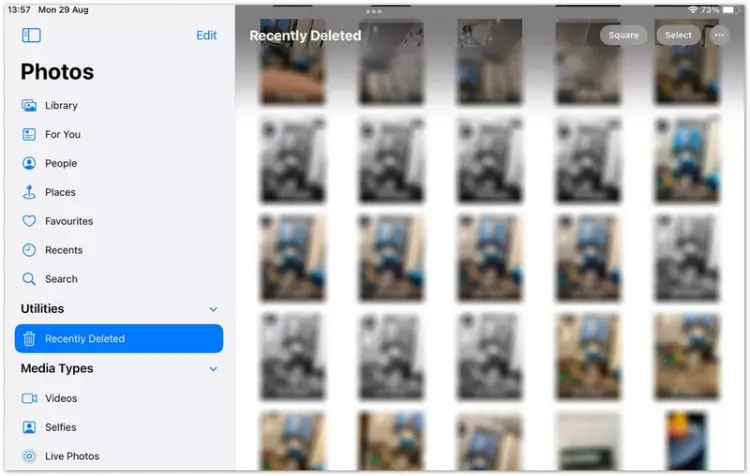
Step 2. Tap "View Album" and authenticate with Face ID, Touch ID, or your iPad passcode if prompted. Browse the deleted pictures and select the ones you want to retrieve.
Step 3. Tap "Recover" and confirm your choice. The selected photos will return to your photo library.
Part 2. How to Recover Deleted Photos from iPad Through iCloud.com
If you use iCloud Photos, deleted pictures may still be available in the Recently Deleted section on iCloud.com. This option is convenient because you can check and restore photos through a browser without connecting your iPad to a computer.
Steps to recover deleted iPad photos through iCloud.com:
Step 1. Open iCloud.com in a browser on your computer or another device and sign in with the Apple account associated with your iPad.
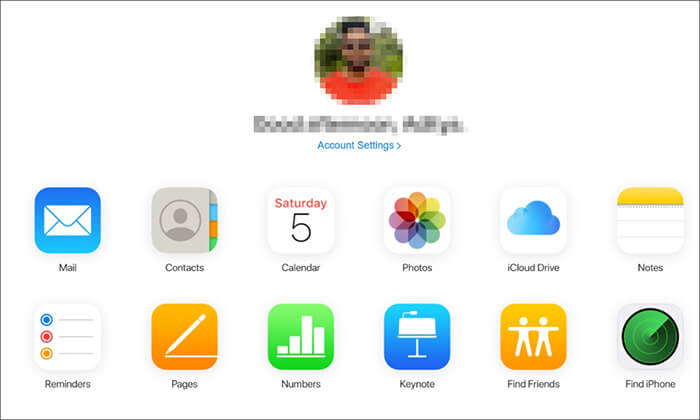
Step 2. Open "Photos" and select "Recently Deleted" from the sidebar. If necessary, use the sidebar button to reveal the navigation panel.
Step 3. Select the photos you want to restore and click "Recover". Check your iPad's Photos app afterward to confirm that the pictures have reappeared.
Part 3. How to Restore iPad Deleted Pictures from iCloud Backup
If the deleted pictures are not available in Recently Deleted or iCloud Photos, check whether you have an iCloud device backup created before the deletion. An older backup may contain photos saved locally on the iPad at that time.
Keep in mind that iCloud Photos and iCloud device backups are different. When iCloud Photos is enabled, photos synchronized with iCloud are generally not duplicated in the daily device backup. Therefore, an iCloud backup is not guaranteed to contain your missing pictures.
Steps to restore deleted photos from an iCloud backup:
Step 1. Open "Settings", tap your name, and select "iCloud". Check the available backup information and identify a backup dated before the photos were deleted.
Step 2. If the iPad is already set up, back up any current data you want to keep. Apple's standard iCloud backup restoration process requires erasing the device first. Go to "Settings" > "General" > "Transfer or Reset iPad" > "Erase All Content and Settings".
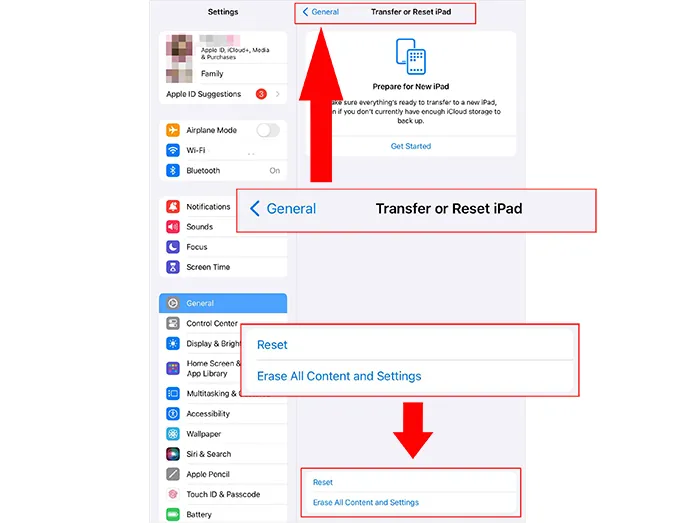
Step 3. After the iPad restarts, follow the setup instructions. On the Transfer Your Apps & Data screen, choose the option to restore from an iCloud backup.
Step 4. Sign in with your Apple account, choose the appropriate backup from before the deletion, and wait for the restoration and subsequent downloads to finish.
Part 4. How to Retrieve Deleted Photos on iPad from iTunes Backup
If you previously backed up your iPad to a computer using iTunes, you may be able to retrieve deleted pictures from that backup. On newer Mac systems, device backups are managed through Finder, while Windows users may use the Apple Devices app or iTunes, depending on their setup.
This method is most useful when you have a local backup created before the photos disappeared.
Steps to restore photos from an iTunes backup:
Step 1. Connect your iPad to the computer that contains your backup. Open iTunes, Apple Devices, or Finder, depending on your operating system.
Step 2. Select your iPad and locate the backup or restore options. Check the available backup dates and identify a backup created before the photos were deleted.
Step 3. Click "Restore Backup", select the appropriate backup, and enter the backup password if prompted.
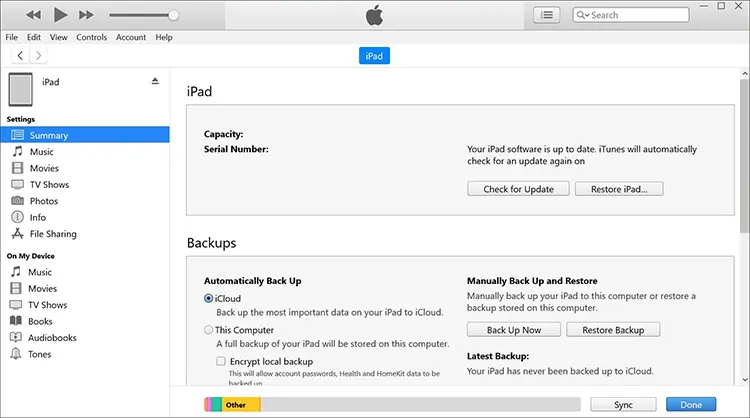
Step 4. Wait for the restoration to finish and keep the iPad connected until the process is complete. Then open Photos and check whether the missing pictures have returned.
Part 5. How to Get iPad Deleted Photos Back by Data Recovery Tool
If you cannot find your deleted pictures in the Recently Deleted album or a suitable backup, you can try a third-party recovery tool. Data Recovery allows you to scan your iPad for recoverable photos without a backup, check available data through your iCloud account, or extract photos from an iTunes backup. You can preview and selectively recover available pictures without restoring an entire backup to your iPad.
Key Features of Data Recovery
- Recover photos, messages, contacts, and other supported data over 1,000 types, even without a backup.
- Support data recovery after accidental deletion, factory reset, and other data loss scenarios.
- Preview recoverable files and selectively restore the data you need.
- Recover supported data from an iPad, iCloud backup, or iTunes backup.
- Work with various iPhone and iPad models and supported iOS versions.
Option 1. Recover Deleted Photos from an iPad Directly
If you do not have a backup, you can try scanning your iPad with Data Recovery to see whether the deleted pictures remain recoverable. The result depends on the device's condition and whether the relevant data is still accessible.
-
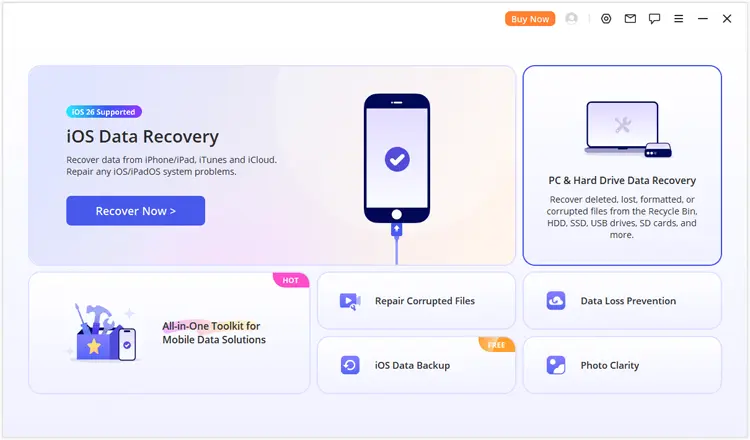
Download and launch Data Recovery on your computer. Select "iOS Data Recovery" from the available recovery modes.
-
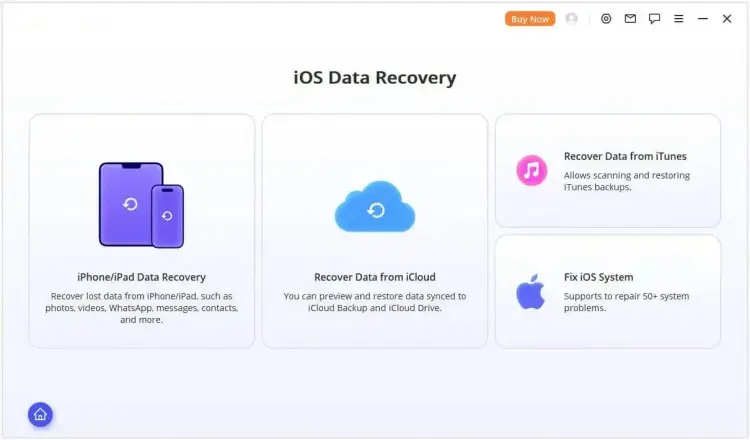
Choose the appropriate recovery option and enter the "iPhone/iPad Data Recovery" module.
-
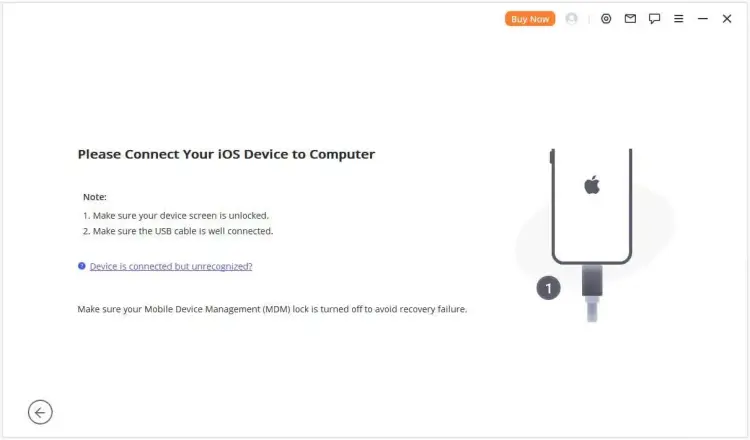
Connect your iPad to the computer using a USB cable. Unlock the device and tap "Trust" if prompted. Once the software recognizes your iPad, click "Next" to continue.
-
Select "Photos" as the data type you want to recover. Choose any other relevant supported categories if needed, then click "Scan" to search for recoverable data.

-
After scanning, preview the available photos and select the pictures you want to retrieve. Click "Recover to Computer" or "Recover to Device" to save the selected photos.

Option 2. Recover Deleted Photos from an iTunes Backup
If you backed up your iPad to a computer before deleting the pictures, Data Recovery may help you extract the photos from a compatible iTunes backup. Unlike a full device restore, this approach lets you preview the available data and recover selected files.
-
Open Data Recovery and select "Recover from iTunes Backup".
-
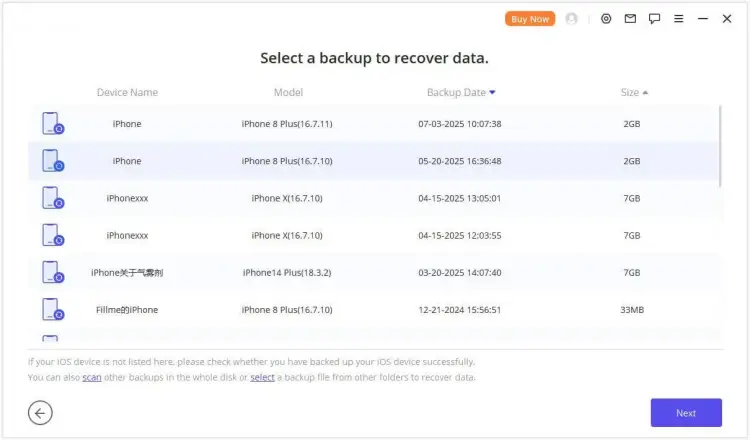
Choose the backup file that may contain your deleted photos and hit "Next" to continue.
-
Select "Photos" from the available data categories and click "Scan" to examine the backup.

-
Review the scan results and preview the available pictures. Select the photos you want to retrieve, then click "Recover to Computer" or "Recover to Device" to export them.
Option 3. Recover Deleted Photos from an iCloud Account
If your deleted iPad photos may still be available through your iCloud account, Data Recovery lets you check for recoverable pictures without restoring your entire iPad from a backup.
-
Download and install Data Recovery on your computer. Open the program and select "iCloud" under the "Recover from iCloud" module. Enter your iCloud account credentials as prompted.

-
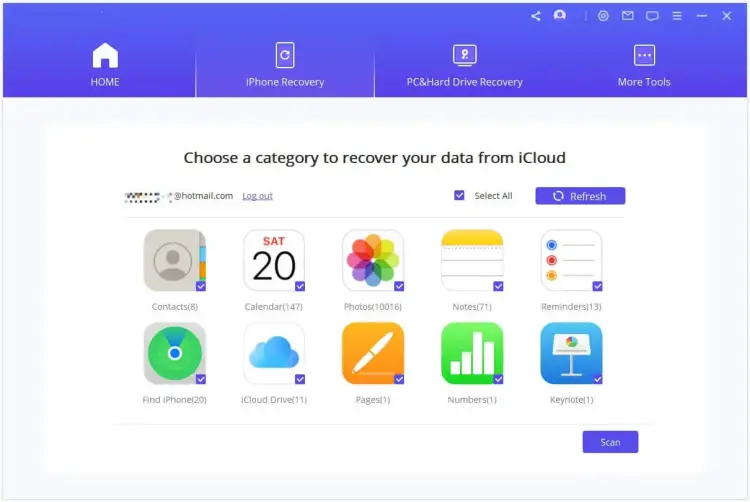
After signing in, select "Photos" from the supported data categories. Click "Scan" in the lower-right corner and wait for the process to finish.
-
Review the scan results and preview the available pictures. Select the photos you want to recover, click "Recover", and choose a destination folder on your computer. After the export finishes, open the recovered files to verify that the pictures are intact.

FAQs About Recovering Deleted Photos from iPad
1. Does restoring an iCloud backup delete current iPad data?
Yes. Restoring an iCloud backup on a previously set-up iPad requires erasing the device first, which can remove current data that is not included in the selected backup. After restoration, your iPad returns to the backed-up state, and newer photos, messages, apps, or settings may be lost. To avoid losing recent data while recovering deleted photos, back up your current iPad first or use a tool like Data Recovery to selectively extract recoverable photos from a compatible backup without restoring the entire device.
2. Why can't I find my deleted photos in Recently Deleted?
The photos may have been deleted more than 30 days ago, manually removed from Recently Deleted, or stored somewhere other than the library you are checking. If iCloud Photos is enabled, deletion can also synchronize across your devices. Check your Hidden album, Apple account, iCloud Photos library, and existing backups before concluding that the photos are gone.
3. Will recovering deleted photos from an iPad affect existing pictures?
Restoring photos from Recently Deleted or downloading available photos from iCloud generally does not require erasing your iPad. However, restoring an entire iCloud or iTunes backup can replace current data with the backed-up state. Selective recovery from a compatible backup can help you retrieve specific pictures without restoring the whole device.
Conclusion
Recovering deleted photos from an iPad is possible in many cases, but the best method depends on whether the pictures are still in Recently Deleted, available through iCloud, or included in a previous backup. Start with the built-in recovery options before attempting a full backup restoration, which may replace newer data on your device.
If you cannot find the photos and do not have a suitable backup, Data Recovery offers another option to scan your iPad and check accessible iCloud account data or compatible iTunes backups. Its preview and selective recovery features can help you retrieve available pictures without restoring an entire backup. However, no tool can guarantee the recovery of permanently deleted photos, so check the available files before proceeding.
Related Articles
Repaired: Photos Disappeared from iPhone with Reliable Solutions
How to Transfer Files from PC to iPad Efficiently: 6 Easy Methods
How to Transfer Photos from iPad to Flash Drive (4 Solutions)
How to Transfer Data from iPad to iPad Seamlessly | Comprehensive Tutorial