


TL;DR:
You can try several ways to recover permanently deleted photos from iCloud, depending on how you lost them and whether a backup is available. If the photos are still within the 30-day retention period, restore them from Recently Deleted on iCloud.com. For photos deleted permanently, check an older iCloud backup or use a tool like Data Recovery to scan your iCloud account or retrieve data from an available iCloud backup.
iCloud Photos makes it convenient to store and access pictures across multiple Apple devices. However, accidentally deleting important photos can be frustrating, especially when they disappear from all devices connected to the same Apple Account. Although iCloud keeps deleted photos in Recently Deleted for up to 30 days, they are automatically removed after that period or can be permanently deleted manually.
So, how to recover permanently deleted photos from iCloud after they are no longer available in Recently Deleted? Fortunately, you may still have a chance if an older iCloud backup or another recoverable copy exists. This article introduces several practical methods to help you retrieve your missing pictures, including restoring an iCloud backup and using a third-party tool.

- Part 1. How to Recover Photos from iCloud via the Recently Deleted Album (Within 30 Days)
- Part 2. How to Restore Permanently Deleted Photos from iCloud Backup
- Part 3. How to Recover Permanently Deleted Photos from iCloud Using a Third-Party Tool
- Part 4. Which Is the Best Way for iCloud Photos Recovery?
Part 1. How to Recover Photos from iCloud via the Recently Deleted Album (Within 30 Days)
Before trying more complicated recovery methods, check the Recently Deleted album on iCloud.com. When you delete photos from iCloud Photos, they are moved to this album and remain there for 30 days. During this period, you can restore them directly without using additional software.
Here is how to recover deleted photos from iCloud:
Step 1. Open a browser and visit iCloud.com.
Step 2. Sign in with the Apple account associated with your missing photos.
Step 3. Select "Photos" from the available apps.
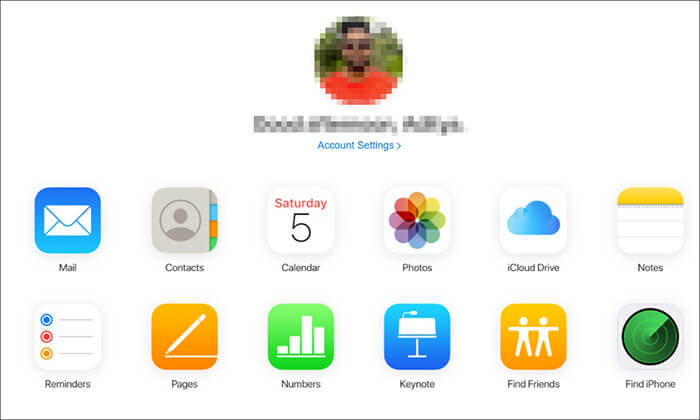
Step 4. Click "Recently Deleted" in the sidebar.
Step 5. Browse the deleted pictures and select the ones you want to restore.
Step 6. Click "Recover" to return the selected photos to your iCloud Photos library.
After recovery, the pictures should reappear in your Photos library and sync to devices using the same Apple account with iCloud Photos enabled.
Limitations:
This method only works for photos that have been deleted within the past 30 days and are still available in the Recently Deleted album. If you manually delete photos from this album or the 30-day retention period expires, they will be permanently removed from iCloud Photos and cannot be restored through this method.
Part 2. How to Restore Permanently Deleted Photos from iCloud Backup
If your photos have been permanently deleted from iCloud Photos, you can check whether an older iCloud device backup contains copies of them. This method is worth trying if you backed up your iPhone before deleting the pictures.
However, there is an important distinction between iCloud Photos and iCloud Backup. When iCloud Photos is enabled, your photos sync to iCloud separately and are generally not included in your daily iCloud device backup. If you do not use iCloud Photos, your Photos Library may be included in the iCloud Backup. Therefore, check your backup settings before proceeding.
Follow these steps to restore photos from an iCloud backup:
Step 1. Open "Settings" on your iPhone.
Step 2. Tap your name at the top and select "iCloud" > "iCloud Backup".
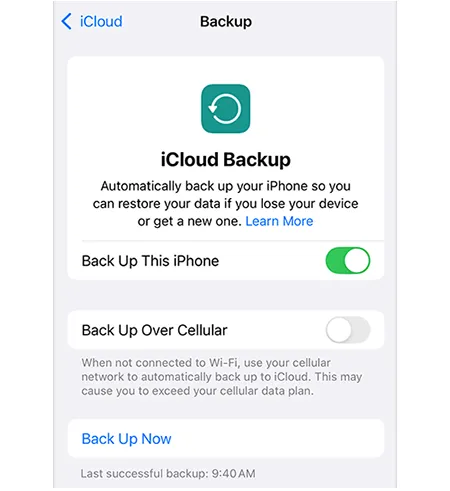
Step 3. Check the date of the available backup to see whether it was created before the photos were deleted.
Step 4. If you have a suitable backup, back up your current iPhone data separately to avoid losing recent information.
Step 5. Go to "Settings" > "General" > "Transfer or Reset iPhone".
Step 6. Tap "Erase All Content and Settings" and follow the instructions to reset your iPhone.
Step 7. Set up your iPhone again until you reach the Transfer Your Apps & Data screen.
Step 8. Select "From iCloud Backup" and sign in with your Apple account.
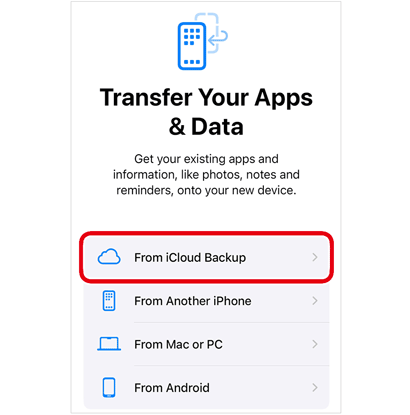
Step 9. Choose the backup created before the photos were deleted and wait for the restoration process to finish.
Limitations:
Restoring an iCloud backup replaces the current data on your iPhone with the data from the selected backup. It is therefore important to save your current data before proceeding. More importantly, this method cannot restore photos that were only stored in iCloud Photos and excluded from the device backup. If you want to check available iCloud data without immediately erasing your iPhone, consider the next method.
Part 3. How to Recover Permanently Deleted Photos from iCloud Using a Third-Party Tool
If you cannot recover your deleted photos through Recently Deleted or find a suitable iCloud backup using Apple's built-in options, you can consider using a third-party iOS data recovery program. Data Recovery is designed to help retrieve lost or deleted data from iOS devices and storage sources. It provides an alternative when Apple's built-in recovery methods are insufficient, especially if you want to check your available iCloud data before deciding how to proceed.
Key Features of Data Recovery
- Offers two iCloud recovery options: recover from iCloud account and recover from iCloud backup.
- Recovers lost or deleted data from iPhone, iPad, SD cards, hard drives, PCs, and Macs.
- Supports multiple data types, including photos, videos, messages, and contacts.
- Allows you to preview scan results and selectively recover files.
Depending on whether your photos may still be associated with your iCloud account or stored in an older backup, you can choose one of the following recovery options.
Option 1. Recover Photos from Your iCloud Account
If you don't want to restore your entire iPhone from an iCloud backup, you can first try scanning your iCloud account with Data Recovery. This option allows you to check supported data categories and determine whether any of your missing photos are still accessible.
Follow these steps:
-
Download and install Data Recovery on your computer. Launch the program, select "Recover Data from iCloud", select the "iCloud" option, and enter your Apple account credentials as prompted.
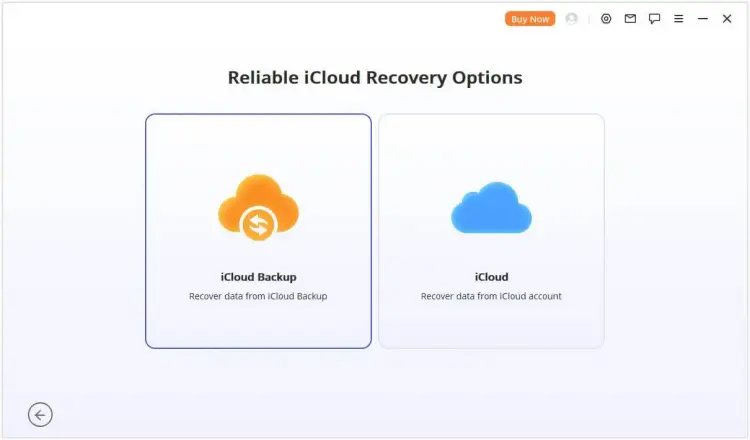
-
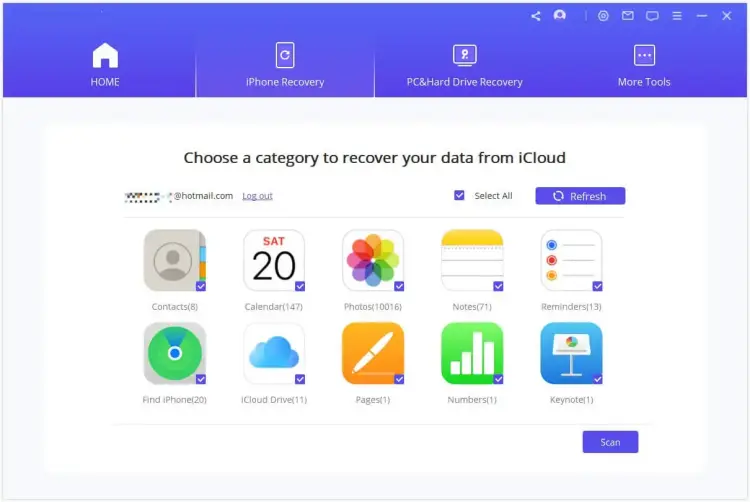
After signing in successfully, choose "Photos" from the available data categories. Click "Scan" in the lower-right corner and wait for Data Recovery to check the accessible data.
-
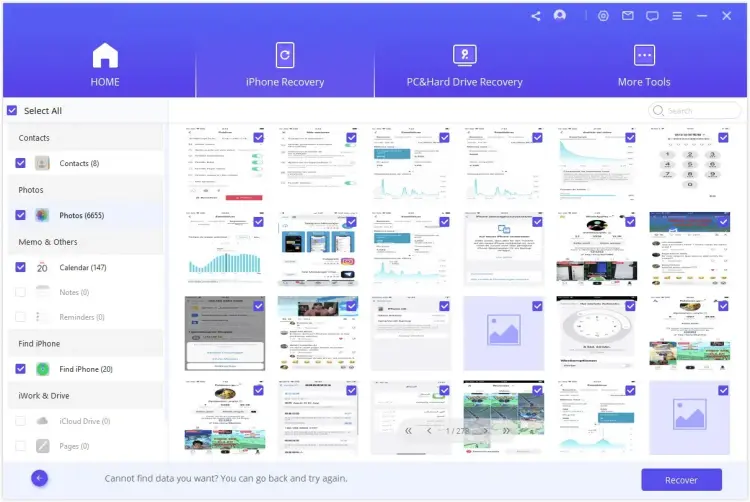
When scanning is complete, browse the results and preview the available pictures. Select the photos you want to keep, click "Recover", and choose a destination folder on your computer. Once the export finishes, open the folder to check the recovered images.
Limitations:
This option only works if the photos remain accessible through the supported iCloud recovery process. It cannot retrieve pictures that Apple has permanently removed from its servers without leaving another recoverable copy.
Option 2. Extract Photos from an iCloud Backup
If your missing pictures may have been included in an older iCloud device backup, you can try extracting them with Data Recovery. This option is useful when you want to review available backup data and export selected photos to your computer.
Here is how:
-
Open Data Recovery and navigate to "Recover Data from iCloud". Choose the "iCloud Backup" option and select the recovery process that matches your device's current status. Follow the on-screen instructions to continue.
-
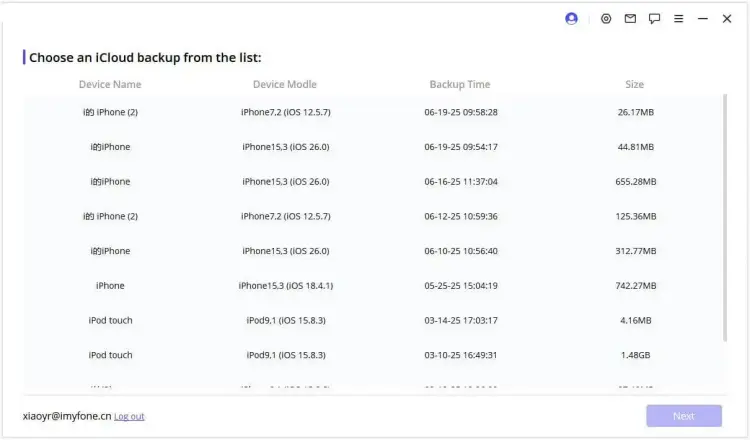
If the program requires you to restore the backup to your iPhone first, set up your device and select "Restore from iCloud Backup" on the Apps & Data screen. Sign in with the Apple account associated with the backup, choose a backup created before the photos were deleted, and wait for the restoration to finish.
-
Next, connect your iPhone to the computer running Data Recovery and follow the program's instructions to access the restored backup data.
-
Select "Photos" from the supported data categories and review the available pictures. Preview the results, select the photos you want to retrieve, and click "Recover". Choose a destination folder on your computer and wait for the export process to finish.

Limitations:
This method requires an available iCloud backup that contains the missing photos. If iCloud Photos was enabled when the backup was created, the synced photos are generally excluded from the iCloud device backup. Also, restoring an iCloud backup may replace your current iPhone data, so create a separate backup of your current information before proceeding.
Part 4. Which Is the Best Way for iCloud Photos Recovery?
The best method depends on how long ago you deleted the photos, whether you have an older iCloud backup, and whether you want to restore your entire device or selectively retrieve pictures.
Here is a quick comparison of the three approaches:
| Method | Best For | Requires a Backup | Selective Recovery | Main Limitation |
|---|---|---|---|---|
| Recently Deleted | Photos deleted within 30 days | No | Yes | Cannot recover permanently deleted photos |
| iCloud Backup | Photos included in an older iCloud backup | Yes | No, full device restoration | May erase current device data |
| Data Recovery | Checking an iCloud account or retrieving photos from an available backup | Depends on the recovery option | Yes, for available scan results | Paid recovery features and no guaranteed recovery |
Overall, Recently Deleted is the easiest option if your pictures are still within the retention period. If you have an older iCloud backup, restoring it is an official Apple method, although it can replace your current iPhone data.
For more flexible recovery, Data Recovery offers two options to check your iCloud account or retrieve data from an iCloud backup. Its preview and selective export features can be useful when you want to save specific available photos to your computer rather than restore an entire device.
Conclusion
In conclusion, this article has covered several practical ways to recover permanently deleted photos from iCloud and explained the available options for different data loss situations. It also introduced Data Recovery, a useful tool that offers flexible recovery options, selective file export, and photo preview features. If Apple's built-in recovery options cannot meet your needs, Data Recovery is worth trying to help retrieve your available photos and other important data. Don't give up on your lost pictures just yet.
Related Articles
How to Recover Deleted Photos from iPad with/without Backup
Photos Disappeared from iPhone with Reliable Solutions
How to Recover Notes from iCloud: 3 Ways to Get Them Back
How to Restore iPhone from iCloud Backup in Different Situations?