


While the iPhone is primarily a powerhouse for communication and creativity, many users want to use its storage like a traditional flash drive. Whether you own the latest iPhone 17 with its high-speed USB-C port or an older model, Apple's ecosystem doesn't naturally treat the iPhone as a "Mass Storage Device". However, if you want to use an iPhone as a USB drive, there are several effective workarounds.

Take a look at the advantages and disadvantages of these methods:
| Method | Pros | Cons |
|---|---|---|
| iTunes | 1. Official Apple software. 2. Free to use. 3. Compatible with Windows PCs. |
1. Outdated interface. 2. Can only transfer files to specific app folders. |
| iReaShare | 1. Very easy to use. 2. Supports all file types. 3. Allows direct iPhone data preview and transfer like a real drive. 4. Can work on Windows and Mac computers. |
1. Full version requires a purchase. |
| Apple Devices App | 1. Fast and modern. 2. Official replacement for iTunes on Windows 10/11. |
1. Requires Windows 10 or later. 2. Still limited to app-specific file sharing. |
| Dropbox | 1. No cables required; wireless syncing. 2. Accessible from any device with internet. |
1. Needs internet connection. 2. Limited free storage. 3. Slow for high-resolution videos. |
| Windows Explorer | 1. No installation needed. 2. Built-in to Windows. 3. Fastest for backing up photos. |
1. Read-only access. 2. Restricted to photos and videos. 3. Cannot transfer files to the iPhone. |
Part 1: How to Use iPhone as USB Drive with iTunes
For years, iTunes was the standard for moving files between an iPhone and a computer. While it does not allow the iPhone to behave exactly like a removable USB disk, it supports controlled file sharing, which lets you store documents within specific apps.
To access iPhone as a drive with iTunes:
-
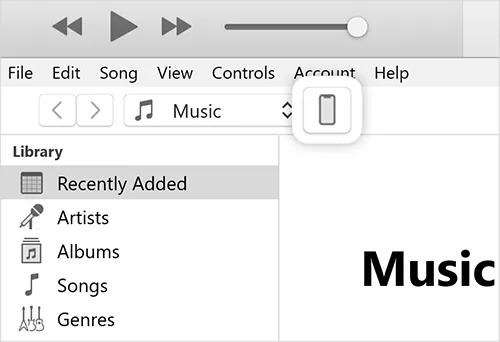
Connect your iPhone to your computer using a USB cable and launch iTunes. Then click the iPhone icon near the top left.
-
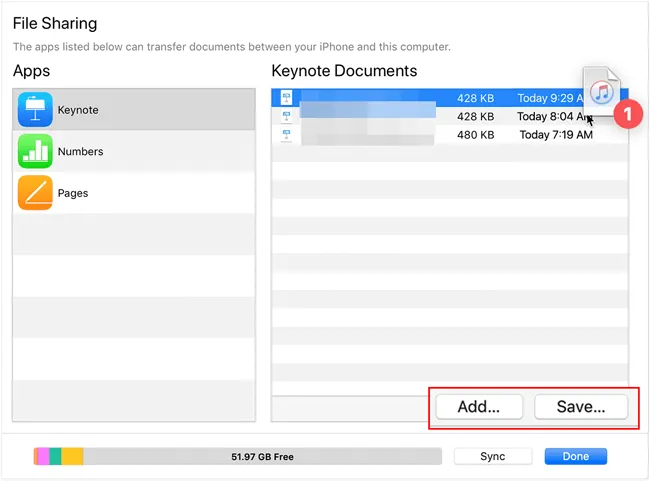
On the left sidebar, click "File Sharing". Select an app that supports file storage, like Pages, etc.
-
Click "Add" to move files from your PC to the iPhone, or simply drag and drop files into the "Documents" list.
Part 2: How to Use iPhone as Flash Drive Without iTunes
If you prefer not to use iTunes, there are several alternative solutions that offer greater flexibility and ease of use.
2.1 Using iReaShare iPhone Manager
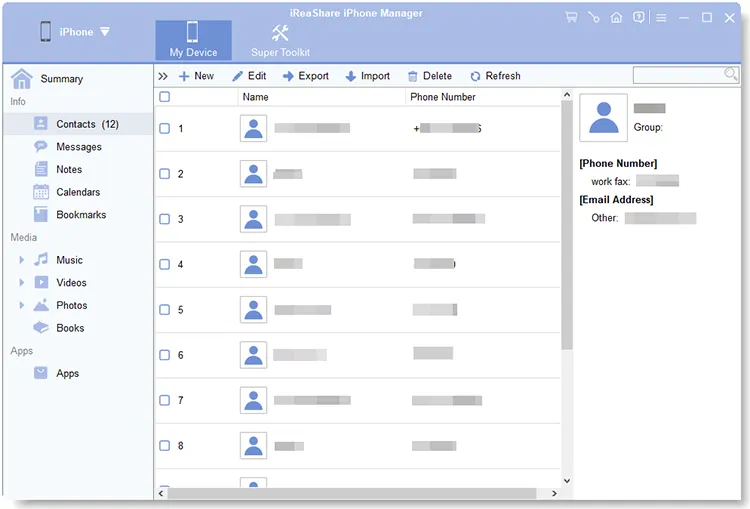
How can you use your iPhone as a USB drive without iTunes on a computer? One practical way is to use iReaShare iPhone Manager. This software allows you to preview various iPhone data by category, so you can easily select and transfer your files from your iPhone to your computer, edit your contacts, and delete iOS data on the desktop.
Main features of iReaShare iPhone Manager:
* Enable you to access your iPhone on your computer as a USB drive.
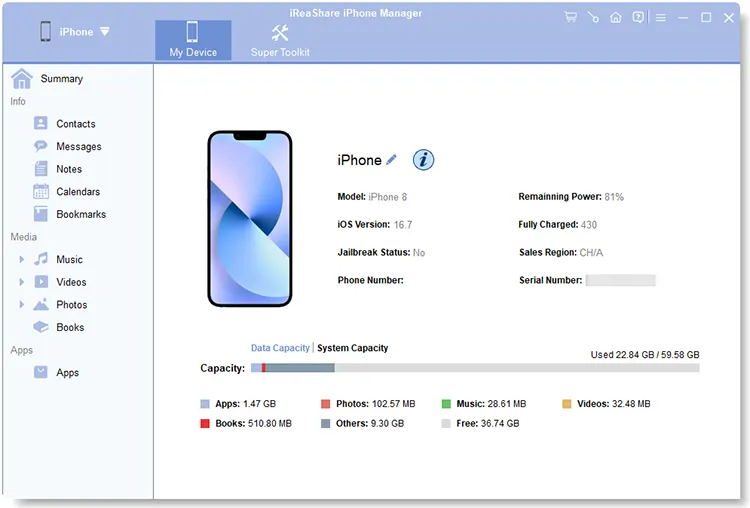
* View your iPhone data like contacts, notes, calendar events, photos, videos, music, documents, etc.
* Selectively transfer files from your iPhone to your computer and vice versa.
* Back up iPhone to your computer without iCloud.
* Support iOS 5.0 or later, including the latest version iOS 26.
Download iReaShare iPhone Manager.
Download for Win Download for Mac
Here's how to use an iPhone as a USB flash drive with iReaShare iPhone Manager:
-
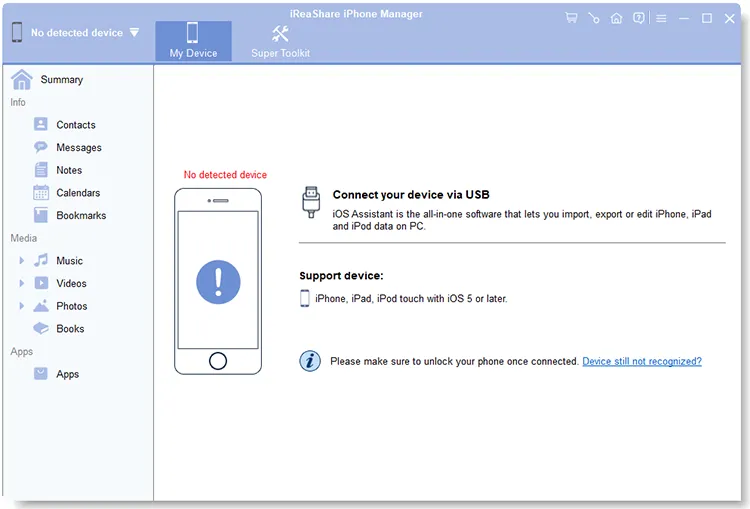
Download and install the iPhone Manager software on your computer, and connect your iPhone to the computer with a USB cable.
-
Click "Trust" on the iPhone. Once connected, choose a file type on the interface. Then you can view the detailed iPhone data.
-
To transfer the data, please select it and click "Export" to save it to your computer. By the way, the "Import" feature allows you to transfer files from your computer to your iPhone.
2.2 Using Apple Devices App
On newer versions of Windows, Apple provides the Apple Devices app as a replacement for iTunes for device management. If you want to sync files from your PC to your iPhone, this app will be suitable.
To use an iPhone as a flash drive with the Apple Devices app:
-
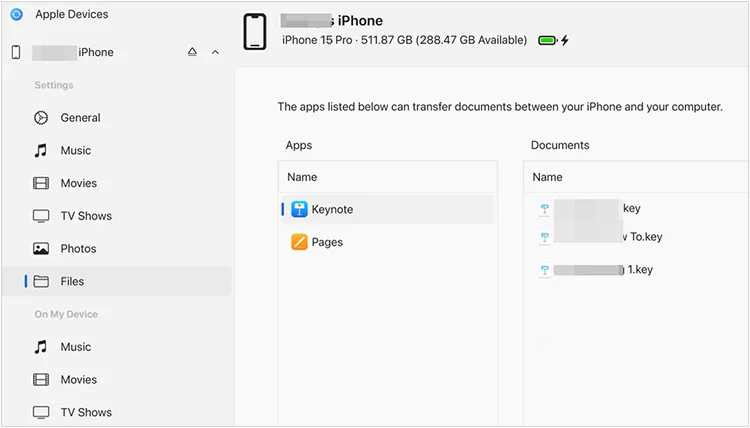
Install and open the Apple Devices app and connect your phone.
-
Select your device in the sidebar, and click the "Files" tab.
-
Drag files from your desktop into the app folders to store them on your iPhone.
2.3 Using Dropbox
If you don't want to deal with cables, cloud services like Dropbox create a "virtual" flash drive. When you upload your files to your Dropbox account, you can access the files on other devices, like your computer, with the cloud drive.
To use an iPhone as a USB storage with Dropbox:
-
Install Dropbox on your iPhone. Then open the app and sign up for an account.
-
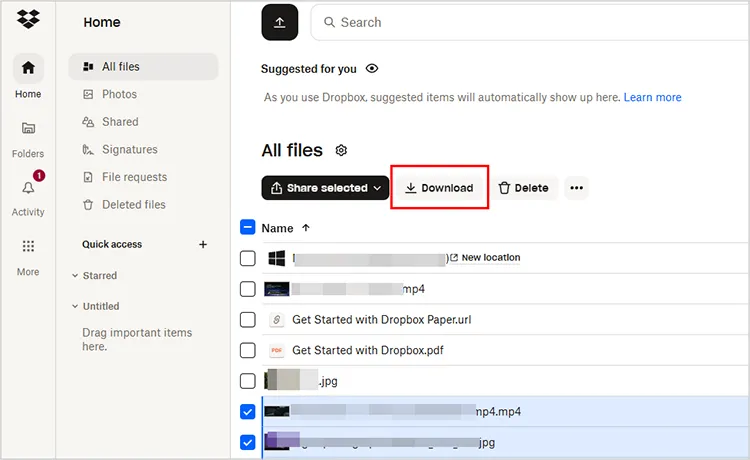
Upload files from your iPhone device to a specific folder in Dropbox.
-
Then open the website of Dropbox on your computer, and log in to the same account. Now, you can view and download your iPhone files from Dropbox.
2.4 Using Windows File Explorer
You can directly use your iPhone as a USB drive on your Windows PC with the built-in File Explorer program. However, you can only access your camera photos and videos.
Here's how:
-
Connect your iPhone to your PC with a USB cable. Then unlock your iPhone and tap "Trust" if prompted.
-
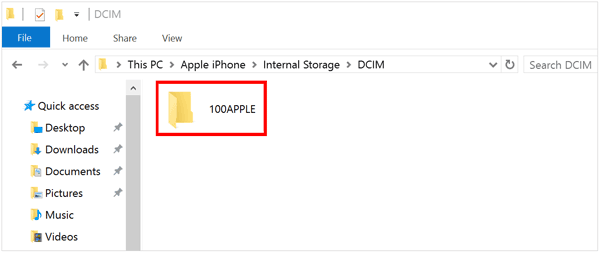
Open "This PC" on your Windows computer and double-click your iPhone.
-
Navigate to "Internal Storage" > "DCIM". You can now copy photos and videos from these folders to your PC.
Part 3: Q&A About Using iPhone as USB Drive
Q1: Can I enable USB transfer mode on my iPhone?
No. Apple does not have a toggle for "USB Mass Storage Mode" like Android devices do. iOS uses a closed file system. To manage files like a drive, you must use the Files App on the iPhone to move items between folders or use the software mentioned in Part 2 like iReaShare iPhone Manager.
Q2: Why is OTG not working on my iPhone?
If your On-The-Go (OTG) adapter isn't working, it is usually due to one of three reasons:
- Power Supply: Older iPhones (with Lightning ports) often don't provide enough power for external drives. You may need a "Lightning to USB 3 Camera Adapter" that has a power input.
- Format: The USB drive must be formatted as FAT32, exFAT, or APFS. NTFS is not natively supported for writing.
- Connection: Ensure you are using the Files App to look for the drive; it won't pop up as a separate app automatically.
Q3: Can I access a USB drive on my iPhone?
Yes. With the transition to USB-C (starting with iPhone 15), it is easier than ever. Simply plug a USB-C flash drive directly into your phone. Open the Files App, tap the "Browse" tab, and you will see your USB drive listed under "Locations".
Conclusion
While Apple doesn't allow the iPhone to act as a USB stick natively, tools like the Apple Devices app and professional tools like iReaShare iPhone Manager provide powerful alternatives. You can easily view and transfer your iPhone data to your computer.
Download for Win Download for Mac
Related Articles
Sync iPhone to Mac Effectively and Safely: 6 Syncing Approaches
Best File Manager for iPhone and iPad: 12 iOS File Managers
Transfer Data from Android to iPhone After Setup Without Data Loss
How to Access iPhone Files on PC Without iTunes: 7 Alternatives

