


TL;DR:
You can recover data from a SATA hard drive using Windows built-in tools, backup files, or professional recovery software like Data Recovery. The best method depends on the cause of data loss and the condition of the drive.
- Deleted files may be restored from the Windows Recycle Bin, provided they have not been permanently removed.
- Previously backed-up files can be retrieved using Windows File History or Backup and Restore (Windows 7).
- Data Recovery can scan a SATA hard drive for deleted, formatted, or lost files and help you selectively recover them.
- Windows File Recovery commands can retrieve certain lost files, but you need to use the correct source and destination drives.
- If the SATA hard drive has physical damage or is no longer detected, contact a professional data recovery service instead of attempting software recovery.
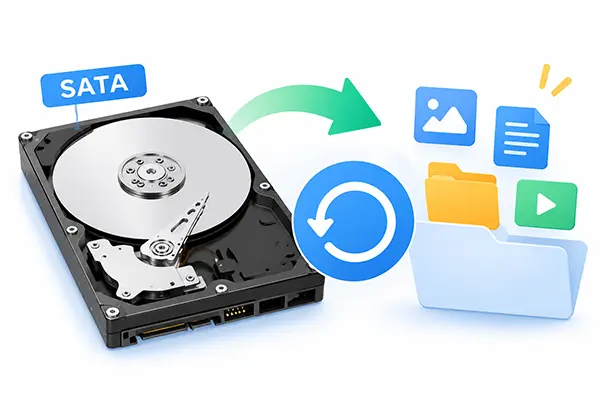
A SATA (Serial Advanced Technology Attachment) hard drive is a storage device that connects to a computer's motherboard through a SATA interface. It is commonly used in desktop computers, laptops, and external storage devices to store documents, photos, videos, and other files. SATA is also used by solid-state drives (SSDs), not just traditional hard disk drives (HDDs).
However, files stored on a SATA hard drive can disappear due to accidental deletion, formatting, file system corruption, partition loss, or hardware problems. Losing important data can be frustrating, but recovery may still be possible if the original data has not been overwritten and the drive is not severely damaged. So, how can you recover data from a SATA hard drive? In this article, we will introduce five practical methods to help you retrieve your lost files.
- Part 1. Can You Recover Data from a SATA Hard Drive?
- Part 2. Recover Data from SATA Hard Drive by Checking the Recycle Bin
- Part 3. Restore Data from SATA Hard Drive from a Backup
- Part 4. Recover Data from SATA Hard Drive by Professional Recovery Software
- Part 5. Retrieve Data from SATA Hard Drive Through CMD Commands
- Part 6. Recover Data from SATA Hard Drive with a Specialized Data Recovery Service
- FAQs About SATA Data Recovery
Part 1. Can You Recover Data from a SATA Hard Drive?
Yes. In many cases, you can recover deleted, formatted, or otherwise lost data from a SATA hard drive, provided that the original data has not been overwritten and the drive remains readable.
When you delete a file, the operating system generally marks the space it occupies as available for reuse rather than immediately erasing all its contents. Therefore, recovery software may be able to scan the drive and retrieve the remaining data. Similarly, files lost after accidental formatting or partition problems may still be recoverable.
However, the recovery possibility depends on several factors:
- Data loss reason: Accidentally deleted files and files lost after quick formatting may be recoverable. Severe file system corruption can make recovery more difficult.
- Overwritten data: If new files have occupied the space previously used by deleted data, recovery may be incomplete or impossible.
- Drive condition: A logically damaged but readable drive may be suitable for software recovery, while a physically damaged drive usually requires professional assistance.
- Drive type: A SATA HDD and a SATA SSD have different data storage mechanisms. SSDs with TRIM enabled may permanently erase deleted data more quickly, reducing recovery chances.
Before attempting recovery, stop writing new data to the affected SATA drive. Do not install recovery software on it, save recovered files to it, or format it again. These actions could overwrite the data you want to retrieve.
Depending on how your files were lost and the condition of your SATA hard drive, different recovery methods may work better than others. Before diving into the detailed instructions, let's compare the five available methods to help you choose the most suitable one.
| Method | Backup Required | Third-Party Software | Suitable for | Pros | Cons |
|---|---|---|---|---|---|
| Recycle Bin | No | No | Recently deleted files | Free and easy to use; no additional tools required | Cannot recover permanently deleted or formatted files |
| File History | Yes | No | Deleted or modified personal files | Supports restoring previous file versions | Only works if File History was enabled beforehand |
| Backup and Restore (Windows 7) | Yes | No | Files included in existing backups | Can restore previously backed-up files | Requires an available backup |
| Data Recovery | No | Yes | Deleted, formatted, or lost files | Supports file scanning, preview, and selective recovery | Some features require a paid license |
| Windows File Recovery (CMD) | No | No (Microsoft tool required) | Certain deleted files | Free Microsoft tool; supports different recovery modes | Requires command-line knowledge; recovery results vary |
| Professional Data Recovery Services | No | No | Physically damaged or inaccessible drives | Can handle complex hardware failures | Can be expensive; recovery is not guaranteed |
Part 2. Recover Data from SATA Hard Drive by Checking the Recycle Bin
If you accidentally deleted files from your SATA hard drive, checking the Windows Recycle Bin should be your first step. When you delete ordinary files from an internal SATA drive, Windows usually moves them to the Recycle Bin instead of permanently removing them.
This method is free, easy, and does not require additional software. However, it only works if the deleted files are still in the Recycle Bin.
Steps to recover deleted files from a SATA hard drive:
Step 1. Double-click the Recycle Bin icon on your Windows desktop.

Step 2. Browse the deleted items or use the search box to find the files you need.
Step 3. Right-click the target file or folder.
Step 4. Select "Restore" from the context menu.
Step 5. Windows will return the selected items to their original locations.
Part 3. Restore Data from SATA Hard Drive from a Backup
If you have previously backed up your SATA hard drive, restoring your files from a backup is another reliable option. Windows provides built-in backup features, including File History and Windows Backup, which can help you retrieve previous versions of files or restore backed-up data.
3.1 Restore Files Using File History
File History can automatically save copies of files in selected folders, such as Documents, Pictures, Videos, and Desktop. If you enabled this feature before losing your data, you can use it to restore previous versions.
Step 1. Connect the backup drive to your computer if your File History backups are stored on an external drive.
Step 2. Open "Control Panel" and select "System and Security" > "File History".
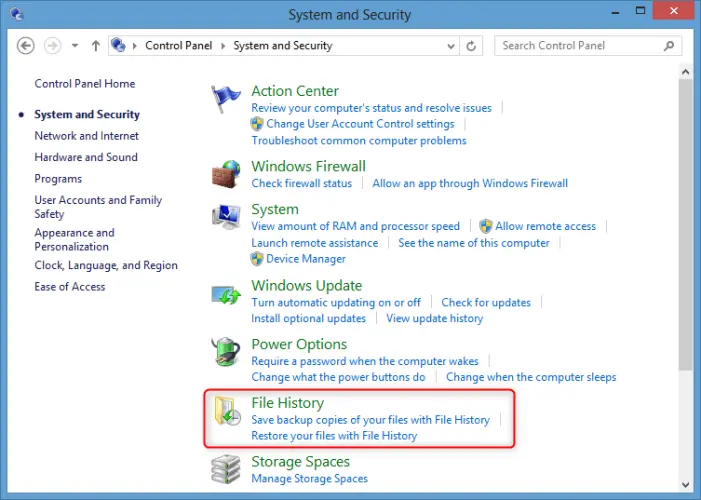
Step 3. Click "Restore personal files" on the left panel.
Step 4. Browse the available backup versions and locate the files or folders you want to restore.
Step 5. Select the desired items and click the green "Restore" button.
Step 6. Check the original location to confirm that your files have been restored.
3.2 Restore Files Using Backup and Restore (Windows 7)
If you previously used Windows Backup to save your important files, you can retrieve them from the existing backup.
Step 1. Open "Control Panel" and navigate to "System and Security" > "Backup and Restore" (Windows 7).
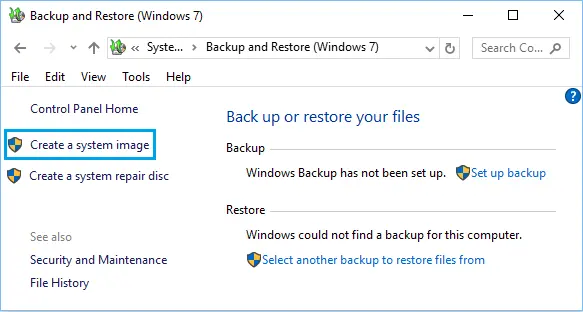
Step 2. Check whether a backup is available.
Step 3. Click "Restore my files".
Step 4. Select "Browse for files" or "Browse for folders" to locate the items you need.
Step 5. Choose where to restore the files and click "Restore" to complete the process.
Part 4. Recover Data from SATA Hard Drive by Professional Recovery Software
What if you have no backup, have emptied the Recycle Bin, or have accidentally formatted your SATA hard drive? In this situation, professional data recovery software can help. It can scan the affected drive, locate recoverable files, and let you select the items you want to retrieve.
One option worth trying is Data Recovery. This data recovery tool can help you recover deleted, formatted, or lost files from computers and supported storage devices. It supports various file types and allows you to preview scan results before recovering selected files.
Key Features of Data Recovery
- Recover data from hard drives, SD cards, Windows PCs, Mac computers, iPhone, and iPad.
- Support various file types, including photos, videos, documents, audio files, and more.
- Offer scanning capabilities to locate lost or inaccessible files.
- Allow you to preview and selectively recover the files you need.
How to recover data from a SATA hard drive with Data Recovery
-
Launch the Data Recovery Software
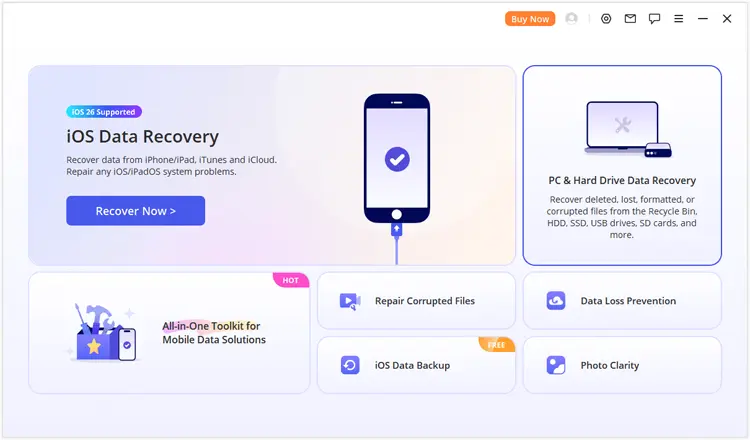
Download and install Data Recovery on your computer. Open the program and select "PC & Hard Drive Data Recovery" from the main interface to enter the computer data recovery section.
-
Select the SATA Hard Drive
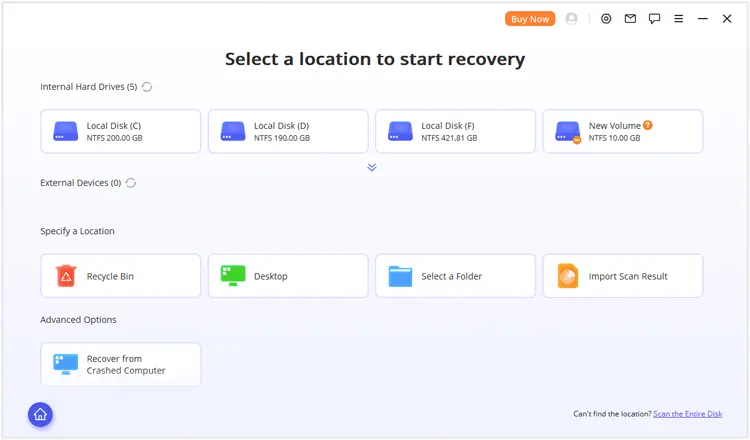
The software will display the detected storage locations and available drives. Find the SATA hard drive or the specific partition where you lost your files and select it. If the target drive or partition is not listed, click "Scan the Entire Disk" to search the computer's storage for the missing data.
-
Scan and Preview Recoverable Files
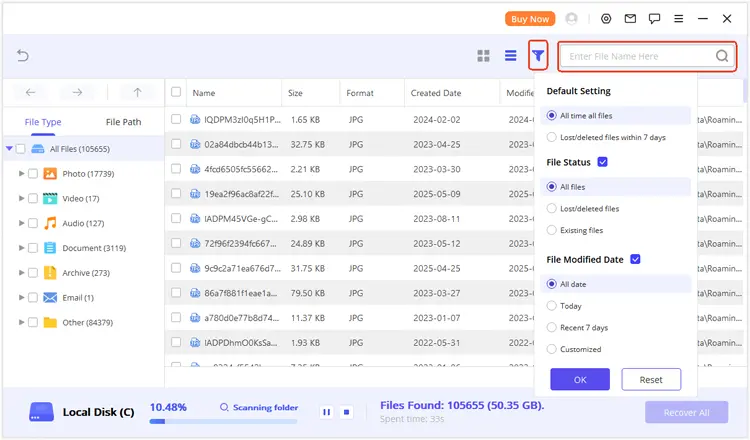
Wait for the software to scan the selected SATA hard drive. Once the scan results appear, browse the detected files by File Type or File Path to locate your deleted or lost data. You can also use the search and filter features to find specific files more quickly. Double-click a file to preview its contents and check whether it is suitable for recovery.
-
Recover Your Selected Data
Select the checkboxes next to the files you want to restore and click "Recover". Choose a safe destination folder on another storage drive to save the recovered files. Avoid saving them back to the original SATA hard drive, as doing so could overwrite other data that may still be recoverable.
Part 5. Retrieve Data from SATA Hard Drive Through CMD Commands
If you prefer a built-in Windows solution, you can try Windows File Recovery, a command-line utility provided by Microsoft. It can help recover deleted files from local storage devices, including internal and external hard drives, when the files cannot be restored from the Recycle Bin. However, this tool requires Windows 10 or Windows 11 and some familiarity with command-line operations.
How to recover data from a SATA hard drive using CMD?
Step 1. Install Windows File Recovery
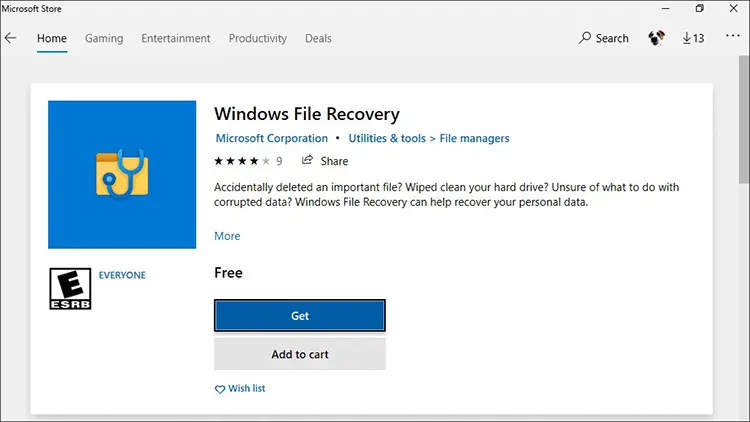
Open the Microsoft Store, search for Windows File Recovery, and install the application on your computer.
Step 2. Open Windows File Recovery
Press the Windows key, search for Windows File Recovery, right-click the result, and select "Run as administrator". Click "Yes" if prompted.
Step 3. Identify the Source and Destination Drives
Open File Explorer and check the drive letters of your SATA hard drive and the destination drive. Make sure the destination is a different physical drive from the source.
Step 4. Enter the Recovery Command
Windows File Recovery uses the following general syntax: winfr source-drive: destination-drive: [/mode] [/switches]
For example, if your SATA hard drive is drive D: and you want to recover deleted files to drive E:, you can use: winfr D: E: /regular /n *.docx /n *.jpg
This command attempts to recover Word documents and JPG images from drive D: and save them to drive E:.
If the drive has been formatted or you cannot find the files using Regular mode, try Extensive mode: winfr D: E: /extensive /n *
Step 5. Confirm and Check the Recovered Files
Type "Y" when prompted to start the recovery process. Wait for the scan to finish, then open the recovery folder created on the destination drive to check the recovered files.
Part 6. Recover Data from SATA Hard Drive with a Specialized Data Recovery Service
If your SATA hard drive is physically damaged or cannot be recognized by your computer, professional data recovery services may be your best option. Unlike ordinary recovery software, specialized recovery technicians can diagnose hardware problems and use professional equipment to retrieve data from damaged storage devices.
This method is particularly worth considering when:
- The SATA hard drive makes clicking, grinding, or unusual noises.
- The drive is not detected in BIOS or Disk Management.
- The hard drive has suffered physical damage, such as a drop or water exposure.
- The drive repeatedly disconnects or cannot be accessed despite checking its connections.
- The lost files are extremely important and other recovery methods have failed.
How to recover data through a professional service:
Step 1. Stop using the affected SATA hard drive immediately and disconnect it safely.
Step 2. Find a reputable data recovery service with experience handling SATA HDDs or SSDs.
Step 3. Explain the data loss situation and describe any unusual sounds or detection problems.
Step 4. Ask for a diagnostic evaluation and a recovery quote before authorizing the service.
Step 5. If you agree to the terms, send the drive to the recovery center or take it to the service provider.
Step 6. After the recovery process, check the retrieved files and save them to a separate storage device.
FAQs About SATA Data Recovery
1. Can I recover data from a SATA hard drive after formatting?
Yes. You may be able to recover data from a formatted SATA hard drive if the original files have not been overwritten. Stop using the drive immediately and try professional recovery software such as iReaShare Data Recovery. A quick format may leave some data recoverable, while a full format or extensive overwriting can make recovery much more difficult.
2. Why is my SATA hard drive not showing up on my computer?
A SATA hard drive may not appear in File Explorer because of a loose SATA cable, insufficient power, an outdated driver, partition problems, or hardware failure. First, check the SATA data and power connections. You can also open Disk Management to see whether Windows detects the drive. If the drive makes unusual noises or is not detected in BIOS, stop troubleshooting and consider professional recovery services.
3. Can I recover data from a dead SATA hard drive?
It depends on what caused the failure. If the drive has a logical problem, such as file system corruption or accidental deletion, recovery software may still help if the drive can be detected and read. However, if the drive has serious physical damage, such as a failed motor, damaged read/write heads, or damaged circuit board, ordinary recovery software will not be sufficient. In this case, contact a professional data recovery service.
Conclusion
That's all about how to recover data from a SATA hard drive in five practical ways. Whether you accidentally deleted files, formatted the drive, or encountered file system problems, you can first try the Recycle Bin, Windows backups, or Windows File Recovery. If you need to retrieve files without an existing backup, Data Recovery is also worth trying. It allows you to scan your hard drive, preview recoverable files, and selectively restore the data you need. However, if your SATA hard drive has physical damage, professional data recovery services are a safer choice.
Related Articles
Best Hard Drive Recovery Software to Recover Lost Data in 2026
How to Perform SSD Data Recovery with/without Backup
Disk Drill Review: Features, Price, Pros, Cons & Best Alternative