TL;DR:
Transferring files from Android to a PC via USB is the fastest and most secure method to sync data, offering multiple approaches depending on your device and technical comfort.
- Direct & Official Tools (Best for most users): Direct USB connection provides the fastest, software-free transfer for Windows users. For brand-specific ecosystems, official tools like Samsung Smart Switch and Mi Phone Assistant offer highly secure, seamless data backups tailored to their respective devices.
- Third-Party & Advanced Options: Tools like iReaShare Android Manager offer visually organized dashboards for selective file sorting, while open-source software like Scrcpy gives advanced users complete screen mirroring alongside quick drag-and-drop capabilities.
A USB cable connection between your Android phone and computer is one of the most reliable and fastest ways to transfer files from Android to PC using USB cable, whether you're moving photos, videos, documents, or large folders. Whether you prefer a direct, software-free method, or want to use a specialized Android data manager, manufacturer app, and open-source tool, this guide covers every step of the process.
- Part 1: Transfer Files from Phone to Laptop with USB Directly
- Part 2: Transfer Files from Android to PC Using USB Cable via iReaShare Android Manager
- Part 3: Send Files through USB from Android to PC via Mi Phone Assistant
- Part 4: Transfer Files via USB from Android to Computer with Samsung Smart Switch
- Part 5: Share Files through USB from Android to PC via Scrcpy
- Part 6: Q&A About Transferring Files from Android to PC via USB
Take a look at the pros and cons of these USB transfer methods:
| Method | Pros | Cons |
|---|---|---|
| Direct USB Transfer | 1. No third-party desktop software installation required. 2. Works out of the box on Windows. 3. Fast, simple, and clean drag-and-drop interface. |
1. Requires installing software like Android File Transfer on macOS. 2. Can be slow to load very large directories with thousands of images. |
| iReaShare Android Manager |
1. Clean, organized dashboard categorized by file types (Photos, Videos, SMS, Contacts, and more). |
1. Requires enabling USB Debugging on your phone. 2. Requires installing a third-party desktop client. |
| Mi Phone Assistant | 1. Official, secure software built specifically for Xiaomi/Redmi/POCO ecosystems. 2. Handles full system backups and deep file management smoothly. |
1. Exclusive to Xiaomi-manufactured devices; will not work on other brands. 2. The English version of the software can sometimes be buggy or lag behind updates. |
| Samsung Smart Switch | 1. Official, highly secure tool for Samsung Galaxy users. 2. Excellent for full device backups, app data, and settings replication. |
1. Only works seamlessly if the source device is a Samsung Galaxy phone. 2. Designed more for full-device backups than granular, single-file browsing. |
| Scrcpy (Open-Source) | 1. Completely free, open-source, and contains no ads or bloated software. 2. Allows full computer control of your phone's screen alongside file sharing. 3. Instant computer-to-phone drag-and-drop. |
1. Requires enabling USB Debugging. 2. No graphical interface for moving files from phone to PC (requires command-line knowledge). |
Part 1: Transfer Files from Phone to Laptop with USB Directly
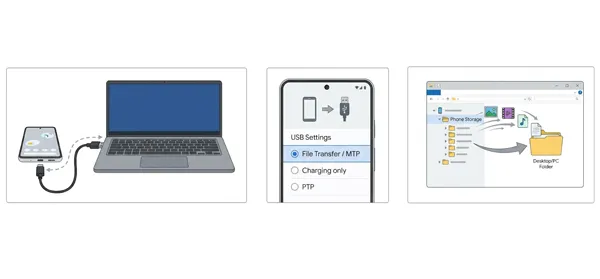
The simplest method requires no third-party software at all. A Windows computer can read your Android device just like a standard flash drive. Then you can move your media files to your laptop via USB directly.
Here's the guide:
-
Connect your Android phone to your laptop using a compatible USB cable. Now, unlock your phone, and swipe down from the top of the screen to open the notification panel.
-
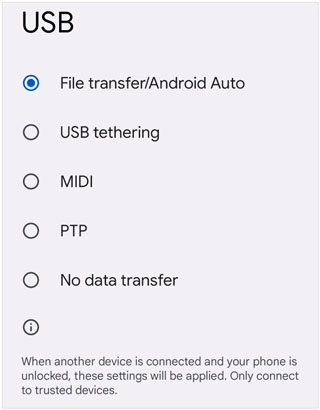
Look for a notification saying "Charging this device via USB" or "USB charging this device". Tap it. Under "Use USB for", select "File transfer/Android Auto".
-
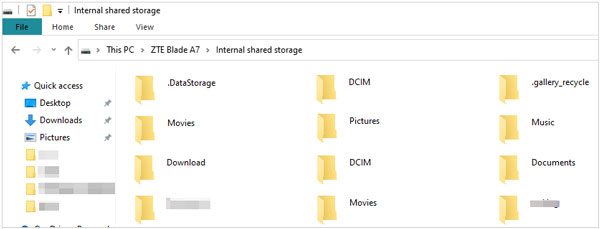
On your laptop, open "This PC" or "File Explorer". Double-click your phone's name under "Devices and drives", navigate to the internal storage, and copy/paste your files to your laptop.
Part 2: Transfer Files from Android to PC Using USB Cable via iReaShare Android Manager
If you want a dedicated desktop interface to organize your data cleanly, iReaShare Android Manager offers a structured environment to selectively transfer, back up, restore, or manage Android files. Furthermore, it is compatible with most Android OS versions and models, including Android 17, Samsung Galaxy S26/TriFold/S25/S24/S23/S22/S21, OnePlus, TECNO, Vivo, Honor, etc.
Main features of iReaShare Android Manager:
* Move documents, videos, music, and photos between Android and PC with a single click.
* Transfer and manage contacts, messages, apps, and media all from one centralized dashboard.
* Transfer large batches of files at once, saving time compared to manual copying.
* Back up your entire Android device to a PC and restore it whenever needed.
* Allow you to export third-party apps from Android to a PC for backup, and install apps from the PC to Android.
* Utilize optimized drivers to minimize connection drops and recognition errors.
* Also support wireless file transfer.
Download iReaShare Android Manager on a computer.
Download for Win Download for Mac
Here's how to share files through USB from Android to a PC with this program:
-
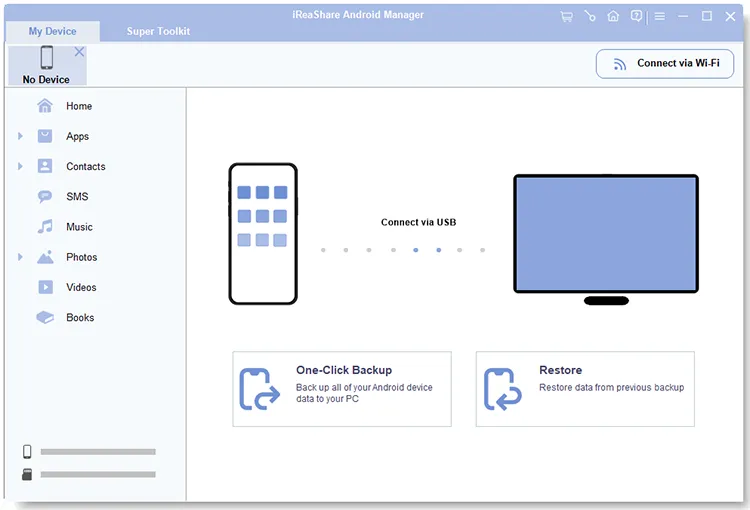
Download and install iReaShare Android Manager on your PC. Then connect your Android phone to the PC using a USB cable.
-
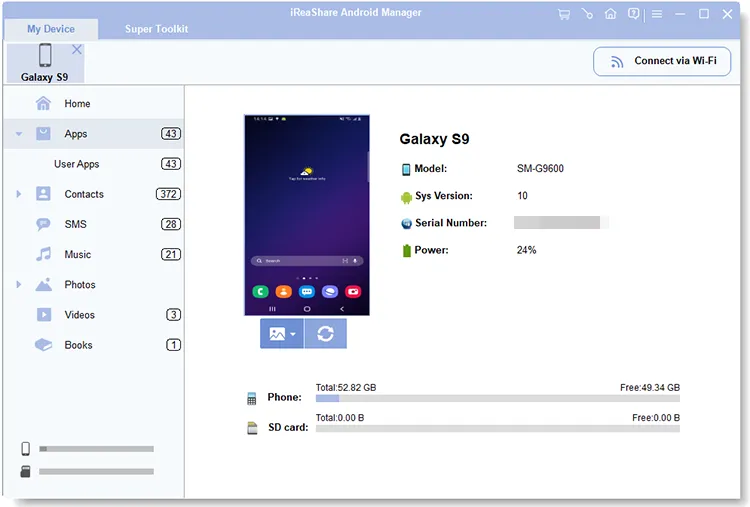
Follow the instructions to turn on USB Debugging on your Android device (Settings > Developer Options > USB Debugging) so the software can communicate with your phone.
-
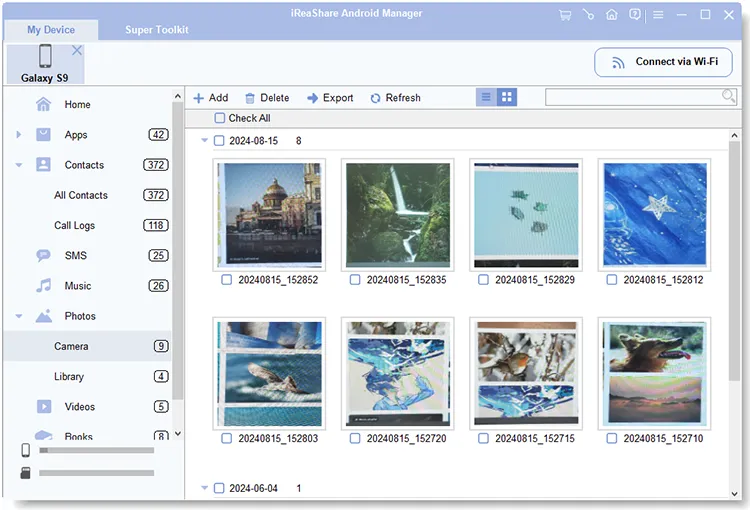
Once it recognizes your device, you will see a dashboard categorizing your data. Click on the file category you want to transfer, select the specific items, and click the "Export" button to save them to your PC.
Part 3: Send Files through USB from Android to PC via Mi Phone Assistant
For users with Xiaomi, Redmi, or POCO devices, Xiaomi provides an official desktop client called Mi Phone Assistant (also known as Mi PC Suite) designed to handle backups and file transfers smoothly.
To put files from a Mi phone to a computer via USB with Mi Phone Assistant:
-
Download and install the latest version of Mi Phone Assistant on your Windows PC. Then connect your Xiaomi device to the PC using a USB cable.
-
Ensure your phone is set to "File transfer" mode and that you have granted necessary permissions if prompted on the screen.
-
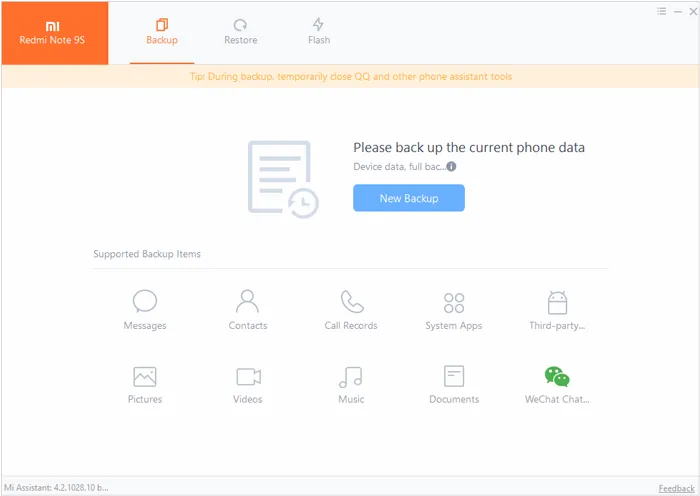
Open the Mi Phone Assistant interface. The app will display the supported backup items. Click the "New Backup" icon, select your file types, and transfer them directly to your PC's local storage.
Part 4: Transfer Files via USB from Android to Computer with Samsung Smart Switch
If you own a Samsung Galaxy device, Samsung Smart Switch is the official tool built for backing up entire devices or moving massive portions of your data to a computer. Or you can transfer specific file types to your PC via USB.
Steps to transfer files via USB from Android Samsung to PC with Smart Switch:
-
Download and install Samsung Smart Switch for PC. Then connect your Samsung Galaxy phone to your computer with a USB cable.
-
Unlock your phone and tap "Allow" on any pop-ups requesting access to your data. Launch the Smart Switch application on your computer.
-
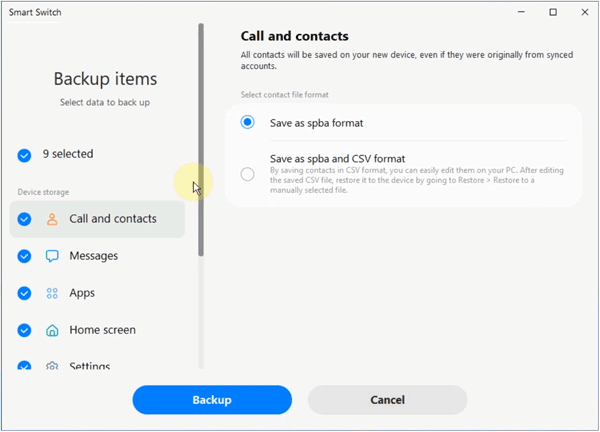
To do a quick transfer, click "Backup" to automatically save your photos, videos, app data, and messages to your computer. Alternatively, you can enter the settings to manually choose which specific file types you want to move.
Part 5: Share Files through USB from Android to PC via Scrcpy
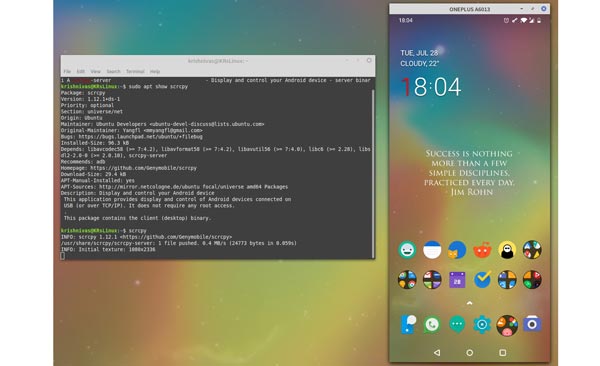
For tech-savvy users, Scrcpy is a powerful, free, open-source tool that mirrors your Android screen on your PC via USB. Beyond just viewing your screen, it includes a hidden superpower: seamless drag-and-drop file transfers.
Here's how:
-
Download Scrcpy on your PC and extract the ZIP file. Enable USB Debugging on your Android phone. Then connect your phone to your PC via USB and accept the "Allow USB debugging" prompt on your phone's screen.
-
Open the Scrcpy folder on your PC and double-click scrcpy.exe. Your phone's screen will pop up on your computer.
-
To pull files from your phone to PC via command line, you can open a terminal in that folder and run: "adb pull /sdcard/path/to/your/file.mp4 C:\Users\YourName\Desktop".
Part 6: Q&A About Transferring Files from Android to PC via USB
Q1: Why is USB file transfer not working?
There are three primary reasons this happens:
- The Cable: Many USB cables (especially cheap charging blocks or third-party cords) are designed for charging only and do not have the internal wiring required to transfer data. Always try an official or high-quality data-capable cable.
- Incorrect USB Mode: Your phone defaults to "Charging only" for security reasons. If you don't change this setting on your phone after plugging it in, the computer won't see any files.
- Outdated Drivers: Your computer's USB drivers might be out of date, preventing it from interacting with your modern phone.
Q2: Why doesn't my Android phone pop up the USB options after connecting to my PC?
If you plug your phone in and nothing happens except a slight battery charge increase, check the following:
- Dirty Ports: Lint or dust stuck in your phone's USB-C port can block the data pins while still making contact with the power pins. Clean it gently with a non-metallic toothpick.
- USB Configuration Lock: You can force the menu to appear by going to Settings > Developer Options > Default USB Configuration and changing it permanently to File Transfer.
- Try another USB Port: Front ports on desktop PCs often lack sufficient power or data bandwidth; try plugging the cable directly into the motherboard ports on the back of the PC.
Q3: Can I force my PC to recognize a USB device?
Yes, you can force Windows to re-evaluate the connection through Device Manager:
- Right-click the Windows Start menu and select Device Manager.
- Expand the Universal Serial Bus controllers or Portable Devices section.
- Look for your phone's name or an item marked with a yellow exclamation triangle.
- Right-click it and select Update driver, or choose Uninstall device, unplug your phone, and plug it back in to force Windows to reinstall the fresh, correct drivers.
Conclusion
Transferring files from Android to PC via USB is a practical method for moving large amounts of data quickly and securely. For simple transfers, using a USB cable with File Explorer is usually enough. However, if you need advanced management features, batch transfers, or better organization, professional tools such as iReaShare Android Manager or manufacturer-specific solutions can make the process easier.
When USB file transfer problems occur, checking the cable, enabling the correct USB mode, updating drivers, and verifying device permissions are usually effective solutions. With the right method, you can easily transfer photos, videos, documents, and other important files from your Android phone to your computer.
Download for Win Download for Mac
Related Articles
How to Transfer Files from PC to Android Wirelessly with 7 Solutions
Guide: Cast Android to Windows 10 PC (Contain USB and Wi-Fi Connections)
How to Transfer Files from PC to iPhone Using USB Cable: 3 Tested Methods
New Guide: How to Transfer Files from iPhone to Android