


TL;DR:
There are four ways to move apps to SD on Android, depending on whether you want to use a computer:
- Without a computer: Use Android Settings to move compatible apps, enable Force allow apps on external in Developer Options, or use AppMgr III to find and move movable apps.
- With a computer: Use iReaShare Android Manager to export installed apps as APK files to an SD card for backup and future installation.
Running out of internal storage on your Android phone can prevent you from installing new apps, downloading files, or updating existing applications. If your device has a microSD card slot, moving compatible apps and other files to the card can help free up valuable space without deleting everything you need.
Fortunately, there are several ways to move apps to SD on Android, ranging from built-in settings to third-party tools. However, not every Android device or app supports this feature. In this article, we'll explore four practical approaches, explain their requirements, and help you choose the right one for your device.
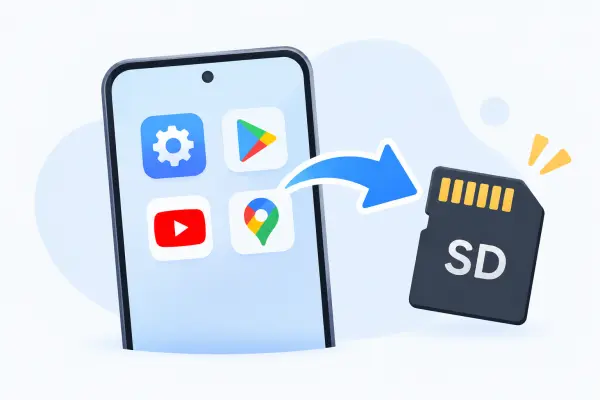
Comparison of 4 Ways to Move Apps to SD on Android
Before choosing a method, take a look at the following comparison to understand what each option offers and whether you need a computer.
| Method | Computer Required | Root Required | Main Function |
|---|---|---|---|
| Android Settings | No | No | Move compatible installed apps |
| Developer Options | No | No | Try enabling external app movement |
| iReaShare Android Manager | Yes | No | Export installed apps as APK files |
| AppMgr III (App 2 SD) | No | No | Find and move compatible apps |
Part 1. How to Transfer Apps to SD on Android from Settings
The easiest way to move apps to an SD card is to use the built-in storage settings on your Android phone. This method requires no additional software or computer. However, it only works when your device supports app migration, and the app developer allows the app to be stored externally.
Before starting, insert a compatible SD card into your phone and make sure it is recognized. On some Android devices, the card must be formatted as internal storage before you can move apps to it.
Steps to move apps to an SD card via Settings:
Step 1. Open the Settings app on your Android phone and navigate to "Apps" or "Apps & notifications".
Step 2. Find and select the app you want to move to the SD card.
Step 3. Tap "Storage" or "Storage & cache" to view the app's current storage information.
Step 4. If the "Change" option is available, tap it and select "SD card" as the new storage location.
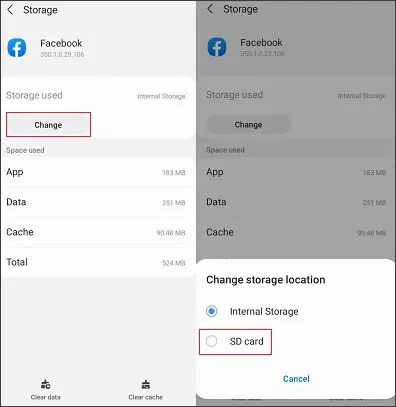
Step 5. Tap "Move" and wait for Android to complete the transfer.
Once the process finishes, the app will be stored on the SD card to the extent allowed by your device and the app itself. Repeat these steps for other compatible apps if needed.

If you cannot find the "Change" button, your phone may not support moving apps to external storage, or the app developer may have disabled this option. Some apps also leave certain data in internal storage even after being moved. Do not remove the SD card while apps are using it, as those apps may become unavailable.
Part 2. How to Move Apps to SD on Android via Developer Options
If the Change button is missing from an app's storage settings, you can try enabling Force allow apps on external in Developer Options. This setting allows Android to consider apps for external storage even when their installation settings do not normally permit it.
It is worth trying on devices that expose this option, but it does not guarantee that every app can be moved. Device manufacturers and Android versions may also handle this setting differently.
Steps to force Android to allow apps on external storage:
Step 1. Open "Settings" on your phone and go to "About phone" > "Software information".
Step 2. Find "Build number" and tap it seven times. If prompted, enter your screen lock password or PIN. You should see a message confirming that Developer options have been enabled.
Step 3. Return to the main "Settings" page and open "Developer options". Depending on your phone, this menu may be under "System" or "Additional settings".
Step 4. Scroll down to find "Force allow apps on external" and toggle it on. You can also use the search function in Settings if available.
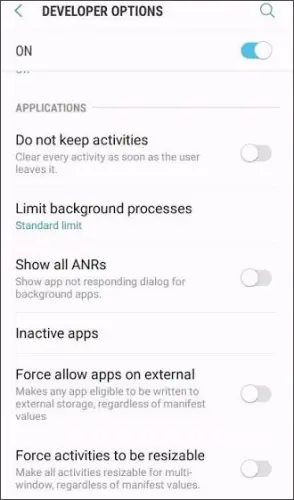
Step 5. Restart your Android phone. Then go to "Settings" > "Apps", select the app you want to move, and open "Storage".
Step 6. Check whether the Change option is now available. If it appears, tap it, choose SD card, and select "Move".
After the transfer, check whether the app launches and works normally.
This developer setting overrides the app's normal external-storage preference, so some apps may not work correctly after being moved. It may also be missing or ineffective on certain devices. If the option does not appear or the move fails, use a method supported by your phone rather than repeatedly forcing the operation.
Part 3. How to Move Apps to SD on Android by iReaShare Android Manager
If you want to save copies of your installed Android apps on an SD card, iReaShare Android Manager provides a convenient way to export their APK files through a computer. It allows you to view installed apps, select the ones you want to save, and export their installation packages to a chosen destination, including an SD card connected to your computer.
This is useful when you want to keep APK backups for future installation or transfer apps between devices. However, exporting an APK does not move the installed app or its private data to the SD card.
Key Features of iReaShare Android Manager:
- Display and manage installed Android apps from a computer.
- Export selected apps as APK files for backup.
- Install APK files from a computer to an Android phone.
- Uninstall unwanted applications to free up internal storage.
- Transfer photos, videos, music, contacts, and other supported data between Android and a computer.
- Back up and restore Android data on a computer.
Steps to export Android apps to an SD card with iReaShare Android Manager:
-
Download and install iReaShare Android Manager on your computer. Launch the program and connect your Android phone using a USB cable.
-
Follow the on-screen instructions to enable USB debugging and establish a connection between your phone and the software.
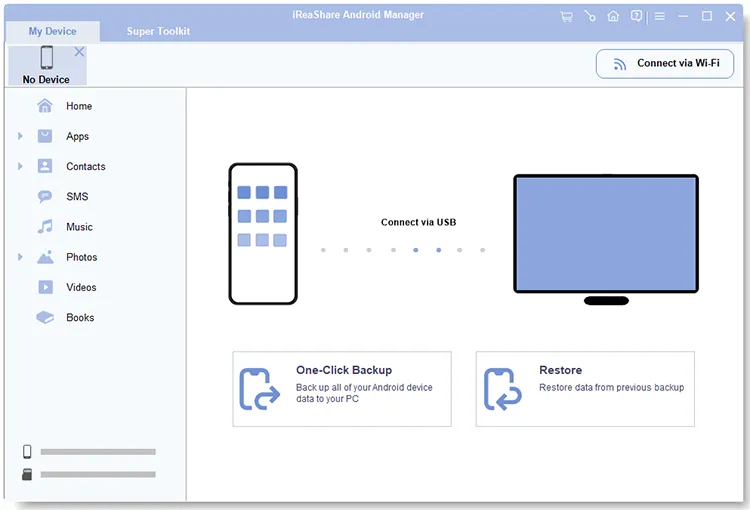
-
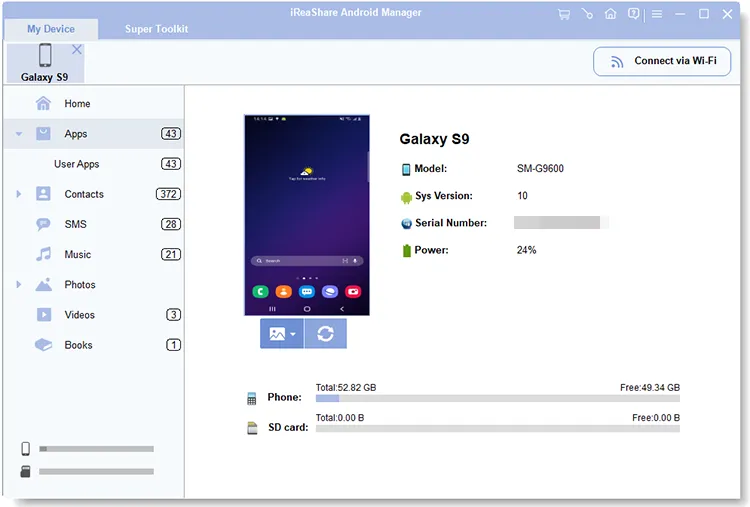
Click "Apps" on the left panel. The software will load and display the apps installed on your Android phone.
-
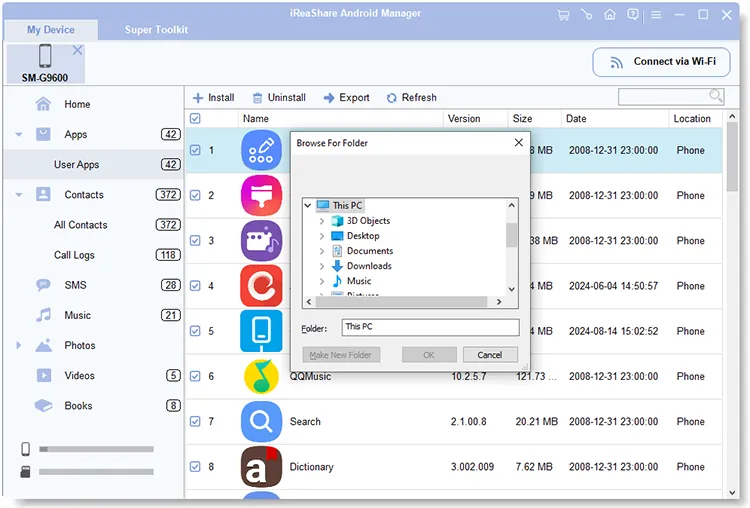
Preview and select the apps you want to export. Click "Export" and choose your SD card as the destination.
You can use the video guide below to learn more about iReaShare Android Manager.
Part 4. How to Move Android Apps to SD Using AppMgr III (App 2 SD)
AppMgr III, also known as App 2 SD, is an Android application management tool that helps you identify apps that can be moved to external storage. Instead of checking every app individually through Settings, you can use its app list to find movable applications and access the relevant migration options.
The app also offers other management features, such as batch uninstalling, hiding apps, freezing apps, and clearing cache. However, its ability to move apps still depends on Android's storage restrictions and your device's compatibility.
Steps to move apps to an SD card using AppMgr III:
Step 1. Open Google Play Store on your Android phone, search for AppMgr III (App 2 SD), and install the app.
Step 2. Launch AppMgr III and allow the necessary permissions. It will scan your installed applications and organize them according to their management or migration status.
Step 3. Open the list of movable apps and select the application you want to transfer to the SD card.
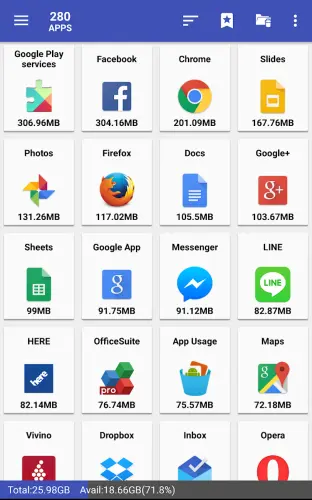
Step 4. Tap the "Move" option. If AppMgr III redirects you to the system storage settings, follow the prompts to change the app's storage location.
Step 5. Select "SD card" and tap "Move" to complete the process. Repeat the operation for other compatible applications.
AppMgr III's app movement feature depends on the Android version, device manufacturer, and SD card configuration. Some phones may require the SD card to be formatted as internal storage, while others may not support app migration at all.
Conclusion
Moving apps to an SD card on Android can help free up internal storage, but the available options depend on your phone and the apps you use. If your device supports app migration, the built-in Settings option is the simplest choice. You can also try Developer Options or AppMgr III to find additional migration options.
If you want to save copies of your installed apps as APK files, iReaShare Android Manager offers a convenient way to export them to an SD card through your computer. It also helps you manage unwanted apps and transfer other phone files, giving you more ways to organize your Android storage.
Related Articles
How to Move Videos to SD Card from Android: 5 Solutions
How to Move Photos to SD Card on Android Device (Solved)
How to Format SD Card on Different Devices Effectively (Full Guide)