TL;DR:
Is Voicemod not working on Discord, Roblox, or Windows 11? Discover 7 easy fixes for microphone, soundboard, and audio issues, plus troubleshooting tips and an online voice changer alternative to help you get back to changing voices.
If you're experiencing Voicemod not working issues, such as no sound, voice effects not working, your microphone not being detected, or Voicemod failing to work properly in Discord, games, and other voice chat apps, there's no need to rush to uninstall the software. In many cases, these problems are related to input and output device settings, virtual audio drivers, app permissions, or software conflicts.
This article covers common Voicemod issues and their fixes to help you troubleshoot them step by step. If the usual solutions don't work, we'll also introduce alternative voice changers you can try to get your voice chat and real-time voice-changing experience back up and running.
Part 1. Why Is My Voicemod Not Working?
Before trying any fixes, identify the specific problem you're experiencing with Voicemod. Different issues usually require different solutions.
| Common Issues | Possible Causes |
|---|---|
| Voicemod has no sound | Incorrect output device settings, low volume, or audio routing issues. |
| Voicemod voice changer is not working | Voice effects are disabled, the wrong input device is selected, or the software is malfunctioning. |
| Voicemod microphone is not working | Microphone permissions are disabled, the device is disconnected, or the driver is malfunctioning. |
| Voicemod is not working on Discord | Discord has selected the wrong input device. |
| Voicemod is not working in games | The game's voice chat settings are incompatible with Voicemod's virtual microphone. |
| Voicemod is stuck loading or won't launch | A software process error, an outdated version, or corrupted installation files. |
| Voicemod virtual microphone is missing | The virtual audio driver is not installed correctly or is not recognized by the system. |
Part 2. How to Fix Voicemod Not Working?
Below are seven fixes, arranged from the simplest to the most advanced. We recommend trying them in order and testing Voicemod after each step to see whether the problem has been resolved.
Fix 1. Check Voicemod Audio Settings
This is one of the first fixes worth trying if Voicemod has no sound, cannot detect your microphone, or is experiencing similar issues.
Voicemod needs to recognize your physical microphone correctly and send the processed audio to the right output device. If either the input or output device is selected incorrectly, Voicemod may fail to change your voice properly even when the software is running.
Follow these steps:
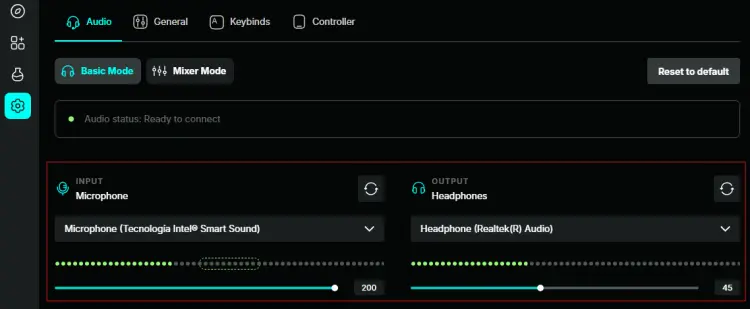
Step 1. Open "Settings" from the left-hand menu.
Step 2. Under "Input Devices", select your physical microphone.
Step 3. Adjust the input volume slider to achieve a clear audio signal without entering the red zone on the right.
Step 4. Under "Output Devices", choose your headphones.
Step 5. Turn on "Hear My Voice" and "Voice Changer" to test your audio and voice effects.
Fix 2. Check Discord Audio Settings
If Voicemod changes your voice correctly but other people can't hear you, the problem may lie with Discord, your game, or another voice chat app. These apps usually let you select a microphone independently. If they are still using your physical microphone instead of Voicemod's virtual microphone, your voice may bypass Voicemod, preventing others from hearing your voice effects.
Here is how to fix Voicemod not working on Discord:
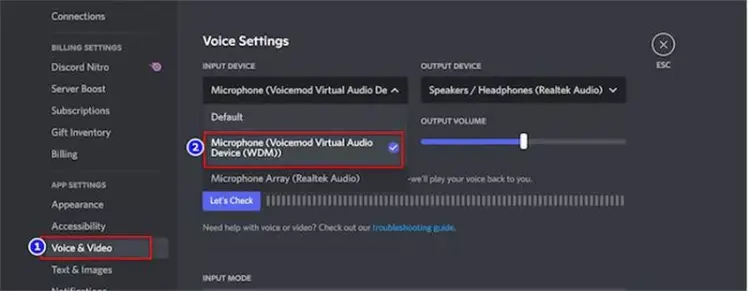
Step 1. Open Discord and go to "User Settings".
Step 2. Select "Voice & Video".
Step 3. Under "Input Device", select Voicemod's virtual microphone, usually listed as "Microphone (Voicemod Virtual Audio Device (WDM))" or a similar name.
Step 4. Under "Output Device", select the headphones or speakers you actually use.
Step 5. Use Discord's microphone test feature to confirm that it can receive the processed audio.
Fix 3. Set Up Your Microphone Correctly
Next, check that your microphone is configured correctly and working properly. Incorrect settings or microphone issues can prevent Voicemod from functioning as expected.
Here is how to fix Voicemod not working on Windows 11:
Step 1. Open "Settings" and navigate to "System" > "Sound".
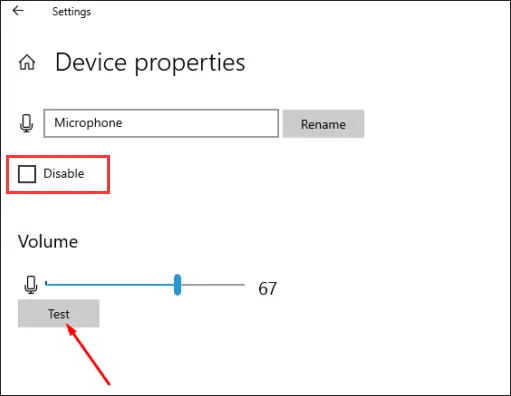
Step 2. Under the input settings, select your physical microphone and click "Device properties".
Step 3. Make sure the "Disable" option is unchecked, then click "Test". Speak into your microphone to verify that it is working properly.
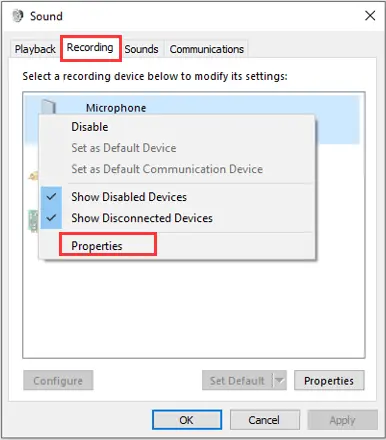
Step 4. Right-click the speaker icon in the taskbar and select "Sounds". Go to the "Recording" tab, right-click your physical microphone, and choose "Properties".
Step 5. In the pop-up window, open the "Advanced" tab. Expand the "Default Format" drop-down menu and select "2 channel, 16 bit, 44100 Hz (CD Quality)". Click "OK" to save your changes.
Step 6. Back in the "Sound" window, select "Voicemod Virtual Audio Device" and click "Set Default". Then click "OK" to apply the changes.
Fix 4. Restart Voicemod and Your Computer
If your settings look correct but Voicemod still isn't working, a simple restart may help resolve the issue.
To restart Voicemod on Windows, follow the steps below:
Step 1. Press "Ctrl" + "Shift" + "Esc" to open Task Manager.
Step 2. Find "Voicemod" in the list of running processes, select it, and click "End task".
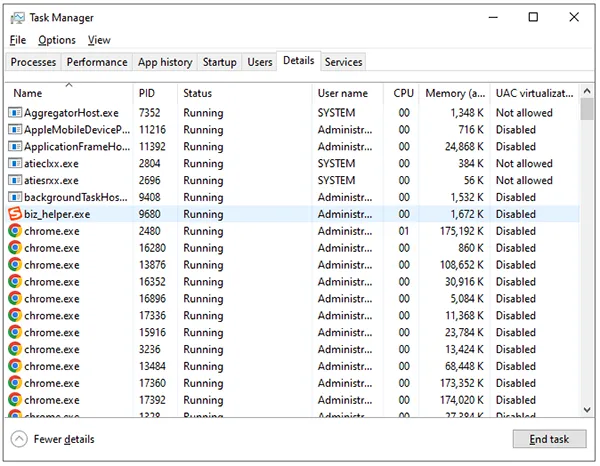
Step 3. Open the "Start" menu, search for "Voicemod", and launch the application again.
Step 4. Test your microphone and voice effects to see whether the issue has been resolved.
To restart your PC, follow the steps below:
Step 1. Open the "Start" menu and click the "Power" button.
Step 2. Select "Restart" from the available options and wait for your computer to reboot.
After your PC restarts, launch Voicemod again to check whether the issue is resolved. If the problem persists, move on to the next fix.
Fix 5. Update Windows
If you're using an outdated version of Windows, Voicemod may not work properly on Roblox or Discord. Follow these steps to check for and install available Windows updates.
Step 1. Press "Windows" + "I" to open "Settings".
Step 2. Select "Windows Update" from the left-hand menu.
Step 3. Click "Check for updates" and wait for Windows to search for available updates.
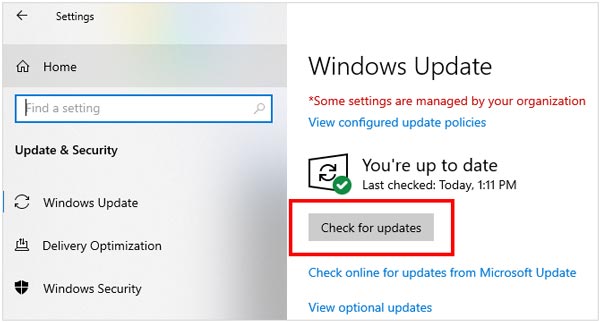
Step 4. If updates are available, download and install them. Follow any on-screen instructions to complete the process.
Step 5. Restart your PC, reopen Voicemod, and check whether the issue has been resolved.
Fix 6. Reinstall the Voicemod Driver
If Voicemod is not working properly, the issue may be caused by a faulty or incorrectly installed audio driver. Reinstalling the Voicemod virtual audio driver may help resolve problems such as microphone detection failures or voice effects not working.
Here are the steps:
Step 1. Right-click the "Start" button and select "Device Manager".
Step 2. Expand "Audio inputs and outputs", right-click "Microphone (Voicemod Virtual Audio Device (WDM))", and select "Uninstall device".
Step 3. In the confirmation window, click "Uninstall" to proceed.
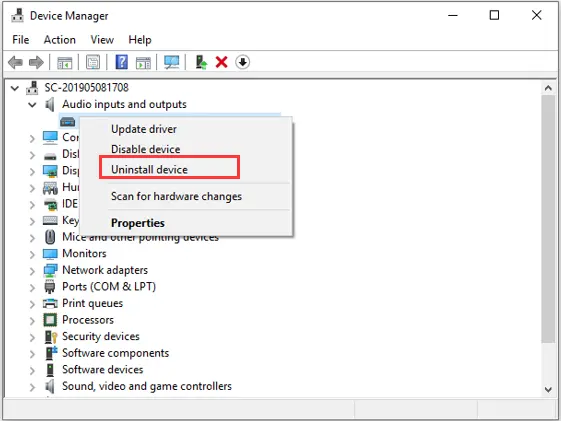
Step 4. Restart your computer, then open Voicemod and check whether the virtual audio device has been reinstalled automatically.
Step 5. If the driver is still missing or Voicemod is not working, visit the official Voicemod website to find the latest installer or driver repair instructions. Follow the on-screen instructions to complete the installation.
Step 6. Reopen Voicemod, check your input and output device settings, and test whether the voice changer works properly.
Fix 7. Reinstall Voicemod
If none of the fixes above resolve the issue, your Voicemod installation may be corrupted. Try uninstalling Voicemod and reinstalling the latest version. Alternatively, run the latest installer to update or repair your existing installation, if supported. Once the process is complete, launch Voicemod again to check whether the problem has been resolved.
Bonus: Best Online Voicemod Alternative – TopMediai Online Voice Changer
If you cannot get Voicemod working after troubleshooting, you may want to try an online voice changer instead of installing another desktop application.
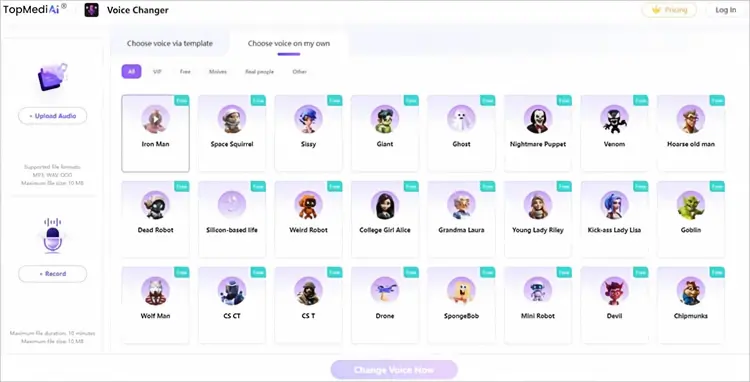
TopMediai Online Voice Changer lets you upload a recording or record your voice in a browser, choose a voice effect, and generate an altered audio file. It supports MP3, WAV, and OGG uploads, with a maximum file size of 10 MB and a maximum recording duration of 10 minutes on the listed online tool.
Key Features of TopMediai Online Voice Changer:
- Use AI technology to transform your voice with different sounds and styles.
- Let you upload existing audio files or record your voice directly in your browser.
- Support MP3, WAV, and OGG audio formats.
- Support audio uploads up to 10 MB and recordings of up to 10 minutes.
- Let you preview and download your transformed audio.
- Work through supported web browsers on Windows, Mac, Android, and iPhone without requiring desktop software installation.
- Offer voice training and cloning features for creating personalized voice models.
How to Use TopMediai Online Voice Changer:
-
Visit the TopMediai Online Voice Changer website in your browser. Upload an existing audio file or record your voice directly on the page.
-
Browse the available voice effects and select the filter you want to apply. Click "Change Voice Now" to let the AI process your audio.
-
Preview the transformed voice to check whether the result meets your expectations. Download and save the modified audio file to your device.
FAQs About Voicemod Not Working
Q1. Why is Voicemod not connecting to a server?
Voicemod may fail to connect to a server due to an unstable internet connection, an outdated app version, or interference from Windows Defender Firewall or third-party antivirus software.
Q2. Why is my Voicemod Soundboard not working?
If your Voicemod Soundboard isn't playing sounds, the issue may be caused by an outdated app version, missing updates, incorrect audio driver configurations, or improperly configured sound settings on your computer.
Q3. Why isn't Voicemod picking up my mic?
Voicemod may not detect your microphone on Discord if the wrong input device is selected, your microphone permissions are disabled, or your audio settings are misconfigured. An outdated version of Voicemod or a problem with your microphone driver may also cause this issue.
Conclusion
When Voicemod is not working, check your audio settings, microphone configuration, and Discord or game input settings first. If the problem persists, try restarting Voicemod, updating Windows, reinstalling the audio driver, or reinstalling the application.
If you need an alternative for prerecorded audio, TopMediai Online Voice Changer lets you apply voice effects directly in your browser without installing desktop software. However, if you need real-time voice changing in games or voice chats, choose a tool that specifically supports live voice conversion.
Related Articles
Ghostface Voice Changer Review: 7 Best Tools to Try in 2026
5 Best Voicemod Alternative Tools for PC, Mac & Mobile Users
Clownfish Voice Changer Not Working? 5 Easy Fixes (2026)
Scary Voice Changer: 8 Best Tools to Create Creepy AI Voices in 2026