TL;DR:
Editing a PDF on a PC doesn't require expensive software. This article provides a comprehensive guide on how to edit a PDF on a PC using six different methods, tailored to different editing needs:
- For Direct Text Editing: Use Microsoft Word (best for text-heavy files) or PDFgear (completely free with built-in AI tools) to modify existing text seamlessly.
- For Advanced Offline Editing & OCR: Use the PDF Editor app, which excels at handling scanned documents and image-to-text conversion.
- For Free Utility: Use PDF24 Creator, a 100% free offline toolkit ideal for merging, splitting, and page management.
- For Quick Annotations, Filling Forms, or Signing: Use Adobe Acrobat Online or the built-in Firefox Browser for instant, lightweight adjustments without heavy installations.
Editing a PDF on a PC used to be a frustrating task, often requiring expensive software or dealing with clunky formatting errors. Today, there are numerous ways to modify a PDF, depending on whether you need to change text, add annotations, or fill out a form. This comprehensive guide covers six different methods to edit a PDF on your PC, ranging from built-in tools and free online editors to dedicated desktop software.
- Part 1: How to Edit a PDF on PC via Microsoft Word
- Part 2: How to Edit PDF on PC via Adobe Acrobat Online Editor
- Part 3: How to Edit PDF on Computer via PDF Editor
- Part 4: How to Edit a PDF on PC via PDF24 Creator
- Part 5: How to Edit PDF File on PC via Firefox Browser
- Part 6: How to Edit PDF Documents on PC via PDFgear
- Part 7: Q&A About Editing a PDF on PC
Compare the advantages and disadvantages of these methods:
| Method | Pros | Cons |
|---|---|---|
| Microsoft Word | 1. Excellent for heavy text restructuring. 2. No new software to install if you already have Office. 2. Familiar, easy-to-use interface. |
1. Complex layouts, tables, and graphics often break or shift. 2. Cannot edit interactive PDF forms or add native PDF security settings. |
| Adobe Acrobat Online | 1. Powered by the industry-standard PDF engine. 2. Highly reliable formatting for annotations. 3. Cloud-based—works on any device without installation. |
1. Requires a free account login to access tools and download. 2. Free version is limited to basic annotations (cannot edit existing text directly). |
| PDF Editor | 1. Full, seamless editing of existing text and images. 2. Built-in OCR for scanned documents. 3. Secure offline processing with batch tools. |
1. Desktop software requires download and installation. 2. Advanced features or extended use may require a premium subscription. |
| PDF24 Creator | 1. 100% free with absolutely no limitations or watermarks. 2. Functions completely offline for privacy. 3. Packed with extra tools (merge, split, compress). |
1. Interface feels slightly dated. 2. Cannot directly click and modify existing text strings (operates via overlay annotations). |
| Firefox Browser | 1. Instantly available on most PCs with no installation. 2. Great for quickly filling out forms or drawing signatures. 3. Extremely lightweight and fast. |
1. Limited to adding new text, highlighting, and freehand drawing. 2. No advanced features like OCR, merging, or editing existing text. |
| PDFgear | 1. 100% free with no hidden paywalls or watermarks. 2. True text editing (modifies original text seamlessly). 3. Includes innovative AI features for summarizing and searching. |
1. Desktop software requires a download. 2. Being a newer tool, it receives frequent updates, which may slightly alter the UI. |
Part 1: How to Edit a PDF on PC via Microsoft Word
If you need to make major structural or text edits to a PDF and already have Microsoft Office installed, Word is an incredibly convenient tool. It converts the PDF into an editable Word document automatically. By the way, Microsoft officially introduced the "PDF Reflow" feature. If you are using Office 2010 or an earlier version, this functionality is indeed unavailable.
Here's how to edit a PDF with Word:
-
Open Microsoft Word on your PC. Then click on "File" > "Open" and browse for the PDF file you want to edit.
-
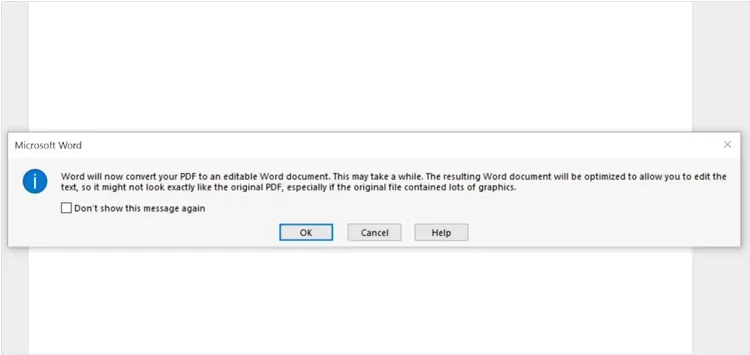
A prompt will appear stating: Word will now convert your PDF to an editable Word document. Click "OK".
-
Word will convert the file. You can now edit the text, change the layout, and modify images just like a normal .docx file.
-
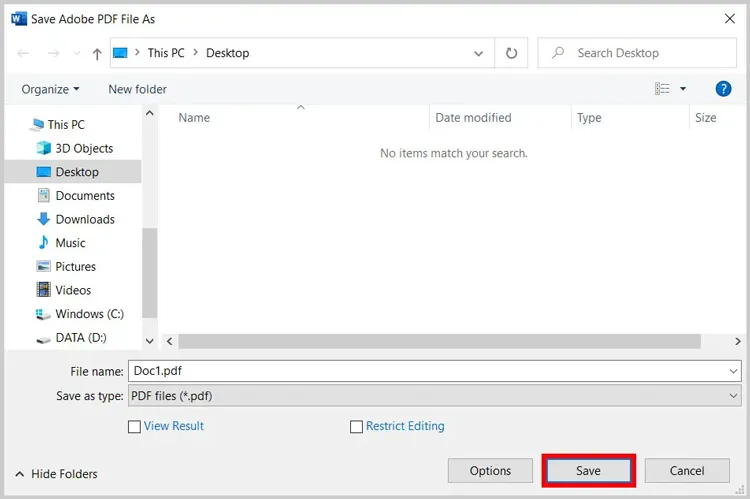
Once finished, go to "File" > "Save As" and choose "PDF files (*.pdf)" from the file type dropdown menu to save it back to its original format.
Note: This method works best for text-heavy documents. PDFs with complex layouts, tables, or heavy graphics might suffer from formatting shifts during the conversion.
Part 2: How to Edit PDF on PC via Adobe Acrobat Online Editor
Adobe Acrobat is the gold standard for PDFs, and you don't need a paid subscription to make basic edits. Adobe offers a capable web-based tool for quick adjustments. You can use it for free to highlight, add notes, or apply electronic signatures.
However, the moment you click the "Edit" button (labeled "Edit text & images") to directly modify the original content within the PDF, you are typically allowed to edit and download the file for free only once without logging in.
Here's the detailed guide:
-
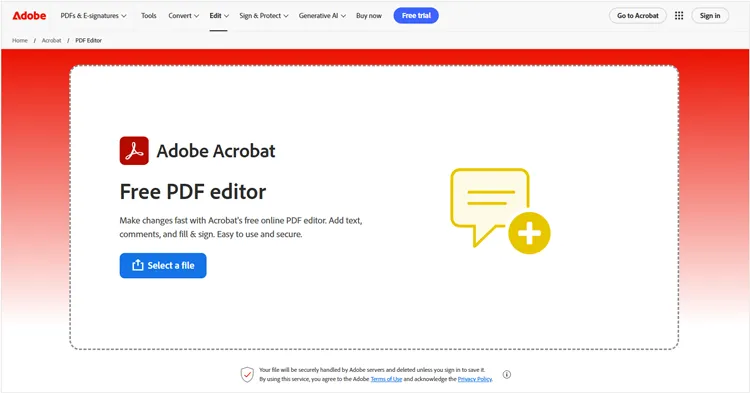
Open your web browser and go to the Adobe Acrobat online PDF editor page. Then click "Select a file" or drag and drop your PDF into the drop zone.
-
Sign in with a free Adobe, Google, or Apple account to unlock editing tools. Then use the toolbar to add text, sticky notes, highlights, and drawings. You can also fill out forms and add a digital signature.
-
Once your edits are complete, click Download to save the updated PDF to your PC.
Read also: Want to export your Android text messages to a PDF file? Then go to this post to get the solution.
Part 3: How to Edit PDF on Computer via PDF Editor
If you want to edit your PDF files offline on your computer, you can try PDF Editor, a robust and lightweight desktop application. It offers advanced editing capabilities, including OCR (Optical Character Recognition), and the editing suite designed for use on Windows PCs.
Main features of this PDF editor app:
* Allow you to click directly into existing paragraphs to modify, delete, insert, or reformat text.
* Enable you to resize, crop, or replace images within the document seamlessly.
* Provide OCR to help you scan image-based PDFs or scanned paper documents and convert them into searchable, editable text, supporting muti-language recognition.
* Convert PDFs to and from various office formats, including Microsoft Word, Excel, PowerPoint, PNG, JPG, and TXT, while preserving the original layout and formatting as closely as possible.
* Merge multiple PDFs into one, and split a single PDF into separate files.
* Provide options to add open passwords (to restrict viewing) or permission passwords (to restrict copying, printing, or editing) to secure sensitive data.
Download the PDF Editor app below.
Here's how to edit a PDF on a PC with this PDF editor:
-
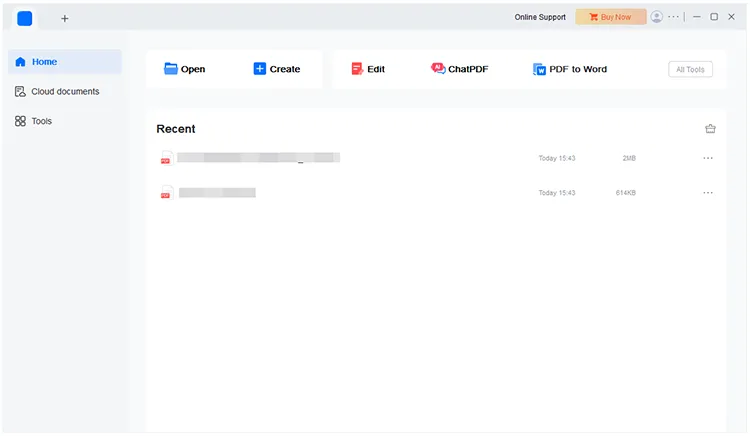
Download and install the PDF editor app on your PC. Launch the app and click "Open" to import your PDF file.
-
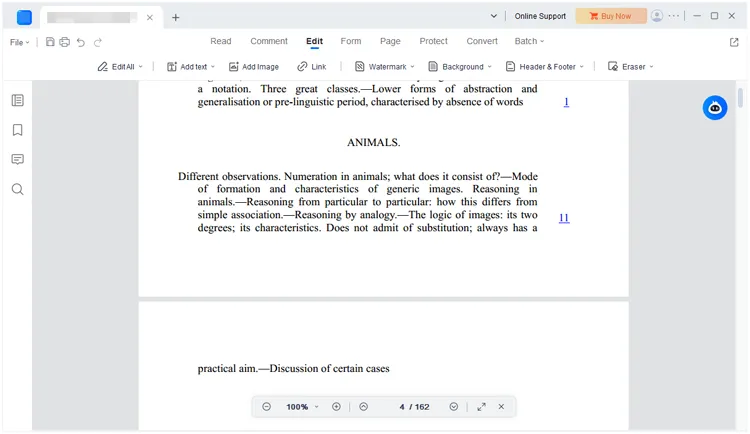
Select "Edit" > "Edit Text" or "Edit Objects". You can now click directly on any existing text within the PDF to modify, delete, or replace it.
-
Use the formatting panel to change font size, color, and alignment. After editing, click the "Save" icon, or press "Ctrl + S" to apply the changes.
Tips: If you want to know more features of this tool, navigate to the guide for the PDF editor.
Part 4: How to Edit a PDF on PC via PDF24 Creator
PDF24 Creator is a completely free, 100% unrestricted desktop software packed with PDF tools. It is an excellent option for users who want premium features without watermarks or hidden fees. However, you cannot directly click on and modify existing text within a PDF document. If you wish to correct a simple typo in a file, PDF24 does not allow you to simply place your cursor and edit it directly.
To edit a PDF on a PC with PDF24:
-
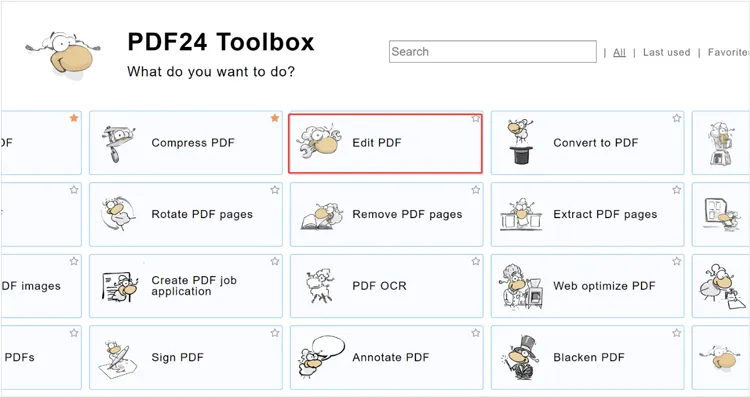
Download and open PDF24 Creator on your Windows computer. From the main dashboard, select the "Edit PDF" tool.
-
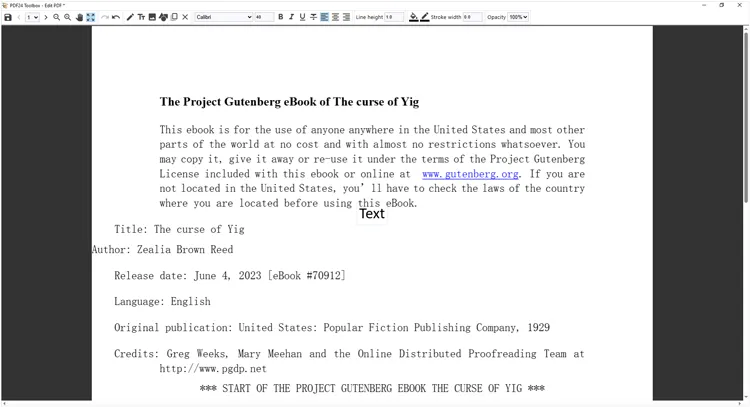
Click "Choose file" and open your PDF document. The editor allows you to add text, insert shapes, draw, and add images on top of the existing document. You can also rearrange or delete pages.
-
When you are done editing, click the "Save" button in the upper toolbar to export your modified file.
Part 5: How to Edit PDF File on PC via Firefox Browser
Mozilla Firefox features a highly functional, built-in PDF viewer that includes basic editing capabilities. If you just need to sign a document or write on it, you don't need to install anything new.
Here are the steps:
-
Right-click your PDF file on your PC, hover over Open with, and select Firefox.
-
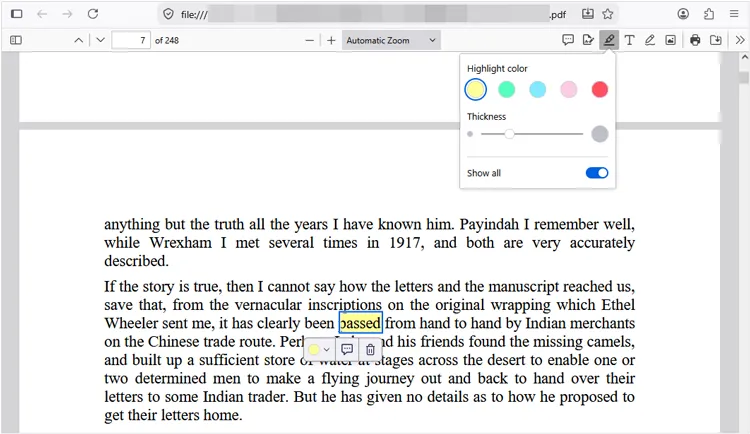
Once the PDF opens, locate the editing toolbar in the top-right corner. Click the "Text" icon (T) to click anywhere on the page and start typing.
-
Click the "Draw" icon (Ink pen) to freehand draw, highlight, or add a handwritten signature. Finally, click the "Save" icon (the floppy disk) in the top-right corner to download the edited PDF.
See also: If you don't need the file anymore, you can permanently delete the PDF on your PC.
Part 6: How to Edit PDF Documents on PC via PDFgear
PDFgear is a powerful, completely free desktop PDF utility that offers a surprising twist: built-in AI assistance alongside comprehensive editing features that rival paid software.
To edit a PDF file with PDFgear:
-
Download and launch PDFgear on your PC. Click "Open File" and select your PDF.
-
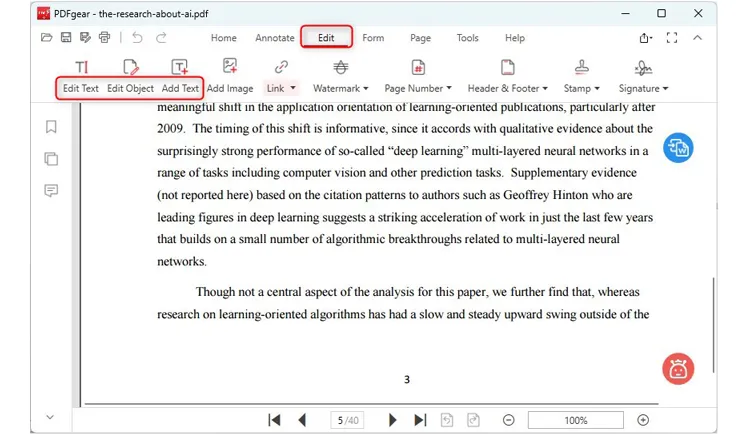
Click on the "Edit" tab, then select "Edit Text". Unlike basic annotations, PDFgear lets you click into existing paragraphs to change the actual text seamlessly.
-
You can also add watermarks, signatures, headers, and footers. After that, click "Save" in the top left corner to save your progress.
Part 7: Q&A About Transferring Files from iPad to PC
Q1: Is iLovePDF free to edit PDF files?
Yes, iLovePDF offers free PDF editing tools for basic tasks such as adding text, annotations, signatures, and comments. However, certain advanced features and larger file limits may require a premium subscription.
Q2: Why can't I edit a PDF with Microsoft Word on my computer?
There are several possible reasons:
- The PDF is scanned and contains image-based text.
- The file is password-protected or restricted.
- The PDF has a complex layout that Word cannot accurately convert.
- Your version of Microsoft Word may not support PDF editing.
In such cases, using OCR software or a dedicated PDF editor may help.
Q3: Can I convert PDF to Word for free?
Yes, but the tools vary by their pricing models:
Completely Free (No Limits):
- PDFgear & PDF24 Tools: 100% free with no file size or page limits, and they offer free OCR for scanned documents.
- Microsoft Word: Simply right-click your PDF and select "Open with -> Word" to convert it directly for free.
Limited Free (Freemium):
- PDF Editor in Part 3 & Online Converters (e.g., iLovePDF): Free for standard, small files, but they restrict file sizes and charge for batch conversions or OCR.
- Adobe Acrobat Online: Highly accurate but strictly limited to very few free uses (often just one) before requiring a paid subscription.
Conclusion
Editing a PDF on a PC is easier than ever thanks to a variety of available tools. If you need quick text edits, Microsoft Word can be a convenient choice. For browser-based editing, Adobe Acrobat Online and Firefox offer simple solutions. If you require more advanced functionality, PDF Editor provides comprehensive PDF editing features, helping you edit your PDF without trouble.
Related Articles
Easily Export Text Messages from iPhone to PDF (3 Reliable Solutions)
How to Transfer Files from Android to Mac: 5 Proven Solutions
Solved: Permanently Shred PowerPoint Files on Computer with Ease
How to Send Large Audio Files from iPhone to Different Devices Easily