


PDF files often contain sensitive information such as contracts, invoices, financial records, personal identification documents, or confidential business data. To protect your privacy or securely dispose of confidential documents, it is important to understand how to permanently delete PDF files on a computer. This guide explains 4 effective methods, so you can use one to wipe your files with ease.
- Part 1: How to Delete a PDF File on My Computer Directly (Bypass Trash Bin)
- Part 2: How to Permanently Delete PDF Files on Computer via iReaShare Data Wipe
- Part 3: How to Permanently Delete PDF Files on PC via Windows Cipher Utility
- Part 4: How to Delete a PDF File on My Computer via InterCrypto File Shredder
- Part 5: Q&A About Permanent PDF File Deletion on Computer
Compare the pros and cons of these 4 deletion methods:
| Method | Pros | Cons |
|---|---|---|
| Shift + Delete | 1. Instant execution. 2. No additional software needed. 3. Bypasses Recycle Bin. |
1. Data is not overwritten. 2. Recoverable with forensic tools. |
| iReaShare Data Wipe | 1. Intuitive GUI. 2. Professional wiping standards. 3. Targets specific files and folders easily. 4. Provides several deletion modes. 5. No quantity limit. |
1. Installation required. 2. Require purchase for full features. |
| Windows Cipher Utility | 1. Native Windows tool. 2. Secures all previously deleted files. 3. Highly effective for privacy. |
1. Command-line usage. 2. Extremely slow (wipes whole free space). |
| InterCrypto File Shredder | 1. Specialized for single files. 2. Lightweight software. 3. Multiple shredding algorithms. |
1. Requires separate installation. 2. The interface is out of date. |
Part 1: How to Delete a PDF File on My Computer Directly (Bypass Trash Bin)
The simplest way to remove a file without sending it to the Recycle Bin is the built-in Windows shortcut. While this removes the file from the directory immediately, the data remains on the hard drive sectors until it is overwritten by new data.
Here's how:
-
Locate the PDF file you wish to delete on your computer. Click on the file once to select it.
-
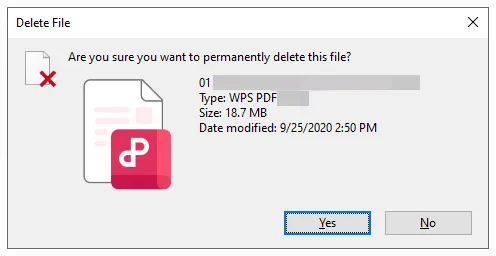
Press "Shift + Delete" on your keyboard. A dialogue box will appear asking if you are sure you want to permanently delete the file. Click "Yes".
-
Then the PDF file will be removed instead of being moved to the recycle bin.
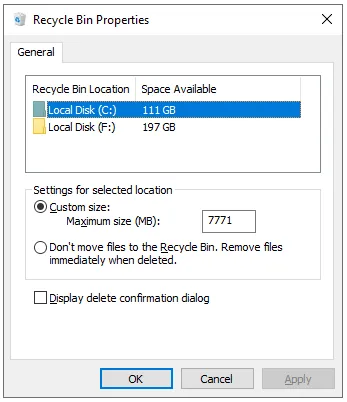
By the way, you can adjust "Properties" of the trash bin by right-clicking it, and choose the "Don't move files to the Recycle Bin. Remove files immediately when deleted." option. Then any files you delete from now on will not be moved to the Recycle Bin.
Part 2: How to Permanently Delete PDF Files on Computer via iReaShare Data Wipe
If you need stronger data security, using professional data erasure software is a better option. iReaShare Data Wipe is developed to permanently erase files and prevent data recovery. Its dedicated graphical interface makes the data shredding much easier, and it allows you to select specific files before erasing them.
Main features of iReaShare Data Wipe:
* Permanently erase PDF files from a PC with secure deletion algorithms.
* Shred files and folders selectively.
* Wipe hard drives and SSDs on a Windows computer, and erase deleted data from free space.
* Erase data from SD Cards, USB drives and other external storage devices.
* Make your files unrecoverable despite using professional recovery software.
* Support all file types, including documents, images, videos, audio files, history recording, passwords, etc.
* The Deep Erase mode can wipe a storage drive or a card three times with the US DoD 5220.22-M(E) standard.
Download iReaShare Data Wipe.
To permanently delete PDF files on a PC with this program:
-
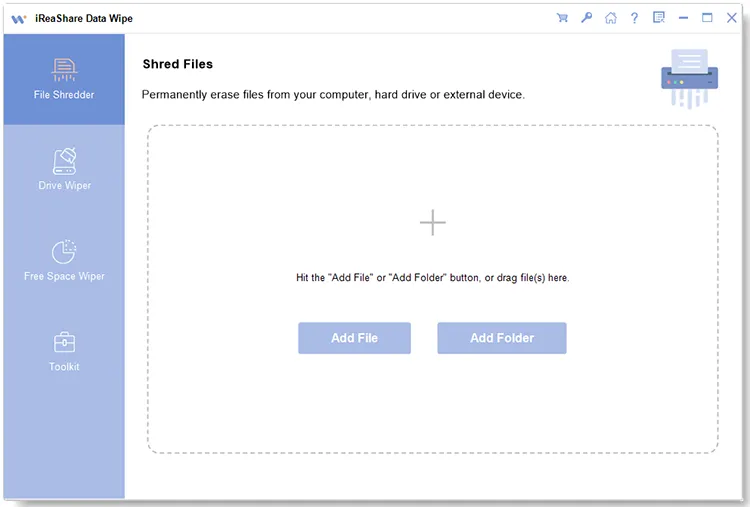
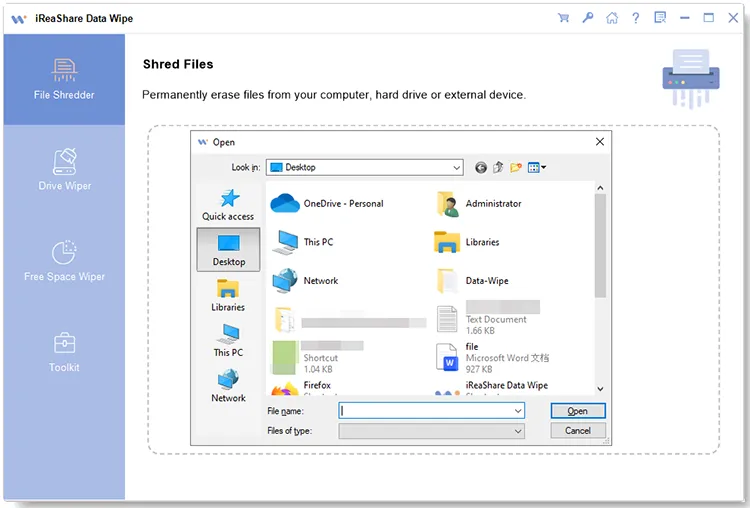
Install and open iReaShare Data Wipe on your PC, and choose "File Shredder".
-
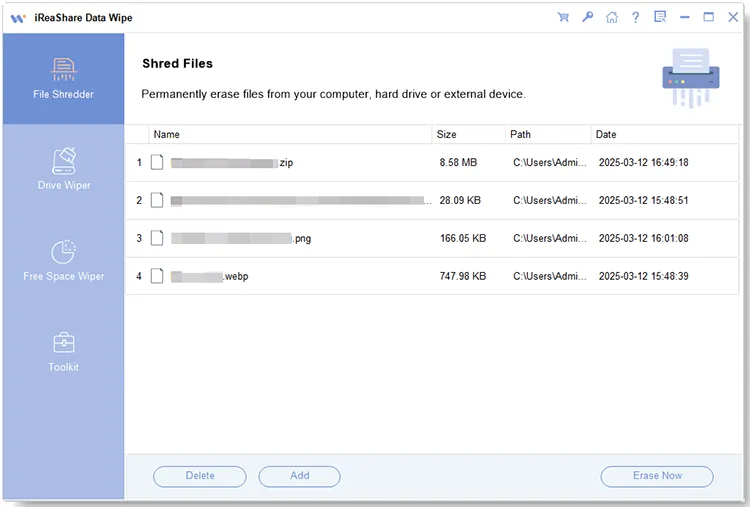
Click "Add File" to select your PDF files from the computer. Then the files will be displayed on the interface.
-
Click "Erase Now", and tap "OK" to start shredding your PDF documents.
You can watch the video to delete your files with ease:
Part 3: How to Permanently Delete PDF Files on PC via Windows Cipher Utility
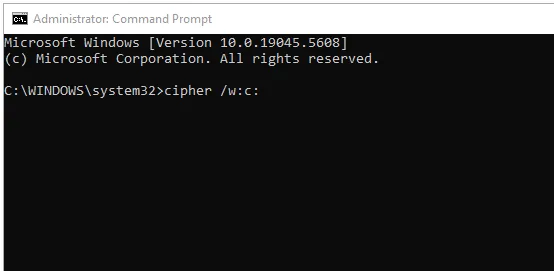
Windows includes a powerful command-line tool called Cipher that can be used to wipe deleted data from your free space, ensuring that previously "deleted" PDFs cannot be recovered. This utility will overwrite all deallocated (free) space on the drive with random bits, effectively "shredding" any data that was previously deleted.
Here are the steps:
-
Delete your PDF file normally or via Shift + Delete.
-
Press "Win + R", type "cmd", and press "Enter". Type the "cipher /w:C:" command, replace "C" with the drive letter where the PDF file was located, and hit "Enter".
-
Once done, close the CMD window, and your PDF will be removed completely.
Part 4: How to Delete a PDF File on My Computer via InterCrypto File Shredder
InterCrypto File Shredder is a lightweight tool specifically built for the "shredding" of individual files. It can also wipe a whole drive, but it cannot erase deleted data from the free space only.
Here's the guide:
-
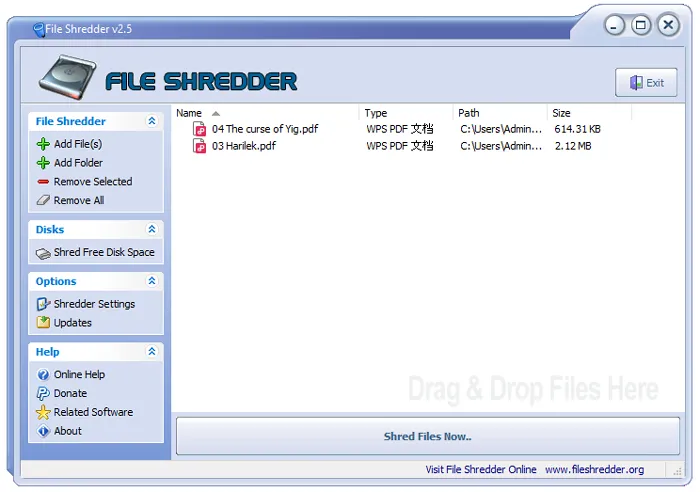
Download and install File Shredder on a PC, and launch it. Then click "Add File(s)" to choose your PDF files
-
After that, click "Shred Files Now" at the bottom, and choose "OK" on the pop-up.
-
Then the app will erase your documents immediately.
Part 5: Q&A About Permanent PDF File Deletion on Computer
Q1: How do I delete an undeletable PDF file on my PC?
If a PDF is "locked" or says it is in use, try the following:
- Ensure the PDF is not open in any reader (like Acrobat or Chrome).
- Restart Windows Explorer via Task Manager.
- Use the command prompt: del /f "filepath".
- Boot into Safe Mode to delete the file.
Q2: What's the difference between using Cipher Utility and Remove-Item?
- Remove-Item (PowerShell): Is essentially the command-line version of "Delete". It removes the file pointer but does not necessarily overwrite the physical data on the disk.
- Cipher Utility: Is a sanitization tool. It doesn't delete specific files but wipes the "free space" to ensure files already deleted are unrecoverable.
Q3: Where do permanently deleted PDF files actually go?
They don't "go" anywhere. When a file is permanently deleted, the Operating System marks the space it occupied as "Available". The actual 1s and 0s stay on the disk until another file is saved over that exact spot. Secure shredding tools work by writing new, random data over those spots immediately.
Conclusion
Standard deletion is often insufficient for sensitive PDF documents. Whether you use the Shift + Delete shortcut for speed, the Cipher Utility for native security, or a professional tool like iReaShare Data Wipe for thorough erasure and simplicity, ensure you choose the method that best fits your privacy needs. Always double-check your selection before hitting "Delete", as these methods leave no room for accidental recovery.
Related Articles
How Do I Permanently Delete a Word Document on Windows, Mac, & Mobile?
How to Format Hard Drive on Windows 11/10 PC Effectively
How to Shred Photoshop Files Permanently (Step-by-Step Guide)
Solved: Permanently Shred PowerPoint Files on Computer with Ease

