


"I'm going to buy some PC parts to build a pc, but I want to use my current 1TB HDD. By using this pc, how do I formate it to be completely clean?"
- From Reddit
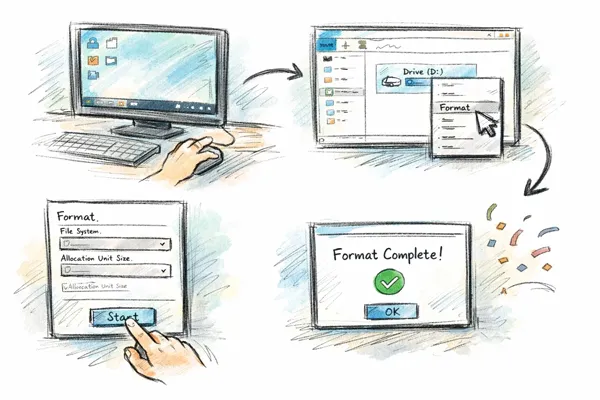
Whether you are clearing out an old drive for reuse, fixing file system errors, or preparing a device for a new operating system, you will need to format a hard drive, which is a fundamental skill for managing storage. If you wonder how to format a hard drive on Windows computers, this guide will tell you the answer.
- Part 1: How to Format Hard Drive on Windows 10/11 via Disk Management
- Part 2: How to Format Hard Drive on Windows 111/10 via iReaShare Data Wipe
- Part 3: How to Reformat Hard Drive Using CMD on Windows PC
- Part 4: How to Format an Old Hard Drive in Windows Explorer
- Part 5: Q&A About Formatting Hard Drive on Windows
Compare the pros and cons of these 4 formatting methods:
| Method | Pros | Cons |
|---|---|---|
| Disk Management | 1. Built into Windows, no extra software required. 2. Visual interface makes it easier to manage disks and partitions. 3. Useful for partition creation and formatting. |
1. Slightly complicated for beginners. 2. Limited secure data wiping features. |
| iReaShare Data Wipe | 1.Permanently deletes data so it cannot be recovered. 2. Offers multiple secure wiping methods. 3. Ideal for selling or disposing of a hard drive. |
1. Requires installing software. 2. Wiping may take longer than normal formatting. 3. Need a license for full features. |
| Command Prompt (CMD / DiskPart) | 1. Powerful and flexible disk management. 2. Works even if the graphical interface fails. 3. Useful for troubleshooting disk issues. |
1. Requires command knowledge. 2. Easy to accidentally erase the wrong drive. 3. Not beginner-friendly. |
| Windows Explorer (File Explorer) |
1. Fastest and easiest method. |
1. Limited formatting options. 2. Cannot manage disk partitions. 3. Not suitable for advanced disk management. |
Part 1: How to Format Hard Drive on Windows 10/11 via Disk Management
Disk Management is a built-in Windows tool that allows users to manage storage devices, including creating partitions and formatting drives.
Here's how to format a hard drive on Windows PC via Disk Management:
-
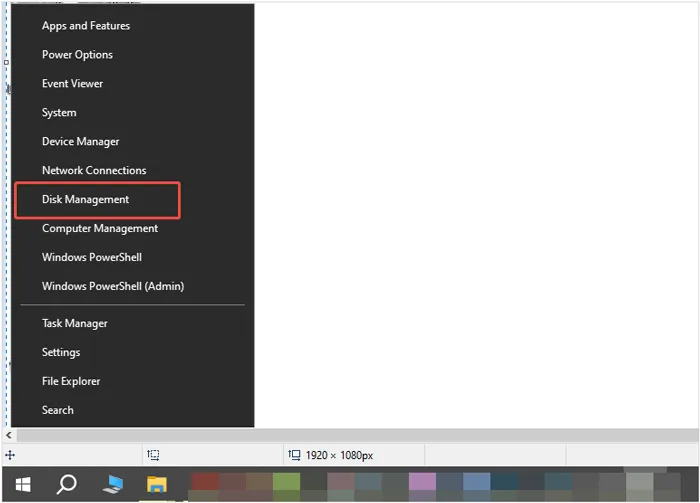
Right-click the "Start" button and select "Disk Management". Locate the drive you wish to format from the list.
-
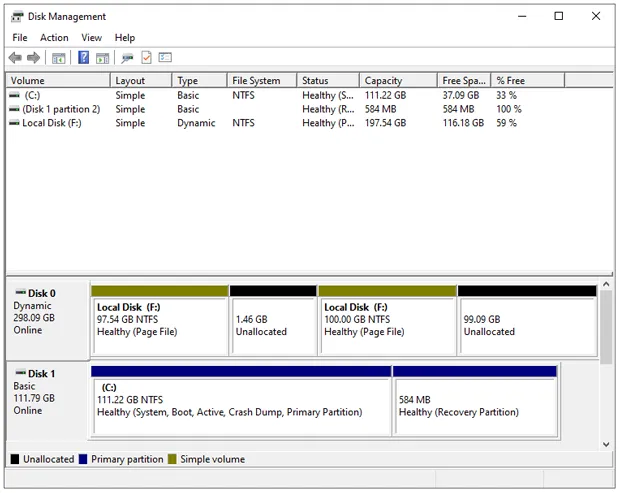
Right-click the specific partition (the rectangular block) and select "Format...".
-
Choose a "Volume label" (name), select a "File system" (NTFS is standard for internal drives), and ensure "Perform a quick format" is checked. Finally, click "OK" and confirm the data loss warning. Your hard drive will be formatted.
Part 2: How to Format Hard Drive on Windows 111/10 via iReaShare Data Wipe
When a standard format isn't enough - such as when you are selling a computer and want to ensure data is unrecoverable - specialized software like iReaShare Data Wipe is used. Unlike a quick format, which only deletes the "address book" of your files, a data wipe overwrites the sectors.
Main features of iReaShare Data Wipe:
* Erase a whole hard drive on a Windows PC completely.
* Follow the US DoD 5220.22-M(E) standard to overwrite deleted data, making all the data unrecoverable.
* Allow you to shred specific files and folders selectively.
* Wipe the free space on your device to remove deleted data without losing existing files.
* Wipe SD cards, external USB drives, and more storage devices.
* Support Windows 11/10/8/7.
Download iReaShare Data Wipe.
Here's how to format a hard drive on Windows completely via this software:
-
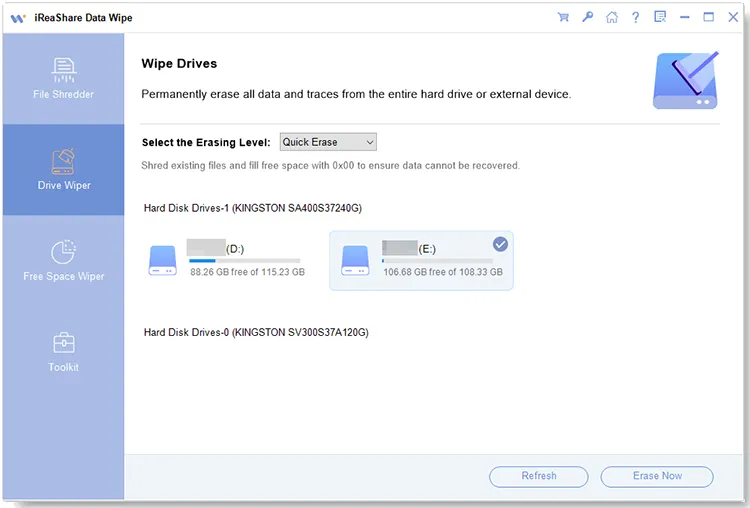
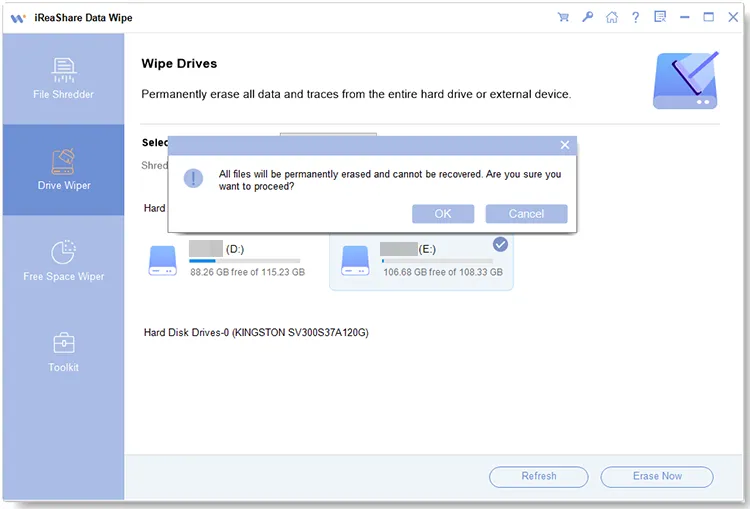
Install and launch the software on your computer, and select the "Drive Wiper" mode on the left panel.
-
Select the drive you want to format from the list. Then select an erasing level.
-
Click "Erase Now" > "OK" to start erasing all the data from the selected hard drive. Once done, all the data will be gone forever.
Watch the video guide to erase data on a hard drive completely:
Part 3: How to Reformat Hard Drive Using CMD on Windows PC
For users who prefer a hands-on approach or need to format a "stubborn" drive that won't format via GUI, the Command Prompt (Diskpart) is the most powerful method.
To reformat a hard drive on a Windows PC via CMD:
-
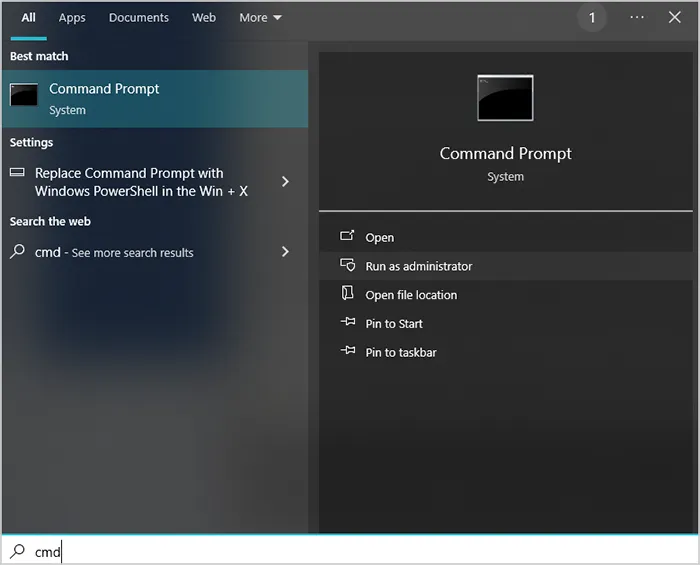
Type "cmd" in the Windows search bar, right-click it, and "Run as Administrator".
-
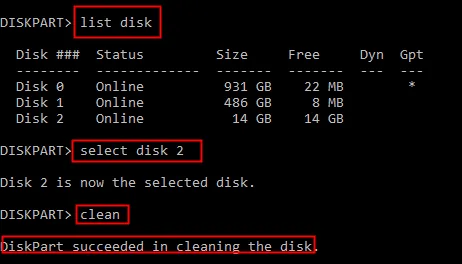
Type "diskpart" and press "Enter", then input "list disk" to see all connected drives, and type "select disk X" (Replace X with the actual disk number). Next, type "clean" (This wipes all partition info; be very careful here).
-
After that, type "create partition primary" and "format fs=ntfs quick". Thne input "assign" to give it a drive letter. Now, the formatting is over.
Part 4: How to Format an Old Hard Drive in Windows Explorer
Windows Explorer provides the simplest way to format an external or secondary drive. If you are simply clearing a secondary "old" drive or a USB stick that is already recognized by your system, File Explorer is the fastest method.
Here's how:
-
Open "This PC" or "File Explorer" on your Windows computer.
-
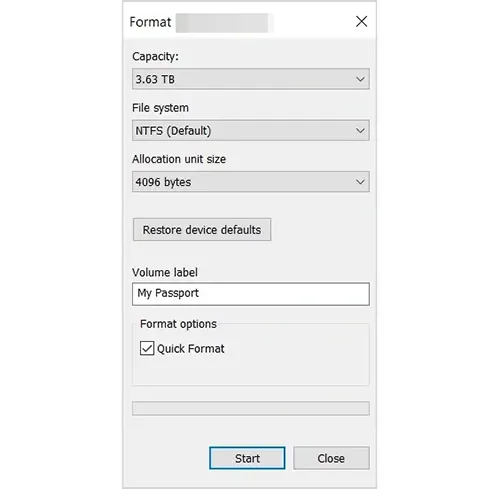
Right-click the drive you want to format, and select "Format".
-
Set the "File system" and "Allocation unit size" (usually default is best), and then click "Start".
Part 5: Q&A About Formatting Hard Drive on Windows
Q1: Is it better to format or wipe a hard drive?
It depends on your purpose.
- Formatting removes file system data and prepares the drive for reuse. However, the deleted data may still be recoverable with specialized software.
- Wiping overwrites the entire drive with random data, making recovery extremely difficult.
If you simply want to reuse the drive, formatting is sufficient. If you plan to sell or dispose of the drive, wiping it is the safer option.
Q2: Should I format my external hard drive to NTFS or FAT32?
The choice depends on compatibility and file size requirements. For most Windows users, NTFS is the recommended option.
NTFS:
- Best for Windows systems.
- Supports large files (over 4GB).
- Offers better security and reliability.
FAT32:
- Highly compatible with many devices.
- Maximum file size is 4GB.
- Suitable for USB drives used across multiple systems.
Q3: What happens if I format my hard drive to exFAT?
When a drive is formatted to exFAT:
- It supports large files and large partitions.
- It offers better compatibility with both Windows and macOS.
- It is commonly used for external drives and flash storage.
However, exFAT does not include advanced security features such as file permissions or journaling that are available in NTFS.
Conclusion
Now, you can say that formatting a hard drive on Windows is a straightforward process, since you have 4 useful and easy methods. Tools like Disk Management and File Explorer are suitable for everyday formatting tasks, while Command Prompt provides more advanced control. For situations requiring complete data destruction, specialized tools such as iReaShare Data Wipe are more reliable. With it, you can format your drive thoroughly with simple clicks.
Related Articles
Solved: Permanently Shred PowerPoint Files on Computer with Ease
How to Force Delete a File on a Computer Without Effort
Wipe Toshiba External Hard Drive with 4 Effective Approaches
Best SSD Wipe Software: 10 Options to Help You Wipe SSD with Ease

