

TL;DR:
WhatsApp parental control offers different ways to protect children and teenagers, depending on their age and supervision needs. Parents can choose from the following options:
- For children under 13: Create a parent-managed account to control contacts, message requests, and group invitations.
- For teens aged 13 - 17: Link their existing WhatsApp accounts to manage privacy settings, restrict certain features, and receive activity alerts.
- For additional monitoring: Use WhatsApp Tracker to review supported chat history, shared media, call activity, locations, and receive alerts about potentially risky keywords.
WhatsApp is one of the most popular messaging apps worldwide, allowing people to send text and voice messages, make voice and video calls, and share photos, videos, and documents. Its simple interface and convenient communication features also make it appealing to children and teenagers who want to stay in touch with friends and family. However, WhatsApp requires users to be at least 13 years old to register independently, or older in certain regions. Since its standard registration process does not involve a robust age verification procedure, younger children may still be able to create accounts by entering a false date of birth.
This makes WhatsApp parental control an important consideration for parents who want to protect their children online. Fortunately, WhatsApp offers built-in parental controls for different age groups. Let's take a closer look at how these features work and what additional steps parents can take to keep their children safe.
Part 1. Does WhatsApp Have Parental Controls?
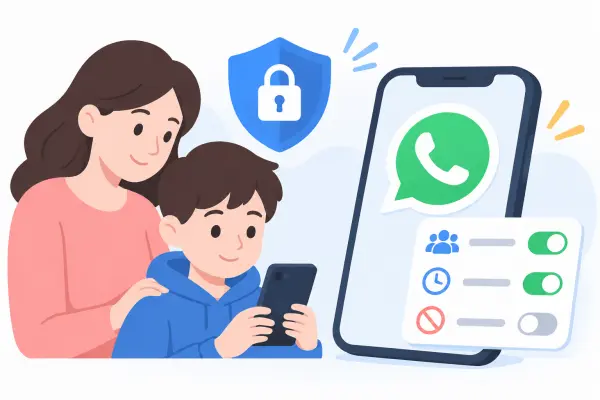
Yes. WhatsApp has introduced built-in parental controls to help parents manage their children's messaging experiences and protect their privacy. It offers two different options based on age: Parental Controls for Teens and Parent-Managed Accounts.
1. Parental Controls for Teens (Ages 13–17)
WhatsApp provides optional parental controls for teenagers aged 13 to 17. Instead of creating a new account, parents can link their own WhatsApp accounts to their teens' existing accounts and manage selected privacy and feature settings.
Once the accounts are linked, parents can use a six-digit parent PIN to control certain settings and receive notifications about important account activities. Teens can continue using their accounts while parents help them make safer choices about their online interactions.
2. Parent-Managed Accounts (Under 13)
For children under 13, or below the minimum age required in their country or region, WhatsApp offers Parent-Managed Accounts. Unlike teen accounts, these are simplified accounts that must be created and managed by a parent or guardian aged 18 or older.
These accounts focus mainly on messaging and calling, with built-in restrictions on contacts and privacy settings. By default, only saved contacts can message or call the child, and parents can review requests from unknown contacts before allowing communication.
Parent-managed accounts also restrict access to certain features, including Channels, Status, Meta AI, and location sharing. This provides younger children with a more controlled messaging environment.
Both parental control options are being rolled out gradually, so availability may vary by region and account. You should also update WhatsApp to the latest version before attempting to enable them.
Part 2. What Can Parents Do with WhatsApp Parental Controls?
WhatsApp parental controls provide several tools to help parents manage their children's online interactions. However, the available options differ between teen accounts and parent-managed accounts.

Here are the main things you can do.
1. Manage Contacts and Message Requests
With a parent-managed account, you can review message requests from unknown contacts and decide whether to approve or block them. By default, only saved contacts can message or call your child. This helps reduce unwanted communication. Parents can also manage their child's contacts and privacy settings.
2. Control Group Invitations
Group chats can expose children to unfamiliar people and conversations. WhatsApp provides different group controls for each account type.
- For parent-managed accounts, only parents can add children to groups. Invitations and messages from unknown contacts go to a request folder for review.
- For teen accounts, parents can manage who can add their children to groups. They can also receive notifications when teens create or join groups, leave groups, or when a group they belong to grows significantly.
3. Manage Privacy Settings
Parents can help children control who can view their personal information on WhatsApp. Depending on the account type, available settings include:
- Profile Photo: Choose who can see your child's profile picture.
- Last Seen and Online: Restrict who can see when your child was last active or is online.
- About: Manage who can view the information on your child's profile.
- Group Permissions: Control who can add your child to group conversations.
For teen accounts, some protected privacy settings cannot be made less restrictive without parental approval through the six-digit parent PIN. For parent-managed accounts, parents can directly manage the available privacy options.
4. Manage Channels, Status, and Meta AI
Parents can also manage how teenagers use features beyond private messaging. They can decide which Status updates teens can view and who can see their updates. For Channels, parents can allow access to all Channels, limit it to approved ones, or block the feature entirely.
Parents can also choose between the standard 13+ Meta AI experience and a more restricted option that limits the topics teenagers can discuss with the AI chatbot.
Channels, Status, and Meta AI are not available on parent-managed accounts. These restrictions are built into the simplified account experience for younger children.
5. Receive Activity Notifications
WhatsApp parental controls help parents stay informed about important account changes. Depending on the account type, notifications may cover new contacts, group creation or participation, profile picture changes, and significant increases in group membership.
For parent-managed accounts, parents can also receive updates about new message requests and other account activities. These alerts provide insight into children's interactions without requiring parents to check their phones constantly.
Part 3. What Are the Limitations of WhatsApp Parental Controls?
Although WhatsApp parental controls offer useful safety features, they do not provide parents with complete access to their children's activities. Here are some limitations to keep in mind.
1. Cannot Read Private Messages or Listen to Calls
WhatsApp's end-to-end encryption prevents parents from reading their children's private conversations or listening to their calls through the built-in parental controls. Even with a parent-managed account, parents cannot view private chats with approved contacts.
2. Limited Activity Monitoring
WhatsApp parental controls mainly focus on privacy settings, contact management, and selected activity notifications. They do not provide a complete overview of messages, media files, or call history, so parents may not always know what their children are discussing or sharing.
3. Availability Depends on Age and Region
The two parental control options are designed for different age groups, and their availability may vary by country or account. WhatsApp is also rolling out these features gradually, so some parents may not be able to access them yet.
Part 4. How to Set Up Parental Controls on WhatsApp?
After understanding the available features and their limitations, you can choose the appropriate WhatsApp parental control option based on your child's age. The setup process is different for teenagers and younger children, so follow the corresponding instructions below.
Method 1. Set Up Parental Controls for Teens (Ages 13 - 17)
If your child is between 13 and 17 years old, you can enable parental controls on their existing WhatsApp account. You will need both your phone and your teen's phone to complete the setup. The parent or guardian must be at least 18 years old, and both parties must agree to link their accounts.
Follow these steps:
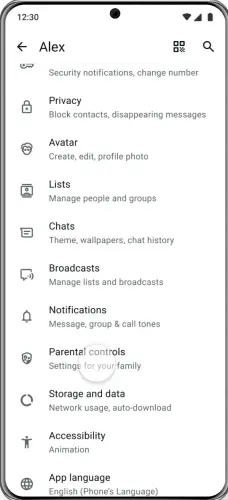
Step 1. Open WhatsApp on your teen's phone and go to "Settings" > "Parental controls". Tap "Continue" to start the setup.
Step 2. Enter your teen's birthday and confirm their age. Then tap "Continue" to begin linking a parent's account.
Step 3. A QR code will appear on your teen's phone. Use your phone's camera to scan it and open the WhatsApp linking prompt.
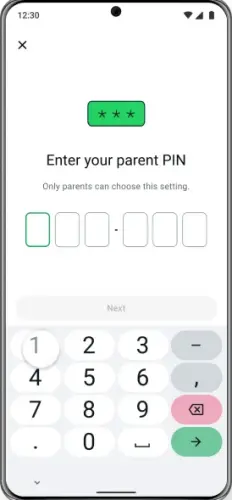
Step 4. Tap "Continue" and complete the adult verification process. Then create a six-digit parent PIN and confirm it.
Step 5. Return to your teen's phone and enter the parent PIN. Review the available privacy settings and choose how your teen can use features such as Status, Channels, and Meta AI.
Step 6. Tap "Continue" > "Done" to finish the setup. Your teen will also be prompted to review and confirm their new WhatsApp experience.
After setup, you can manage the available parental control options and review selected activity notifications through WhatsApp.
Method 2. Create a Parent-Managed Account for Children Under 13
For younger children, you need to create a new parent-managed WhatsApp account rather than enabling parental controls on an existing teen account. You will also need your own phone to link the accounts.
Here is how:
Step 1. Download and install WhatsApp Messenger from Google Play or the Apple App Store on your child's phone. Open the app, select your preferred language, and tap "Agree and continue".
Step 2. Tap "More options" and select "Create a parent-managed account".
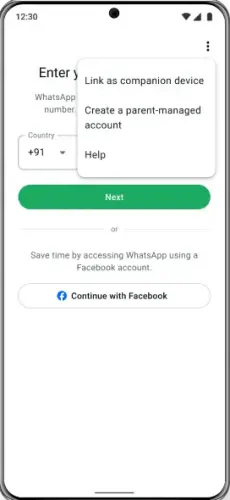
Step 3. Register and verify your child's phone number. Enter their birthday and confirm their age when prompted.
Step 4. Tap "Continue" to link the account to a parent or guardian's phone. A QR code will appear on your child's device.
Step 5. Use your phone's camera to scan the QR code and open the WhatsApp linking prompt. Tap Agree and continue, then complete the adult verification process.
Step 6. Create and confirm a six-digit parent PIN. Tap "Done" and return to your child's phone.
Step 7. Enter the parent PIN on your child's device and tap "Continue" to complete the account setup. Your child can then enter their name and choose a profile photo.
Once the account is created, you can manage the available privacy settings, review message requests, and receive notifications about important account activities.
Both setup methods require the latest WhatsApp version and are subject to regional availability. If you cannot find the relevant option, it may not have reached your account yet.
Part 5. How to Monitor Your Child's WhatsApp Activity with WhatsApp Tracker?
WhatsApp's built-in parental controls are useful for managing privacy settings and receiving selected activity notifications. However, they do not allow parents to read private conversations or review all shared media and call activities.
If you need additional insights into your child's WhatsApp usage, WhatsApp Tracker is another option to consider. It is a dedicated WhatsApp monitoring tool that allows parents to review supported messaging information and other app activities through an online dashboard after completing the required device setup.
Key Features of WhatsApp Tracker
- WhatsApp Screen Monitoring: Capture periodic screenshots of WhatsApp activity, including supported View Once media.
- Message History Monitoring: Review supported incoming and outgoing messages and available chat history.
- Risky Keyword Alerts: Receive alerts when custom keywords related to bullying or inappropriate content are detected.
- Screen Time Management: Set usage limits and remotely block WhatsApp when necessary.
- Voice and Call Monitoring: Review supported call records, voice messages, and call recordings.
- Media and Status Monitoring: View supported photos, videos, documents, and Status updates.
- Location Monitoring: Check available GPS information and locations shared through WhatsApp.
How to use WhatsApp Tracker for parental monitoring?
-
Visit the official WhatsApp Tracker website and register an account using your email address and password. Choose a subscription plan that matches your monitoring needs and complete the purchase.
-
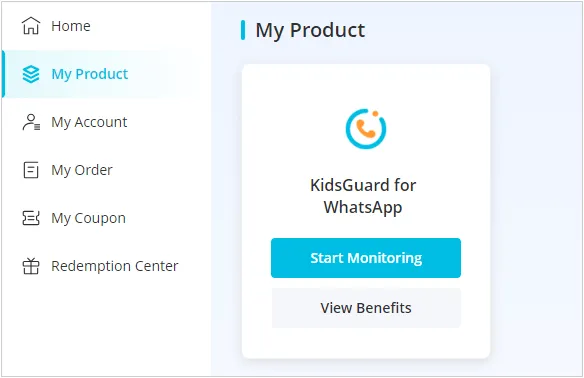
Log in to your Member Center, go to "My Products", find WhatsApp Tracker, and click "Start Monitoring".
-
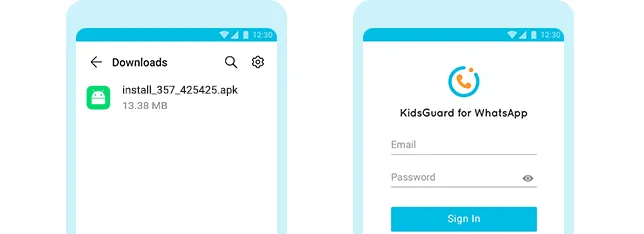
Follow the setup guide for the target device. On Android, install and configure the monitoring app using your registered account credentials. On iPhone, open WhatsApp, go to "Settings" > "Linked Devices" > "Link a Device", and scan the QR code generated in your dashboard. Then complete the setup and click "Verify Setup".
-
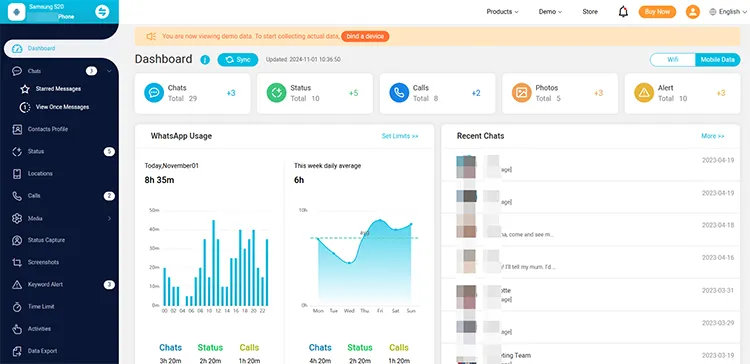
Once the setup is complete, you can access the control panel to review your child's supported WhatsApp activities. WhatsApp Tracker helps you stay informed about potential online risks while respecting your child's privacy and encouraging open communication and trust.
Conclusion
WhatsApp parental control offers two different options for protecting children: Parental Controls for Teens and Parent-Managed Accounts. These built-in features help parents manage privacy settings, control contacts, restrict certain features, and stay informed about selected account activities.
However, if you need more detailed insights into your child's WhatsApp messages, shared media, and call activities, WhatsApp Tracker provides additional monitoring options. Combining appropriate parental controls with open communication can help your child develop safer and healthier messaging habits.
Related Articles
How to Record a WhatsApp Call (iPhone, Android, and Desktop)
Top 7 Parental Control Apps: Side-by-Side Comparison (2026)
How to Send Fake Location on WhatsApp [Informative Guide]
Best Snapchat Profile Viewer Tools in 2026: Reviews & How to Use