


TL;DR:
To transfer contacts from an iPad to an iPhone, you can use iCloud or Google Account for automatic wireless syncing, AirDrop for sharing individual contacts, iCloud.com for exporting and importing contact files, or iReaShare Phone Transfer for direct computer-based migration.
- iCloud automatically syncs contacts across devices signed in to the same Apple Account, making it convenient for ongoing synchronization.
- AirDrop and Google Account offer wireless alternatives. AirDrop is suitable for sharing selected contacts, while Google Account can sync contacts between devices using different Apple Accounts.
- iCloud.com and iReaShare Phone Transfer provide more control over contact migration. The former supports vCard export and import, while the latter allows you to transfer selected data categories directly between devices through a computer.
When you switch to a new iPhone or want to access the same contacts on both your iPad and iPhone, transferring your address book can save you the trouble of adding each contact manually. However, the process may differ depending on where your contacts are stored and whether the two devices use the same account.
Fortunately, there are several ways of how to transfer contacts from iPad to iPhone, including Apple's built-in services, Google synchronization, and third-party transfer software. Below, we'll explain how each method works and help you choose the most suitable option.
- Part 1. How to Transfer Contacts from iPad to iPhone Through iCloud
- Part 2. How to Move Contacts from iPad to iPhone Using AirDrop
- Part 3. How to Transfer Contacts from iPad to iPhone with iCloud.com
- Part 4. How to Sync Contacts from iPad to iPhone via Google Account
- Part 5. How to Share Contacts from iPad to iPhone by iReaShare Phone Transfer
- Part 6. Which Is the Best Way to Transfer iPad Contacts to iPhone?
- FAQs of Transferring Contacts from iPad to iPhone
Part 1. How to Transfer Contacts from iPad to iPhone Through iCloud
iCloud is one of the easiest ways to transfer contacts from iPad to iPhone, especially when both devices are signed in to the same Apple account. Once you enable iCloud Contacts on both devices, your contacts will sync automatically without requiring a computer or manual file transfer.
Step 1. Enable iCloud Contacts on your iPad.
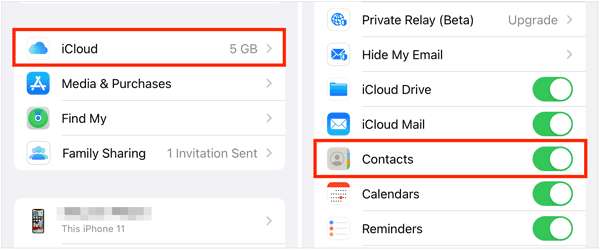
Open "Settings" on your iPad, tap your name at the top, and select "iCloud". Under the "Saved to iCloud" section, tap "See All" if necessary, then turn on "Contacts".
Step 2. Merge your iPad contacts with iCloud.
If prompted, select "Merge" to upload your existing contacts to iCloud. Wait for the synchronization to finish.
Step 3. Enable iCloud Contacts on your iPhone.
On your iPhone, sign in with the same Apple account. Navigate to "Settings" > [Your Name] > "iCloud" > "See All", and enable "Contacts".
Step 4. Check the transferred contacts.
Open the Contacts app on your iPhone and wait for the contacts to appear. You can also check whether the expected contacts are available by selecting the appropriate contact list.
Part 2. How to Move Contacts from iPad to iPhone Using AirDrop
AirDrop is a convenient option if you only need to move a few contacts and don't want to sync your entire address book. It transfers contact information wirelessly between nearby Apple devices without requiring the same Apple Account.
Step 1. Turn on AirDrop on both devices.
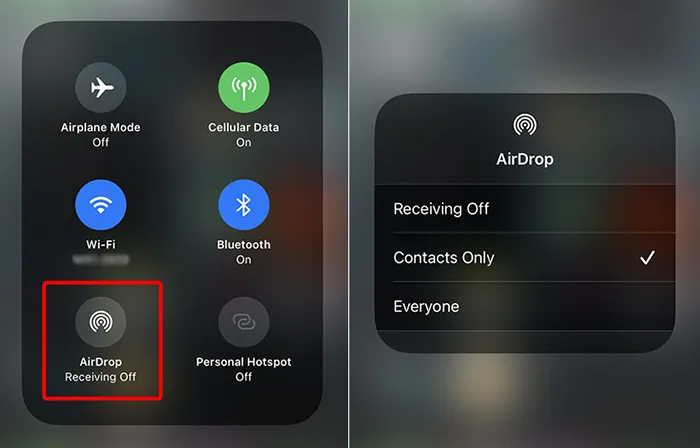
Open "Control Center" on your iPad and iPhone. Press and hold the network settings panel, tap "AirDrop", and select "Everyone for 10 Minutes" or "Contacts Only".
Step 2. Select a contact on your iPad.
Open the Contacts app on your iPad and find the contact you want to transfer. Tap the contact, then select "Share Contact".
Step 3. Send the contact via AirDrop.
Choose "AirDrop" from the sharing options and tap your iPhone's name or device icon.
Step 4. Accept the contact on your iPhone.
Tap "Accept" on your iPhone when the AirDrop request appears. Follow the prompts to add the contact to your address book.
Step 5. Repeat for other contacts.
If you have more contacts to move, repeat the process for each one. Since this method involves sharing contacts individually, it can become time-consuming when transferring a large address book.
Part 3. How to Transfer Contacts from iPad to iPhone with iCloud.com
If your iPad and iPhone use different Apple Accounts, iCloud.com offers another way to transfer contacts. You can export contacts from the source account as a vCard file and import that file into the destination account. This method is also useful when you want to transfer selected contacts rather than enable continuous synchronization.
Step 1. Open iCloud Contacts on a computer.
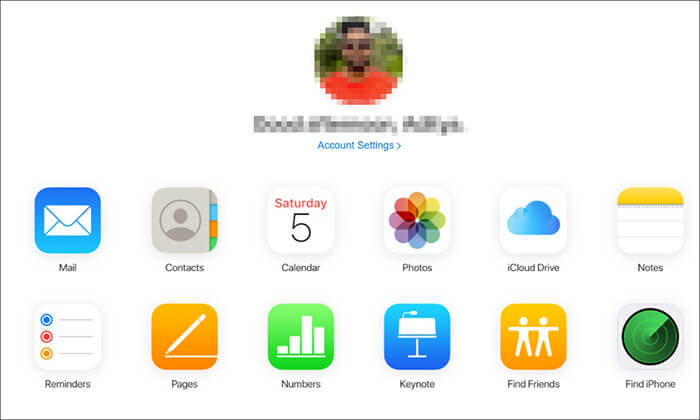
Visit iCloud.com in a web browser and sign in using the Apple Account associated with your iPad. Select "Contacts".
Step 2. Select the contacts to export.
Choose the contacts you want to transfer. To export the entire address book, select all contacts.
Step 3. Export contacts as a vCard file.
Click the export or sharing option in Contacts and choose "Export vCard". Save the resulting .vcf file to your computer.
Step 4. Sign in to the destination iCloud account.
Open a new browser session or sign out of the source account. Sign in to iCloud.com using the Apple Account associated with your iPhone, then open "Contacts".
Step 5. Import the vCard file.
Use the import option in iCloud Contacts to select the .vcf file saved earlier. The contacts will be added to the destination iCloud account.
Step 6. Sync the contacts to your iPhone.
On your iPhone, open "Settings" > [Your Name] > "iCloud" and turn on "Contacts". Wait for the imported contacts to appear in the Contacts app.

If you don't want to replace existing contacts on your iPhone, importing selected vCard entries is preferable to restoring an entire device backup.
Part 4. How to Sync Contacts from iPad to iPhone via Google Account
Google Account provides another wireless option, particularly if your iPad and iPhone use different Apple Accounts. By syncing your contacts with Google Contacts, you can access the same address book on both devices without relying on iCloud.
Step 1. Add your Google Account to your iPad.
Open "Settings" on your iPad and navigate to "Apps" > "Contacts" > "Contacts Accounts". Tap "Add Account", select "Google", and sign in to your Google Account.
Step 2. Enable Contacts synchronization.
After signing in, turn on the Contacts option and save your settings. Make sure the contacts you want to transfer are stored in the Google account rather than only in another account or locally on your iPad.
Step 3. Wait for your contacts to sync with Google.
Open the Contacts app or visit Google Contacts in a browser to check whether your iPad contacts are available.
Step 4. Add the same Google Account to your iPhone.
On your iPhone, go to "Settings" > "Apps" > "Contacts" > "Contacts Accounts" > "Add Account". Choose Google and sign in using the same account.
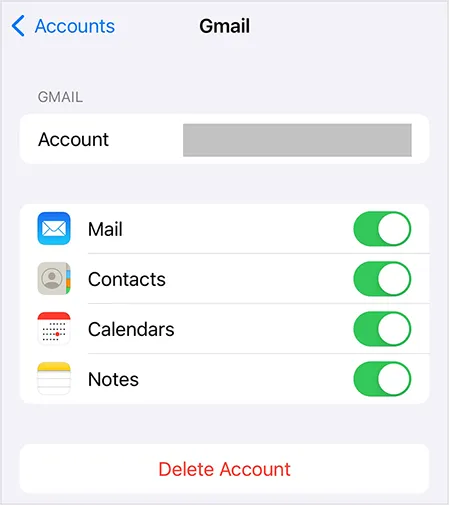
Step 5. Turn on Contacts synchronization.
Enable "Contacts" and save the changes. Open the Contacts app on your iPhone, and your Google contacts should appear after synchronization.
Part 5. How to Share Contacts from iPad to iPhone by iReaShare Phone Transfer
If you have many contacts to transfer, the previous methods may be inconvenient. For example, AirDrop requires you to share contacts individually, while iCloud and Google Account rely on cloud synchronization. In this case, you can use iReaShare Phone Transfer to copy contacts directly from your iPad to your iPhone through a computer.
The software supports iOS-to-iOS data transfer and allows you to select the data categories you want to copy. You can also use it to migrate other supported data, such as calendars, Safari bookmarks, and books.
Key Features of iReaShare Phone Transfer:
- Supports direct data transfer between iOS devices, Android devices, and across iOS and Android.
- Allows you to select specific data categories before transferring.
- Supports contacts, messages, photos, videos, music, documents, and other data types, depending on the transfer direction.
- Compatible with Windows and Mac computers.
- Supports a wide range of iOS devices and Android versions, including Android 17 and iOS 27.
How to transfer contacts from iPad to iPhone without iCloud?
-
Download the appropriate Windows or Mac version of iReaShare Phone Transfer from its official website. Install and launch the program on your computer.
-
Use USB cables to connect both devices to the computer. Unlock each device and tap Trust if the "Trust This Computer?" prompt appears. Follow the on-screen instructions to let the software recognize your devices.
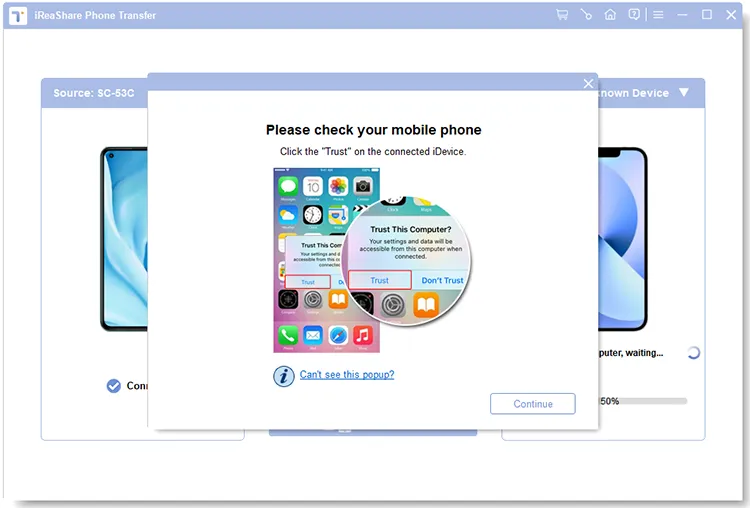
-
Once both devices are detected, check their positions on the interface. Make sure your iPad is displayed as the Source device, and your iPhone is displayed as the Destination device. If they are reversed, click "Flip" to switch their positions.
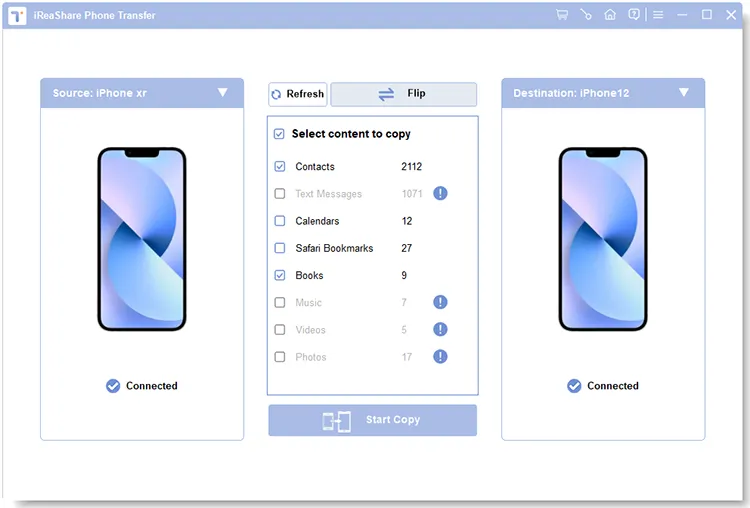
-
Choose "Contacts" from the available data categories. You can also select other supported data types if needed. Then, click "Start Copy" to transfer the selected data from your iPad to your iPhone. Keep both devices connected until the process is complete, and check the transferred contacts in the Contacts app on your iPhone.
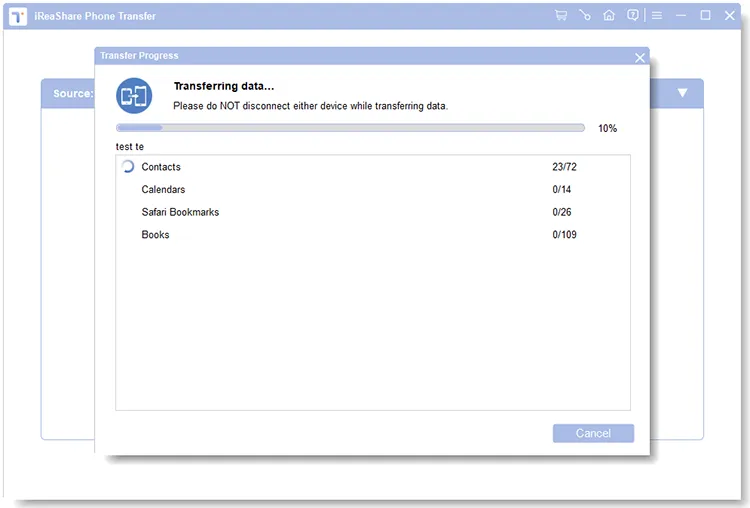
For more details, you can see the video guide.
Part 6. Which Is the Best Way to Transfer iPad Contacts to iPhone?
Each method has different requirements and advantages. The following table compares the five ways to transfer contacts from iPad to iPhone based on their connection requirements, account restrictions, and transfer capabilities.
| Method | Computer Required | Account Requirement | Transfer Type | Best For |
|---|---|---|---|---|
| iCloud | No | Same Apple Account | Automatic syncing | Continuous contact synchronization |
| AirDrop | No | No specific account | Wireless sharing | A few selected contacts |
| iCloud.com | Recommended | Access to both iCloud accounts | vCard export/import | Bulk contact migration |
| Google Account | No | Same Google Account | Cloud syncing | Different Apple Accounts |
| iReaShare Phone Transfer | Yes | No specific account | Direct device transfer | Transferring multiple data types |
FAQs of Transferring Contacts from iPad to iPhone
1. Why are my iPad contacts not syncing with my iPhone?
Several factors may prevent contacts from syncing between your iPad and iPhone:
- The two devices are signed in to different Apple Accounts.
- Contacts synchronization is disabled in iCloud settings.
- Your internet connection is unstable.
- The contacts are stored in another account, such as Google, rather than iCloud.
To troubleshoot the problem, check your Apple Account on both devices, make sure Contacts synchronization is enabled, and verify that the missing contacts are stored in iCloud.
2. Will transferring contacts from iPad to iPhone delete existing contacts on my iPhone?
No. The methods discussed in this article generally add or sync contacts to your iPhone without intentionally deleting existing entries. However, if the same contacts already exist on your iPhone, duplicate entries may appear. You can check your contact lists and merge duplicates if necessary.
3. Where are contacts stored on an iPad?
Contacts on an iPad can be stored in different accounts, including iCloud, Google, Microsoft Exchange, or other supported services. Some contacts may also be stored locally on the device. You can open the Contacts app and check the available lists to identify where your contacts are stored.
Conclusion
Ultimately, transferring your contacts successfully helps ensure that important names, phone numbers, email addresses, and other contact details remain accessible when you switch to a new iPhone. Rather than spending time sharing entries individually, you can simplify the process with iReaShare Phone Transfer. It lets you select contacts and other supported data for transfer directly between devices through a computer, helping you complete the migration with less manual effort.
Related Articles
How to Import Contacts to iPhone from Different Locations (Full Guide)
How to Transfer Contacts from iPhone to iPad Seamlessly (4 Ways)
How to Transfer Contacts from iPhone to iPhone Without iCloud (Latest Guide)
How to Transfer Contacts to New Phone Without a Hitch (5 Ways)