


TL;DR:
There are 6 ways to recover deleted iMessages on iPhone, depending on whether you have a backup or another copy of the messages:
- Restore deleted conversations from the Recently Deleted folder within 30 days.
- Recover messages by restoring an earlier iCloud backup or Finder/iTunes backup.
- Check other linked Apple devices, such as an iPad or Mac, for unsynchronized message copies.
- Ask the recipient to resend or share the deleted conversation.
- Use Data Recovery to scan your iPhone or extract messages from existing iCloud and iTunes backups, preview the results, and selectively export recoverable iMessages.
iMessages are an important way to communicate with family, friends, and colleagues. However, accidental deletion, software issues, or other unexpected situations can cause you to lose important conversations from your iPhone. When this happens, finding a reliable way to retrieve those messages becomes a priority.
Fortunately, there are several ways of how to recover deleted iMessages on iPhone, depending on when the messages were deleted and whether you have a backup. Some methods rely on built-in iOS features, while others involve restoring a previous backup or using third-party recovery software. Below, we will walk you through six practical methods and explain their advantages and limitations to help you choose the right one.
- Part 1. How to Recover Deleted iMessages from Recently Deleted
- Part 2. How to Recover Deleted iMessages on iPhone from iCloud Backup
- Part 3. How to Retrieve Deleted iMessages from Finder or iTunes Backup
- Part 4. How to Recover Deleted iMessages from Other Apple Devices
- Part 5. How to Get Deleted iMessages on iPhone Back from the Recipient
- Part 6. How to Recover Deleted iMessages Using iPhone Data Recovery Software
- FAQs About How to Recover Deleted iMessages
Comparison of 6 Methods to Recover Deleted iMessages on iPhone
Before getting started, take a look at the following comparison table to understand what each recovery method offers and where it falls short.
| Method | Backup Required | Computer Required | Selective Recovery | Pros | Cons |
|---|---|---|---|---|---|
| Recently Deleted | No | No | Yes | Free, easy, and restores messages directly | Only retains deleted messages for up to 30 days |
| iCloud Backup | Yes | No | No | Uses Apple's built-in backup service | Requires erasing the iPhone and restoring the entire backup |
| Finder/iTunes Backup | Yes | Yes | No | Restores messages from a local backup without internet access | May overwrite existing iPhone data |
| Other Apple Devices | No | No | Yes | No backup restoration or additional software needed | Only works if another device still has an unsynced copy |
| Recipient's Copy | No | No | Yes | Simple and does not require technical skills | Depends on the recipient keeping the messages |
| Data Recovery | Not always | Yes | Yes | Supports device and backup scanning, message preview, and selective export | Requires a computer and a paid license for full recovery |
Part 1. How to Recover Deleted iMessages from Recently Deleted
If you accidentally deleted an iMessage conversation within the last 30 days, the Recently Deleted folder is the first place to check. Available on iPhones running iOS 16 or later, this built-in feature temporarily stores deleted conversations and allows you to restore them without using a backup or third-party software.
Here is how to recover deleted iMessages from Recently Deleted:
Step 1. Open the Messages app on your iPhone.
Step 2. On the conversation list, tap "Filters" in the upper-left corner. If you are using an iOS version that displays "Edit" instead, tap it.
Step 3. Select "Recently Deleted".
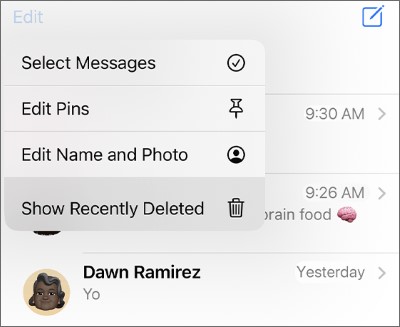
Step 4. Browse the deleted conversations and select the ones you want to restore.
Step 5. Tap "Recover", then confirm by tapping "Recover Messages" or the corresponding confirmation option.
Your selected conversations should now reappear in the Messages app.
Part 2. How to Recover Deleted iMessages on iPhone from iCloud Backup
If you have an iCloud backup created before deleting your iMessages, you may be able to retrieve them by restoring your iPhone from that backup. However, there is one important thing to check first: whether Messages in iCloud is enabled.
When Messages in iCloud is turned on, your messages sync separately with iCloud and are not included in your regular iCloud device backup. When this feature is turned off, your messages and attachments can be saved in your next iCloud backup.
If your backup contains the deleted messages, follow these steps:
Step 1. Check Your Available iCloud Backups
Open "Settings" on your iPhone.
Tap your name at the top, then select "iCloud".
Tap "iCloud Backup".
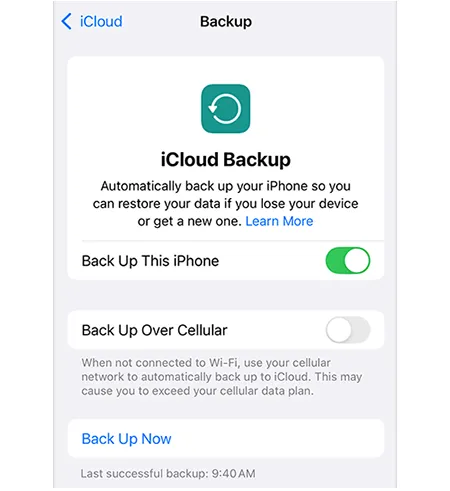
Check the date of your latest backup and determine whether it was created before the messages were deleted.
Step 2. Erase Your iPhone
Before restoring an older backup, you need to erase your iPhone if it has already been set up.
Go to "Settings" > "General" > "Transfer or Reset iPhone".
Tap "Erase All Content and Settings".
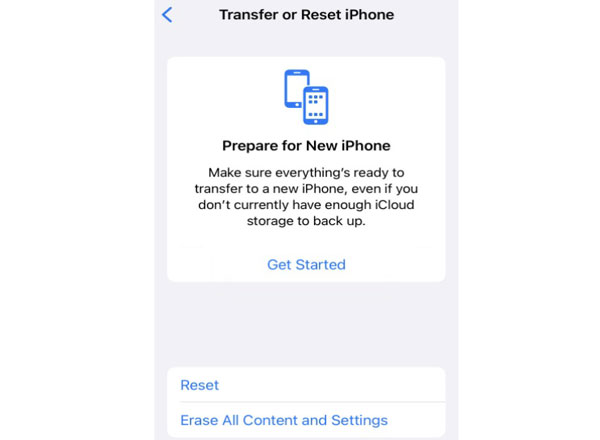
Follow the on-screen instructions to complete the process.
Make sure you have a separate backup of your current iPhone data before proceeding, as erasing the device will remove its existing content.
Step 3. Restore from an iCloud Backup
Turn on your iPhone and follow the initial setup instructions.
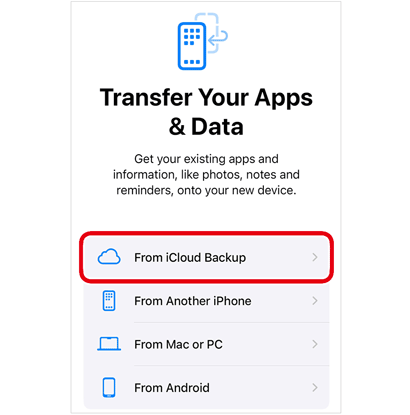
When you reach the Transfer Your Apps & Data screen, select "From iCloud Backup".
Sign in with the Apple account used to create the backup.
Choose a backup made before the iMessages were deleted.
Wait for the restoration process to finish and keep your iPhone connected to Wi-Fi.
Once the restore is complete, open the Messages app and check whether your deleted conversations have returned.
Part 3. How to Retrieve Deleted iMessages from Finder or iTunes Backup
If you previously backed up your iPhone to a computer, you can also try retrieving deleted iMessages from a Finder or iTunes backup. This is useful if you do not have a suitable iCloud backup but have an older local backup that may contain the missing conversations.
The restoration process depends on the computer you use:
On a Mac Running macOS Catalina or Later:
Step 1. Connect your iPhone to your Mac using a USB cable.
Step 2. Open Finder and select your iPhone under Locations.
Step 3. Click the "General" tab.
Step 4. Select "Restore Backup".
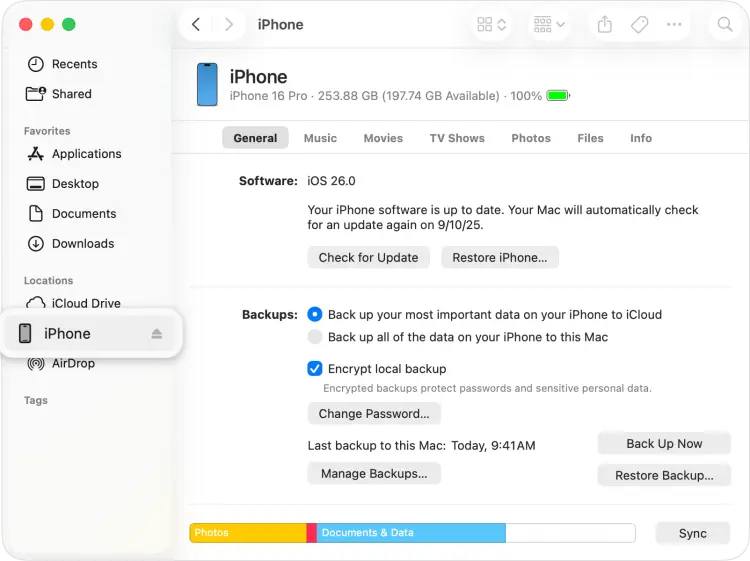
Step 5. Choose a backup created before the iMessages were deleted.
Step 6. Click "Restore" and wait for the process to finish.
On a Windows PC or an Older Mac:
Step 1. Connect your iPhone to the computer.
Step 2. Open iTunes (or Apple Devices on supported Windows versions).
Step 3. Select your iPhone when it appears.
Step 4. Go to the device's Summary page in iTunes, or the general device management screen in Apple Devices.
Step 5. Click "Restore Backup".
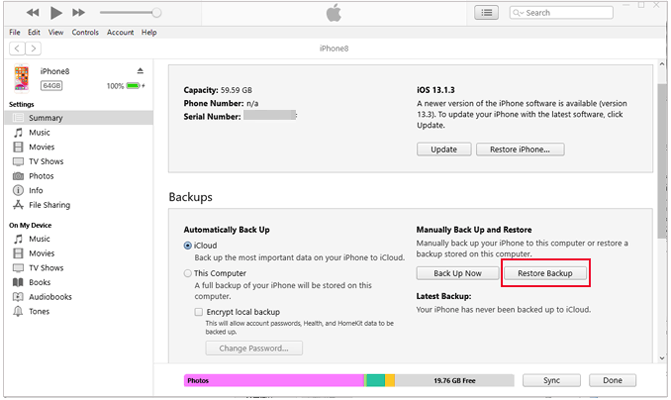
Step 6. Select the appropriate backup and confirm the restoration.
Part 4. How to Recover Deleted iMessages from Other Apple Devices
If you use iMessage on multiple Apple devices, such as an iPad, Mac, or another iPhone, you can check whether the deleted conversation is still visible on one of them. This method may work if another device has not yet synchronized the deletion. For example, an iPad that was offline when you deleted a conversation on your iPhone might still have a local copy of the messages.
Try the following steps:
Step 1. Check your iPad, Mac, or secondary iPhone that uses the same Apple account and iMessage settings.
Step 2. Open the Messages app and look for the conversation you deleted.
Step 3. If the messages are still visible, avoid reconnecting that device to the internet until you have saved a copy of the conversation.
Step 4. Take screenshots or copy the message content to another safe location.
If you find the conversation, you can preserve its contents without restoring your entire iPhone.
Part 5. How to Get Deleted iMessages on iPhone Back from the Recipient
If you cannot recover deleted iMessages through your iPhone or backups, another simple option is to contact the person you were chatting with. Deleting a conversation from your iPhone does not automatically delete the corresponding conversation from the recipient's device. If the recipient still has the messages, you can ask them to share the missing content with you.
Here are a few ways to do this:
Step 1. Contact the person who participated in the original iMessage conversation.
Step 2. Explain which messages or conversations you accidentally deleted.
Step 3. Ask them to take screenshots, copy the message text, or forward the relevant information to you.
Step 4. Save the received content to your iPhone or another secure location.
Part 6. How to Recover Deleted iMessages Using iPhone Data Recovery Software
If the previous methods do not work, you can consider using a dedicated iPhone data recovery tool. Data Recovery is one option worth considering. It provides several recovery modes that allow you to scan an iOS device or an existing iTunes/iCloud backup for lost data.
Unlike restoring an entire backup directly through Apple's built-in tools, Data Recovery allows you to preview available recovery results and select specific messages to export to your computer. This can be useful when you only need certain conversations and want to avoid replacing all the current data on your iPhone.
Key Features of Data Recovery
- Supports recovering data from an iOS device, iTunes backup, or iCloud backup.
- Supports scanning for lost messages and other data types, including photos, videos, contacts, and notes.
- Allows you to check available data before deciding what to recover.
- Compatible with iOS 9.3.5 to iOS 27.
6.1 Recover Deleted iMessages from iPhone Directly
If you don't have a backup containing your deleted iMessages, you can use Data Recovery to scan your iPhone for recoverable message data. Follow these steps:
-
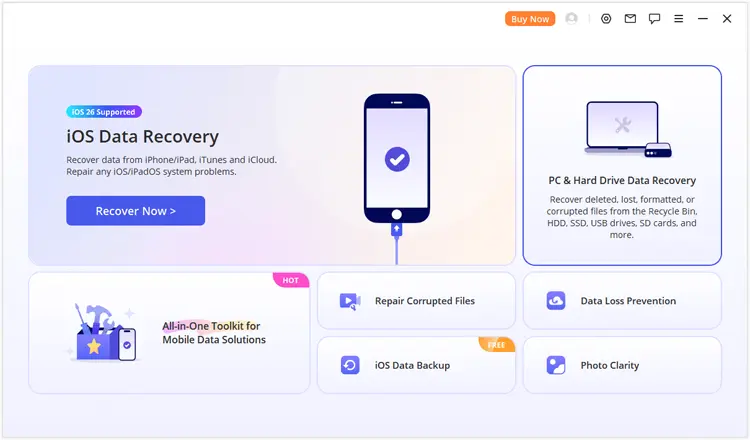
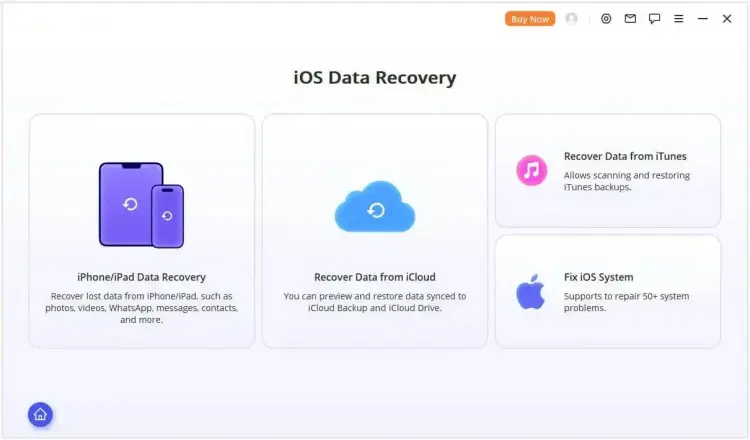
Download and launch Data Recovery on your computer. Select the "iOS Data Recovery" mode from the main interface.
-
Choose the appropriate recovery option for your situation and enter the "iPhone/iPad Data Recovery" module.
-
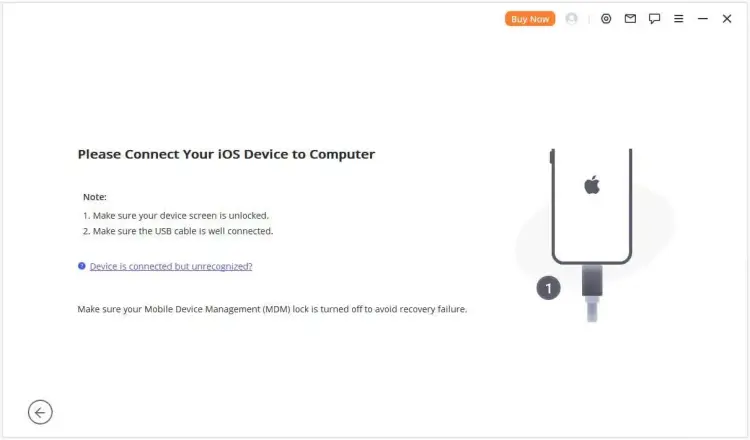
Connect your iPhone to the computer using a USB cable. Once Data Recovery recognizes your device, click "Next" to proceed.
-
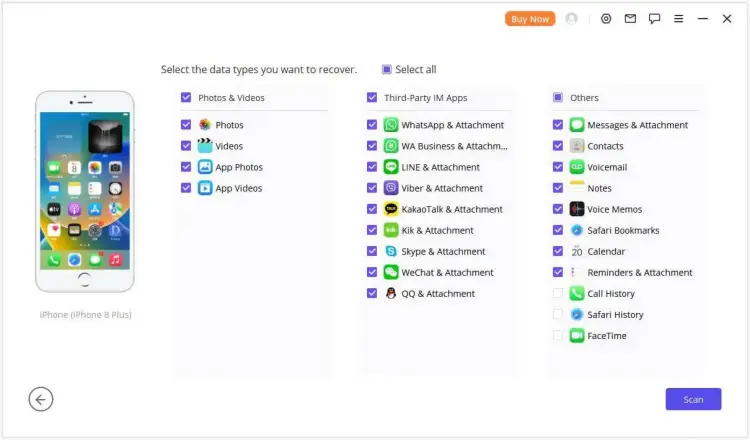
Select "Messages & Attachment" from the data categories and click "Scan" to search your iPhone for recoverable iMessages.
-
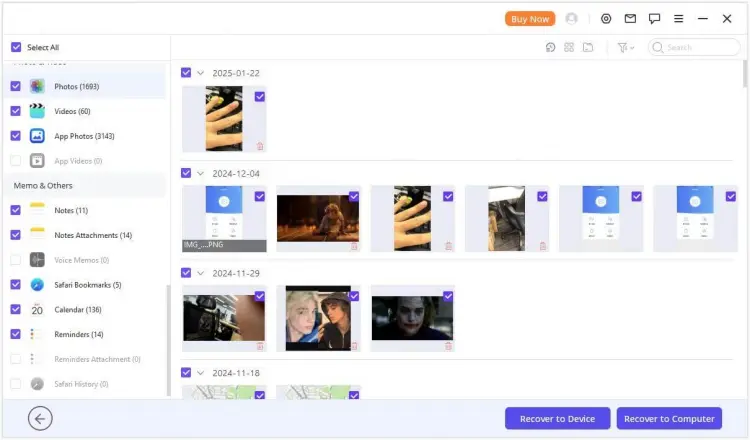
After scanning, preview the available messages and select the conversations you want to retrieve. Click "Recover to Computer" or "Recover to Device" to save the selected messages.
6.2 Recover Deleted iMessages from iTunes Backup
If you have an iTunes backup created before deleting your iMessages, Data Recovery can scan the backup and extract available messages without requiring you to restore the entire backup to your iPhone.
-
Launch Data Recovery and select the "Recover from iTunes Backup" module.
-
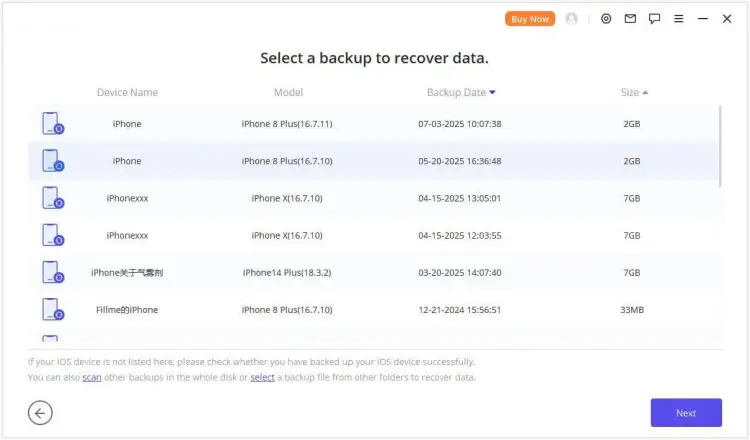
Choose the iTunes backup that may contain your deleted iMessages and click "Next" to continue.
-
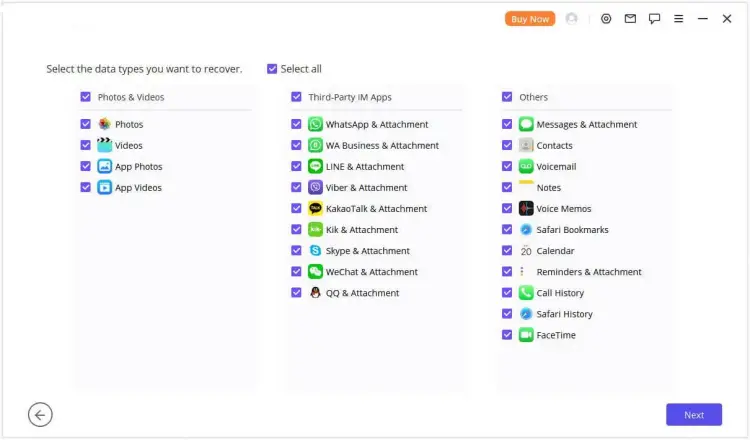
Select "Messages & Attachment" as the data type you want to retrieve, then click "Scan" to examine the backup.
-
Preview the recovered message results and filter them if necessary. Select the conversations you need and click "Recover to Computer" or "Recover to Device" to export them.
6.3 Recover Deleted iMessages from iCloud Backup
If your deleted iMessages were included in an available iCloud backup, you can also use Data Recovery to extract them. This approach lets you preview and select messages from the backup instead of restoring the entire backup through your iPhone settings.
-
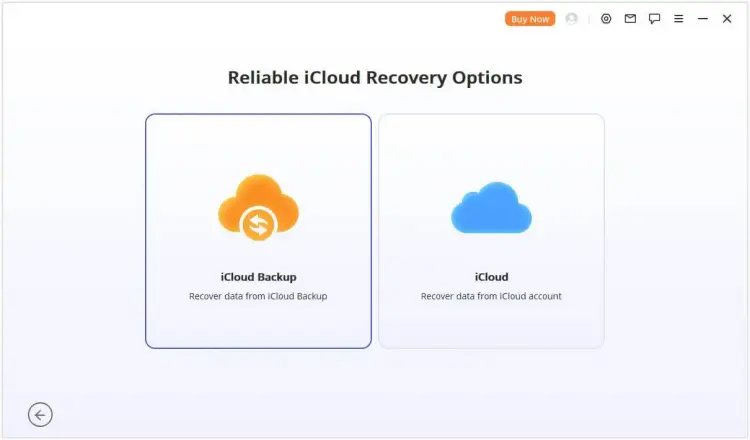
Open Data Recovery and navigate to "Recover from iCloud". Then select "iCloud Backup".
-
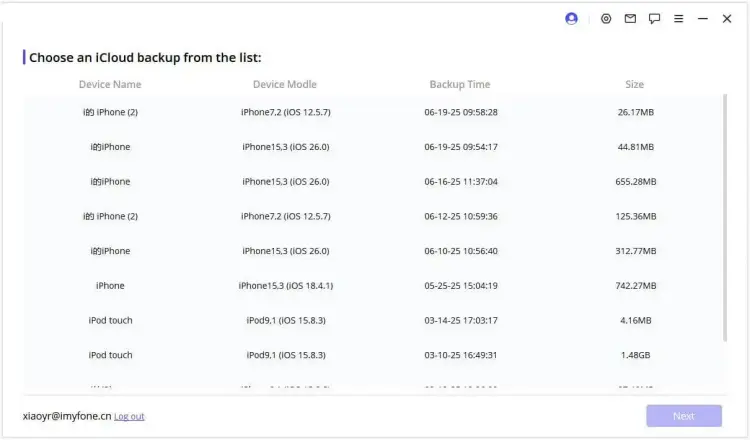
Follow the instructions based on your iPhone's status and select an available iCloud backup. Wait for the backup information to load, then connect your iPhone to Data Recovery if prompted.
-
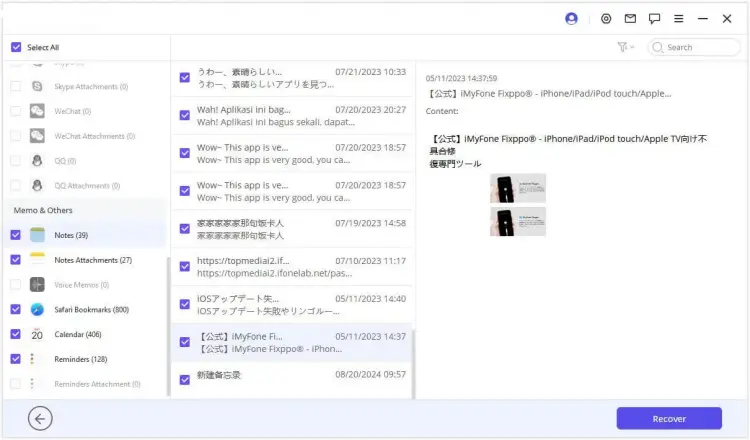
Preview the available messages in the selected backup. Choose the iMessages you want to retrieve and click "Recover" to export them.
FAQs About How to Recover Deleted iMessages
1. Where are deleted iMessages kept?
On iPhones running iOS 16 or later, deleted messages and conversations are temporarily stored in the Recently Deleted folder in the Messages app. You can access it by opening "Messages", tapping "Filters" or "Edit", and selecting "Recently Deleted".
Messages remain there for up to 30 days under Apple's current iPhone user guide. After that, they are automatically removed and can no longer be restored through this folder.
2. Can I recover permanently deleted iMessages on iPhone without a backup?
Yes, you may have a few options, although recovery is not guaranteed. First, check whether another Apple device still has an unsynchronized copy of the conversation. You can also ask the recipient to share the messages with you.
Alternatively, try an iPhone data recovery tool such as Data Recovery to scan your device for recoverable messages. However, if the messages have been permanently removed and no accessible copy remains, they may not be recoverable.
3. Can I recover deleted iMessages without erasing my iPhone?
Yes. You can recover messages from Recently Deleted without erasing your iPhone. You can also use Data Recovery to scan an accessible iOS device or an existing computer backup and selectively export available messages to your computer.
However, restoring an entire iCloud or Finder/iTunes backup through Apple's built-in restoration process generally requires replacing the current device data with the selected backup. Make a separate backup of your current data before attempting this.
Conclusion
In this article, we have explored six practical ways to recover deleted iMessages on iPhone, including Recently Deleted, iCloud backup, Finder/iTunes backup, other Apple devices, and the recipient's copy. Each method has its own advantages and limitations, so the right choice depends on your backup situation and whether the deleted messages are still available somewhere.
If you cannot find your messages through Apple's built-in options, Data Recovery is another option to consider. It allows you to scan your iPhone or existing backups, preview available messages, and selectively export the data you need without restoring the entire device. Give it a try to see whether your deleted iMessages can be recovered.
Related Articles
Easily Print Text Messages from iPhone via 4 Methods (Latest)
How to Permanently Delete Messages on iPhone [Support Latest iOS]