


"How do I permanently delete Contacts from my iPhone and iCloud? I removed them from my iPhone 16, and then they still show up when I start a text message. I want them go forever. Please help me!"
- From Apple Community
If you're looking to permanently delete contacts from an iPhone, you may have several reasons: perhaps you want to clear up clutter, remove outdated information, or ensure that no sensitive data remains. Whatever your reason, it's essential to understand how to permanently erase contacts from your device to ensure they no longer appear in your list or are recoverable. Go through this guide, and you will get 5 solutions.
- Part 1: How to Permanently Delete Contacts from iPhone via iPhone Data Eraser?
- Part 2: How Do You Delete a Contact on iPhone Manually (No Longer Appearing)?
- Part 3: How to Delete Contacts from iPhone Permanently via iCloud?
- Part 4: How to Delete Contacts on iPhone Permanently by Linked Accounts?
- Part 5: How to Permanently Delete Contacts on iPhone via Resetting iPhone?
- Part 6: Q&A About Permanently Deleting Contacts from iPhone
Compare the pros and cons of these 5 methods:
|
Method
|
Pros
|
Cons
|
|---|---|---|
| iReaShare iPhone Data Eraser | 1. Overwrites data so it can never be recovered. 2. Very user-friendly for beginners. 3. Supports most iOS devices. |
1. Requires a computer. 2. A paid software. |
| Manual Deletion | 1. No extra tools needed for a few contacts. 2. Flexible selection. |
1. Very tedious if you have hundreds to delete. 2. Deleted contacts can be recovered. |
| iCloud.com | You can select many contacts at once. | Requires internet and your Apple ID login. |
| Linked Accounts | Instantly removes all contacts from Gmail, Outlook, etc. | You can't pick individual names to keep. |
| Resetting iPhone | Wipes the entire phone clean for selling. No additional installation. |
1. Erases photos, apps, and other data along with contacts. 2. No overwriting. |
Part 1: How to Permanently Delete Contacts from iPhone via iPhone Data Eraser?
If you want to ensure that all your contacts are completely wiped from your iPhone, using a specialized tool like iReaShare iPhone Data Eraser might be your best option. This software can permanently wipe everything from your iPhone without leaving a trace, including your contacts and all other data without leaving a trace. By the way, if you don't want to lose other data, please back up your iPhone first.
Main features of iReaShare iPhone Data Eraser:
* Completely delete all contacts and other data from an iPhone.
* Provide three erasing levels: Low, Medium, and High.
* Overwrite deleted data thoroughly, making all your data unrecoverable.
* User-friendly interface enables you to complete the data erasure with simple clicks.
* Supports iOS 5.0 or later, including iPhone 17 Pro Max/17 Pro/17/Air/16/15/14/13/12/11/X, iPad Pro, iPad mini, iPad Air, etc.
Download the iPhone data eraser software.
Here's how to permanently delete contacts from an iPhone:
-
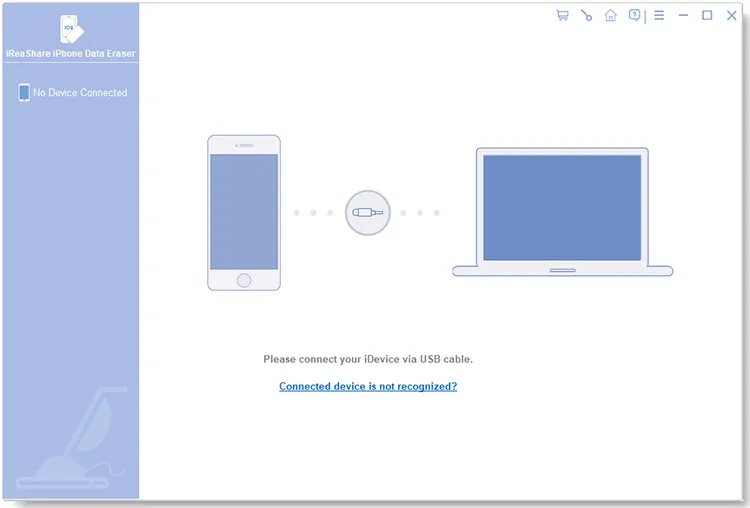
Install iReaShare iPhone Data Eraser on your computer, launch it, and then connect your iPhone to the PC via USB.
-
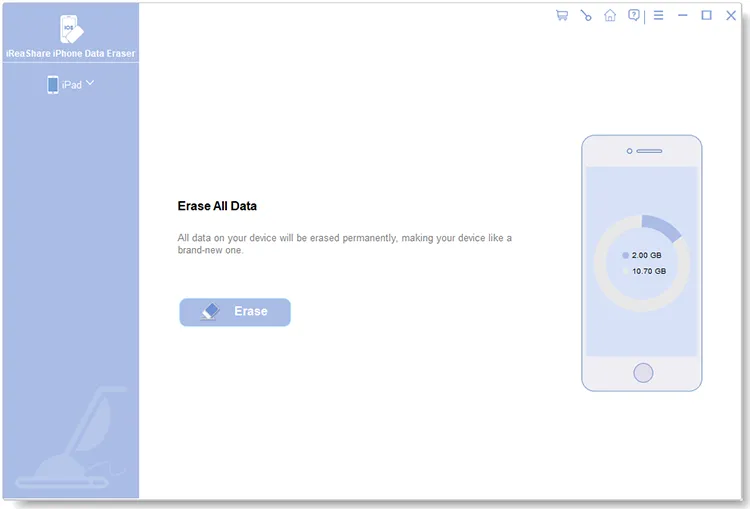
Choose "Trust" on your iPhone to make it trust your computer. Once connected, click "Erase". If prompted, turn off "Find My iPhone" on your device.
-
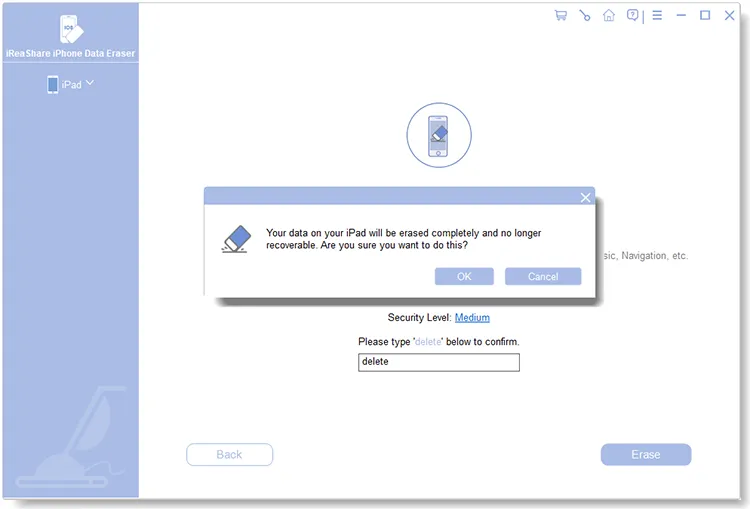
Click "Medium" to choose a level for erasure. Then type "delete", and click "Erase" > "OK". The program will start to delete your iPhone data, including your contacts. After that, you need to set up your iPhone again.
Part 2: How Do You Delete a Contact on iPhone Manually (No Longer Appearing)?
"How do I permanently delete multiple Contacts from my iPhone?" If you only have a few entries to remove, the manual method is the quickest way to clean up your address book. However, some users find that the deleted contacts still keep appearing on their iPhone. In this case, we need to do one more step.
To delete multiple contacts on an iPhone manually:
-
Open the Contacts app (or Phone app > Contacts tab) on your iPhone. Then tap the name of the person you wish to remove.
-
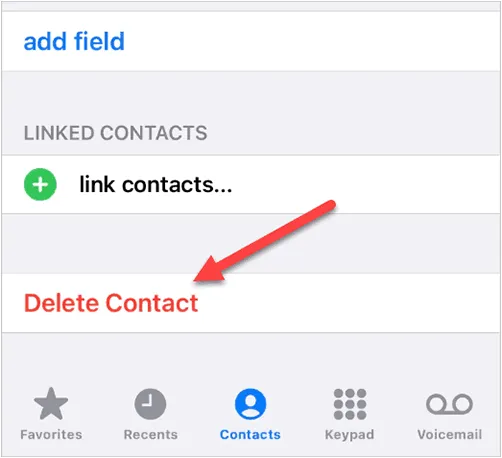
Tap "Edit" in the top-right corner, scroll to the very bottom, and tap "Delete Contact". Confirm by tapping "Delete Contact" again.
-
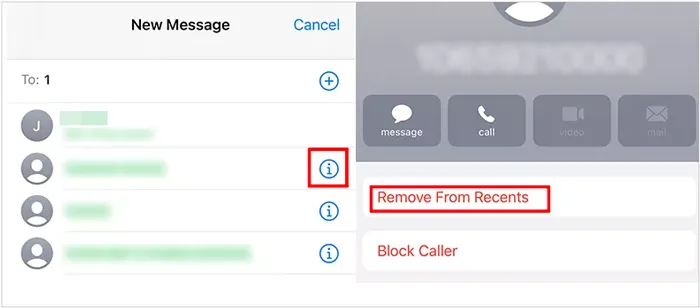
To get rid of deleted contacts from your iPhone so they don't appear when you type in the first few letters of a name, please click the "i" icon next to the name, and tap "Remove From Recents". Then the contact will not show up again.
Part 3: How to Delete Contacts from iPhone Permanently via iCloud?
If your contacts are synced across multiple Apple devices, deleting them on the iCloud account ensures they vanish from your iPad, Mac, and iPhone simultaneously.
To permanently delete contacts from an iPhone via iCloud:
-
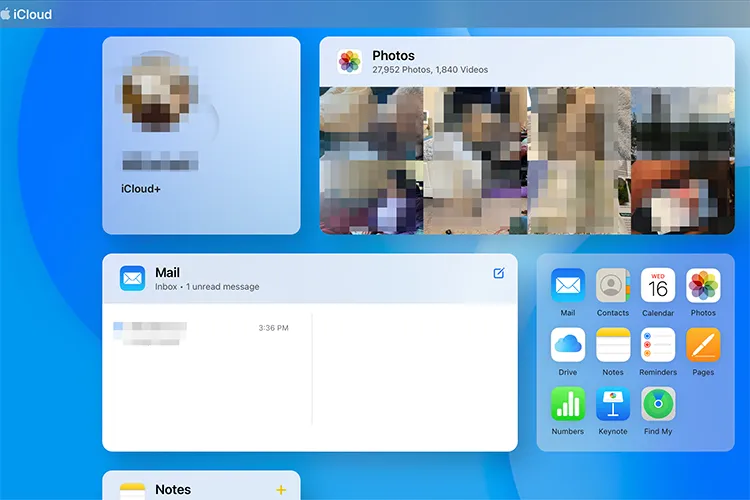
Go to iCloud.com on a computer and sign in with your Apple ID. Then click on the "Contacts" icon.
-
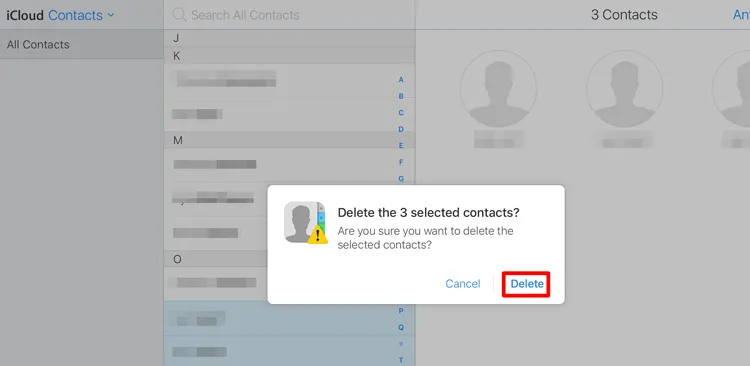
Highlight the contact(s) you want to remove. You can use "Ctrl + Click" or "Cmd + Click" for multiples.
-
Press the "Delete" key on your keyboard or click the "Settings" (gear icon) > "Delete". Confirm the action; the change will sync to your iPhone within seconds.
Part 4: How to Delete Contacts on iPhone Permanently by Linked Accounts?
If you have linked your iPhone to other accounts, such as Gmail, Outlook, or other services, contacts synced from these accounts may still appear on your device. To remove these, you must disconnect the account sync. This method ensures that your contacts are deleted not only from your iPhone but also from any linked accounts.
Here's how:
-
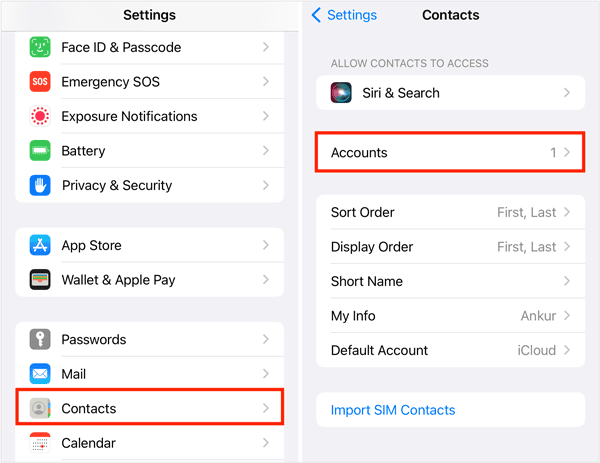
Go to Settings > "Contacts" > "Accounts" on your iPhone. Then tap on the specific account (e.g., Gmail).
-
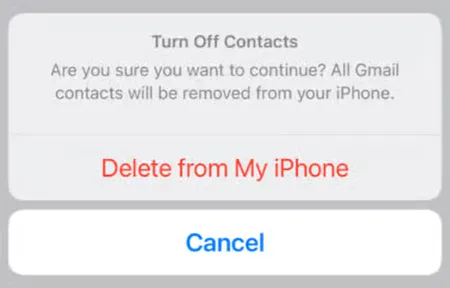
Toggle the "Contacts" switch to "Off". Select "Delete from My iPhone" when prompted. This removes the synced list without deleting your actual email account.
-
To permanently delete the contacts, visit the corresponding website and delete the contacts directly from there.
Part 5: How to Permanently Delete Contacts on iPhone via Resetting iPhone?
Resetting your iPhone to factory settings is another way to remove all data, including contacts, from your device permanently. However, note that this will erase all your data (apps, photos, etc.) from the device.
To permanently delete contacts on your iPhone via resetting the device:
-
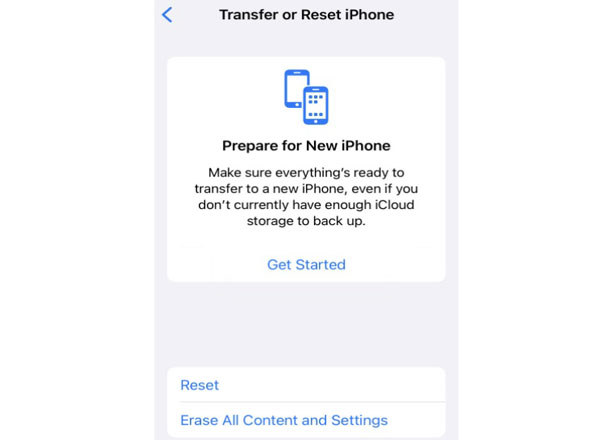
Unlock your iPhone, and go to Settings > "General" > "Transfer or Reset iPhone".
-
Tap "Erase All Content and Settings", and follow the prompts to sign out of your Apple ID and confirm.
-
Once done, set up your iPhone again.
Part 6: Q&A About Permanently Deleting Contacts from iPhone
Q1: Why can't I delete my iPhone contacts?
There could be a few reasons you might be unable to delete contacts:
- Contacts synced via iCloud or other accounts: If your contacts are synced with iCloud or another account (like Gmail), deleting them from the iPhone might not remove them from the server.
- Restrictions on the iPhone: Some settings may prevent you from deleting contacts. Check if there are any restrictions enabled in the Settings > Screen Time > Content & Privacy Restrictions.
- Sync Issues: Sometimes syncing errors may prevent changes from taking effect, and a simple restart may resolve it.
- Besides, if the contact is "Read-Only" from a third-party app (like Facebook or WhatsApp) or if it's managed by a work/school profile. You may need to disable the sync for that specific account in your Settings.
Q2: Do deleted contacts stay on iCloud?
Yes, for a limited time. iCloud has a "Restore Contacts" feature. If you delete a contact, it stays in an archive for 30 days before it is purged from Apple's servers.
Q3: Where does a deleted contact go on iPhone?
Technically, the space it occupied is marked as "available", but the data remains in the flash memory until it is overwritten by new data. This is why specialized recovery software can sometimes find them unless you use a dedicated data erasure tool.
Conclusion
You can now permanently delete your contacts from your iPhone without effort. If you want the simplest method, use iReaShare iPhone Data Eraser. With it, you can erase all your contacts and other data at once with several clicks. Furthermore, it can overwrite your deleted info completely, which is safer than manual deletion. As for daily organization, the manual or iCloud methods work well.
Related Articles
How to Transfer eSIM from Android to iPhone Easily (3 Viable Ways)
Why Is iPhone Stuck on Update Requested? Fix It with Easy Steps
Easily Print Text Messages from iPhone via 4 Methods (Latest)
How to Permanently Delete Photos from iPhone via Hassle-free Methods

