


TL;DR:
- Best for Complete Privacy & Irreversible Cleaning: iReaShare Data Wipe - Overwrites disk sectors using DoD 5220.22-M / NIST standards to ensure erased junk, traces, and files are 100% unrecoverable.
- Best Built-in Free Tool: Windows Storage Sense & Disk Cleanup - Ideal for everyday C-drive temporary file removal without installing third-party apps.
- Best Open-Source Cleaner: BleachBit - Transparent, privacy-centric cache wiper for tech-savvy users.
- Best Official System Optimizer: Microsoft PC Manager - Lightweight utility directly from Microsoft for memory management and startup control.
In modern PC maintenance, simply emptying your Recycle Bin is like closing a door without locking it-true system cleaning requires permanently overwriting the raw digital footprints underneath.
Selecting the best Windows PC cleaner comes down to more than just clearing temporary cache files-it requires a safe, effective tool that reclaims drive storage while permanently safeguarding your digital privacy.
- Part 1: What is the Best PC Cleaner for Windows 11/10?
- Part 2: What Makes a PC Cleaner Safe and Effective?
- Part 3: Quick Comparison: Top PC Cleaning & Erasure Software
- Part 4: 5 Best Windows Cleaner & Erasure Tools
- Part 5: Basic Cleaning vs. Secure Data Erasure
- Part 6: Frequently Asked Questions (FAQs)
Part 1: What is the Best PC Cleaner for Windows 11/10?
The best PC cleaner depends on your objective: for routine disk maintenance, Windows Storage Sense effectively deletes temporary system files (%temp% and SoftwareDistribution). However, for privacy security, disk sanitization, and deep system cleanup, a dedicated PC data wipe software like iReaShare Data Wipe is required.
Standard cleaners only mark sector flags as "deleted"-leaving raw data recoverable by scanning software. True data wipers overwrite storage sectors with zero or random patterns based on compliance standards (e.g., NIST 800-88 or DoD 5220.22-M).
Part 2: What Makes a PC Cleaner Safe and Effective?
Based on ongoing technical discussions across Reddit (r/TechSupport, r/Windows11) and the Microsoft Tech Community, user priorities for PC cleaning tools have shifted dramatically:
- Safety Over Aggressive Registry Cleaning: Aggressive registry cleaners often break system dependencies or corrupt Windows Update files (
WinSxS). Modern users prefer targeted disk cleanup over risky registry modifications. - Permanent Privacy Deletion vs. Simple Recycle Bin Emptying: Standard file deletion leaves residual magnetic or flash-memory trace logs. Users selling, donating, or repurposing PCs need permanent disk sanitization.
- SSD TRIM Awareness: Traditional multi-pass overwrites on SSDs/NVMe drives require smart handling to prevent unnecessary write cycles while ensuring flash memory blocks are sanitized.
Part 3: Quick Comparison: Top PC Cleaning & Erasure Software
| Software Name | Primary Use Case | Deep Wipe Capability? | Data Recovery Prevention | Price |
|---|---|---|---|---|
| iReaShare Data Wipe | Deep Sanitization & Junk Erasure | Yes (Military-grade) | 100% Irreversible | Free Trial / Paid |
| Windows Storage Sense | Basic Temp File Removal | No | Easily Recoverable | Free (Built-in) |
| Microsoft PC Manager | RAM & Background Process Tuning | No | Easily Recoverable | Free |
| BleachBit | Privacy Cache & Log Cleansing | Basic Shredding | Partial | Free (Open-Source) |
| CCleaner | Browser & Junk File Cleaning | Limited | Partial | Free / Paid |
Part 4: 5 Best Windows Cleaner & Erasure Tools
1. iReaShare Data Wipe - Best for Irreversible Deep Cleaning & Privacy Security
iReaShare Data Wipe is an advanced disk utility designed for users who need guaranteed privacy protection alongside comprehensive disk space recovery. Unlike basic cleaners that simply send files to the Recycle Bin or delete file allocation entries, iReaShare overwrites storage sectors at the hardware level.
Key Features
- Three Flexible Erasure Modes: Includes Drive Wiper to wipe hard drive/partition, Free Space Wiper to wipe deleted data (cleans free space without removing existing files), and File Shredder to wipe specific files/folders.
- Military-Grade Erasure Standards: Supports Zero Fill (1 pass), Random Data (1 pass), DoD 5220.22-M (3 passes).
- Complete Hardware Compatibility: Fully compatible with internal HDDs, SATA/NVMe SSDs, external hard drives, USB flash drives, and SD cards running Windows 11/10/8/7.
- Unrecoverable File Deletion: Completely prevents file recovery tools (e.g., Recuva, EaseUS) from retrieving sensitive financial records, private photos, or residual browser databases.
Download iReaShare Data Wipe now:
How to Wipe Your Hard Drive with iReaShare Data Wipe
Permanently wiping sensitive files and junk data with iReaShare Data Wipe requires just four simple steps:
Step 1: Select an Erasure Mode and Target Drive
Launch iReaShare Data Wipe on your Windows PC and choose the appropriate wiping option from the main menu. Let's say Drive Wiper. Then select the specific hard drive you wish to erase.
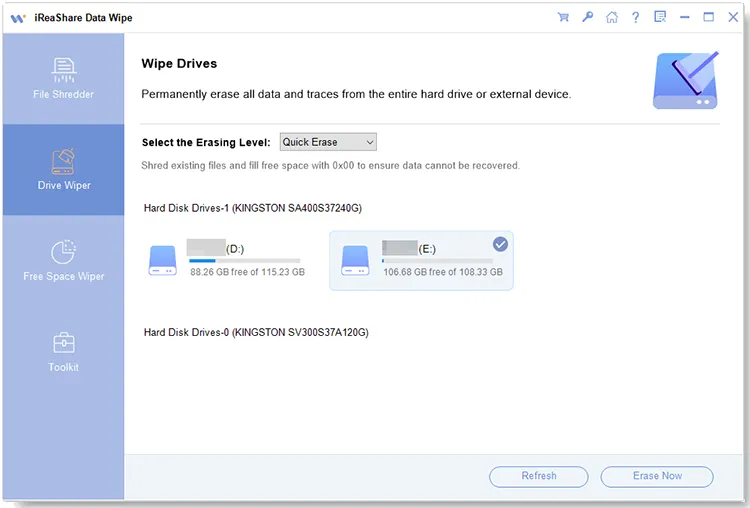
Step 2: Pick a Wiping Standard
Choose your desired erasure algorithm based on your security requirements—ranging from a quick single-pass Quick Erase to military-grade standards like Deep Erase.
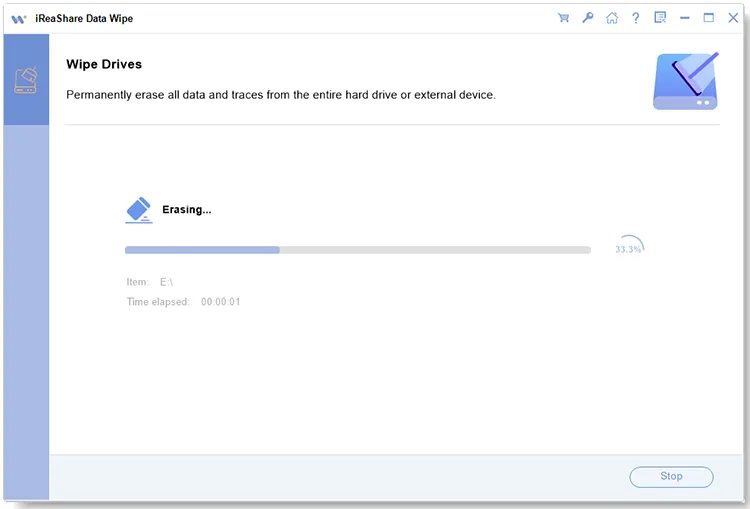
Step 3: Execute Irreversible Erasure
Click the "Wipe Now " button and confirm the prompt to begin the deep sanitization process. Once completed, your selected data will be 100% unrecoverable.
Video Guide:
Pros & Cons
- Pros:
- Ensures 100% data destruction; ideal prior to selling or donating a computer.
- Cleans free disk space without wiping the OS or personal files.
- Clean, ad-free interface with no bundled malware or push notifications.
- Cons:
- Deep overwriting operations take longer on very large capacity drives (1TB+).
Pricing
Free trial download available on the official iReaShare website, with flexible lifetime or subscription licensing options for full access.
2. Windows Storage Sense & Disk Cleanup - Best Built-in Free Solution
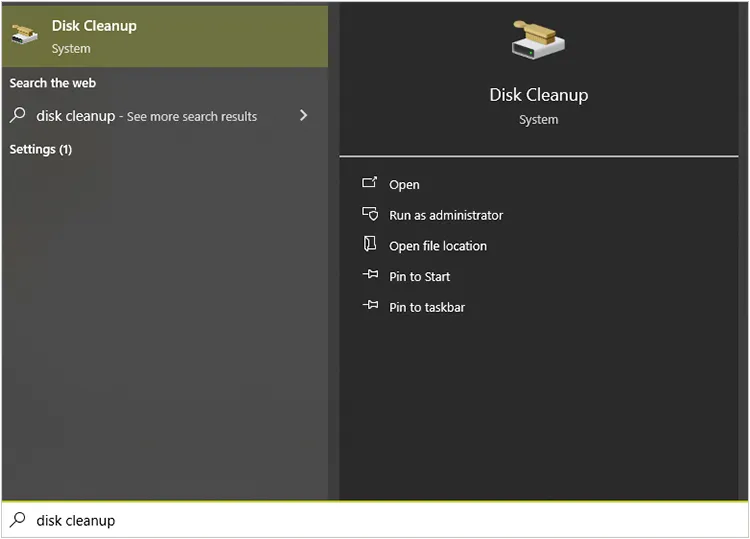
Windows 11 and 10 come pre-packaged with Storage Sense and the legacy Disk Cleanup (cleanmgr.exe). These tools remain the safest baseline option for freeing up C-drive space without risking system instability.
Key Features
- Automatic System Maintenance: Cleans out Windows update residue (
C:\Windows\SoftwareDistribution), delivery optimization files, and system crash dumps automatically. - Direct OS Integration: Native awareness of system files prevents accidental deletion of critical system libraries.
Steps to Use Storage Sense & Disk Cleanup:
Method A: Using Storage Sense (Automatic Maintenance)
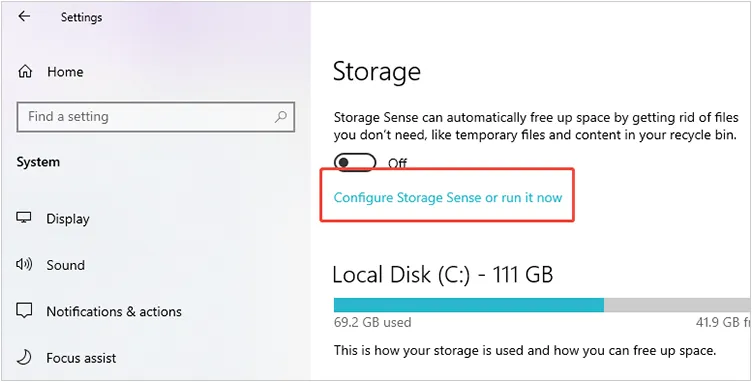
Step 1: Open Start > Settings > System > Storage.
Step 2: Toggle the Storage Sense switch to On under Storage Management.
Step 3: Click Storage Sense to configure cleanup schedules (e.g., run every week or when low on disk space) and click Configure Storage Sense or run it now.
Method B: Using Legacy Disk Cleanup (Deep C-Drive Clear)
Step 1: Press Win + R, type cleanmgr, and press Enter. Select the C: drive.
Step 2: Check the boxes next to temporary files, thumbmails, and Recycle Bin contents.
Step 3: Click Clean up system files to expand the scan for previous Windows installations (Windows.old).
Step 4: Click OK and confirm Delete Files.
Pros & Cons
- Pros: 100% free; zero installation required; completely safe for system stability.
- Cons: Cannot wipe free space or destroy file payloads to prevent forensic data recovery.
3. BleachBit - Best Open-Source Privacy Cleaner
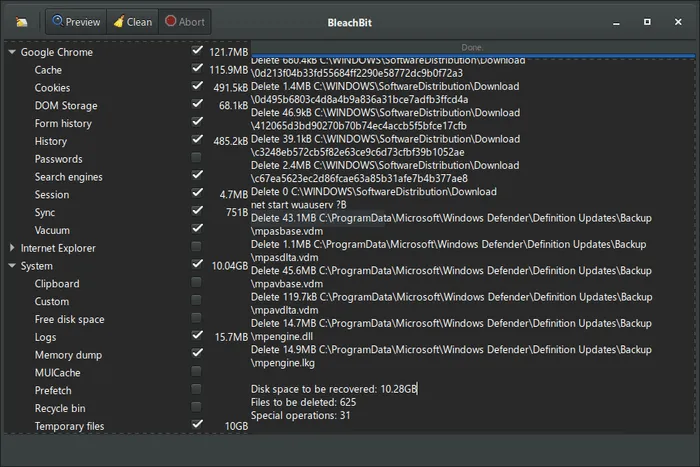
BleachBit is an open-source file cleaner designed to clear hidden cache, browser logs, and temporary files across hundreds of applications like Firefox, Chrome, and Adobe Reader.
Key Features
- Vacuuming Web Browsers: Cleans and defragmentates sqlite databases used by web browsers to speed up start times.
- Basic File Shredding: Allows users to overwrite specific files before deletion.
Steps to Optimize Your PC with Microsoft PC Manager
Step 1: Open Microsoft PC Manager from your Windows Start Menu.
Step 2: On the main dashboard, click the Boost button to immediately purge temporary memory and reduce RAM usage.
Step 3: Click Storage Management (or Deep Cleanup) to launch a system-wide scan for temporary updates and log junk.
Step 4: Review the scan list, select the recommended files, and click Clean to safely remove them.
Pros & Cons
- Pros: Open-source code base; no background telemetry tracking.
- Cons: Dated user interface; lacking advanced multi-pass disk wiping protocols for whole partitions.
4. Microsoft PC Manager - Best Official Desktop Optimizer
Developed directly by Microsoft, PC Manager is a lightweight system maintenance app that combines memory boosting, storage cleanup, and startup app management into a clean taskbar panel.
Key Features
- RAM Booster: One-click RAM optimization to clear temporary process caches.
- Pop-up Management: Reduces intrusive notification pop-ups from third-party desktop apps.
Step-by-Step Guide: How to Optimize Your PC with Microsoft PC Manager
Step 1: Open Microsoft PC Manager from your Windows Start Menu.
Step 2: On the main dashboard, click the Boost button to immediately purge temporary memory and reduce RAM usage.
Step 3: Click Storage Management (or Deep Cleanup) to launch a system-wide scan for temporary updates and log junk.
Step 4: Review the scan list, select the recommended files, and click Clean to safely remove them.
Pros & Cons
- Pros: Direct support from Microsoft guarantees zero system corruption risk.
- Cons: Lacks deep sector-level disk wiping capabilities.
5. CCleaner - Traditional PC Optimization Software
CCleaner remains one of the most widely recognized third-party utilities for clearing temporary internet files, tracking cookies, and software junk.
Key Features
- Health Check Analysis: Automated scanning of system performance and driver updates.
- Browser Privacy Cleaning: Removes cross-site cookies and cache across multiple user profiles.
Steps to Clean Junk Files with CCleaner
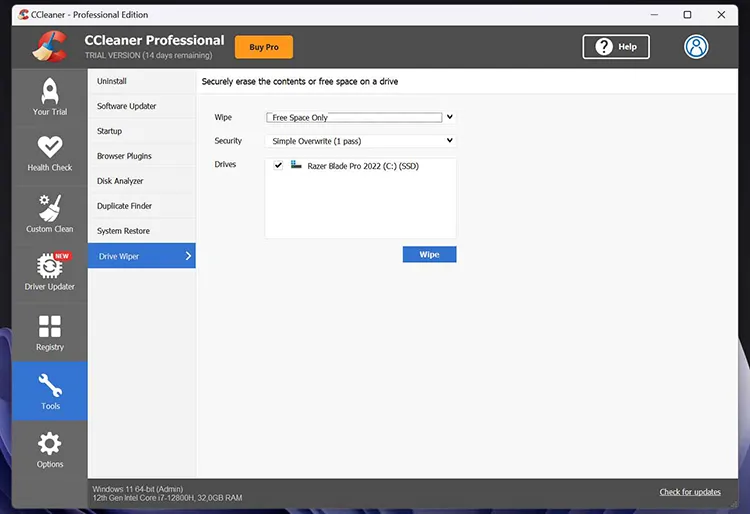
Step 1: Open CCleaner on your desktop.
Step 2: Choose Custom Clean from the left sidebar menu to pick specific Windows and Application caches.
Step 3: Click Analyze to let CCleaner scan for residual browser cookies and system junk.
Step 4: Click Run Cleaner and press Continue to proceed with deleting the identified files.
Pros & Cons
- Pros: Versatile suite for general non-sensitive file cleanup.
- Cons: Past security breaches and aggressive upsell pop-ups have led many users to search for clean PC data wipe software alternatives.
Part 5: Basic Cleaning vs. Secure Data Erasure
To choose the right tool for your system, it is vital to understand how Windows handles file storage:
- Standard File Deleting (Recycle Bin / Shift+Delete):
- Mechanism: Only deletes the pointer in the Master File Table (MFT) or File Allocation Table (FAT).
- Security Level: Low. Anyone using standard data recovery software can rebuild the original files.
- Deep Sector Erasure (Data Wiping):
- Mechanism: Uses structured data patterns (e.g., zero-fill or random byte filling) to write over every sector.
- Security Level: Maximum. Certified by compliance standards like NIST SP 800-88 Rev. 1, ensuring complete data destruction.
For users seeking to safely dispose of old storage media or sanitize private data logs, employing a reliable Windows cleaner with deep wipe algorithms is essential.
Part 6: Frequently Asked Questions (FAQs)
Q1: Do PC cleaners actually speed up Windows 11/10?
Cleaning temporary files releases C-drive storage capacity. When a system drive drops below 10-15% free space, Windows pagefile operations and virtual memory performance slow down. Removing junk restores system efficiency, though it does not replace hardware upgrades like adding RAM.
Q2: Is it safe to clean the Windows Registry?
Most modern PC tech experts advise against aggressive registry cleaning. Deleting registry keys offers negligible speed gains and risks corrupting system pathways. Focus instead on disk storage cleanup and startup program management.
Q3: How do I completely sanitize an SSD without damaging it?
For solid-state drives, standard multi-pass overwrites cause unnecessary wear. Using modern software that supports hardware TRIM commands or targeted free-space erasure ensures data privacy while maintaining SSD health.
Final Recommendation
When choosing the best PC cleaner for your Windows computer:
- Use Windows Storage Sense or Microsoft PC Manager for quick daily file maintenance.
- Choose iReaShare Data Wipe when you need complete disk sanitization, permanent privacy file shredding, or secure free-space cleaning that guarantees erased files can never be recovered.
Related Articles:
How to Erase SanDisk SD Card: Remove All Data Permanently
How Do I Permanently Delete a Word Document on Windows, Mac, & Mobile?
How to Format USB Drive Easily in 5 Ways (Step by Step)
How to Wipe PC Before Selling Windows 11/10/8/7 Completely

